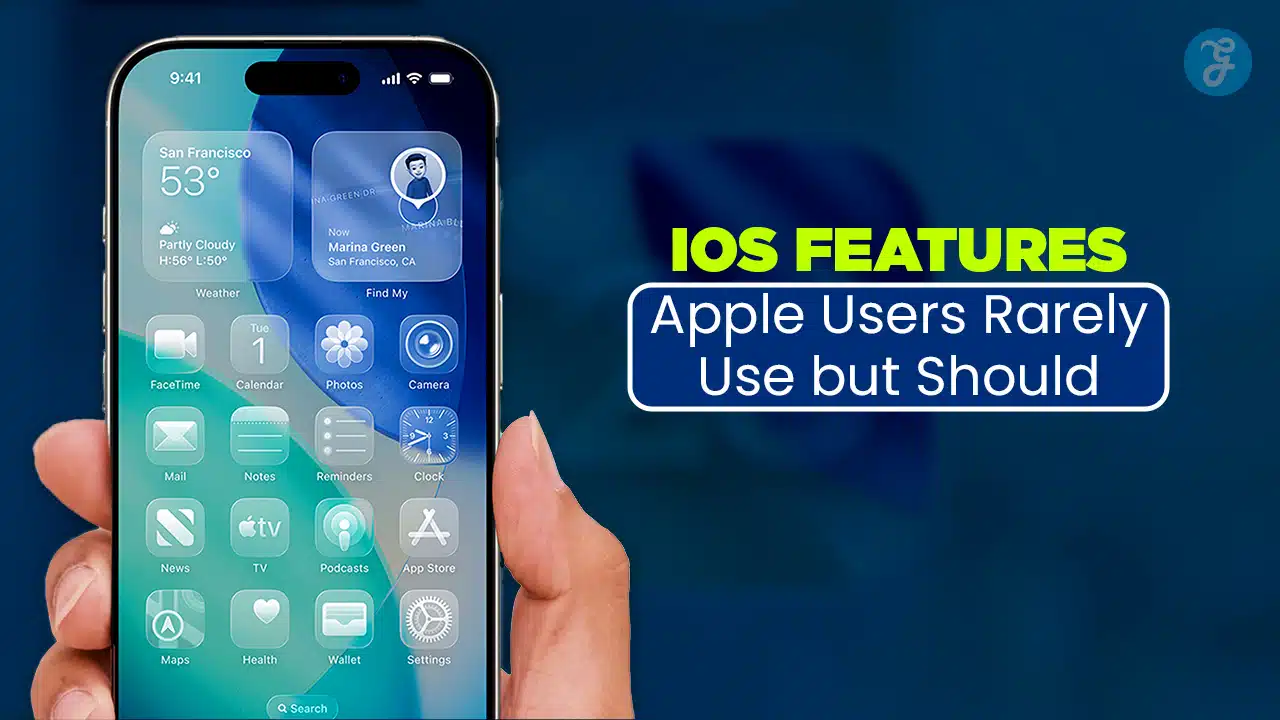
Apple releases new iOS versions every year with headline features that dominate marketing campaigns. But beneath those flashy additions sits a deep layer of practical tools that many users never notice. These iOS hidden features are already installed on your iPhone, quietly waiting in Settings, Control Center, or default apps.
Most people don’t miss these features because they are bad. They miss them because Apple designs iOS to stay simple by default. Advanced options stay tucked away until you actively look for them. Over time, this creates a gap between what iPhones can do and how most people actually use them.
This in-depth guide explores iOS hidden features that can improve daily productivity, reduce friction, protect privacy, and make your iPhone feel smarter without adding apps or complexity. Each feature is explained clearly, with practical use cases and simple setup steps.
Quick checklist before you begin
Before diving into the features, take a moment to prepare your device. This ensures smoother setup and better results as you explore the tools.
| Preparation step | Why it matters | Outcome |
| Update iOS | Some features improve with newer versions | Full access |
| Use Settings search | Faster navigation | Saves time |
| Start with 2–3 features | Avoid overwhelm | Better adoption |
| Test for a day | Build habits | Long-term use |
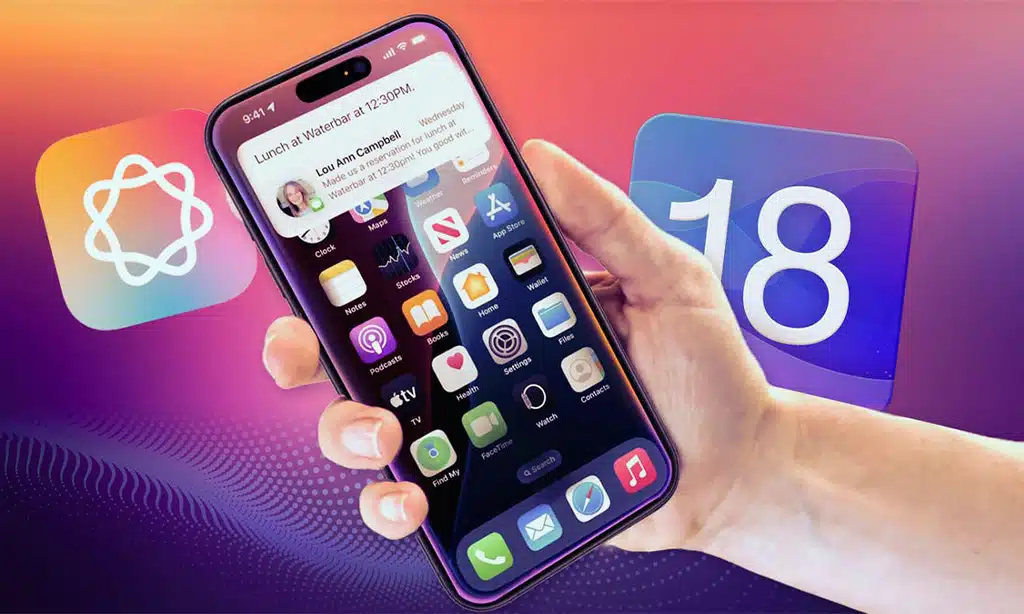
Back Tap turns the physical back of your iPhone into an invisible button. With a simple double or triple tap, you can trigger actions without touching on-screen controls. Apple originally designed this for accessibility, but it works extremely well for everyday convenience.
Many users never discover Back Tap because it lives deep inside Accessibility settings. Once enabled, however, it quickly becomes one of the most satisfying shortcuts on iOS. It reduces repetitive gestures and makes common actions feel instant.
Back Tap works best when assigned to actions you use several times a day. It’s not about novelty. It’s about reducing friction in small moments that add up.
What Back Tap does in daily use
Back Tap listens for physical taps on the rear of the device and translates them into commands. You can assign different actions to double and triple taps, giving you two customizable shortcuts.
Common actions include screenshots, flashlight, Control Center, camera launch, and running custom Shortcuts. Because it works system-wide, it functions regardless of which app you’re using.
Back Tap feels natural once you get used to it. It also reduces wear on physical buttons over time.
How to enable Back Tap
Go to Settings, open Accessibility, select Touch, then scroll to Back Tap. Choose Double Tap or Triple Tap and assign an action. You can change these at any time.
If Back Tap triggers accidentally, switch to less sensitive actions or try a different case. Thin cases usually work better than thick rugged ones.
| Back Tap action | Best use case | Benefit |
| Screenshot | Quick capture | Faster sharing |
| Flashlight | Dark environments | One-hand access |
| Control Center | Frequent toggles | Saves swipes |
| Run Shortcut | Custom routines | Automation boost |
2. Live Text: interact with text in the real world
Live Text transforms your camera and photo library into interactive tools. Instead of typing text manually, you can copy, search, translate, and act on text found in images. This feature quietly changed how many everyday tasks can be done on iPhone. It bridges the physical and digital worlds in a way that feels natural once you try it. Despite its usefulness, many users still don’t realize Live Text exists or how powerful it can be in daily life.
Practical uses of Live Text
Live Text works on printed documents, handwritten notes, signs, menus, receipts, and labels. It recognizes phone numbers, email addresses, dates, currencies, and units.
You can copy text into Notes, translate foreign languages instantly, dial numbers from posters, or look up unfamiliar terms directly from an image.
This saves time, reduces errors, and eliminates repetitive typing.
How to use Live Text efficiently
Open the Camera app and frame the text clearly. When the Live Text icon appears, tap it and choose your action. You can also use Live Text on existing photos inside the Photos app.
Clear lighting and steady framing improve accuracy. Even slightly angled text usually works well.
| Live Text task | Typical scenario | Result |
| Copy printed info | Receipts, labels | No retyping |
| Translate text | Travel signs | Instant clarity |
| Call numbers | Flyers, ads | Faster contact |
| Convert units | Recipes, prices | Fewer searches |
3. Drag and drop between apps on iPhone
Drag and drop allows you to move content directly between apps using touch gestures. It works with text, images, links, files, and more. While common on iPad, it also works surprisingly well on iPhone. Many people never attempt drag and drop on iPhone because it requires two fingers and feels unintuitive at first. Once learned, it becomes faster than copy-paste workflows. This feature shines when multitasking or organizing information across apps.
How drag and drop works
Press and hold an item until it lifts visually. Keep holding it with one finger, then use another finger to navigate to the destination app. Release to drop the content.
Some apps allow multi-selection, letting you drag several items at once.
When drag and drop saves the most time
Research tasks, note-taking, content sharing, and message composition benefit the most. It’s especially useful when gathering snippets from different sources.
| Drag action | From → To | Why it helps |
| Text snippet | Safari → Notes | Faster research |
| Images | Photos → Messages | Cleaner sharing |
| Links | Safari → Reminders | Context preserved |
| Files | Files → Mail | Less tapping |
4. Keyboard trackpad mode for precise editing
Typing on glass is convenient but imprecise when editing text. Keyboard trackpad mode solves this by turning the keyboard into a cursor control surface. Once you learn this gesture, it becomes essential for writing emails, editing documents, and correcting mistakes quickly. This feature reduces frustration and makes long-form typing on iPhone far more comfortable.
How trackpad mode works
Press and hold the space bar until the keyboard fades. Move your finger to position the cursor exactly where you want it.
On many devices, adding a second finger allows text selection while staying in trackpad mode.
Why this improves writing quality
Precise cursor control encourages better editing habits. Instead of avoiding fixes due to effort, users can refine sentences easily.
| Editing challenge | Trackpad solution | Improvement |
| Cursor misplacement | Space bar hold | Accuracy |
| Mid-word edits | Fine control | Fewer errors |
| Text selection | Two-finger gesture | Faster edits |
| Long messages | Smooth navigation | Better flow |
5. Customize Control Center for real-life use
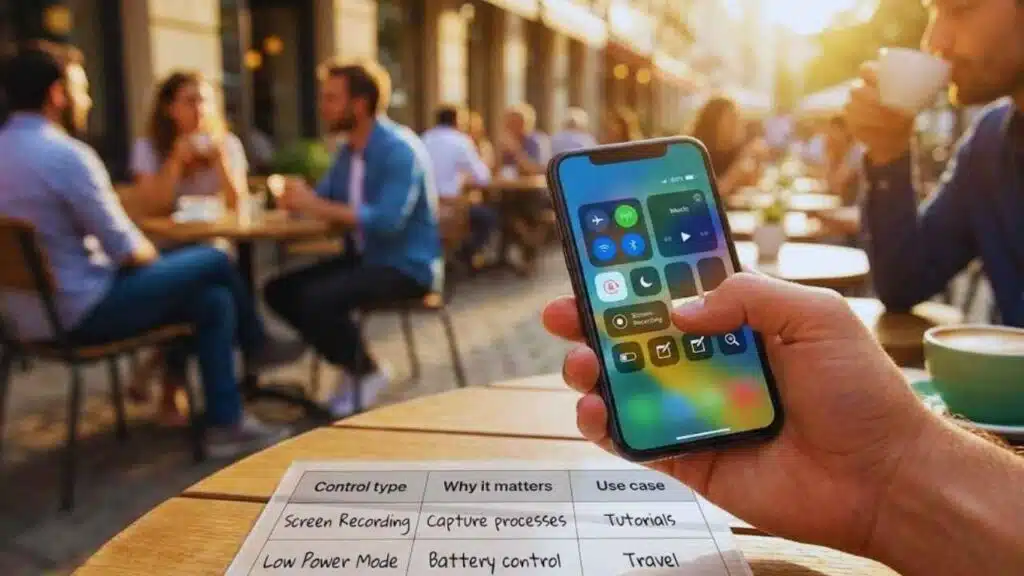
Control Center is designed to be personal. Yet most users leave it unchanged, missing the opportunity to turn it into a true quick-access panel. A well-designed Control Center reduces app switching and repetitive navigation. It becomes a central hub for actions you perform daily. Customizing it takes only a few minutes and pays off immediately.
What to add to Control Center
Focus on tools you need quickly, not everything available. Screen Recording, Low Power Mode, Notes, Magnifier, and Accessibility shortcuts offer high value.
Removing unused controls also improves clarity and speed.
How to customize Control Center
Go to Settings, open Control Center, and add or remove controls. You can reorder them by dragging.
| Control type | Why it matters | Use case |
| Screen Recording | Capture processes | Tutorials |
| Low Power Mode | Battery control | Travel |
| Notes | Quick writing | Ideas |
| Magnifier | Visual aid | Reading |
6. Focus modes beyond Do Not Disturb
Focus modes allow iPhone to adapt to your context. Instead of blocking everything, they selectively allow notifications that matter right now. This feature helps reduce distraction without cutting you off completely. Over time, it trains healthier notification habits. Focus modes work best when customized lightly and adjusted gradually.
Popular Focus mode ideas
Work, Sleep, Reading, Personal, and Fitness are common starting points. Each can filter notifications, home screens, and even app behavior.
You can schedule Focus modes by time, location, or app usage.
Avoiding common mistakes
Blocking too much at once causes users to abandon Focus modes. Start small and refine based on experience.
| Focus mode | Best use | Benefit |
| Work | Office hours | Fewer distractions |
| Sleep | Nighttime | Better rest |
| Reading | Deep focus | Improved concentration |
| Personal | Evenings | Work-life balance |
7. App Privacy Report for smarter permissions
App Privacy Report shows how apps access sensitive data such as location, camera, microphone, and contacts. It also reveals how often this access occurs. This transparency helps users make informed decisions rather than guessing which apps are trustworthy. Privacy control is not about fear. It’s about awareness and choice.
How to use App Privacy Report effectively
Review patterns, not one-time access. Frequent background access deserves attention.
Adjust permissions based on actual use rather than default settings.
| Privacy signal | What it suggests | Action |
| Frequent location use | Background tracking | Restrict access |
| Camera access | Media features | Review necessity |
| Many domains | Analytics activity | Limit permissions |
| Old unused apps | Dormant risk | Remove app |
8. Safety Check for sharing control
Safety Check helps users quickly review and reset sharing settings. While designed for safety situations, it’s useful for everyday privacy cleanup. It centralizes controls that are otherwise scattered across settings.
When Safety Check is helpful
After ending relationships, changing devices, or sharing access temporarily, Safety Check helps ensure nothing remains unintentionally shared.
How to approach Safety Check calmly
Use the review option first instead of emergency reset unless necessary. This allows thoughtful adjustments.
| Safety option | Purpose | Best use |
| Emergency Reset | Immediate stop | Urgent cases |
| Manage Sharing | Review settings | Regular cleanup |
| Location sharing | Control visibility | Privacy |
| App permissions | Limit access | Security |
9. Password tools and iCloud Keychain
Apple’s built-in password tools help manage strong, unique passwords and alert users to security risks. Even users with third-party managers benefit from reviewing Apple’s password security recommendations.
Why built-in tools matter
Password reuse and weak credentials remain major security risks. Built-in tools reduce friction in adopting better habits.
A simple improvement strategy
Fix compromised passwords first, then reused ones, and finally weak passwords.
| Password issue | Risk level | Priority |
| Compromised | High | Immediate |
| Reused | High | Next |
| Weak | Medium | Later |
| Old accounts | Medium | Cleanup |
10. Shortcuts automations for everyday routines
Shortcuts automations allow your iPhone to act automatically based on triggers. Once set, they save time without ongoing effort. This feature often feels intimidating, but simple automations are easy to create and highly effective.
Beginner-friendly automation ideas
Battery-based actions, location-based routines, and app-triggered Focus modes are excellent starting points.
Keeping automations helpful
Avoid too many notifications. Let automations run quietly where possible.
| Automation | Trigger | Outcome |
| Battery saver | Low battery | Extended usage |
| Commute setup | Car Bluetooth | Faster navigation |
| Work start | App open | Reduced distractions |
| Bedtime | Time | Consistent sleep |
11. Accessibility features that help everyone
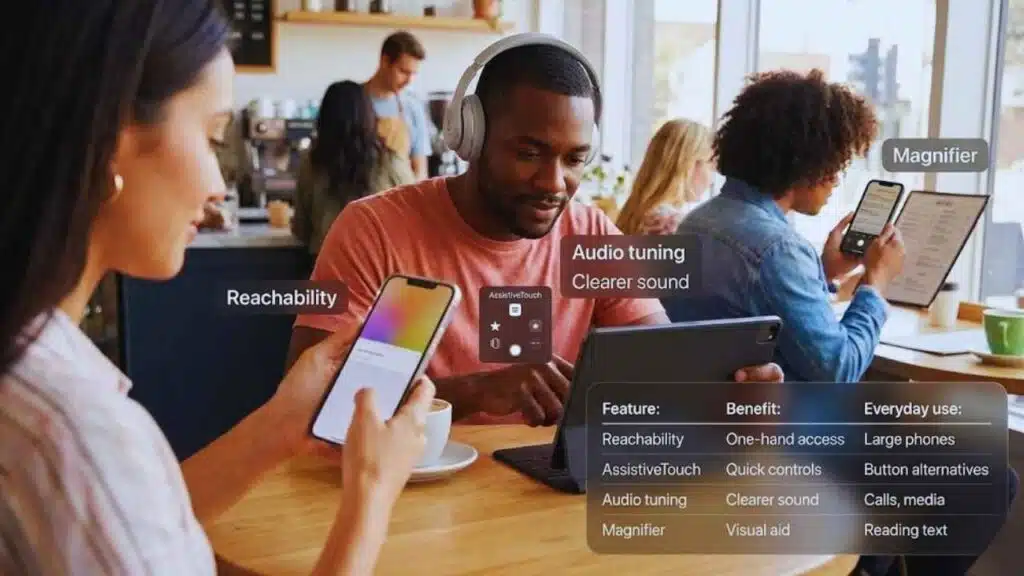
Accessibility tools often improve comfort and efficiency for all users, not just those with specific needs. Small adjustments can significantly reduce strain and improve usability.
Reachability for large screens
Reachability lowers the top of the screen, making one-handed use easier on larger iPhones.
AssistiveTouch and audio adjustments
AssistiveTouch adds a floating shortcut menu. Headphone accommodations improve audio clarity in noisy environments.
| Feature | Benefit | Everyday use |
| Reachability | One-hand access | Large phones |
| AssistiveTouch | Quick controls | Button alternatives |
| Audio tuning | Clearer sound | Calls, media |
| Magnifier | Visual aid | Reading text |
12. Built-in document scanner in Notes
The Notes app includes a powerful document scanner that creates clean PDFs without third-party apps. This tool is ideal for organizing paperwork digitally and securely.
Best everyday scanning uses
Receipts, forms, agreements, and handwritten notes all scan well.
Tips for better scans
Use even lighting and flat surfaces. Name files clearly for future retrieval.
| Scan goal | Feature | Result |
| Clean edges | Auto crop | Professional look |
| Multiple pages | Add scans | One PDF |
| Sign documents | Markup tools | Faster workflow |
| Secure storage | Locked notes | Privacy |
Final thoughts
Your iPhone already contains tools that can save time, reduce frustration, and improve privacy. The key is not enabling everything, but choosing what genuinely fits your life.
Start with two or three iOS hidden features that solve real problems for you. Let them become habits. Over time, your iPhone will feel more responsive, more personal, and more capable without becoming complicated.