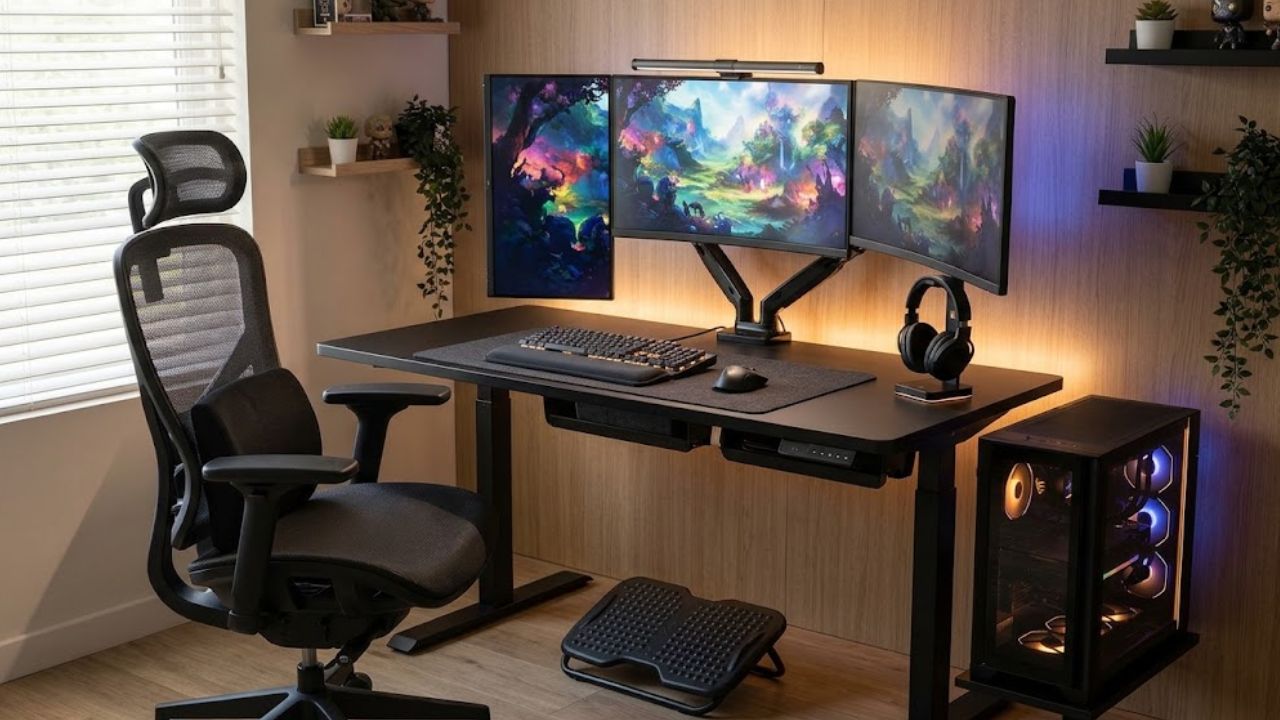
An ergonomic gaming setup combines a chair that fits, a desk at a comfortable height, a well-positioned screen, and controls within easy reach. The most useful upgrades address those basics first, followed by foot support, lighting, and room for regular movement.
If you lean forward to read menus or reach sideways for your mouse, start by adjusting what you own. A different screen height or clearer desk may solve the problem without another purchase.
These eight ergonomic upgrades explain what to adjust, when new equipment is worth buying, and which accessories you can skip. Work through them in order to build a more comfortable gaming space that suits your body, playing habits, and budget without filling your desk with extras.
Before Upgrading Your Ergonomic Gaming Setup
Open your usual game and sit as you normally would. Notice where you reach, shrug, twist, or lean forward. Check those points together: raising the chair might relax your shoulders at the keyboard while leaving your feet unsupported.
Use workstation guidance as a starting point, then reassess the whole arrangement after each adjustment. These changes cannot guarantee protection against injury.
1. An Adjustable Chair That Fits
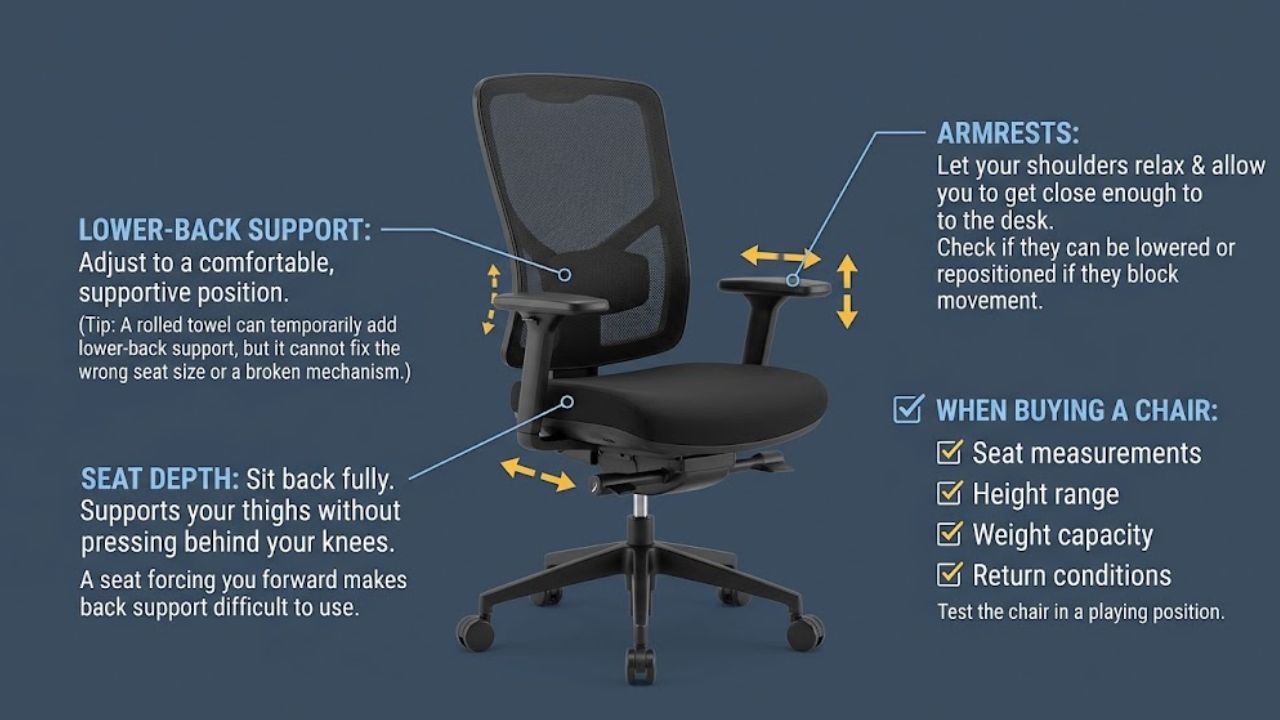
Seat depth deserves more attention than the size of the backrest. Sit back fully and check that the seat supports your thighs without pressing behind your knees. A seat that forces you forward makes its back support difficult to use.
Adjust the lower-back support to a comfortable position. Armrests should let your shoulders relax and allow the chair close enough to the desk. If they block that movement, check whether they can be lowered or repositioned.
When buying a chair for your ergonomic gaming setup, check seat measurements, height range, weight capacity, and return conditions. Test the chair in a playing position, too.
A rolled towel can temporarily add lower-back support to an otherwise suitable chair. It cannot fix the wrong seat size or a broken mechanism.
2. A Desk at a Comfortable Height
Position the keyboard around relaxed elbow height, keeping your upper arms near your sides and your wrists broadly aligned with your forearms. If the desktop makes you shrug, consider the chair height and work surface together.
An adjustable keyboard tray can help with a high fixed desk, provided it holds both controls, locks securely, and leaves thigh clearance. Measure your mouse movement area before buying. A tray that accommodates ordinary desktop navigation may still feel cramped during low-sensitivity FPS play.
Clear under-desk storage so your legs have room to move. A standing desk adds flexibility to an ergonomic gaming setup only if its range suits you. Check the lowest usable height as carefully as the standing height, especially when shopping online.
3. A Monitor Stand or Arm
Center the gameplay screen in front of you. Start with its top at or slightly below eye level and adjust for comfortable viewing. OSHA gives a general desktop-monitor distance of 20–40 inches, approximately 50–100 centimeters; readable text, screen size, and your vision affect the suitable position.
If you lean forward to read subtitles, try available text-size settings before bringing the whole screen closer.
A monitor arm is worth adding to an ergonomic gaming setup when the supplied stand cannot provide the height or space you need. Check these details before ordering:
- The monitor’s mounting pattern and the arm’s compatibility.
- Minimum and maximum supported load.
- Desk thickness, construction, and mounting instructions.
- Clearance for the clamp and arm movement.
Keep the original stand if it already does the job. For laptop gaming, raising the screen means using separate controls so you do not have to reach up to the keyboard.
4. A Keyboard With Enough Space
Removing an unused number pad can make room to bring the mouse closer. A tenkeyless keyboard is worth considering when a full-size board pushes your mouse arm outward.
Check your game bindings before going smaller. Function and navigation keys may become combinations you need to press repeatedly.
A split keyboard is an optional part of an ergonomic gaming setup. First try placing your existing board within comfortable reach and adjusting its angle. Extending the rear feet automatically may bend your wrists upward.
If you use a wrist rest, keep your hands free to move during active typing. During pauses, support should meet the heel of your palm rather than press into your wrist. Choose its height to suit the keyboard instead of assuming a thicker pad will be more comfortable.
5. A Mouse That Fits Your Hand
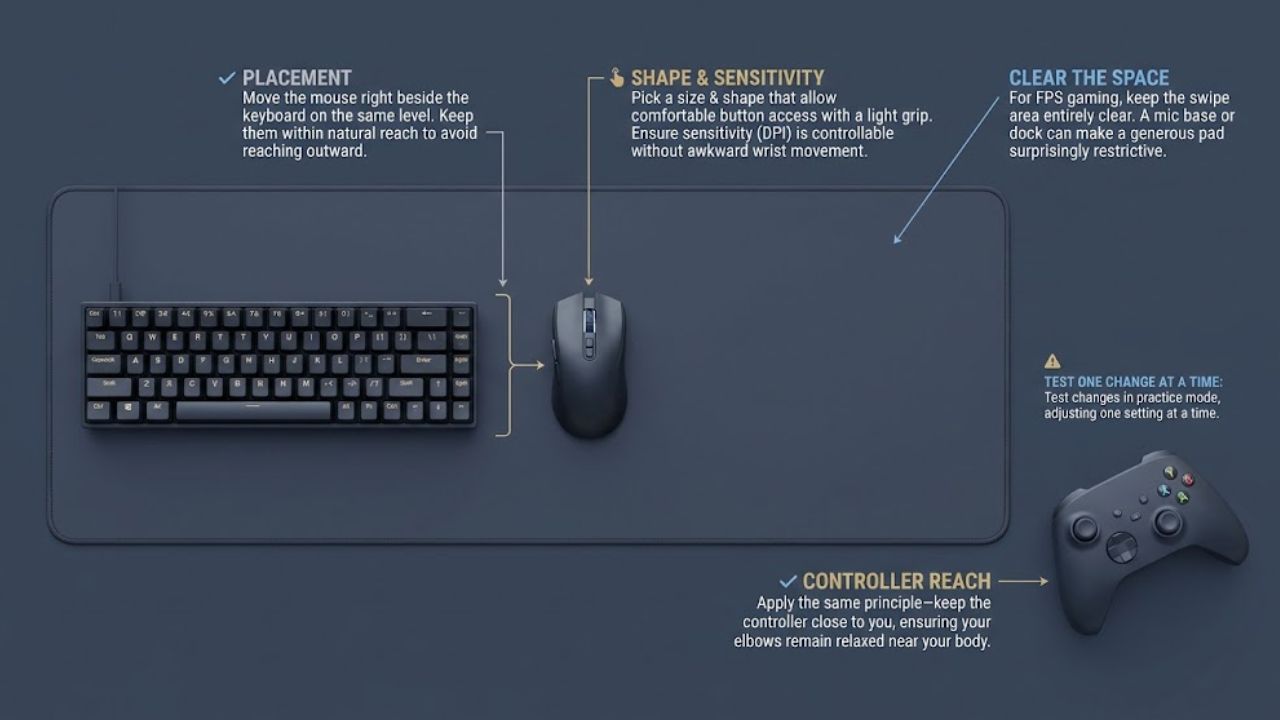
Before replacing the mouse, move it beside the keyboard on the same level. Reaching outward for a well-fitting mouse still leaves an awkward arrangement.
Shape and size should allow comfortable button access and a light grip. Sensitivity needs to feel controllable without excessive gripping or awkward wrist movement; there is no universally healthy DPI setting.
For an ergonomic gaming setup used for FPS games, clear the space your normal aiming movements require. A microphone base or controller dock can make a generous mousepad surprisingly restrictive. Test changes in practice mode, one setting at a time.
Controller players can apply the same reach principle: keep the controls comfortably close, with elbows near the body.
6. A Stable Footrest
A footrest helps when the chair needs to be raised for a fixed desk and your feet no longer reach the floor comfortably. Choose a stable, nonslip surface supporting both feet, with enough room above your knees.
An ergonomic gaming setup may need no footrest if your feet already rest comfortably on the floor. Check before buying another object that could restrict legroom.
Avoid unstable stacks of boxes. Assess any support while using your usual controls at your actual playing height.
7. Adjustable Lighting Without Glare
Look for reflections from windows and lamps, particularly during darker game scenes. Adjust blinds, move the lamp, or reposition the display so you can see without leaning around the glare.
For an ergonomic gaming setup used at night, balance screen brightness with surrounding light. A shaded lamp or indirect lighting may be sufficient. Assess any decorative lighting by whether it creates distracting reflections.
The 20-20-20 rule provides a simple viewing-break reminder: every 20 minutes, look about 20 feet, or six meters, away for 20 seconds. You still need opportunities to move.
Blue-light-blocking glasses are not an essential purchase for digital eye strain. The American Academy of Ophthalmology does not recommend them for that purpose. Prescription computer glasses address a different need and require appropriate eye-care advice.
8. Room and Reminders for Movement
Make leaving the chair easy. Clear the space beside the desk, keep cables out of the way, and choose a break reminder you can realistically follow.
Screen-work guidance favors short, frequent breaks over occasional longer ones. During single-player games, pause when possible. Between online matches, get up before joining the next queue. An unranked match may still prevent an early exit, so choose a pausable activity when you know you need to stop soon.
Walk around, change position, and look away from the screen. Immediately checking your phone provides little change in visual activity. If you have a standing desk, use it to vary position rather than staying upright for the entire session.
Final Thoughts
Choose one problem in your ergonomic gaming setup that you can clearly identify. Adjust it, then check what changed elsewhere. Raising the chair, for example, may mean checking foot support and monitor height again.
Buy accessories for a problem you can name, then check whether they solve it once they arrive. Persistent or worsening pain, tingling, numbness, or weakness calls for medical advice. Furniture adjustments cannot replace an assessment.
Frequently Asked Questions (FAQs) About Ergonomic Gaming Setup
Can Gaming Chairs Improve Performance?
Comfort is a sensible reason to replace an unsuitable chair. Better aim or more wins would need separate evidence; neither follows from a gaming label.
Record each person’s chair and screen settings, using photos if helpful. Check that the adjustment ranges accommodate both people before buying. If one person needs foot support or a different screen position, leave those changes easy to make rather than settling on a compromise neither finds comfortable.
Should You Copy a Professional Gamer’s Posture?
Use their setup for ideas, then check your own fit. Their body size, controls, desk, and visual needs may differ. An extreme keyboard angle can be a poor choice if it forces your wrist into an awkward position.