

An AI assistant can summarize a crowded inbox, find a document buried in a shared drive, or help prepare for your next meeting. But before it can do any of that, it may ask for access to information your organization considers confidential.
The important question is not just, “Do I trust this AI assistant?” It is also: What exactly am I allowing it to access, and what can it do with that access?
A connection that lets an assistant read your calendar is different from one that lets it edit files or send email. Some permissions apply only to information you can access; others may require an administrator to approve broader access for an organization.
Here is how to review those requests before connecting a Google Workspace or Microsoft 365 work account.
Start With the Task You Want the Assistant to Do
Before you open the permission screen, write down the job you want the assistant to perform. For example: “I want the assistant to find and summarize files in one project folder.”
That gives you a reference point. If the connection asks for permission to send email, delete files, or access your entire organization’s directory, you can pause and ask why.
Not every product offers a separate switch for every feature. Some services request a broader permission because of how their integration works. If the access is broader than you are comfortable with, check whether the vendor offers a narrower integration—or whether your organization has approved another tool.
Practical rule: Approve the least access that is both available and necessary for the task. If you cannot tell what a permission covers, ask before accepting it.
Understand What the Permission Screen Is Asking
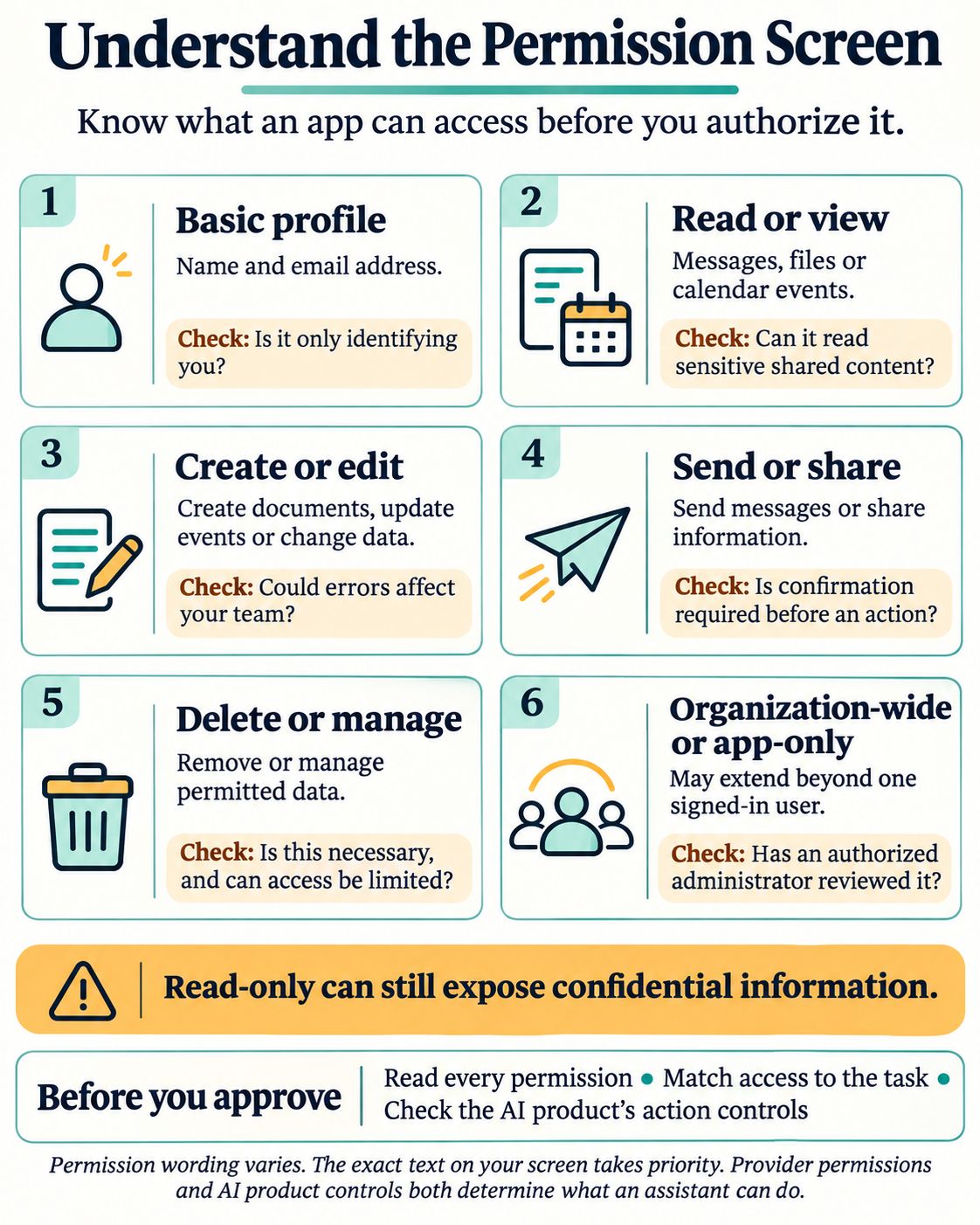
Many work-account integrations use an authorization process in which the account provider shows what the app is requesting. You may hear the permissions described as scopes. The wording varies, but these categories are useful when reviewing a request:
- Basic profile: Access to your name and email address. Is the app simply identifying you, or are additional permissions listed?
- Read or view: Access to messages, files, or calendar events. How much content can it read, including sensitive shared material?
- Create or edit: Ability to create documents, update events, or change data. Could an error affect a shared file or team workflow?
- Send or share: Ability to send messages or share information, depending on the service. Is there a confirmation step before an action?
- Delete or manage: Ability to remove or manage data covered by the permission. Is this necessary and can it be restricted?
- Organization wide or app only access: Potential access beyond a single signed-in user, depending on the permission. Has an authorized administrator reviewed the scope and business need?
These descriptions are a guide, not a substitute for the exact text on your screen. A “read-only” permission can still expose confidential information. An assistant’s ability to act depends on both the provider permission and the controls available inside the AI product.
Google says third-party apps can request different levels of access, including viewing, copying, editing, creating, or deleting data. Review each requested permission before authorizing the app.
Sign in is not the same as access to work data
“Sign in with Google” or a Microsoft sign-in can be used to identify you. That alone should not be confused with granting access to your email, files, or calendar. However, an app can request additional data permissions as part of the same setup. Read the entire consent screen rather than assuming the request is only for sign-in.
Also check which account is selected. If you are signed in to several Google or Microsoft accounts, an assistant intended for personal use should not accidentally receive access to your work account.
Check the App’s Identity Before You Approve
A familiar product name is a useful clue, but it is not enough on its own. Before accepting the request:
- Start the connection from the organization’s approved app directory or the vendor’s official website.
- Check the app name and publisher shown on the permission screen.
- Look for a privacy policy, support information, and an explanation of the requested access.
- Compare the requested permissions with the task you want to complete.
- If anything looks inconsistent, stop and contact your IT or security team through a trusted channel.
A consent screen can be legitimate while the app making the request is malicious. Microsoft describes consent-phishing attacks in which an attacker creates an application that appears familiar and persuades a user to grant it access.
Find Out Whether the App Can Act as You or on Its Own
Delegated access
With delegated permissions, an application acts on behalf of a signed-in user. For Microsoft Graph, the effective access is limited by both the granted permissions and what that user is allowed to access. If a delegated permission allows an app to read files, that does not automatically mean it can read every file in the company. It can still be a broad request if the user has access to many shared files.
Application access
Application permissions, sometimes called app-only permissions, let an application access permitted resources without a signed-in user being present. Depending on the permission and configuration, the scope can be much broader. Microsoft notes that application permissions generally require administrator consent.
Ask IT: “Is this connection acting only within my own access, or is it requesting app-only or organization-wide permissions?”
Review How the AI Provider Handles Your Data
Permission to access a file and permission to use its contents are related questions, but they are not identical. Before connecting, look for the provider’s current documentation and your organization’s agreement. Check:
- Data use: Will contents be used only to answer your request or for other purposes?
- Model training: Does the product or plan use connected data to improve models? Are there controls or exceptions?
- Retention: Are retrieved contents, prompts, responses, or logs stored, and for how long?
- Sharing: Are subprocessors or other connected services involved?
- Location: Are there organizational requirements about where data is processed or stored?
- Deletion: What can be deleted after disconnecting, and who can request it?
- Human access: Under what circumstances might authorized personnel review data?
A setting for one layer does not necessarily cover every other layer. OpenAI states that ChatGPT app permissions are separate from controls for memory, personalization, retention, and model training. OpenAI also says it does not use ChatGPT Business, Enterprise, or Edu workspace content to train models by default; the applicable plan, terms, and configuration still need review.
A useful question for the vendor
“If an employee connects our work account, what data can the assistant retrieve, where can copies appear, how is that data retained, and what happens after we disconnect?” Ask your IT team to review the answer against your organization’s policy before connecting sensitive accounts.
Check What the Assistant Can Do After Connecting
A permission request may describe access at the account-provider level. The assistant itself may have additional controls governing how it uses that access. A product might distinguish between finding and reading information, creating a draft, editing a document, sending a message, running a task on a schedule, and asking for confirmation before an action.
Look for those controls in the AI product’s settings. If an app can send or edit data, check whether the product asks you to confirm the action before it happens. Do not assume that every assistant—or every connection—uses the same confirmation process.
For example, if you want help preparing an email, a workflow that produces a draft for your review may fit that need better than one that can send messages automatically. If the tool requires broader access, ask whether a more limited option exists. Review scheduled tasks too: a permission that seems reasonable for a one-time request may deserve another look if a task runs repeatedly.
What to Do If the Screen Says Admin Approval Required
Do not treat an approval request as an error to work around. It usually means your organization controls whether the application or requested permissions can be used. Send your administrator:
- The app’s exact name and publisher.
- The official product or integration page and the requested permissions.
- The business task and the type of information the app would access.
- Whether you need read access only or the ability to take actions.
- A link to the provider’s privacy and security documentation.
If you share a screenshot with IT, remove or cover unnecessary personal information. Do not include passwords, verification codes, access tokens, or private document contents. Your administrator can decide whether to approve the integration, restrict it, offer an alternative, or decline the request.
How to Review or Remove Access Later
Even if you decide not to connect a new assistant today, review apps you connected previously. The available options depend on your organization’s settings.
Google Workspace
Google’s account guidance describes this process:
- Open your Google Account’s third-party connections page: https://myaccount.google.com/connections.
- Find the relevant app under connections that have access to your Google Account.
- Select the app and review its details and permissions.
- If appropriate, choose Remove access and confirm.
The exact options can differ for a managed work account. If you cannot find or remove a connection, contact your Google Workspace administrator. Removing one type of link is not necessarily the same as removing every relationship with an app, so review the details shown.
Microsoft 365 work or school accounts
- Go to https://myapps.microsoft.com/ and sign in with your work account.
- Find the application you want to review.
- Open the app’s options and select Manage your application, if available.
- Review the permissions shown.
- Revoke permissions you previously consented to if the option is available and appropriate.
Microsoft says users can review permissions shown for an application and revoke permissions they consented to themselves. Some permissions may have been granted by an administrator, so you may need IT’s help. An app may also not appear in My Apps because visibility and assignment depend on the organization’s configuration.
Check the AI assistant too
Disconnecting the app inside the assistant and revoking access through your account provider may be separate steps. Review both sides and follow your organization’s instructions. OpenAI says disconnecting an app stops future access through that connected account, but does not automatically delete existing conversations, saved files, or memories. Review those items separately where applicable.
Does Removing Access Delete the Data the App Already Received
Not necessarily. Revoking access is intended to stop the app from obtaining data through that connection. It does not automatically mean that every file, excerpt, generated answer, log, or backup created earlier has been erased.
Google says that after revoking an app’s access, you may need to contact the developer to request deletion of data it already has. Your organization’s administrator may also need to check the provider’s retention terms and any existing business agreement.
- Whether the app still has another active connection.
- Whether any organization-wide permission remains.
- Where prior outputs or copied information may exist.
- The provider’s deletion process and retention obligations.
- Whether an incident review is needed.
What If You Already Approved a Suspicious App
- Notify your IT or security team through a trusted channel. Give them the app name, the time of approval, and the permissions you remember.
- Follow your organization’s incident instructions. If you have a safe self-service revocation option, use it as directed; an administrator may need to remove broader grants.
- Do not assume changing your password alone resolves the issue. The security team may need to investigate application permissions, tokens, and account activity.
- Preserve relevant details, such as the original message or a safe screenshot of the app name and permission request. Do not forward passwords or authentication codes.
- Ask about data already accessed and whether the organization needs to contact the provider.
Microsoft’s incident guidance recommends investigating suspicious consent grants and taking administrative action against malicious applications where appropriate.
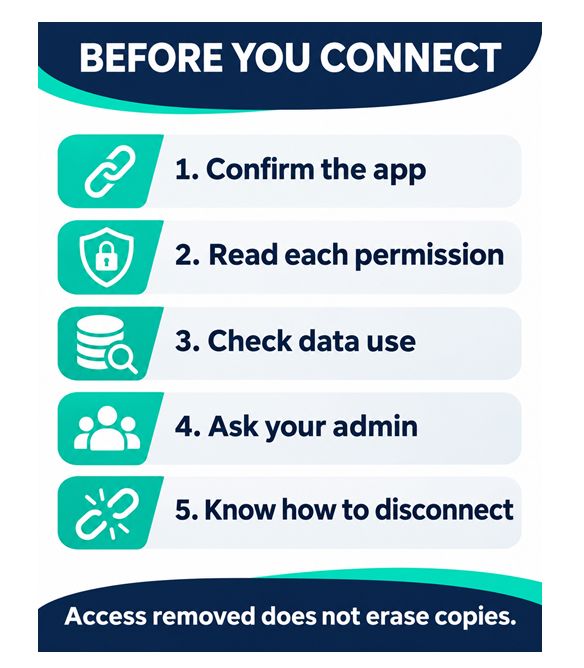
A Five Question Check Before You Click Allow
- Who is asking? Confirm the app and publisher through an approved source.
- What can it access? Read the permissions, including shared or sensitive information within scope.
- What can it do? Check whether it can read, create, edit, send, share, or delete.
- How is information handled? Review the plan’s data-use, retention, and deletion terms.
- How do we stop it? Know whether you can disconnect it yourself or need an administrator.
If any answer is unclear, pause. A useful assistant should save time without requiring you to guess what access you have granted.
Frequently Asked Questions
Is it safe to connect an AI assistant to my work email
It depends on the assistant, the permissions requested, the provider’s data practices, and your organization’s policies. Start with an approved integration, review the exact access requested, and ask IT when sensitive or broad permissions are involved.
Is read only access harmless
No. Read-only access may prevent changes, but it can still expose confidential messages, financial details, contracts, customer information, or shared files within the permission’s scope.
Can my employer block an AI app from connecting
A managed workplace may restrict third-party applications or require an administrator to approve them. If you receive a block or approval message, contact the administrator rather than trying to bypass it.
Will disconnecting an app delete my conversations
Do not assume so. The connection, stored conversations, saved memories, and copied data may be governed by separate controls. Review the assistant’s and provider’s current documentation and your organization’s retention policies.