
A small controller button can be hard to reach. A spoken game cue can be easy to miss. Even navigating a console menu may become a barrier. Gaming accessibility technology gives players more ways to control games and receive information, from adaptive controllers to screen readers and visual sound cues.
Some options are built into consoles or games; others require extra hardware. Compatibility matters: a feature may work in a console menu but not inside a particular game. Before buying anything, identify the barrier you want to address, then check whether the tool supports your platform and the games you play.
How Gaming Accessibility Technology Helps
Useful gaming accessibility technology changes a specific part of play: how a command is entered, how information appears, or how players communicate. No one device covers every need, and a long feature list does not guarantee a comfortable setup. The details below start with physical controls and move toward software and ways to access game information.
1. Adaptive Controller Hubs
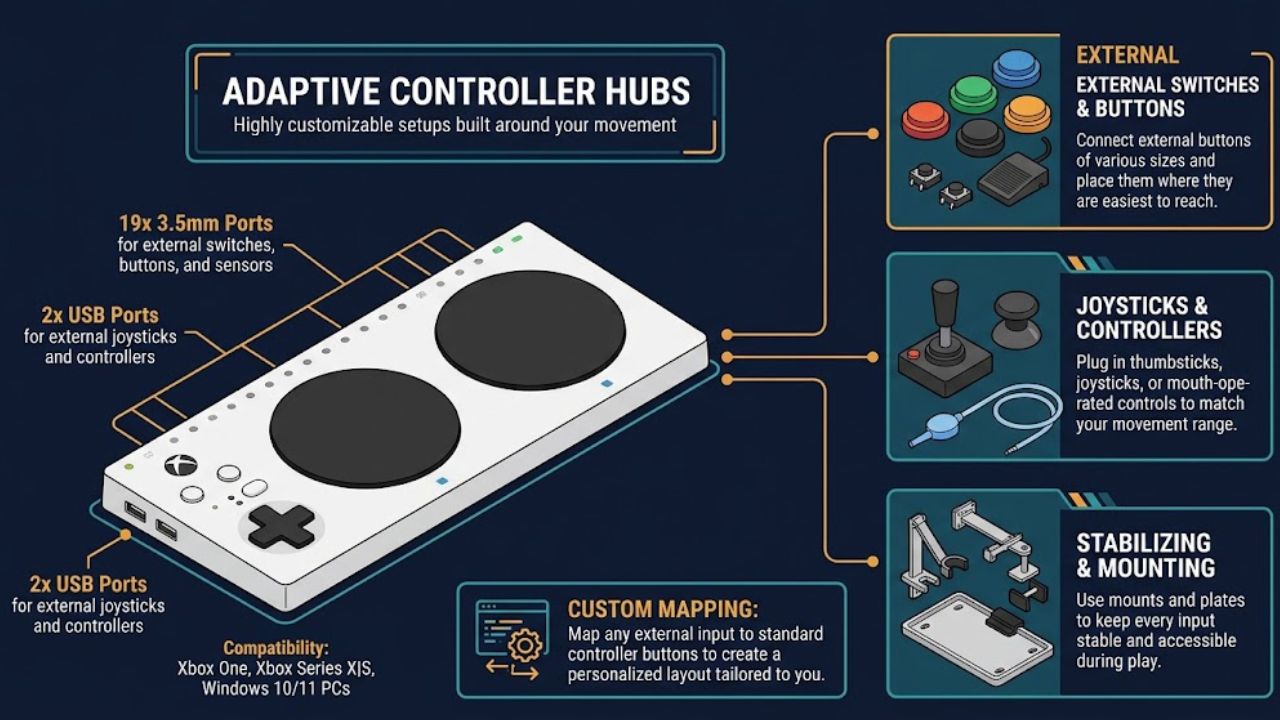
The Xbox Adaptive Controller is a hub for external switches, buttons, joysticks, and mounts. It has 19 3.5 mm ports and two USB ports for external inputs. Xbox lists it for Xbox One, Xbox Series X|S, and Windows 10/11 PCs.
Players can position compatible controls where they are easiest to reach and map them to controller inputs. That flexibility is the point: the hub can support a setup built around a player’s movement rather than a standard handheld layout. But it takes planning. The player needs compatible inputs, a stable way to position them, and a layout that works with the game’s demands. For players whose main barrier is holding a conventional controller, this can be a more useful starting point than buying another standard gamepad.
2. Dedicated Adaptive Controllers
Sony’s Access controller is a configurable kit designed for PS5. Players can rearrange button caps, adjust assignments, and connect compatible accessories through four 3.5 mm expansion ports. Up to 30 profiles can be configured in PS5 settings, with three stored on the controller for quick switching. It works with PS5 only.
That makes it a focused option for players who want to change button positions and layouts. It does not support every DualSense feature: Sony’s support documentation lists vibration and adaptive triggers among the functions it lacks. Check those limits if a player relies on those features, or confirm that the third-party switch or button they need is compatible.
3. External Switches and Specialty Inputs
External switches can take the place of individual controller buttons. Sizes and activation methods vary; some require a light touch, while others are designed to be pressed with a larger movement. Depending on the player and setup, a switch might be placed near a hand, foot, elbow, or another reachable area. Specialized setups can also use sip-and-puff inputs, which register a sip or puff as a command. Not every player can use them, and they need compatible equipment.
Think about the actions a game requires before building a setup. One or two well-placed switches may suit a slower game. A title that expects several simultaneous inputs may need a more complex layout. Microsoft’s accessibility guidance recommends alternative input methods and avoiding unnecessary repeated, prolonged, or simultaneous button presses.
Xbox Controller Assist links two controllers so they function as one. A player and a friend or support person can share control, which may help when a particular action is difficult but the player still wants to participate.
This is a collaboration feature, not an automatic difficulty setting. It does not remove demanding actions or decide which person should handle them. Agree on how to share control before starting, and check that the arrangement suits the game and both players.
5. Button Remapping and Profiles
Remapping changes which action each button performs. A player might move a frequently used command to a more reachable input or save separate layouts for different games. Xbox’s Accessories app supports remapping and profiles for the Adaptive Controller and other listed Xbox controllers.
For many players, checking built-in remapping is a sensible first step before buying more equipment. It costs nothing extra if the controller and platform already support it. It cannot, however, make every action accessible. Games may still require precise analog movement, quick combinations, or long button holds. After changing a layout, check that the on-screen button prompts still make sense and save a profile that is easy to restore.
6. Eye and Head Tracking
Eye and head tracking can turn gaze or head movement into an in-game input, such as moving the camera. Tobii describes its Eye Tracker 5 as designed primarily for interaction in games and notes that it is not compatible with Microsoft Windows Eye Control.
The important question is whether the games a player wants to play support the feature. Tracking may help with looking around in a supported title, but that does not mean it can handle menus or every other action. It is a specialized option, so check the device’s supported games before spending money.
7. Voice Access and Voice Commands
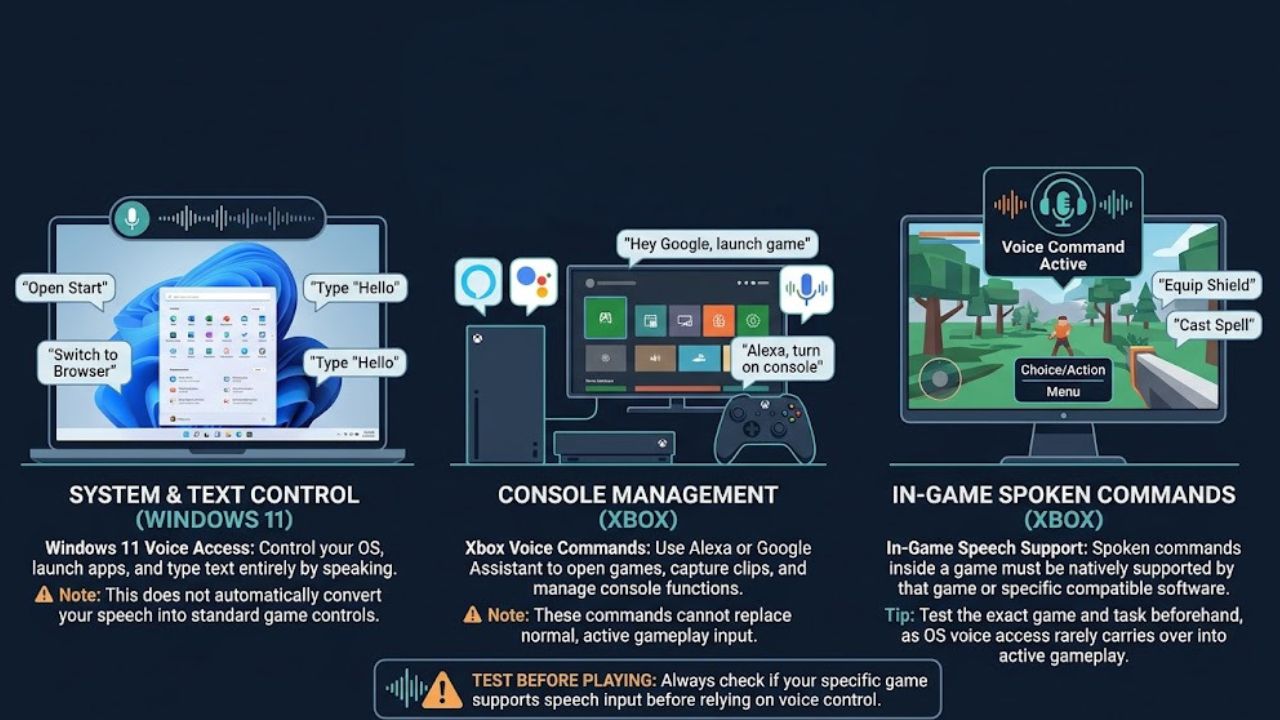
Windows 11 Voice Access lets people control Windows and enter text by speaking. It can help with tasks such as switching apps or opening a launcher, but it does not automatically convert speech into game controls. Xbox voice commands through Alexa or Google Assistant can launch games and manage selected console functions; those commands also do not replace normal gameplay input.
For in-game spoken commands, the game itself or compatible software must support voice control. Players should test the exact game and task rather than assume that voice access on the PC will carry over into gameplay.
8. Screen Readers and Narration
Xbox Narrator and the PS5 screen reader read supported console text and provide spoken guidance through system menus. This can help players who are blind or have low vision navigate parts of the console interface. PS5 screen-reader availability depends on the console language.
Console narration does not guarantee that a game’s menus, objectives, or visual events will be accessible. Those features depend on the game. Before choosing a title, look for information about screen narration or audio description specifically.
9. Speech Transcription and Text-to-Speech
Xbox speech transcription converts supported party or in-game chat speech into text. It can also read typed chat aloud to other players. That may help players who are deaf or hard of hearing, players who cannot speak, and anyone who prefers text chat. Feature availability can vary by region or setup.
This is chat accessibility, not a substitute for captions that describe game audio. If footsteps, alarms, or spoken dialogue are important, check whether the game captions those sounds in play.
10. Visual Sound Cues and Display Settings
Fortnite’s “Visualize Sound Effects” setting shows visual indicators for some sounds. It gives players another way to notice certain audio events, but it does not represent every sound or replace every audio cue.
Console display settings can help with legibility, too. PS5 offers zoom, text-size and contrast adjustments, color filters, and reduced motion. Xbox includes magnification, color filters, and high contrast for its built-in apps and experiences. Do not assume a console-level setting changes every game in the same way; check the game’s own accessibility menu for controls that apply during play.
Final Thoughts
The best gaming accessibility technology is the option that addresses a player’s specific barrier and works with the game they want to play. Start with built-in settings and controller remapping. If those are not enough, check hardware compatibility, mounting needs, and return terms before buying. A setup is useful when the player can use it comfortably, not simply because it offers the most features.
Frequently Asked Questions (FAQs) About Gaming Accessibility Technology
Do adaptive controllers work with every game?
No. Compatibility depends on the controller, platform, and game. Check the device’s supported systems and the game’s input options.
They read supported console text and menus. Narration inside an individual game depends on that game’s accessibility features.
Can voice access control gameplay?
Not automatically. Windows Voice Access controls Windows; in-game voice input requires support from the game or compatible software.