A stolen password can ruin your day fast. It can open your email. It can unlock your social media. It can expose your bank account, cloud files, business tools, and private messages. And the scary part? Most stolen-password attacks don’t look dramatic. They often start with something simple.
An old password leaks in a breach.
A fake login page tricks you.
A scammer sends a “security alert.”
A weak password gets reused across too many sites.
That’s why you should enable two-factor authentication on every important account.
Two-factor authentication, or 2FA, adds a second check when you log in. Your password alone is not enough. The account asks for one more proof. That proof might be a code from an authenticator app, a passkey, a physical security key, or a prompt on your phone.
It’s not perfect. No security tool is.
But 2FA makes account theft much harder. A criminal may steal your password, but they still need the second piece. That one extra step can stop many attacks before they get anywhere.
The best setup today is simple. Use a password manager. Turn on 2FA. Choose passkeys or security keys when a site offers them. Use an authenticator app when it doesn’t. Keep backup codes somewhere safe.
Let’s walk through it in plain English.
What Two-Factor Authentication Means
Two-factor authentication means your account asks for two proofs before it lets you in.
Your password is the first proof. The second proof may come from your phone, an app, a security key, a fingerprint, Face ID, or a passkey.
This matters because passwords get stolen all the time. People reuse them. Companies lose them in breaches. Fake websites collect them. Malware can grab them from browsers.
2FA gives your account another lock.
| Security Term | What It Means | Simple Example |
|---|---|---|
| 2FA | Two-factor authentication | Password + app code |
| MFA | Multi-factor authentication | Password + security key |
| 2SV | Two-step verification | Password + another login step |
| Passkey | Passwordless sign-in method | Face ID, fingerprint, or device PIN |
| Security key | Physical login device | USB, NFC, or Lightning key |
| Backup code | Emergency recovery code | One-time code saved safely |
2FA vs MFA vs Two-Step Verification
You’ll see a few names: 2FA, MFA, two-step verification, login verification, and account verification.
For most people, they all point to the same idea. Your account should not trust only a password.
MFA usually means two or more checks. 2FA means two checks. Two-step verification may mean two steps, even if both are not technically different “factors.”
You don’t need to memorize the terms. Just know this: password-only login is weak. A second check makes it stronger.
The Three Login Factors
Login security usually comes from three groups.
Something you know: your password or PIN.
Something you have: your phone, app, passkey device, or security key.
Something you are: your fingerprint or face scan.
A strong login uses more than one group. That way, a stolen password doesn’t give someone instant access.
Why Passwords Alone Fail
Passwords fail because people are human.
We reuse them. We forget them. We save them in unsafe places. We click fake links when we’re busy. And sometimes, even if we do everything right, a website still gets breached.
That’s why 2FA matters so much.
It won’t make you untouchable. But it can stop the most common account takeover attempts.
Best 2FA Methods Ranked by Security
Not all 2FA methods are equal.
Some are strong. Some are only okay. Some are better than nothing but should not be your first choice.
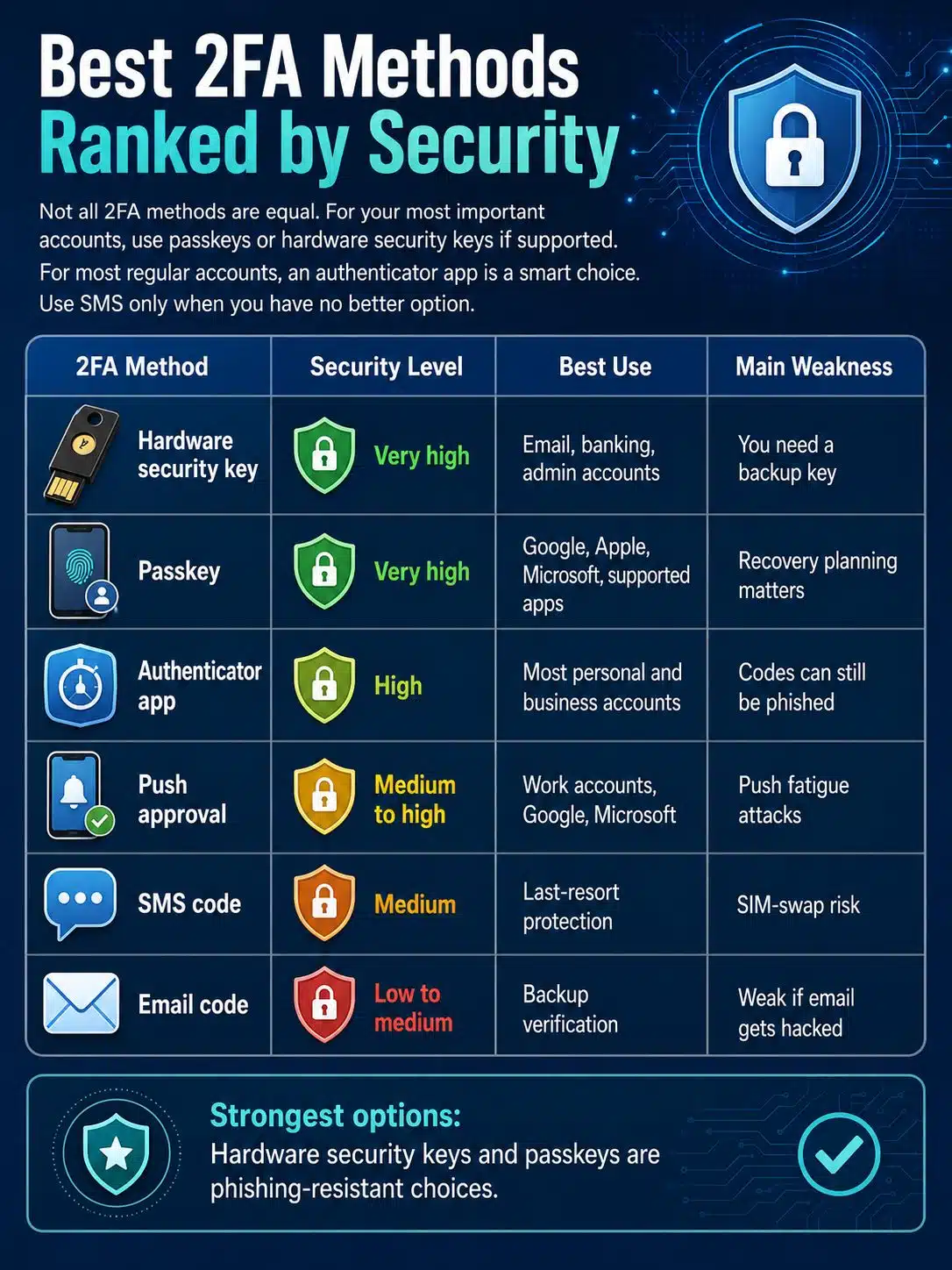
For your most important accounts, use passkeys or hardware security keys if the platform supports them. For most regular accounts, an authenticator app is a smart choice. Use SMS only when you have no better option.
| 2FA Method | Security Level | Best Use | Main Weakness |
|---|---|---|---|
| Hardware security key | Very high | Email, banking, admin accounts | You need a backup key |
| Passkey | Very high | Google, Apple, Microsoft, supported apps | Recovery planning matters |
| Authenticator app | High | Most personal and business accounts | Codes can still be phished |
| Push approval | Medium to high | Work accounts, Google, Microsoft | Push fatigue attacks |
| SMS code | Medium | Last-resort protection | SIM-swap risk |
| Email code | Low to medium | Backup verification | Weak if email gets hacked |
Passkeys
Passkeys are one of the best login options available now.
Instead of typing a password, you unlock your device. You may use Face ID, fingerprint, Windows Hello, Android screen lock, or a PIN.
Behind the scenes, passkeys use strong cryptography. The website does not get a reusable password. That makes passkeys much harder to steal through phishing.
They also feel easier. You don’t have to remember another password or type a six-digit code.
Hardware Security Keys
A hardware security key is a small physical device. You plug it in or tap it when you log in.
These keys often use FIDO standards. They help confirm you’re logging in to the real website, not a fake copy.
That’s why they’re excellent for email, finance, domain registrars, hosting accounts, password managers, and business admin dashboards.
Buy two if you can. Keep one with you. Store the other somewhere safe.
Authenticator Apps
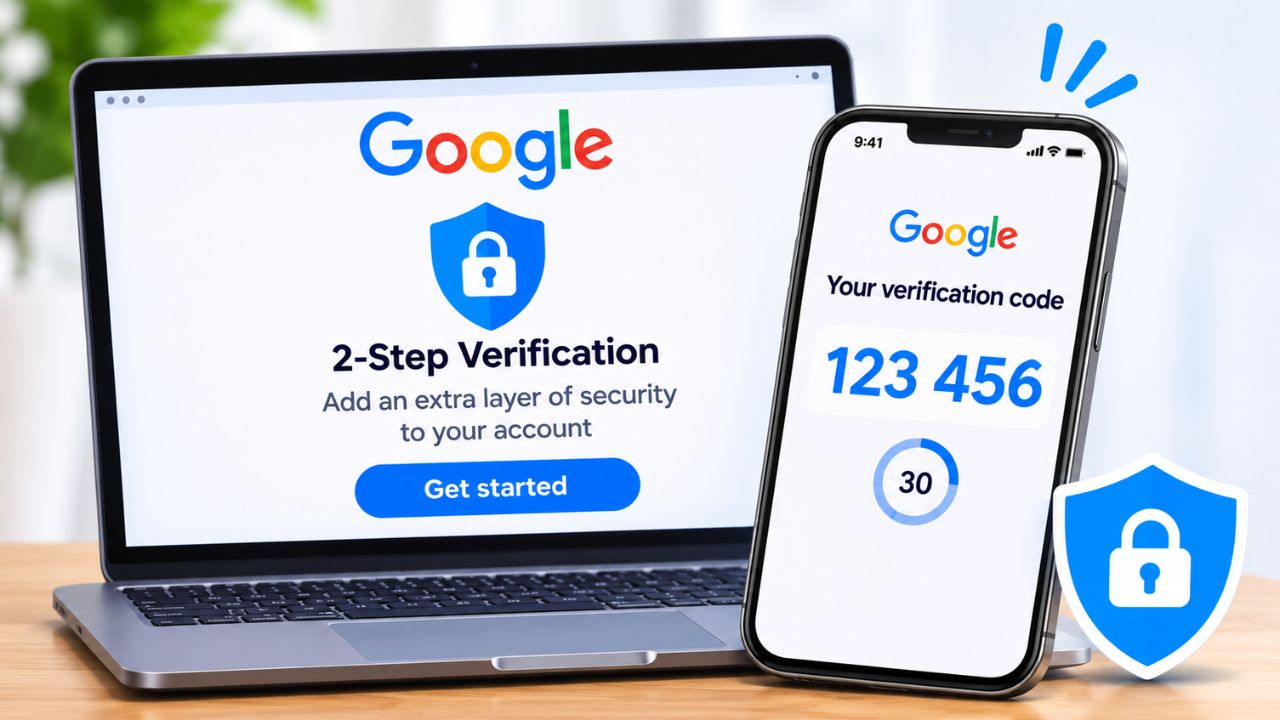
Authenticator apps create short login codes that refresh every 30 seconds.
Good options include Google Authenticator, Microsoft Authenticator, 1Password, Bitwarden, Dashlane, Proton Authenticator, and other trusted tools.
Authenticator apps are much better than SMS. The code lives on your device. A scammer can’t get it just by taking over your phone number.
But there’s one catch. If you type that code into a fake website, an attacker may still use it. That’s why passkeys and security keys are stronger.
SMS Codes
SMS 2FA is better than no 2FA.
But it should not be your first choice.
Text messages can be exposed through SIM-swap fraud, phone number hijacking, phishing, and mobile carrier tricks. A scammer may convince a carrier to move your phone number to another SIM. Then they receive your verification texts.
Use SMS if that’s all the account offers. Upgrade later when better options appear.
How to Enable Two-Factor Authentication Safely
Don’t rush through 2FA setup.
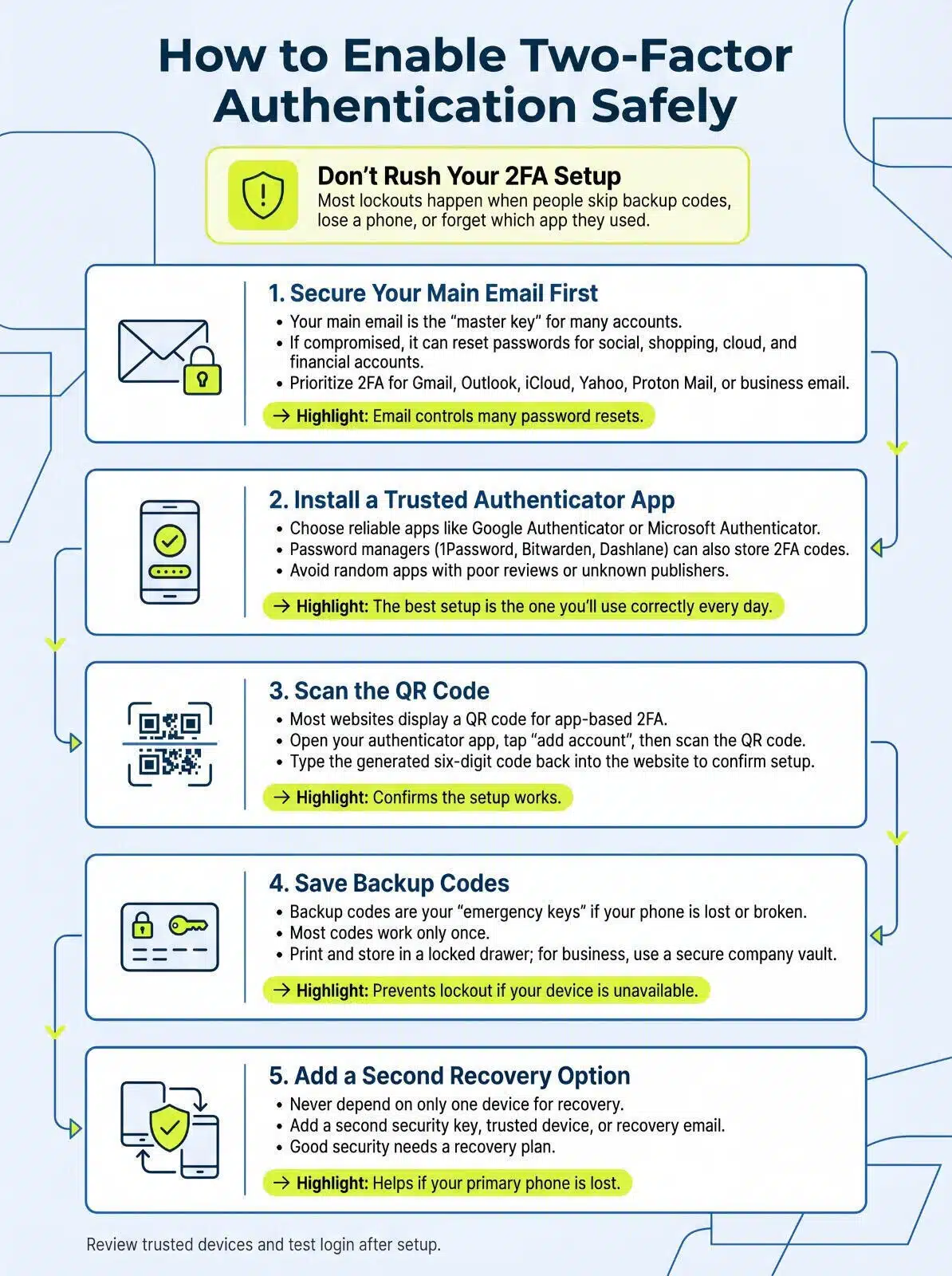
Most lockouts happen when people skip backup codes, lose a phone, change numbers, or forget which app they used.
Start with your main email account. That should be your first priority because email often controls password resets for everything else.
| Step | What to Do | Why It Matters |
|---|---|---|
| 1 | Secure your main email first | Email controls many password resets |
| 2 | Use a password manager | Stops password reuse |
| 3 | Pick the strongest 2FA option | Blocks more attacks |
| 4 | Save backup codes | Prevents lockout |
| 5 | Add a backup method | Helps if your phone is lost |
| 6 | Review trusted devices | Removes old sessions |
| 7 | Test login | Confirms the setup works |
Step 1: Secure Your Email First
Your main email account is the master key.
If someone gets into your email, they can reset passwords for many other accounts. That includes social media, shopping sites, cloud storage, business tools, and sometimes financial accounts.
So start there.
Turn on 2FA for Gmail, Outlook, iCloud Mail, Yahoo, Proton Mail, or your business email. Use a passkey, security key, or authenticator app if you can.
Step 2: Install a Trusted Authenticator App
Choose a trusted authenticator app. Don’t download random apps with poor reviews or unknown publishers.
For most people, Google Authenticator or Microsoft Authenticator works well. Password managers like 1Password, Bitwarden, and Dashlane can also store 2FA codes.
Some people prefer keeping passwords and 2FA codes in separate apps. That can be safer. But it also adds more work.
The best setup is the one you’ll use correctly every day.
Step 3: Scan the QR Code
Most websites show a QR code when you turn on app-based 2FA.
Open your authenticator app. Tap add account. Scan the QR code. The app will create a six-digit code.
Type that code back into the website to confirm setup.
After that, the app will keep generating fresh codes whenever you need to log in.
Step 4: Save Backup Codes
Backup codes are your emergency keys.
If your phone gets lost, stolen, wiped, or broken, backup codes can save you. Most of them work only once.
Don’t leave them in a plain text file on your desktop. Don’t store them only inside the same email account you’re trying to protect.
A printed copy in a locked drawer is often a smart choice. For business accounts, use a secure company vault.
Step 5: Add a Second Recovery Option
Never depend on only one device.
Add a second security key, another trusted device, backup codes, or a recovery email. If you use Apple security keys, you’ll need at least two FIDO-certified keys.
If you use passkeys, learn where they are saved. They may sync through iCloud Keychain, Google Password Manager, Windows Hello, 1Password, Dashlane, or another provider.
Good security needs a recovery plan.
How to Enable 2FA on Major Online Accounts
Most platforms follow the same basic path.
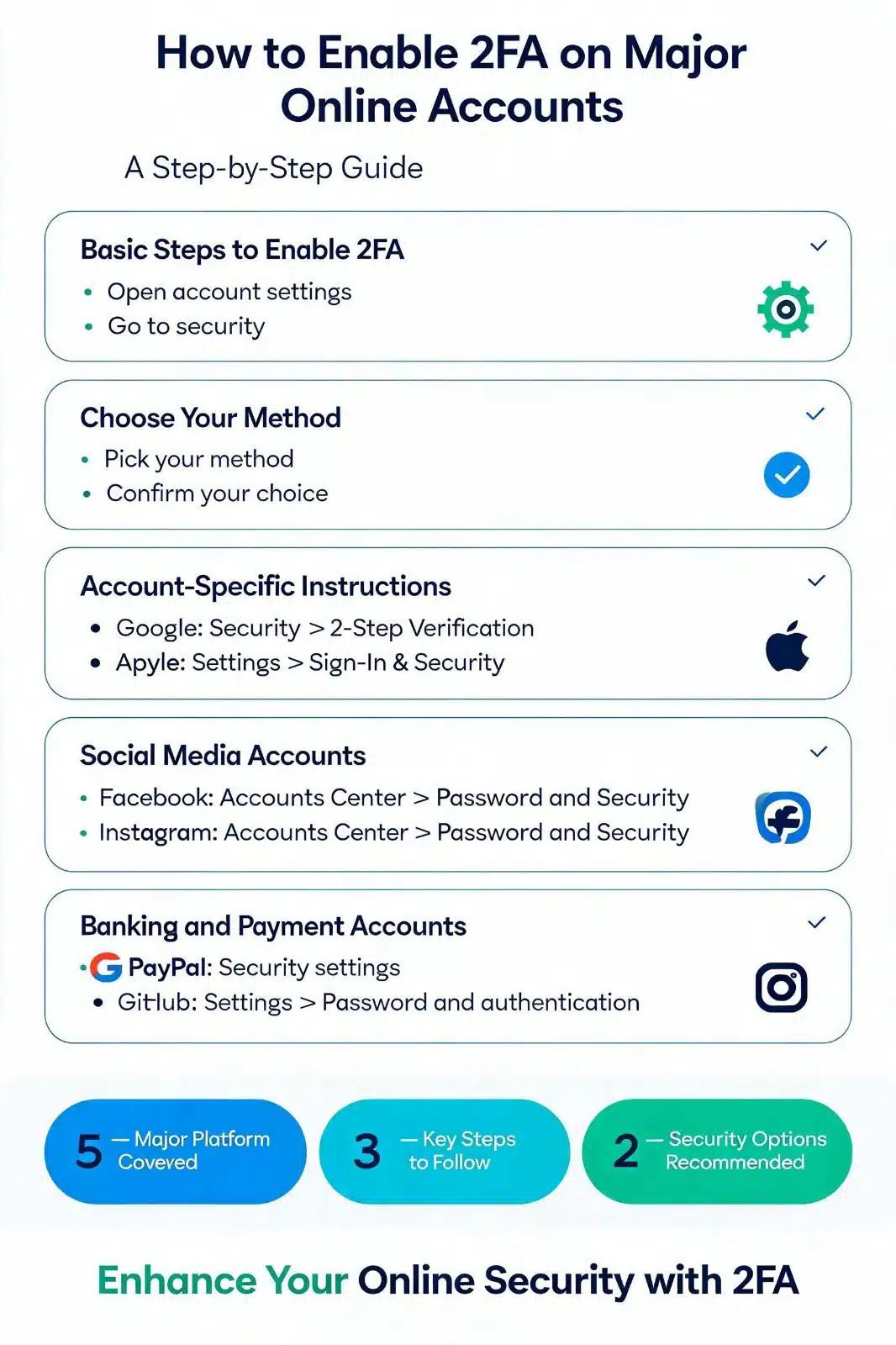
Open account settings. Go to security. Look for two-factor authentication, two-step verification, login verification, passkeys, or security keys. Pick your method. Confirm it. Save your backup codes.
Do one account at a time. Don’t try to secure everything in one sitting.
| Platform | Where to Look | Stronger Options |
|---|---|---|
| Google Account > Security | Passkeys, security keys, prompts, authenticator | |
| Apple | Settings > Name > Sign-In & Security | 2FA, trusted devices, security keys |
| Microsoft | Account Security > Advanced Security | Authenticator, passkeys, two-step verification |
| Accounts Center > Password and Security | Authenticator app, security key | |
| Accounts Center > Password and Security | Authenticator app | |
| Amazon | Login & Security | Authenticator app, phone backup |
| PayPal | Security settings | Authenticator app, device checks |
| GitHub | Settings > Password and authentication | Passkeys, security keys, app codes |
| WordPress | User profile or security plugin | Authenticator app, security key support |
Google Account
Open your Google Account. Go to Security. Find 2-Step Verification.
Google supports passkeys, security keys, Google prompts, authenticator apps, SMS, and backup codes.
Use passkeys or security keys for stronger protection. Also review your signed-in devices and third-party app access.
Apple Account
On iPhone or iPad, open Settings. Tap your name. Go to Sign-In & Security.
Apple uses trusted devices and verification codes for two-factor authentication. It also supports security keys on compatible devices.
If you set up security keys, keep at least two. Losing all trusted devices and keys can make recovery difficult.
Microsoft Account
Open your Microsoft account security settings. Go to Advanced Security Options or “Manage how I sign in.”
Microsoft supports two-step verification, Microsoft Authenticator, passkeys, and passwordless sign-in.
Secure this account if you use Outlook, OneDrive, Microsoft 365, Xbox, Windows sign-in, or business tools.
Also remove old recovery emails and phone numbers you no longer control.
Facebook and Instagram
Meta keeps many login settings inside Accounts Center.
Open Password and Security. Choose Two-Factor Authentication. Use an authenticator app when possible.
This matters even more for creators, page admins, ad account managers, and business owners. One weak admin account can put the whole brand at risk.
Amazon and Shopping Accounts
Go to Login & Security and turn on two-step verification.
Shopping accounts may store payment cards, addresses, gift card balances, and order history. Criminals can use them for fraud, fake returns, and unauthorized orders.
After turning on 2FA, review saved cards and delivery addresses.
Banking and Payment Accounts
Banking and payment accounts deserve your strongest protection.
That includes PayPal, Stripe, Wise, Payoneer, crypto exchanges, brokerage accounts, and online banking portals.
Use an authenticator app, passkey, or security key when available. If the service only offers SMS, turn it on and add carrier-level protection, such as a SIM PIN or number transfer lock.
Never share a banking verification code with anyone.
Common 2FA Mistakes to Avoid
2FA helps a lot. But careless setup can create problems.
Some people lose access because they never saved backup codes. Others keep using an old phone number. Some approve random login prompts without reading them.
Good 2FA is not just about turning it on. It’s about setting it up so you can recover safely.
| Mistake | Why It’s Risky | Better Choice |
|---|---|---|
| Using only SMS | Your phone number can be hijacked | Use an app, passkey, or key |
| Skipping backup codes | A lost phone can block access | Save codes safely |
| Using one security key | Losing it can lock you out | Register two keys |
| Approving random prompts | Attackers can spam prompts | Approve only your own login |
| Keeping old devices trusted | Old sessions may stay active | Remove unused devices |
| Weak recovery email | Recovery can be abused | Secure recovery email too |
No real support agent needs your 2FA code.
Not your bank. Not Google. Not Apple. Not Microsoft. Not Meta. Not your mobile carrier.
Scammers often say they need the code to “verify” you. That’s the trick. They want the code so they can log in.
If you get a code you didn’t request, change your password and check your account activity.
Don’t Approve Random Login Prompts
Push approvals are easy. That’s why people like them.
But attackers can abuse them. They may keep sending login requests until you get tired and tap “Approve.” This is often called push bombing or MFA fatigue.
If you didn’t start the login, deny the prompt. Then change your password.
Number matching helps, but your attention matters most.
Don’t Ignore Recovery Settings
Your recovery settings can become the weak spot.
Check your recovery email. Check your phone number. Check trusted devices. Check connected apps. Check backup codes.
A strong login means very little if the recovery path is weak.
2FA for Business Owners, Website Admins, and Creators
Business accounts need extra care.
If you run a website, media brand, online store, SaaS product, YouTube channel, ad account, or client dashboard, one hacked account can cause real damage.
Attackers love admin access. It lets them change payment details, publish spam, steal files, redirect domains, launch fake ads, and lock teams out.
| Account Type | Best 2FA Option | Why It Matters |
|---|---|---|
| Domain registrar | Security key or app | Prevents domain hijacking |
| Web hosting | Security key or app | Protects site files |
| Email admin | Passkey or security key | Protects password resets |
| WordPress admin | App or security key plugin | Blocks dashboard takeover |
| Google Workspace | Security key or passkey | Protects mail and docs |
| Meta Business | Authenticator app | Protects pages and ads |
| Payment processor | App or security key | Protects money flow |
| Cloud storage | Passkey or app | Protects contracts and files |
Secure Admin Accounts First
Start with the accounts that control everything else.
That means your email admin, domain registrar, web hosting, CMS, password manager, payment processor, cloud storage, and ad platforms.
If someone controls your email or domain, they can damage almost everything connected to your business.
Require 2FA for Team Members
Don’t protect only the founder or main admin.
A freelance designer, editor, assistant, or ad manager may still have access attackers want. Require 2FA for everyone who touches business tools.
Also use role-based access. Give people only the permissions they need.
When someone leaves, remove access quickly.
Keep Recovery Under Business Control
Business recovery should not depend on one person’s phone.
Use company-owned email accounts. Keep documented recovery steps. Store backup codes in a secure vault. Register more than one security key for critical admin accounts.
That way, a lost phone or staff change doesn’t become a crisis.
What to Do If You Lose Your 2FA Device
Losing your phone is stressful. Losing the phone with your authenticator app feels even worse.
But if you planned ahead, you can recover.
Use backup codes, a trusted device, a second security key, or the platform’s official account recovery process. Once you get back in, remove the lost device and rebuild your 2FA setup.
| Situation | What to Do |
|---|---|
| Lost phone but have backup codes | Sign in and reset 2FA |
| Lost phone but have trusted device | Use trusted device to approve login |
| Lost security key but have second key | Sign in and remove the missing key |
| Changed phone number | Update recovery details quickly |
| No backup method | Start official account recovery |
| Stolen device | Remotely lock or wipe it |
Use Backup Codes First
Backup codes are often the fastest way back in.
Use one code to sign in. Then create a fresh set of backup codes. Old codes may stop working after you generate new ones.
Store the new set safely.
Remove Lost or Old Devices
After you recover access, clean up your account.
Remove the lost phone. Sign out of old browser sessions. Delete unused devices. Remove missing security keys.
Check recent sign-ins. Look for strange locations, unknown devices, forwarding rules, connected apps, and recovery changes.
If anything looks wrong, change your password right away.
Rebuild Your Setup
Set up your authenticator app again. Add a second method. Save backup codes. Test your login from another browser.
Don’t leave the account half-secured after recovery. That’s when mistakes happen.
A Simple 2FA Setup Plan for All Online Accounts
You don’t need to fix everything today.
Start with the accounts that matter most. Then move down the list. This keeps the job manageable and helps you avoid careless mistakes.
The goal is simple: close the easiest doors first.
| Priority | Account Type | Best 2FA Choice |
|---|---|---|
| 1 | Main email | Passkey, security key, or app |
| 2 | Password manager | Security key or app |
| 3 | Apple, Google, Microsoft | Passkey, key, or app |
| 4 | Banking and payments | App, key, or SMS if required |
| 5 | Mobile carrier | Account PIN and 2FA |
| 6 | Social media | Authenticator app |
| 7 | Domain, hosting, CMS | Security key or app |
| 8 | Shopping accounts | App or SMS |
| 9 | Entertainment accounts | Any available 2FA |
Day 1: Protect Master Accounts
Start with your main email, password manager, Apple account, Google account, and Microsoft account.
These accounts often control devices, saved passwords, files, photos, subscriptions, and password resets.
Use the strongest method each one supports.
Day 2: Protect Money and Identity
Next, secure banking, credit cards, payment apps, tax accounts, insurance portals, crypto exchanges, and brokerage accounts.
Also secure your mobile carrier account. Ask if it supports a transfer lock, port-out PIN, or account PIN.
This helps lower the risk of SIM-swap attacks.
Day 3: Protect Social and Business Accounts
Secure Facebook, Instagram, LinkedIn, X, TikTok, YouTube, Pinterest, Meta Business Suite, Google Ads, analytics tools, hosting, WordPress, and domain registrar accounts.
Review admins and connected apps. Remove people and tools you no longer use.
For creators and business owners, social and ad accounts can be as valuable as bank accounts.
Final Thoughts
If you want stronger online security, enable two-factor authentication on every important account.
Start with email. Then secure your password manager, Apple or Google account, banking, payment apps, business tools, social media, and shopping accounts.
Use passkeys or hardware security keys when available. Use an authenticator app for most other accounts. Use SMS only when there’s no better option.
And please, save your backup codes.
Strong security should protect you from criminals. It should not lock you out of your own accounts.
The best setup is practical: unique passwords, a password manager, strong 2FA, safe recovery codes, trusted devices, and one firm habit—never share verification codes.
That’s how to enable two-factor authentication the right way.
FAQs about How to Enable Two-Factor Authentication
Is 2FA still useful if hackers can bypass some methods?
Yes. 2FA still blocks many stolen-password attacks. Some methods can be phished or tricked, but 2FA is still far stronger than password-only login. For the best protection, use passkeys or security keys.
What is the safest 2FA method?
Passkeys and FIDO security keys are among the safest choices for most users. They are built to resist phishing. Authenticator apps are also strong and widely supported. SMS is weaker but still better than no 2FA.
Should I use SMS 2FA if it is the only option?
Yes. Use SMS if the account gives you no better choice. But treat it as basic protection. If the service later adds authenticator apps, passkeys, or security keys, switch to one of those.
Can an authenticator app work without internet?
Yes. Most authenticator apps generate codes on your device. You don’t need mobile signal or internet to see the code. You only need internet to log in to the website or app.
What happens if I lose my phone with my authenticator app?
Use backup codes, a trusted device, a second security key, or the platform’s account recovery process. After you get back in, remove the lost phone and set up 2FA again.
Should I store 2FA codes in my password manager?
It depends on your risk level. Storing passwords and 2FA codes together is convenient and still better than not using 2FA. For high-risk accounts, use a separate authenticator app or a security key.
Are passkeys better than passwords plus SMS?
Yes, in most cases. Passkeys are designed to resist phishing and don’t expose reusable passwords. SMS codes can be stolen through phone-number attacks.
Do I still need a password manager if I use 2FA?
Yes. 2FA adds a second layer, but strong unique passwords still matter. A password manager helps you create and store a different password for every account.