
Nobody starts a business because they love admin work. Yet that’s where many small business owners lose their best hours. You copy a lead from a form into a spreadsheet. Then you add the same person to a CRM. Then you send a welcome email.
Later, you rewrite an invoice, chase a late payment, and post the same update on three social channels.
It feels normal because everyone does it. But normal doesn’t mean smart.
Manual work looks harmless when your business is small. Five minutes here. Ten minutes there. But those tiny jobs pile up fast. By Friday, you’ve lost hours to tasks that software could’ve handled for you.
That’s where automation helps.
You don’t need a developer. You don’t need an expensive enterprise system. You can automate small business tasks with free SaaS tools and build a smoother daily workflow using tools like Make, Tally, HubSpot, Buffer, Wave, Gmail, and Google Sheets.
The goal isn’t to make your business robotic.
The goal is to stop wasting your energy on boring, repeatable work.
The Real Problem: Manual Work Doesn’t Scale
Manual work feels manageable in the beginning.
If you get five leads a month, you can update everything by hand. But what happens when you get 50? Or 100?
That’s when things start breaking.
A lead sits unanswered. A name gets misspelled. A client doesn’t receive the invoice. A follow-up disappears inside your inbox. You think you’re saving money by doing everything manually, but you’re actually paying with your time, focus, and speed.
For a small business, speed matters.
The faster you reply, the better your chance of closing a deal. The faster you send invoices, the healthier your cash flow becomes. The faster you organize customer data, the easier it is to serve people properly.
Automation won’t fix a broken business model.
But it can remove a lot of daily friction.
Common Small Business Tasks You Can Automate
| Business Area | Manual Task | Free Tool Setup | What It Saves |
|---|---|---|---|
| Lead capture | Copying form details into a sheet | Tally + Make + HubSpot | Time and lost leads |
| Customer records | Updating contact lists manually | HubSpot Free CRM | Messy client tracking |
| Social posting | Posting one by one on each platform | Buffer | Daily interruptions |
| Invoicing | Rewriting invoices every month | Wave | Billing delays |
| Data backup | Saving records in different places | Google Sheets | Missing information |
| Email replies | Sending the same first response | Gmail/Outlook automation | Slow follow-ups |
The idea is simple.
Stop being the middleman between your apps.
Let the tools pass information to each other.
Start with the Task That Annoys You Most
Don’t try to automate your whole business in one day.
That’s where people get stuck.
Start with one painful task. Pick something repetitive. Something boring. Something that follows the same steps every time.
For many small businesses, the best first automation is lead capture.
Why?
Because every lead matters.
If someone fills out a form and you forget to reply, you may lose a real customer. If their details stay buried in your inbox, your sales process becomes messy from day one.
A simple lead workflow can fix that.
Someone fills out your form. Their details go into your CRM. You get an alert. They receive a welcome email. A backup row appears in Google Sheets.
That’s not complicated.
But it can make your business feel much more organized.
A Simple Way to Understand Automation
Automation sounds technical, but the basic idea is easy.
Something happens.
Then something else happens automatically.
That’s it.
For example:
A customer submits a contact form.
That’s the trigger.
Their details are saved in HubSpot.
That’s the action.
A welcome email is sent.
That’s another action.
A copy is saved in Google Sheets.
That’s your backup.
Basic Automation Flow
| Step | What Happens |
| Trigger | A customer submits a form |
| Action 1 | The contact is added to HubSpot |
| Action 2 | You receive an email alert |
| Action 3 | The customer gets a welcome email |
| Action 4 | The details are saved in Google Sheets |
Once you understand this pattern, most small business automations become easier to build.
You don’t need to learn code.
You just need to know what should happen first, second, and third.
Use Make as Your Automation Hub
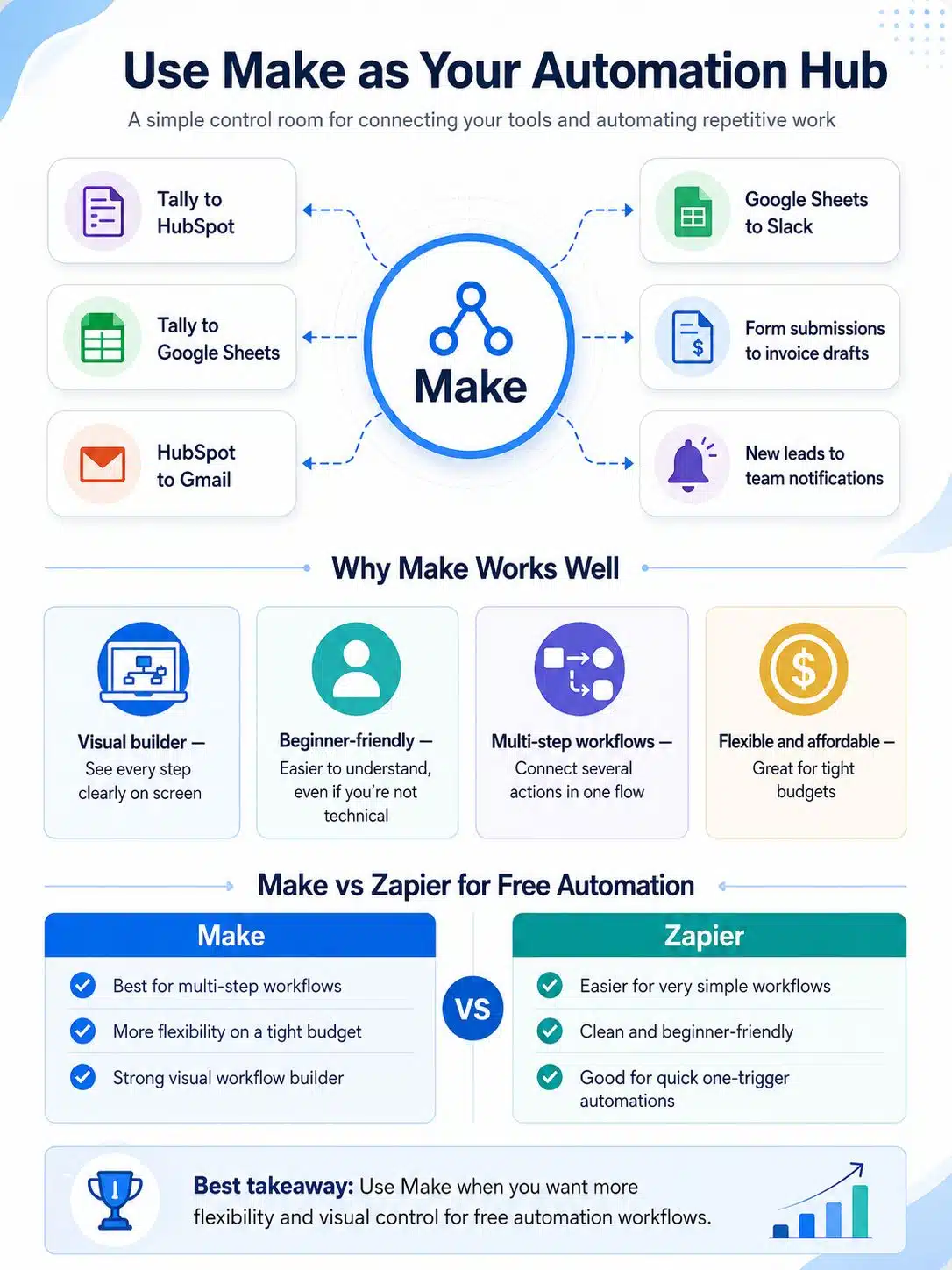
Make is one of the most useful tools for connecting apps.
Think of it as the control room for your workflows.
You can use it to move information between your form, CRM, email, spreadsheet, project management tool, or invoicing software.
For example, Make can help you connect:
- Tally to HubSpot
- Tally to Google Sheets
- HubSpot to Gmail
- Google Sheets to Slack
- Form submissions to invoice drafts
- New leads to team notifications
The best part is the visual builder.
You can see each step on the screen. That makes it easier to understand what’s happening, even if you’re not technical.
Make vs Zapier for Free Automation
Zapier is easier for very simple workflows. It’s popular, clean, and beginner-friendly.
Make usually gives you more flexibility if you want multi-step workflows on a tight budget.
Here’s the practical difference:
| Tool | Best For | Free Plan Watch-Out |
| Make | Multi-step workflows and visual automation | You need to understand operations/credits |
| Zapier | Simple one-trigger, one-action workflows | Free limits can feel tight quickly |
| Activepieces | Open-source automation | May need more technical confidence |
| n8n | Self-hosted automation | You need hosting and setup knowledge |
For a small business owner, Make is often a better starting point if you want to build serious workflows without paying right away.
But if your task is very simple, Zapier can still work well.
Build Your First Lead Automation
Let’s keep this practical.
Say you run a small service business. You have a contact form on your website. People submit their name, email, phone number, and service request.
Without automation, you may check your inbox, copy the details, add them to a sheet, save them in a CRM, and send a reply.
That’s too much manual work.
With automation, the same process can happen in seconds.
Suggested Workflow
| Step | Tool | What It Does |
| 1 | Tally | Collects the lead |
| 2 | Make | Receives the form data |
| 3 | HubSpot | Creates or updates the contact |
| 4 | Gmail/Outlook | Sends a welcome email |
| 5 | Google Sheets | Saves a backup copy |
This is the kind of automation I’d build first.
It’s simple. It saves time. It improves response speed. And it gives you a cleaner lead system from the start.
Use Tally for Clean, Free Forms
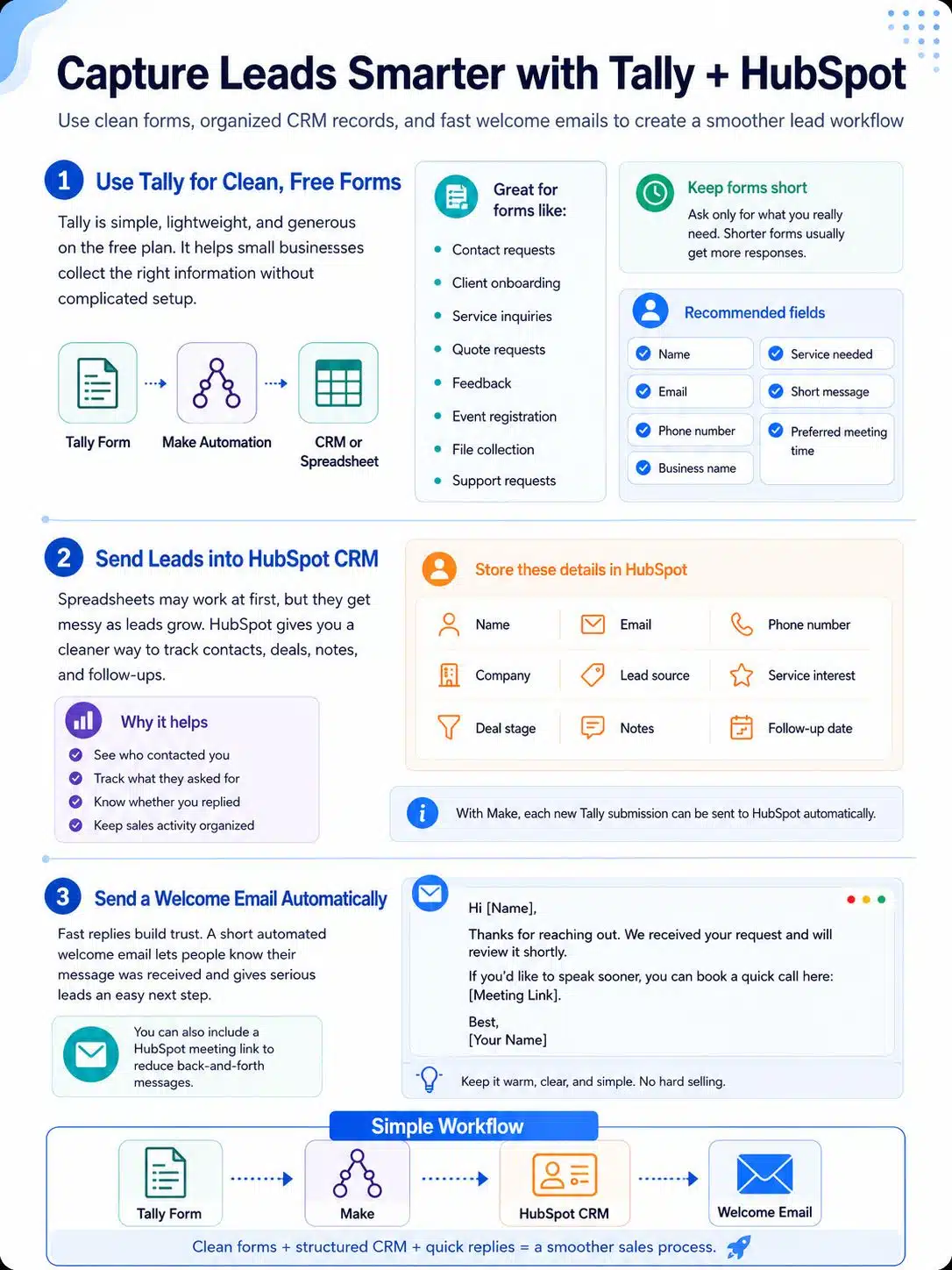
Tally is a strong choice for small businesses because it’s simple and generous on the free plan.
You can create forms for:
- Contact requests
- Client onboarding
- Service inquiries
- Quote requests
- Feedback
- Event registration
- File collection
- Support requests
The form builder feels light. You don’t need to fight with complicated settings.
For a small team, that matters.
You can build a form, connect it to Make, and start sending responses to your CRM or spreadsheet.
A good form should only ask for what you really need.
Don’t ask 20 questions when five will do.
For most service businesses, start with:
- Name
- Phone number
- Business name
- Service needed
- Short message
- Preferred meeting time
Shorter forms usually get more responses.
Send Leads into HubSpot CRM
A spreadsheet can work at the beginning.
But once leads increase, spreadsheets get messy.
HubSpot CRM gives you a cleaner way to track contacts, deals, notes, and follow-ups. You can see who contacted you, what they asked for, and whether you replied.
That visibility helps.
You don’t have to search through WhatsApp, Gmail, Facebook Messenger, and old sheets just to find one client’s details.
With Make, you can send every new Tally form submission into HubSpot automatically.
Inside HubSpot, you can store:
- Name
- Phone number
- Company
- Lead source
- Service interest
- Deal stage
- Notes
- Follow-up date
This makes your sales process feel less random.
And when your business grows, that structure becomes even more important.
Send a Welcome Email Automatically
Fast replies build trust.
A customer may not expect a full answer immediately, but they do want to know their message reached you.
That’s why an automated welcome email works so well.
Keep it short and warm.
Something like:
Hi [Name],
Thanks for reaching out. We received your request and will review it shortly.
If you’d like to speak sooner, you can book a quick call here: [Meeting Link].
Best,
[Your Name]
That’s enough.
No hard selling. No long pitch. Just a clear reply.
You can also include a HubSpot meeting link so serious leads can book a call without back-and-forth messages.
Why This Works
| Without Automation | With Automation |
| Lead waits for your reply | Lead gets instant confirmation |
| You may forget to follow up | The system sends the first response |
| Scheduling takes several emails | Booking link handles it |
| Details stay scattered | CRM keeps the record |
This one workflow can make a small business look more professional overnight.
Keep Google Sheets as a Backup
Even if you use HubSpot, keep a Google Sheets backup.
Why?
Because sheets are easy to scan, filter, export, and share.
A CRM is great for managing relationships. But a sheet is still useful for quick reporting.
You can send every form submission to both HubSpot and Google Sheets.
That gives you two layers:
- HubSpot for sales tracking
- Google Sheets for backup and reporting
Google Sheets can also help when a free automation plan limits the number of steps you can run.
For example:
Workflow 1: Tally → Google Sheets
Workflow 2: New Google Sheets row → HubSpot + Gmail + Team alert
This method keeps things flexible.
It’s not fancy, but it works.
Automate Social Posting with Buffer
Social media can quietly eat your day.
You open LinkedIn to post one update. Then you check notifications. Then you jump to X. Then Instagram. Then you rewrite captions. Then you resize an image.
Suddenly, a simple post takes 40 minutes.
Buffer helps you avoid that trap.
You can prepare your posts in batches and schedule them ahead of time.
For a small business, this is a big win.
You don’t need to post manually every day. You can plan once or twice a week and let Buffer handle the publishing.
Better Social Posting Workflow
| Step | What You Do |
| Monday morning | Write post ideas |
| Monday afternoon | Prepare captions and images |
| Tuesday | Schedule posts in Buffer |
| Rest of the week | Focus on real business work |
Batching protects your focus.
And focus is expensive.
Every time you jump from client work to social posting, your brain pays a switching cost. Buffer reduces that.
Don’t Post the Same Thing Everywhere
Cross-posting saves time, but don’t be lazy with it.
The same message doesn’t work the same way on every platform.
LinkedIn needs more context.
X needs sharper hooks.
Instagram needs better visuals.
Facebook may need a friendlier tone.
So use the same core idea, but adjust the format.
Example:
If you’re announcing a new service:
- LinkedIn: Explain the business problem and your solution.
- X: Share a short hook with a clear link.
- Instagram: Use a clean graphic and a short caption.
- Facebook: Write in a warmer, more community-focused tone.
This takes a few extra minutes, but it makes your brand look more human.
Automation should save time.
It shouldn’t make your content look copied and pasted everywhere.
Use Wave for Invoices and Payment Reminders
Invoicing is one of those tasks that should not take as long as it does.
You open an old invoice. Change the client name. Update the amount. Fix the date. Export the PDF. Send the email. Then you try to remember who paid and who didn’t.
That’s not a good use of your time.
Wave can help you create invoices, track payments, and manage basic accounting tasks.
For small businesses, freelancers, and service providers, this can remove a lot of monthly stress.
What You Can Simplify with Wave
| Billing Task | How Wave Helps |
| Creating invoices | Uses saved client and service details |
| Monthly billing | Helps with recurring invoice routines |
| Payment reminders | Sends reminders when invoices are due |
| Customer records | Keeps billing history in one place |
| Cash flow tracking | Shows what’s paid and unpaid |
Late payments are awkward.
Automated reminders make them less awkward.
Instead of writing a manual “just checking in” message every time, the system can send a polite reminder.
That protects your relationship with the client while keeping your cash flow healthier.
Add Filters So You Don’t Waste Free Limits
Free SaaS tools are useful, but they come with limits.
That means you should be careful with what you automate.
Don’t let spam submissions waste your monthly runs. Don’t trigger five actions for junk leads. Don’t save incomplete form entries into your CRM.
Use filters.
For example:
- If the email field is empty, stop the workflow.
- If the message contains spam words, stop the workflow.
- If the budget field is too low for your service, send it to a separate sheet.
- If the service type is missing, ask the lead to complete the form again.
Filters make your automation cleaner.
They also help you stay inside free-plan limits longer.
Common Problems and Simple Fixes
| Problem | Likely Cause | Easy Fix |
| Workflow stops | App connection expired | Reconnect the app |
| Lead doesn’t save | Wrong field mapping | Check the form fields |
| Too many runs used | Spam submissions | Add filters |
| Duplicate contacts | Same person submits twice | Turn on duplicate checks |
| Email doesn’t send | Missing email field | Make email required |
Most automation errors are not scary.
Usually, one field is missing, one app needs reconnecting, or one step was mapped incorrectly.
Check Your Automations Every Week
Automation is not “set it and forget it forever.”
Apps change. Free plans change. Tokens expire. Form fields get edited. Someone on your team may rename a column in Google Sheets and break the workflow.
So check your automations once a week.
It doesn’t take long.
Open your automation tool and ask:
- Did the last few runs succeed?
- Did new leads enter the CRM?
- Did emails send properly?
- Is Google Sheets receiving data?
- Are there any failed steps?
- Do any apps need reconnecting?
Five minutes a week can save you from a messy month.
That’s especially important if your workflow touches leads, invoices, or customer messages.
A Practical Free SaaS Stack for Small Businesses
Here’s a simple stack I’d recommend for many small businesses:
| Need | Tool |
| Forms | Tally |
| Automation | Make |
| CRM | HubSpot |
| Gmail or Outlook | |
| Backup database | Google Sheets |
| Social scheduling | Buffer |
| Invoicing | Wave |
| File storage | Google Drive |
Start with only what you need.
Don’t add tools just because they look impressive.
A simple system you actually use is better than a complicated system you abandon after three days.
Best First Workflow to Build
If you’re new to automation, start here:
Form submission → CRM contact → welcome email → Google Sheets backup
This is useful for almost every small business.
It helps you reply faster. It keeps your records clean. It reduces manual entry. And it gives you a backup if one tool fails.
Workflow Breakdown
| Step | Tool | Result |
| Customer fills out form | Tally | Lead is captured |
| Data moves automatically | Make | No copy-paste needed |
| Contact is created | HubSpot | CRM stays updated |
| Email is sent | Gmail/Outlook | Customer gets a quick reply |
| Backup is saved | Google Sheets | You keep a simple record |
Once this works, you can build more.
Add invoice reminders. Add social scheduling. Add internal alerts. Add project folders. Add onboarding emails.
But don’t rush.
One reliable workflow is better than five broken ones.
What You Shouldn’t Automate
Automation is powerful, but it has limits.
Some parts of business still need a human voice.
Don’t fully automate:
- Sensitive customer complaints
- High-value sales conversations
- Proposal decisions
- Hiring decisions
- Refund disputes
- Personal relationship-building messages
- Complex client negotiations
Use automation for repeatable admin work.
Keep humans involved where trust, judgment, and empathy matter.
That’s the balance.
Final Thoughts
You don’t need a large software budget to run a cleaner business. You can automate small business tasks with free SaaS tools and remove hours of repetitive work from your week.
Start with the basics.
Create a form. Connect it to your CRM. Send a welcome email. Save a backup in Google Sheets. Schedule your social posts in batches. Use invoicing software to reduce billing stress.
These are not huge changes.
But they add up.
You’ll reply faster. You’ll make fewer mistakes. You’ll stop losing leads in messy inboxes. You’ll spend less time chasing routine tasks and more time building the business.
That’s the real value of automation.
It gives your focus back.
And when you run a small business, focus is everything.
Frequently Asked Questions (FAQs) on Automate Small Business Tasks with Free SaaS Tools
Can I really automate small business tasks for free?
Yes. Free SaaS tools can handle many basic tasks, including lead capture, email replies, CRM updates, social scheduling, and invoicing. Free plans have limits, but they’re often enough for freelancers, startups, and small teams.
What is the best free automation tool for beginners?
Make is a strong choice if you want visual, multi-step workflows. Zapier is also beginner-friendly, especially for simple one-step automations.
Is HubSpot Free CRM enough for a small business?
For many small businesses, yes. It gives you a cleaner way to store contacts, track leads, and manage follow-ups. You can upgrade later if you need advanced sales or marketing features.
Yes. Buffer has a free plan that works well for small teams that only need a few connected channels. Always check the current limit before planning your full content workflow around it.
Can I send invoices for free?
Yes. Wave offers free invoicing and accounting features for small businesses. Some payment and advanced features may have fees, so review the current pricing page before using it for client billing.
What should I automate first?
Start with lead capture. A simple form-to-CRM workflow can save time, reduce mistakes, and help you respond faster.
Do I need coding skills?
No. Tools like Make, Tally, HubSpot, Buffer, and Wave are built for non-technical users. You need patience and a clear workflow, not coding knowledge.
What happens if I hit a free-plan limit?
Your workflow may stop or pause until the limit resets. To avoid this, use filters, remove unnecessary steps, and set alerts when possible.
Are free SaaS tools safe for customer data?
Established SaaS tools usually provide standard security features, but you still need good habits. Use strong passwords, enable two-factor authentication, and avoid sending sensitive data through unnecessary apps.
Should I automate customer replies?
Automate simple replies, like welcome emails and booking confirmations. But keep personal replies for complaints, negotiations, and high-value client conversations.