Navigating the crowded app market to find effective Educational Software for Students With Special Needs can feel overwhelming. With countless tools promising various benefits, finding practical solutions is critical. The need is undeniable: the NCES reports that 7.5 million U.S. students—15 percent of public school enrollment—received IDEA services in 2022-23. Because specific learning disabilities make up 32 percent of these cases, the demand for reliable assistive technology is growing.
To cut through the noise, match specific student requirements with proven applications. Top-tier options like Otsimo Special Education, Proloquo2Go, Clicker Docs, ModMath, and AutiSpark offer targeted support for diverse developmental areas. Whether the goal is improving communication, building literacy, mastering math concepts, or enhancing cognitive skills, selecting the right digital tools makes a tangible difference in everyday learning outcomes.
Benefits of Educational Software for Special Needs Students
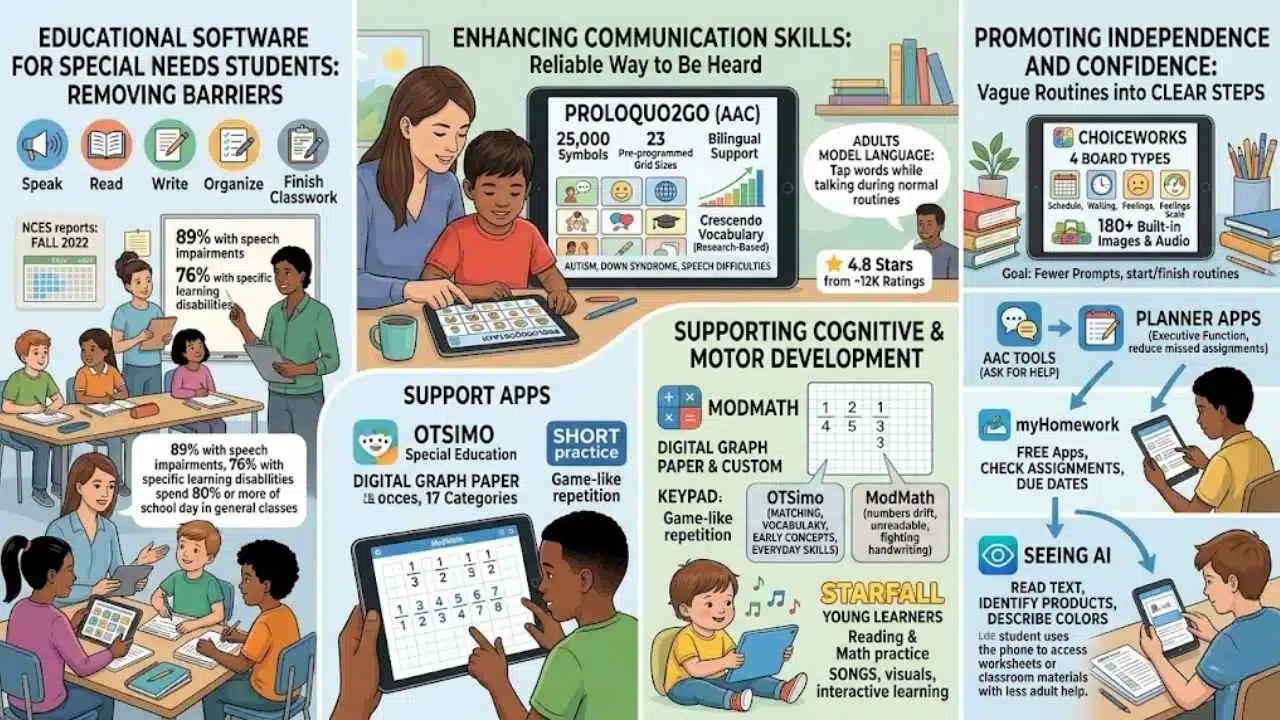
The best educational software does more than entertain. It removes one barrier at a time so a student can speak, read, write, organize, or finish classwork with less frustration.
That matters in U.S. classrooms because many students who receive special education services spend much of the day in general education settings. NCES notes that in fall 2022, 89 percent of students with speech or language impairments and 76 percent of students with specific learning disabilities spent 80 percent or more of the school day in general classes.
Enhancing communication skills
A strong app does not replace human support, it gives the student one more reliable way to be heard.
For communication, Proloquo2Go stays near the top of the list for a reason. AssistiveWare says the app includes 25,000 symbols, 23 pre-programmed grid sizes, bilingual support, and a research-based Crescendo vocabulary that helps students grow from single words to longer sentences.
That is especially useful for students with autism, Down syndrome, or other speech difficulties who need consistent button locations and clear voice output. Apple’s App Store lists Proloquo2Go at 4.8 stars from about 12,000 ratings, which gives families one quick signal that the app has held up in day-to-day use.
AAC works best when adults model language on the device during normal routines. In plain English, that means staff and family should tap the words while they talk, not wait for the student to guess the layout alone.
Supporting cognitive and motor development
Otsimo Special Education helps here by breaking practice into short, game-like activities. Otsimo’s current FAQ says the app includes more than 100 games across 17 categories, which makes it a good fit for students who need repetition without long directions.
ModMath solves a different problem. Instead of asking a student with dysgraphia or dyslexia to fight handwriting and math at the same time, it uses digital graph paper and a custom keypad so the student can line up numbers, fractions, and equations cleanly.
- Use Otsimo when the goal is short practice in matching, early concepts, vocabulary expansion, and everyday skills.
- Use ModMath when the student understands the math but loses points because numbers drift, stack unevenly, or become unreadable.
- Use Starfall for young learners who need reading and math practice presented through songs, visuals, and simple interactive learning.
Promoting independence and confidence
Independence often starts with structure. Choiceworks gives students four board types, Schedule, Waiting, Feelings, and Feelings Scale, plus more than 180 built-in images and audio, which helps teachers turn vague routines into clear steps.
For organization, myHomework offers free apps so students can check assignments and due dates on their own devices. If visual access is the barrier, Seeing AI can read text, identify products, and describe colors, which can make worksheets, labels, and classroom materials easier to use with less adult help.
- Schedule tools help students start and finish routines with fewer prompts.
- AAC tools help students ask for help before frustration builds.
- Planner apps support executive function and reduce missed assignments.
- Reading and vision support apps let students practice more independently at home and at school.
Key Features to Look For in Educational Software
Good software should fit the student, the classroom, and the IEP. The U.S. Department of Education explains that IDEA expects schools to educate students in the least restrictive environment, using supplementary aids and services when appropriate, and the right app can be one of those supports.
Customization and adaptability
Good tools bend to the student, not the student to the tool.
Customization matters most when a student needs a tool to grow with them. Proloquo2Go lets teams change grid size, add personal photos, edit vocabulary, and move between beginner and advanced communication within the same system.
Choiceworks is another strong example because families can add their own images, audio, and videos to routines. That means a visual schedule can match the student’s actual backpack, bathroom, classroom, or bus stop instead of relying on generic pictures.
Clicker is flexible in a different way. Crick Software’s current FAQ says Clicker works on Windows and Mac, while Clicker Apps run on iPad and Chromebook, so schools can support students across mixed devices instead of rebuilding the same accommodation from scratch.
Multisensory input (touch, sound, visuals)
Students often learn faster when text, sound, and movement work together. Clicker stands out here because its speech feedback reads writing aloud and highlights each word as it is spoken, which helps students connect printed words to spoken language.
Starfall is also useful for early readers and math learners. Starfall says its membership expands access to more than 700 activities, and that broad library makes it easier to keep practice fresh without switching to a new app every week.
- Touch helps students stay active instead of passive.
- Audio feedback helps students catch errors on their own.
- Visual cues lower the memory load during reading, writing, and math tasks.
- Short activities help many learners stay engaged without overload.
Augmentative and Alternative Communication (AAC) support
AAC support should be deep, not decorative. Proloquo2Go’s App Store listing says that just 200 to 400 core words make up about 80 percent of what we say, which is why strong AAC apps keep those high-frequency words easy to reach.
Otsimo also gives families a simpler AAC entry point through its tap-to-talk tools. That can be helpful for younger learners or for families who want to try symbol-based communication before moving into a more advanced, schoolwide system.
When you compare AAC options, look for these basics first.
- Easy photo and symbol editing for personal words and routines.
- Consistent button locations so motor planning can build over time.
- Voice output that sounds clear in a classroom, cafeteria, or playground.
- Enough vocabulary depth that the student can do more than request snacks and breaks.
User-friendly interface
A student should not need six taps just to start working. Clear icons, low visual clutter, large touch targets, and simple menus matter a lot for learners with autism, Asperger’s, dysgraphia, or fine motor challenges.
ModMath gets this right with its digital graph paper and accessible keypad. Clicker does it with child-friendly writing supports, and Otsimo helps by keeping the screen calm and ad-free, which lowers distraction during practice.
| Feature to check | Why it matters |
|---|---|
| Large icons or keys | Reduces errors for students with motor or visual needs. |
| Speech feedback | Lets students hear mistakes and self-correct. |
| Cross-device access | Makes home and school carryover much easier. |
| Custom content | Keeps the tool tied to real routines, not generic drills. |
Best Overall: Otsimo Special Education
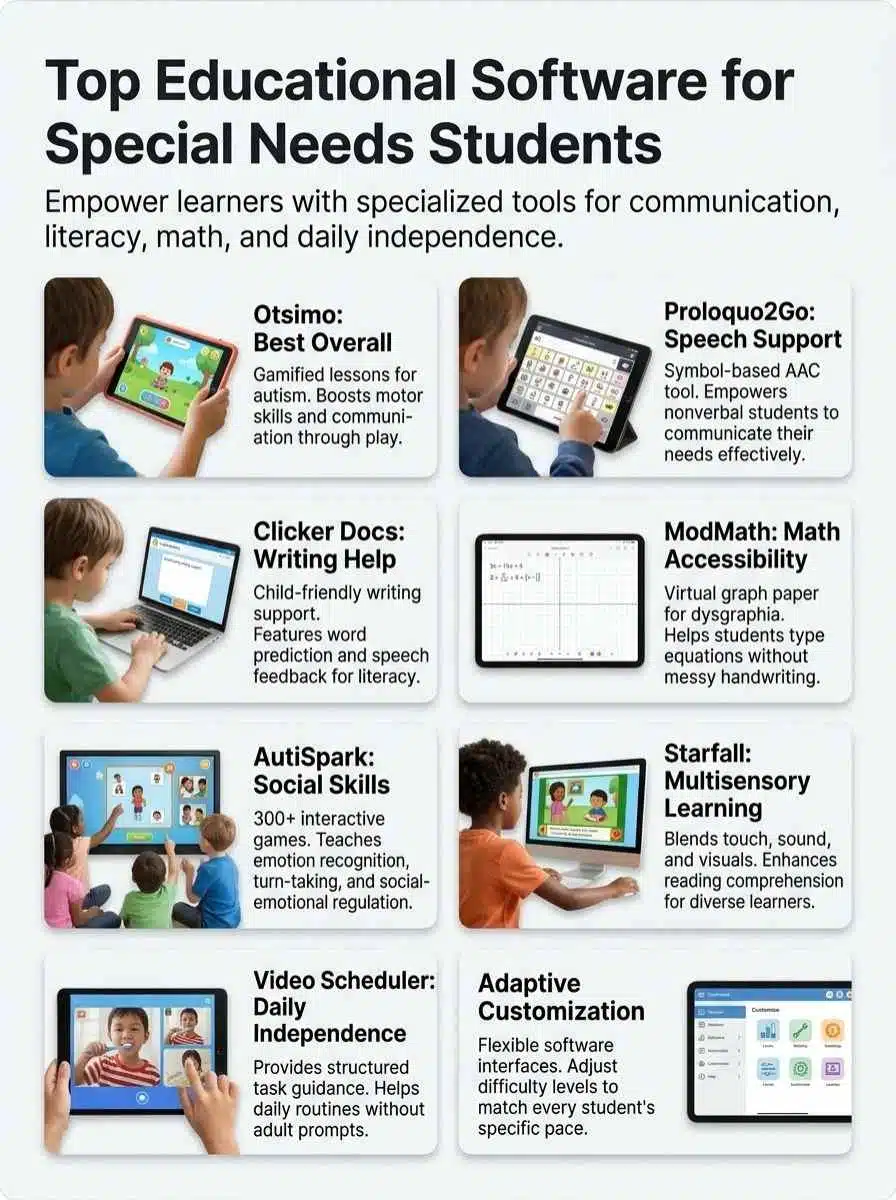
Otsimo Special Education is a smart pick for families and classrooms that want one app to cover several early learning goals at once. It works best for students who respond well to short, visual practice and steady routines.
Features & Description (Otsimo Special Education)
Otsimo focuses on autism, learning disorders, communication practice, and early academic concepts through short games. Otsimo’s official materials say the app offers more than 100 games, AAC support, progress tracking, and daily reports, which makes it easier for adults to see what a student practiced and where they still need help.
The interface is one of its big strengths. Otsimo says its premium version is ad-free and kid-safe, and that matters because many students lose focus fast when an app feels noisy or cluttered.
As of May 2026, Otsimo’s app listing shows a free download with premium plans that range from monthly subscriptions to a $229.99 lifetime option. That makes it easier for families to trial the program at home before asking a school team to consider it as part of a broader assistive software plan.
Pros & Cons (Otsimo Special Education)
Here is a practical look at where Otsimo shines and where it may fall short.
| Pros |
|
|---|---|
| Cons |
|
Best for Communication: Proloquo2Go
If communication is the biggest barrier, Proloquo2Go deserves a close look. It is one of the most established AAC tools used by speech-language pathologists, families, and school teams in the U.S.
Features & Description (Proloquo2Go)
Proloquo2Go is built for people who cannot speak or who need help being understood. As of May 2026, Apple’s App Store lists it at $249.99, and AssistiveWare says it is available on iPad, iPhone, Apple Watch, and as a separate app on Mac.
The app goes far beyond a few picture buttons. It includes more than 100 downloadable voices, 25,000 symbols, text-to-speech, typing support, 23 pre-programmed grid sizes, and bilingual language use, so a student can communicate in more than one language without changing systems.
Its biggest strength is the Crescendo vocabulary. Core words stay in consistent places, which helps motor planning and gives students a path from simple requests to full sentences.
The main caution is setup time. A good AAC system needs adult modeling, staff buy-in, and some training, so schools should treat Proloquo2Go as a communication program, not just a one-time app purchase.
Pros & Cons (Proloquo2Go)
Readers, below is a clear pros and cons table for Proloquo2Go.
| Pros | Cons |
|---|---|
|
|
Best for Literacy Skills: Clicker Docs
If you are researching Clicker Docs, there is one helpful update to know. In Crick’s current product line, the writing support that many schools now use is Clicker on Windows and Mac or Clicker Writer on iPad and Chromebook, and it carries forward the same child-friendly writing support that made Clicker Docs popular.
Features & Description (Clicker Docs)
Clicker is built for students who have ideas but struggle to get them onto the page. Crick Software says its current Clicker tools include speech feedback, word prediction, Voice Notes, picture support, mind-mapping tools, and topic-specific Word Banks, which is a strong mix for dyslexia, dysgraphia, language delays, and emerging writers.
One feature I really like here is the read-back support. Crick explains that Clicker highlights each word as it speaks, so students can hear sentence errors and spot where their writing stopped making sense.
Accessibility is another reason schools keep using it. Clicker supports eye gaze, switch access, multiple onscreen keyboard layouts, and cross-device use across Windows, Mac, iPad, and Chromebook, which makes it easier to match accommodations to the student’s actual device.
For budgeting, Crick Software’s U.S. pricing page lists a one-to-one support subscription at $750 total for three years, covering one student and one facilitator or teacher. That gives IEP teams a concrete number to weigh when a single student needs dedicated access.
Pros & Cons (Clicker Docs)
Clicker helps students write, read, and speak with more independence.
| Category | Summary Points |
|---|---|
| Pros |
|
| Cons |
|
Best for Math Skills: ModMath
ModMath is a great example of what assistive technology should do. It does not try to teach every math concept from scratch, it removes the writing barrier so the student can show the math they already know.
Features & Description (ModMath)
Modmath says the app is assistive technology for math, not a calculator. It uses digital graph paper and a custom keypad so students can line up numbers, fractions, exponents, and multi-step work with much less visual mess.
The platform story is better now than it used to be. Modmath’s official site says the app is available on iPads, MacBooks, Chromebooks, and Android tablets, which makes it much easier for schools to support students outside one device family.
Its newer version is also more flexible in class. Modmath’s help center says the app is free to download, while Modmath Plus costs $3.99 per month or $29.99 per year and adds expanded keypads, PDF notes, and other advanced tools.
One especially useful feature is worksheet import. Students can pull in an assignment photo, write directly on top of it, and export the work as a PDF, which saves teachers from decoding hard-to-read paper math.
Pros & Cons (ModMath)
| Best fit | Watch-outs |
|---|---|
|
|
Best for Social and Emotional Skills: AutiSpark
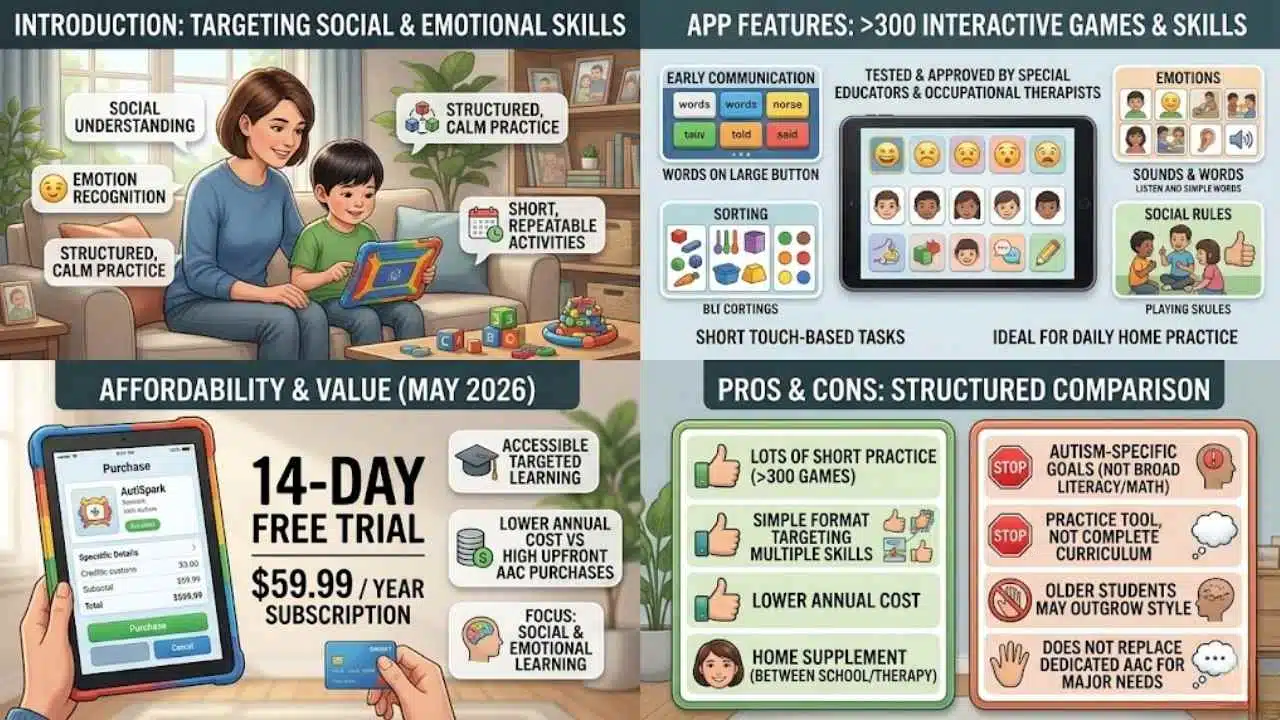
AutiSpark is a strong choice when the goal is social understanding, emotion recognition, and calm, structured practice. It works best for younger students with autism who benefit from short, repeatable activities.
Features & Description (AutiSpark)
AutiSpark offers a large activity library for autism-focused learning. The official subscription page says it includes more than 300 interactive games, and the App Store describes the content as tested and approved by special educators and occupational therapists.
The activities target early communication, emotions, sorting, sounds, words, and social rules through short touch-based tasks. That makes the app more useful for daily home practice than for one long weekly session.
As of May 2026, the App Store lists a 14-day free trial and a full-year subscription at $59.99. That price is much easier for many families to try than a high upfront AAC purchase, especially if the main goal is social and emotional learning rather than full communication support.
Pros & Cons (AutiSpark)
| Pros | Cons |
|---|---|
|
|
Final Thoughts
The best special education software is the one that solves the next real problem in front of your student. That might be speech with Proloquo2Go, writing with Clicker, number layout with ModMath, social practice with AutiSpark, or broad early learning with Otsimo Special Education.
If note capture is the issue, Livescribe smartpens can sync audio to handwritten notes. If planning is the barrier, MindNode lets students switch between a visual map and an outline, with task highlighting added in its 2026 release.
Pick one tool, test it against one clear goal, and watch what gets easier.
Frequently Asked Questions (FAQs) About Educational Software for Students
1. What should I look for in educational software for special needs students?
Look for accessibility, adaptive learning, speech therapy supports, communication tools, and visual supports, so the program matches the student’s needs.
2. Can educational software help with IEP goals?
Yes, good software tracks progress, gives data for IEP meetings, and ties activities to specific goals.
3. Are learning apps hard for teachers and families to use?
Most learning apps are simple, with clear menus and help guides, and short training sessions make them easier to adopt.
4. How do I pick the right assistive technology or educational software?
Start with the child’s needs, ask therapists and teachers for input, try demos and short trials, and use real data from use to guide the final choice.