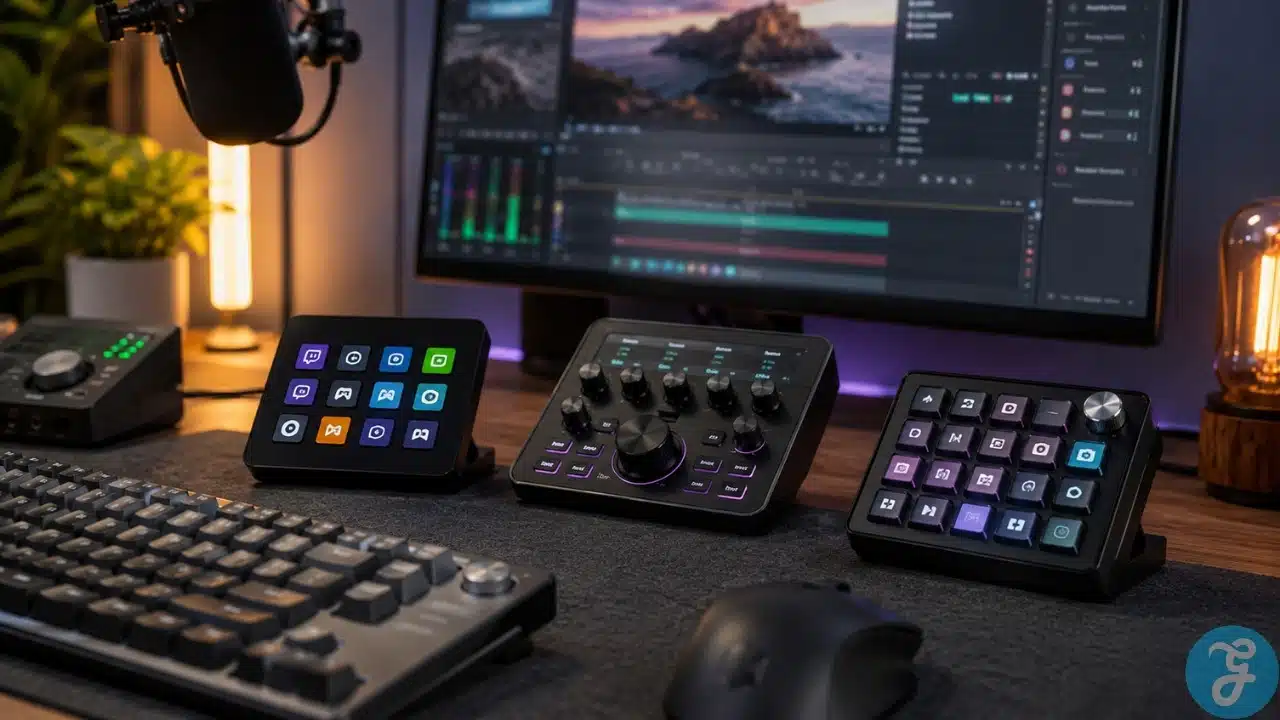
Most creators do not need more apps. They need fewer repeated clicks. That is where the Best Stream Decks and Macro Pads become useful. A good control pad can switch OBS scenes, mute a mic, open editing tools, trigger a shortcut chain, control lights, adjust brush size, launch folders, manage meetings, or run the same boring command you use 50 times a day.
The problem is that this category has become crowded. Some devices are made for streamers. Some are better for editors. Some are really just fancy shortcut keyboards. Some look useful but only make sense after you spend time building profiles and macros.
This guide compares the strongest options for creators, streamers, editors, designers, podcasters, gamers, and productivity users. The main point is not buying the biggest panel. It is choosing the one that matches your actual workflow.
Our Selection Criteria
A good macro device should save time after the setup phase, not become another desk toy you stop using after a week.
The strongest picks were judged by:
- Shortcut control: hotkeys, app launches, multi-action workflows, profiles, and macros
- Hardware layout: LCD keys, dials, touch controls, mechanical keys, knobs, wheels, or buttons
- Software support: app profiles, plugins, customization, and reliability
- Use-case fit: streaming, editing, design, productivity, audio, gaming, or broadcast work
- Desk practicality: size, cable setup, learning curve, and whether the layout is easy to remember
- Long-term value: whether the device still makes sense after the excitement wears off
Whom This Is For
This guide is for people who repeat the same digital actions every day: streamers changing scenes, video editors trimming clips, designers switching tools, podcasters managing audio, writers opening research folders, and office users living inside meetings and shortcuts.
You probably do not need a giant 32-key panel if you only want to open Spotify, mute Zoom, and launch three apps. But if your workflow involves OBS, Premiere Pro, Photoshop, DaVinci Resolve, Lightroom, Discord, smart lights, music controls, browser dashboards, and system commands, a control pad can quickly become part of your desk routine.
9 Best Stream Decks And Macro Pads Worth Buying
The ranking below is based on practical usefulness, not just button count. Some products are better for visual commands. Some are better for dials. Some are better for mechanical-key users. A few are excellent, but only for a specific type of creator.
1. Elgato Stream Deck MK.2
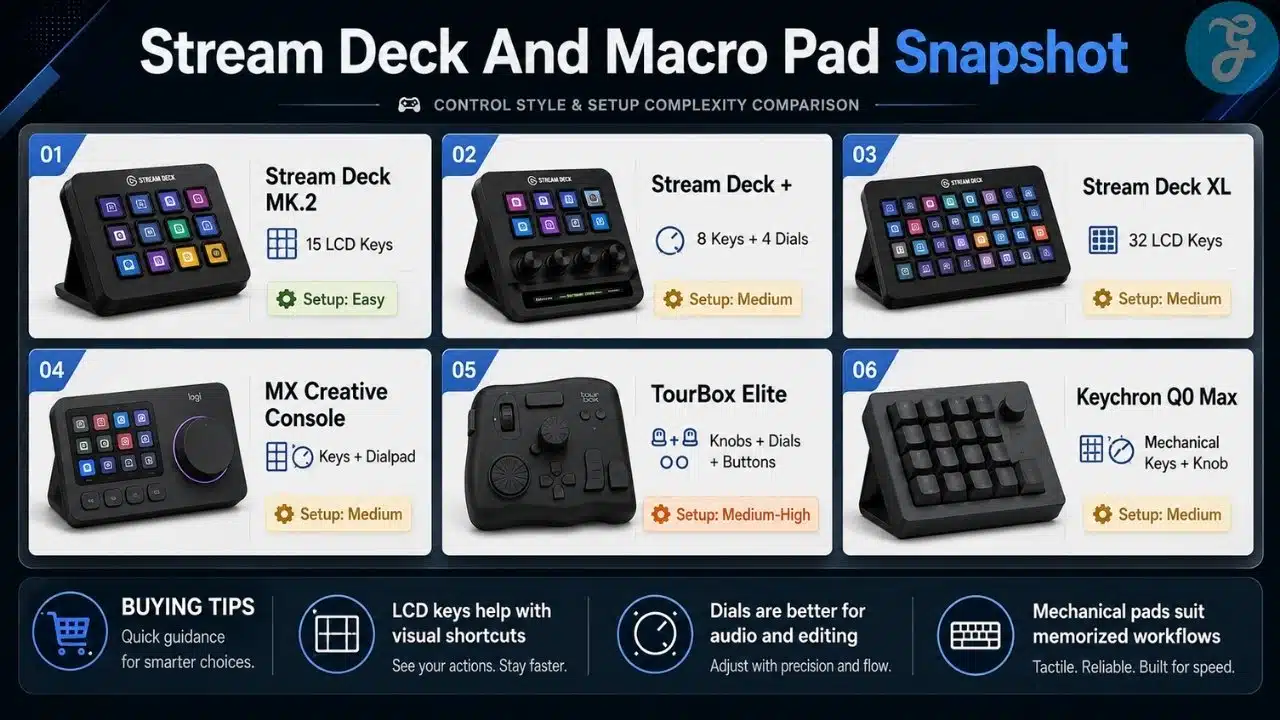
The Elgato Stream Deck MK.2 is the easiest recommendation for most people because it gets the balance right. Its 15 LCD keys are enough for streaming controls, app shortcuts, meeting commands, music buttons, folder launches, and multi-step actions without taking over the desk.
This is the model I would recommend first to a creator who does not already know what they need. It is not the most advanced option here, but it is the most sensible starting point. You get visual labels, folders, multi-actions, plugin support, and a mature Stream Deck software ecosystem.
For streamers, it handles common jobs like switching OBS scenes, muting a mic, posting chat messages, controlling music, and triggering overlays. For non-streamers, it can still be useful for Zoom, Teams, Photoshop actions, browser shortcuts, system controls, and writing workflows.
Best for: Streamers, creators, gamers, and productivity users who want one reliable shortcut pad.
Buy it if: you want the safest all-around choice and do not need dials.
Skip it if: your workflow depends heavily on volume mixing, timeline scrubbing, brush size, or other controls that feel better with a knob.
The MK.2 is not exciting in the way newer consoles are exciting. That is exactly why it works. It is simple, flexible, and easy to build around.
2. Elgato Stream Deck +
The Elgato Stream Deck + is the better Elgato choice for people who adjust values all day. It has fewer LCD keys than the MK.2, but it adds four multifunction dials and a touch strip. That changes the kind of work it handles best.
Buttons are good for actions. Dials are better for adjustment.
That matters if you control microphone levels, music volume, lighting brightness, zoom, brush size, timeline movement, or other settings where tapping a button feels clumsy. A podcaster can assign dials to audio levels. A video editor can use them for timeline movement or fine adjustments. A streamer can manage volume sources without opening software windows mid-session.
The trade-off is key count. Eight LCD keys can feel tight if you want lots of visible commands at once. You can use pages and profiles, but that adds navigation.
Best for: Streamers, podcasters, editors, and creators who need buttons plus analog control.
Where it beats the MK.2:
- Audio control
- Lighting adjustments
- Dial-based workflows
- Small production desk setups
Where it falls behind:
- Fewer visible buttons
- More setup work
- Less ideal for users who only want simple one-tap shortcuts
The Stream Deck + is not just a bigger shortcut pad. It is closer to a small desktop control console.
3. Logitech MX Creative Console
The Logitech MX Creative Console is the most interesting option for creative app users, especially people working in Adobe tools. It uses a two-part design: a keypad with LCD keys and a separate dialpad with analog controls.
That split matters. The keypad handles shortcuts and app commands. The dialpad is better for timeline movement, brush changes, zoom, color adjustments, and other value-based controls. If your day happens inside Photoshop, Premiere Pro, Lightroom, After Effects, Illustrator, DaVinci Resolve, Figma, or productivity apps, this can feel more targeted than a streamer-first device.
It is not the obvious choice for someone whose main job is switching OBS scenes. Elgato still has the stronger streaming identity. But Logitech has built this more clearly around editing and design, and that gives it a real place on this list.
Best for: Designers, editors, photographers, and Adobe-heavy creators.
What makes it useful:
- Keypad and dialpad can be placed around your keyboard
- Dials feel natural for brush, timeline, zoom, and adjustment controls
- Better fit for creative work than many button-only macro pads
- Looks more like a desk productivity tool than streaming gear
What to check first: app support. Do not buy it only because it looks clean. Check whether the software you use most has profiles, plugins, or easy shortcut mapping.
4. Elgato Stream Deck XL
The Elgato Stream Deck XL is for people who already know 15 keys are not enough. With 32 LCD keys, it gives advanced users far more visible commands at once.
This is useful for live producers, serious streamers, editors with complex workflows, and anyone running multiple apps during production. Instead of hiding everything inside folders, you can keep more controls visible: OBS scenes, camera changes, sound effects, music controls, lighting presets, system tools, browser dashboards, and editing shortcuts.
For casual users, the XL is too much. It takes more space, costs more, and can make a simple workflow feel unnecessarily busy. But for power users, the larger grid is not a luxury. It reduces page switching and mental friction.
Best for: Advanced streamers, live producers, and automation-heavy creators.
Good reason to buy it: you already use enough shortcuts that smaller devices feel cramped.
Bad reason to buy it: you think more buttons will automatically make you more productive.
The XL rewards planning. A messy layout with 32 keys is still messy.
5. Elgato Stream Deck Neo
The Elgato Stream Deck Neo is the friendliest option in the Stream Deck family. It has 8 LCD keys, an Infobar, and touch points for navigation. It is small, clean, and much less intimidating than the bigger models.
This is a good fit for everyday productivity rather than serious streaming. Think meeting controls, focus mode, app launchers, calendar shortcuts, music controls, folder shortcuts, basic smart home actions, or a few favorite writing/editing commands.
The Infobar adds a little extra usefulness because it can show lightweight information such as page selection or time-style widgets. It is not essential, but it makes the small device feel less bare.
Best for: beginners, small desks, students, office users, and light creators.
Use it for:
- Zoom or Teams controls
- Opening apps and folders
- Music playback
- Simple macro chains
- Small daily shortcuts
Do not buy the Neo if you are already juggling complex OBS scenes, multiple audio sources, and editing shortcuts. It is meant to reduce friction, not manage an entire production room.
6. Loupedeck Live S
The Loupedeck Live S sits between a streamer control pad and a compact creator console. It gives you touch-sensitive buttons, tactile buttons, and two analog dials, so it feels different from a Stream Deck.
The touch controls are useful, but they are not the same as physical LCD keys. Some users like the flatter, console-style interface. Others prefer the click and certainty of a button. That preference matters more than the spec sheet suggests.
The dials give the Live S real value for audio, adjustments, sliders, and timeline-style controls. It is also compact enough for smaller desks, which helps if you already have a keyboard, mouse, mic arm, audio interface, and too many cables fighting for space.
Best for: creators who want a compact console with touch controls and dials.
Stronger for:
- Audio adjustments
- Creative controls
- Smaller desk setups
- Users who like touch panels
Weaker for:
- People who want physical LCD keys
- Users already deep in Elgato plugins
- Anyone who dislikes touch-based controls
This is a good product, but it is a preference-driven pick. The hardware style should match how you like to work.
7. Razer Stream Controller X
The Razer Stream Controller X is a clean 15-button alternative for people who want a Stream Deck-style layout without choosing Elgato.
Its strength is simplicity. You get a grid of programmable buttons for streaming, editing, music production, app control, and shortcuts. It is easy to understand and fits neatly into a Razer-heavy desk setup.
The problem is that it competes directly with the Elgato Stream Deck MK.2, and that is a hard fight. Elgato has the wider mindshare and more mature ecosystem for many users. Razer’s option is still worth considering if you prefer its design, find it at a better price, or already use Razer gear.
Best for: streamers and creators who want a 15-button shortcut board outside the Elgato ecosystem.
Good fit if: you want a simple button grid and do not need dials.
Less convincing if: you want the safest software ecosystem or the widest community support.
The Razer Stream Controller X is not a bad pick. It is just a more specific recommendation than the Stream Deck MK.2.
8. TourBox Elite
The TourBox Elite is not really a stream deck. It is a one-handed creative controller for people who want tactile controls without looking down every few seconds.
That distinction is important. There are no LCD keys. You are not tapping labeled buttons for OBS scenes. Instead, you are using a physical layout of buttons, wheel, knob, and dial controls that can become muscle memory over time.
This makes sense for photo editing, video editing, illustration, color work, and timeline control. You can map controls to zoom, brush size, exposure, frame stepping, timeline movement, undo, tool switching, and app-specific actions. The Elite also supports wireless use and haptic feedback, which makes the controls feel more deliberate.
Best for: photo editors, video editors, illustrators, and digital artists.
Why it is underrated: once your hand learns the layout, you can adjust controls without constantly checking the device.
Why some users should skip it: it asks for patience. If you want labeled visual buttons from day one, this will feel less obvious than a Stream Deck.
TourBox Elite is strongest when you do repetitive creative work and want your non-mouse hand doing more than resting beside the keyboard.
9. Keychron Q0 Max
The Keychron Q0 Max is the best pick here for mechanical keyboard users who want a numpad and macro pad in one device. It is not a streaming console. It is a full-metal custom number pad with a macro column and rotary encoder.
That makes it practical for a different kind of user: writers, coders, spreadsheet-heavy workers, keyboard enthusiasts, editors, and anyone who prefers real mechanical keys over touch controls or tiny LCD screens.
The Q0 Max supports deep customization through QMK-style workflows and gives you multiple connection options. It can act as a proper numpad, a macro pad, or a side control unit for shortcuts and repetitive desktop actions.
Best for: mechanical keyboard fans, productivity users, coders, spreadsheet workers, and shortcut-heavy desk setups.
Where it makes sense:
- You miss having a numpad
- You like mechanical switches
- You want a rotary knob
- You can memorize shortcuts
- You prefer keyboard-style control over screens
Where it does not make sense: streaming-heavy setups where visual labels matter. If you need icons for scene switching, Elgato is easier.
The Q0 Max is not trying to be a Stream Deck. That is why it works for the right person.
Best Stream Decks And Macro Pads By Use Case
Instead of choosing only by brand, choose by the job you want the device to do.
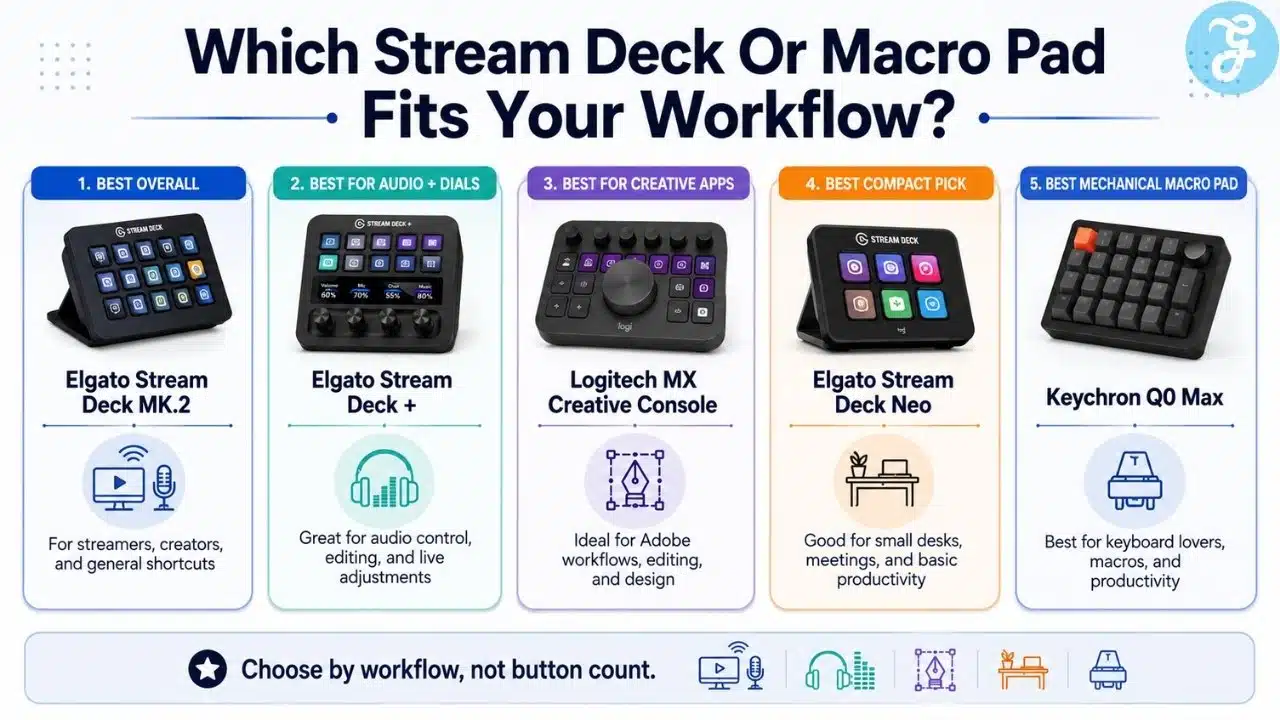
Best overall: Elgato Stream Deck MK.2
Best first purchase for most streamers and creators.
Best for audio and dials: Elgato Stream Deck +
Better for volume, lighting, timeline, brush, and adjustment controls.
Best for heavy production: Elgato Stream Deck XL
Best when you want many commands visible at the same time.
Best compact pick: Elgato Stream Deck Neo
Good for meetings, apps, shortcuts, and small desks.
Best for Adobe-style creative work: Logitech MX Creative Console
A strong choice for editors, designers, and photo workflows.
Best Stream Deck-style alternative: Razer Stream Controller X
Good if you want a 15-button grid outside Elgato.
Best touch-and-dial creator console: Loupedeck Live S
Useful for creators who prefer touch buttons and analog dials.
Best for editing muscle memory: TourBox Elite
Better for tactile creative control than visual command labels.
Best mechanical macro pad: Keychron Q0 Max
Strong for keyboard fans, numpad users, and QMK-style customization.
How To Choose The Right Stream Decks And Macro Pads For Yourself?
Start with the tasks you repeat, not the device you think looks coolest.
If you mostly switch scenes, mute audio, trigger overlays, launch apps, and control chat tools, LCD keys are useful because they show what each button does. That makes Elgato Stream Deck MK.2, Stream Deck XL, Stream Deck Neo, or Razer Stream Controller X the safer direction.
If you edit video, adjust audio, zoom into timelines, change brush sizes, or tweak sliders, dials are more useful than extra buttons. Look at Stream Deck +, Logitech MX Creative Console, Loupedeck Live S, or TourBox Elite.
If you want typing feel, QMK customization, and a proper numpad, choose Keychron Q0 Max. It is less flashy, but it may be more useful for desk productivity.
The Final Checklist
Before buying, ask yourself:
- Do I need visual LCD labels, or can I memorize shortcuts?
- Do I need dials for volume, timeline, brush, zoom, or sliders?
- Is my main use streaming, editing, design, productivity, or office work?
- Does the software support my most-used apps?
- Do I have enough desk space for the model I want?
- Will this save time every week, or will it become another unused gadget?
The Shortcut That Actually Saves Time
The Best Stream Decks and Macro Pads are not about looking professional on a desk. They are about cutting small bits of friction from work you already do.
For most creators, the Elgato Stream Deck MK.2 is the smartest starting point. It has enough keys, strong software support, and a manageable size. For audio-heavy creators, the Stream Deck + is more useful because of the dials. For designers and editors, the Logitech MX Creative Console or TourBox Elite may fit the work better than a streamer-first panel. For mechanical keyboard users, the Keychron Q0 Max is the more natural tool.
The best peripherals are the ones you will actually program, place within reach, and use daily. If you only need three shortcuts, keep it simple. If your workflow is full of repeated actions, a good control pad can make your desk feel much less annoying.
Frequently Asked Questions About Best Stream Decks And Macro Pads
What Is The Best Stream Deck Overall?
The Elgato Stream Deck MK.2 is the best overall pick for most people. It has enough LCD keys for streaming, productivity, meetings, and creative shortcuts without being too large or too expensive for the average creator setup.
Is Stream Deck + Better Than Stream Deck MK.2?
It is better only if you need dials. The Stream Deck + is stronger for audio, lighting, zoom, timeline movement, and slider-style adjustments. The MK.2 is better if you simply want more visible buttons.
Are Macro Pads Useful If I Do Not Stream?
Yes. Macro pads can help with editing, design, spreadsheets, coding, writing, meetings, folder access, music controls, and repetitive desktop actions. Streaming made them popular, but productivity users can benefit just as much.
Should I Buy A Stream Deck Or A Mechanical Macro Pad?
Choose a Stream Deck if visual labels and app icons matter. Choose a mechanical macro pad like the Keychron Q0 Max if you prefer physical key feel, QMK customization, and can remember your mappings.
What Should I Check Before Buying?
Check operating system support, app compatibility, plugin availability, number of controls, whether you need dials, desk space, and how easy the software is to use. Hardware gets attention, but software decides whether the device becomes part of your routine.