Most people test internet speed the wrong way. They open one speed test site, hit the big button, stare at the number, and blame the internet provider. Fair reaction. Bad method.
If you want to check your real internet speed, you need to test more than one number. Your connection passes through your modem, router, Wi-Fi, device, Ethernet cable, DNS server, ISP network, and the server you’re trying to reach. Any one of those can slow things down.
That’s why your speed test can look great while Netflix buffers. Or your download speed looks fine, but Zoom freezes. Or your game ping jumps every evening. Or your cloud backup slows to a crawl after a few hours.
Sometimes the ISP is the problem. Sometimes it’s your router. Sometimes it’s Wi-Fi. Sometimes it’s congestion. And yes, sometimes it can be throttling or a hidden bandwidth cap.
The trick is knowing how to separate one from the other.
This guide shows you how to test properly, read the results, catch suspicious patterns, and collect useful proof before calling your ISP.
What Real Internet Speed Actually Means
Real internet speed is not just “how many Mbps you get.”
That number matters, of course. But it doesn’t tell the full story. A fast connection can still feel awful if latency spikes, packets drop, or upload speed collapses.
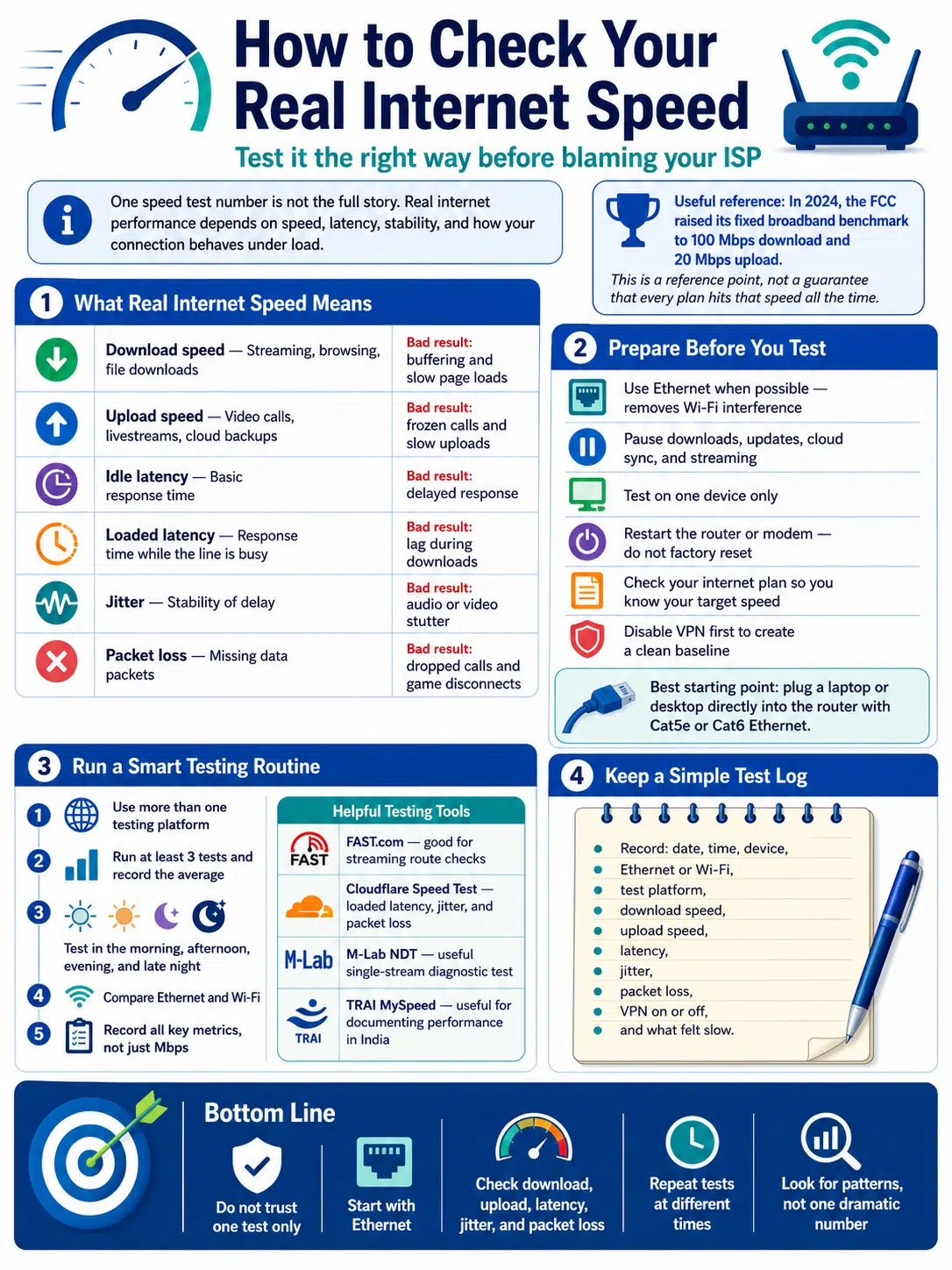
The FCC raised its fixed broadband benchmark in 2024 to 100 Mbps download and 20 Mbps upload. That’s a useful reference point for modern broadband, though it doesn’t mean every plan must hit that speed all the time.
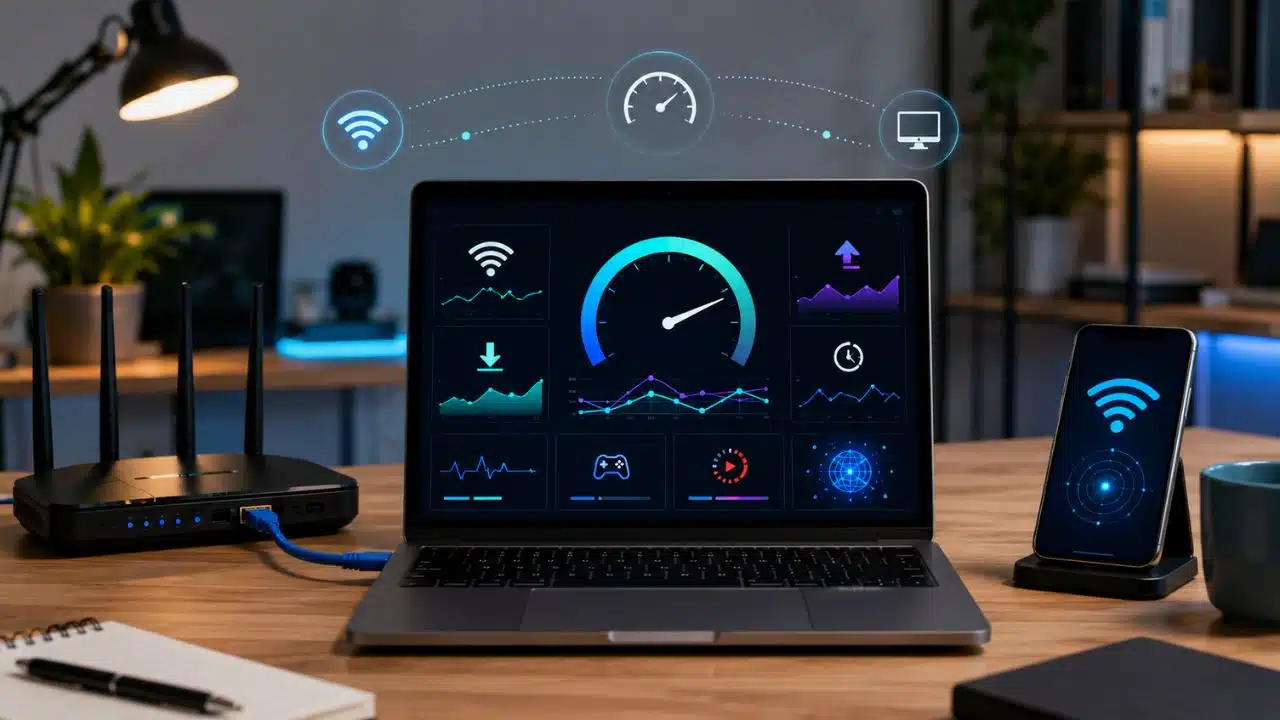
To understand your real connection, look at five things: download speed, upload speed, latency, jitter, and packet loss.
| Speed factor | What it affects | What a bad result feels like |
|---|---|---|
| Download speed | Streaming, browsing, file downloads | Videos buffer, websites load slowly |
| Upload speed | Video calls, livestreams, cloud backups | Calls freeze, uploads crawl |
| Idle latency | Basic response time | Pages feel delayed |
| Loaded latency | Response time while the line is busy | Gaming and calls lag during downloads |
| Jitter | Stability of your connection | Audio/video stutters |
| Packet loss | Missing data packets | Calls drop, games disconnect |
Download speed gets too much attention
ISPs love download speed because it looks good in ads.
“300 Mbps.”
“500 Mbps.”
“1 Gbps.”
Nice numbers. But they don’t tell you how the connection behaves when the whole family is online, your laptop is syncing files, and someone is watching 4K video.
A high download score can hide bad latency. That’s why a connection can look fast on paper and still feel slow in real life.
Upload speed matters more than people think
Upload speed decides how well you send data out.
That means video calls, file sharing, livestreaming, security camera uploads, cloud backups, and posting large videos. If you work from home or create content, upload speed can matter as much as download speed.
Many broadband plans still give strong download numbers and weaker upload numbers. So don’t skip upload testing.
Latency, jitter, and packet loss reveal the real pain
Latency is delay.
Jitter is unstable delay.
Packet loss means data is getting dropped.
These three make or break gaming, video calls, remote work, and livestreaming.
Cloudflare Speed Test is useful here because it checks loaded latency, jitter, and packet loss. FAST.com also shows loaded and unloaded latency when you open the extra details.
Prepare Your Network Before You Run Any Test
Before you start testing, clean up your setup.
A messy home network gives messy results. If your phone is on weak Wi-Fi in the next room while another device downloads a game update, your speed test tells you almost nothing about the ISP line.
Start simple. Use one device. Use Ethernet. Stop background traffic. Then test.
| Preparation step | Why it matters | Best practice |
|---|---|---|
| Use Ethernet | Removes Wi-Fi interference | Use a Cat5e or Cat6 cable |
| Pause downloads | Stops false low results | Turn off updates and cloud sync |
| Test one device | Removes local traffic noise | Disconnect non-essential devices |
| Restart router/modem | Clears temporary glitches | Restart, don’t factory reset |
| Check your plan | Gives you a target speed | Note download and upload limits |
| Disable VPN first | Creates a clean baseline | Test VPN later for comparison |
Start with Ethernet, not Wi-Fi
This is the most important step.
Plug a laptop or desktop directly into your router or modem gateway. Use a proper Ethernet cable. Cat5e or Cat6 is fine for gigabit testing.
Wi-Fi is convenient, but it adds too many variables. Walls, distance, interference, old devices, router placement, and crowded channels can all wreck the result.
If Ethernet is fast and Wi-Fi is slow, your ISP may not be the problem.
Stop background traffic
Your connection may be busy even when it looks idle.
A phone may be uploading photos. A laptop may be downloading a system update. A smart TV may still be streaming. A gaming console may be pulling a 70 GB patch.
Before testing, pause:
- Cloud backups
- Game downloads
- Operating system updates
- Video streaming
- Large file transfers
- CCTV uploads
- Torrent clients
- App store updates
You want the line as quiet as possible.
Restart, but don’t factory reset
Restarting the modem and router can help. It clears temporary bugs and refreshes the connection.
But don’t factory reset unless you know what you’re doing. A factory reset can erase ISP login details, Wi-Fi names, passwords, VLAN settings, static IP rules, and port forwarding.
Restart first. Reset only when needed.
How to Check Your Real Internet Speed the Right Way
To check your real internet speed, don’t rely on one website.
Use several tests. Run them more than once. Test at different times of day. Compare wired and Wi-Fi results. Track download, upload, latency, jitter, and packet loss.
One speed test is a snapshot. A proper testing routine shows a pattern.
| Test type | Tool example | What it helps reveal |
|---|---|---|
| General speed test | Browser or app-based speed test | Basic download/upload performance |
| Streaming route test | FAST.com | Netflix/CDN path performance |
| Diagnostic test | M-Lab NDT | Single-stream speed and latency |
| Quality test | Cloudflare Speed Test | Loaded latency, jitter, packet loss |
| India-specific test | TRAI MySpeed | Local mobile/Wi-Fi performance |
| Mobile coverage test | FCC Mobile Speed Test App | U.S. mobile coverage challenge data |
Use more than one testing platform
Different speed tests use different servers and methods. That’s why results can vary.
FAST.com is useful for streaming-related checks because it uses Netflix servers. It also shows upload speed and loaded/unloaded latency when you expand the details.
M-Lab’s NDT test is useful too, but read it correctly. It uses a single-stream method. Some commercial speed tests use multiple streams, which can show higher numbers. A lower M-Lab result doesn’t automatically mean it’s wrong. It’s measuring your connection in a different way.
Cloudflare Speed Test is strong for quality checks because it shows how the connection behaves under load.
Test more than once
Run at least three tests on the same device.
Use the same connection type. Same browser. Same room. Same cable if possible.
Then record the average result, not just the highest number.
You’re not trying to win a speed test contest. You’re trying to understand your connection.
Test at different times
Internet performance changes throughout the day.
Morning may be clean. Evening may be crowded. Late night may be fast again.
For a practical home diagnosis, test for at least three days if possible. Check morning, afternoon, evening, and late night.
That gives you something useful to show your ISP.
Keep a simple test log
Don’t rely only on screenshots. Make a small log.
Record:
- Date
- Time
- Device
- Ethernet or Wi-Fi
- Test platform
- Download speed
- Upload speed
- Latency
- Jitter
- Packet loss
- VPN on or off
- What felt slow
This turns a complaint into evidence.
Advanced Tests for Hidden Bandwidth Caps and Traffic Shaping
Basic tests tell you if the connection is slow. Advanced tests help you figure out why.
Some ISPs slow traffic after a usage limit. Some manage traffic during peak hours. Some services may perform poorly because of routing, peering, CDN problems, or traffic shaping.
That doesn’t always mean illegal throttling. It means you need sharper testing.
| Advanced test | What you compare | What it may suggest |
|---|---|---|
| No VPN vs VPN | Same app, same time | Routing, peering, or traffic classification issue |
| FAST.com vs general test | Netflix route vs general route | Streaming/CDN-specific slowdown |
| Cloud upload test | Drive, Dropbox, iCloud upload | Upload shaping or upstream trouble |
| Large file download | Sustained download speed | Hidden speed cap or congestion |
| Wehe app test | App-like vs randomized traffic | App-specific differentiation |
| Before/after heavy usage | Speed before and after large downloads | Data cap or fair-use trigger |
Run VPN tests, but don’t jump to conclusions
A VPN can help you investigate throttling. But it doesn’t prove throttling by itself.
Here’s why.
A VPN encrypts your traffic between your device and the VPN server. Your ISP can see you’re connected to a VPN, but it can’t easily see the exact website or app traffic inside that tunnel.
So if one service gets much faster over a nearby reputable VPN, that’s a clue.
But it’s not final proof.
A VPN also changes your route, DNS behavior, server path, and sometimes CDN selection. The speed may improve because the VPN found a better path, not because the ISP was deliberately throttling.
Use VPN results as part of the case, not the whole case.
Test specific traffic types
This is where many people find the real issue.
Run a general speed test. Then test Netflix through FAST.com. Then upload a large file to cloud storage. Then download a large file from a trusted source. Then test the same actions with and without a VPN.
If only one category performs badly, your issue is specific.
For example:
- General speed test is fast, but FAST.com is slow.
- Download speed is good, but cloud uploads crawl.
- Browsing is fine, but game downloads are slow.
- Everything works until you cross a daily usage limit.
Patterns matter.
Use Wehe for app-specific checks
Wehe is a research-backed tool from Northeastern University. It checks whether your network treats certain app-like traffic differently from randomized traffic.
That can help detect traffic differentiation.
But again, wording matters. Wehe can show different treatment of traffic. It doesn’t automatically prove your ISP broke a law. Laws differ by country, and network conditions can be messy.
Still, it’s one of the better tools for app-specific testing.
Detect ISP Throttling Without Confusing It With Congestion
ISP throttling means the provider is deliberately slowing or shaping traffic.
Congestion means too many users are sharing the same network capacity.
They can feel the same. They are not the same.
If your internet slows every evening, congestion may be the cause. If only one app slows while everything else works fine, traffic-specific treatment becomes more suspicious.
| Symptom | More likely cause | What to test next |
|---|---|---|
| Slow only at night | Peak-hour congestion | Compare evening and early morning |
| Slow only on Wi-Fi | Router or signal issue | Test Ethernet |
| Speed test fast, streaming slow | CDN, peering, or shaping | Compare FAST.com and VPN |
| Upload always weak | Plan limit or upstream issue | Run wired upload tests |
| Speed drops after heavy use | Data cap or fair-use policy | Check usage dashboard |
| Ping spikes during downloads | Bufferbloat | Test loaded latency |
Peak-hour slowdown usually points to congestion
If your speed drops between 8 p.m. and 11 p.m., then returns after midnight, congestion is likely.
This happens on shared cable networks, crowded apartment connections, overloaded mobile towers, and local ISPs with limited upstream capacity.
That doesn’t make it acceptable. If your provider oversold the area, they still need to fix capacity. But it’s not always targeted throttling.
App-only slowdown needs deeper testing
Let’s say YouTube is slow, but everything else is fine.
That could be ISP shaping. It could also be CDN routing, DNS, server load, bad peering, or a device issue.
Try the same service:
- On Ethernet
- On another device
- With another browser
- With a nearby VPN
- On mobile hotspot
- At another time of day
If the same pattern repeats, you’ve got something useful.
Check data caps and fair-use rules
Some plans slow down after a data limit. That may be written in the plan terms, but many users never notice it.
Look for words like:
- Data allowance
- Fair usage policy
- Usage limit
- Network management
- Reduced speed
- Traffic management
- Extra data charges
For U.S. users, FCC Broadband Consumer Labels can help because they are designed to show clearer plan information, including speeds, prices, and data-related details.
Don’t skip the boring plan page. It often explains the “mystery.”
Use Command-Line and Router Tools for Stronger Proof
Browser tests are a good start. But they don’t show everything.
If you’re comfortable with basic tech tools, use ping, traceroute, MTR, router dashboards, modem logs, and iPerf3. These tools help you find where the slowdown begins.
You don’t need to be a network engineer. You just need clean, repeatable checks.
| Tool | What it checks | What a bad result may show |
|---|---|---|
| Ping | Latency and packet loss | Delay or instability |
| Traceroute | Route path | Where latency starts |
| MTR / WinMTR | Route quality over time | Repeated loss or bad hops |
| iPerf3 | Local network speed | Router or Wi-Fi bottleneck |
| Router dashboard | Devices, CPU, WAN status | Local overload |
| Modem/ONT logs | Signal errors, reconnects | Line quality problem |
Ping your router first
Start inside your home.
Ping your router’s local IP address. It may be something like 192.168.1.1 or 192.168.0.1.
If ping to your router is unstable, the problem is local. That points to Wi-Fi interference, a bad cable, an overloaded router, or a device issue.
Don’t blame the ISP yet.
Then ping outside your network
Once your router ping looks clean, test a public destination.
If your local ping is stable but outside ping is bad, the issue may sit beyond your home network. That could mean your ISP line, ISP routing, peering, or the destination network.
Use traceroute and MTR carefully
Traceroute shows the path your data takes. MTR or WinMTR shows that path over time.
These tools can reveal where latency or packet loss starts.
But don’t panic over one bad middle hop. Some routers simply don’t respond well to diagnostic packets. What matters more is packet loss or latency that continues all the way to the final destination.
Test your home network with iPerf3
If you have two computers, use iPerf3 to test your local network speed.
This removes the ISP from the equation.
If your own home network can’t move data quickly, your internet speed test won’t show your plan’s full speed either.
This is especially useful for gigabit plans.
How to Read Your Results Like Evidence
Good testing is not about one big number.
It’s about patterns.
One bad Wi-Fi test means nothing. Repeated wired tests across several days mean much more. A streaming-only slowdown that changes with VPN deserves attention. Slow Wi-Fi with strong Ethernet points back to your home setup.
| Evidence level | Example | How useful it is |
|---|---|---|
| Weak | One bad phone Wi-Fi test | Not reliable |
| Mild | Evening-only slowdown | Suggests congestion |
| Moderate | Wired tests slow across days | ISP issue likely |
| Strong | One traffic type slow, VPN changes it | Needs deeper review |
| Stronger | Wehe detects traffic differentiation | Good technical clue |
| Best | Logs, screenshots, plan terms, support tickets | Strong for escalation |
Don’t chase the advertised number blindly
Most residential plans say “up to” a certain speed.
That doesn’t mean you should accept terrible performance. But it does mean you may not always hit the exact advertised number.
Still, if your 500 Mbps plan gives you 70 Mbps over Ethernet again and again during off-peak hours, that’s a real problem.
Watch loaded latency
Loaded latency shows what happens when your connection is busy.
This one matters a lot.
A connection can show 300 Mbps download and still feel awful if latency jumps during uploads or downloads. That’s common with bufferbloat or poor queue management.
If video calls fail every time someone uploads files, check loaded latency.
Compare similar tests fairly
Different tools work differently.
M-Lab NDT uses a single-stream test. Some commercial tools use multiple streams. FAST.com uses Netflix servers. Cloudflare checks quality metrics. Each one gives you a different view.
Don’t expect all results to match. Use them together.
Look for fingerprints
A stronger throttling case usually looks like this:
- Ethernet testing rules out Wi-Fi.
- General speed tests look fine.
- One app or traffic type stays slow.
- VPN changes the result.
- The pattern repeats over several days.
- Your plan terms don’t explain the slowdown.
That still isn’t courtroom proof. But it’s much stronger than “my internet feels slow.”
What to Do If You Suspect ISP Throttling
Once you have evidence, contact your ISP calmly.
Don’t start with “You’re throttling me.” Start with facts.
Say what you tested. Mention the device, connection type, time, tool, and results. Share screenshots and logs.
A clear report gets taken more seriously.
| Action | When to use it | What to include |
|---|---|---|
| Contact ISP support | After repeated tests | Dates, times, screenshots |
| Request a line check | Wired tests stay poor | Modem/ONT status and signal levels |
| Ask about fair-use limits | Speed drops after usage | Usage dashboard screenshots |
| Try another cable/router | Ethernet looks capped | Cable type and router model |
| File a complaint | ISP refuses to help | Logs and ticket numbers |
| Switch provider | Issue continues | Compare local alternatives |
Ask better support questions
Use specific questions.
Ask your ISP:
- Does my plan have a data cap?
- Is there a fair-use policy?
- Are there traffic management rules?
- Is my area congested?
- Is maintenance happening nearby?
- Is my modem or ONT provisioned correctly?
- Are my signal levels normal?
For fiber, ask about ONT status and optical signal.
For cable, ask about signal levels and node congestion.
For DSL, ask about line attenuation and sync rate.
For fixed wireless, ask about tower load and signal quality.
Use official tools where available
In India, TRAI MySpeed can help document network performance. It measures download speed, upload speed, latency, packet loss, and jitter. It’s useful for recording real-world quality, but it does not prove throttling by itself.
In the U.S., the FCC Mobile Speed Test App helps users test mobile broadband and challenge provider-reported mobile coverage on the National Broadband Map.
These tools won’t solve your problem instantly. But they help create a better record.
Understand the rules in your country
Internet rules differ by country.
In the U.S., federal net neutrality rules have changed more than once. In January 2025, a U.S. appeals court blocked the FCC’s attempt to restore federal net neutrality rules. Some state-level rules still exist.
So don’t assume the same rules apply everywhere.
Check your plan terms, local laws, consumer protection options, and regulator complaint channels.
Common Mistakes That Make People Blame the ISP Too Soon
Most bad throttling claims start with bad testing.
Someone runs a speed test on a phone, from a far bedroom, over weak Wi-Fi, while three devices are active. Then they blame the ISP.
Maybe the ISP is bad. Maybe not.
Clean testing prevents false claims.
| Mistake | Why it causes confusion | Better method |
|---|---|---|
| Testing only on Wi-Fi | Measures wireless quality | Start with Ethernet |
| Testing once | Captures one bad moment | Repeat over several days |
| Using a poor VPN | Adds a new bottleneck | Use a reputable nearby VPN |
| Ignoring upload | Misses remote work problems | Record upload every time |
| Forgetting active devices | Background traffic lowers speed | Pause downloads and sync |
| Only checking Mbps | Misses latency and packet loss | Track quality metrics |
Don’t test from a weak Wi-Fi spot
Wi-Fi can fall apart fast.
A wall, mirror, microwave, Bluetooth device, old router, or crowded apartment network can hurt performance. Move closer to the router. Try 5 GHz or 6 GHz if your router supports it. Then compare with Ethernet.
If Ethernet is strong, fix Wi-Fi first.
Don’t ignore old hardware
Old devices can cap your speed.
A cheap USB Ethernet adapter, outdated router, old network card, or damaged cable can make a fast plan look slow.
Check the Ethernet link speed too. A bad cable may connect at 100 Mbps instead of 1 Gbps.
Don’t treat VPN improvement as final proof
This one is important.
If VPN improves speed, something changed. But that “something” may be routing, peering, DNS, CDN selection, or traffic visibility.
It may suggest throttling. It may not prove it.
Use VPN as one test in a larger pattern.
FAQs About Real Internet Speed and ISP Throttling
These questions come up often after people start testing properly.
| Question | Quick answer |
|---|---|
| Best first test? | Wired Ethernet baseline |
| Best streaming comparison? | FAST.com plus a general speed test |
| Best quality metrics? | Loaded latency, jitter, packet loss |
| Best throttling clue? | Repeatable app-specific slowdown |
| Best complaint evidence? | Logs, screenshots, plan terms, support tickets |
Can an ISP make speed tests look faster than normal use?
Technically, networks can treat different traffic in different ways. But don’t assume that after one test.
Compare multiple speed tests, streaming checks, VPN behavior, and wired results first.
Why is my speed test fast but Netflix slow?
Netflix may use different servers, CDN paths, and peering links than a normal speed test.
Run FAST.com, test with and without VPN, and compare Netflix with other streaming platforms.
Can a VPN bypass ISP throttling?
Sometimes.
A VPN may help if your ISP slows traffic based on app type or destination. But it won’t fix weak Wi-Fi, a bad router, a poor VPN server, a damaged cable, or a plan-level speed cap.
Is packet loss worse than low speed?
For gaming, calls, livestreaming, and remote work, yes.
A stable 50 Mbps connection can feel better than a 300 Mbps connection with packet loss and jitter.
How many tests are enough before calling the ISP?
For a useful home report, collect at least three days of results if possible.
Test over Ethernet. Use different tools. Test at different times. Save screenshots and plan details.
Can TRAI MySpeed prove throttling in India?
No.
TRAI MySpeed helps measure and document performance. It can show download speed, upload speed, latency, packet loss, and jitter. But it does not automatically prove ISP throttling.
Why does M-Lab show lower speed than another speed test?
M-Lab NDT uses a single-stream method. Some other tools use multiple streams.
That can create different results. Use both, but don’t expect them to match perfectly.
Final Thoughts: Check Your Real Internet Speed Before Blaming the ISP
The smart way to check your real internet speed is to build a pattern.
Start with Ethernet. Test more than once. Use different tools. Measure download, upload, latency, loaded latency, jitter, and packet loss. Compare morning and evening results. Test streaming, cloud uploads, large downloads, and VPN behavior.
Then read the pattern.
| If you find this | What it usually means |
|---|---|
| Ethernet is fast, Wi-Fi is slow | Fix router placement, channel, or hardware |
| Speed drops only at night | Suspect congestion |
| One app is slow, others are fine | Check routing, CDN, or traffic shaping |
| VPN improves one service only | Investigate routing, peering, or throttling |
| Speed drops after heavy usage | Check data caps or fair-use policy |
| All wired tests are poor | Ask ISP for line or provisioning check |
If Ethernet is fine, fix your Wi-Fi.
If speed drops only during peak hours, document congestion.
If one app keeps slowing down and VPN changes the result, investigate traffic shaping.
If wired tests stay poor for days, contact your ISP with proof.
Don’t guess. Test cleanly. Save the results. Then push for answers.
That’s how you move from “my internet feels slow” to a real diagnosis.