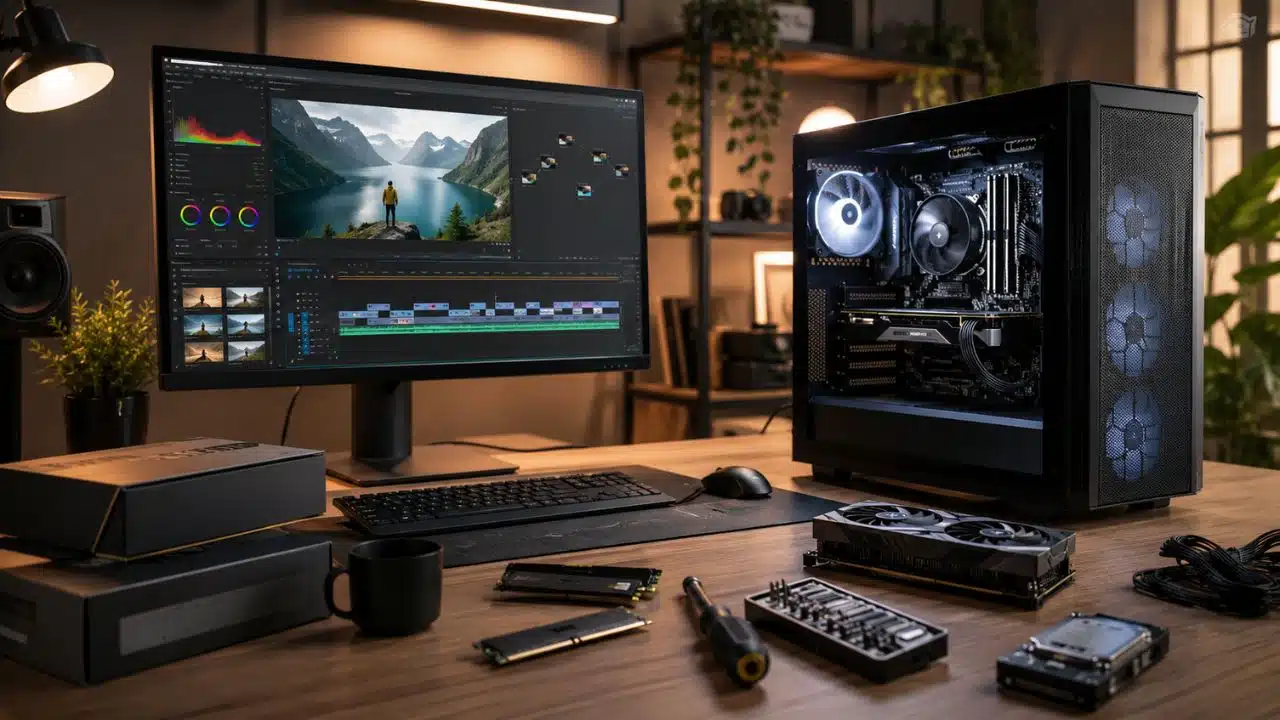
Building a video editing PC in Bangladesh is tricky. Prices change fast. Some parts go out of stock. Some shops push gaming builds even when your real need is editing. And if you are working with a tight budget, one wrong part can hurt the whole setup.
That is why this guide focuses on one clear goal: the best video editing PC build for 60,000 Taka.
This is not a dream workstation. It will not beat a 2 lakh taka editing machine. It is not for 8K video, heavy RAW footage, big After Effects templates, or cinema-grade color work.
But for many real creators, it can do the job well.
If you edit YouTube videos, Facebook content, short reels, product clips, podcast videos, interviews, tutorial content, or basic client projects, this build makes sense. It gives you a solid CPU, enough RAM to start, fast storage, a useful GPU, and a safe upgrade path.
The main idea is simple.
Don’t build only for looks. Build for work.
| Key Point | Practical Answer |
|---|---|
| Budget target | Around 60,000 Taka |
| Budget type | Tower only |
| Best use | 1080p editing and light 4K with proxies |
| Main CPU | AMD Ryzen 5 5600 |
| Main GPU | Intel Arc A380 6GB or similar |
| RAM | 16GB minimum |
| Storage | 500GB/512GB NVMe SSD |
| First upgrade | 32GB RAM |
| Main warning | Enable Resizable BAR if using Intel Arc |
Best Video Editing PC Build for 60,000 Taka
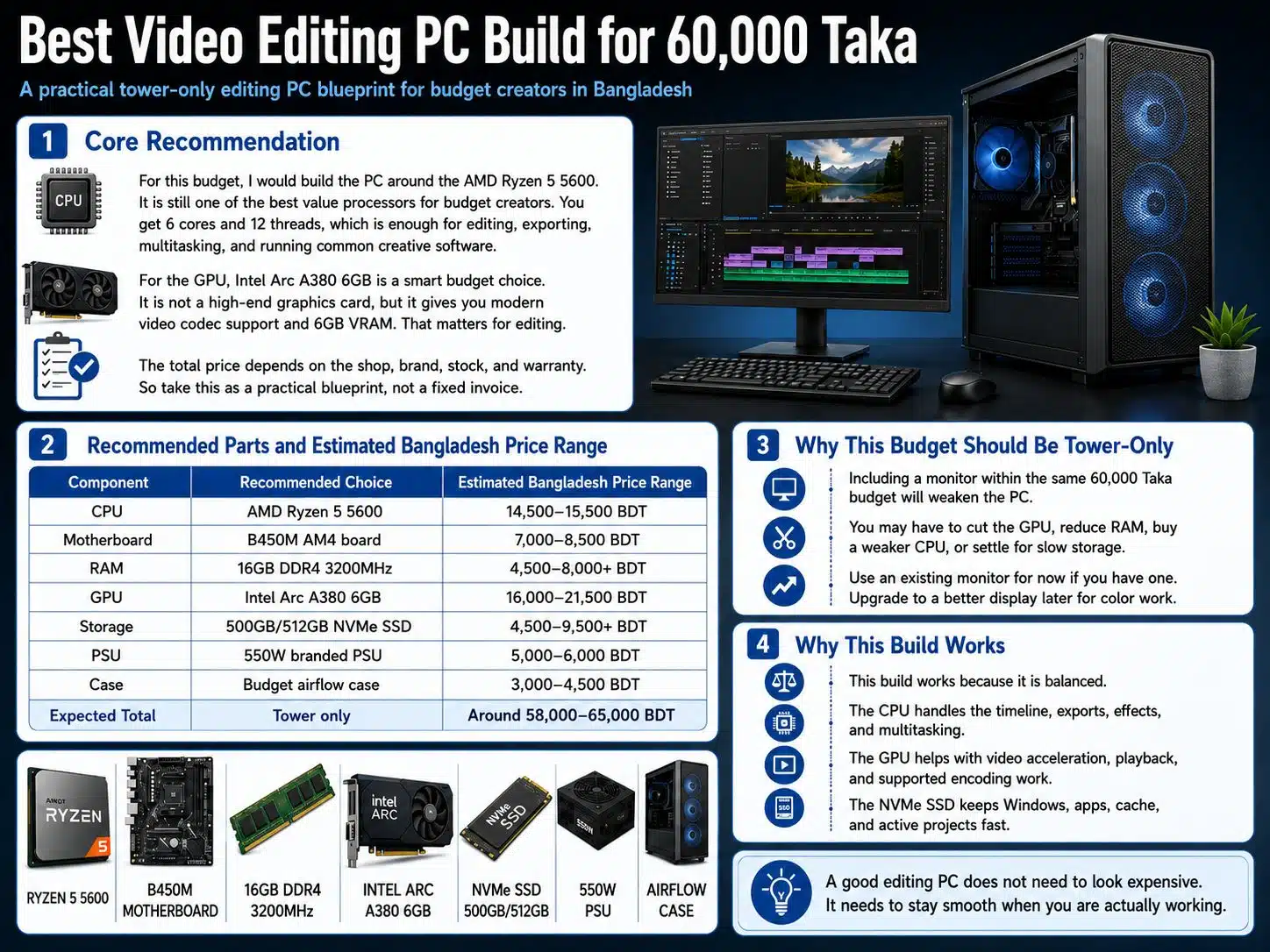
For this budget, I would build the PC around the AMD Ryzen 5 5600.
It is still one of the best value processors for budget creators. You get 6 cores and 12 threads, which is enough for editing, exporting, multitasking, and running common creative software.
For the GPU, Intel Arc A380 6GB is a smart budget choice. It is not a high-end graphics card, but it gives you modern video codec support and 6GB VRAM. That matters for editing.
The total price depends on the shop, brand, stock, and warranty. So take this as a practical blueprint, not a fixed invoice.
| Component | Recommended Choice | Estimated Bangladesh Price Range |
| CPU | AMD Ryzen 5 5600 | 14,500–15,500 BDT |
| Motherboard | B450M AM4 board | 7,000–8,500 BDT |
| RAM | 16GB DDR4 3200MHz | 4,500–8,000+ BDT |
| GPU | Intel Arc A380 6GB | 16,000–21,500 BDT |
| Storage | 500GB/512GB NVMe SSD | 4,500–9,500+ BDT |
| PSU | 550W branded PSU | 5,000–6,000 BDT |
| Case | Budget airflow case | 3,000–4,500 BDT |
| Expected Total | Tower only | Around 58,000–65,000 BDT |
Why This Budget Should Be Tower-Only
Trying to include a monitor inside the same 60,000 Taka budget is possible, but it will weaken the PC.
You may have to cut the GPU. Or reduce RAM. Or buy a weaker CPU. Or use a slow drive. None of that is good for editing.
So, keep the 60K budget for the tower.
Use an existing monitor for now if you have one. Later, buy a better display for color work.
Why This Build Works
This build works because it is balanced.
The CPU handles the timeline, exports, effects, and multitasking. The GPU helps with video acceleration, playback, and supported encoding work. The NVMe SSD keeps Windows, apps, cache, and active projects fast.
That balance is more useful than buying one flashy part and ignoring the rest.
A good editing PC does not need to look expensive. It needs to stay smooth when you are actually working.
CPU Choice: Why Ryzen 5 5600 Is Still a Great Pick
The Ryzen 5 5600 is a strong choice for budget video editing.
It gives you 6 cores and 12 threads. That is enough for most everyday editing jobs. It also runs on the AM4 platform, which keeps motherboard prices lower.
For a 60,000 Taka editing PC, this CPU gives you the right balance between price and power.
| CPU Option | Best For | Recommendation |
| Ryzen 5 5600 | Balanced editing build | Best pick |
| Ryzen 5 5500 | Lower-cost editing build | Acceptable |
| Ryzen 5 5600G | Build without GPU | Use only if skipping GPU |
| Ryzen 7 5700X | Heavier editing | Good future upgrade |
| Core i5-12400F | Intel alternative | Good, but board cost may rise |
Ryzen 5 5600 vs Ryzen 5 5600G
Many buyers get confused between these two.
The Ryzen 5 5600G has built-in graphics. That is useful if you do not want to buy a graphics card right now.
But if you are adding a dedicated GPU, the Ryzen 5 5600 is usually the better choice. It is stronger for this kind of build and pairs well with a budget graphics card.
So the simple rule is this:
Buy Ryzen 5 5600 if you are using a dedicated GPU.
Buy Ryzen 5 5600G only if you cannot buy a GPU now.
Why You Should Not Go Too Cheap on the CPU
Video editing puts pressure on the processor.
You feel it when you add subtitles, transitions, color correction, audio tracks, B-roll, overlays, and export presets. A weak CPU may run the software, but it will not feel good.
The Ryzen 5 5600 gives you a strong starting point without eating the whole budget.
That is why it fits the best video editing PC build for 60,000 Taka so well.
GPU Choice: Intel Arc A380 6GB Is Good, But Set It Up Properly
A graphics card is not only for gaming.
For editing, the GPU can help with playback, effects, color work, and some export tasks. It also matters for modern video formats.
The Intel Arc A380 6GB is a good budget option because it has 6GB VRAM and supports modern codecs, including AV1. That is useful for creators working with compressed video files, screen recordings, phone footage, and online content.
But there is one important warning.
Intel Arc cards need proper setup.
| GPU Option | VRAM | Good Side | Weak Side |
| Intel Arc A380 | 6GB | AV1 support, good value | Needs Resizable BAR |
| GTX 1650 | 4GB | Stable and common | Older codec support |
| Used GTX 1660 Super | 6GB | Stronger raw power | Used market risk |
| Used RTX 2060 | 6GB | Better CUDA support | Condition and price vary |
| Arc A580 | 8GB | Better performance | May exceed budget |
Enable Resizable BAR for Intel Arc
If you choose Intel Arc A380, ask the shop to enable Resizable BAR.
This is not a small setting. It can affect performance and stability.
Before delivery, ask the shop to:
- Update the motherboard BIOS
- Enable UEFI boot mode
- Disable CSM or Legacy Mode
- Enable Above 4G Decoding
- Enable Re-Size BAR or Resizable BAR
Some B450 motherboards support it after a BIOS update. Some may need extra checking.
Before buying, ask this clearly:
“Will this motherboard support Resizable BAR with Intel Arc A380?”
If the shop cannot confirm it, choose another board or another GPU.
Should You Buy a Used GPU?
Used GPUs can be tempting.
A used GTX 1660 Super or RTX 2060 may offer more raw power than an Arc A380. But the used market is risky if you do not know how to test cards.
Some cards have mining history. Some have fan problems. Some overheat. Some look clean but crash during load.
If you buy used, test these things:
- Temperature under load
- Fan noise
- Display stability
- Driver installation
- Stress test result
- Warranty or shop replacement policy
- Any screen flicker or visual artifacts
For many beginner editors, a new budget GPU with warranty is the safer choice.
RAM: Start With 16GB, Upgrade to 32GB Later
RAM has a big effect on video editing.
It helps your PC handle timelines, apps, browser tabs, media files, preview files, and background tasks. If your RAM is too low, the whole system feels slow.
For this build, 16GB RAM is the minimum. Not ideal forever, but enough to start.
If you want a smoother editing life, plan to upgrade to 32GB.
| RAM Size | Editing Experience | Recommendation |
| 8GB | Too limited | Avoid |
| 16GB | Good for 1080p editing | Minimum |
| 32GB | Much smoother for 4K and multitasking | Best upgrade |
| 64GB | Useful for heavy After Effects work | Not for this budget |
Be Careful With RAM Pricing
Do not assume all 16GB RAM kits cost the same.
Some budget DDR4 sticks are affordable. But branded RGB kits or premium modules can cost much more.
For this build, you do not need expensive RGB RAM. Choose reliable DDR4 3200MHz RAM from a known brand.
Spend the saved money on a better PSU, SSD, or future RAM upgrade.
2x8GB or 1x16GB?
Both choices make sense, depending on your plan.
2x8GB gives you dual-channel performance right away. That is better for general speed.
1x16GB makes future upgrading easier if your motherboard has only two RAM slots. You can add another 16GB stick later and reach 32GB.
My practical advice:
Choose 2x8GB if you want better performance now.
Choose 1x16GB if you are sure you will upgrade soon.
When 32GB Becomes Important
You should upgrade to 32GB when you start working with heavier projects.
That includes:
- 4K footage
- Long timelines
- DaVinci Resolve projects
- After Effects work
- Many browser tabs
- Photoshop files
- Multi-layer edits
- Documentary-style projects
This is usually the first upgrade I would recommend.
Storage: Start With NVMe, Add More Space Later
A slow hard drive can make a good PC feel old.
For editing, you need fast storage. Windows, editing apps, media cache, active project files, and current footage should stay on an SSD.
That is why a 500GB or 512GB NVMe SSD should be the starting point.
| Storage Type | Best Use | Recommendation |
| 500GB/512GB NVMe SSD | Windows, apps, active projects | Minimum |
| 1TB NVMe SSD | Larger editing projects | Better upgrade |
| 1TB/2TB HDD | Archive storage | Add later |
| External SSD | Portable work | Useful |
| Cloud storage | Backup and sharing | Optional |
Don’t Depend on HDD for Editing
Hard drives are fine for storing old footage. But they are not ideal for active editing.
Your software creates cache files. It loads project files. It reads footage. It writes previews. A hard drive slows this down.
Use the NVMe SSD for:
- Windows
- Premiere Pro or DaVinci Resolve
- Media cache
- Render cache
- Current project files
- Active footage
- Current exports
Move old projects to a hard drive or external storage after finishing them.
Be Flexible With SSD Pricing
SSD prices vary a lot.
Some 500GB or 512GB NVMe drives are affordable. Others cost much more because of brand, speed, warranty, or features.
For this budget, you do not need the most expensive Gen4 SSD. A good budget NVMe drive is enough.
The goal is not to win storage benchmarks. The goal is to keep your editing workflow fast.
Add a 1TB SSD Later
A 512GB SSD fills up quickly.
One 4K project can take a huge amount of space once you include raw footage, audio files, graphics, cache files, and exports.
So, start with 512GB if needed. But plan to add a 1TB SSD later.
That upgrade will make your daily editing much easier.
Motherboard, PSU, and Case: The Parts You Should Not Ignore
Some parts do not look exciting on a product page. But they matter a lot.
The motherboard decides compatibility and upgrade options. The power supply protects your system. The case controls airflow.
If you cut too much money here, you may face problems later.
| Part | What to Check | Why It Matters |
| Motherboard | B450M/A520M, M.2 slot, Ryzen 5000 support | Compatibility |
| BIOS | Ryzen support and ReBAR support | Stability |
| PSU | Branded 500W–550W | Safe power |
| Case | Mesh or airflow design | Better cooling |
| Fans | At least 2 fans if possible | Stable exports |
Motherboard Choice
A B450M board is enough for this build.
You do not need a high-end gaming motherboard. But you do need the right features.
Check for:
- Ryzen 5000 support
- M.2 NVMe slot
- DDR4 RAM support
- PCIe x16 slot
- BIOS update support
- Resizable BAR support for Intel Arc
- Enough ports for future storage
Ask the shop to update the BIOS before delivery if needed.
Power Supply Choice
Do not buy the cheapest PSU in the shop.
A poor PSU can damage your PC. It can also cause random shutdowns, crashes, and long-term trouble.
For this build, a branded 550W PSU is a safe choice.
Look for known brands such as Corsair, Antec, DeepCool, Cooler Master, Gigabyte, or similar reliable options available locally.
Case and Cooling
Video exports can run the CPU and GPU hard for a long time.
That creates heat.
A case with poor airflow can make the PC noisy, hot, and unstable. A simple airflow case is much better than a sealed RGB case.
Look for:
- Mesh front panel
- Front and rear fan support
- Clean cable space
- Enough GPU clearance
- Dust filters if possible
A cooler PC is a happier PC.
Real Editing Performance: What This PC Can Actually Do
Let’s be honest.
This PC is not built for every kind of video work. But for the price, it can do a lot.
It is best for 1080p editing, social media videos, YouTube content, short interviews, product videos, tutorial clips, reels, and light 4K work with proxies.
That covers a lot of real creator work in Bangladesh.
| Workflow | Expected Experience |
| 1080p YouTube editing | Smooth |
| 1080p Facebook videos | Smooth |
| Reels and shorts | Smooth |
| Basic 4K editing | Usable with proxies |
| Heavy 4K grading | Limited |
| DaVinci Resolve Fusion | Light work only |
| After Effects | Basic titles and simple animation |
| AI video tools | Limited, depends on tool |
Adobe Premiere Pro
Premiere Pro should run well on this build for HD projects.
For smoother editing, use simple habits:
- Use proxies for 4K footage.
- Keep preview resolution at 1/2 or 1/4.
- Keep media cache on SSD.
- Close unnecessary apps while exporting.
- Keep GPU drivers updated.
- Use hardware encoding when available.
With 16GB RAM, 1080p editing should feel fine. For regular 4K work, upgrade to 32GB.
DaVinci Resolve
DaVinci Resolve can run on this PC, but keep your expectations practical.
This build is good for:
- Basic editing
- 1080p timelines
- Simple color correction
- YouTube exports
- Light 4K proxy workflows
It is not ideal for:
- Heavy Fusion work
- Noise reduction
- AI tools
- Complex 4K grading
- Long multi-layer timelines
If Resolve becomes your main editing software, upgrade to 32GB RAM and a stronger GPU later.
After Effects
After Effects needs a lot of RAM.
This build can handle simple work, but it is not an After Effects machine.
Use it for:
- Basic titles
- Lower thirds
- Simple logo animations
- Light motion graphics
- Small intro and outro clips
Avoid expecting smooth performance with heavy templates, particle effects, 3D scenes, or long compositions.
If After Effects is your main work, increase the budget.
Buying Tips for Bangladesh
Buying PC parts in Bangladesh is not just about finding the lowest price.
You also need to check stock, warranty, replacement policy, shop support, and compatibility.
A part may look cheap online but be out of stock. Another part may cost more but come with better warranty support.
So compare before buying.
| Buying Step | What to Do |
| Compare shops | Check Star Tech, Ryans, TechLand BD, UCC, PC House, and trusted local shops |
| Confirm stock | Call or message before visiting |
| Check warranty | Ask for written warranty details |
| Ask for BIOS update | Important for Ryzen 5000 and Intel Arc |
| Test before delivery | Check boot, display, SSD, RAM speed, and temperatures |
| Keep documents | Invoice, warranty card, boxes, serial numbers |
Lock the Specs, Not the Brand
Do not get stuck on one exact brand unless the price is good.
If one SSD is overpriced, choose another reliable model. If one motherboard is out of stock, choose another board with the same needed features.
Focus on the core specs:
- Ryzen 5 5600 or similar 6-core CPU
- 16GB DDR4 RAM
- 500GB/512GB NVMe SSD
- 6GB budget GPU or better
- Branded 550W PSU
- Airflow case
- ReBAR support if using Intel Arc
That gives you more buying flexibility.
Questions to Ask Before Buying
Before payment, ask the shop these questions:
- Does this motherboard support Ryzen 5 5600?
- Will you update the BIOS if needed?
- Does this board support Resizable BAR?
- Can you enable ReBAR for Intel Arc A380?
- Will the RAM run at 3200MHz?
- What is the replacement policy?
- Is the GPU brand-new with warranty?
- Can you test the full PC before delivery?
A good shop should answer clearly.
Mistakes to Avoid
Avoid these common mistakes:
- Buying only 8GB RAM
- Using HDD as the main drive
- Buying an unknown PSU
- Overspending on RGB
- Ignoring Intel Arc ReBAR setup
- Buying used GPU without testing
- Forgetting future storage needs
- Skipping BIOS support checks
A cheap build is not always a smart build.
The smarter choice is the one that works well for years.
Best Upgrade Path After Building This PC
A good budget PC should not trap you.
This build gives you room to grow. You can start with the basics and upgrade slowly as your work gets heavier.
The best first upgrades are RAM and storage. Not the case. Not RGB fans. Not a fancy cooler.
| Upgrade Priority | Upgrade | Why It Helps |
| First | 32GB RAM | Smoother editing and multitasking |
| Second | 1TB SSD | More room for projects and cache |
| Third | Stronger GPU | Better Resolve and effects performance |
| Fourth | Ryzen 7 5700X | Better long timeline performance |
| Fifth | Better monitor | Better color and comfort |
First Upgrade: 32GB RAM
This should be your first upgrade.
It helps with longer timelines, 4K files, multiple apps, browser tabs, Photoshop, and DaVinci Resolve.
The jump from 16GB to 32GB is easy to feel.
Second Upgrade: More SSD Storage
Add a 1TB SSD when you can.
A cleaner storage setup may look like this:
- 512GB SSD for Windows and software
- 1TB SSD for active projects and cache
- HDD or external drive for archive
- Cloud backup for important files
This keeps your workflow clean and safer.
Third Upgrade: Better GPU
Upgrade the GPU when your editing work grows.
Good future options may include:
- Intel Arc A580 or newer Arc card
- RTX 3060 12GB
- RTX 4060
- RTX 4060 Ti 16GB
- Used RTX 3070 if tested properly
For DaVinci Resolve, GPU power and VRAM matter a lot. So this upgrade can make a real difference later.
What I Would Avoid in a 60,000 Taka Editing PC
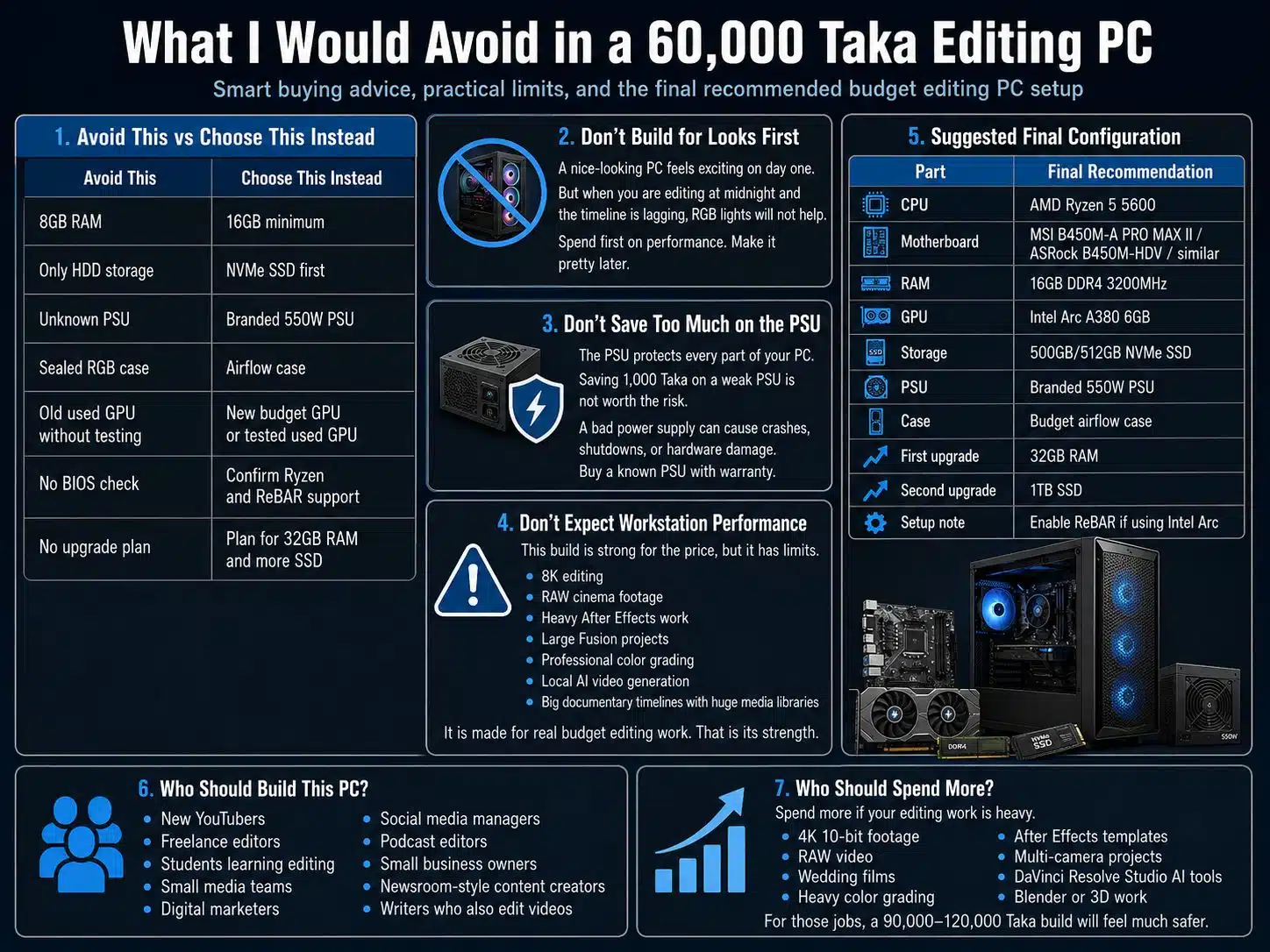
A budget editing PC fails when money goes to the wrong parts.
It is easy to get distracted by shiny cases, RGB fans, or gaming labels. But those things do not make editing smoother.
The best video editing PC build for 60,000 Taka should stay focused on performance, stability, and upgrade value.
| Avoid This | Choose This Instead |
| 8GB RAM | 16GB minimum |
| Only HDD storage | NVMe SSD first |
| Unknown PSU | Branded 550W PSU |
| Sealed RGB case | Airflow case |
| Old used GPU without testing | New budget GPU or tested used GPU |
| No BIOS check | Confirm Ryzen and ReBAR support |
| No upgrade plan | Plan for 32GB RAM and more SSD |
Don’t Build for Looks First
A nice-looking PC feels exciting on day one.
But when you are editing at midnight and the timeline is lagging, RGB lights will not help.
Spend first on performance. Make it pretty later.
Don’t Save Too Much on the PSU
The PSU protects every part of your PC.
Saving 1,000 Taka on a weak PSU is not worth the risk. A bad power supply can cause crashes, shutdowns, or hardware damage.
Buy a known PSU with warranty.
Don’t Expect Workstation Performance
This build is strong for the price, but it has limits.
It is not for:
- 8K editing
- RAW cinema footage
- Heavy After Effects work
- Large Fusion projects
- Professional color grading
- Local AI video generation
- Big documentary timelines with huge media libraries
It is made for real budget editing work. That is its strength.
Suggested Final Configuration
This is the final configuration I would recommend for most budget editors in Bangladesh.
You can change the brand depending on stock and price. But keep the purpose of each part the same.
| Part | Final Recommendation |
| CPU | AMD Ryzen 5 5600 |
| Motherboard | MSI B450M-A PRO MAX II / ASRock B450M-HDV / similar |
| RAM | 16GB DDR4 3200MHz |
| GPU | Intel Arc A380 6GB |
| Storage | 500GB/512GB NVMe SSD |
| PSU | Branded 550W PSU |
| Case | Budget airflow case |
| First upgrade | 32GB RAM |
| Second upgrade | 1TB SSD |
| Setup note | Enable ReBAR if using Intel Arc |
Who Should Build This PC?
This PC is a good fit for:
- New YouTubers
- Freelance editors
- Students learning editing
- Small media teams
- Digital marketers
- Social media managers
- Podcast editors
- Small business owners
- Newsroom-style content creators
- Writers who also edit videos
Who Should Spend More?
Spend more if your editing work is heavy.
You need a bigger budget for:
- 4K 10-bit footage
- RAW video
- Wedding films
- Heavy color grading
- After Effects templates
- Multi-camera projects
- DaVinci Resolve Studio AI tools
- Blender or 3D work
For those jobs, a 90,000–120,000 Taka build will feel much safer.
Final Thoughts: Build for Real Work
The best video editing PC build for 60,000 Taka is not about showing off.
It is about getting work done.
A Ryzen 5 5600, 16GB RAM, 500GB/512GB NVMe SSD, Intel Arc A380 6GB, branded 550W PSU, and airflow case can give budget creators a strong start. It is good for 1080p editing, YouTube videos, reels, social media clips, basic client work, and light 4K proxy workflows.
Just build it carefully.
Check BIOS support. Enable Resizable BAR for Intel Arc. Don’t settle for 8GB RAM. Don’t use a hard drive as your main editing drive. Don’t buy a cheap unknown PSU. And don’t expect a 60K PC to behave like a high-end workstation.
Start with a balanced build.
Upgrade slowly.
Spend where it matters.
That is the smartest way to build an editing PC on a real budget.
FAQs About the Best Video Editing PC Build for 60,000 Taka
Is 60,000 Taka enough for a video editing PC in Bangladesh?
Yes, it is enough for a tower-only starter editing PC. It is best for 1080p editing, YouTube content, social videos, and light 4K work with proxies.
Can this PC edit 4K video?
Yes, but with limits. Use proxies, optimized media, lower preview resolution, and SSD cache. For regular 4K work, upgrade to 32GB RAM and a better GPU later.
Is Intel Arc A380 good for video editing?
Yes, it is a good budget option. It has 6GB VRAM and modern codec support, including AV1. Just make sure Resizable BAR is enabled.
What happens if Resizable BAR is not enabled?
Intel Arc performance can become inconsistent. Ask the shop to update the BIOS and enable ReBAR, Above 4G Decoding, and UEFI mode before delivery.
Is Ryzen 5 5600 better than Ryzen 5 5600G?
Yes, if you are using a dedicated GPU. Ryzen 5 5600G is better only when you need built-in graphics and cannot buy a GPU right now.
Is 16GB RAM enough for Premiere Pro?
It is enough for basic HD editing. For 4K work and heavier timelines, 32GB is much better.
Can this PC run DaVinci Resolve?
Yes, for basic editing, 1080p timelines, simple color correction, and light 4K proxy work. It is not ideal for heavy Fusion, AI tools, noise reduction, or complex grading.
Can this PC run After Effects?
Yes, but only for simple work. Basic titles, lower thirds, and light motion graphics are fine. Heavy templates and long compositions need more RAM and stronger hardware.
Should I buy a used GPU?
Only if you can test it properly. A used GTX 1660 Super or RTX 2060 can be strong, but used cards carry risk. Warranty matters.
Should I buy 1TB SSD instead of 512GB?
Yes, if the budget allows. A 1TB SSD is much better for editing. If you need to stay near 60K, start with 512GB and add more storage later.