

Want to read manga on a bigger screen? You can do it. Many people find reading on their phones hard. Tachiyomi helps with that.
Tachiyomi has stopped working on January 13, 2024, because of issues with Kakao Entertainment Corp. Even so, it’s still great for comics and manga. This guide tells you how to use Tachiyomi on your desktop—Windows, Mac, or Linux.
Now, reading is easier and more fun!
Key Takeaways
- Tachiyomi is a manga reading app available on Windows, Mac, and Linux through Android emulators.
- Download Tachiyomi from GitHub by picking the version that matches your computer.
- For installation, use Nox or LDPlayer on Windows and Mac. Use Anbox for Linux.
- Once installed, enhance your experience by adding extensions for more manga sources and enabling features like dark mode and offline reading.
- While Tachiyomi has stopped updating after January 2024, it remains a solid choice for reading comics and manga.
Downloading Tachiyomi App for Desktop

Download Tachiyomi for your computer by finding the correct files online.
Finding Official Tachiyomi Files
Tachiyomi is a popular choice for manga fans, created by Inorichi in 2014. It’s available for download. Here’s how to get the official Tachiyomi files:
- Go directly to GitHub, where you’ll find all things related to Tachiyomi, including updates and new versions.
- Search for the “Releases” section on the Tachiyomi GitHub page to find the latest versions.
- Pick a version that’s compatible with your operating system: Windows, Mac, or Linux. Tachiyomi works on these platforms.
- Review any special steps needed for your chosen version, as sometimes extra steps are required.
- Click the download link for your version. Your file will start downloading immediately.
- Prepare an Android emulator on your desktop because Tachiyomi is an Android app.
With these instructions, installing Tachiyomi on any platform is straightforward.
Operating Systems Support: Windows, Mac, Linux
All right, if you’re interested in setting up Tachiyomi on your desktop, there are options for you, no matter the operating system. Whether you use Windows, Mac, or Linux, I have the necessary information.
Here’s what you need to know for each platform:
| Operating System | Support Details |
|---|---|
| Windows | Use emulators like Nox or LDPlayer to run Tachiyomi, which requires Android 6.0 or higher. |
| Mac | Mac users can use emulators such as Nox or LDPlayer, ensuring their system can support Android 6.0 or higher apps. |
| Linux | For Linux enthusiasts, emulation is key. Tools like Anbox can help run Android apps like Tachiyomi smoothly. |
So, regardless of your OS preference, you can set up Tachiyomi. Make sure your system meets the requirements, select your emulator, and begin. This information is a guide to the installation process for each platform. Let’s proceed!
Step-by-Step Installation Process for Each Platform
We’ll guide you on installing Tachiyomi on any device, including PCs, MacBooks, and Linux systems. Follow our easy steps to get started:
- Download Tachiyomi for your Android device.
- Check simple guides for a smooth setup process across all systems.
Installing Tachiyomi on Windows
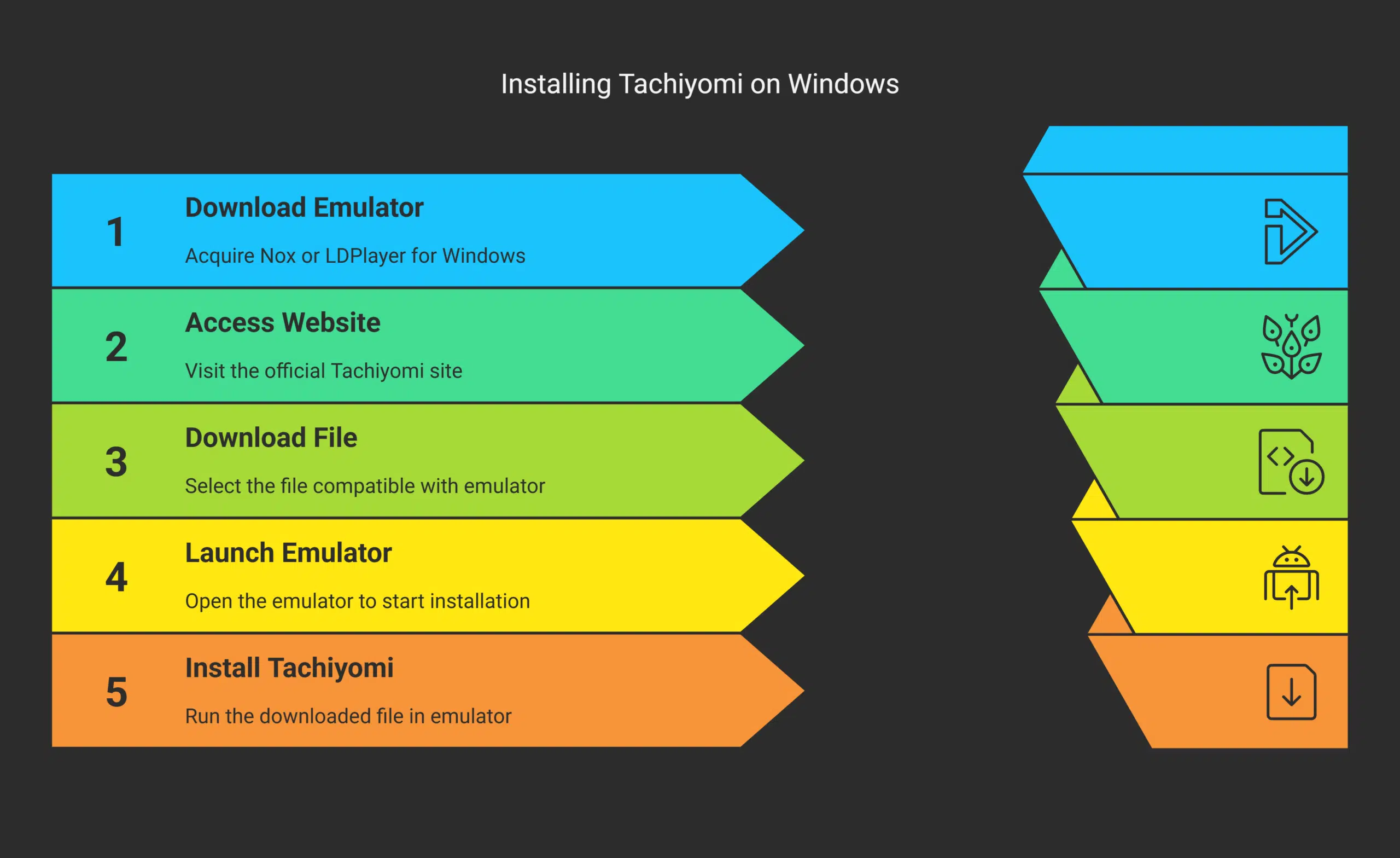
Setting up Tachiyomi on a Windows computer permits reading manga from more than a hundred online sources. Here are the procedures:
- Acquire Nox or the LDPlayer emulator to operationalize Android applications on Windows.
- Access the official Tachiyomi website through your web browser.
- On the website, click the “Download” button.
- Pick the file compatible with your chosen emulator, Nox or LDPlayer.
- Launch the downloaded file in your emulator, initiating the installation of Tachiyomi.
- Pause for the completion of the installation, which should be swift.
- Post-installation, start Tachiyomi using the emulator.
- Broaden your manga sources by using the extensions feature within the application.
- Fine-tune settings like page-turning actions and enable the darker mode for improved nighttime reading.
By following these steps, users gain the advantage of accessing unlimited manga series without the requirement of an Android device or browsing the Google Play Store for applications.
Installing Tachiyomi on Mac
To use Tachiyomi on a Mac, follow these steps with an Android emulator like Nox or LDPlayer:
- Get an Android emulator. Nox and LDPlayer work well.
- Install the chosen emulator. Open the downloaded file and complete setup instructions.
- Launch the emulator once installed.
- Use the emulator’s browser to search for “Tachiyomi apk.”
- Download the Tachiyomi APK from a safe site.
- In your emulator, click on the downloaded APK file to start installing Tachiyomi.
- Wait until Tachiyomi has fully installed.
With Tachiyomi installed on your Mac, you can add manga sources and begin reading.
For customizing Tachiyomi after installation:
Follow these directions without adding new details or altering their order. Keep language direct and focused only on necessary actions related to using Kakao Entertainment Corp products, manga apps, and relevant keywords such as dark mode and offline reading for Android devices.
Installing Tachiyomi on Linux
Linux doesn’t directly support Tachiyomi because it’s meant for Android. However, an Android emulator like Nox or LDPlayer can help you run it. Follow these steps:
- Pick and download an Android emulator such as Nox or LDPlayer.
- Install the chosen emulator by following its installation guide.
- Launch the emulator; it will show a phone-like interface on your computer.
- Search online for “Télécharger Tachiyomi” to find the Tachiyomi APK file.
- Download the APK file.
- Either drag and drop this APK into the emulator’s window or use the install option within the emulator to add Tachiyomi.
- Wait for the installation to complete.
- Open Tachiyomi through the emulator once installed.
With this setup, you can explore numerous manga series without needing an actual Android device. This method allows access to various manga sources via extensions, offline reading capabilities, and dark mode options for comfortable late-night reading sessions on Linux systems. Enjoy creating your personalized manga library right on your Linux machine just as if you were using an Android device!
Set Up and Customize Tachiyomi Post-Installation
Once you set up Tachiyomi on your device, add extensions and adjust settings to customize this manga reader app.
Add Extensions to Tachiyomi
Tachiyomi turns your desktop into a place where you can read lots of manga. You can make it even better by adding extensions. These let you read from many different manga sources.
- Open the Tachiyomi app on your computer and click on the “Extensions” tab.
- Look through the list to find an extension that connects to various manga libraries.
- Choose an extension with a good selection of manga series or titles from Kakao Entertainment Corp.
- Click “Install” next to your choice and wait for it to download and add itself to the app.
- Once installed, use this extension within Tachiyomi to search for and enjoy reading any available manga.
- Some extensions offer tracking services like MyAnimeList, which helps keep track of what you’ve read and how far you’ve gotten in each series.
- Since every extension links to different manga sources, try several to discover your favorite places for reading manga series or e-books.
With these steps, your Tachiyomi app becomes a more versatile tool, providing endless content for those who love reading manga.
Customize Tachiyomi Settings
Adjusting Tachiyomi settings enhances manga reading.
- Use dark mode for comfortable nighttime reading, reducing eye strain.
- Save favorite manga series for quick updates on new chapters, keeping you in the loop.
- Select from over 30 languages, like English and Spanish, to enjoy manga in your choice of language.
- Personalize page-turning with swipe or tap options for an enjoyable story flow.
- Turn on notifications to get alerts on fresh releases of your manga series so you’re always updated.
- Carefully pick manga sources through extensions to find all desired content easily.
- Activate offline reading to download chapters and read them anywhere without internet access.
Customizing these features makes Tachiyomi a personal tool for every manga enthusiast.
Takeaways
We covered the process of setting up Tachiyomi on various computer systems like Windows, Mac, or Linux. We provided aid in locating the app and successfully installing it for peak performance.
This approach paves the way for an effortless enjoyment of manga and comics.
Do keep in mind that Tachiyomi has no longer received updates post-January 2024 yet it continues to deliver a superior reading experience. It’s prudent to choose manga sources with care for your security.
These steps ease your way into an expansive world of stories right from your desktop. Regardless of possible shifts or newer versions in the future, our advice lays a solid groundwork.
Avail the chance to explore a myriad of stories. Your next preferred manga may be barely a few clicks distant!
FAQs on Tachiyomi
1. What is Tachiyomi and why would a manga enthusiast want it on their desktop?
Tachiyomi is one of those manga apps that’s like a dream come true for any manga enthusiast. It allows offline reading of your favorite manga series from various sources, not to mention the cool dark mode feature! And having it on your desktop? Well, imagine diving into the world of mangas with a bigger screen!
2. Can I install Tachiyomi directly on my Windows, Mac or Linux computer?
Well, hold your horses! You see, Tachiyomi was originally designed for Android devices. But don’t fret! With some tech magic called an Android emulator, you can get this fantastic app running smoothly right there on your Windows, Mac or Linux.
3. Are there different versions of Tachiyomi available?
You bet! The core Tachiyomi project has given birth to what we call “Tachiyomi forks”. These are variations offering unique features beyond the main version under fair use policies.
4. How do I know if Kakao Entertainment Corp approves of using Tachiyomi?
Ah-ha! A great question indeed! While we’re all about enjoying our favorite manga series through these handy apps, remember to always respect copyright laws and fair use policies set by companies like Kakao Entertainment Corp.
5. Where can I find updates or news about Tachiyomi?
Social media platforms are buzzing with constant updates about these popular manga reader apps, including Tachi-yummy…I mean…Tachi-yo-mi (see what I did there?). Watch out for tweets and posts about this topic!