
A crowded inbox usually has more than one cause. Newsletters bury work messages, follow-ups slip down the screen, and checking several accounts can turn a quick email session into a long one. The best email apps for inbox zero help with those specific problems through filters, reminders, sender screening, or a single view of multiple accounts.
This is a practical comparison by use case, not a ranking based on personal testing. Some apps connect to accounts you already have; others provide a new email service and workflow. Features and account support can vary by device, plan, and region, so check the current details before switching.
How We Chose These Email Apps
An app’s “inbox zero” features matter only if they fit the way you handle email. We considered how each option helps users triage new messages, reduce routine clutter, organize follow-ups, or manage multiple accounts. We also considered platform availability and whether an app’s useful features are accessible without a paid plan.
These tools serve different needs, so the list isn’t a single ranking from best to worst. Feature availability can vary by platform, account type, subscription, and country. Check the latest details before switching, especially if you rely on a particular work or school account.
10 Best Email Apps for Inbox Zero
Inbox zero is less about keeping every message out of sight than knowing what needs action and when. The best email apps for inbox zero help sort routine mail, surface important conversations, and track follow-ups. This guide compares ten options by their strengths, limitations, and fit for different email habits.
1. Gmail: Flexible filters and labels
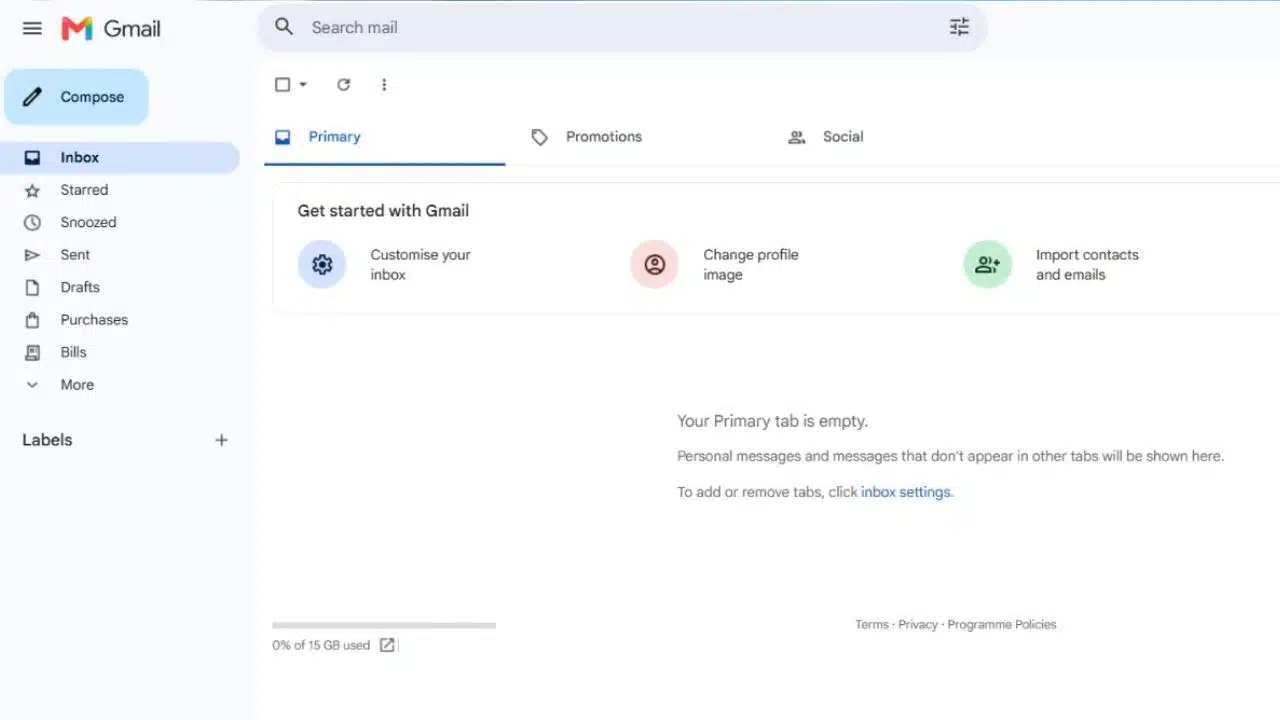
Gmail is a sensible place to start if you already use a Google account. Filters can automatically label, archive, delete, star, or forward messages that match criteria you set. You can also snooze a message so it returns to your inbox later.
For someone weighing the best email apps for inbox zero, Gmail’s main advantage is that these tools are already part of the service. Create a filter for receipts or routine alerts, then check that it catches the right messages before applying it broadly. Too many labels can become their own filing chore, so start with only a few.
A good fit for: People who want rules they can customize without adding another app.
2. Microsoft Outlook: Built around work email
Outlook’s Focused Inbox separates messages it identifies as important from other email. You can move misclassified messages between the two views. Rules can route recurring mail to folders, and Sweep can help manage messages from particular senders.
That makes Outlook a strong email app for inbox zero for people who already organize meetings and work through Microsoft tools. The interface and available features can differ by version and account type; check your Outlook setup before relying on a specific control.
A good fit for: Microsoft 365 users handling work conversations and calendar commitments in one place.
Spark can connect multiple accounts and show them separately or in a unified inbox. Its Smart Inbox sorts messages into categories such as personal email, newsletters, and notifications. The free plan includes core inbox features and multiple account connections; some other features require a paid plan. Spark also notes that its experience can vary across platforms.
If switching between accounts is what slows you down, Spark deserves a look among the best email apps for inbox zero. Before moving your routine to it, confirm that the features you need are available on your main device.
A good fit for: People who check several email addresses from one computer or phone.
4. Shortwave: Bulk triage for Google accounts
Shortwave groups related messages into Bundles, including promotions, newsletters, and updates. It also lets users split an inbox into tabs based on senders, labels, or searches. That can make recurring automated mail faster to process in batches.
There’s a key limitation: Shortwave requires a Gmail or Google Workspace account to sign in. Other providers can be brought in through forwarding, but it does not work as a native client for every email service. That narrower compatibility matters when comparing the best email apps for inbox zero.
A good fit for: Gmail users whose inbox fills with repetitive updates and subscriptions.
5. Superhuman Mail: A paid workflow for heavy email users
Superhuman supports Gmail and Outlook accounts. Its features include Split Inbox and snooze, with additional tools depending on the paid plan. It is designed for people who spend a substantial part of the day reading and answering email.
It may be among the best email apps for inbox zero for a high-volume user who will use its workflow consistently. For someone who only needs basic sorting, a paid specialist app is harder to justify. Check the current plan details and supported account type before subscribing.
A good fit for: Frequent Gmail or Outlook users looking for a dedicated email workflow.
6. Apple Mail: A practical built-in choice
Apple Mail includes rules and Smart Mailboxes on Mac, which can collect or move messages according to criteria you choose. On iPhone and iPad, tools include VIP and Follow Up mailboxes, as well as Send Later. The available features differ across Apple devices.
For people already using Apple hardware, it’s worth trying Mail before installing a replacement. It can be one of the best email apps for inbox zero if you want built-in tools and a straightforward setup. Create a rule for predictable messages or mark key contacts as VIPs; don’t assume every Mac feature works the same way on iPhone.
A good fit for: People who mostly use a Mac, iPhone, or iPad.
7. Thunderbird: Free and configurable on desktop
Thunderbird is free software for Windows, macOS, and Linux, with an Android app as well. It supports multiple accounts and can display them in a unified inbox or separately. Its filtering and organization options are useful if you want to shape your own desktop setup.
Thunderbird stands out in a best email apps for inbox zero comparison for users who want a free desktop app and don’t mind configuration. It offers more control than some built-in clients, but that flexibility can take time to set up. If you mostly manage mail on your phone, its desktop strengths may matter less.
A good fit for: Desktop users who want a free, customizable app for several accounts.
8. Proton Mail: Privacy with some free-plan limits
Proton Mail combines a dedicated email service with folders, labels, filters, snoozing, and scheduled sending. Its free plan has limits: current documentation lists up to three folders, three labels, and one active custom filter. Paid plans provide higher limits.
That makes Proton Mail a candidate among the best email apps for inbox zero for people who want privacy-focused email and are willing to use a dedicated service. Before switching, think through how you’ll move or forward existing messages and check which plan supports the organization tools you need.
A good fit for: People who prioritize privacy and want inbox tools within the same service.
9. HEY: Screening before new senders reach the inbox
HEY routes first-time senders to its Screener. You decide whether to accept them; accepted messages go to the Imbox, while lower-priority mail can be separated into the Feed. Its personal service offers a 30-day trial.
HEY is not a general client for checking existing external accounts. You can forward messages into it, but its apps cannot log in to retrieve mail from other providers. This makes HEY a more significant change than simply installing a new email app. For the right person, that screening approach may make it one of the best email apps for inbox zero; for others, changing services is too much friction.
A good fit for: People who want to approve new senders and are open to a separate email service.
10. Mailbird: Several accounts in one desktop workspace
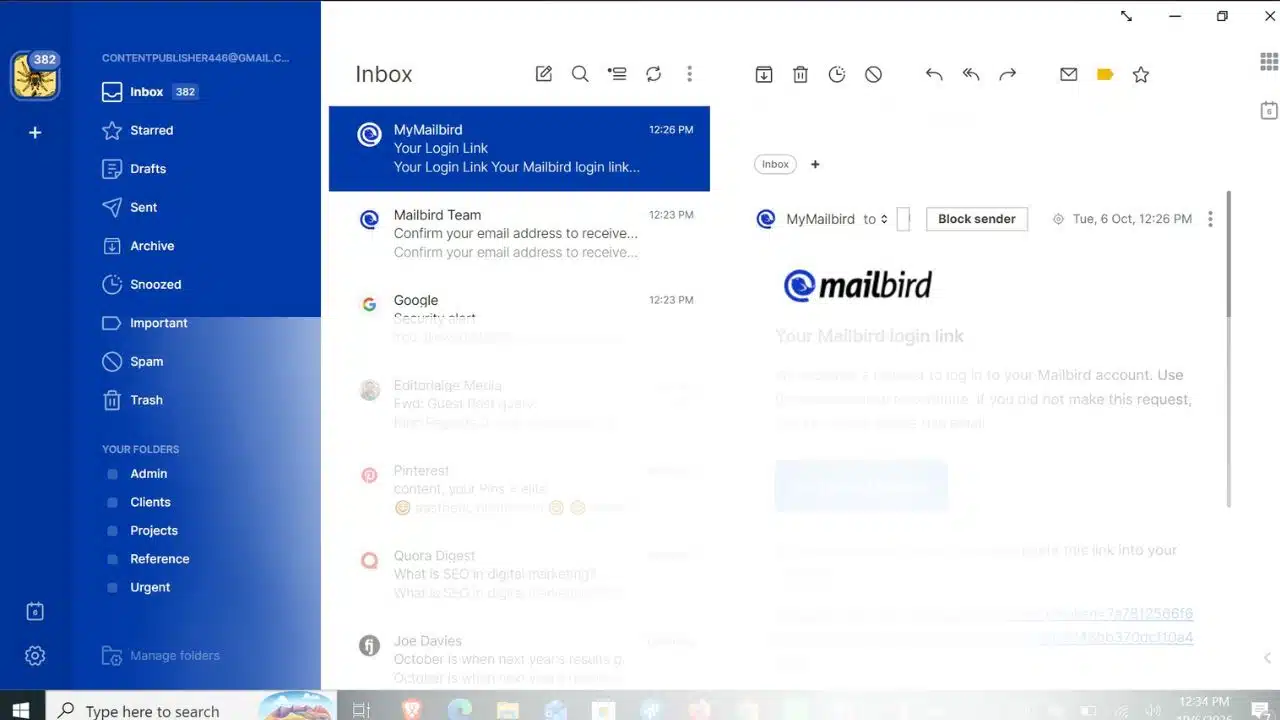
Mailbird is a desktop client for Windows and Mac. It connects to Gmail, Outlook, Yahoo, iCloud, and other IMAP accounts, bringing them together in one workspace. That can reduce the need to open multiple browser tabs to check separate addresses.
The trade-off is its desktop focus. If you rely on mobile email throughout the day, check whether Mailbird’s current options support the way you work before choosing it. It is most useful when account switching is the problem, rather than when you need help prioritizing messages.
A good fit for: Desktop users who manage separate personal, work, or project accounts.
Final Thoughts
The best email apps for inbox zero won’t make every message urgent or tell you what deserves a reply. They can make the next step clearer. Pick the app that fits your current accounts, try one feature that addresses your biggest source of clutter, and give that routine a week before adding more rules.
Frequently Asked Questions (FAQs)
Do I need to switch email services to reach inbox zero?
Usually not. Gmail and Outlook have built-in organization tools, and several clients connect to accounts you already use. HEY and Proton Mail are services with their own accounts, so switching to them takes more planning.
Only if you can still find and review the ones you want. Test a filter on one newsletter category first, then confirm it isn’t catching messages you need to see promptly.
What is the difference between an email client and an email service?
A client is an app for reading and organizing email accounts. A service provides the email account itself. Some products do both, so check whether a switch means creating a new address or forwarding existing messages.