A low-resolution image can ruin an otherwise good design. You may have the right photo, the right composition, and the right mood, but once you stretch it for a website banner, print layout, product page, presentation, or social post, the problems start showing. Edges become soft. Faces lose detail.
Textures look muddy. Small objects turn into smudges. The image still exists, but it no longer feels usable. That is where AI upscaling enters the conversation.
But here is the part many people misunderstand: AI upscaling is not magic. It does not truly recover every original detail from a blurry or tiny image. It predicts, rebuilds, sharpens, and enhances based on patterns it has learned from huge numbers of images. Sometimes the result looks excellent. Sometimes it looks fake, waxy, over-sharpened, or slightly wrong.
This AI image upscaling guide explains how AI image resolution works, what upscaling really does, when to use image enhancement AI, and how to choose upscaling AI tools without ruining the original image.
The goal is simple: make images look better without pretending AI can fix everything.
What Is AI Image Upscaling?
AI image upscaling is the process of increasing an image’s pixel dimensions using artificial intelligence.
Traditional resizing simply adds pixels based on mathematical interpolation. It guesses intermediate pixels from nearby pixels. That can make an image larger, but it often looks soft because the software is not truly adding meaningful new detail. AI upscaling works differently.
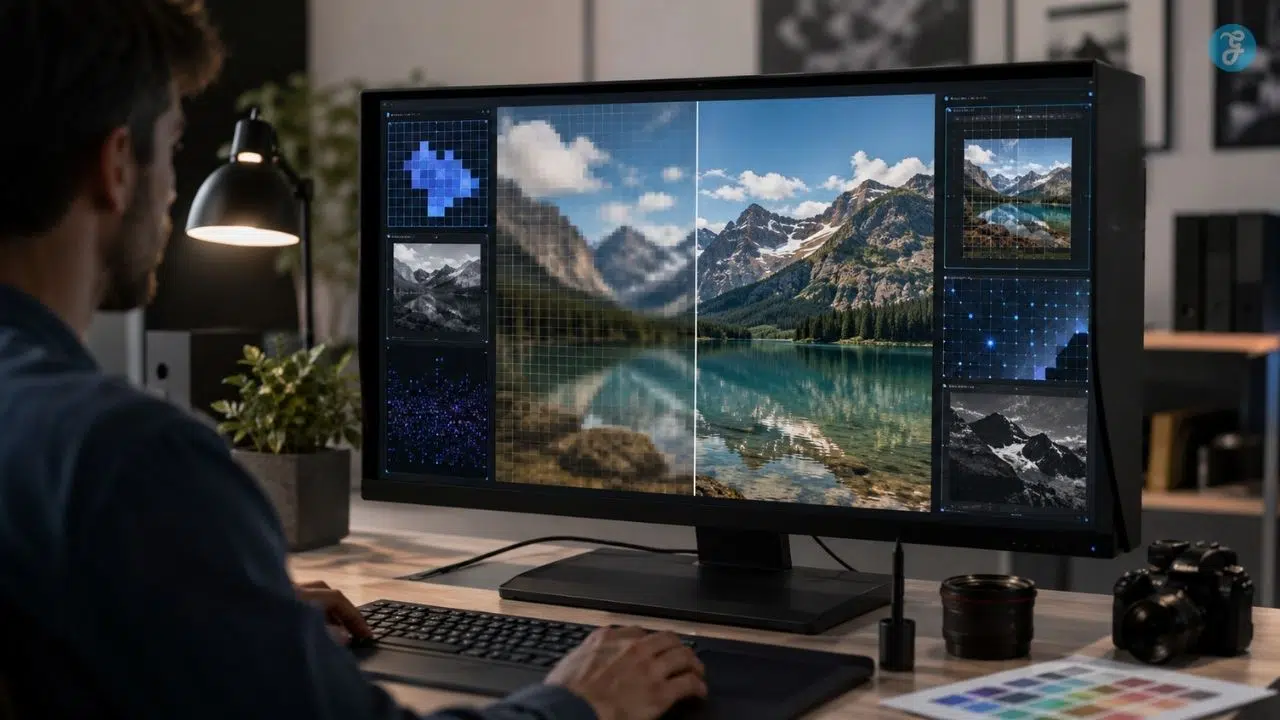
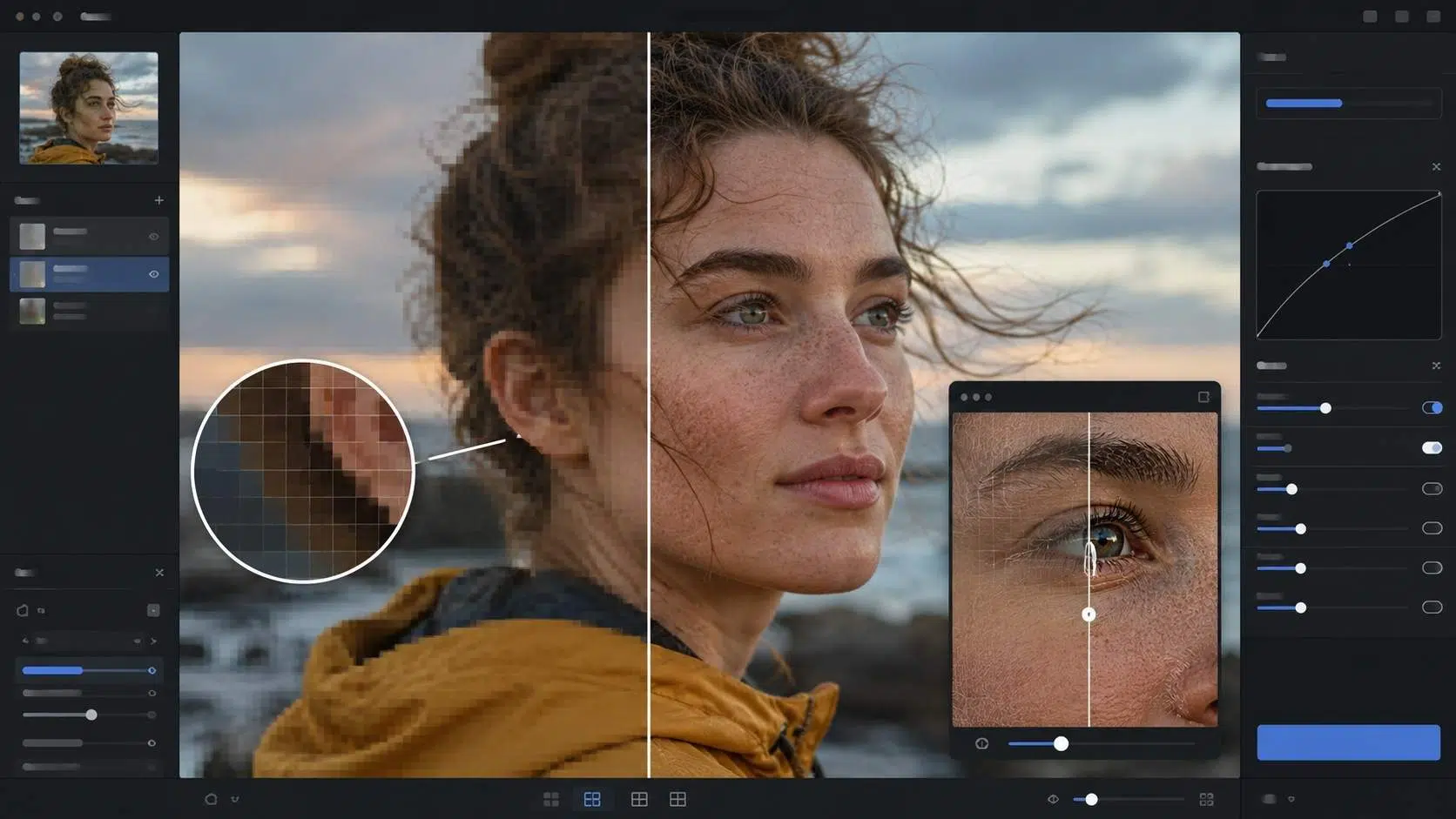
Instead of only stretching pixels, an AI model analyzes the image and predicts what the missing detail should look like. It may rebuild edges, sharpen textures, reduce noise, improve facial clarity, refine product details, or make a cropped image more usable.
For example, if you upscale a low-resolution portrait, the AI may improve the appearance of hair, eyelashes, skin texture, clothing folds, and background edges. If you upscale a product image, it may sharpen lines, fabric texture, packaging edges, or surface details.
That sounds powerful, and it is. But it also means the AI is making decisions. This is why upscaling can improve quality, but it can also introduce invented detail. For casual content, that may be fine. For journalism, legal evidence, medical images, historical archives, or product accuracy, it needs more caution.
AI Image Resolution Explained in Simple Terms
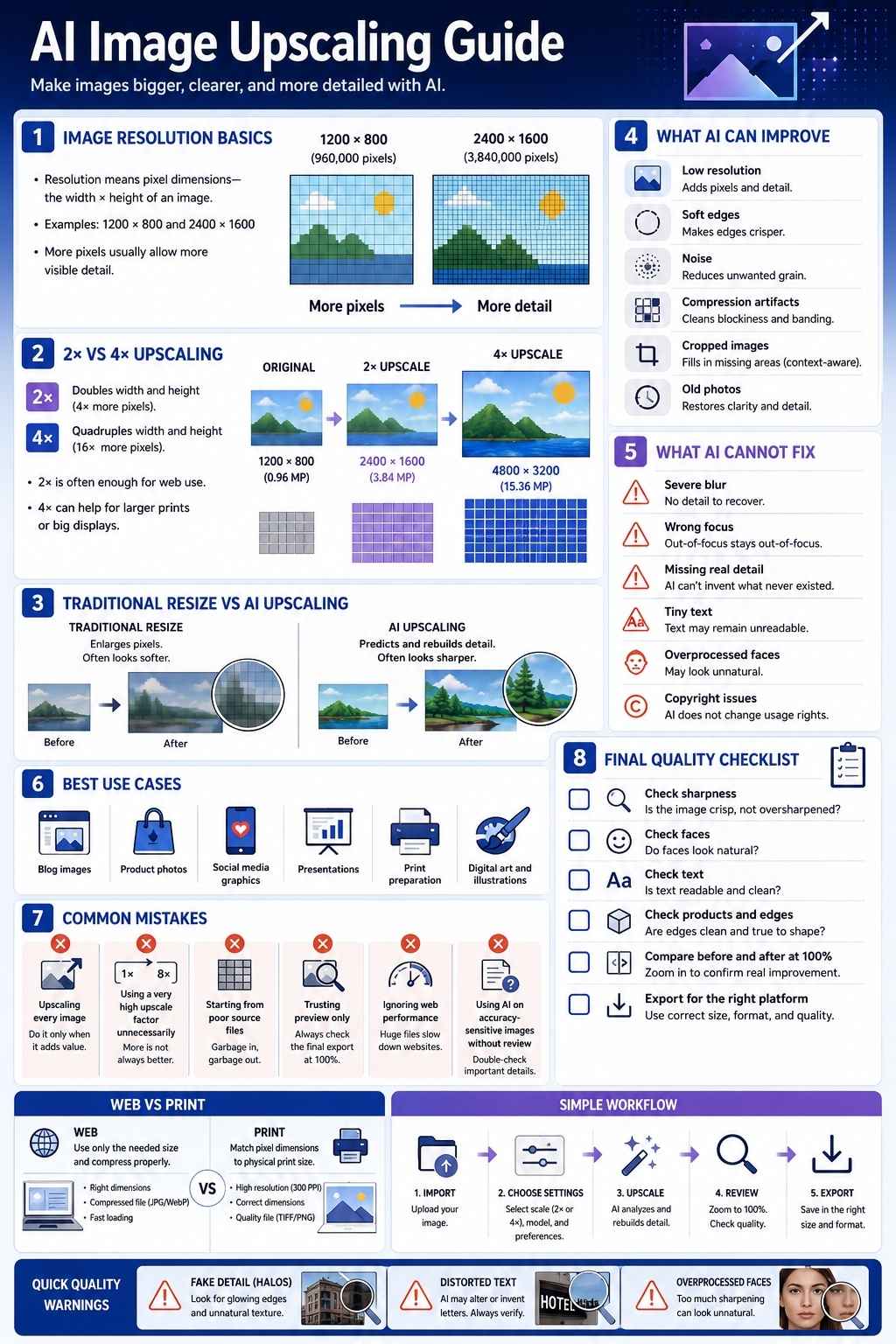
Before using any upscaling AI tools, you need to understand image resolution. Image resolution usually refers to the amount of pixel information inside an image. A pixel is a tiny square of color. More pixels usually mean more visual detail, especially when the image is viewed large.
A 1200 × 800 image has: 960,000 pixels
A 2400 × 1600 image has: 3,840,000 pixels
That second image has four times as many total pixels, even though the width and height only doubled.
This is why “2× upscale” can be confusing. A 2× upscale usually means:
- Width doubles
- Height doubles
- Total pixel count becomes four times larger
So, a 1000 × 1000 image becomes 2000 × 2000, and the total pixel count jumps from 1 million pixels to 4 million pixels.
That is useful when preparing images for larger displays, bigger website placements, print layouts, thumbnails, banners, or product galleries. But more pixels do not automatically mean better quality.
A blurry 500 × 500 image can become a blurry 2000 × 2000 image if the upscaler does not handle it well. AI can help, but the original file still matters.
Resolution, Size, PPI, and DPI: What People Often Mix Up
People often use resolution, size, PPI, and DPI as if they mean the same thing. They do not.
| Term | What It Means | Why It Matters |
| Pixel dimensions | Width and height in pixels, such as 1920 × 1080 | The main factor for digital image size |
| File size | How much storage the image uses, such as 2 MB | Affects website speed and uploads |
| PPI | Pixels per inch for screen or print layout planning | Helps calculate print size |
| DPI | Dots per inch, usually tied to printer output | Often confused with PPI |
| Resampling | Adding or removing pixels | Used when resizing or upscaling |
For web publishing, pixel dimensions matter more than DPI. A 1600 × 900 image is still 1600 × 900 online whether the file says 72 PPI or 300 PPI. The PPI value matters more when preparing print output.
For print, the relationship between pixels and physical size matters. A 3000 × 2400 image printed at 300 PPI can produce a 10 × 8 inch print. If you print it much larger, the image may start looking soft unless you upscale it or accept lower print sharpness.
How AI Image Upscaling Works
AI upscaling usually works through machine learning models trained on large sets of images. These models learn patterns between low-resolution and high-resolution images.
A simple version of the process looks like this:
- The AI analyzes the low-resolution image.
- It identifies edges, shapes, textures, faces, objects, and noise.
- It predicts what extra pixels should look like.
- It reconstructs detail while enlarging the image.
- It applies sharpening, denoising, or artifact cleanup.
- It exports a larger image.
Different upscaling AI tools handle this differently. Some tools focus on preserving realism. Some focus on making images look sharp and dramatic. Some are better for portraits. Some are better for illustrations. Some work well for product photos. Some are built into professional editing software. Others are quick online tools for casual creators.
The best tool depends on the image and the final use.
AI Upscaling vs Traditional Upscaling
Traditional upscaling has been around for a long time. Photoshop, Lightroom, and many other editors can resize images using resampling methods. These methods calculate new pixels based on the pixels already there.
Traditional upscaling can work well when:
- The original image is already clean
- The enlargement is small
- You only need a modest size increase
- You want to preserve the original look
- You do not want AI-generated detail
AI upscaling is usually better when:
- The image is visibly low-resolution
- You need a larger enlargement
- The image has soft details
- You want sharper edges
- You need to improve the cropped images
- You want to reduce noise or compression artifacts
But AI upscaling can create a different problem: it may make the image look too processed. This is especially common with skin, eyes, hair, fabric, small text, jewelry, product labels, hands, and background objects.
Traditional upscaling is safer when accuracy matters. AI upscaling is stronger when visual improvement matters more than strict pixel truth.
What AI Image Enhancement Can Actually Improve
Image enhancement AI can help with several common problems.
1. Low Pixel Count
If an image is too small for a design placement, AI upscaling can increase its pixel dimensions and make it usable at a larger size.
This helps with:
- Blog featured images
- Website banners
- Product photos
- Social media graphics
- Presentation slides
- Portfolio images
- Print drafts
- Thumbnails
A small image will not become a perfect high-end camera file, but it may become good enough for publishing.
2. Soft Edges
AI upscalers often improve edges around faces, objects, buildings, clothing, and product outlines. This can make the image feel cleaner and more professional. The key is moderation. If the edges become too sharp, the image may look artificial.
3. Noise and Grain
Some AI tools can reduce noise while upscaling. This helps with low-light photos, older images, smartphone photos, or compressed files. But too much denoising can remove natural texture.
Skin may become plastic. Fabric may lose weave. Hair may become smooth clumps. That is why you should always compare before and after versions at full size.
4. Compression Artifacts
JPEG compression can create blocky patterns, halos, or messy details around edges. AI enhancement can sometimes clean those artifacts during upscaling.
This is useful for:
- Old web images
- Saved social media images
- Screenshots
- Reused marketing assets
- Compressed product photos
The result depends heavily on the original image. A badly compressed image can only be improved so much.
5. Cropped Images
AI image upscaling is especially helpful when you crop into a photo and lose resolution. For example, a full photo may be 4000 × 3000 pixels. After cropping tightly around one person, the crop may only be 900 × 700 pixels. AI upscaling can help make that crop usable for a post, article image, or thumbnail. This is one of the most practical uses of AI upscaling.
6. Old Photos
AI tools can improve old photos by enlarging them, reducing noise, and clarifying faces or clothing. But old photo restoration needs care.
If the tool invents facial features, changes expressions, or over-cleans the image, it may stop feeling authentic. For family photos, that might still be acceptable. For archives or historical publishing, be careful.
What AI Upscaling Cannot Fix Well
AI upscaling has limits. This matters because many people expect too much from it.
1. Extreme Blur
If a photo is deeply blurred, AI may sharpen it in a way that looks fake. It can guess facial features, but it cannot truly know what was there. Use AI blur correction carefully, especially for faces.
2. Bad Focus
If the camera focused on the wrong part of the image, upscaling may improve overall clarity, but it cannot fully replace proper focus. You may get a cleaner image, not a correct one.
3. Missing Detail
AI can generate plausible details, but plausible is not the same as real.
This matters for:
- Product images
- News photos
- Documents
- Legal evidence
- Medical or scientific images
- Historical records
- Identity-sensitive images
For entertainment, creative content, and marketing, this may be acceptable. For factual images, it can be risky.
4. Small Text
AI upscalers often struggle with tiny text. They may make it sharper, but they can also distort letters or create fake words. Do not rely on AI upscaling to fix small text in screenshots, posters, documents, certificates, or packaging labels.
5. Over-Processed Faces
Faces are where many AI upscalers become obvious.
Look for:
- Unnatural eyes
- Plastic skin
- Strange teeth
- Altered facial structure
- Over-sharpened eyelashes
- Changed expression
- Waxy texture
For portraits, always zoom in before publishing.
6. Copyright or Permission Problems
Upscaling does not change image rights. If you do not have permission to use an image, making it larger with AI does not make it safe. This matters for anime images, celebrity photos, brand images, movie stills, and copyrighted artwork. AI enhancement changes pixels. It does not remove copyright restrictions.
When Should You Use AI Image Upscaling?
Use AI image upscaling when it solves a real publishing or design problem.
It works well when:
- The image is slightly too small
- You need a larger crop
- The original is good but not large enough
- You need a sharper web image
- You want to improve social media visuals
- You need a cleaner product photo
- You are restoring a personal image
- You are preparing a presentation image
- You need better detail for a design mockup
Avoid using it blindly on every image. If the original photo is already sharp and large enough, unnecessary upscaling can make it worse. You may increase file size, add artifacts, or create an unnatural look.
The best rule is simple: Upscale only when the image has a size or clarity problem.
Common Use Cases for AI Image Upscaling
For Bloggers and Publishers
Bloggers often need featured images, inner images, thumbnails, and social cards. If an image is too small for a 1280 × 720 layout or a large WordPress placement, AI upscaling can help.
Good use cases include:
- Enlarging older article images
- Improving compressed visuals
- Preparing Pinterest or social graphics
- Making screenshots cleaner
- Resizing cropped portraits
- Improving article thumbnails
But publishers should be cautious with images that represent facts. If an AI tool changes a product, person, place, or document detail, the image can become misleading.
For E-Commerce
Product photos need clarity. AI upscaling can improve product images for listings, ads, and catalogs.
It can help with:
- Fabric texture
- Product edges
- Small accessories
- Lifestyle shots
- Cropped product details
- Marketplace thumbnails
Still, product accuracy matters. If the AI changes texture, color, stitching, shape, logo details, or packaging, the result may misrepresent the product. For e-commerce, always compare the enhanced image against the real product.
For Designers
Designers use AI upscaling when assets are too small for layouts.
It helps with:
- Web banners
- Mockups
- Presentation decks
- Social media posts
- Editorial graphics
- Portfolio images
- Background textures
Designers should avoid overusing AI upscaling on typography, logos, UI screenshots, or brand assets. Vector files are still better for logos and icons.
For Photographers
Photographers use AI upscaling for cropped images, large prints, old files, wildlife crops, sports shots, and portfolio exports.
It works best when the original image has good exposure, decent focus, and enough detail for the AI to build from. It does not replace a good capture technique. A sharp raw file will almost always upscale better than a compressed, blurry screenshot.
For Social Media Creators
Social platforms compress images heavily. AI upscaling can help creators prepare sharper images before upload.
Useful cases include:
- Instagram graphics
- LinkedIn article images
- YouTube thumbnails
- Pinterest pins
- Facebook posts
- TikTok covers
- X post images
But do not upload huge files unnecessarily. Use the right size for the platform after upscaling and exporting.
Choosing the Right Upscaling AI Tools
There are many upscaling AI tools now, and they do not all serve the same user.
Before choosing one, ask what you need.
| Need | Best Tool Type |
| Professional photo workflow | Photoshop, Lightroom, Topaz-style desktop tools |
| Quick online enhancement | Canva, Picsart, browser-based upscalers |
| Creative detail generation | Generative upscalers |
| Product image cleanup | E-commerce-focused image enhancement tools |
| Batch processing | Desktop tools or API-based tools |
| Developer workflow | Image enhancement APIs |
| Casual social media use | Simple one-click upscalers |
You do not need the most advanced tool for every image. A simple online upscaler may be enough for a blog post. A professional photographer may need a more controlled tool with batch processing, noise reduction, sharpening control, and raw-file support.
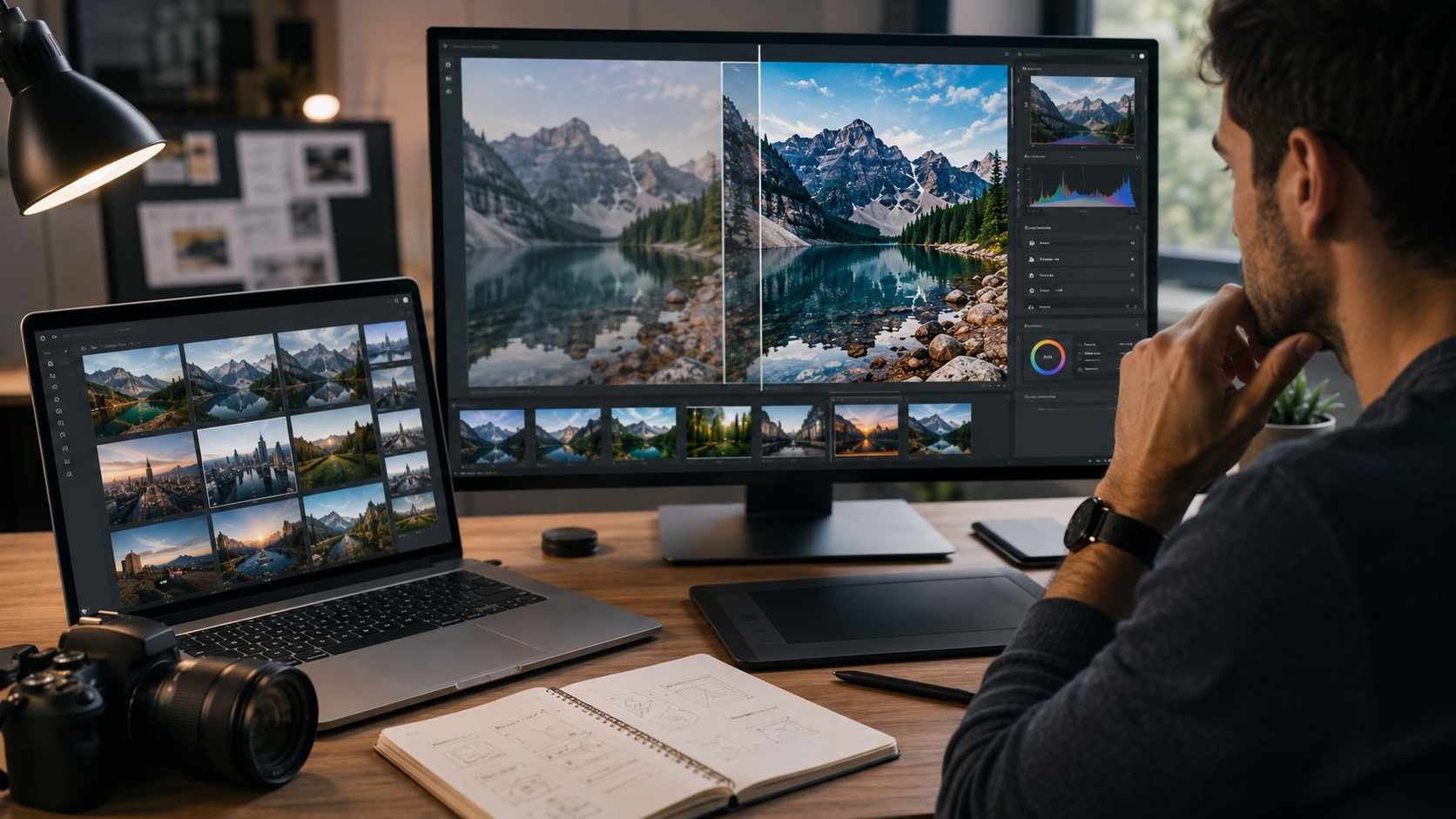
Popular Types of Upscaling AI Tools
1. Built-In Creative Suite Upscalers
Tools built into apps like Photoshop or Lightroom are useful because they fit into an editing workflow.
They are good for people who already edit images professionally and want more control after upscaling.
Best for:
- Photographers
- Designers
- Publishers
- Professional editors
- Large print preparation
2. Dedicated AI Upscaling Tools
Dedicated tools focus heavily on image enlargement and enhancement. They often offer models for different image types, such as portraits, graphics, low-resolution photos, or compressed images.
Best for:
- High-quality enlargement
- Batch image processing
- Print preparation
- Portfolio images
- Professional enhancement
3. Online AI Image Upscalers
Online tools are convenient. You upload an image, choose a scale, and download the result.
Best for:
- Quick blog images
- Social media content
- Simple edits
- Non-technical users
- One-off image fixes
Watch for privacy, file limits, watermarks, compression, and commercial-use terms.
4. Generative Upscalers
Generative upscalers do more than sharpen. They may add new details to the image. This can look impressive, but it also brings the biggest accuracy risk.
Best for:
- Concept art
- Creative visuals
- Stylized images
- Marketing backgrounds
- Non-documentary assets
Use with caution for real people, product photos, factual scenes, or anything where exact detail matters.
5. API-Based Image Enhancement
Developers and businesses may use image enhancement APIs to upscale images automatically across websites, product catalogs, apps, or media workflows.
Best for:
- Marketplaces
- SaaS apps
- Large image libraries
- E-commerce automation
- CMS workflows
- Developer pipelines
API upscaling can save time, but it needs quality control rules. Bad enhancement at scale can create thousands of distorted images.
How to Use AI Image Upscaling Properly
Here is a practical workflow.
1. Start With the Best Original File
AI upscaling works better when the source image is clean.
Use the highest-quality file you have:
- Raw file
- Original camera photo
- High-quality JPEG
- PNG where appropriate
- Uncompressed export
- Original design file
Avoid starting with screenshots, WhatsApp-compressed images, social media downloads, or tiny thumbnails unless you have no choice.
2. Decide the Final Use
Do not upscale randomly. Know the target.
Ask:
- Is this for web or print?
- What size do I need?
- Will people zoom in?
- Is this a featured image?
- Is this for a thumbnail?
- Is this for a product page?
- Is this for social media?
- Does accuracy matter?
A LinkedIn image, a product listing, a billboard, and a print magazine image do not need the same workflow.
3. Choose a Reasonable Upscale Factor
Common upscale options include:
- 2×
- 4×
- 6×
- 8×
For most publishing needs, 2× or 4× is enough. Higher scaling can create more artifacts, especially if the source image is poor. Bigger is not always better.
4. Use the Right Model or Mode
Many tools offer modes such as:
- Standard
- Low resolution
- Art and CG
- Portrait
- Photo
- Graphics
- High fidelity
- Creative
- Denoise
- Sharpen
Pick the mode that matches the image. A portrait mode may not work well on product packaging. A creative mode may alter a real photo too much. A graphics mode may sharpen lines but damage skin.
5. Compare Before and After
Always compare the original and upscaled version.
Check:
- Eyes
- Hands
- Hair
- Teeth
- Text
- Product edges
- Fabric texture
- Background objects
- Logos
- Skin texture
- Small details
Do not only look at the full image. Zoom in to 100%.
6. Edit After Upscaling
Upscaling should not always be the final step.
After upscaling, you may still need to adjust:
- Exposure
- Contrast
- Color balance
- Noise reduction
- Sharpening
- Cropping
- File compression
- Web export settings
Sometimes the best result comes from a light edit after the AI has enlarged the image.
7. Export for the Right Platform
Do not upload a massive file if your website only needs a 1280 × 720 image.
- For the web, export at the needed size and compress properly.
- For print, keep more pixels and use a high-quality format.
- For social media, use platform-friendly dimensions.
Best Image Sizes After Upscaling
Here are practical target sizes for common uses.
| Use Case | Recommended Size |
| Blog featured image | 1280 × 720 or 1920 × 1080 |
| WordPress inner image | 1200 × 675 or 1600 × 900 |
| LinkedIn image | 1200 × 627 or 1920 × 1080 |
| YouTube thumbnail | 1280 × 720 |
| Instagram square | 1080 × 1080 |
| Instagram portrait | 1080 × 1350 |
| Pinterest pin | 1000 × 1500 or 1024 × 1536 |
| Product image | 1500 × 1500 or higher |
| Depends on physical size and PPI |
These are practical publishing sizes, not strict rules. Always check your website theme, CMS, ad layout, or platform requirements.
AI Image Upscaling Guide for Web Publishing
For websites, the goal is not simply the largest image. The goal is the best balance between clarity and speed. Large images can slow down pages. Slow pages can hurt user experience. So after upscaling, you still need proper optimization.
A good web workflow looks like this:
- Upscale the image only if needed.
- Resize it to the actual display size.
- Export in WebP, AVIF, or optimized JPEG where appropriate.
- Keep file size reasonable.
- Add descriptive file names.
- Add alt text.
- Use lazy loading where your CMS supports it.
- Avoid uploading huge images for small placements.
For example, if your article needs a 1280 × 720 featured image, do not upload a 6000 × 3375 version unless your theme specifically needs it. A clean 1280 × 720 or 1920 × 1080 file is usually enough.
AI Image Upscaling Guide for Print
Print has different requirements. A print image needs enough pixels for its physical size. If you want an 8 × 10 inch print at 300 PPI, you need around 2400 × 3000 pixels. If your image is smaller, AI upscaling may help.
Before printing, check:
- Final print size
- Required PPI
- Viewing distance
- Paper type
- Sharpness
- Noise
- Color profile
- Export format
- Print lab requirements
A poster viewed from several feet away can tolerate lower effective resolution than a photo book viewed up close. That is why print resolution is not one-size-fits-all.
AI Upscaling for Anime, Illustrations, and Digital Art
AI upscaling can work very well for anime images, illustrations, line art, game art, and digital artwork. These images often have clear shapes, sharp edges, and stylized details that AI can enhance effectively. But there are risks.
AI may change:
- Eye shapes
- Hair details
- Line art
- Small accessories
- Character likeness
- Background details
- Clothing patterns
- Text on props
If you are upscaling copyrighted anime stills, remember that upscaling does not make them royalty-free. You still need to consider editorial use, licensing, and publisher policy. For original artwork, use tools that preserve line quality and do not overpaint the style.
AI Upscaling for Product Images
Product images need extra care because accuracy matters. AI may make a product look cleaner, sharper, or more expensive than it really is. That sounds good for marketing, but it can become misleading if it changes important details.
Check:
- Color accuracy
- Texture
- Product shape
- Logo
- Packaging text
- Stitching
- Surface finish
- Material grain
- Small accessories
For products, use AI to improve clarity, not to invent details.
AI Upscaling for Faces and Portraits
Portrait upscaling can look impressive, but it can also go wrong quickly.
Good portrait upscaling should preserve:
- Identity
- Skin texture
- Eye shape
- Hairline
- Facial expression
- Age
- Lighting
- Natural detail
Bad portrait upscaling may create:
- Unreal eyes
- Over-smooth skin
- Changed face shape
- Fake eyelashes
- Strange teeth
- Plastic texture
- Unnatural sharpness
For professional portraits, use moderate enhancement and review carefully. For public figures, journalism, or identity-sensitive use, be especially cautious.
Common AI Image Upscaling Mistakes
Mistake 1: Upscaling Every Image
Not every image needs AI upscaling. If the original file is already large and sharp, leave it alone or resize it normally.
Mistake 2: Using 8× When 2× Is Enough
Higher upscale factors can create bigger files and more fake detail. Start modestly.
Mistake 3: Ignoring the Original Quality
A terrible source image gives the AI less useful information. Always use the best original file.
Mistake 4: Trusting the Preview Only
Small previews can hide artifacts. Always check the image at full size before publishing.
Mistake 5: Forgetting Web Performance
Upscaled images can become huge. Compress and resize them before uploading to a website.
Mistake 6: Enhancing Copyrighted Images Without Permission
AI does not solve licensing. Upscaled anime, movie, brand, or celebrity images may still require permission or careful editorial use.
Mistake 7: Using AI Detail on Factual Images
For evidence, documents, news photos, or product accuracy, generated details can mislead people.
How to Tell If an AI-Upscaled Image Looks Good
Use this checklist.
| Checkpoint | What to Look For |
| Sharpness | Clear but not harsh |
| Texture | Natural, not waxy |
| Faces | Same identity and expression |
| Edges | Clean without halos |
| Text | Not distorted or fake |
| Products | Accurate shape and detail |
| Background | No strange artifacts |
| File size | Optimized for use |
| Color | Consistent with original |
| Purpose | Suitable for web, print, or social |
A good upscaled image should not scream “AI enhanced.” It should simply look clean, clear, and usable.
Best Practices for Using Image Enhancement AI
Use image enhancement AI as part of a workflow, not as a one-click cure.
The best results usually come from this order:
- Start with the best source image.
- Remove major distractions only if needed.
- Upscale with the right model.
- Compare at 100%.
- Fix color and contrast.
- Apply light sharpening if needed.
- Resize to final dimensions.
- Export and compress properly.
- Add an SEO-friendly file name and alt text.
- Keep the original file saved.
Do not overwrite the original image. Keep one original version, one upscaled version, and one final web-optimized version.
SEO Tips for Upscaled Images
If you use AI-upscaled images in articles, optimize them properly.
1. Use Descriptive File Names
- Bad file name: IMG_0987-upscaled-final-new2.jpg
- Better file name: ai-image-upscaling-guide-resolution-example.jpg
Use lowercase words, hyphens, and clear descriptions.
2. Write Helpful Alt Text
- Bad alt text: image
- Better alt text: AI image upscaling example showing a low-resolution photo improved for clearer web publishing.
Alt text should describe the image naturally. Do not stuff keywords.
3. Compress Images Before Uploading
Upscaled images can be large. Compress them before publishing.
Use:
- WebP
- AVIF
- Optimized JPEG
- Responsive image sizes
- Lazy loading
Your image should look good, but it should not slow the page down.
4. Match the Image to the Article Section
Do not use upscaled images randomly. For an article about AI image resolution, place visuals where they support the explanation:
- Before and after upscaling example
- Pixel dimension comparison
- AI enhancement workflow
- Web vs print image size guide
- Common artifact examples
Images should help the reader understand the topic.
Should You Use Free or Paid Upscaling AI Tools?
Free tools are fine for casual use, but they often come with limits.
They may limit:
- Image size
- Batch uploads
- Commercial use
- Export quality
- File formats
- Privacy controls
- Watermark-free downloads
Paid tools usually offer better control, larger exports, batch processing, better privacy options, and professional workflows.
Use free tools when:
- You need a quick social image
- The image is not sensitive
- You only need occasional upscaling
- You can accept smaller output limits
Use paid tools when:
- You handle client work
- You need commercial rights clarity
- You upscale many images
- You need high-quality print output
- You work with product photos
- You need better control over results
Is AI Upscaling Ethical?
AI upscaling is usually ethical when it improves presentation without misleading the audience. It becomes questionable when it changes the meaning of an image.
For example:
- Enhancing a blog image for clarity is usually fine.
- Upscaling a product photo so it looks more premium than the real product is risky.
- Rebuilding a historical face with invented features should be disclosed.
- Enhancing evidence or news images with generated detail can mislead people.
- Upscaling copyrighted art does not remove copyright restrictions.
The safest rule is this: Use AI to improve usability, not to fake reality.
Future of AI Image Resolution and Upscaling
AI image resolution will keep improving. We are already seeing tools that do more than enlarge images. They can clean noise, restore faces, sharpen texture, reconstruct missing detail, upscale to 4K, process batches, and fit directly into design software, photo editors, APIs, and content workflows.
But the main challenge will remain the same. The better AI becomes at inventing believable detail, the more important human review becomes. That is why creators, publishers, designers, and marketers should learn how upscaling works instead of treating it like a magic button.
AI can make images larger. AI can make images cleaner. AI can make images more usable. But humans still need to decide whether the result is honest, accurate, and appropriate.
Final Takeaway: Use AI Upscaling With Skill, Not Blind Trust
AI image upscaling is one of the most useful creative tools available today, especially for publishers, designers, marketers, photographers, and online creators. It can rescue cropped images, improve old photos, sharpen web visuals, prepare better thumbnails, and make low-resolution assets usable again. But it works best when you understand its limits.
This AI image upscaling guide comes down to one practical idea: Start with the best original image, upscale only when needed, choose the right tool, inspect the result carefully, and export for the final use.
That is how AI image resolution becomes useful instead of messy. The goal is not to make every image huge. The goal is to make the right image clear enough, honest enough, and strong enough for the place where it will be used.
Frequently Asked Questions About AI Image Upscaling Guide
1. What is AI image upscaling?
AI image upscaling is the process of increasing an image’s pixel dimensions using artificial intelligence. The AI analyzes the image and predicts extra detail so the enlarged version looks sharper and clearer than a normal resized image.
2. Does AI upscaling really improve image resolution?
Yes, AI upscaling can improve image resolution by increasing pixel dimensions and enhancing visible detail. However, it does not truly recover every original detail. It predicts and rebuilds details based on learned image patterns.
3. What are the best uses for upscaling AI tools?
Upscaling AI tools work well for blog images, product photos, social media graphics, cropped photos, old images, presentation visuals, thumbnails, and digital art. They are less reliable for documents, tiny text, legal evidence, or images where exact accuracy matters.
4. Can AI image enhancement fix blurry photos?
Image enhancement AI can improve mildly blurry photos, but it cannot fully fix severe blur or wrong focus. If the source image lacks detail, the AI may create fake-looking sharpness or invent details.
5. Is AI upscaling good for print?
AI upscaling can help prepare images for print when the original file is too small. For best results, start with the highest-quality original file, upscale moderately, inspect the result closely, and match the final pixel dimensions to the print size.
6. Does AI upscaling change image copyright?
No. AI upscaling does not change copyright ownership or usage rights. If an image is copyrighted, upscaling it does not make it royalty-free or safe to use without permission, licensing, or a valid editorial-use reason.