If the inability to transfer WhatsApp chat is the major reason that is pulling you back to move from iPhone to Android, then you can be happy now. Recently, WhatsApp has announced its latest feature that will allow WhatsApp iPhone to Android chat transfer. Just hold on before you get elated with this new feature as there are too many ifs and buts that come along. We will let you know all about this latest feature of WhatsApp and also the best ways to overcome the related issues. Just stick to us till the end and you will surely have a hassle-free quick way to transfer WhatsApp from iPhone to Android.
Part1. All about the latest WhatsApp feature to transfer WhatsApp chats from iPhone to Android
Transferring WhatsApp chat from one OS to another is a long-awaited and needed feature that WhatsApp has looked into, if not completely, then at least in a partial way by launching one-way transfer (from iPhone to Android).
WhatsApp has released an official way for transferring WhatsApp data from iPhone to Android devices (the latest Samsung Z Fold 3 and Z Flip 3 only are the supported devices). Using this method, you can transfer the chat history, voice memos, as well as photos. But before you jump into the process of transfer, learn that there are too many catches in the process.
The ground rules from the chat transfer are as follows:
- Presently the feature is launched only for the latest premium Samsung models – Z Fold 3 and Z Flip 3 and the latest it may be rolled out for other models of Android running on OS 10 and newer versions.
- A USB-C Lightning cable will be needed to connect both the devices and facilitate the transfer as there is no option of data transfer through the internet.
- Both the devices would need the latest versions of OS and also use the same phone number on both the phones.
- The feature will transfer and create a clone of your WhatsApp chat on your iPhone to your Android devices. This means that the target device has to be new or factory reset as a chat between two platforms cannot be merged. If the target device has any previous chats, they will be overwritten.
- The process of transferring piggy-backs on the Samsung devices having SmartSwitch app.
- Support transfer of WhatsApp chat, voice memos, and images. Call logs and other WhatsApp data cannot be transferred by the process.
If you are keen to try this method, below listed are the steps on how to transfer WhatsApp from iPhone to Android.
- Setup your Samsung device and using a USB-C lightning cable, connect it to your iPhone when prompted.
- The QR code needs to be scanned while using the iPhone and next click on the Start button on your iPhone.
- After you finish the process, set up your Samsung device by opening and logging into your WhatsApp account using the same phone number that is used for the iPhone.
- Click on the Import option and the WhatsApp data will be transferred from iPhone to the connected Android phone.
Part 2. The quick and hassle-free solution to transfer WhatsApp data from your iPhone to Android devices
After reading about the official method of WhatsApp data transfer from iPhone to Android, you will have come to know that practically, using this as a workable solution is not a good choice. Besides limited types of data transfer, the process is complicated, involves too many limitations, and requires technical know-how.
So now what? No need to get disappointed as we have searched in an excellent hassle-free manner to transfer your WhatsApp data from your iPhone to your Android in just a few simple steps and that too without any limitations and restrictions. The name of this magic tool is Wondershare MobileTrans. This excellent program is available as desktop software as well as a mobile app that not only allows transfer data of WhatsApp but several other apps like Line, WeChat, Kik, and more. The data transfer is not restricted to any OS and can be done between iPhone to iPhone, Android to Android, iPhone to Android, and vice-versa.
Additionally, data back-up and restoring are also supported by the tool.
Key features of MobileTrans- WhatsApp Transfer
- Transfer all the WhatsApp content like chats (including personal chats as well as group conversations), photos, videos, as well as attachments, and that too without any quality loss.
- Allows data transfer between different phones running on iOS and Android (including Apple, Samsung, LG, Motorola, and more).
- Data transfer from multiple other apps supported like Line, Viber, WeChat, Kik, and more.
- Allows to backup WhatsApp data to PC along with restore option.
- Quick and easy WhatsApp iPhone to Android and vice-versa transfer.
- Windows and Mac supported.
Below we have elaborated the steps to both the MobileTrans method- Desktop and App-based.
Steps on how to transfer Whatsapp chats from iPhone to Android
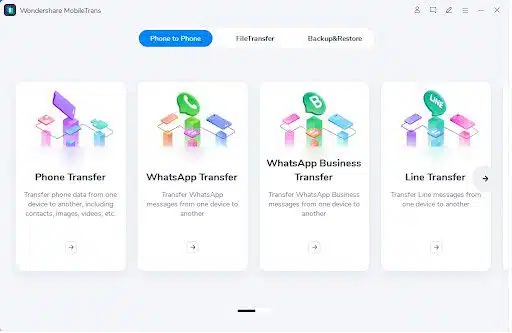
Step 1. Download, install and launch the Wondershare MobileTrans software on your PC. On the main interface, choose the “WhatsApp Transfer” tab and then click on the Transfer WhatsApp messages option at the right-side pane.
Step 2. Next, connect both your iPhone and Android phone to your PC. The messages and media attachments will be loaded by the software.
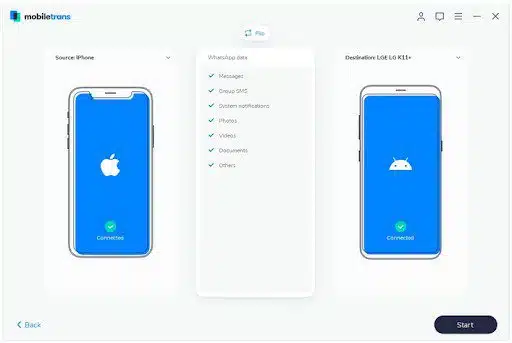
Step 3. The added phones will appear as the Source and Destination phones. If needed, you can flip between the two. The software interface will show the WhatsApp data that will be transferred.
Step 4. Click on the Start button at the bottom-left corner and the data transfer process will start. Do not move or touch the devices while the process is going on.
After the transfer is complete, you will get the message of the same. Disconnect your devices and check your Android phone for the transferred WhatsApp data.
Step 1. On your iPhone and Android device download and install the Wondershare MobileTrans app from respective app stores.
Step 2. After the apps are installed, connect both the devices using an OTG adapter or a cable.
Step 3. Select the mobile transfer option in the app.
Step 4. When prompted, enable the Trust for the Android device on your iPhone. Next, start the copy process to back up the WhatsApp data of your iPhone. The created backup will be compatible with Android devices and thus can be restored.
Step 5. On your Android device, set WhatsApp account and restore the WhatsApp backup of your iPhone by following the on-screen instructions.
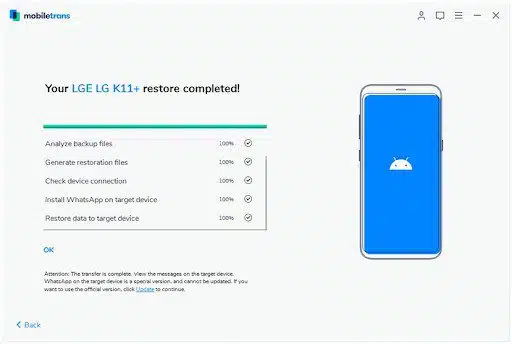
After the successful WhatsApp transfer is done, a message will appear on your device. Disconnect the devices and check the transferred WhatsApp data on your Android phone.
Conclusion
Transferring your WhatsApp as well as other data from your iPhone to Android is quick and effortless using Wondershare MobileTrans. Above all the software can be used without worrying about any data loss. So, no matter, whether you are switching from iOS to Android or vice-versa, Wondershare MobileTrans is a one-stop solution for all your data transfer requirements.