With the increasing frequency of natural disasters like Hurricane Milton, staying connected during emergencies has become crucial. When power lines and cellphone services fail, the ability to send messages via satellite from smartphones like iPhones or Google Pixels could be lifesaving.
Both Apple and Google have developed satellite-based emergency services that enable users to connect with emergency services even when traditional networks are unavailable. In this article, we’ll explain how to use these satellite features on both iPhones and Google Pixel phones.
Emergency SOS via Satellite: Apple vs Google
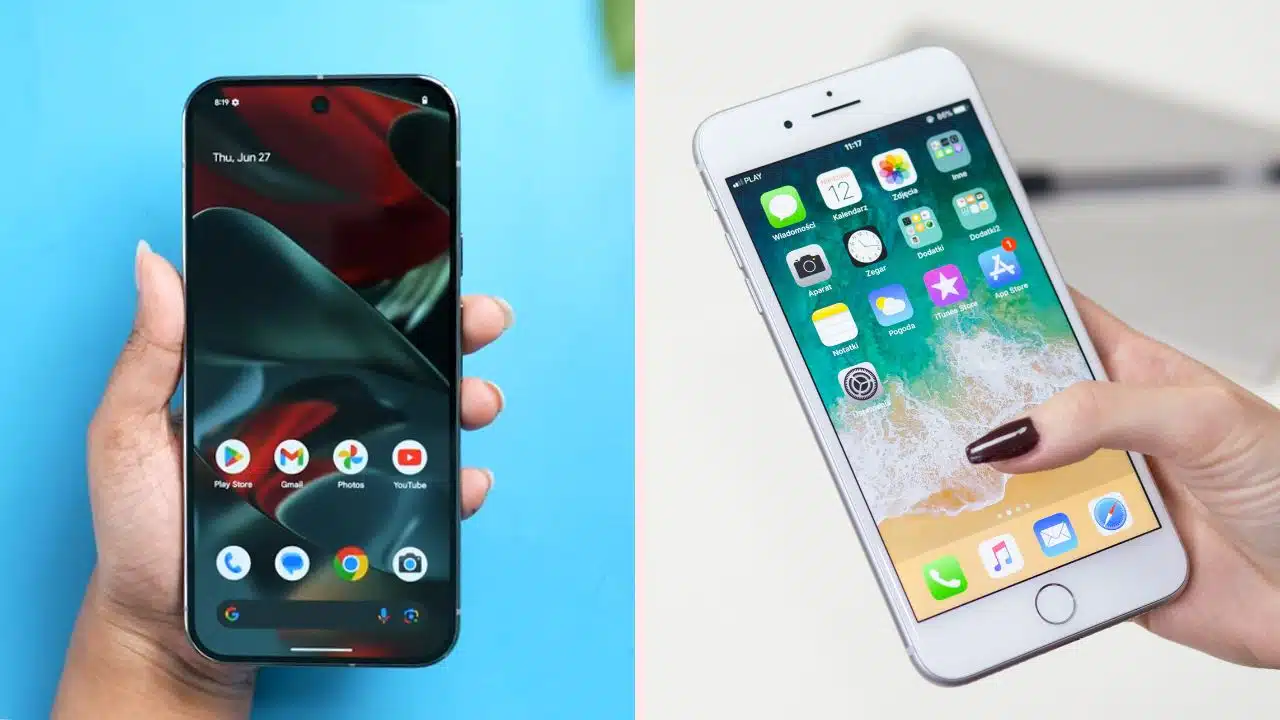
Both Apple’s Emergency SOS via satellite and Google’s Satellite SOS provide emergency communication options when cellular or Wi-Fi connections are out of service. Apple offers this feature on iPhones 14, 15, and 16, while Google supports it on Pixel 9 models.
Neither service requires any special setup—simply dial 911 from a supported phone, and if your call fails, you can still text emergency services using satellite communication.
However, there are a few important differences:
- Apple: Along with emergency services, Apple’s Messages via satellite (introduced in iOS 18) allows users to message friends and family outside of emergencies. This feature, exclusive to iPhone 14 models and newer, is especially useful during disasters like Hurricane Helene, where people used it to confirm their safety.
- Google: Currently, Google’s Satellite SOS is only for emergency purposes, and no equivalent feature for casual messaging exists on Pixel devices.
How to Use Apple’s Emergency SOS Messaging on iPhone?
If you’re caught in an emergency and can’t get cellular service or Wi-Fi, the Emergency SOS via satellite on iPhone can help. Here’s how to use it:
- Dial 911: If the call fails, an option to text emergency services via satellite will appear.
- Emergency Text: Alternatively, open the Messages app, text 911 or SOS, and select “Emergency Services.
- Follow Instructions: Onscreen prompts will guide you through reporting your emergency. The system will share critical information such as your location, Medical ID, and emergency contact details.
- Stay Connected: To ensure the satellite connection, stay outside in clear view of the sky, away from trees or large buildings.
This service works seamlessly with your existing contacts and shares your location and conversation transcript, provided they have iMessage.
How to Use Google’s Satellite SOS Messaging on Pixel 9?
Similar to the iPhone, Google’s Satellite SOS feature on the Pixel 9 connects you to emergency services. To use this service:
- Dial 911: When you can’t connect via regular networks, the Satellite SOS option will appear.
- Emergency Questionnaire: Fill out the required information about your emergency.
- Satellite Connection: Follow instructions to aim your phone toward a satellite and wait for the connection. Once connected, you’ll be able to message emergency services and notify your emergency contacts.
Keep in mind that the connection time may vary depending on your location and the weather. Like Apple, Pixel phones require a clear view of the sky to work effectively.
Setting Up Apple’s Satellite Messaging Feature
Apple’s Messages via satellite lets iPhone users send non-emergency messages when out of cellular service or Wi-Fi range. To ensure it’s available when needed, follow these steps to set it up on your iPhone 14 or newer:
- Upgrade to iOS 18: The service only works on iPhones running iOS 18.
- Enable iMessage: Ensure iMessage is turned on in Settings > Apps > Messages.
- Update Emergency Contacts: Sync your emergency contacts with the Health app and update your Family Sharing group. This ensures your satellite messages are delivered properly.
- Test the Service: Before heading off the grid, use the demo option to familiarize yourself with the process.
If your recipient doesn’t have iMessage, the message will be sent as an SMS, provided that your SIM card is active, and your carrier (such as Verizon or AT&T) supports the feature.
How to Use Satellite Messaging on an iPhone?
Once set up, sending satellite messages on an iPhone is straightforward:
- Open Messages: If there’s no cellular service or Wi-Fi, a prompt to use satellite messaging will appear.
- Connect to a Satellite: Follow onscreen instructions to connect to a satellite. A green dot and satellite icon will indicate a strong connection.
- Send Your Message: Type your message and hit send. Keep in mind it may take a few minutes to transmit depending on signal strength.
Sharing Your Location via Satellite on iPhone
Another useful feature is sharing your location via satellite using the Find My app on iPhones running iOS 16.1 or newer. Here’s how:
- Turn on Share My Location: Go to the Find My app and enable location sharing.
- Send Your Location: If you’re out of cell or Wi-Fi range, open the app, tap Me, then select Send My Location. You can send updates every 15 minutes.
This feature can be particularly helpful for letting others know your whereabouts during emergencies or remote travel.
Final Thoughts
Satellite messaging is an exciting development for smartphones, particularly during times of crisis or when you’re far from traditional cellular networks. Apple’s additional Messages via satellite feature in iOS 18 sets the iPhone apart, providing users the ability to stay connected with loved ones even in non-emergency situations. While Google’s Pixel 9 models currently only support emergency SOS features, they are equally valuable for safety in off-the-grid scenarios.
As these technologies continue to evolve, preparing for emergencies by setting up satellite messaging on your phone could be crucial. Be sure to familiarize yourself with the setup and functionality, so you’re ready when the unexpected happens.