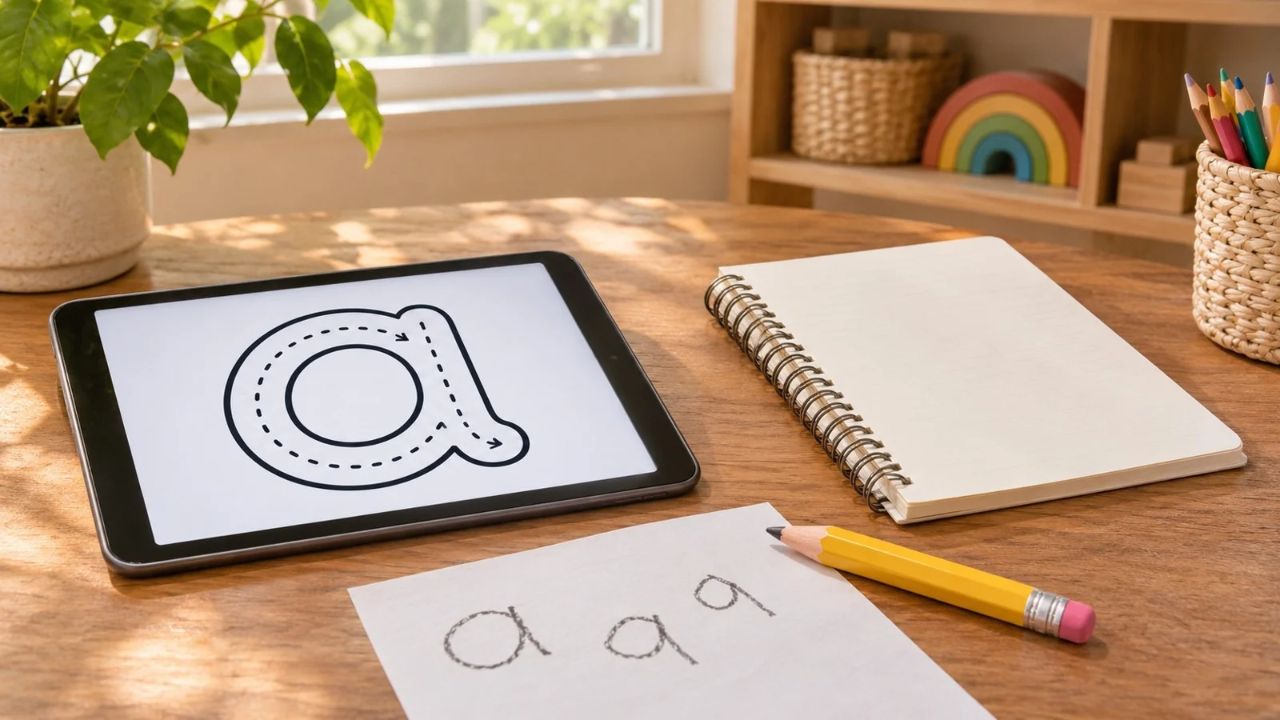

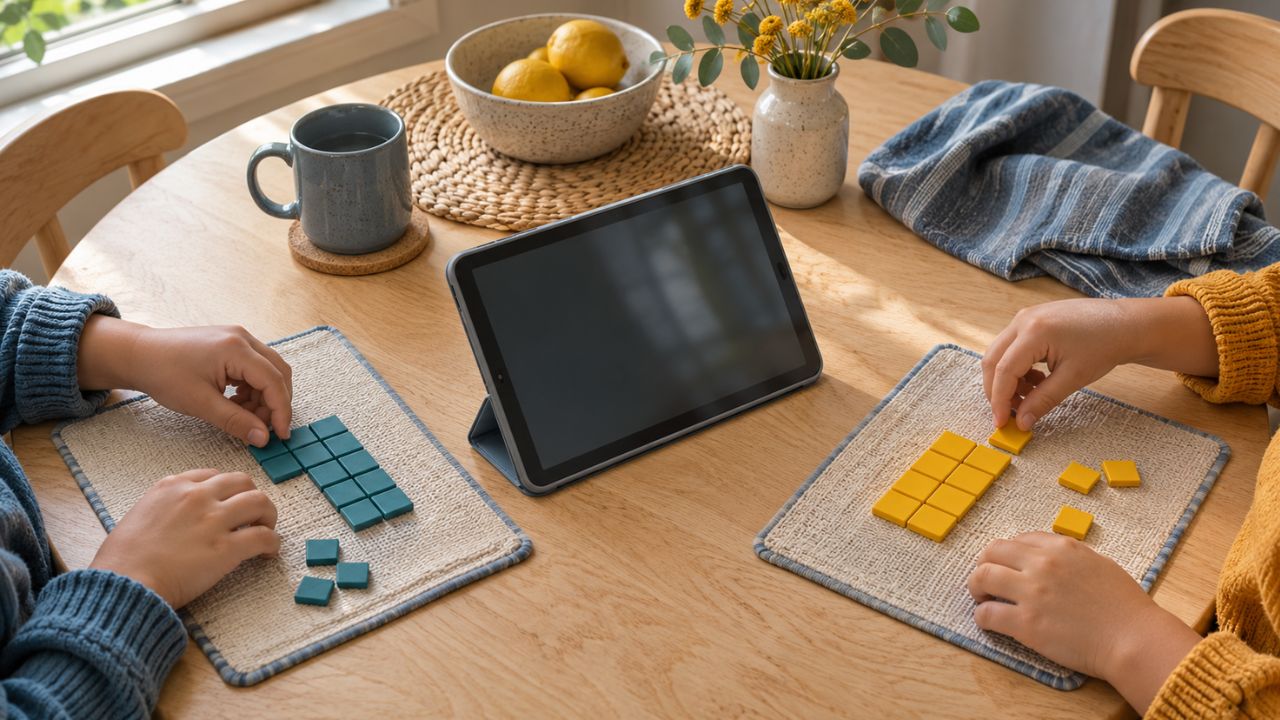
One child finishes a reading activity on the family tablet. Their sibling opens the game later and finds the next lesson unlocked, a new reward in the collection, or a recommendation for a skill they have never practiced. The account may have two avatars, but the activity still went to the wrong place.
Progress separation in family learning games means each learner can pick up from their own activity history and level. A family can share a login, device, or purchase while keeping those records separate. To find out whether a game does that, try a short two-profile test. Check what each child sees after a lesson, a profile switch, and an app restart.
1. Does each child get a learner profile under the family account?
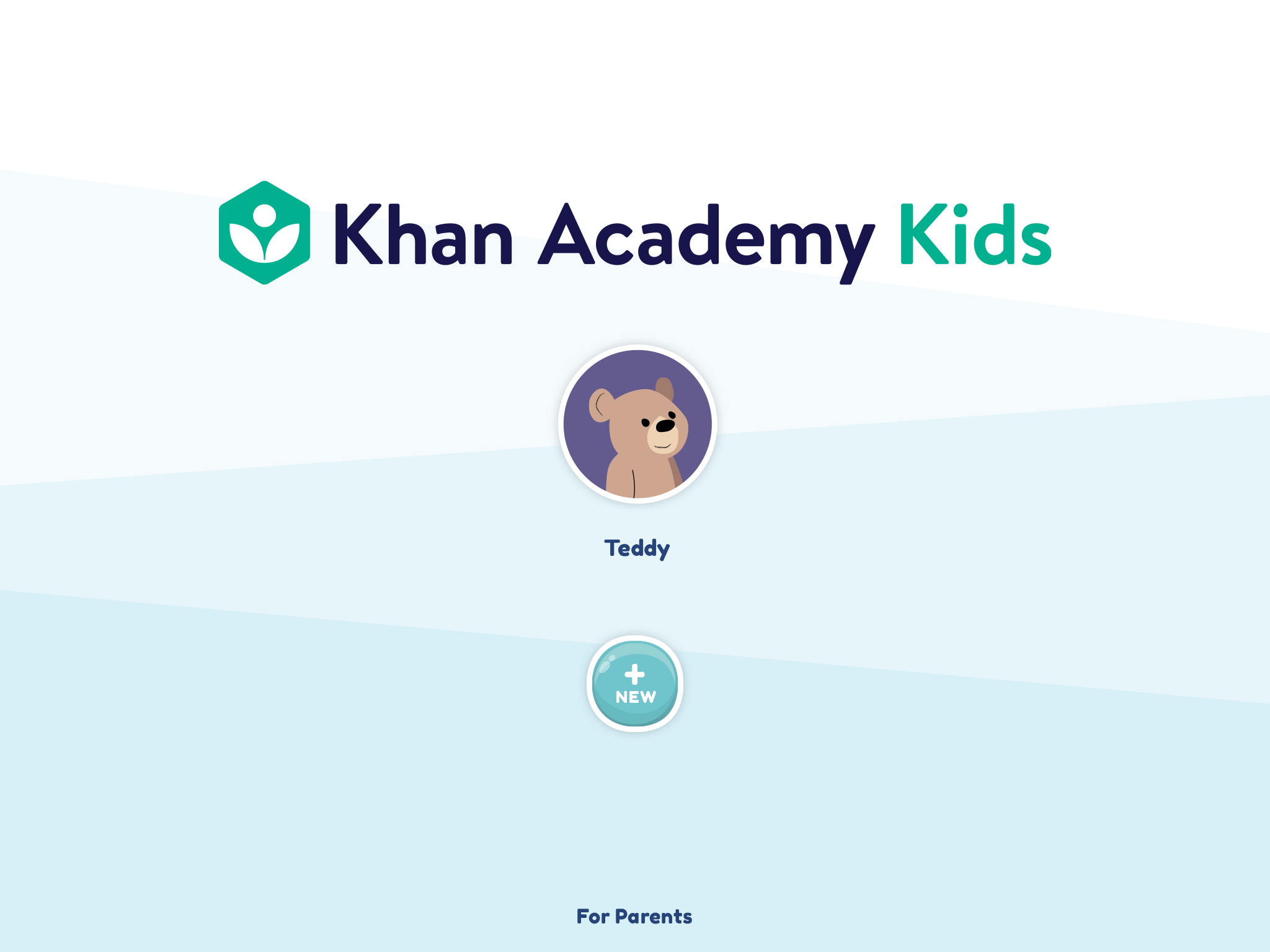
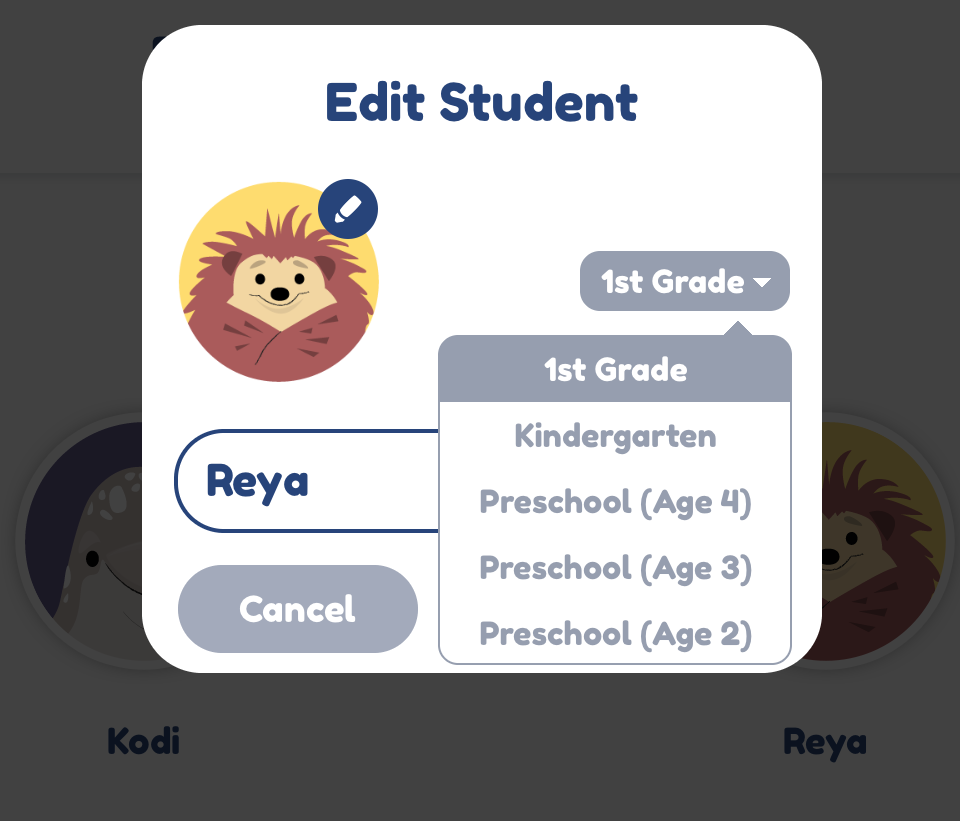
Start with the account structure. Look for a way to add two learners under one adult account, give each a recognizable avatar, and return to the profile picker. Khan Academy Kids, for example, documents how a parent can add multiple children under one account from its Grown-Ups Only area. That establishes that the family can create separate users in that app. The checks below help you see what a game keeps separate once children start playing. Khan Academy Kids profile setup.
If you are comparing free and paid access, check the profile limit for the plan you intend to use. For a larger household, look for what happens when the limit is reached. A second device may solve a scheduling problem, but it helps to know first whether both devices can show the learners you need.
2. Who is signed in when the next child picks up the tablet?
Look at the screen a child sees after the game opens. Does it show a name or avatar before the child taps Play? Can they switch without a parent entering a password every time? Try returning from the home screen, closing and reopening the app, and resuming an unfinished activity. An obvious switcher on the welcome screen helps less if the app resumes directly inside a sibling’s session.
Check what happens if someone switches profiles with an activity still open. A game might save the partial activity to the original profile, discard it, or ask what to do. For younger learners, an easy-to-recognize avatar and a clear return to the profile picker can prevent an accidental switch from turning into a lesson completed under the wrong name.
3. Do lesson history, skill level, and recommendations stay separate?
Choose one activity that both learners can open. Finish it in Profile A, then look for the completion mark or next lesson in Profile B. If the game has a placement test or an adaptive path, set or observe different starting levels and see whether A’s session changes B’s suggested activity. Record what the game actually shows. A pre-unlocked lesson may be available to both children by design, while a completion badge often gives you a clearer signal about where an attempt was recorded.
Check the parent view as well, if the game provides one. A household summary can be convenient. For questions about an individual child, see whether you can identify their recent attempts and the skills they practiced. When choosing the activities themselves, consider whether they fit each learner’s age and goals. How to make screen time educational for kids
4. Which rewards and unlocks belong to the child, and which belong to the family?
A family subscription can unlock the same content for everyone. A badge earned for completing a lesson has a different purpose. Try earning a visible reward in A, then open B and check whether it appears there. If the game has coins, streaks, or collectibles, note which of those are individual and which the game treats as shared.
Decide what matters to your household. Shared decorations may be welcome in a cooperative game. A shared streak can be confusing if your child uses it to track their own practice. If an unlock appears in both profiles, check the activity history before deciding whether progress is mixed. You may be looking at a family entitlement or an intentional shared milestone.
5. Does the right progress follow each learner to another device?
If the family plays on two devices, repeat a simple activity on the first one, then open the same profile on the second. Check whether the activity arrives under A and whether B stays unchanged. Allow the sync process described by the app to finish before judging the result. If progress only appears on the original device, look for a sign-in, account-linking, or sync setting before relying on the second device.
For offline play, try one low-stakes activity in A while disconnected. Switch to B while still offline if the game permits it, then reconnect and check both profiles. Use the smallest possible test so you can tell which result came from which session. If the app cannot switch profiles offline, you have a useful planning answer for trips even if online sync works well.
6. Can a guest session or accidental play be corrected?
Some games let a child start before choosing a profile. Try that route with a practice activity and check where the game puts the result. If the game offers to attach guest progress later, read the choice carefully and confirm which learner will receive it. If guest sessions cannot be transferred, start from the profile picker whenever the activity needs to count.
Also look for a way to correct a lesson played under the wrong name. A replay option may help the intended learner practice, but it may leave the original completion in the sibling’s history. Check whether a parent can remove an individual attempt, adjust the learner’s level, or request help. Avoid experimenting with a live profile if the only control available resets all progress.
7. What happens when one profile is reset, removed, or restored?
Read the game’s help or ask support what each action affects. Find out whether a reset clears one learner’s activity, whether deletion also removes that child’s rewards, and whether a new device can recover each learner separately. Before acting, check whether the game offers recovery and whether local and synced progress are handled differently.
If you need to test this, use a disposable profile with one practice result and follow any applicable rules for test accounts. Keep a second disposable profile as a control and verify that it still has its own history. Families choosing apps for children at different stages may want to compare activity fit as well as account features. Bengali and South Asian language learning apps for kids
A two-profile check you can use before committing
Use two spare profiles where the game permits them, or choose a low-stakes activity with a parent present. Note the device and app version so the result is easy to revisit.
| Action | What to look for |
|---|---|
| Finish one activity in A | A shows the result. B’s history and starting point stay the same. |
| Switch to B and reopen the game | The active learner is clear before play resumes. |
| Earn one reward in A | The game makes it clear whether the reward is personal or shared. |
| Reconnect or open A on a second device | Where sync is supported, the result appears under A and leaves B’s record alone. |
| Read the guest and reset controls | You can tell which profile is affected and what can be recovered. |
Choose a game each child can return to
Before making a learning game part of the family routine, hand the tablet from one learner to the other and watch what happens. Each child should be able to recognize their profile and resume at a point that reflects their own practice. If the game shares rewards or limits offline switching, decide whether those rules fit your household. The clearest test of progress separation is whether both learners can come back tomorrow and find their own work.