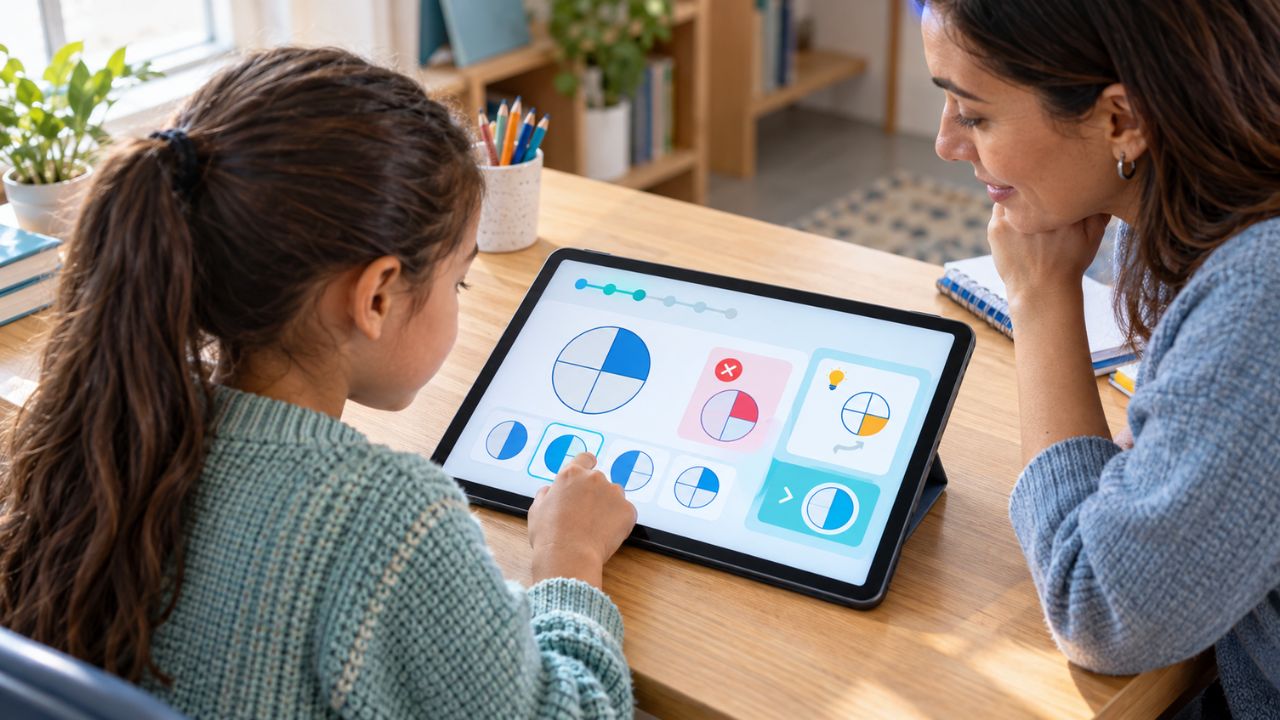

Parents often get confused about how to make screen time educational. Not every app carrying an educational label teaches a useful skill. Some ask children to listen, think, create, or solve a problem. Others cover simple tapping with bright rewards and call it learning. The clearest test begins after the screen turns off. Can the child recognize the same idea in a book, explain a choice, or solve a similar problem without the app’s prompts?
I have considered that question while testing two apps developed by our team: Alphabet Magic Trace and Phonics and 123 Magic Number Fun. I have used their activities myself and watched my nephew and other children use them. That experience showed me that an app score records what happened on the screen. It does not prove what a child understood.
What Counts as Educational Screen Time?
Educational screen time has a clear purpose. A child might practice letter sounds, count objects, follow a story, create something, or solve a logic problem. The activity should require more than watching an autoplay feed or tapping whatever flashes first. A useful educational activity usually:
- Targets a skill you can name
- Requires a meaningful choice
- Responds to mistakes in a useful way
- Connects with something the child can do away from the device
That does not mean every screen activity must teach a formal lesson. Children can watch something because it is funny or play a game for enjoyment. The problem starts when entertainment is presented as education without giving the child a meaningful task.
Ads, purchases, and privacy matter too, but they answer a different question. An ad-free app is not automatically educational. It simply offers a cleaner environment in which learning may happen.
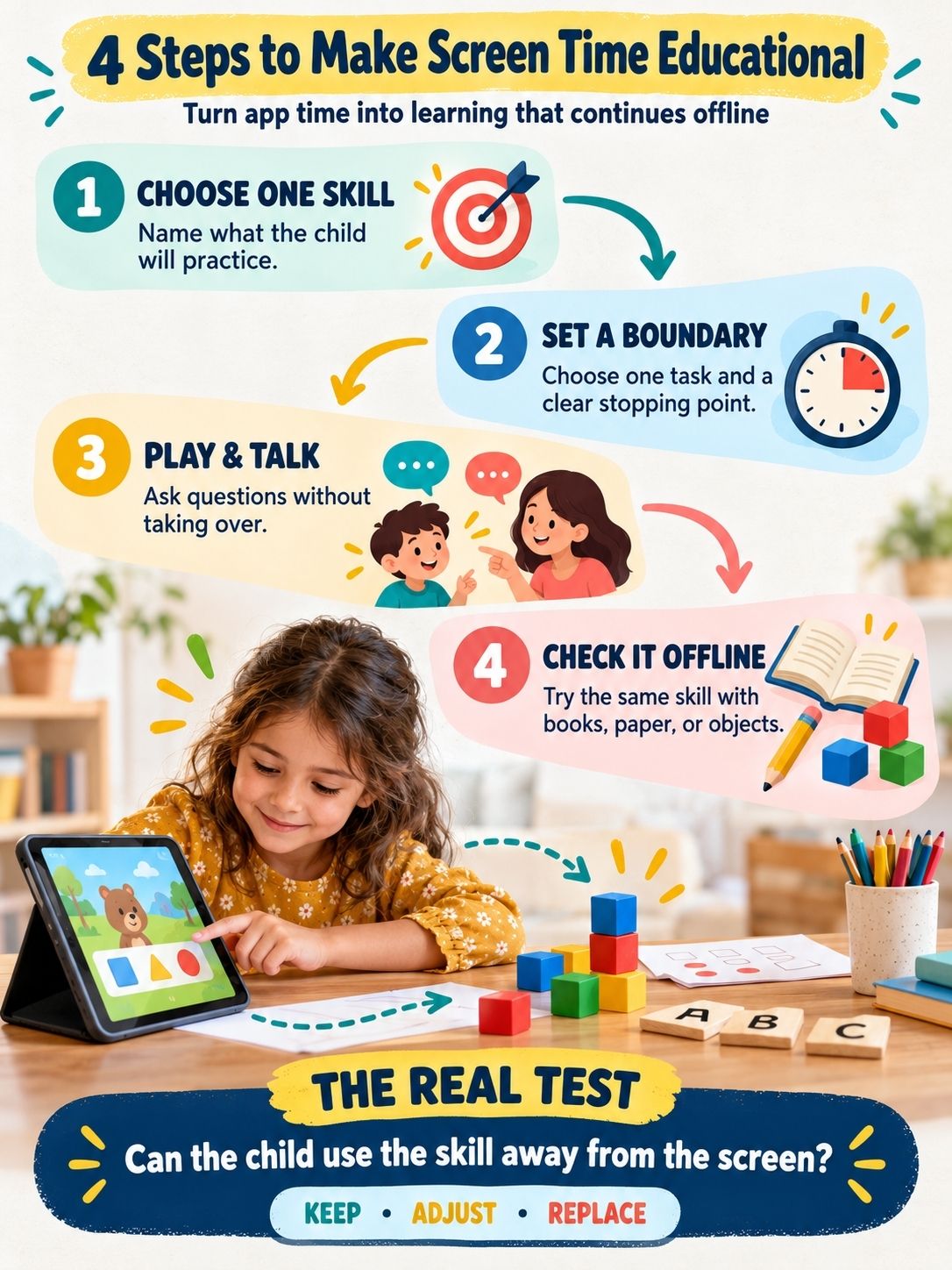
How to Make Screen Time Educational: The Four-Step Test
Making screen time educational does not require a complicated routine. These four steps help you choose an activity with a clear purpose, guide the child without taking over, set a sensible stopping point, and check whether the learning continues after the device is put away.
Step 1: Choose One Skill Before Choosing the App
Begin with the child, not the app store. What are they ready to practice now? A child beginning to recognize letters needs a different activity from one who knows the letters but struggles to connect them with sounds. Learning the shape of the numeral 5 is also different from understanding that five objects represent the same quantity.
Before opening an app, finish this sentence: During this session, I want the child to practice ________.
The answer should be specific. It might be tracing lowercase letters, hearing the first sound in a word, counting to 10, placing numbers in order, or explaining why a bridge collapsed.
Open the activity yourself before handing over the device. A short preview can reveal whether the instructions suit the child’s age, whether guessing can complete the task, and what happens after a wrong answer.
Adaptive difficulty can help, but an app does not need complicated technology to teach well. Clear instructions, suitable practice, and meaningful feedback matter more than a long feature list.
What I Learned From Testing Our In-House Apps
I want to be clear about my connection to the examples I use. My experience comes from children’s learning work, extensive app testing, and watching my nephew and other children use the activities.
Our Editorialge team developed Alphabet Magic Trace and Phonics and 123 Magic Number Fun.
In Alphabet Magic Trace and Phonics, I tested uppercase and lowercase tracing, letter matching, phonics activities, letter discovery, and spelling practice. Guided tracing can help a child practice a letter’s form, but completing the path is only the first check. I also want to know whether the child can recognize that letter when its color, size, or surroundings change.
My nephew began some activities with guidance and later handled familiar ones more independently. I also noticed him recognizing letters in books outside the app. I would not credit that progress to one product. He was learning through books, toys, conversation, and preschool activities at the same time. The app gave him another place to practice skills that were also being reinforced elsewhere.
I applied the same standard to 123 Magic Number Fun. I tested its tracing, counting, matching, number-order, and math activities. When a child selected the correct numeral, I still watched how they reached it. Did they count each object once? Did they understand that the final number spoken represented the total? Or had they learned where the correct option usually appeared?
Watching my nephew and other children made those differences easier to see. Some paused and counted. Some needed a prompt. Others guessed when the task was too difficult, or the reward caught their attention. Those moments told me more than a completed level.
That is also why I would not ask a young child to work through every available activity. A child learning number recognition does not need to move immediately into equations simply because both options appear in the same app.
The same editorial standard should apply to an in-house product and an outside recommendation. Familiarity gives me more detail, but it does not justify exaggerated claims. Neither app replaces books, physical play, conversation, preschool teaching, or adult guidance. I see them as practice tools that work best when the chosen activity matches the child’s next skill.
Check the Environment Around the Activity
Once the learning goal makes sense, look at the rest of the experience. Check for external advertising, purchase prompts, unnecessary accounts, autoplay, and links that take the child outside the app.
Read the privacy information as well. Find out what data the app collects, why it collects it, and whether an account can be deleted. Require authentication for purchases and recheck these details after major updates.
Store listings, prices, advertising, and purchase options may differ by platform or version. I apply that check to our apps too.
Step 2: Set a Useful Screen Boundary
Educational does not mean unlimited. A worthwhile activity can still become a poor choice if it regularly replaces sleep, outdoor play, reading, movement, or family conversation.
Screen-time guidance is not one fixed number for every child. Age matters, but so do content, family routines, and what the activity replaces. Required schoolwork is also different from optional play, even though both involve looking at a screen.
For preschool and early elementary children, I prefer a short session with a clear ending. The activity should last long enough for the child to understand and attempt the task. It should not continue simply to protect a streak or fill time.
Tie the ending to something the child can recognize: one tracing set, one puzzle, a timer, dinner, or outdoor play. Give a short warning before the session ends. Some children also transition more calmly when they know what will happen next.
Parents cannot sit beside a child throughout every session. A shorter check can still provide useful information:
- Preview the activity.
- State the skill in one sentence.
- Watch the child’s first attempt.
- Return near the end and ask one question.
- Try one related activity away from the screen.
This is more realistic than expecting constant supervision.
Step 3: Play and Talk Without Taking Over
Shared screen use can help younger children connect an on-screen idea with language and real experience. The adult’s role is to support the child’s thinking, not touch the correct answer first.
Watch one attempt before offering help. If the child gets stuck, ask a question that points toward the problem:
- “What sound do you hear at the beginning?”
- “Can you count the objects one more time?”
- “Which number comes before this one?”
- “What changed after the bridge broke?”
- “What could you try differently?”
Then wait. A few quiet seconds can give the child time to look again and form an answer.
Imagine a seven-year-old working on a bridge-building puzzle. The truck keeps falling because the center support is weak. Pressing “retry” repeatedly may eventually produce a lucky solution, but luck does not show understanding.
Instead of rebuilding the bridge, ask which part moved first when the truck crossed. Let the child watch the failure again. If they identify the weak joint and change the design for a reason, the puzzle becomes a thinking task.
The same approach works with literacy and number games. Ask the child to say the letter sound before tapping, count aloud before choosing a numeral, or explain why two tiles match. The conversation does not need to be long. It only needs to reveal what the child is noticing.
Co-playing does not mean narrating every move. Once a child understands a familiar task, give them room to work independently. Return afterward and ask them to show you what they did.
Step 4: Check What the Child Can Do Offline
The final step is checking whether the learning travels beyond the app. Can the child use the skill without the screen’s prompts, colors, music, or rewards?
Do not treat one missed answer as proof that nothing was learned. Young children may need repetition, rest, or another way to demonstrate the skill. Look for a pattern across several sessions.
| Skill practiced on screen | Simple offline check |
|---|---|
| Letter tracing | Trace or write the same letter on paper, in sand, or in the air |
| Letter recognition | Find the letter in a book, label, or sign |
| Phonics | Name another word that begins with the same sound |
| Counting | Count blocks, fruit slices, spoons, or steps |
| Number recognition | Match a handwritten numeral with a group of objects |
| Number order | Arrange homemade number cards in sequence |
| Logic or building | Explain why the first attempt failed and change one part |
A child does not always need to explain the answer in a full sentence. They may show understanding by drawing, pointing, arranging objects, acting out a sequence, or solving a fresh example.
If the learning does not transfer, identify the likely reason before searching for a brighter or faster app. The activity may be too easy, too difficult, or poorly explained. The child may remember the prizes instead of the task. They may need more practice, a different teaching method, or simply a break because they are tired or hungry.
The next step might be repeating the activity with support, choosing an easier task, using physical objects, or dropping that part of the app.
Common Questions About How to Make Screen Time Educational
Does Educational Screen Time Still Count as Screen Time?
Yes. The child’s eyes, posture, and attention are still directed toward a device. Some recommendations separate schoolwork from recreational media when setting limits, but both should be balanced with movement, sleep, outdoor time, and face-to-face interaction.
How Long Should an Educational App Session Last?
There is no single session length that suits every child. Begin with one defined activity rather than an open-ended block of time. Stop if attention fades, frustration rises, or the app begins repeating rewards without adding useful practice.
Can a Child Learn From an Educational Video?
Yes, especially when the content suits the child’s age and an adult helps connect it with real life. Pause to ask a question, repeat a new word, draw what happened, or try a related activity afterward. Autoplaying several videos gives the child less time to process each idea.
Must a Parent Play Along Every Time?
No. Younger children and those beginning a new activity may need more support. A child who understands a familiar task can practice independently. Parents can preview the activity, watch the first attempt, and check what the child learned afterward.
What If a Child Cannot Explain What They Learned?
Offer another way to show it. Ask the child to draw, point, build, count objects, act out a sequence, or solve a similar problem. Some learning takes repeated practice before a child can describe it clearly.
Let the Skill Continue After the Screen Closes
The purpose of educational screen time is not to produce a longer app streak. It is to give a child another way to practice something useful.
Choose one skill, watch how the child approaches it, and carry the idea into a book, conversation, physical object, or everyday task. That is how to make screen time educational without expecting an app to do the whole job.