


Document parsing APIs for tables in business PDFs turn rows and columns into data an application can inspect, but a successful API response does not prove the numbers are correct. A supplier invoice may contain merged headers, a scanned page, footnotes and a table continuing onto the next page. The useful choice depends on which of those details your team must preserve and how it will review exceptions.
This is a documentation-based comparison, not a benchmark or a claim of hands-on testing. The eight options have different hosting models and output formats; confirm the exact model, version, region, plan and data-retention terms before sending confidential PDFs.
Compare Document Parsing APIs for Tables in Business PDFs
| API | Documented table output | Practical question |
|---|---|---|
| Amazon Textract | Table, cell and merged-cell blocks | Can your code reconstruct relationships? |
| Google Document AI | Form and layout processor tables | Which processor fits your layout? |
| Azure Document Intelligence | Rows, columns, spans and polygons | How will you join pages? |
| Adobe PDF Extract | Structured JSON, optional CSV/XLSX | Does the output preserve your context? |
| LlamaParse | Rows, CSV, HTML and Markdown | Which parsing tier suits the document? |
| Mistral OCR | Table information in HTML or Markdown | Do you need a separate schema step? |
| Mathpix OCR | Mathpix Markdown and conversion outputs | Does the scientific focus fit your files? |
| Docling Serve | API conversion to structured and text formats | Who operates and secures the service? |
1. Amazon Textract: Reconstruct Tables From Related Blocks

Textract’s document analysis describes tables through related blocks, including cells, merged cells and column headers. That structure is useful when an application needs to trace a value back to its position rather than accept a plain text transcript. The AnalyzeDocument operation accepts table analysis as a feature; asynchronous analysis is available for appropriate workflows.
The trade-off is integration work. Your code must traverse relationships to rebuild the grid and handle merged cells. Capture confidence and page information with the extracted values, and test scanned invoices separately from native PDFs. A high-confidence cell can still contain the wrong business value or belong to the wrong column.
2. Google Cloud Document AI: Choose the Processor First
Document AI offers several processors rather than a single generic extraction switch. Its Form Parser extracts tables and key-value pairs; its Layout Parser is designed to identify document elements including tables. Teams that already process documents in Google Cloud can evaluate the processor that matches the final destination of their data.
Processor choice matters. Google documents the Form Parser for simple tables without cells spanning rows or columns; a more complex layout may need a different processor or custom extraction. Check regional availability, processor version, page limits and retention for the actual deployment rather than assuming all features work everywhere.
3. Azure Document Intelligence: Keep Cell Coordinates
The layout model returns table dimensions, row and column indices, spans and bounding polygons. Those coordinates make it possible to build a review screen that highlights a questionable value against the page. The API also supports Markdown output; the documented current format represents tables as HTML so merged cells and multirow headers can be represented.
A table spanning pages still needs deliberate handling. Microsoft describes splitting pages and post-processing the results where appropriate. Check captions and footnotes separately: the documented bounding regions for the current layout version cover core table content rather than associated captions and footnotes.
4. Adobe PDF Extract API: Export Tables for Spreadsheet Work
Adobe’s PDF Extract API returns document structure in JSON and can optionally produce table data as CSV or XLSX. This can suit a finance or operations team whose downstream workflow expects spreadsheets while developers retain a structured representation of the document.
A spreadsheet rendition is a convenient handoff, not a guarantee that a multi-level heading or accounting footnote survived with its meaning intact. Compare the output to the original page and preserve the source file and extraction job ID. Verify transaction allowances and actual charges under the current contract.
5. LlamaParse: Select Table Representations and Parsing Tier
LlamaParse documents table output as structured rows, CSV, HTML and Markdown, with an optional XLSX workbook. Its table options include merging continued tables across pages. HTML can retain spans that simple Markdown pipe tables cannot express, which matters when several columns share a single parent heading.
Different parsing tiers have different capabilities and costs. The documentation distinguishes a fast tier from more capable choices for scans and complex tables. Evaluate the exact tier on your own files; extra extraction effort may also find false table boundaries. Preserve page references when a continued table is merged.
6. Mistral OCR: Bring Tables Into a Document AI Pipeline
Mistral’s OCR endpoint accepts documents including PDFs and exposes a table-format option for HTML or Markdown. This is a useful candidate when your application already consumes page-level Markdown and needs tables in a form it can render or inspect.
Decide what happens after recognition. An HTML table may still require application code to map a column to a business field, validate currency and catch missing rows. Confirm endpoint version, data handling and request limits, and compare the output for both digital and scanned documents before making accuracy claims.
7. Mathpix OCR: Consider Documents With Dense Technical Notation
Mathpix documents asynchronous PDF processing and table recognition, with Mathpix Markdown as a primary output and conversions including XLSX. It is worth considering for business documents that mix tables with equations or other technical material, such as engineering schedules or research-heavy reports.
Check the conversion result as well as the OCR result: a completed document job and a separately requested output format are distinct steps. The documentation also identifies possible table-structure rejection reasons. Retain the failure status and route a rejected table to review instead of treating an empty export as a zero-value table.
8. Docling Serve: Operate a Document Conversion API
Docling Serve exposes document conversion through HTTP, including PDF input, OCR settings and table-processing options. Teams can operate the service themselves or use a managed endpoint. That choice can fit an existing infrastructure strategy when the organization wants control over the conversion service.
Self-hosting shifts responsibility for capacity, upgrades, authentication, monitoring and document storage to the operator. The API can return a partial-success status and errors; save both and inspect the output before downstream import. Hosting it yourself is not by itself proof of a particular security or compliance standard.
If your inputs start on paper, our guide to document scanner apps and OCR covers capture and privacy considerations before extraction.
How to Evaluate the Table, Not Just the Text
Assemble a small, authorized sample with ordinary invoices, scanned statements, merged headers, borderless tables and at least one table continued across pages. Keep an independently checked answer key. For each result, compare row and column counts, cell values, negative signs, decimal separators, header associations and footnotes. Measure corrections per document as well as processing time; a fast extraction that needs extensive repair can cost more to operate.
Use the same file set and record the model version, configuration, region and date. If a file contains personal or financial information, first verify the vendor’s retention and access terms. The FTC’s business guide to protecting personal information offers useful background for limiting access to sensitive material.
Design the Review and Retry Path
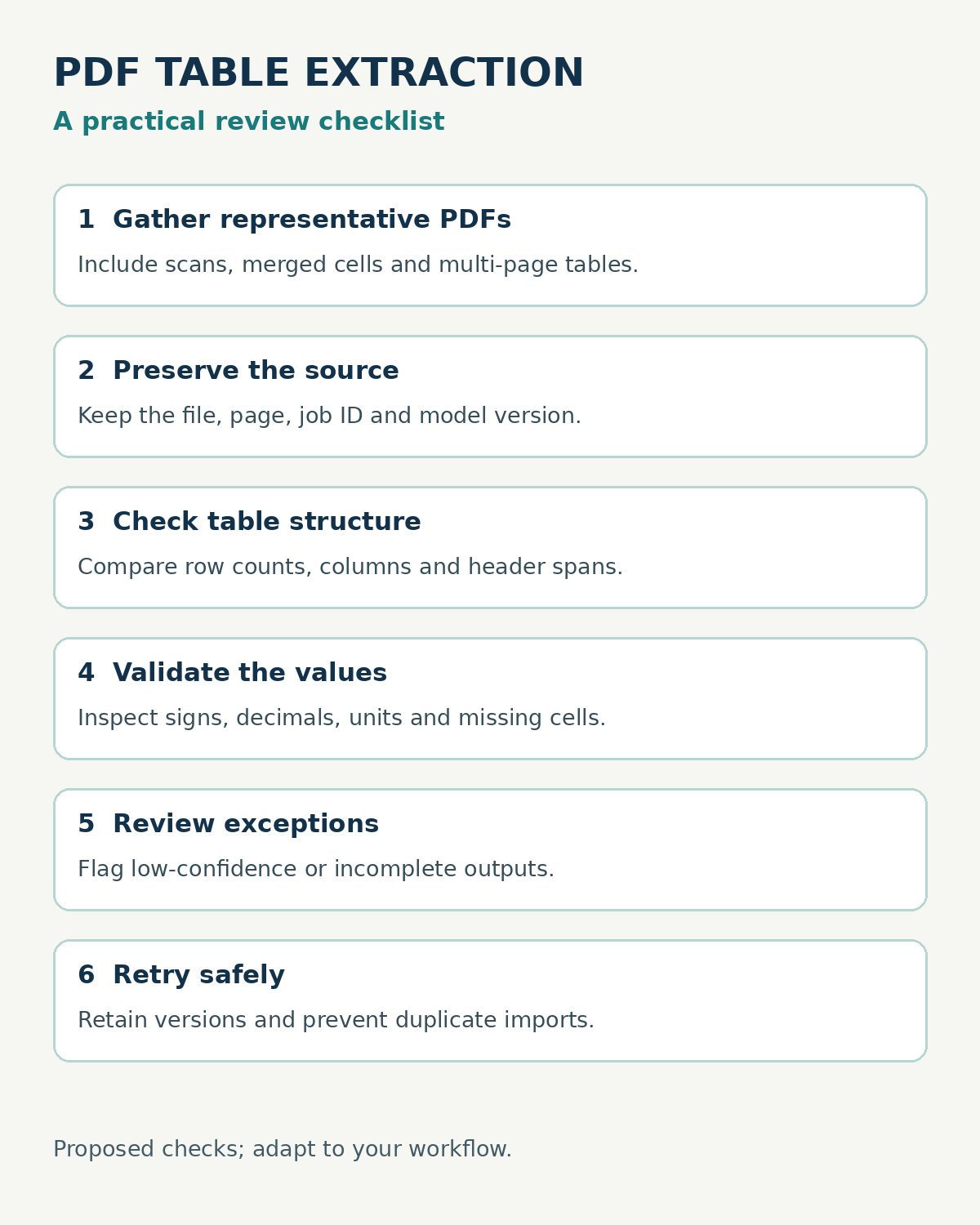
Keep the original PDF, page number, extraction job ID and raw response together. Flag missing tables, unexpected column counts and failed pages for a human reviewer. Apply business rules after extraction: for example, compare line-item totals with the invoice total, but allow an exception for taxes or discounts. A rule that always forces the numbers to match can conceal an extraction error.
When a retry uses another model or setting, retain both versions and record which one was approved. Use stable document identifiers so a retry does not silently create a second invoice. If structured data is already available from the supplier, compare the cost and risk of parsing a PDF with accepting that structured source directly.
Choose the Output Your Team Can Verify
Document parsing APIs for tables in business PDFs are most useful when their output connects to a trustworthy review process. Start with Textract or Azure when cell-level structure is central, compare Adobe or LlamaParse for spreadsheet-oriented handoffs, and consider Docling Serve when operating your own conversion service is a priority. Test the actual documents and failure paths before choosing; no API should be assumed to preserve every table perfectly.