
A screenshot can show a real app screen and still overpromise. Imagine a receipt scanner that captures photos offline but needs a connection to extract totals and sync them. A banner that says “Scan and organize receipts offline” leaves a shopper expecting the whole workflow to work on a plane. The screenshot may be accurate down to the pixel, yet its headline promises more than the app delivers.
Review app store creative as a set of claims. Include screenshot text, icons, feature graphics, video narration, and the surrounding listing copy. For each claim, record who can use the feature, what they can do, and which build or document confirms it. Then check these eight areas before submission.
1. Is the feature available in the build customers will get?
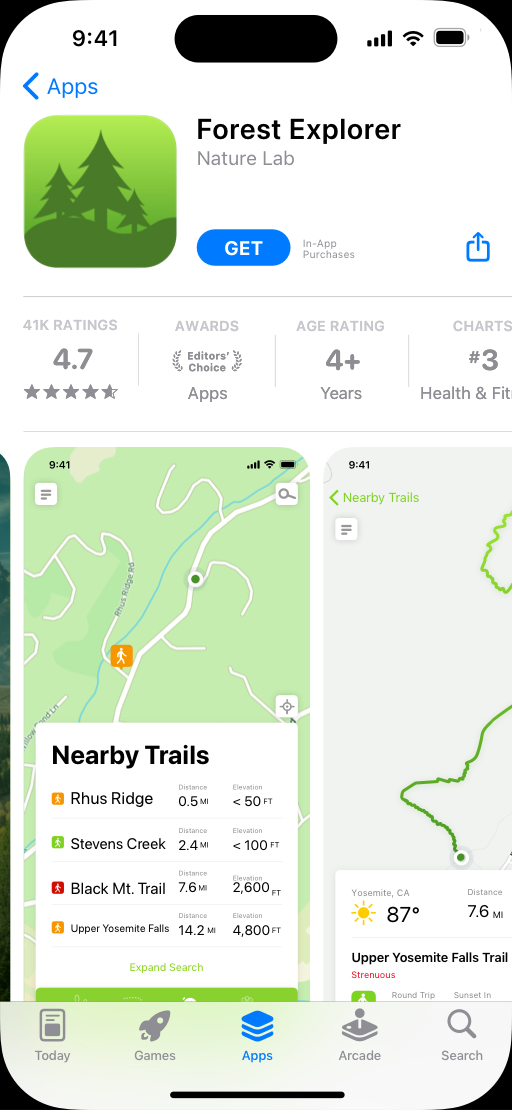
Walk through the advertised task using the release candidate and a clean account configured like a new customer’s. Check that the feature is enabled in the market, on the platform, and for the account shown. An internal toggle or staged rollout can make a screenshot true for the person who captured it and misleading for the first wave of installs.
Apple’s App Review Guidelines on accurate metadata say screenshots should show the app in use and allow explanatory overlays. Apple also requires app previews to use screen captures of the app itself. Save the original capture, build number, and steps that produced the screen so you can check the proof if the build changes before submission.
2. Does the screenshot imply an outcome the app cannot deliver?
Review the sequence as a shopper would. If the first card says “Scan a receipt” and the next shows an expense report with totals filled in, a reader can infer that the first action produces the second. Try the exact sequence with a realistic receipt. Check whether the app extracts each field, whether the user must correct or approve anything, and whether the export is part of the same plan.
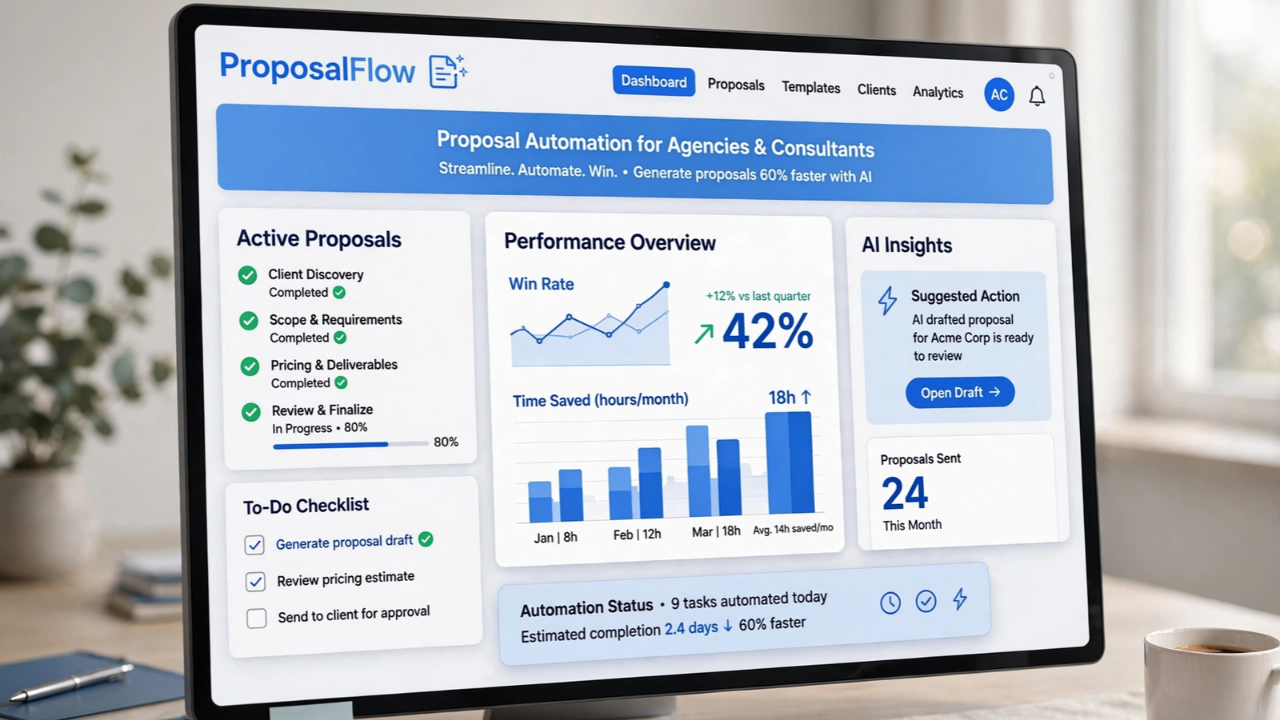
Use overlays to point out what the screen does. If a designer used AI screenshot analysis to inventory visible details, check the claim against the actual workflow. The image shows a state. The release build tells you which actions and conditions lead there.
3. Can customers tell which features cost extra?
Check the price and access conditions together. Does the asset show a feature available only after an upgrade? Does a trial require a subscription, and what happens when it ends? Compare the featured workflow with the clean-account experience and the purchase screen for the relevant storefront. If you mention a price elsewhere in the listing, verify the currency, billing interval, eligibility, and renewal terms.
Apple’s accurate metadata guidance requires listings to make clear when featured items, levels, or subscriptions require additional purchases. For a screenshot that features PDF export, “PDF export with Pro” is a clearer claim than a generic upgrade note buried several cards later. Check the platform’s rules for the particular asset before adding any price or promotional text.
4. Can you reproduce the performance claim?
Turn “in seconds,” “twice as fast,” or “saves an hour” into a testable statement. Set a start point and an end point. For receipt scanning, the timer might start when the user taps Capture and end when reviewed fields are ready to export. Document the device, connection, receipt types, and scope. Time several realistic attempts and keep slow or failed runs in the record.
For a comparison, identify the baseline and use the same task and conditions on both sides. A stopwatch result from the best run gives you one observation. If results vary enough that a short store headline would hide the variation, describe the supported feature, such as “Extract receipt totals,” and keep the timing claim out of the asset.
5. Is the privacy or security wording as narrow as the evidence?
List what happens to the data during the advertised task. The scanner might save an image locally, send it for processing when connected, and use a separate service for optional sync. “Everything stays on your device” covers all three paths, so a reviewer needs to account for each one before approving that wording.
Ask the product or privacy owner to compare the claim with the release build, its third-party services, and the store’s privacy disclosures. Treat “works offline,” “processed on-device,” and “end-to-end encrypted” as separate claims. A local capture test supports “Capture receipts offline” for the supported flow. It does not establish where text extraction happens or how synced copies are protected.
6. Does the store allow the badge, ranking, or testimonial?
Check the platform rule before gathering proof for a badge. Google Play’s preview-asset guidance tells developers to avoid wording about Google Play rankings, awards, testimonials, and price or promotions in covered assets. A genuine award or customer quote may still be unsuitable for the proposed placement.
Where a claim is permitted, retain its original source, date, criteria, and any permission needed to use the mark or quote. “Top rated” raises immediate questions about the comparison group and time period. The next time you review app store optimization tools, track policy eligibility and evidence alongside whatever engagement metrics you use to compare creative.
7. Is the claim true in every storefront and on every device that sees it?
Map each asset to its intended storefront, language, and device. A translation can widen a claim. “Use the camera offline” can become “Use the app offline” if a localized headline drops the specific action. A market can also offer a different plan, payment method, or feature set.
Compare each version with the build, settings, and terms customers in that market will actually encounter. Review the words printed inside the image as well as the platform listing text. Confirm that the most important qualification survives layout changes and stays readable at the size a shopper sees it.
8. Does the final upload match the version you approved?
Review the exported screenshots and video together, in order, with the actual listing text. Check captions against narration, look at the opening frame, and read the small print on a phone. A last-minute crop can remove “with Pro,” and a late copy change can add a claim that never went through review.
Keep a short record with one row per claim: the asset, exact wording, release build, storefront, evidence, owner, and decision. Identify the specific file that passed. If a feature or rollout changes after sign-off, find every asset that mentions it and reopen those rows before publishing.
Test the wording against a real customer task
Here’s how a team could check creative for the hypothetical receipt scanner. The evidence column describes what to verify before approving each version.
| Proposed claim | Evidence to verify | Wording if the evidence supports it |
|---|---|---|
| Scan and organize receipts offline | Airplane-mode walkthrough of capture, extraction, and sync as separate actions | Capture receipts offline. Text extraction and sync require internet. |
| Export PDF reports | Fresh accounts on both the free and paid plans, with a successful export on the eligible plan | Export PDF reports with Pro. |
| Extract totals in seconds | Timed runs on representative devices and receipts, with a defined endpoint | Extract receipt totals, if the feature works and the timing claim remains unverified. |
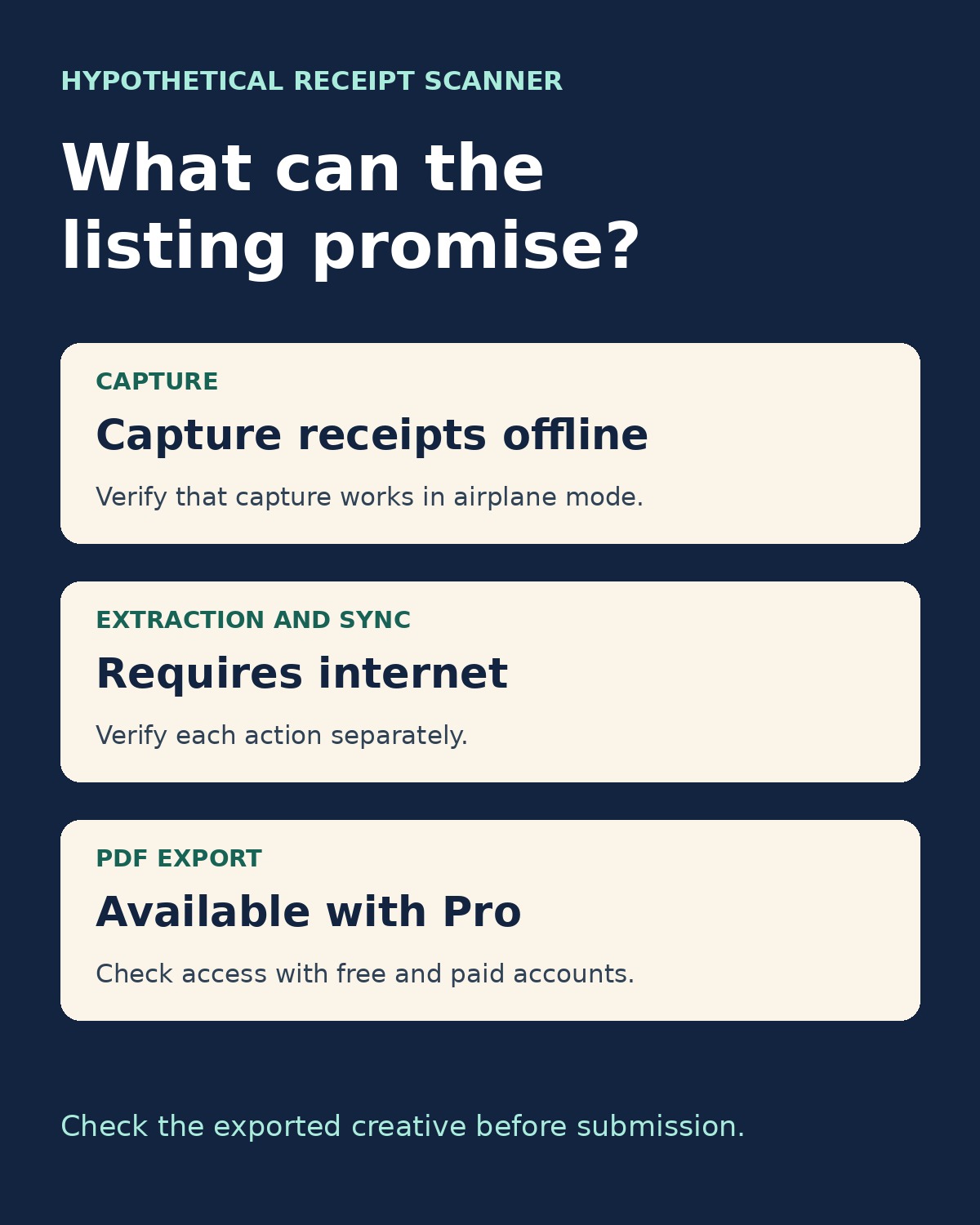
Before you publish app store creative, ask a reviewer who hasn’t seen the campaign to describe what they expect after installing. If their answer is broader than the release build, plan, or storefront supports, fix the asset and check the export again.