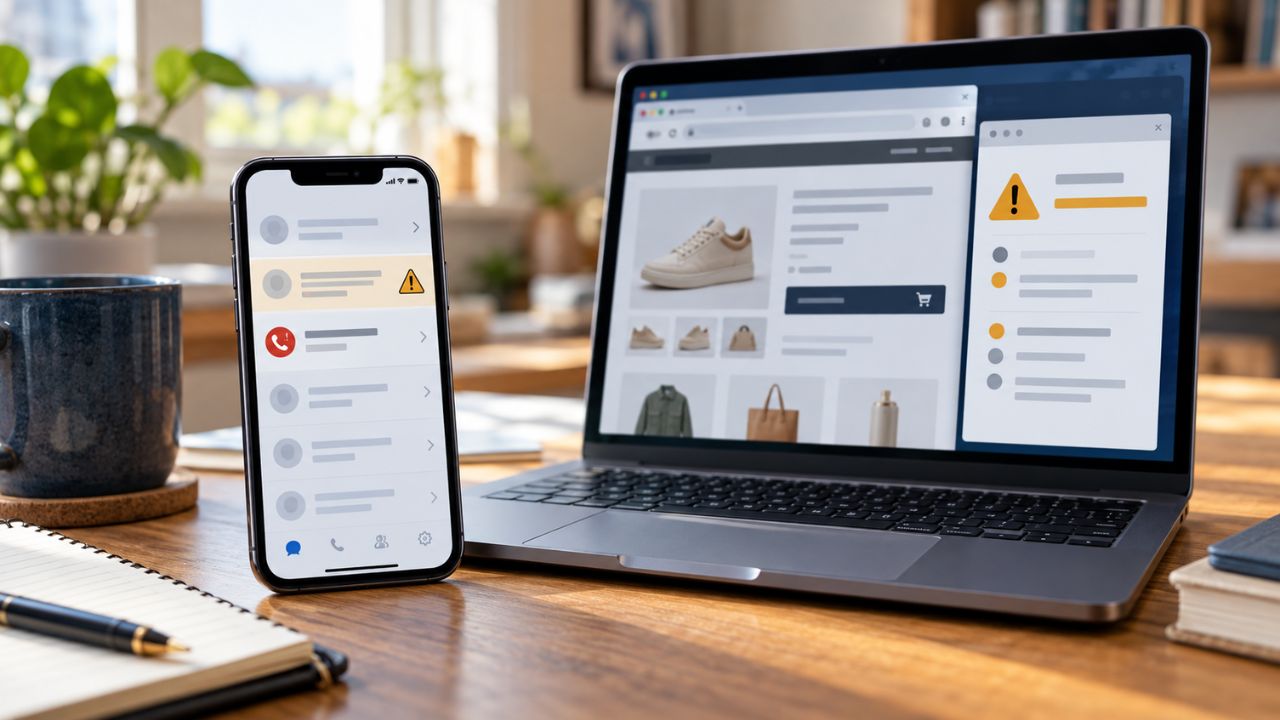
A distraction-free phone is configured to reduce unnecessary alerts, visual triggers, and impulsive app checking while keeping essential functions easy to reach. Start by turning off nonessential notifications, simplifying the Home Screen, creating a focused work or study mode, and adding limits to the apps that consume the most attention.
Keep calls from important contacts, authentication tools, maps, calendars, banking alerts, and travel updates available. The best setup is not a phone stripped of every useful feature. It is a dependable device that interrupts less and makes intentional use easier. Menu names may vary by operating system and Android manufacturer.
What Most Guides Miss
An extreme digital purge can feel satisfying until it hides a school message, a changed flight, or a work call. A usable distraction-free phone needs exceptions for real responsibilities.
Notifications are only part of the problem. If someone opens a video app without being prompted, silencing it changes little. A lasting setup must address incoming alerts, visual cues, habitual opening, and where the phone sits during focused time.
12 Steps to Build a Distraction-Free Phone
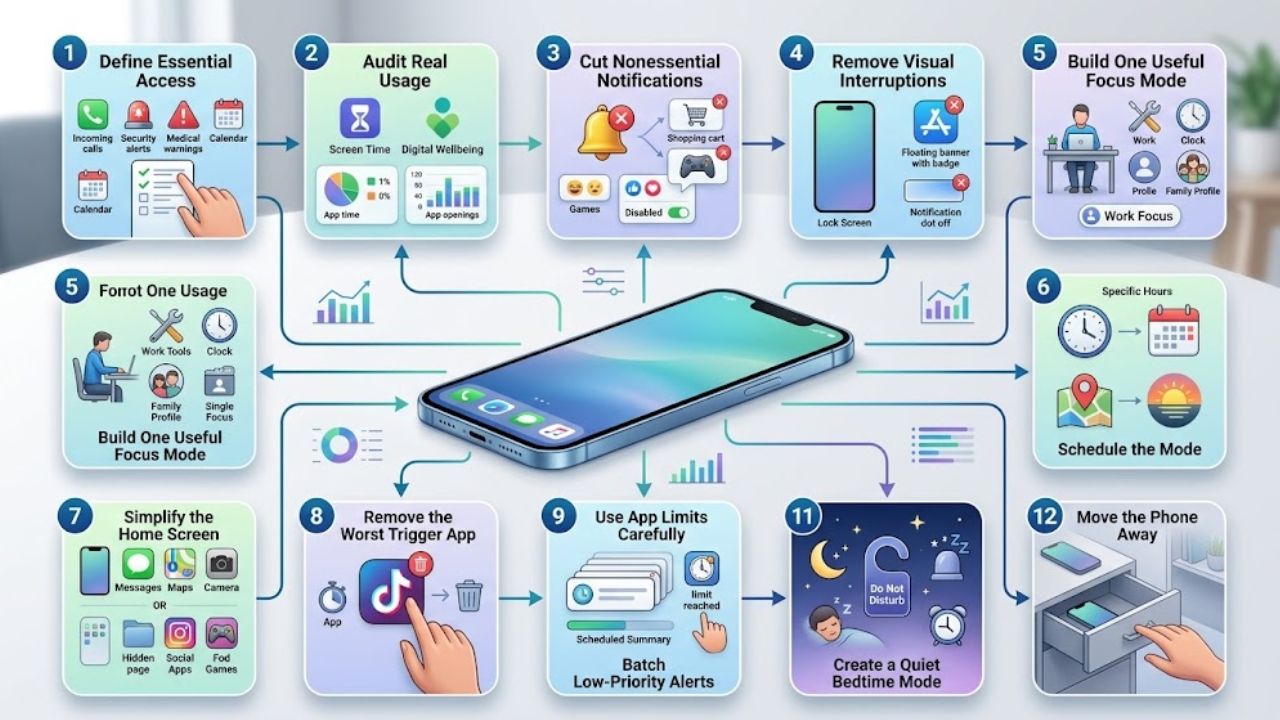
Building a Distraction-Free Phone starts with protecting essential access, then removing alerts, apps, and visual cues that compete for attention. These 12 steps cover notifications, Focus modes, Home Screen design, app limits, bedtime settings, and ways to create physical distance.
1. Define Essential Access
Every distraction-free phone needs a short list of functions that must remain dependable:
- Immediate: Calls from key contacts, security warnings, active travel changes, and required health or accessibility alerts.
- Useful but not urgent: Routine work updates, general news, and inactive delivery apps.
- Unnecessary: Promotions, game reminders, suggested posts, and discount campaigns.
Judge the alert rather than the app. A banking app may need to show a suspicious transaction but not a credit-card promotion. Leave government and system emergency alerts alone.
2. Audit Your Real Usage
Review several ordinary days in Screen Time on iPhone or Digital Wellbeing on Android. Look for high-use apps, frequent openings, and heavy notification senders. Do not try to behave unusually well during the audit.
An app that consumes an hour without sending alerts needs access limits or removal. One that interrupts repeatedly but gets little use needs notification cleanup. Treating both problems the same wastes time.
3. Cut Nonessential Notifications
For most readers, this produces the quickest noticeable improvement.
On iPhone, open Settings > Notifications. On Android, the usual route is Settings > Notifications > App notifications, although menus vary by manufacturer. Android may also let you disable individual categories without silencing the whole app.
Start with shopping, games, social reactions, news headlines, suggested content, and delivery discounts. Preserve login codes, security alerts, calendar reminders, active journey updates, and communication that is genuinely time-sensitive. Check the app’s own controls when the system settings are too broad.
4. Remove Visual Interruptions
Turning off sound does not remove a Lock Screen preview, badge, banner, or notification dot. On a distraction-free phone, those visual prompts need a separate review.
iPhone users can choose where alerts appear and whether an icon shows a badge. Many Android phones separate alerting from silent notifications and offer Lock Screen and dot controls. A family message might stay audible while a work chat remains in Notification Center without appearing over other apps. If a silent alert is never useful, disable it.
5. Build One Useful Focus Mode
One reliable work or study mode is more useful than several complicated profiles. Apple’s Focus can allow selected people and apps. On supported Android devices, Modes or Do Not Disturb controls interruptions, while Digital Wellbeing’s Focus mode pauses chosen apps and their notifications.
For most people, a distraction-free phone still needs an allowlist. Include close family, school or caregiving contacts, required work tools, alarms, and calendar events as appropriate. Google notes that some Mode steps require Android 14 or later. Test the mode with a call and alarm before relying on it.
6. Schedule the Mode
Tie the mode to working hours, classes, meetings, or bedtime. An iPhone Focus can activate by time, location, or app. Android scheduling varies, but supported devices can automate Focus, Bedtime, or Do Not Disturb routines.
Rigid schedules are a poor fit for shift workers. Review the automation when work or family routines change instead of repeatedly switching it off.
7. Simplify the Home Screen
Keep the first page for purposeful tools: Phone, Messages, Calendar, Camera, Maps, Notes, an authenticator, or a password manager. Move feeds, games, shopping, and news to a later page, App Library, or app drawer where available.
Remove widgets showing headlines, recommendations, or unread counts. A distraction-free phone does not require a fashionable monochrome layout. Fewer prompts matter more than the aesthetic.
8. Remove the Worst Trigger App
If one app repeatedly defeats the setup, uninstall it for a trial period. This usually does not delete the online account, but it can remove local or unsynced data, so check first. If the service works in a browser, use it there without creating a Home Screen shortcut.
A work-required social app may need to stay. Move it off the first page, disable nonessential alerts, and check it during planned windows. Watch for substitution: deleting one feed achieves little if every spare moment moves to another.
9. Use App Limits Carefully
Screen Time on iPhone and App timers in Android’s Digital Wellbeing can interrupt automatic use, but they are not guaranteed locks. Screen Time wording differs across software releases, so follow the controls shown on the device.
Android app timers reset at midnight and can be removed early; some work or school accounts may not support them. Set a realistic limit. If it gets overridden every day, removal, sign-out, or physical distance will provide stronger friction. Never restrict authenticators, tickets, payment tools, or apps that may be needed unexpectedly.
10. Batch Low-Priority Alerts
iPhone’s Scheduled Summary can collect selected notifications for chosen delivery times. On Android, nonurgent apps or notification categories can often be made silent and checked later.
Newsletters, store updates, general news, and low-priority group chats are reasonable candidates. Exclude login codes, banking warnings, transaction notices, active travel changes, and school or caregiving messages. If the summary becomes a pile that is never read, those alerts probably should be disabled.
11. Create a Quiet Bedtime Mode
Use Sleep Focus, Bedtime mode, or scheduled Do Not Disturb to reduce overnight interruptions. Allow anyone who may genuinely need to reach you, and confirm that alarms behave as expected.
Some phones can dim the display, suppress an always-on screen, or use grayscale. Grayscale is optional, and its usefulness is easy to overstate. Skip it when color is important for accessibility, maps, photography, or work.
12. Move the Phone Away
Settings cannot stop every reflex when the device stays beside your hand. During focused work, put it in a bag, drawer, or another safe place that requires deliberate movement. At night, charge it farther from the bed when emergency, medical, caregiving, and accessibility needs allow.
Review the setup after a week. Look for missed important messages, limits repeatedly dismissed, and distractions that moved elsewhere. Fix the specific weakness rather than restoring every old setting.
Final Thoughts
Begin with three changes: remove promotional notifications, clear distracting apps from the first Home Screen, and schedule one dependable work or study mode. Add limits, summaries, or grayscale only when they solve a problem you can name. The best distraction-free phone is not the strictest. It is dependable enough to keep and quiet enough to give your attention somewhere else.
Frequently Asked Questions (FAQs)
Can a Distraction-Free Phone Still Receive Important Calls?
Yes, when its Focus or Do Not Disturb allowlist is configured correctly. Permit essential contacts and, where appropriate, the repeat-caller option. Because behavior varies by device and mode, make a test call before relying on the setup.
Is a Paid App Blocker Worth It?
Built-in controls are the better starting point for most people. Consider a third-party blocker only when you need cross-device schedules or restrictions that are harder to dismiss. Before paying, check device support, requested permissions, app exemptions, privacy terms, and subscription renewal details.
What If Work Requires Fast Replies?
Allow necessary work apps during scheduled hours and silence them outside that window when the role permits. Keep direct messages or urgent channels while disabling broad activity updates. Someone formally on call will need a less restrictive setup.