
Trying to sort through 11 AI Video Generation Tools Ranked can feel like opening a dozen tabs and still not getting a straight answer.
Some tools are great at cinematic clips. Others shine with avatars, script-based editing, or turning one long recording into a week of social posts.
This guide starts with the core 11, then adds a few bonus picks that solve specific workflow problems in 2026, so you can pick faster and spend your credits smarter.
The Best AI Video Tools at a Glance
| Your Main Need | Best Options | Why They Stand Out |
|---|---|---|
| Cinematic text-to-video | Google Veo, Runway | Strong realism, sound generation, camera control, and scene-building options |
| Brand-conscious client work | Adobe Firefly | A clearer approach to training data, commercial workflows, and Adobe integration |
| Transcript-based editing | Descript | Lets you edit recorded video by changing the text transcript |
| Animated explainers | Vyond | Fast character animation for training, education, and internal communication |
| Recorded avatar presentations | Synthesia | Polished digital presenters, multilingual tools, and structured business workflows |
| Fast social video creation | InVideo AI | Combines scripting, generation, stock content, narration, and formatting |
| AI-assisted video polishing | Wondershare Filmora | Familiar timeline editing with cleanup, enhancement, and object-removal tools |
| Article-to-video repurposing | Pictory | Converts scripts, documents, presentations, and recordings into video drafts |
| Long-video clipping | OpusClip | Finds short-form moments inside podcasts, webinars, interviews, and livestreams |
| Branded team production | Capsule | Helps teams create consistent motion graphics and branded video elements |
| Controlled visual storytelling | Runway | Better suited to filmmakers and creative teams that need repeatable visual direction |
How These AI Video Tools Were Ranked
A flashy demo is not enough to make an AI video platform useful. A tool also needs to fit into a real production process.
The rankings consider five practical areas.
Output Quality
The generated footage should look usable outside a product demonstration. Faces, movement, lighting, camera direction, lip-sync, and scene consistency all affect whether a clip can survive professional editing.
Creative Control
Some platforms produce impressive results but give users very little control. Others allow reference images, camera instructions, timeline editing, scene replacement, or multiple generation models.
More control usually matters when you are building a campaign, story, or repeatable visual identity.
Workflow Speed
The best platform is often the one that removes the slowest step from your process.
For one team, that might mean generating B-roll. For another, it might mean translating training videos, removing filler words, cutting a two-hour podcast, or turning a blog post into a social video.
Cost and Credit Use
The subscription price only tells part of the story. Many AI video tools also limit generation through credits, minutes, export allowances, or model-specific charges.
A cheap plan can become expensive when every reroll consumes premium credits.
Editing and Export Options
First drafts rarely come out perfectly. Strong tools make it easier to fix the result, export it to professional software, change the aspect ratio, add subtitles, or continue working with a production team.
1. Google Veo: Best for Reliable Short Cinematic Clips
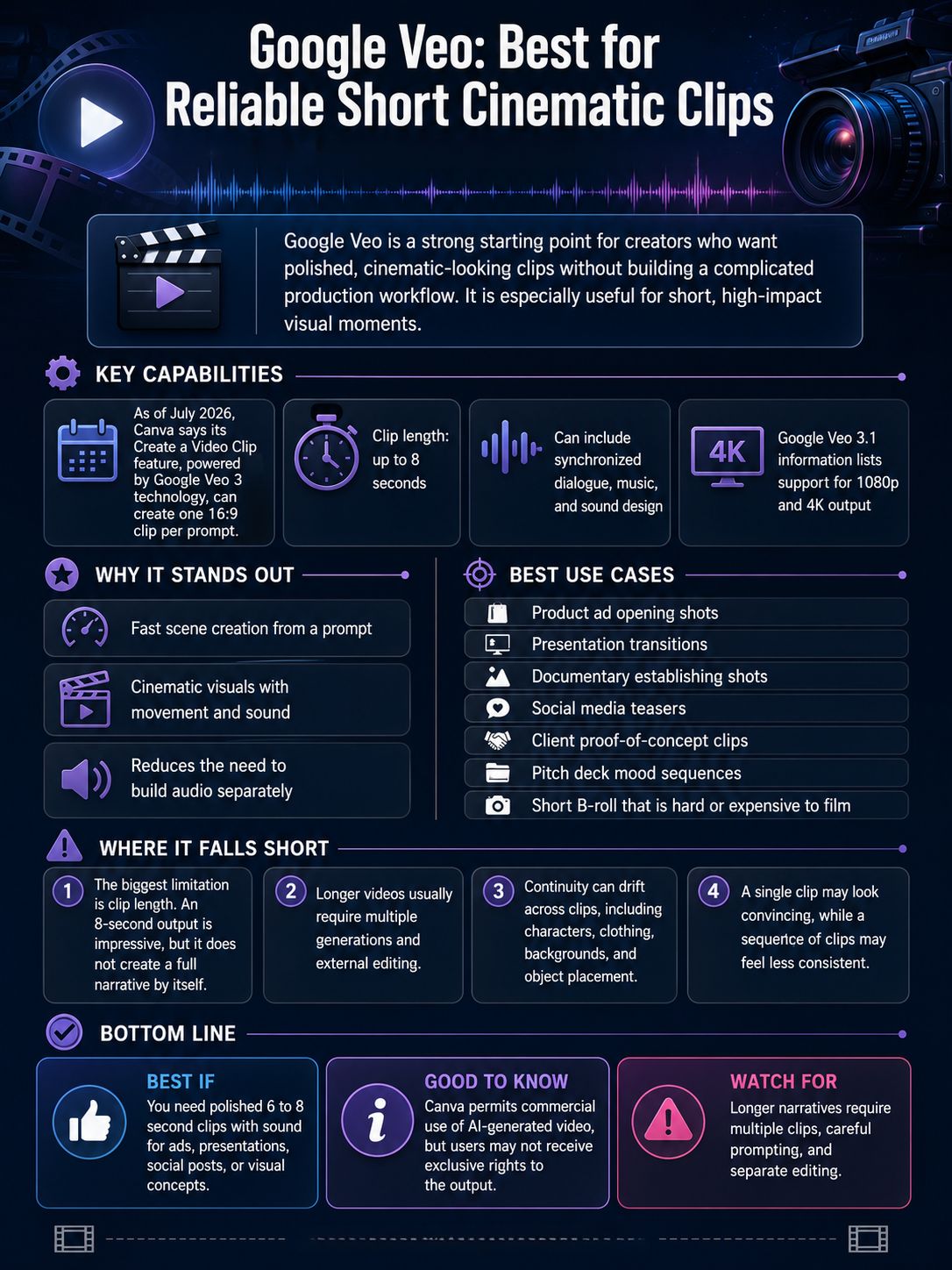
Google Veo is one of the safest starting points for creators who want polished, cinematic-looking clips without building a complicated production workflow.
Its strongest appeal is immediacy. You can describe a scene, define the tone, and produce a short video that already includes visual movement and sound. This makes it useful for advertisements, pitch presentations, concept reels, social media hooks, product teasers, and visual storyboarding.
As of July 2026, Canva says its Create a Video Clip feature, powered by Google’s Veo 3 technology, can create one 16:9 clip per prompt. Clips can run for up to eight seconds and may include synchronized dialogue, music, and sound design.
That combination matters. Earlier AI video tools often required users to generate silent visuals first and then build the audio separately. Veo can reduce that handoff by creating a more complete scene from the beginning.
Google’s Veo 3.1 information also lists support for 1080p and 4K output. Higher-resolution options can help when footage needs to be reframed, color-corrected, combined with other scenes, or displayed on larger screens.
Where Google Veo Works Best
Veo is a strong choice for short visual moments rather than complete long-form videos.
Possible uses include:
- An opening shot for a product advertisement
- A cinematic transition between presentation sections
- A short establishing shot for a documentary
- A social media teaser
- A visual proof of concept for a client
- A mood sequence for a pitch deck
- Short B-roll that would be difficult or expensive to film
A creator could generate a rainy city street, an aerial product shot, a stylized kitchen scene, or a short dialogue moment without organizing a physical shoot.
Where Google Veo Falls Short
Clip length remains the biggest practical limitation. An eight-second output may look impressive, but it does not create a full narrative by itself.
Longer videos normally require several generations. You must then maintain continuity across shots, manage pacing, correct visual differences, and assemble everything in an external editor.
Characters, clothing, backgrounds, and object placement may also change between generations. A single clip can look convincing while a sequence of clips feels less consistent.
Best if: You need polished 6 to 8 second clips with sound for advertisements, presentations, social posts, or visual concepts.
Good to know: Canva permits commercial use of AI-generated video but warns that users may not receive exclusive rights to the output.
Watch for: Longer narratives require multiple clips, careful prompting, and separate editing.
2. Runway: Best for Filmmaking and Controlled Visual Storytelling
Runway is the stronger choice when creative control matters more than producing the fastest possible result.
Its tools are aimed at filmmakers, designers, agencies, and visual storytellers who want to direct the output rather than simply accept the first generated clip.
Runway’s Gen-4 model places particular emphasis on consistency across characters, environments, objects, and visual styles. That is valuable when you are trying to create several shots that appear to belong in the same world.
Without consistency tools, AI video production can become a cycle of starting over. A character may have a different face in the next shot. A product may change shape. A room may suddenly gain another window. Runway’s reference-based workflow is designed to reduce some of that instability.
Why Reference Images Matter
A strong reference image gives the model a clearer visual target.
For example, a filmmaker could create one approved character image and reuse it while generating:
- A wide establishing shot
- A medium dialogue shot
- A close-up reaction
- A reverse camera angle
- A walking sequence
- A product interaction
The clips may still require refinement, but the reference provides a more stable visual foundation.
Runway’s training materials recommend using high-quality reference images. Blurry, poorly lit, or visually confusing images give the model less reliable information and can lead to unpredictable outputs.
Runway’s Pricing and Credit Structure
Runway’s public US Standard plan is listed at $15 per month or $12 per month when billed annually. It includes 625 credits, which Runway estimates can generate around 52 seconds of Gen-4.5 footage.
That amount may be enough for testing, mood boards, and selected final shots. It can disappear quickly when you generate several versions of the same scene.
This is why prompt testing matters. It is usually better to test the composition, movement, and basic idea with a lower-cost model or draft setting before spending premium credits on the final generation.
Where Runway Works Best
Runway is especially useful for:
- Short films
- Music videos
- Concept trailers
- Storyboards
- Visual development
- Branded campaigns
- Experimental advertisements
- Character-led sequences
- Production previsualization
It is also useful when a director or creative team wants to explore several versions of an expensive scene before committing to physical production.
Best if: You are producing trailers, mood films, storyboards, branded scenes, or narratives with recurring characters.
Good to know: Paid plans may provide access to additional generation models, including Veo 3.1, within the same workspace.
Watch for: Premium generations can consume credits rapidly, especially when a shot needs several rerolls.
3. Adobe Firefly: Best for Commercially Safer Creative Work
Adobe Firefly is one of the strongest options for agencies, marketers, and in-house creative teams that need a clearer commercial workflow.
Its main advantage is not simply visual quality. It is Adobe’s approach to training data and professional production.
Adobe says its Firefly Video Model is trained on licensed content and public domain material where copyright has expired. That gives businesses a more understandable starting point when discussing AI-generated media with clients, legal departments, and brand managers.
This does not make every output risk-free. Users still need permission to include protected logos, copyrighted characters, private photographs, artwork, confidential materials, or recognizable people.
The difference is that Firefly is built with commercial creative environments in mind.
Why Firefly Fits Agency Work
Client projects often involve more than generating an attractive scene. Teams may also need to:
- Document where an asset came from
- Keep creative work inside an approved ecosystem
- Make revisions quickly
- Combine AI output with existing Adobe projects
- Maintain consistent branding
- Review licensing concerns
- Share files with designers and editors
Firefly’s position inside the wider Adobe ecosystem makes these handoffs easier for teams already using Creative Cloud.
Adobe Firefly Pricing
Adobe’s public US plan lineup lists Firefly Standard at $9.99 per month with 2,000 generative credits. Adobe says that allowance can cover up to 20 five-second videos.
Firefly Pro is listed at $19.99 per month and doubles the credit allowance.
The same credits may also be used for other Firefly features, including video translation and AI-generated sound effects. A team using several Firefly tools should therefore monitor total monthly credit consumption rather than treating every feature as a separate allowance.
Where Firefly Works Best
Firefly is suitable for:
- Product advertisements
- Branded campaign visuals
- Corporate presentations
- Social advertising
- Agency concept development
- Commercial B-roll
- Internal creative production
- Adobe-centered editing workflows
Best if: You create branded advertisements, product promotions, client campaigns, or corporate content that requires a clearer commercial production story.
Good to know: Firefly credits can also support other tools such as video translation and sound-effect generation.
Watch for: Repeated test renders can consume the monthly credit allowance faster than expected.
4. Descript: Best for Editing Video by Editing Text
Descript solves a different problem from Veo, Runway, or Firefly.
It is not mainly designed to generate cinematic scenes from a prompt. It is built to make recorded video easier to edit.
When you upload a podcast, interview, webinar, presentation, or talking-head recording, Descript creates a transcript. You can then edit the video by changing the words.
Delete a sentence from the transcript, and the corresponding section disappears from the timeline. Move a paragraph, and the video follows. This approach makes editing more approachable for writers, marketers, educators, and subject-matter experts who do not think like traditional video editors.
Why Transcript Editing Saves Time
Traditional editing requires you to scrub through footage, find the correct in and out points, and make cuts on a timeline.
Descript lets you begin with the story.
You can read the transcript, remove repetition, shorten long answers, rearrange sections, and identify weak explanations before worrying about visual polish.
This is especially useful for:
- Interviews
- Podcasts
- Webinars
- Online courses
- Product demonstrations
- Video essays
- Internal updates
- Customer testimonials
- Recorded presentations
Useful Descript Features
Descript also includes tools for:
- Removing filler words
- Shortening pauses
- Cleaning audio
- Creating social clips
- Adding stock footage
- Generating captions
- Working with voice features
- Producing rough cuts
- Editing multitrack recordings
Its Creator plan lists 30 media hours, 800 AI credits, 4K exports, access to Underlord, and an unlimited royalty-free stock media library.
Where Descript Struggles
Descript is most useful when footage already exists.
It can support AI-assisted creation, but it is not the ideal choice for filmmakers who primarily want realistic text-to-video scenes, detailed camera control, or consistent fictional characters.
Best if: You edit interviews, webinars, podcasts, explainers, and talking-head videos from recorded material.
Good to know: Filler-word cleanup, stock media, voice tools, captions, and clip creation are available inside the same environment.
Watch for: Descript is primarily an edit-and-polish platform, not a dedicated cinematic generation tool.
5. Vyond: Best for Animated Characters and Training Videos
Photorealistic AI video receives most of the attention, but realism is not always the right communication style.
For training, onboarding, internal communication, education, and process explanations, animation can be clearer and easier to control.
Vyond has remained popular because it allows teams to create character-led videos without hiring animators or building every scene from scratch.
Users can select characters, backgrounds, gestures, props, layouts, and voiceovers. A company can explain a workplace process, customer journey, safety rule, or software workflow using visual storytelling that is easy to update later.
Why Animation Still Works
Realistic video can introduce unnecessary complexity.
A photorealistic presenter may distract viewers if the facial movement looks unnatural. Generated office scenes may contain visual errors. Reshooting live actors can also become expensive when policies change.
Animated characters avoid many of these problems.
A team can change one line in a training script, update a scene, replace a logo, or translate the narration without organizing another shoot.
Vyond Features and Pricing
Vyond’s public Starter plan lists more than 650 text-to-speech voices.
The Professional plan adds instant translation into 95 languages and access to more than four million Shutterstock assets.
Starter is listed at $99 per month for one user, or $58 per month when billed annually. That price makes more sense for organizations producing videos regularly than for a creator who only needs one animation.
Where Vyond Works Best
Vyond fits:
- Employee onboarding
- Workplace training
- Compliance videos
- Product education
- Customer support
- Safety communication
- Classroom content
- Internal announcements
- Animated explainers
- Process demonstrations
Best if: You regularly produce training, onboarding, education, or internal communication videos.
Good to know: Vyond combines templates, AI avatars, text-to-speech, translation, and traditional character animation.
Watch for: It is designed for communication clarity, not photorealistic cinematic footage.
6. Synthesia: Best for Recorded AI Avatar Presentations
Synthesia is one of the most established choices for polished, presenter-led avatar videos.
The workflow is straightforward. You write or paste a script, choose an avatar, select a layout, and generate a video without filming a human presenter.
This is especially practical for organizations that need to produce many versions of similar content.
A company might create separate onboarding videos for different departments, translate a product tutorial into several languages, or update a compliance video whenever the policy changes.
Why Businesses Use Synthesia
Recorded avatar videos can reduce the logistical work involved in:
- Booking presenters
- Hiring studios
- Managing lighting and sound
- Coordinating reshoots
- Producing multiple language versions
- Updating outdated information
- Maintaining a consistent presentation format
Synthesia’s Starter plan lists more than 125 avatars and AI dubbing.
The Creator plan increases the selection to more than 180 avatars and adds features such as multiple avatars in one scene, interactive videos, and API access.
Synthesia says more than 50,000 teams use the platform. Its Enterprise tier adds brand kits, team collaboration, SCORM export, and one-click translation into more than 80 languages.
Where Synthesia Works Best
It is well suited to:
- Employee training
- Software tutorials
- Product demonstrations
- Sales enablement
- Customer onboarding
- Internal communication
- Compliance education
- Multilingual support content
- Structured educational videos
Where Avatar Video Feels Weak
Avatar presentations can look polished without feeling personal.
For formal business communication, that may be acceptable. For creator-led social content, emotional storytelling, or personality-driven campaigns, a real person may create stronger trust and engagement.
Best if: You need repeatable presenter videos for training, support, sales, or internal communication.
Good to know: It is particularly useful when scripts change frequently and recording new footage would be expensive.
Watch for: Digital presenters may feel too formal or artificial for casual, personality-led social media.
7. InVideo AI: Best for Fast Social Media Video Creation
InVideo AI is designed for people who want to move from an idea to a publishable social video without switching between several separate platforms.
It can help with scripting, visual assembly, narration, stock content, AI generation, captions, and formatting.
That makes it useful for small marketing teams, solo creators, publishers, ecommerce businesses, and agencies producing a high volume of short videos.
InVideo says its platform provides access to more than 200 AI models covering video, image, and audio generation.
Instead of committing to one underlying model, users can select different generation options depending on the content they need.
Why InVideo Fits Social Production
Social videos often require speed more than cinematic perfection.
A marketing team may need to create:
- Short product promotions
- List-style videos
- Vertical explainers
- Creator-style advertisements
- Social news summaries
- Event announcements
- Promotional clips
- Educational shorts
InVideo can turn a prompt or script into a structured first draft, making it easier to publish consistently.
Understanding InVideo’s Credit Costs
InVideo’s June 2026 help documentation lists different credit rates for its Autopilot modes.
Autopilot Basic costs 2 credits per minute, while Pro costs 80 credits per minute and Ultra costs 160 credits per minute. Model-based generations may also use different amounts depending on the provider.
This means users should not select the most expensive generation mode for every draft.
Basic settings may be sufficient for testing scripts, pacing, and scene order. Premium generations are better saved for the final advertisement or hero clip.
Best if: You create social posts, short advertisements, list videos, or fast promotional content.
Good to know: The free plan resets weekly, allowing users to test the workflow before subscribing.
Watch for: Pro and Ultra modes can consume credits quickly when used during early experimentation.
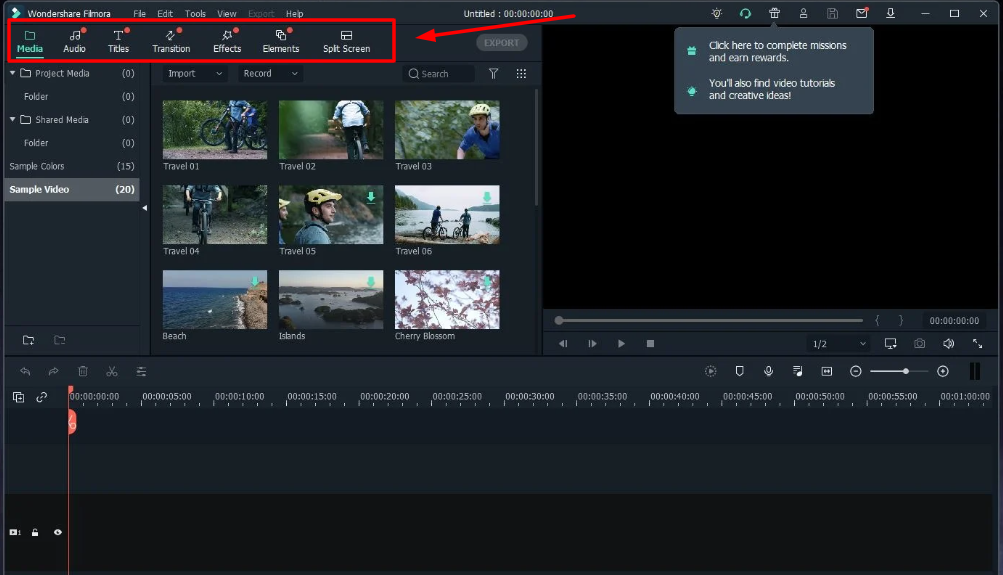
Filmora is a better fit for creators who already have footage and want to improve it quickly.
It combines a familiar timeline editor with AI-assisted features such as:
- AI Video Enhancer
- Video Denoise
- Voice Enhancer
- Object Remover
- Portrait Cutout
- Automated captions
- Background removal
- AI-assisted generation tools
These features make Filmora particularly useful near the end of production.
A creator can import footage recorded on a phone or camera, clean the sound, remove distractions, improve clarity, add titles, correct pacing, and export a finished video from one interface.
Who Benefits Most From Filmora
Filmora suits users who find professional editors such as Premiere Pro or DaVinci Resolve overwhelming but still want more control than template-only tools provide.
It works well for:
- YouTube videos
- Tutorials
- Social advertisements
- Product reviews
- Travel videos
- Educational content
- Interviews
- Talking-head videos
- Small-business promotions
Filmora Pricing
Filmora’s Advanced annual plan is publicly listed at $59.99 per year and includes 1,000 AI credits each month.
That entry point is lower than many specialized AI video platforms, especially for users who also need a complete timeline editor.
Where Filmora Falls Short
Filmora can now connect generation and editing inside one ecosystem, but its main strength remains editing and cleanup.
It is not the strongest choice for creating complex fictional worlds or maintaining the same generated character across many cinematic scenes.
Best if: You want an accessible timeline editor with practical AI cleanup and enhancement tools.
Good to know: Newer generation models are increasingly available inside the Filmora ecosystem.
Watch for: It is stronger at polishing footage than maintaining story consistency across fully generated scenes.
9. Pictory: Best for Turning Existing Content Into Video
Pictory is designed for content repurposing.
Instead of beginning with an empty timeline, you can provide a script, article, presentation, PDF, recording, or document. The platform then turns the source into a storyboarded video draft.
This is particularly useful for publishers, educators, course creators, consultants, and marketing teams with a large library of written material.
A company could convert:
- A blog article into a narrated video
- A webinar into a shorter summary
- A PDF guide into a visual explainer
- A presentation into a training video
- A long recording into several short clips
- A written product guide into a promotional video
Why Pictory Saves Time
Repurposing often fails because rebuilding content manually takes too long.
The writer understands the article, but the video editor must still identify the main points, find visuals, create captions, add narration, and organize the sequence.
Pictory provides a first draft of that structure.
The output may still require review. Stock footage can feel generic, visual selections may not match the intended meaning, and important context may need to be restored.
Even so, starting with a draft can be much faster than beginning from nothing.
Pictory Pricing and Features
Pictory’s public Starter plan lists:
- 200 video minutes per month
- 5 GB of storage
- One brand kit
- AI voices in 29 languages
- Access to five million stock videos
Its June 2026 release notes also added PDF-to-video, custom avatars, and voice cloning.
Best if: You regularly convert written or recorded business content into video.
Good to know: It is one of the easier tools for turning existing source material into a structured first draft.
Watch for: Cinematic scene control remains limited compared with filmmaking-focused platforms.
10. OpusClip: Best for Creating Shorts From Long Videos
OpusClip focuses on extracting value from footage you already own.
That can produce a better return than generating completely new video, especially for teams publishing podcasts, interviews, livestreams, events, and webinars.
You upload a long recording, and OpusClip identifies moments that may work as standalone short clips. It can reframe the speaker, generate captions, add visual elements, and prepare content for vertical platforms.
Why Long-Form Repurposing Matters
One podcast episode can potentially produce:
- Several Instagram Reels
- Multiple TikTok videos
- YouTube Shorts
- LinkedIn clips
- Quote videos
- Educational snippets
- Promotional teasers
- Highlight moments
The challenge is finding those moments and formatting them quickly.
OpusClip automates much of that first pass.
OpusClip Plans
The Starter plan is publicly listed at $15 per month with:
- 150 credits
- AI clipping
- Virality scoring
- Animated captions in more than 20 languages
- Watermark-free exports
The Pro plan adds:
- A team workspace
- Six social account connections
- Multiple aspect ratios
- A scheduler
- AI B-roll
- Adobe Premiere Pro export
- DaVinci Resolve export
The free plan allows testing, but exported clips stop being exportable after three days.
What Virality Scoring Cannot Do
A score can help prioritize clips, but it cannot fully understand your audience, brand voice, industry context, or communication goals.
A quieter educational moment may be more useful than the most dramatic quote. Human review remains necessary.
Best if: You want to turn podcasts, webinars, interviews, or livestreams into multiple short posts.
Good to know: Professional editing exports make it easier to continue polishing clips outside the platform.
Watch for: It is a repurposing engine, not a replacement for a full editing or cinematic generation platform.
11. Capsule: Best for Consistent Branded Team Videos
Capsule is built around team production and brand consistency.
Many organizations struggle to keep video content visually consistent. Different editors use different caption styles, title animations, colors, fonts, transitions, and logo placements.
Capsule addresses that problem through reusable brand systems.
Teams can save approved fonts, colors, logos, motion graphics, captions, overlays, and other design elements. Editors can then produce new videos without recreating the visual language every time.
Why Brand Systems Matter
A brand kit is more than a folder containing a logo.
A useful video system can define:
- Caption placement
- Font hierarchy
- Lower-third design
- Title animation
- Logo behavior
- Brand colors
- Transition style
- End-screen layout
- Social aspect ratios
This reduces small design decisions and makes approval faster.
Collaboration and File Limits
Capsule allows multiple users to open the same project, but only one person can edit at a time. That approach reduces accidental overwrites while still allowing team access.
The free plan limits uploads to 1 GB per file. Paid plans increase that limit to 3 GB.
Capsule supports common video formats as well as professional formats such as ProRes and XDCAM.
Its Enterprise offering adds fully customized motion-design systems for larger organizations.
Best if: Your marketing or communication team needs to produce branded video at scale.
Good to know: Reusable themes can store brand fonts, colors, logos, captions, and motion elements.
Watch for: Solo creators may not need its collaboration and brand-management depth.
Comparison Tips for AI Video Tools
Public US pricing can change. Regional prices, taxes, promotions, billing cycles, and plan features may also differ.
Use entry pricing as an initial filter, not as the final cost calculation.
| Tool | Public US Entry Point Mentioned | What to Test |
|---|---|---|
| Runway | $15 monthly or $12 monthly with annual billing | Character consistency, reroll costs, credit use, and reference control |
| Adobe Firefly | $9.99 monthly | Commercial workflow, clip length, Adobe integration, and credit burn |
| Descript | Free plan available, followed by paid tiers | Transcript accuracy, editing speed, filler-word removal, and export quality |
| Vyond | $99 monthly or $58 monthly with annual billing | Animation workflow, translation, voice quality, and update speed |
| Synthesia | $29 monthly | Avatar realism, pacing, language support, and presentation quality |
| InVideo AI | Free plan available | Differences between Basic, Pro, and Ultra generation |
| Filmora | Annual plans begin below $60 | Noise cleanup, enhancement, object removal, and timeline usability |
| Pictory | $29 monthly | Article conversion, visual selection, narration, and manual correction time |
| OpusClip | $15 monthly | Number of genuinely usable clips created from one long video |
| HeyGen LiveAvatar | Free tier, then $19 monthly Starter | Session length, concurrency, response quality, and interaction needs |
Final Thoughts
If you came here for 11 AI Video Generation Tools Ranked, you now have a much tighter shortlist.
Pick two tools, run the same prompt or source footage through both, and compare quality, control, and credit use. The right AI video creation setup should speed up your workflow, improve your visual storytelling, and fit the way you already work.
Start small, save your best prompts, and let machine learning handle the repetitive parts.
FAQs About AI Video Generation Tools
1. What is “11 AI Video Generation Tools Ranked”?
This guide lists 11 AI video generation tools, ranked by features, price, and ease of use. It helps you compare video generation options fast.
2. How do I pick the right AI video generation tool?
Match the tool to your goal, like text-to-video, avatar creation, or product demo videos. Check output quality, speed, price, and integrations, and try a free trial when you can. Think of it like picking a car, pick what fits your needs, not the flashiest model.
3. Can these AI tools generate real looking videos?
Yes, many AI tools can generate highly realistic videos and images, but results vary by model, input, and editing.
4. Are the ranked tools safe and legal to use?
Most AI tools follow rules, but you must check copyright, model licenses, and privacy. Use human oversight, keep data up to date, and avoid misuse, to stay on the right side of the law.