

Generating subtitles is usually the quick part. Fixing them is where the time goes. A tool may transcribe a clean talking-head video almost perfectly, then struggle with an Indian English interview containing Hindi phrases, two people speaking at once, a brand name, or a microphone placed too far from the speaker.
The transcript appears in minutes, but the editor still has to repair names, punctuation, timing, speaker changes, and awkward line breaks. That is why AI subtitle generators should be judged by more than transcription speed or a headline accuracy claim. Editing controls, language coverage, export formats, translation, team review, video limits, and monthly costs all affect whether the tool saves time.
The first few options suit a broad range of creators and production teams. The later entries are more specialized. Some are better for podcasts and interviews. Others make more sense for animated social captions, professional post-production, or multilingual delivery. For software covering writing, video, audio, design, and other parts of production, see best AI tools for creators.
Start With the Type of Video You Make
A quick shortlist is more useful than comparing every feature:
- VEED: The strongest general browser option for most creators
- Descript: Better for podcasts, interviews, and transcript-led editing
- Adobe Premiere: The professional choice for editors already using Adobe
- Kapwing: Useful for shared branded content and agency workflows
- HappyScribe: Strong for multilingual subtitles and optional human review
- CapCut: Fast, visual captions for short-form social video
- Sonix: Better for long recordings, terminology, and subtitle files
- Submagic: Built specifically for animated captions on vertical clips
- Maestra: A specialist tool for translation and localisation
This is not an objective accuracy ranking. The same software can perform well on a studio recording and poorly on a noisy panel discussion. Audio quality, language, accent, pace, vocabulary, and speaker overlap all matter.
What Most Subtitle Tool Comparisons Miss?
A transcript, a subtitle track, and an accessible caption file are not automatically the same thing. A transcript records the spoken words. Subtitles place dialogue on screen and may translate it. Captions created for deaf and hard-of-hearing viewers may also need speaker labels and meaningful sound descriptions such as laughter, music, applause, alarms, or a door closing.
Most automatic systems concentrate on speech. They may produce usable subtitles without producing complete accessibility captions. The export also matters. Open captions are permanently visible in the finished video. Closed captions are delivered as a separate or embedded track that viewers can switch on or off. A platform may create attractive text overlays but offer limited subtitle-file exports.
Before paying, confirm whether the service can deliver the format your real workflow needs, such as SRT, VTT, SCC, XML, burned-in captions, or a clean video with no captions attached.
1. VEED

VEED covers the broadest range of everyday subtitle work without requiring desktop editing software. The browser-based editor can transcribe more than 125 languages and accents, translate subtitles, adjust timing, and apply visual styles such as word highlighting, animated text, custom fonts, colors, and caption placement. The same workspace can also trim clips, remove pauses, add branding, resize the canvas, and prepare exports for different platforms.
That combination makes VEED particularly practical for YouTubers, marketers, small businesses, course creators, and social media teams. A creator can upload a talking-head video, correct the transcript, style the captions, crop it for a vertical format, and export the final version without moving between several tools. Its advantage is convenience rather than the deepest possible editing control.
Professional editors may find the timeline and subtitle tools less precise than Adobe Premiere. Teams dealing mainly with long interviews may prefer Descript or Sonix because those platforms put more emphasis on transcript review.
Free access is useful for learning the interface, but watermark removal, subtitle downloads, translation, export quality, and monthly usage may depend on the selected plan. Check those limits before using it for recurring client work. For most creators who want one browser tool rather than a complicated production stack, VEED is the easiest place to begin.
2. Descript
Descript makes the transcript part of the editing process rather than an attachment added at the end. Once the recording is transcribed, an editor can remove or rearrange sections by editing the written text. Delete a sentence from the transcript, and the corresponding section of audio or video can be removed with it. That approach is far more natural for interviews, podcasts, webinars, screen recordings, and educational videos than repeatedly cutting around words on a traditional timeline.
Captions remain linked to the transcript. They can be styled for the finished video or exported as SRT and VTT files. The workflow is especially useful when the spoken material needs substantial editing before subtitles are finalized. A podcast producer may cut repeated answers, filler sections, or off-topic discussion while reviewing the transcript, then generate captions from the edited version.
Language support is the main limitation. Descript currently supports automatic transcription in 26 languages and notes that its supported transcription languages use the Latin alphabet. That leaves important gaps for teams working with Hindi, Bengali, Chinese, Japanese, and other scripts.
Its pricing also uses per-person subscriptions and monthly media allowances. At the time of verification, the Hobbyist plan included 10 media hours each month, but users should check current limits and regional pricing before subscribing. Descript is one of the strongest choices for spoken-word content. It is unnecessarily elaborate for someone adding captions to a handful of short social clips.
3. Adobe Premiere
Adobe now markets the application as Adobe Premiere, though many editors still know it as Premiere Pro. Premiere belongs near the top because the subtitle work stays inside a full professional editing environment. Speech-to-text can create a transcript, identify speakers, convert the transcript into captions, and translate caption tracks. Editors can correct text, change timing, adjust line length, style the captions, and prepare multiple delivery versions without uploading the project to a separate web service.
The export control is a major advantage. Captions can be:
- Burned permanently into the picture
- Exported as a separate sidecar file
- Embedded in supported video formats
That matters when one edit requires several deliverables. A production team might need a clean master, a social version with visible captions, and separate subtitle files for YouTube, a client portal, or localization. Premiere supports a defined range of transcription languages, including Hindi and separate English options for the USA and UK. Caption translation covers a wider but still limited set of languages. These lists should be checked before committing to a multilingual project.
Premiere has a steeper learning curve than browser tools and demands more from the computer. Buying it solely for occasional subtitles makes little sense. Editors already using Adobe, however, gain little by sending every project through another platform unless they need specialist transcription or human review.
4. Kapwing
Kapwing becomes more attractive when subtitles are part of a repeatable team workflow rather than a one-off edit. Its browser editor handles automatic subtitles, translation, timing, visual styles, video resizing, and exports such as SRT and VTT. Shared workspaces, brand assets, reusable templates, and collaborative editing suit agencies and marketing departments producing content for several brands.
Consider a small agency delivering weekly social clips for five clients. Each account has different colors, fonts, caption positions, logos, and aspect ratios. Keeping those choices inside a shared workspace is more useful than rebuilding every design in a mobile app. Kapwing and VEED overlap heavily. VEED is the simpler general recommendation for an individual creator. Kapwing makes a stronger case when several people need to review work and maintain visual consistency.
Its per-member pricing can become the weak point. A plan that looks reasonable for one editor may become expensive when account managers, designers, reviewers, and clients all require access. Free automatic subtitle and translation allowances are also limited. Teams should calculate the cost using the actual number of seats and monthly video minutes, not the headline price for one user.
5. HappyScribe
HappyScribe is less focused on flashy caption animation and more focused on producing subtitles that can move through a serious review process. Its automatic subtitle tools support more than 150 languages. Users can edit text and timing, work with common subtitle formats, and prepare burned-in video exports. The platform also offers human-made or human-reviewed transcription, subtitling, and translation services.
That second layer is what separates it from most social-first editors. Automatic subtitles may be sufficient for internal meetings, draft interviews, routine social posts, and material that will be checked by the creator. Human review is more defensible for paid courses, documentaries, legal conversations, public training, technical presentations, or translated content where an incorrect word could change the meaning.
The human service costs much more than automatic transcription and takes longer. It should not be treated as the default for every video. HappyScribe makes sense for educators, documentary producers, researchers, publishers, and agencies that need dependable subtitle files rather than dramatic text effects. Creators producing casual short-form clips will probably find it slower and more expensive than necessary.
6. CapCut
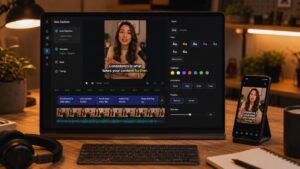
CapCut has helped turn large, animated captions into a standard part of short-form video. Its automatic caption tools are integrated across its wider web, desktop, and mobile editing ecosystem. Users can correct text, change timing, translate captions, apply fonts and animations, highlight selected words, and export a finished vertical video without leaving the editor.
For Reels, Shorts, TikTok clips, mobile advertisements, and fast promotional content, that workflow is difficult to beat. The problem is not the tool. It is how easily the effects can be overused. Making every word bounce, change color, or appear beside an automatic emoji can make a video harder to follow. Interviews, course lessons, financial explainers, and serious brand content often need quieter captions with clear contrast and stable placement.
Subtitle-file exports require another check. Access to SRT, VTT, or text downloads can vary by product version, platform, plan, and region. A creator who needs a separate caption file should confirm that workflow before editing a large batch.
CapCut’s paid pricing also varies by country, device, taxes, and promotions. Users in the USA, UK, and India may not see the same subscription offer. For short-form publishing, CapCut remains one of the fastest options. It is less suitable for formal delivery, detailed review, or long multilingual projects.
7. Sonix
Sonix is easy to overlook because it does not center its product around animated social captions. Its strengths are transcription, speaker labels, search, translation, terminology control, collaboration, and subtitle-file exports. It supports more than 50 transcription languages and can export SRT, VTT, transcripts, and other document formats.
The custom dictionary is particularly useful. A team can add surnames, company names, product terms, abbreviations, medical language, or technical phrases that general speech recognition frequently gets wrong.
That makes Sonix a better match for:
- Research interviews
- Technical webinars
- Business meetings
- Documentary footage
- Long podcast episodes
- Industry-specific training
Its usage-based pricing is relatively easy to understand, but costs can climb when processing many hours or adding translation. At the time of verification, pay-as-you-go transcription started at $10 per hour, while subscriptions included monthly processing allowances and other features. Sonix does not replace a visual video editor. It is strongest when the final deliverable is a clean transcript or subtitle file that will be used elsewhere.
8. Submagic
Submagic is not trying to compete with professional subtitle editors. It is built to produce the caption-heavy style used in short vertical videos. Along with automatic subtitles, it can highlight keywords, apply animation, remove silences, add B-roll, generate hook text, insert sound effects, and prepare clips for social platforms.
For creators publishing several short videos every week, that focus can remove a great deal of repetitive work. Its language claims need careful reading. Submagic promotes caption generation in 48 languages in parts of its product documentation, while its translation tools cover more than 100 languages and accents. Translation coverage does not mean every language receives the same original transcription support.
Video-duration limits are the bigger constraint. Lower plans focus on clips lasting only a few minutes, with longer videos reserved for higher tiers. Those limits suit Shorts, Reels, TikTok videos, and brief promotional extracts. They do not suit complete podcasts, long classes, or hour-long interviews.
Submagic is worth paying for when animated captions and short-form enhancements are part of the regular output. Using it only to generate plain SRT files misses most of its value. More software for short-form and creator workflows appears in best AI tools for creators.
9. Maestra
Maestra is aimed at organizations that need to turn one recording into several language versions. Its platform covers automatic subtitles, subtitle translation, burned-in captions, SRT and VTT exports, dubbing, live captions, real-time translation, and integrations for tools such as Zoom and OBS. Translation support extends across more than 125 languages in parts of the service.
That makes it relevant to international training companies, education providers, conferences, multinational marketing teams, and organizations running multilingual live events. The platform is likely to be excessive for a solo creator adding English subtitles to two monthly videos.
Its pricing combines credits, file-processing plans, real-time services, and higher tiers offering team features, glossaries, APIs, and additional localization controls. Buyers need to calculate costs around the exact workflow rather than assume that all transcription, translation, dubbing, and live features share one allowance.
Translation still requires review. A sentence can be grammatically correct while using the wrong technical term, level of formality, cultural reference, or regional expression. A Hindi translation for an online course may need very different wording from a casual advertisement aimed at the same country. Maestra is a capable specialist platform. Most independent creators will get better value from a simpler editor.
The Checks That Matter Before Paying
Subtitle pricing often looks simple until a real project begins consuming minutes, credits, translations, and team seats.
How Does the Tool Count Usage?
Some services count every minute of uploaded media. Others use transcription hours, credits, or monthly video limits. Regenerating subtitles or translating the same video may consume the allowance again.
Can You Export the File You Need?
Confirm whether the selected plan supports:
- SRT or VTT downloads
- Watermark-free video
- Full HD or 4K export
- Burned-in captions
- Multiple language tracks
- Clean transcript files
- Professional caption formats requested by clients
A free tool is not especially useful when exporting the subtitle file requires an upgrade.
Is Translation Charged Separately?
A plan may include generous transcription allowances but far fewer translated minutes. Turning one 20-minute lesson into five languages can consume substantially more credits than captioning the source once.
Does Every Reviewer Need a Paid Seat?
Per-seat subscriptions can become more expensive than the transcription. Check whether clients, translators, account managers, and reviewers all need paid access or whether they can comment through a free review link.
What Happens to Uploaded Recordings?
Review the provider’s current storage, deletion, retention, and data-use policies before uploading confidential meetings, student videos, customer interviews, unreleased campaigns, or private research.
A Practical Way to Choose
Do not start by comparing nine pricing pages. Start with one difficult video. Use a clip containing two speakers, an unfamiliar name, a number, background noise, and at least one change in speaking pace. Mixed-language dialogue is even more revealing when it reflects the work you actually produce.
Run that file through the strongest two or three candidates. Then check:
- How many words need correction
- Whether speakers are separated properly
- How readable the line breaks are
- How much timing repair is required
- Whether the needed file format can be exported
- How the tool charges for a normal month of work
For most creators, VEED is the broadest starting point. CapCut is faster for short-form mobile production. Descript is stronger when the transcript controls the edit. Premiere is the sensible professional choice for teams already inside Adobe.
Kapwing suits collaborative branded production. HappyScribe, Sonix, and Maestra become more valuable when the work involves long recordings, formal subtitle delivery, technical vocabulary, translation, or human review. Submagic is a narrow but efficient choice for animated vertical captions.
Final Thoughts
AI can generate subtitles quickly, but speed does not make them ready to publish. Names, numbers, punctuation, speaker changes, translations, timing, and line breaks still need review, especially when a recording contains background noise, regional accents, or mixed-language speech.
The most useful AI subtitle generators fit naturally into the wider editing process. VEED and CapCut suit fast-creator content. Descript works better for spoken-word editing, while Adobe Premiere gives professional editors greater control over delivery. HappyScribe, Sonix, and Maestra become more valuable when terminology, translation, formal subtitle files, or human review matter.
The best buying test is not which tool produces captions first. It is which one leaves the least correction work before publication. Test the same difficult clip in two or three platforms, inspect the exports, and calculate the cost using a normal month of content. For a wider collection of tools supporting modern content production, see the best AI tools for creators.
Frequently Asked Questions (FAQs) About AI Subtitle Generators
How Accurate Are AI Subtitle Generators?
Accuracy varies with the recording quality, language, accent, speaking speed, terminology, and number of speakers. Clean audio with one speaker usually produces better results than noisy interviews or discussions with overlapping voices. Advertised accuracy percentages are not always directly comparable because providers may use different languages, recordings, and testing methods. Every transcript should be checked before publication.
Can AI Subtitle Tools Handle More Than One Language in a Video?
Some platforms support multilingual transcription or translation, but mixed-language speech remains difficult. A speaker moving between English and Hindi within the same sentence may produce incorrect words or uneven language detection. Test a real sample before relying on any service for code-switching or regional-language content. A broad translation list does not guarantee equal transcription quality in every supported language.
What Is the Difference Between Subtitles and Captions?
Subtitles usually display spoken dialogue and may translate it into another language. Captions can also identify speakers and include meaningful sounds such as music, applause, laughter, alarms, or a door closing. Automatic subtitle generation may therefore require additional editing before it meets accessibility requirements.
Should Subtitles Be Burned Into the Video?
Burned-in subtitles remain visible on every platform and work well for social videos, where viewers often watch without sound. They cannot be turned off or changed by the viewer. Separate files such as SRT or VTT are better when viewers need language choices, adjustable captions, or the ability to switch them off. Many professional workflows require both a clean video and separate caption files.
Are Free AI Subtitle Generators Good Enough?
Free plans can work for occasional short videos, but they often restrict transcription minutes, video length, translation, export quality, subtitle downloads, or watermark removal. Before editing a full project, confirm that the free plan supports the required export format. Generating subtitles at no cost is not useful when downloading the SRT file or watermark-free video requires an upgrade.