
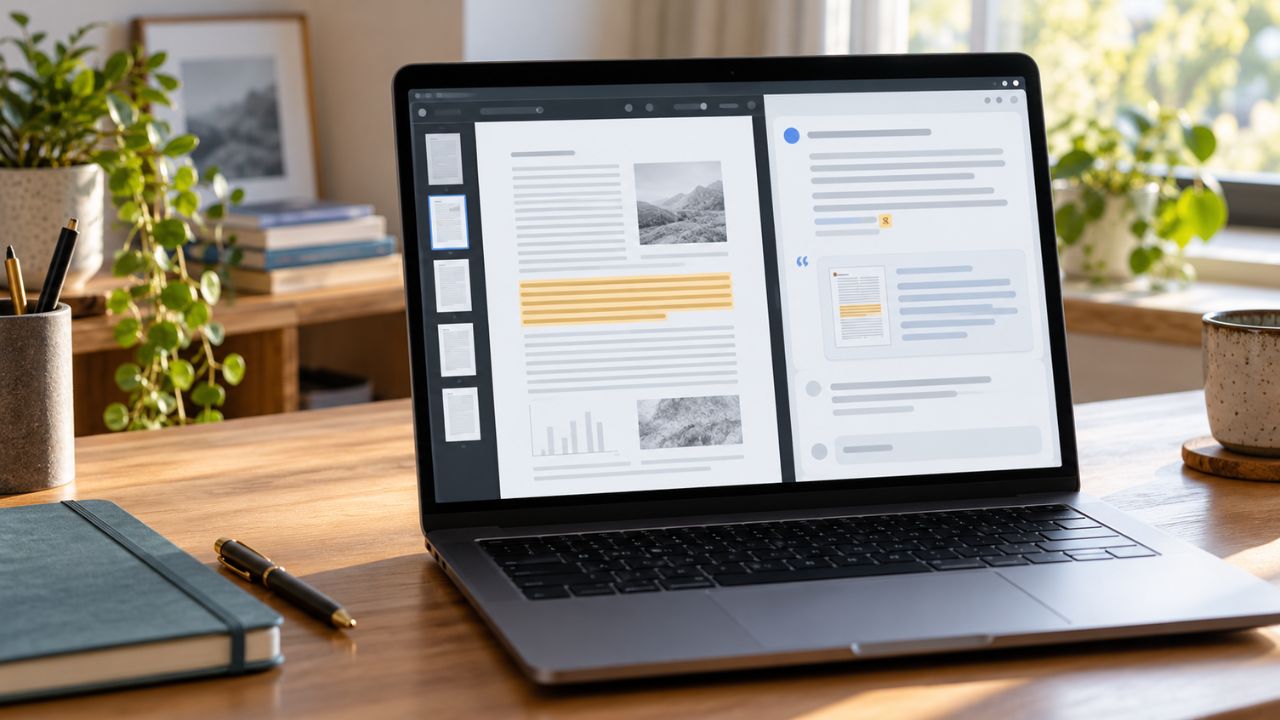
AI PDF tools can answer questions about a document, but their source trails are not equally useful. Some take you to a highlighted passage. Others give you a page number and leave you to find the supporting sentence yourself. Either way, a citation shows you where to check; it does not prove the answer is right.
I have used Gemini Notebook and Adobe Acrobat AI Assistant, the first two tools on this list. When I use an AI answer in my research, I want to see the relevant text in the original document before I rely on it. That is the standard I used to assess these tools. For the other eight, I reviewed their documented features rather than claiming a personal accuracy test.
This guide compares how 10 AI PDF tools answer questions, what kind of source reference they provide, and where their free access or document handling may affect your choice.
What Does “Showing the Source” Mean in an AI PDF Tool?
An AI PDF citation usually points back into the document you uploaded. It is different from a formatted citation for a bibliography.
The most useful tools let you click an answer and inspect the passage behind it. A page number is still helpful, but it takes more work to confirm the claim. Be especially careful with answers that combine several points: one linked passage may support only part of the response.
Before you choose a tool, ask: Can I find the original wording quickly, and does it actually support the answer?
10 AI PDF Tools Compared
The table gives you a quick view of each tool’s source trail. Features and free allowances can change, so check the current plan before building a regular workflow around one app.
| AI PDF tool | How it shows the source | Best fit | Main limitation to check |
| Gemini Notebook | Clickable citations that open quoted material in context | Research across several sources | Short sources may not receive a citation for every detail |
| Adobe Acrobat AI Assistant | Numbered citations that jump to and highlight PDF content | People already working in Acrobat | AI use is limited without an eligible paid plan |
| ChatPDF | References linked to PDF pages | Quick questions about individual PDFs | Free document allowance |
| ChatDOC | Source references, snippets, and document highlighting | Inspecting specific claims in dense files | OCR and advanced features vary by plan |
| SciSpace Chat with PDF | Citations tied to sections of research papers | Academic reading | Scanned PDFs may need OCR first |
| AskYourPDF | Citations to source pages | Straightforward PDF questions | Scanned-document OCR requires an eligible plan |
| Foxit AI Assistant | Source-linked answers within its PDF tools | PDF workflows and document collections | Cloud and local AI modes differ |
| Humata | References to document content and pages | Larger sets of documents | Its answer mode affects how strictly it stays with the source |
| Smallpdf Chat with PDF | References that help trace answers to the file | Occasional PDF tasks | Check how precisely each answer points to its source |
| PDFgear Copilot | Page numbers in answer footnotes | Free desktop PDF work | Page references are less precise than highlighted passages |
1. Gemini Notebook (Formerly NotebookLM)
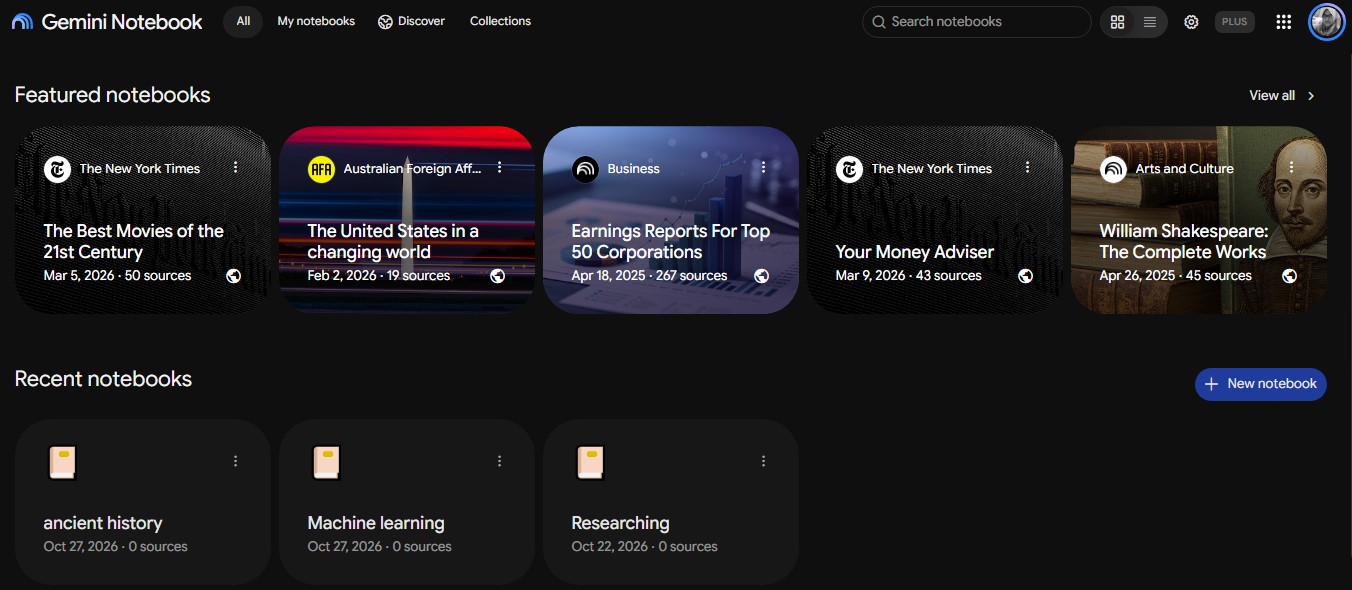
Gemini Notebook is a strong choice when your question involves more than one source. You can add PDFs alongside other supported material, select the sources you want it to use, and ask questions across them. Its answer citations let you preview quoted text and open the relevant content in context.
I have used it, and that direct path from an answer back to the source is the part I value most. It is useful when I need to check what a document actually says, especially when several sources cover a similar point.
Still, inspect the full passage. A quote can be genuine while an answer draws too broad a conclusion from it. Very short source material may also be referenced as a whole rather than cited line by line.
Best for: Research and study involving multiple PDFs and other source types.
2. Adobe Acrobat AI Assistant
Adobe Acrobat AI Assistant brings questions and answers into a PDF workflow many people already know. Its numbered source citations can take you to the relevant section and highlight supporting content. Adobe’s PDF Spaces also lets you ask questions across multiple documents.
I have used Acrobat AI Assistant, and I find its source navigation particularly relevant when I need to move between an answer and the original page. The PDF remains central to the task instead of becoming a file I forget to reopen after reading the AI response.
Adobe also warns that AI answers and their attributions can be wrong. In some cross-language situations, source attribution may not appear. There are limited complimentary AI requests, with continued use depending on an eligible plan.
Best for: Readers who already review, annotate, or manage documents in Acrobat.
3. ChatPDF
ChatPDF keeps the process simple: upload a PDF, ask a question, and use its references to return to the document page. It suits the person who wants an answer from a report or manual without setting up a larger research workspace.
Its free option currently allows two document uploads per day without registration. ChatPDF also advertises support for scanned PDFs, though the quality of any answer from a scan still depends on how accurately its text is recognized.
A page reference is a good starting point. If the answer concerns a number, exception, or qualification, read the surrounding paragraph and check the original table or figure too.
Best for: Fast, occasional questions about individual PDFs.
4. ChatDOC
ChatDOC puts more emphasis on locating the material behind an answer. Its source features include referenced snippets and ways to view or highlight the relevant text in the document. That can save time when a PDF contains similar wording in several places.
This is useful for a long contract, technical document, or report where finding the right occurrence of a phrase matters. Rather than accepting a page number alone, you can inspect the text the answer draws on.
Check the plan before uploading a batch of files. ChatDOC offers free questions, but document limits, OCR allowances, and some advanced source features depend on the tier you use.
Best for: Readers who want to inspect source text closely inside long PDFs.
5. SciSpace Chat with PDF
SciSpace is built around academic reading. You can ask questions about a paper’s methods, findings, or limitations and follow its source references back into the paper. It also offers tools for marking and organizing material as you read.
Its focus makes it a sensible option for research papers, but the source link should start your review, not end it. For example, if an answer says a study “proved” something, read the methods and limitations before repeating that claim. A paper may report a narrower result than the AI summary suggests.
SciSpace notes that its PDF chat may struggle with scanned, image-only documents that have not been processed with OCR.
Best for: Students and researchers working through journal articles.
6. AskYourPDF
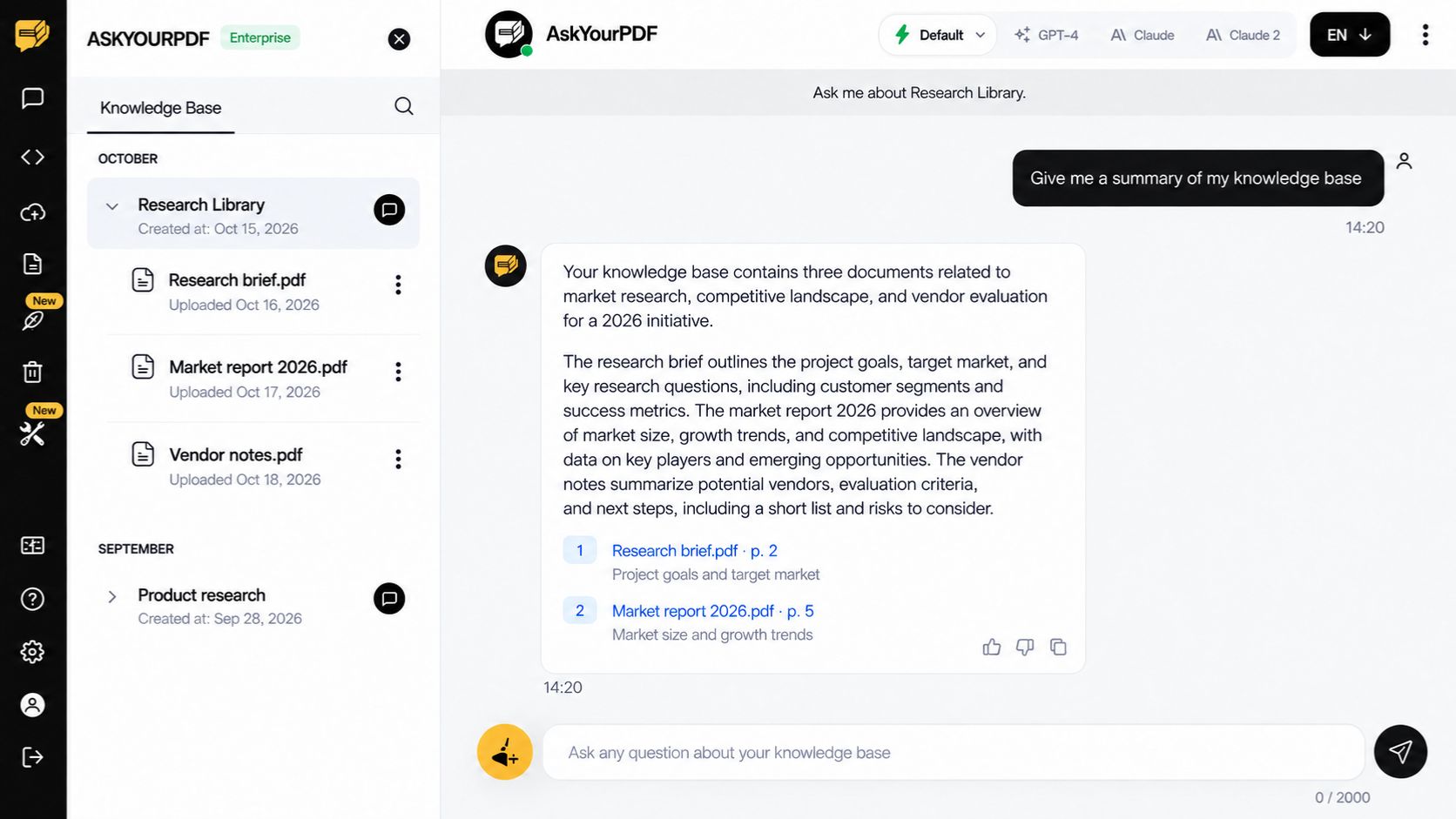
AskYourPDF answers questions with citations to the relevant source pages. Its free access is useful for trying a text-based PDF, with limits on how many documents and pages you can process.
The practical distinction is scanned material. AskYourPDF places OCR for image-based PDFs on eligible paid plans. If you regularly receive photographed handouts or scanned records, check that feature before choosing it for your workflow.
For ordinary text PDFs, its page citations make it easy to move from an answer to the document. Read that page closely when the wording affects a decision.
Best for: Direct questions about text-based PDFs, with the option to expand into larger document workflows.
7. Foxit AI Assistant
Foxit combines AI assistance with PDF reading and editing tools. Its AI products can give source-linked answers, and Foxit Workspace can work across multiple documents. A free Foxit account currently includes a monthly pool of AI credits.
Do not read that credit figure as an equal number of questions. Different actions can use credits differently. Foxit also offers local, on-device AI on supported systems, while other AI workflows use cloud services. Check the mode you are using if document handling is a deciding factor.
Foxit makes the most sense if you want AI answers as part of a broader PDF workflow, rather than a separate website for asking one question.
Best for: People who read, edit, and organize PDFs regularly.
8. Humata
Humata is geared toward asking questions across documents and tracing answers to their source material. Its Grounded answer mode is the feature to notice here: it is designed to stick to the uploaded documents and say when it cannot find an answer there.
Humata also offers Balanced and Creative modes, which may add information beyond the files. That flexibility can help with brainstorming, but Grounded is the clearer choice when your aim is to verify a document-based claim.
The free tier has a limited page allowance, and OCR for scanned content is tied to higher-tier access. Check both before uploading a large collection.
Best for: Document-heavy research where you want control over how closely answers follow the files.
9. Smallpdf Chat with PDF
Smallpdf offers a convenient browser-based way to ask questions about a document, and its PDF chat can work with scanned content through OCR. Its guidance describes source references that help you trace answers back to the file.
It is a practical choice if you already use Smallpdf for tasks such as converting or organizing PDFs. For this particular article’s question, though, pay attention to the reference attached to each response. Does it take you close enough to the supporting wording, or do you still need to search through the page?
That small difference matters when you are checking a precise figure or a sentence with conditions attached.
Best for: Occasional PDF questions within a broader set of online PDF tools.
10. PDFgear Copilot
PDFgear stands out as a free desktop PDF tool with an AI chat feature. Its guide says Copilot can include page numbers as footnotes so you can see where an answer came from.
Those page numbers are useful, but they are not the same as a highlighted sentence. If a page contains a long table or several similar clauses, you still need to locate the exact evidence yourself.
There is also a document-handling distinction worth knowing: PDFgear’s editor can work offline, but its AI chat requires an internet connection. Its privacy policy says use of AI features may transmit PDF content and chat text to an AI service. Keep that in mind before using Copilot with sensitive files.
Best for: People who want a free desktop PDF editor and can verify page-level AI references themselves.
How to Check an AI PDF Answer Before You Use It
A convincing answer with a citation can still misread the document. I use this short check when a detail matters:
- Open the linked source: Confirm the citation leads to the claimed section, not merely a page on the same topic.
- Read beyond the highlighted sentence: The next paragraph may add a condition or exception.
- Check numbers against the original table: AI can mix up years, columns, units, or percentages.
- Separate the source from the interpretation: A document may report a finding without supporting the stronger conclusion in the AI answer.
- Ask a narrower follow-up question: Try: “Which sentence supports that claim?” or “What does the document say immediately after this figure?”
If you cannot locate support for an important statement, leave it out of your work until you verify it another way.
Commonly Asked Questions About AI PDF Tools
Can AI read a PDF and answer questions about it?
Yes. Many AI PDF tools can answer questions about text in an uploaded document, though the result depends on the file quality and how clearly you ask.
Which AI PDF tools show page numbers or source passages?
The tools in this guide provide some form of source trail. Gemini Notebook, Acrobat AI Assistant, and ChatDOC offer ways to inspect supporting content more directly; PDFgear provides page-number footnotes.
Can AI read a scanned PDF?
Some tools can use OCR to recognize text in a scan. Support and plan requirements vary, and blurry pages or poor OCR can still lead to missed or incorrect answers.
Is there a free AI tool to ask questions about a PDF?
Yes. ChatPDF, Gemini Notebook, PDFgear, and several others offer free access or a free allowance. Check document, question, page, and AI credit limits before relying on one regularly.
Are AI PDF answers accurate if they include citations?
Not necessarily. A citation may point to a real passage while the answer misstates its meaning, misses a qualification, or uses the wrong number.
Can an AI PDF tool compare several PDFs at once?
Yes, some can. Gemini Notebook, Adobe PDF Spaces, Foxit Workspace, and Humata support workflows involving multiple sources, though their limits and setup differ.
Is it safe to upload a confidential PDF to an AI tool?
That depends on the document, your permission to upload it, and the tool’s current processing and retention terms. Check those details before submitting client, employee, financial, or other sensitive files.
The Best Answer Is One You Can Check
AI PDF tools can make a long document easier to navigate. Their real value is not how confidently they summarize a page, but how quickly they help you return to the original evidence.
Start with the workflow you need, then test one important question. If you can find the supporting passage, understand its context, and confirm the answer yourself, the tool is doing useful work. If its reference leaves you guessing, keep the PDF open and do the checking before the answer goes any further.