We have all tried to edit a locked document at some point and immediately regretted it. You run a beautifully formatted file through a free online tool, but when you open the new document, the text overlaps, images vanish, and the margins are a total disaster. Fixing those broken layouts usually takes more time than just typing the whole thing out from scratch.
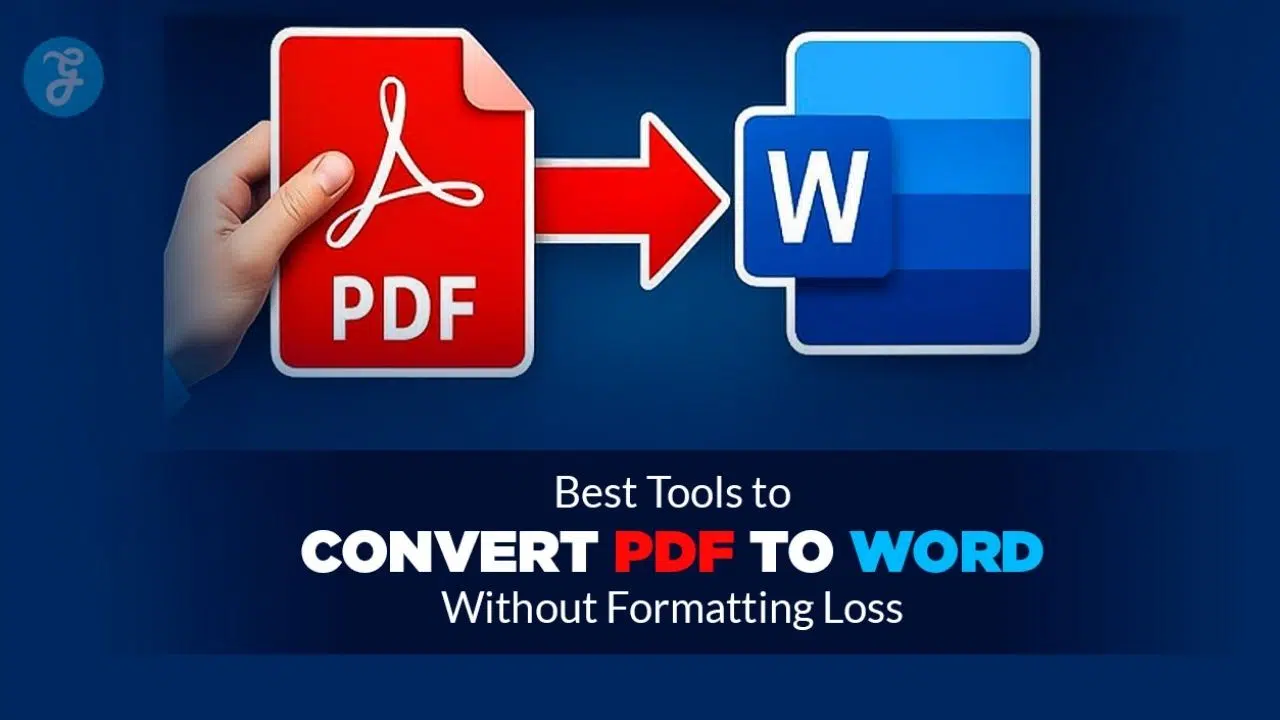
If you want to convert PDF to Word without losing formatting, you need software that actually understands document architecture and layout logic. This guide breaks down the absolute best free online tools, premium desktop software, and quick hacks to get your text out cleanly. I have tested these tools to see how they handle tables, columns, and strange fonts. You will find exactly what you need here, whether you are trying to edit a simple text page or a massive corporate brochure.
| Content Section | What You Will Learn |
| The Technical Problem | Why documents break during conversion and how to avoid it. |
| Buying Guide | Key features like OCR and layout retention to look for. |
| Top Free Tools | Quick, web-based converters that do not cost a dime. |
| Premium Software | Heavy-duty offline tools for professionals and businesses. |
| Quick Fixes | Built-in apps you might already have on your computer. |
Why Is It So Hard to Keep PDF Formatting When Converting to Word?
Understanding how these two file types work makes it easier to see why conversions fail so often. A Word document is fluid, meaning the text wraps automatically depending on your screen size, margin settings, and font choices. A PDF acts more like a digital photograph that plots every single letter, line, and image on fixed mathematical coordinates. When you force fixed coordinates back into a fluid layout, the software has to guess where paragraphs begin and end.
If the converter engine is weak, those guesses are entirely wrong, leaving you with a formatting nightmare. Think about a resume with two columns and a small profile picture in the corner. A bad converter will just read the text from left to right, completely ignoring the column divide, and dump a scrambled mess of words onto your screen.
| Feature | PDF Format | Word Format |
| Layout Style | Fixed mathematical coordinates | Fluid and screen-responsive |
| Primary Use | Printing, sharing, and securing | Drafting, editing, and formatting |
| Text Behavior | Locked in specific places | Wraps automatically around images |
| Conversion Challenge | Hard to extract fluid paragraphs | Easy to save as a locked file |
What to Look for in a Reliable PDF to Word Converter?
You cannot just pick the first tool that shows up on a search engine and expect flawless results. You need to verify that the software uses Optical Character Recognition if you are dealing with scanned pages. You also want to make sure the tool has a dedicated layout retention engine so it recognizes columns and tables instead of just dumping plain text onto the screen.
Finally, privacy matters, so look for services that auto-delete your uploaded files within a few hours to protect your personal data. A great tool should also offer batch processing, which allows you to throw twenty files at it simultaneously while you go grab a cup of coffee. Paying attention to these small details will save you hours of manual formatting work later.
| Key Feature | Why You Need It |
| Optical Character Recognition | Turns scanned images of text into actual, editable letters. |
| Layout Retention | Keeps tables, bullet points, and columns in their original places. |
| Batch Processing | Allows you to convert dozens of files at the exact same time. |
| Security Protocols | Ensures your sensitive documents are deleted from online servers. |
Top Free Online Tools for Quick and Accurate Conversions
When you are in a rush and just need a fast solution, web-based tools are a lifesaver. You do not have to install any bulky software, and you can usually get your file back in seconds. However, finding a free way to convert PDF to Word without losing formatting requires picking platforms with excellent backend engines. Just keep in mind that most of these free services will limit how many pages you can process per day. They are designed for quick fixes rather than processing an entire archive of office paperwork.
| Tool Category | Ideal User | Limitation |
| Quick Cloud Tools | Students and casual users | Daily file limits and size caps |
| Secure Web Apps | People handling standard contracts | Auto-deletion timers |
| Multipurpose Sites | Users needing various file formats | Slower processing speeds |
1. Adobe Acrobat Online

Since Adobe literally invented the format, their native web tool is incredibly powerful and accurate. The online version uses the same core engine as their expensive desktop software, which means it handles fonts, tables, and spacing better than almost anything else on the market. When you upload a file here, the software rarely messes up the margins. It reads the original document structure and builds a highly accurate replica.
You will find that complex elements like headers and footers usually stay exactly where they belong. The main catch is the usage limit. You can only convert one document for free before the site asks you to create an account or sign up for a paid subscription. It is perfect for a one-off emergency, but not great for heavy daily use.
| Adobe Acrobat Online | Software Details |
| Best Feature | Perfect margin and layout retention |
| Free Limit | One free conversion without an account |
| Ease of Use | Very simple drag and drop interface |
| Privacy | High security with standard encryption |
2. Smallpdf
Smallpdf is wildly popular because the interface is colorful, clean, and entirely drag-and-drop. You do not need to be a tech expert to figure out how to use it. It connects directly to Google Drive and Dropbox, letting you pull files straight from your cloud storage without downloading them first. This tool does an amazing job with standard business documents like resumes, cover letters, and simple text reports.
It keeps the fonts looking sharp and ensures your paragraphs do not randomly split in the middle of a sentence. The free tier restricts you to just two actions every 24 hours. If you need to convert three documents, you have to wait until the next day or pay for their pro plan.
| Smallpdf | Software Details |
| Best Feature | Cloud storage integration |
| Free Limit | Two tasks per day |
| Ease of Use | Excellent for beginners |
| Privacy | Secure auto-deletion after processing |
3. iLovePDF
If you ask a college student what their favorite document tool is, they will almost always say iLovePDF. It is fast, reliable, and surprisingly generous with its free features. Unlike many competitors, it actually lets you process a few files at once without immediately hitting a paywall. Formatting retention is solid for straightforward text files. It maps out basic tables and bulleted lists nicely.
However, it can sometimes struggle if you upload a highly visual document with overlapping text boxes and transparent images. It remains a top choice for people who handle basic office paperwork. The site deletes your files within two hours, giving you a reasonable level of privacy for non-sensitive data.
| iLovePDF | Software Details |
| Best Feature | Batch processing for free users |
| Free Limit | Varies based on total file size |
| Ease of Use | Straightforward and fast |
| Privacy | Files deleted after two hours |
4. PDF2Go
PDF2Go stands out because it offers optional OCR technology even on its free tier. Most online tools charge you money if you want to extract text from a scanned document, but PDF2Go lets you do it for free. The website is highly optimized for mobile browsers. If you are on a train and someone emails you a contract that you need to edit on your phone, this site loads fast and works perfectly on touch screens.
Because it is completely free with very loose limits, the site runs a lot of banner ads. It can feel a bit cluttered, but that is a fair trade-off for getting premium features without entering your credit card details.
| PDF2Go | Software Details |
| Best Feature | Free OCR for scanned pages |
| Free Limit | Unlimited but heavily ad-supported |
| Ease of Use | Great mobile browser experience |
| Privacy | Standard file deletion practices |
5. Zamzar
Zamzar is one of the oldest file conversion sites on the internet. It supports hundreds of different file formats, making it a great website to just keep bookmarked on your browser for any random task you might run into. For standard text documents, Zamzar extracts the words quickly and formats the paragraphs correctly.
It is a very lightweight process that delivers your new file to your email inbox if you prefer not to wait on the webpage. It does have a strict 50 MB size limit for free users. It also lacks advanced layout retention for complex magazine-style pages, so use it primarily for text-heavy reports and essays.
| Zamzar | Software Details |
| Best Feature | Massive file format support |
| Free Limit | 50 MB file size limit |
| Ease of Use | Email delivery option available |
| Privacy | Reliable and trusted brand |
Best Premium and Desktop Converters for Heavy Users
If you work in an office, a law firm, or a medical facility, you cannot rely on free websites with daily limits. Desktop software provides total privacy because your files never leave your computer. More importantly, to consistently convert PDF to Word without losing formatting on complex documents, you need the massive processing power that only installed software provides.
These programs are designed to handle thousands of pages, reconstruct broken tables, and read multiple languages through advanced OCR engines. They cost money, but they pay for themselves in the time you save not fixing margins.
| Software Category | Ideal User | Pricing Structure |
| Industry Standard | Corporate offices and agencies | Monthly or annual subscriptions |
| Lifetime License | Small business owners | One-time purchase options |
| Specialized Tools | Data entry clerks | Lower cost utility pricing |
6. Adobe Acrobat Pro
This is the absolute gold standard for document management. Adobe Acrobat Pro has the most advanced conversion engine available to the public. When you run a document through this software, the resulting Word file looks like an identical twin to the original. It handles nested tables, custom fonts, floating graphics, and multi-column layouts effortlessly.
It also features top-tier OCR technology that recognizes dozens of different languages with near-perfect spelling accuracy. The downside is purely financial. Adobe requires a relatively expensive monthly subscription, which makes it a tough sell for casual users who only need to edit a file once a month.
| Adobe Acrobat Pro | Software Details |
| Best Feature | Flawless document reconstruction |
| System | Windows and Mac available |
| Performance | Handles extreme file sizes easily |
| Cost Factor | High monthly subscription fee |
7. Nitro PDF Pro
Nitro is widely considered the best direct alternative to Adobe. The developers smartly designed the interface to look exactly like Microsoft Office. If you know how to use Word or Excel, you will instantly know how to navigate Nitro. The formatting retention is exceptional. It strips away the locked coordinates and rebuilds the document using native Word formatting rules, meaning your text will flow naturally when you start adding or deleting sentences.
Nitro also offers a one-time purchase license for users who absolutely refuse to sign up for another monthly subscription. This makes it a great long-term investment for small business owners.
| Nitro PDF Pro | Software Details |
| Best Feature | Microsoft Office style interface |
| System | Built primarily for Windows |
| Performance | Fast rendering and editing |
| Cost Factor | One-time purchase available |
8. Foxit PDF Editor
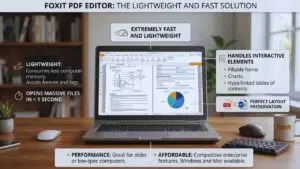
Foxit is built for speed and efficiency. Many heavy PDF editors consume a lot of computer memory, causing older laptops to freeze or lag. Foxit is incredibly lightweight, opening massive files in less than a second. During the conversion process, Foxit shines at handling interactive elements. If your document has fillable forms, charts, or hyperlinked tables of contents, Foxit translates those elements directly into the new Word file without breaking the layout.
It is generally more affordable than Adobe and offers excellent enterprise features, making it a favorite for IT departments outfitting a whole fleet of company computers.
| Foxit PDF Editor | Software Details |
| Best Feature | Extremely fast and lightweight |
| System | Windows and Mac available |
| Performance | Great for low-spec computers |
| Cost Factor | More affordable subscription plans |
Wondershare PDFelement is arguably the best-looking software on this list. It features a modern, clean interface that feels very intuitive. It is highly recommended for people working in creative fields like marketing or graphic design. This tool is uniquely good at retaining the layout of visual documents.
If you have a brochure with text wrapping around a circular image, PDFelement will preserve that exact spatial relationship when exporting to Word. It also boasts an incredibly robust OCR system that supports over twenty languages. The software walks you through the conversion steps clearly, making it very friendly for beginners.
| Wondershare PDFelement | Software Details |
| Best Feature | Preserves complex graphic layouts |
| System | Windows and Mac available |
| Performance | Smooth processing for visual files |
| Cost Factor | Yearly subscription required |
10. TalkHelper PDF Converter
TalkHelper is a bit different from the others because it is purely a dedicated conversion tool, not a full document editor. It is currently only available for Windows users, but it does its specific job incredibly well. The core strength of TalkHelper is extracting massive amounts of data. If you have a massive document filled with financial tables and legal text, this tool will chew through it quickly and spit out a cleanly formatted file.
Because it focuses solely on conversion, it is cheaper than full-suite editors. It is a fantastic utility tool to have on your desktop if your daily job involves data entry or archiving old records.
| TalkHelper | Software Details |
| Best Feature | Excellent data table extraction |
| System | Windows only |
| Performance | Built for heavy batch processing |
| Cost Factor | Budget-friendly one-time fee |
Honorable Mentions: Great Alternatives for Quick Fixes
Sometimes you do not want to upload a file to a website, and you definitely do not want to buy expensive software. There are a few tools you probably already use every day that have hidden conversion features built right in. While they might not be perfect for graphic-heavy files, they work wonderfully for pulling raw text out of simple documents. If you are just trying to grab a few paragraphs from a report so you can paste them into an email, these everyday apps will save you a lot of headache. Just do not expect them to perfectly map out complex columns or sidebars.
| Alternative Tool | Best Use Case | Expected Result |
| Built-in Programs | Fast text extraction offline | Poor image and layout retention |
| Cloud Drives | Mobile or remote access | Basic text styling maintained |
| Suite Websites | Accessing multiple tools at once | Slower processing but reliable |
11. Microsoft Word
Many people do not realize that modern versions of Microsoft Word can actually open locked files directly. You simply launch Word, go to the open file menu, and select your locked document. Word will pop up a warning message and then attempt to translate it. For text-heavy documents like novels, essays, or legal briefs, this method works beautifully.
It automatically applies your default Word styles to the imported text, making it instantly ready for editing. However, if your document has sidebars, custom background images, or complex borders, Microsoft Word will completely destroy the layout. Use this method only for simple, straightforward text.
| Microsoft Word | Software Details |
| Best Feature | No extra software needed |
| Drawback | Destroys complex visual layouts |
| Speed | Instant offline processing |
| Cost | Free if you own Office |
12. Google Docs
Google Drive offers a very similar hidden trick. You can upload your document to your Drive, right-click the file, and select the option to open it with Google Docs. Google will run a quick background process to extract the words. This is a fantastic, entirely free hack if you just need the raw text and do not care about the visual design.
It actually has a decent built-in OCR engine, so it can sometimes pull words out of scanned images. The layout retention here is generally poor. Images will drop out, columns will merge into single blocks of text, and fonts will change to standard Google fonts. You will definitely have to spend time cleaning up the formatting afterward.
| Google Docs | Software Details |
| Best Feature | Completely free cloud solution |
| Drawback | Images and tables often break |
| Speed | Fast cloud processing |
| Cost | Free for everyone |
13. Sejda PDF
Sejda is a fantastic web tool for users who are overly cautious about privacy but still want a free online solution. Their privacy policy is one of the strictest in the industry, guaranteeing that all uploaded files are permanently wiped from their servers after just two hours. The conversion engine is solid, keeping basic text and tables nicely aligned.
The user interface is distraction-free, lacking the heavy advertisements found on other free sites. The catch is the strict usage limit. The free tier restricts you to documents that are 200 pages or less, and under 50 megabytes in size. You are also limited to three tasks per hour.
| Sejda PDF | Software Details |
| Best Feature | Incredible privacy and security |
| Drawback | Strict page and size limits |
| Speed | Very fast processing time |
| Cost | Free for limited hourly use |
14. PDF Candy
PDF Candy is like a massive digital toolbox. It offers over forty different document tools on one website. If you hit your daily limit on Smallpdf or iLovePDF, PDF Candy is the perfect backup site to visit. The Word conversion tool is reliable and completely free of annoying watermarks.
It processes files fairly quickly and handles standard formatting without much trouble. Because it offers so many free tools, the site traffic can be heavy. Sometimes the conversion process takes a little longer during peak business hours, but the final result is usually worth the minor wait.
| PDF Candy | Software Details |
| Best Feature | Over 40 tools in one place |
| Drawback | Can run slow during peak hours |
| Speed | Average web processing speed |
| Cost | Free without watermarks |
How to Choose the Right Tool to Convert PDF to Word Without Losing Formatting
With so many options available, picking the best software really comes down to what kind of work you do every day. A graphic designer needs a very different tool than a college student. By identifying your exact needs, you can easily select a program that saves you time and frustration.
If you need to convert PDF to Word without losing formatting on a daily basis, investing in premium software is almost always the right call. It stops you from wasting hours realigning text boxes. Think about your budget, your privacy needs, and how often you actually deal with locked files before making your choice.
| User Profile | Recommended Tool | Primary Reason |
| The Casual User | Adobe Acrobat Online | Perfect accuracy for a one-time quick fix. |
| The Privacy Seeker | Sejda PDF | Guaranteed two-hour file deletion from servers. |
| The Budget Business | Nitro PDF Pro | Excellent formatting with a one-time payment option. |
| The Data Entry Clerk | TalkHelper | Specialized in extracting massive tables cleanly. |
| The Visual Designer | Wondershare PDFelement | Best at keeping images and wrapping text aligned. |
Final Thoughts
Dealing with locked documents does not have to ruin your afternoon or slow down your workflow. The technology has advanced dramatically over the last few years, making it easier than ever to pull editable text out of rigid files. Whether you are using a quick web tool or heavy-duty desktop software, the goal remains the same. You just want to get your work done without manually retyping paragraphs.
If you take the time to pick software that features strong OCR and dedicated layout mapping, you will never have to fix broken margins again. Remember, the secret to being able to convert PDF to Word without losing formatting is simply matching the right tool to the complexity of your document. Try out a few of the free web tools mentioned above, or download a free trial of the premium software, to see which interface fits your workflow best.