
Some folks hit a wall with Windstream Login Email. You might see a blank page or an error message. Many users don’t know that blocked third-party cookies cause this. To open your mail, you must allow those cookies.
We will show you how to turn on cookies in Chrome, Firefox, Safari, and Internet Explorer 9. You also get tips on IMAP, SMTP, and using a mail app like Outlook or Thunderbird. We cover mobile login and extra security steps too.
Keep reading.
Key Takeaways
- Allow third-party cookies in Chrome, Firefox, Safari, or IE9 to fix blank pages or errors when you log in at webmail.windstream.net
- In your mail app (Outlook, Thunderbird, Windows Mail), use imap.windstream.net (port 993, SSL) for incoming and smtp.windstream.net (port 587, TLS) for outgoing
- On mobile, add a Windstream account in your email app, set IMAP or POP3, clear your browser cookie cache if the page loops, and enable cookies for smooth login
- Turn on multi-factor authentication in your Windstream portal, link an authenticator app or SMS, and call 1-866-445-8084 for password resets or extra support
How to Access Windstream Login Email
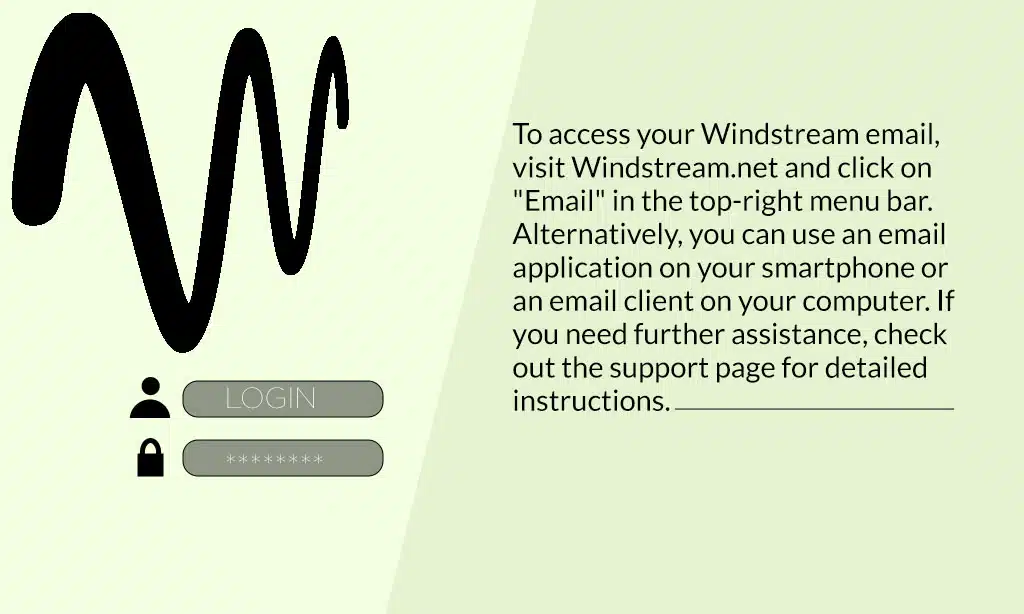
Open Chrome or Safari and log in at webmail.windstream.net with your Windstream email and password. Set up your Windstream mail in Windows Mail or on your Pixel device and catch every message on the go.
Steps to log in via the Windstream Webmail portal
I outline quick steps to finish your Windstream login email. This guide shows how to use the Windstream Webmail portal.
- Visit www.windstream.net in your browser.
- Select the Email option at the top right of the menu bar.
- Activate third-party cookies in browser settings for smooth portal use.
- Type your windstream.net email address into the User field.
- Input your account password in the Password field.
- Press the Sign In button to start your webmail session.
- Watch your Windstream email load in the webmail client.
Accessing Windstream email on mobile devices
Mobile customers can grab their Windstream inbox on a phone app. Third-party cookies must work in the mobile browser.
- Open the email application on your Google OS device, such as Microsoft Outlook or Thunderbird, type your windstream.net email account and password, and set up the incoming server imap.windstream.net and the outgoing server smtp.windstream.net to send and receive messages.
- Tap Settings in your mail app, choose Add account, enter your Windstream username, pick IMAP under server settings, set imap.windstream.net port 993 with SSL for incoming and smtp.windstream.net port 587 with TLS for outgoing, and then save.
- Sign into Go Kinetic with the same Windstream account credentials, click on the Email box, add a new address, and then you can see your messages on your mobile device without extra steps.
- Clear the HTTP cookie cache in your mobile browser if the login page loops like a broken record, then close the browser, open it again, and log into your Windstream username.
- Turn on multi-factor authentication in your Windstream account portal, follow the prompts to link a one-time password via text, and keep hackers at bay.
- Allow third-party cookies in your mobile browser settings, go to Privacy, hit Cookies, toggle on cookies from other sites, and you will avoid annoying errors.
Windstream Login Email Server Settings
Windstream uses an incoming mail protocol on port 993 with Transport Layer Security. It manages outgoing traffic through Simple Mail Transfer Protocol on port 587 with STARTTLS.
Incoming server (IMAP/POP3)
Your email client uses Internet Message Access Protocol or Post Office Protocol on the incoming server. IMAP syncs mail across devices and stores it on remote storage. POP3 pulls mail down and clears it from the host.
Both modes require the right host name, your email address, and password.
Enable Transport Layer Security on port 993 for IMAP or on port 995 for POP3. Open your browser settings and allow third-party cookies for the email client’s webmail portal. Then the message transfer agent will fetch new content.
Your client will pull mail with each sync.
Outgoing server (SMTP)
Windstream uses smtp.windstream.net on port 587 with TLS encryption. Email apps like Thunderbird, Outlook.com, and the Windows Mail tool fetch those details to send messages fast. You must enter the username and password exactly in the server setup.
Correct credentials and server settings keep your emails moving.
Browser cookies also play a role in webmail, so allow third-party cookies in your browser. This lets the portal pass login details to the SMTP host without glitches.
Common Login Issues and Troubleshooting
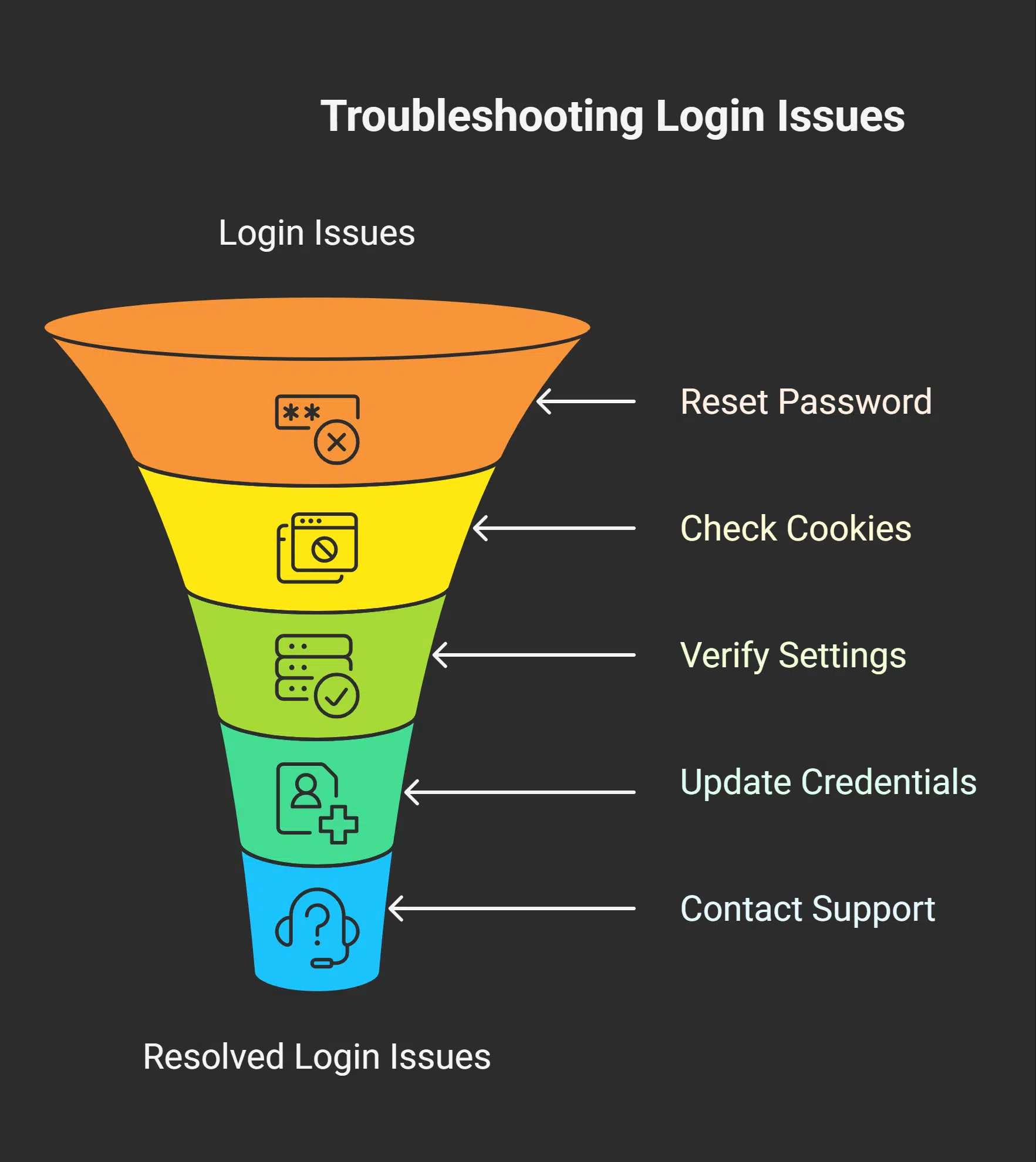
Wrong security answers can block your login, but a reset on the server restores access. Clear cookies or open a fresh email client on your mobile OS to fix the glitch fast.
Resetting your Windstream email password
You need to recover a lost Windstream login fast. Gather your account number and your login name first.
- Check that your browser allows third-party cookies; this stops reset errors.
- Go to the Kinetic by Windstream password reset page in a browser on Android or desktop and input your login name.
- Confirm your account number and email address on file; this helps verify you.
- Answer your security questions as set up during email 101; this proves identity.
- Set a new secure password; make it long and random to protect your platform.
- Click reset and wait for the confirmation email, then log into your account with your new key.
- Open your mail client, like Mozilla Thunderbird or Mail on Windows, and update server settings and password.
- Contact Windstream customer service at 1-866-445-8084 if any error pops up, a rep will guide you.
Resolving login errors
After resetting your password, you may see login errors. We will help you fix those fast.
- Check browser cookies. Third-party cookies must be on for your mailbox provider to track login data.
- Verify password recovery. Use the recovery tool if your user (computing) info fails to match the server.
- Inspect server settings. Make sure IMAP or POP3 uses imap.windstream.net and SMTP uses smtp.windstream.net with the right port.
- Update app credentials. On Android (operating system) or in Mail (Windows), replace saved login details with your new password.
- Disable automatic sign-in. Turn off any auto-fill feature that might push old info to Windstream Holdings.
- Generate mfa passcodes. If you use multi-factor authentication, make an app-specific password for your email client.
- Contact customer support. Call 1-866-445-8084 for direct help with any login error.
Tips for Securing Your Windstream Login Email Account
Turn on multi-factor authentication and link it to an authentication app for extra shields. Use a password vault or a password manager to lock down your logins.
Enabling multi-factor authentication
Set up an email with extra protection by using multi-factor authentication. This feature adds a second step after you type your password. You can link your account to an authentication token or use SMS codes.
An app like an authenticator generates time-based codes you type in.
It feels like adding a deadbolt to your door. Allow third-party cookies in your browser settings so the MFA prompt works. The Windstream email server (computing) will ask for your code after it checks your password.
Follow each instruction on screen to finish the setup and guard your information from unwanted access.
After you enable multi-factor authentication, look at cookie and browser settings. Windstream Mail needs a few cookies to run. Use the web browser menu and pick site data or privacy. Turn on third-party cookies for Windstream domains.
This step keeps your inbox fast and full of features. You might tweak the cookie manager tool or menu to clear old data. Need extra help? Call 1-866-445-8084 for support.
Takeaways
Windstream login email keeps access easy for residential, business, and enterprise users. The online portal and email protocol sync across desktop and mobile platforms. Browsers let you tweak cookie and content settings with clear steps.
A quick setup of multi-factor authentication boosts safety. Contact customer service at 1-866-445-8084 for extra help.
FAQs on Windstream Login Email
1. How do I sign in to my Windstream login email?
Go to windstream.net, tap Email Login, type your full email, add your password, and tap Sign In. It is like opening a door with the right key, no fuss.
2. Can I use Windstream webmail solutions on a phone?
Yes, just open a browser on your phone, go to windstream.net, and tap Email Login. It works like carrying your mailbox in your pocket.
3. What if I forget my Windstream email password?
Click Forgot Password on the login email page, follow the steps, and pick a new password. You get a reset link by email, no more blank stares at the login box.
4. Why does my Windstream login fail, and how can I fix it?
Check your net first, slow service often trips logins. Make sure your email and password match exactly, clear your browser cache, or restart your device. It can feel like a locked gate, but a quick check often fixes it.