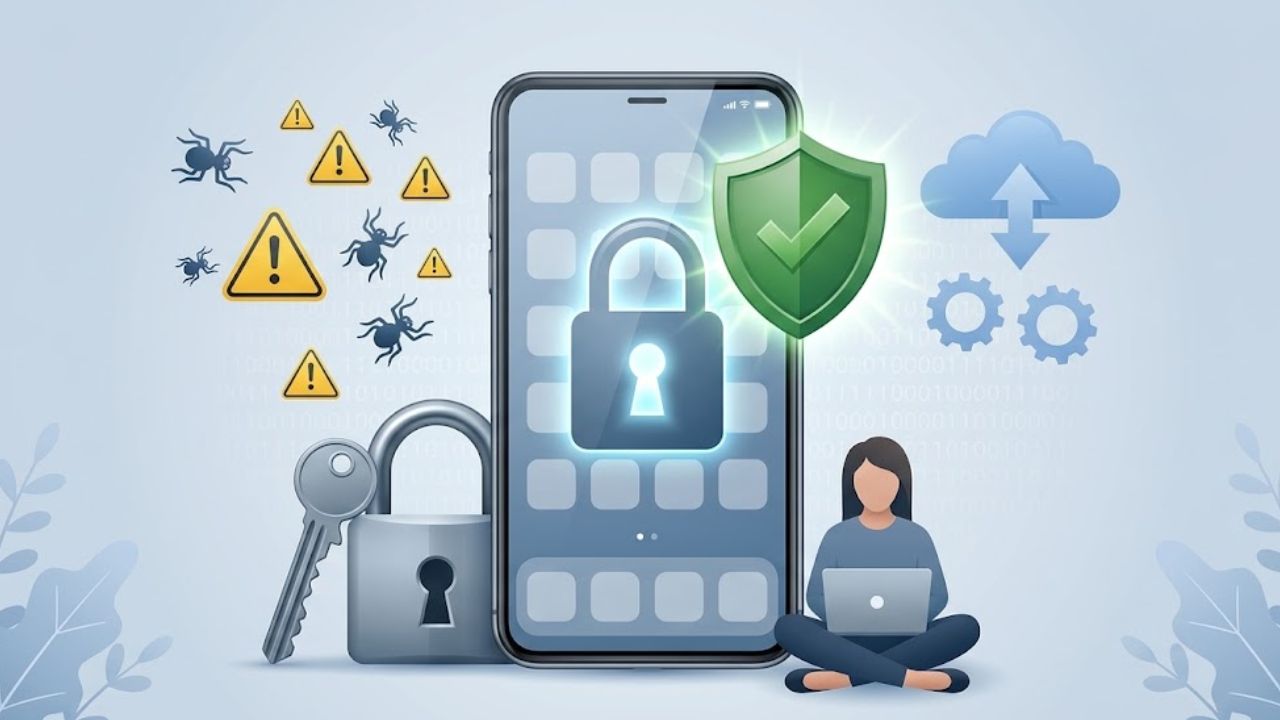
Your phone may unlock email, banking, messages, photos, work files, and recovery tools. If stolen, the damage can extend beyond the device itself. The most effective way to secure your smartphone is to protect the screen, the main account, and the data behind both.
The list is ordered by impact. Handle the first five steps before considering optional security apps or smaller privacy adjustments.
Before You Secure Your Smartphone, Check Its Support Status
Security menus differ by manufacturer, software version, and region. Older phones may lack some features below. A device without security updates should not remain your main tool for banking, work, or sensitive accounts.
Check the manufacturer’s support schedule. A security app cannot patch an unsupported operating system.
1. Install System and App Updates
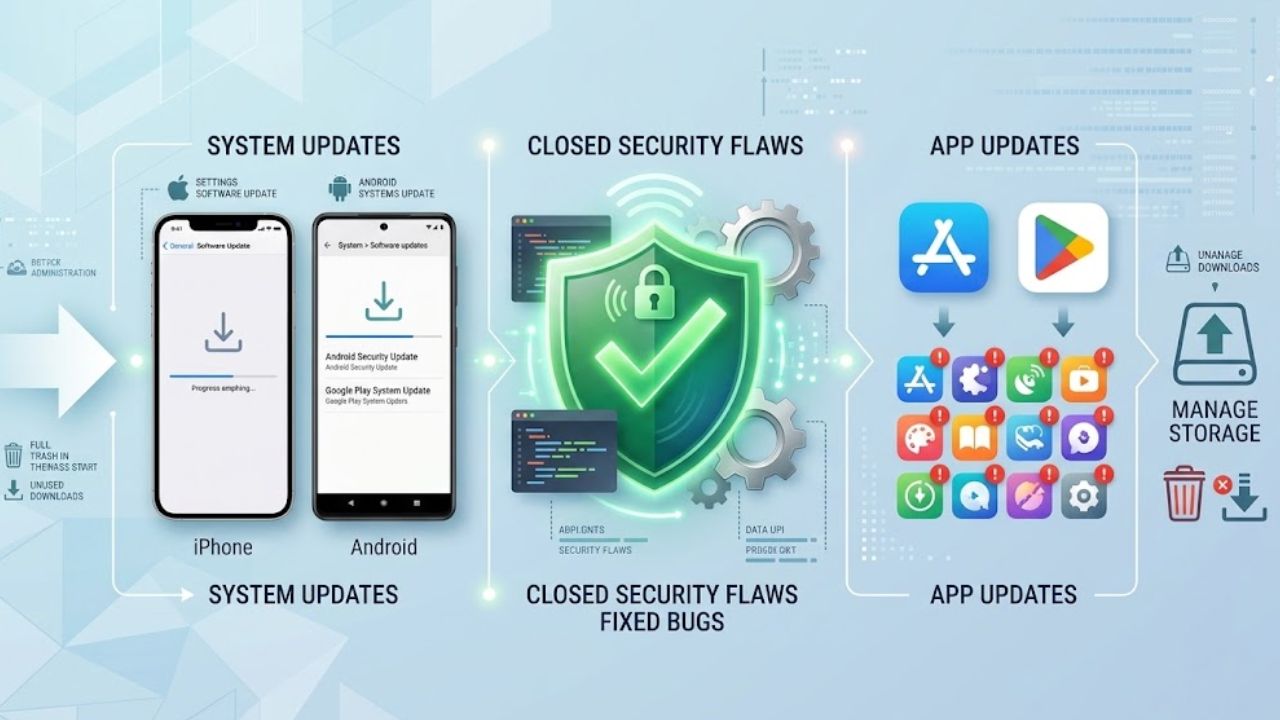
Updates close security flaws as well as fixing bugs. On an iPhone, open Settings > General > Software Update and review Automatic Updates. On Android, the usual route is Settings > System > Software updates, though wording varies. Check both the Android security update and the Google Play system update.
Update apps through the App Store or Google Play too. If storage blocks an update, remove unused downloads or apps. Staying current is one of the quickest ways to secure your smartphone without adding another service.
2. Replace a Weak Screen Lock
A birthday, repeated number, or simple sequence is a poor PIN. If you use numbers, choose six digits or more; people carrying especially sensitive information should consider an alphanumeric passcode.
Face or fingerprint recognition is convenient, but the fallback code still matters. Do not enter it where someone can watch, and shorten the automatic-lock delay. Even an excellent passcode cannot protect a phone left unlocked.
3. Protect the Main Apple or Google Account
To secure your smartphone at the account level, enable two-factor authentication for its Apple Account or Google Account. That login may control backups, saved passwords, tracking, and recovery.
Remove old trusted devices and confirm that recovery details still work. For other important accounts, prefer passkeys, security keys, prompts, or an authenticator app. Text codes improve on a password alone but depend on your number. Store recovery codes elsewhere.
4. Turn On Built-In Theft Protection
On iPhones running iOS 17.3 or later, Stolen Device Protection can require Face ID or Touch ID for sensitive actions and delay certain account changes. Enable it before the phone disappears.
Android support is fragmented. Theft Detection Lock, Offline Device Lock, Remote Lock, and Identity Check require supported devices; minimum versions range from Android 10 to Android 15. The main set excludes Android Go devices, tablets, and wearables.
These controls help secure your smartphone when a thief knows the screen code. They deserve priority over a vaguely described “phone cleaner” or security utility.
5. Set Up Find My or Find Hub Before You Need It
Apple Find My and Google Find Hub can locate, lock, mark as lost, or erase a missing phone. Confirm that the service is enabled, the right account is signed in, and location works. Test access from another trusted device.
Erasure has different consequences. An iPhone running iOS 15 or later may remain findable afterward; a factory-reset Android phone leaves Find Hub. If a stolen phone appears at an unfamiliar address, contact local authorities rather than retrieving it yourself.
6. Audit App Permissions
A navigation app has a clear reason to request location. A basic game probably does not need contacts, call logs, or constant microphone access.
Review location, camera, microphone, contacts, photos, files, SMS, and nearby-device permissions. Choose While Using the App, Ask Every Time, or limited photo access where appropriate. Removing access may break a feature, so compare each request with what the app does. A periodic review helps secure your smartphone from unnecessary collection.
7. Be Selective About What You Install
Use the App Store or Google Play by default. Store review lowers risk but does not make every listing trustworthy. Check the developer, update history, privacy information, and permissions—not only the star rating.
Be cautious when a message or website urgently requests an app, profile, certificate, or Android package. Avoid sideloading unless you can verify the source and permissions. Android users should leave Google Play Protect enabled; it can warn about, disable, or remove harmful apps.
8. Stop Reusing Passwords
One reused password can expose several accounts after a breach. A password manager can generate and store a different credential for each service.
On iOS 18 or later, Apple’s Passwords app stores credentials and passkeys. Google Password Manager is built into Android and Chrome. A separate manager may suit people who switch platforms. Passkeys resist conventional credential phishing. Better credential habits secure your smartphone and its connected services.
9. Protect the SIM and Carrier Account
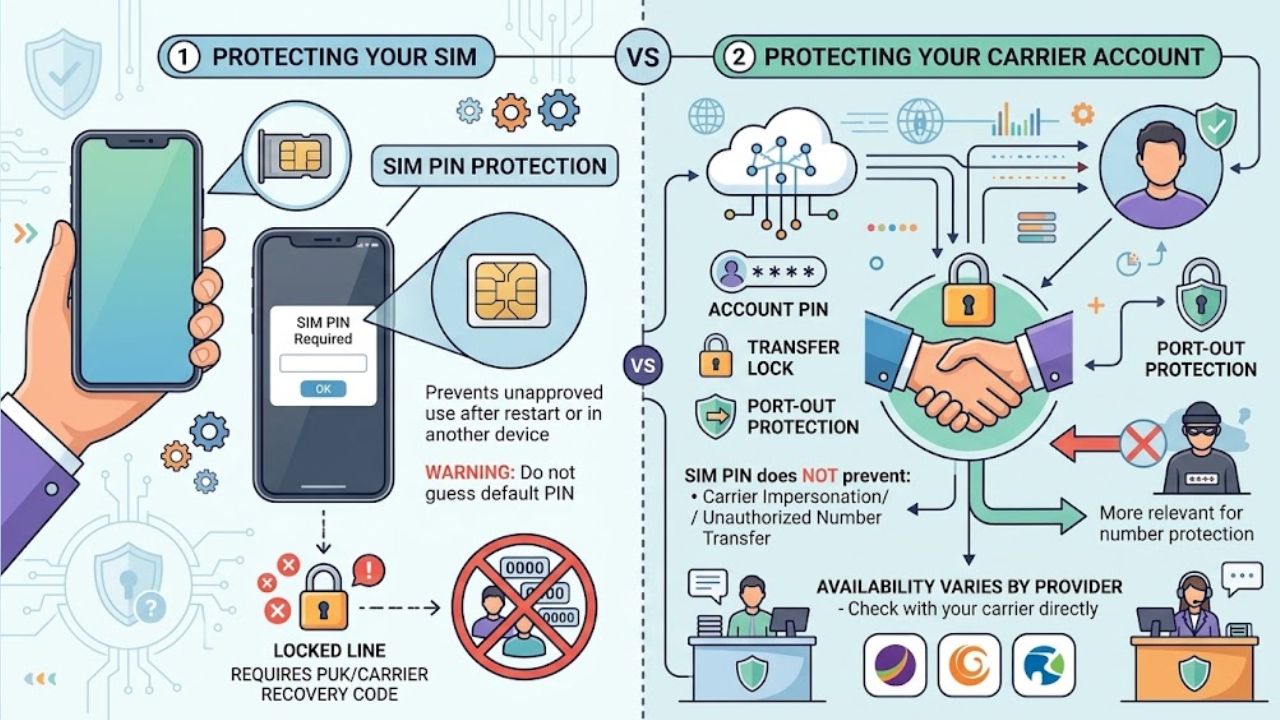
A SIM PIN can stop someone using your SIM or eSIM line after a restart or in another device. Do not guess the default PIN: repeated errors can lock the line and require a carrier recovery code.
A SIM PIN cannot stop a criminal from persuading a carrier to transfer your number. An account PIN, transfer lock, or port-out protection is more relevant. Availability varies by provider—a distinction generic advice often misses.
10. Hide Sensitive Notification Previews
Lock-screen previews can expose email subjects, private messages, banking alerts, and one-time codes without anyone opening the phone. Set sensitive notifications to reveal their content only after authentication.
Banking, payment, password, photo, and messaging apps may offer an extra biometric lock. Use it where useful, but keep emergency or medical information available if needed. This adjustment helps secure your smartphone without making every alert inconvenient.
11. Treat Links, QR Codes, and Public Wi-Fi With Care
Treat unexpected delivery notices, payment requests, QR codes, and sign-in prompts as unverified. Open the relevant app directly or type a known address. No legitimate support agent needs your device passcode, password, recovery key, or verification code.
Public Wi-Fi is not an automatic compromise, but fake hotspots remain a concern. Confirm the network name, disable automatic connections, and reject unexpected profiles or certificates. Use mobile data when doubtful. A VPN encrypts traffic between the phone and its provider; it cannot make a fraudulent website safe. Treating one as complete protection is overrated.
12. Back Up What Matters
Turn on iCloud Backup or Android backup and check the last successful copy. Photos and chat histories may use separate settings, so verify anything you cannot afford to lose.
Keep the carrier’s contact details, the phone’s IMEI or serial number, and account-recovery instructions somewhere else. A backup will not prevent theft, but it makes remote erasure and replacement far less disruptive.
Final Thoughts
If you want to secure your smartphone today, start with four checks: install pending updates, strengthen the screen lock, protect the main account, and confirm that remote finding works. Add theft protection next if the device supports it.
Those steps take priority over paid security apps. Then review permissions, passwords, notifications, carrier safeguards, and backups. Focused protections beat relying on one app to cover everything.
Frequently Asked Questions (FAQs)
Should I pay for a mobile security app?
Configure the built-in protections first. A paid product may add a VPN, breach alerts, scam-call filtering, or family tools, but it cannot replace updates, a strong lock, two-factor authentication, or careful installation. Before paying, check whether its useful features already come with another service.
What should I do first if my phone is stolen?
Use Find My or Find Hub from a trusted device to mark it as lost and lock it. Contact the carrier and review critical email, financial, and password-manager accounts. Consider erasure when recovery looks unlikely. Never confront someone based only on a map location.
Can these steps prevent every phone attack?
No. They reduce common risks and limit damage from loss, theft, phishing, and weak account security. Journalists, activists, political staff, and others at elevated risk may need advanced protection, security keys, stricter communication practices, and qualified guidance.