
An app can open perfectly at home and still fail in a car, on a plane, or at a destination with unreliable service. The installed app, its downloaded lessons, account access, and saved progress are separate things. An offline learning app test should check the exact activities a child plans to use on the actual travel device, with the connection genuinely off.
This is a practical test for parents, caregivers, and teachers preparing a phone or tablet. It applies to reading, math, language, and creative apps, although each developer defines “offline” differently. For example, Khan Academy Kids documents a specific offline area, Kodi’s Suitcase, and says that creating an account initially requires Wi-Fi. Lingokids says offline activities must be downloaded in advance and that offline mode is part of its Plus plan. The point is to verify your own setup before depending on it, not to assume an app’s offline label covers every lesson.
Set up a realistic offline learning app test
Update the app and finish any account, purchase, or download steps while connected. Use the same device, child profile, and accessories that will travel. Then turn on airplane mode and confirm Wi-Fi and cellular data are actually off; some devices let Wi-Fi be switched back on while airplane mode remains active. Close the app completely before the first test so a page already open in memory cannot create a false pass.
Choose two or three representative activities: a familiar favorite, a new lesson, and one that uses audio or another feature the child needs. Write down the app version, device, chosen content, and the result of each scenario. A successful test means the child can complete the intended activity under the travel conditions, not merely see its thumbnail.
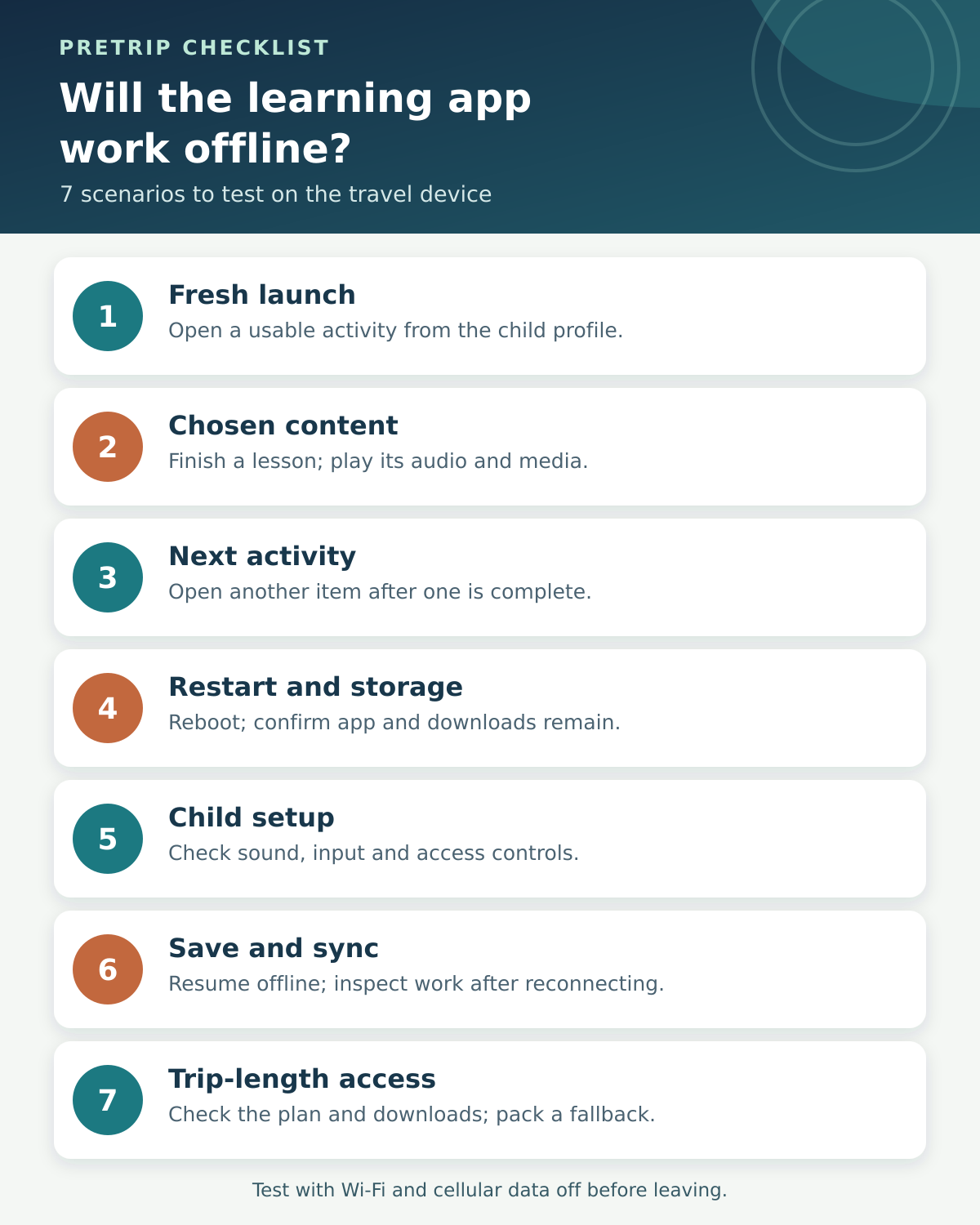
1. Open the app from a fresh start without internet
Start in the child’s normal device profile, not an adult account that has different permissions. With Wi-Fi and cellular data off, launch the app from its icon. Can the child reach the intended activity without a sign-in prompt, a parental email code, a subscription restoration screen, or a loading spinner that never ends? Close it and repeat once; some apps behave differently after a fresh launch than when they were left open online.
If this fails, reconnect at home and complete setup, email verification, and any plan activation. Then run the offline launch again. Do not sign out just to “test harder” unless signing out is a realistic trip condition; that can create an avoidable need to authenticate. Khan Academy Kids, for instance, says its account must initially be created with Wi-Fi even though its designated offline activities can subsequently be used without it. Its offline-content guidance makes that boundary explicit.
The pass condition is simple: a child can enter the right profile and reach a usable offline activity after a cold launch.
2. Open every kind of content you plan to use
A downloaded app is not necessarily a downloaded course. A menu may list books, videos, and games while only some of them are stored locally. Open the selected lesson with the network off and go beyond the first screen. Play its audio or video, load a later page, answer a question, and inspect the feedback. If an activity has several chapters or resource files, sample the beginning and the end.
Check the developer’s download indicator before disconnecting, then verify it by opening the item offline. Lingokids, for example, says its offline view shows activities already saved to the device and that its Basic plan does not include offline mode. Its current offline instructions identify where parents can find downloaded activities. That is an example of why the relevant plan and the specific item matter more than the app’s store description.
If a favorite does not load, download that item while connected or choose an activity that does. For a longer trip, prepare variety across the skills and formats the child actually enjoys. The offline games for kids guide can help narrow candidates, but the selected game still needs this device-level check.
3. Finish one activity and try the next one
The first lesson might be cached while the next one needs a server request. Complete a short activity in airplane mode, return to the lesson list, and open the next item. Also test a level that has not previously been opened online. If the app offers a daily feed or adaptive path, see what remains available after the current item ends.
This scenario answers a different question from whether a download plays: will there be enough usable learning for the length of the journey? A child may finish a five-minute exercise early in a long delay. Count accessible activities rather than assuming a whole curriculum will follow the first one offline. If the next item is locked or blank, prepare several independent downloads or a second app with a self-contained activity.
Choose content with a purpose. A few letter-sound or counting exercises that match the learner’s current skill can be more useful than a large collection they cannot navigate. The learning-app selection guide offers a separate check of the task, feedback, and age fit.
4. Restart the device and check that the app is still there
Keep the device offline, fully restart it, unlock the travel profile, and launch the app again. Return to an activity that passed earlier. This catches an app that depended on a session held in memory, content that was not retained, or a profile restriction that appears only after a restart.
Look at storage before departure as well. On an iPad, Apple says the Offload Unused Apps setting can remove an app when storage is low while leaving an icon with a cloud symbol; tapping that icon reinstalls the app, which is no help without a connection. Check that the learning app is installed, opens normally, and has room for its downloads. Apple’s iPad storage guidance explains the offload behavior. Android owners should likewise inspect device storage and avoid clearing an app’s data as a casual space-saving step, because that can remove locally stored work and settings.
Do not uninstall and reinstall an app immediately before leaving unless you can redownload and retest everything. PBS’s troubleshooting guidance, for example, says reinstalling its Kids apps requires downloaded games and videos to be downloaded again. A restart is a useful test; a fresh installation changes the preparation you are testing.
5. Use the child’s actual sound, input, and access settings
An activity can render offline yet be unusable for the child. Test with the headphones, volume limit, captions, reading support, switch or screen-reader settings, and device restrictions that will be in place during travel. If a task asks the child to speak, test whether the microphone-based response works with no connection; some features may depend on online processing even when the rest of a lesson is available. Do not assume one app’s behavior applies to another.
Ask the child to navigate from the normal home screen to the chosen activity, with appropriate supervision. Note whether a parent-only menu, purchase prompt, or device permission interrupts the path. For siblings sharing one tablet, repeat the relevant checks for each profile rather than assuming content and progress are shared. Keep parental safeguards in place during the test. If the activity needs an unavailable feature, choose a downloaded alternative that does not depend on it.
This check is also a learning check: can the child hear the instruction, understand what to do, and recover after a mistake? Making screen time educational explains how to pair a short app activity with a skill the child can practice away from the device.
6. Interrupt a lesson, save work, and reconnect
Halfway through an offline activity, lock the screen or switch briefly to another app. Return and see whether the child can resume. Finish an activity and note its completion state before turning the connection back on. After reconnecting, reopen the same profile and check whether the completion and any work product still appear. If the app has a parent progress view on another device, check it only after the local result is clear.
Offline access and progress synchronization are different capabilities. An activity may be playable but not sync immediately, or it may restart after an interruption. This is especially consequential when a child uses two devices or a teacher expects a completion record. Do not promise that every app will merge offline work automatically. If the result disappears or duplicates, keep the travel plan on one device, record the work another way if necessary, and ask the developer about that app’s sync behavior before relying on the report.
For a drawing or writing app, inspect the actual saved creation as well as a badge or score. If a child makes something worth keeping, follow the app’s export or backup instructions while connected. Deleting an app during troubleshooting can erase locally stored creations in some products.
7. Check the trip-length limit and prepare a fallback
Make one final offline run close to departure, particularly after an app update, a device cleanup, or a subscription change. Confirm the trial or paid plan remains active through the trip and that downloads have not disappeared. Review the developer’s rules for content expiry and geographic availability where relevant; a download can be present but unavailable later under a particular service’s terms. Do not change the device clock to simulate a future date, because that can create unrelated account problems and does not establish how the service will behave.
If an app is the only planned activity, a single failed launch leaves no learning option. Save a second tested activity, plus a few low-tech materials that fit the child: a paper book, pencil-and-paper puzzles, number cards, or a travel observation game. These are useful even when the app works. The offline educational activities collection offers ideas that can extend an on-screen skill into play without another download.
Keep a short pretrip test record
Use this blank decision sheet for each app and travel device. Mark a scenario as passed only when its stated action worked offline; “not applicable” is fine for a feature the child will not use.
| Scenario | What a pass looks like | If it fails |
|---|---|---|
| 1. Fresh launch | Child profile opens a usable activity offline | Complete setup online, then retest |
| 2. Chosen content | Full lesson and required media work | Download the exact item or replace it |
| 3. Next activity | Another suitable item opens after completion | Prepare independent alternatives |
| 4. Restart and storage | Installed app and downloads survive restart | Free space safely and redownload while online |
| 5. Child setup | Required sound, input, and access controls work | Select a compatible activity or device setting |
| 6. Work and sync | Work persists locally and appears after reconnection | Use one device or another record until resolved |
| 7. Trip-length access | Plan and downloads cover the travel window | Renew or replace the content; pack a fallback |
Leave with a tested plan
An offline learning app test is complete when the child can launch the app, use the selected activities, continue after an interruption, and keep any work that matters. Retest after a major update or a change of device. A small, verified set of lessons and a paper fallback are more dependable than a crowded tablet whose downloads were never opened without Wi-Fi.