When I reinstalled Windows on my laptop, my personal files were still there. So were the downloads and folders I needed to sort through. I used Storage Sense to review what Windows could clear, but deciding which of my own files mattered was still up to me.
I have also used Files by Google and Google Photos. Each helps with a different kind of clutter, and each has a limit. Removing a backed-up photo from a phone, for example, is different from deleting it from a cloud library.
That is the question to ask before using any digital decluttering tool: Where is this item stored, and what happens to every copy when I remove it? The ten tools below cover phone files, photos, computer storage, cloud accounts, and email. Most are already available on the device or service you use.
10 Digital Decluttering Tools at a Glance
Some tools free space on a device. Others reduce cloud storage or stop new clutter from arriving. Check which problem you have before choosing one.
| Tool | Best for | What it will not solve |
| Files by Google | Android downloads, large files, and duplicates | Clutter across your entire Google Account |
| iPhone Storage | Identifying apps and data using phone space | A full iCloud account |
| Apple Photos Duplicates | Merging duplicates in a Photos library | Sorting every set of similar pictures |
| Google Photos storage tools | Reviewing photo storage and backed-up device copies | Both phone and cloud storage with one action |
| Windows Storage Sense | Temporary files and routine PC cleanup | Deciding which personal files to keep |
| macOS Storage settings | Finding large files and managing Mac space | Reducing iCloud usage through local optimization |
| Krokiet | Finding duplicates across selected computer folders | Cleaning accounts it cannot scan |
| Google One storage manager | Reviewing Google Drive, Gmail, and Photos storage | Automatically finding all duplicate Drive files |
| iCloud Recommended for You | Reviewing photos, files, and backups in iCloud | Cleaning every file stored locally on an iPhone |
| Gmail Manage Subscriptions | Reducing future promotional email | Deleting messages already stored |
1. Files by Google: Clear Android Files You Can Review
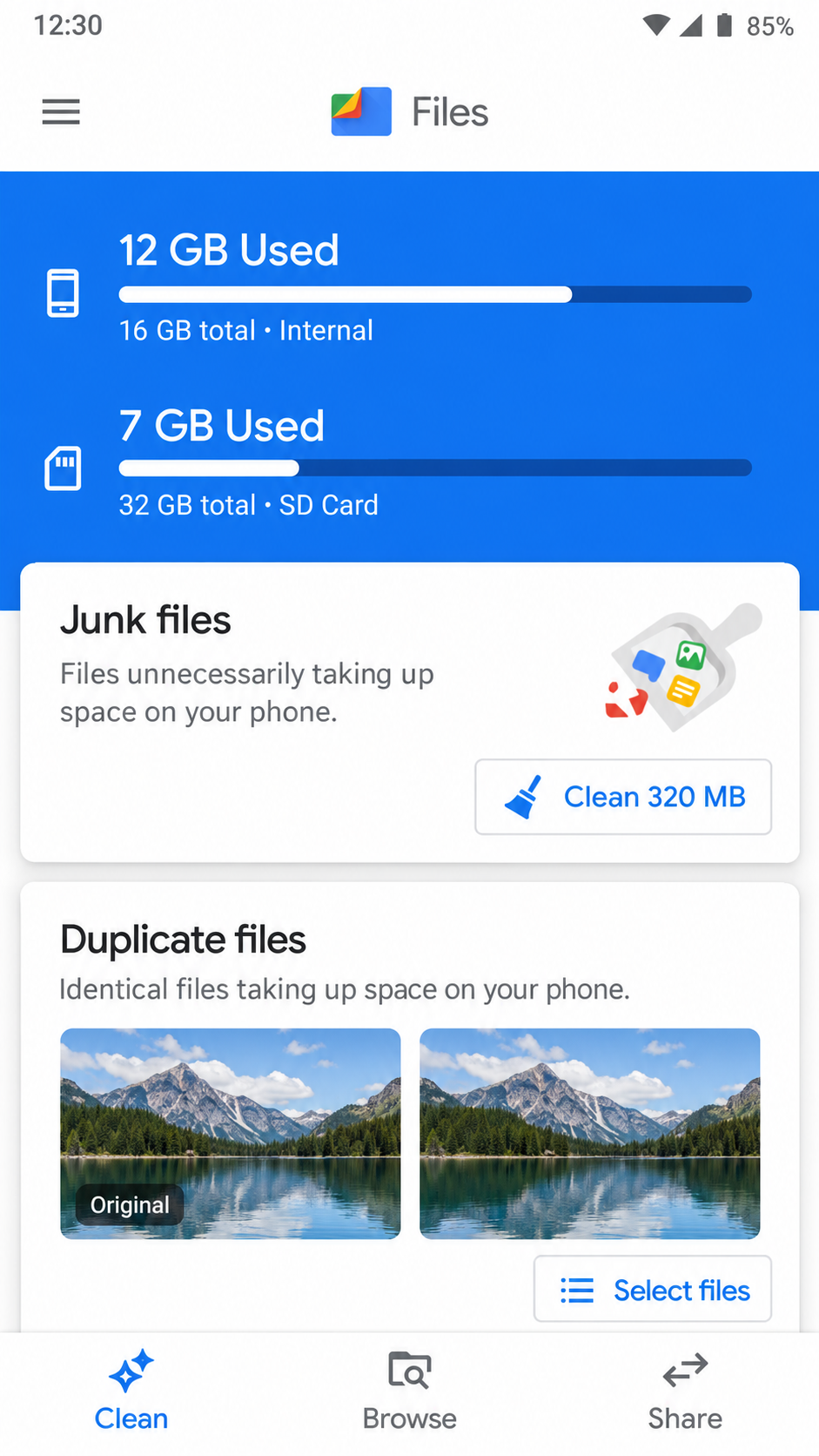
Files by Google is one of the sensible digital decluttering tools when an Android phone is running out of space. Its Clean area can suggest large files, duplicates, downloads, screenshots, temporary files, and unused apps. You can see the suggested items before choosing what to remove.
I have used Files by Google, and I like that it gives me a place to begin with the files on the phone. The duplicate-file view labels an original copy, which is a helpful reminder to check what I am selecting.
Pay attention to the type of cleanup. Files selected from many suggestion cards can be moved to Trash, while clearing the Junk files card permanently removes those temporary files. Files by Google also works on the device; it does not review everything in Gmail, Drive, and Google Photos.
If your phone is full, start with large downloads you recognize. A duplicated document may still belong in two folders for a reason, so give those results a closer look.
2. iPhone Storage: Find Out What Is Taking Up Space
On an iPhone, Settings > General > iPhone Storage shows how much room apps and other categories use. Check it before downloading a cleaner app. You may find that a few downloaded videos or one large app account for more space than hundreds of small files.
The distinction between Offload App and Delete App matters. Offloading removes the app while keeping its documents and data, making it possible to reinstall the app later. Deleting the app removes its related data as well. Look inside an app before deleting it if it holds files you have not saved elsewhere.
This screen measures storage on the iPhone. It cannot tell you that clearing an app will solve an iCloud warning. Nor will it choose which messages, photos, or documents you want to keep. Use its breakdown to locate the problem, then review the relevant content.
3. Apple Photos Duplicates: Merge Copies Within Your Library
Apple Photos has a Duplicates collection that identifies duplicate photos and videos. You can review a group and merge it into one item. Photos keeps the highest image quality and relevant data, while the other copies move to Recently Deleted.
You can find Duplicates under Collections > Utilities on a supported iPhone. It may take some time for the library to be analyzed, and the collection will not appear if Photos has found no duplicates.
This feature is useful for repeated copies, but it should not be treated as a judge of every similar shot. You might want two photos from the same moment because the people in them have different expressions. Review those yourself.
If you use iCloud Photos, changes to the library sync across your devices. Make sure you are comfortable with the merge before acting on a large group.
4. Google Photos Storage Tools: Know Which Cleanup You Selected
Google Photos offers two actions with different results.
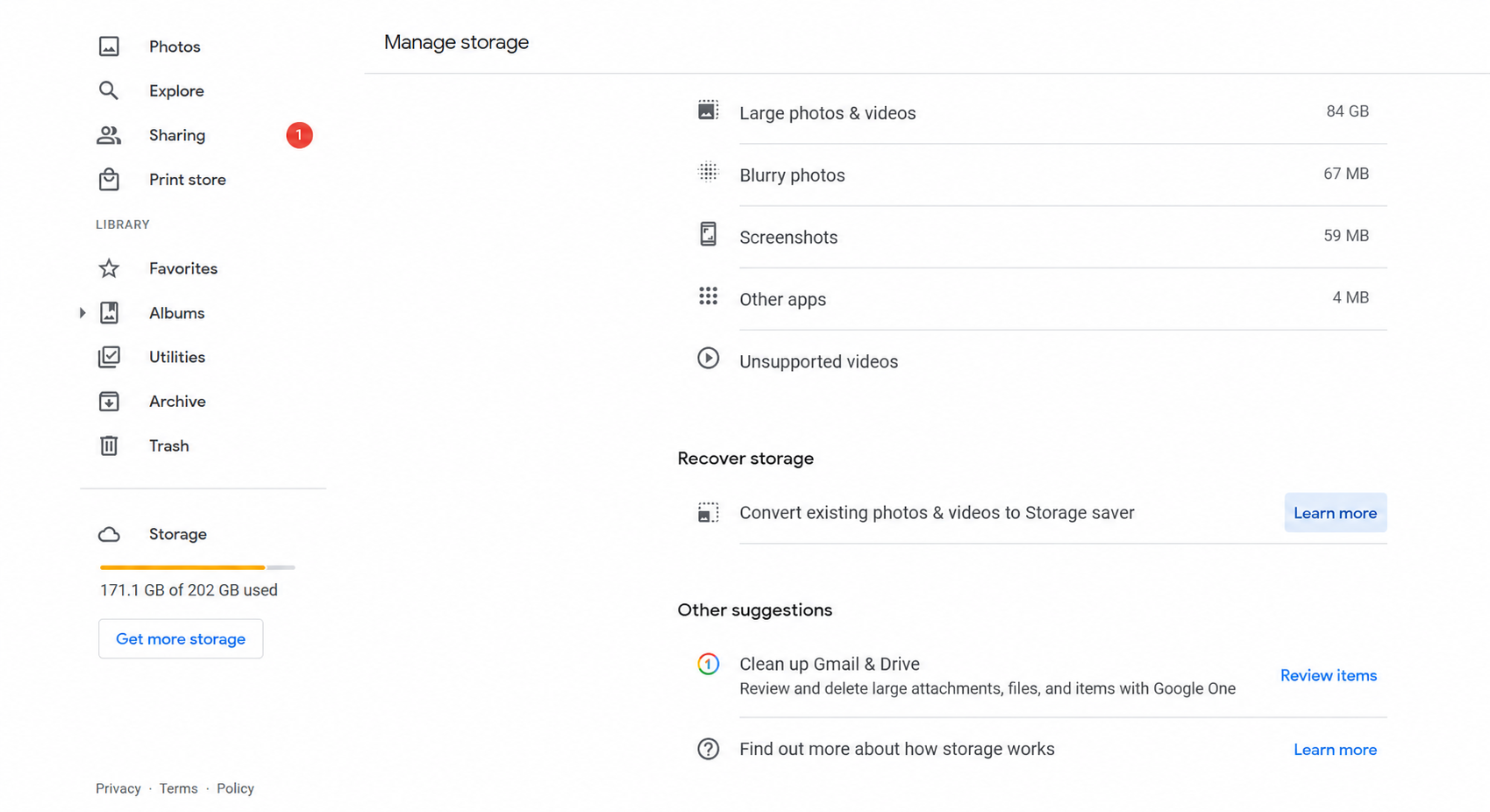
Manage storage helps you review items that use space in your Google Account. It can surface categories such as large photos and videos, screenshots, and blurry photos. Free up space on this device removes eligible local copies that have already been backed up to Google Photos.
I have used Google Photos, and this difference is the one I would check first. If my phone needs space, removing backed-up device copies may help. If my Google Account is full, I need to review what is stored in the account. Clearing local copies will not reduce that cloud quota.
After device cleanup, a photo can remain visible in Google Photos while disappearing from the phone’s built-in gallery or becoming unavailable offline. On an iPhone, Google’s instructions also tell users to clear the affected items from Apple Photos’ Recently Deleted album. If you sync that Apple library with iCloud Photos, check where your wanted copies are stored before proceeding.
There is a gentler option for visual clutter: Archive hides a photo from the main Google Photos view without deleting it. It does not free cloud storage, but it can make the library easier to browse.
Check out the Google Photos AI update on iPhone.
5. Windows Storage Sense: Handle Routine PC Cleanup
Storage Sense helps Windows remove selected temporary files and older Recycle Bin contents. You can set when it runs and whether it should manage items such as old Downloads. By default, it does not simply empty the Downloads folder.
After my Windows reinstall, I used Storage Sense to review storage on my laptop. My files remained because of the way the reinstall was performed, not because Storage Sense saved them. The tool helps with cleanup afterward. It cannot identify which personal draft, photo folder, or downloaded record is important to me.
Storage Sense mainly works on the Windows system drive, usually C:. It can also make eligible cloud files online-only. That saves local disk space while keeping the files in the cloud, but you will need an internet connection to open those files again.
If Previous Windows installation(s) appear among the files you can remove, check them separately. Removing a previous installation can take away the option to return to an earlier Windows version.
6. macOS Storage Settings: Locate the Large Items
Mac users can open System Settings > General > Storage to see which categories use disk space. The Documents area helps identify large files and downloads, while other settings can optimize storage or automatically empty older items from Trash.
The useful part is visibility. If an old video export or installer is taking up room, you can find and assess it. A size listing alone does not mean a file is unnecessary, especially if it belongs to an active project.
Also distinguish Mac storage from iCloud storage. Keeping fewer local copies through iCloud optimization can make room on the Mac, but the files still occupy space in iCloud. If it is your iCloud account that is full, the iCloud storage settings are the place to investigate.
7. Krokiet: Search Computer Folders for Duplicates
Krokiet is the current graphical interface from the Czkawka project. It is a free tool that can scan folders you choose for identical files, similar images, large files, empty folders, and other candidates.
Its identical-file search can compare file content instead of relying only on filenames. Its similar-image search serves a different purpose: it can group images that look alike even when they are not identical files. That makes it useful for an old photo archive, but you should inspect the preview before removing anything. An edited version may be the one you need.
Choose the folders to scan carefully, particularly if one is a backup. Krokiet cannot decide why a file exists in two places, and it will not clean a cloud-only account that is outside the paths you selected. The project recommends Krokiet over its older GTK interface, so use the project’s official release source if you decide to install it.
8. Google One Storage Manager: See the Bigger Google Account Picture
A standard Google Account shares storage across Google Drive, Gmail, and Google Photos. The Google One storage manager shows how much each service uses and presents items to review. You do not need a paid Google One plan to use the storage manager.
This broader view can change where you start. A few large email attachments or videos may matter more to your quota than hundreds of small photos. Check the contents of a suggestion before deleting it, especially if it is a work file or a message you may need later.
Two limits deserve attention. Google Drive does not automatically identify every duplicate file in your account, so repeated uploads may require a manual review. Files in Drive Trash also continue to use storage until they are permanently deleted. At the same time, deleting some older Google Photos uploads may recover no quota if those uploads did not count toward it.
9. iCloud Recommended for You: Check What a Suggestion Contains
When iCloud storage runs low, Recommended for You can surface items such as large files, photos, and old backups on supported iPhones and iPads. It is a starting point for reviewing an iCloud account, which is separate from checking free space on the device.
The most consequential suggestions involve backups. Deleting a device backup also turns off iCloud Backup for that device. Before removing one, look at its name and confirm whether it belongs to a phone or tablet you still use.
Photos need similar care. If iCloud Photos is enabled, deleting from the synced library also removes the item from other devices using that library. Save a separate copy of anything important before deleting it to recover cloud space.
10. Gmail Manage Subscriptions: Reduce Tomorrow’s Inbox Clutter
Gmail’s Manage Subscriptions screen gathers mailing-list senders in one place. It helps you decide which newsletters and promotions you no longer want to receive.
The payoff is fewer future messages. Unsubscribing does not erase the messages already in your mailbox or immediately recover Google Account storage. For that, you need to review old mail, particularly messages with large attachments.
Check the sender before unsubscribing. A company may send more than one type of message, and you may want to keep some of them. Unsubscribe requests can take a few days to take effect. Google is also still rolling out Manage Subscriptions, so some accounts may not show it; the unsubscribe option on an individual email may still be available.
Read how to digital declutter guide here.
What These Tools Will Still Leave Behind
The ten digital decluttering tools above deal mainly with storage and email. They will not close an account you abandoned years ago, cancel a subscription you still pay for, quiet unnecessary notifications, or decide which browser tabs deserve to stay open.
They cannot assign meaning to your files, either. The largest video may be the one you would most regret losing. Two identical PDFs may sit in separate folders because one is part of a project record. A suggested deletion is a reason to review an item, not proof that you should remove it.
Before a major cleanup, work through four checks:
- Identify the full location: Is the warning about the device, Google Account, iCloud, or an email mailbox?
- Check your backup: A synced library can repeat a deletion across devices, so confirm that important files have a separate copy you can access.
- Start small: Clear a few obvious downloads or unwanted messages first and see how that tool handles Trash and recovery.
- Check the result: Confirm that the storage warning or clutter you wanted to address has actually changed.
Commonly Asked Questions About Digital Decluttering Tools
Is there one app that declutters everything?
No. Phone files, photo libraries, cloud accounts, and email each need different controls.
What is the best free digital decluttering tool?
Start with the one built for your device: Files by Google, iPhone Storage, Windows Storage Sense, or macOS Storage.
Are phone cleaner apps safe?
Use a trusted tool, check its permissions, and review its suggestions before approving a deletion.
What app removes duplicate photos?
Apple Photos can merge duplicates in its library; Krokiet can find duplicate and similar images in selected computer folders.
Do decluttering apps work on both iPhone and Android?
Some, including Google Photos, do; built-in storage tools usually belong to one operating system.
How often should I declutter my digital files?
Do a short review when files become hard to find or storage runs low, then keep a routine that suits you.
Make Room Without Losing What Matters
The best digital decluttering tools help you see a problem clearly and act on it carefully. You may only need two or three of the ten: one for your device, one for your photo or cloud library, and perhaps one for email.
Start with the space that is actually full. Check what will happen to synced copies, and keep a separate backup of anything you cannot replace. A good cleanup should leave you with files you can find and confidence in what you chose to remove.