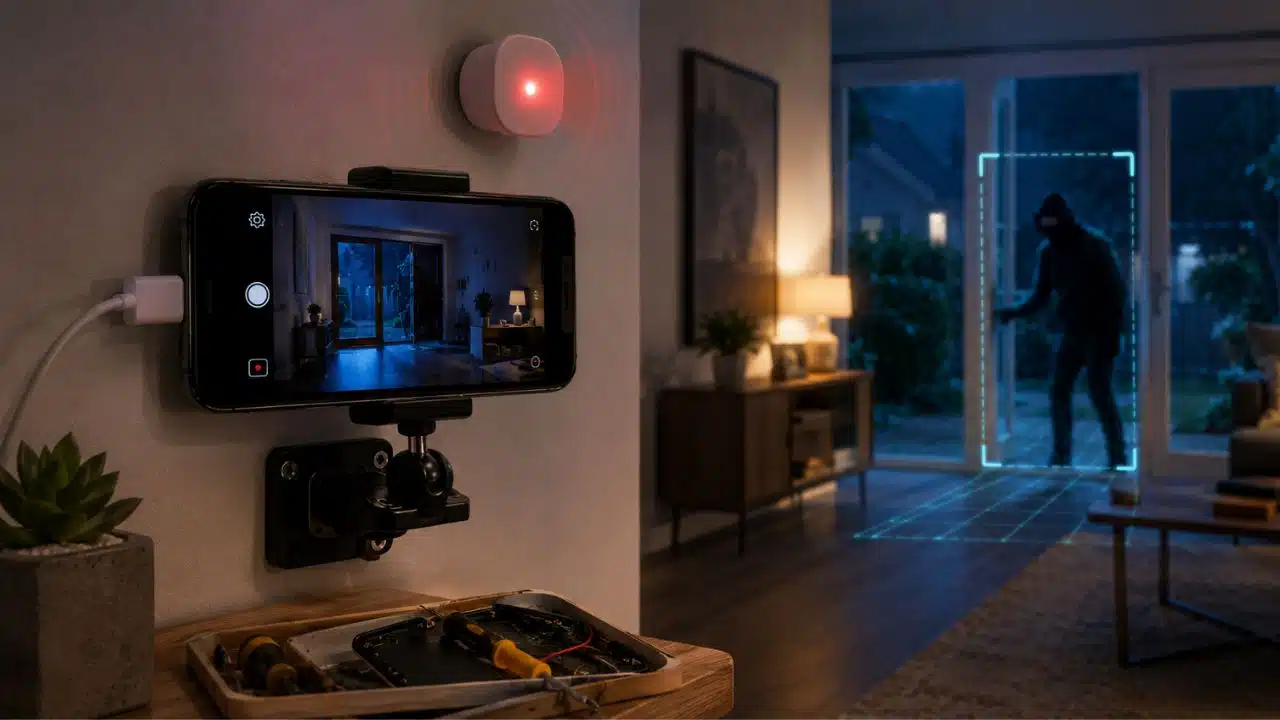
That old phone in your drawer already has most of the parts a basic security camera needs. A camera. A microphone. Wi-Fi. A battery. A screen. A processor. So no, it doesn’t have to sit there forever under old receipts, dead chargers, and cables you keep “just in case.” With the right setup, an old smartphone can become a simple indoor security camera for your entryway, storage room, garage shelf, pet corner, or home office.
But let’s keep this honest.
An old phone won’t replace a proper alarm system. It won’t give you weatherproof outdoor coverage. It won’t magically protect every window and door. And if the battery looks swollen or the phone gets hot while charging, you should not use it at all.
Used sensibly, though, it’s a smart little reuse project. You save money. You squeeze more life out of hardware you already own. And you avoid buying yet another plastic gadget when the old one can still do a useful job.
What an Old Phone Security Camera Can Actually Do
An old smartphone can work well as a light-duty indoor security camera.
With a trusted camera app, it can usually handle:
- Live video viewing
- Motion alerts
- Short motion-triggered recordings
- Two-way audio, if enabled
- Front or rear camera use
- Remote viewing from your current phone
- Basic monitoring while you’re away
That’s enough for many homes.
You can point it at the front door from inside your apartment. You can use it to check whether a package arrived. You can watch a pet while you’re at work. You can keep an eye on a storage room, a garage corner, or a small office.
But don’t treat it like a full security system.
A phone camera can miss motion. Wi-Fi can drop. The app can crash. The phone can overheat. The battery can fail. Night vision may be poor or nonexistent. And if someone cuts the power or internet, your setup may stop working.
That doesn’t make the idea bad. It just means you should use it for the right job.
Think of it as a helpful extra eye, not the whole security plan.
Best Places to Use an Old Smartphone Camera
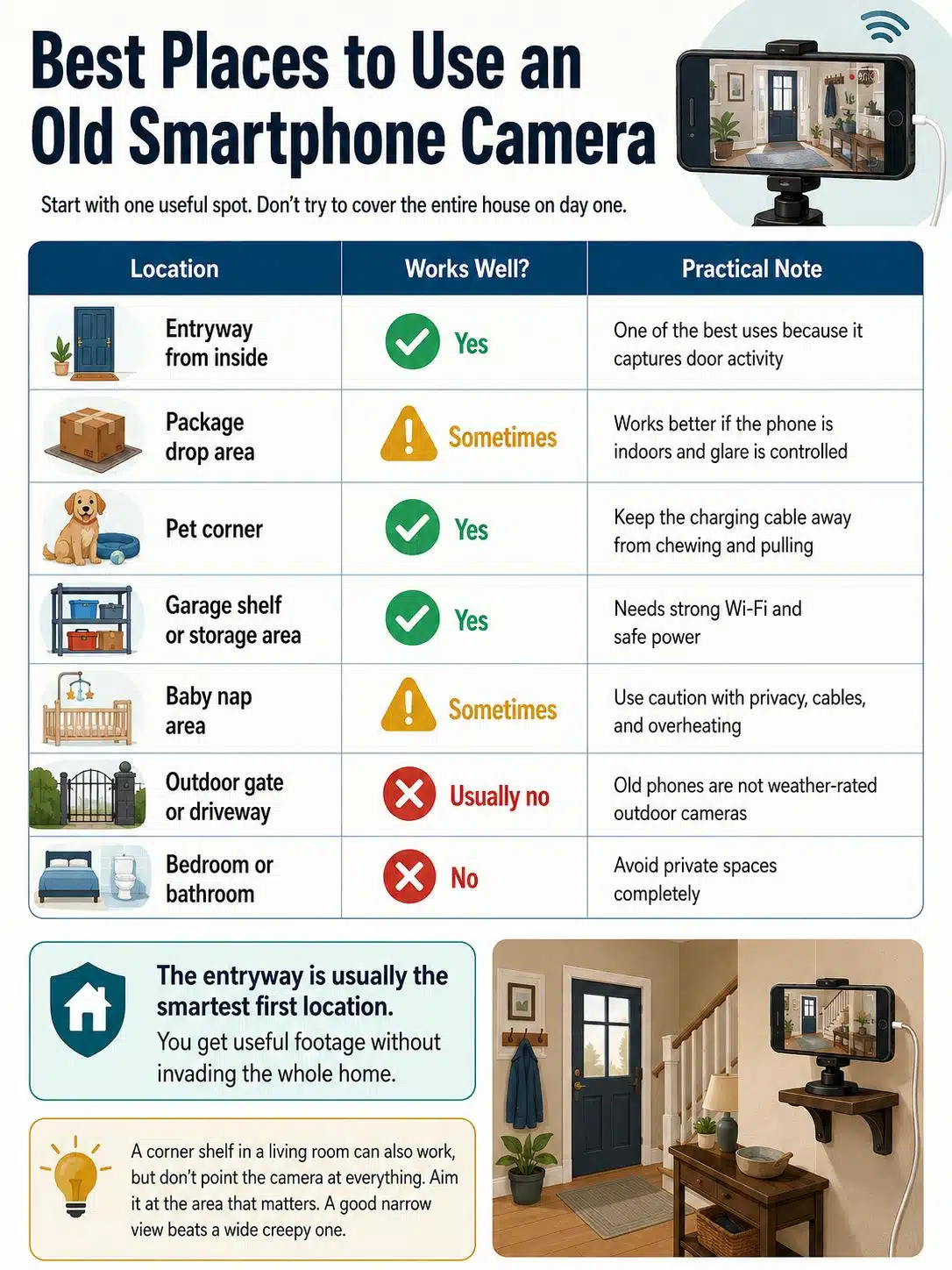
Start with one useful spot. Don’t try to cover the entire house on day one.
| Location | Works Well? | Practical Note |
|---|---|---|
| Entryway from inside | Yes | One of the best uses because it captures door activity |
| Package drop area | Sometimes | Works better if the phone is indoors and glare is controlled |
| Pet corner | Yes | Keep the charging cable away from chewing and pulling |
| Garage shelf or storage area | Yes | Needs strong Wi-Fi and safe power |
| Baby nap area | Sometimes | Use caution with privacy, cables, and overheating |
| Outdoor gate or driveway | Usually no | Old phones are not weather-rated outdoor cameras |
| Bedroom or bathroom | No | Avoid private spaces completely |
The entryway is usually the smartest first location. You get useful footage without invading the whole home.
A corner shelf in a living room can also work, but don’t point the camera at everything. Aim it at the area that matters. A good narrow view beats a wide creepy one.
Before Anything Else, Check the Phone’s Battery
This step matters more than the app.
Pick up the phone and inspect it properly. Don’t just plug it in and hope.
Do not use the phone as a security camera if you notice:
- A swollen or bulging battery
- A screen lifting away from the frame
- A back cover that no longer sits flat
- A burning smell
- Leaking, discoloration, or strange residue
- Crackling, hissing, or popping sounds
- Heat while the phone is idle
- A charging cable that only works when bent
- A battery that drops from full to nearly dead in minutes
Lithium-ion batteries are powerful, but damaged ones can be dangerous. A phone that stays plugged in for camera duty already works harder than a phone sleeping on a desk.
If the phone looks unsafe, don’t reuse it.
Don’t tape it down. Don’t hide it behind a curtain. Don’t mount it above a wooden shelf and pretend it’s fine.
Recycle it through a proper electronics or battery disposal channel.
That’s the greener choice. And the safer one.
What You’ll Need
You don’t need a complicated smart home setup.
You need a few basic pieces:
| Item | Why It Matters | Better Choice |
|---|---|---|
| Old smartphone | Works as the camera | Android or iPhone that still runs a trusted app |
| Current phone | Works as the viewer | Your daily phone |
| Stable Wi-Fi | Keeps the feed online | Strong signal near the camera spot |
| Charger and cable | Keeps the phone powered | Original or certified accessories |
| Stand or mount | Keeps the camera angle steady | Mini tripod, clamp mount, wall shelf, or phone stand |
| Security camera app | Handles live view and alerts | Use official app stores only |
| Optional cloud or local storage | Saves clips | Depends on the app and your privacy preference |
The mount is easy to overlook. Don’t.
A phone leaning against a mug may work for five minutes. Then someone bumps the table, the camera points at the ceiling, and your “security system” becomes a livestream of paint.
Use a small tripod, a clamp, a stable shelf, or a proper adhesive mount. Keep it neat. Keep it safe.
Reset the Phone First
If the old phone still has photos, emails, banking apps, passwords, WhatsApp chats, work files, or old browser sessions, clean it before using it.
A factory reset gives you a fresh start.
Before resetting:
- Back up photos or files you still need.
- Sign out of sensitive accounts.
- Remove banking and payment apps.
- Save two-factor authentication recovery codes if needed.
- Make sure you know the Google or Apple account credentials tied to the device.
After the reset, install only what the camera setup needs.
That usually means:
- The camera app
- System updates
- Maybe a password manager or authenticator, if required
- Nothing else
A clean phone is easier to manage. It also lowers the privacy risk if the device is lost, stolen, or compromised.
Update the Phone and Be Realistic About Old Software
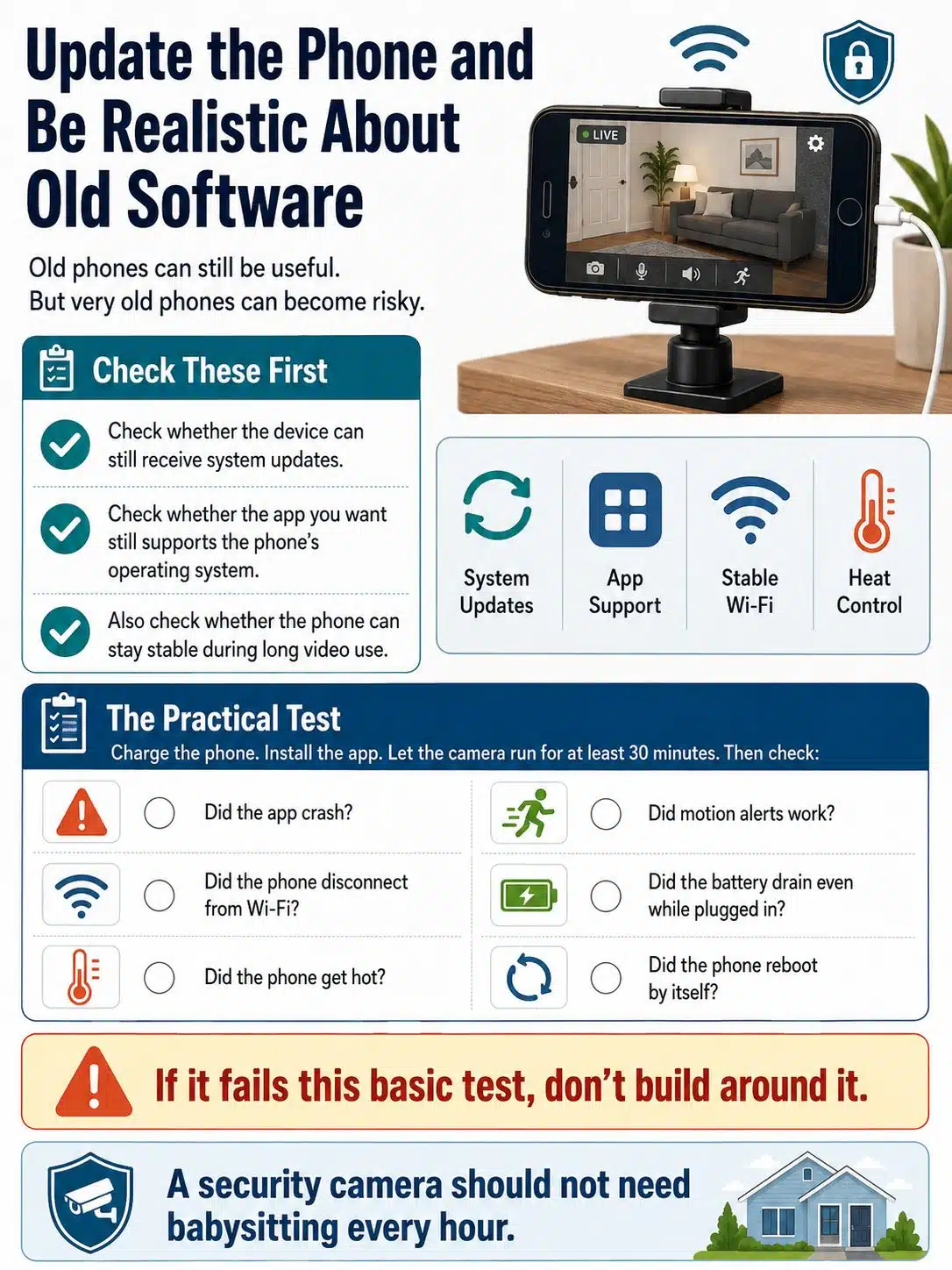
Old phones can still be useful. But very old phones can become risky.
Check whether the device can still receive system updates. Check whether the app you want still supports the phone’s operating system. Also check whether the phone can stay stable during long video use.
Here’s the practical test:
Charge the phone. Install the app. Let the camera run for at least 30 minutes. Then check:
- Did the app crash?
- Did the phone disconnect from Wi-Fi?
- Did the phone get hot?
- Did motion alerts work?
- Did the battery drain even while plugged in?
- Did the phone reboot by itself?
If it fails this basic test, don’t build around it.
A security camera should not need babysitting every hour.
Choose a Trusted Camera App
Most people should use a dedicated old-phone security camera app instead of trying to build a custom IP camera setup.
Apps like AlfredCamera are popular because they are built around this exact idea: one device becomes the camera, and another device becomes the viewer.
The important part is not the brand name. The important part is choosing an app that is still maintained, clearly supported, and available through Google Play or Apple’s App Store.
Avoid random APK downloads. Avoid abandoned apps. Avoid anything that asks for strange permissions or pushes you to install from a shady website.
A camera inside your home is sensitive. Treat the app like it matters.
A good camera app should offer at least some of these features:
- Live view
- Motion detection
- Motion alerts
- Clear device pairing
- Account security settings
- Recent app updates
- Privacy controls
- Battery or connection alerts
- Storage options you understand
One verified update matters here: current AlfredCamera guidance separates requirements for the camera device and the viewer device. The old phone used as the camera may run an older system than the daily phone you use to view the feed. Viewer devices generally need newer Android or iOS versions than camera devices.
That means your old phone may still work as the camera, but your current phone may need to meet stricter requirements to view the feed smoothly.
Set Up the Old Phone as the Camera
Most old-phone camera apps follow the same basic process.
Install the app on both phones. Set the old phone as the camera. Set your daily phone as the viewer. Sign in or pair the devices using the app’s instructions.
Then test before mounting.
Check the live view. Walk through the camera’s field of vision. See how fast the motion alert arrives. Turn off the lights and check the image. Open and close the door. Move a package. Let the phone run long enough to reveal heat or Wi-Fi problems.
Do this now, not after you’ve mounted the phone near the ceiling.
A simple setup flow looks like this:
| Step | What to Do | Why It Matters |
|---|---|---|
| 1 | Reset and update the old phone | Removes old data and improves stability |
| 2 | Install a trusted camera app | Adds live view and motion alerts |
| 3 | Pair camera and viewer phones | Lets you check the feed remotely |
| 4 | Test motion detection | Prevents false alerts later |
| 5 | Test charging and heat | Catches battery problems early |
| 6 | Mount the phone securely | Keeps the camera angle fixed |
| 7 | Lock down account settings | Protects the video feed |
| 8 | Review storage settings | Avoids saving more footage than needed |
Don’t rush the testing step. That’s where most bad setups reveal themselves.
Place the Camera With Purpose
Camera placement is where DIY setups often go wrong.
People aim too wide. They point at bright windows. They capture private areas. Or they put the phone somewhere so awkward that the charger hangs across a walkway.
Keep the angle boring and useful.
For an entryway, place the phone high enough to see the door clearly but not so high that faces become tiny. For a package area, avoid direct sunlight and window glare. For a pet camera, keep the phone and cable out of reach.
Avoid these mistakes:
- Pointing the camera toward a neighbor’s window
- Recording shared hallways more than necessary
- Capturing bedrooms, bathrooms, or changing areas
- Leaving the charging cable loose
- Mounting the phone in direct sun
- Placing it behind glass with heavy glare
- Letting curtains, fans, or TV screens trigger motion alerts
Privacy matters.
Just because you can record something doesn’t mean you should. Keep the view limited to the area you genuinely need to monitor.
Be Careful With Audio Recording
Video is one thing. Audio can be more sensitive.
Rules vary by country, state, and local area. Some places have strict consent laws for recording conversations. Others treat audio differently from video.
So keep it simple: turn audio off unless you clearly need it and understand the rules where you live.
For most home monitoring, motion alerts and video are enough. You don’t need to record every conversation near the door.
Get the Power Setup Right
A phone used as a camera will usually need to stay plugged in.
That means the charger becomes part of the safety setup.
Use a reliable charging adapter and cable. Keep the phone away from direct sun, heaters, stoves, heavy fabric, and tight enclosed spaces. Don’t wedge it between books. Don’t cover it with cloth. Don’t run the cable under a rug where it can get stepped on.
During the first few hours, check the phone by hand.
Warm is normal for some devices. Hot is not.
If the phone gets hot, move it to a cooler spot. If it still gets hot, stop using it. The project is not worth a battery incident.
Also check whether the charger can keep up. Some old phones drain even while plugged in if the app, screen, Wi-Fi, and camera run continuously. If the battery slowly drops all day, your setup won’t be reliable.
Reduce False Motion Alerts
Motion alerts sound great until the phone starts pinging you every time sunlight shifts across the wall.
Start with a simple view. Aim the camera at the important zone, not the entire room.
Good motion targets include:
- A door opening
- A person entering a hallway
- A package being moved
- A pet entering a room
- Activity near a storage shelf
Bad motion targets include:
- Curtains
- Ceiling fans
- TV screens
- Tree shadows
- Reflections
- Passing headlights
- Bright windows
If the app has sensitivity settings, start low. If it has motion zones, use them. If it lets you schedule alerts, set them for the hours that matter.
For example, you may only want entryway alerts at night or while you’re away. You probably don’t need alerts every time someone in the family walks past the door at 3 p.m.
Good security tech should reduce stress, not create a new notification problem.
Secure the Account and Wi-Fi
A camera inside your home deserves better security than a smart bulb.
Use a strong, unique password for the camera app account. Turn on two-factor authentication if the app supports it. Keep the app updated. Review connected devices. Remove access for anyone who no longer needs it.
Then check your Wi-Fi.
At minimum:
- Use WPA2 or WPA3 encryption.
- Change the router admin password if it’s still the default.
- Keep router firmware updated.
- Avoid using your name, address, or router brand in the network name.
- Use a guest network for smart devices if your router supports it.
- Don’t share camera access casually.
Also remove unnecessary accounts from the old phone. It should not stay logged into your main email, banking apps, business tools, or cloud photo library.
The old phone has one job now. Let it do that job and nothing else.
Decide How Much Footage You Really Need
More recording is not always better.
Cloud recording can be useful, but it also means your footage sits on someone else’s servers. Local storage may feel more private, but it can be lost if the phone is stolen, reset, or damaged. Some apps only record motion events. Others offer continuous recording on paid plans.
For a simple home setup, motion-based clips are usually enough.
Ask yourself:
- Do I need live view only?
- Do I need saved clips?
- How long should clips stay stored?
- Who can view them?
- Can I delete old footage easily?
- Does the app encrypt video or account data?
- What happens if I stop paying?
Don’t store footage forever just because the app allows it. Keep what you need. Delete what you don’t.
What This Setup Can’t Replace
An old smartphone camera is useful. But it has limits.
It cannot replace:
- Door and window sensors
- Smoke alarms
- Carbon monoxide alarms
- Outdoor security cameras
- A monitored alarm system
- Strong locks
- Good lighting
- Safe habits
Use the old phone as one layer.
If you live in a higher-risk area, travel often, manage rental property, or need outdoor coverage, invest in proper security equipment. A reused phone can still help, but it should not carry the whole burden.
A Practical Setup Example
Here’s a clean setup for a small apartment or home office.
Use the old phone as an indoor entryway camera. Mount it on a shelf facing the front door. Keep the view narrow. Plug it into a reliable charger. Turn off audio. Enable motion alerts only when you’re away or asleep. Use a strong account password and two-factor authentication if available.
That gives you useful coverage without turning your home into a surveillance mess.
For a storage room, the setup is even simpler. Point the phone at the door or shelf area. Use motion alerts. Keep the phone plugged in. Check heat. Don’t record more than needed.
For pets, lower the camera angle and protect the cable. Don’t place the phone where a dog can knock it down or a cat can treat it like a toy.
Simple beats clever here.
When You Should Recycle the Phone Instead
Sometimes reuse is not the right answer.
Recycle the phone if:
- The battery is swollen
- The phone overheats
- The charging port is damaged
- The phone can’t run trusted apps
- The operating system is too outdated
- The camera quality is too poor
- Wi-Fi drops constantly
- The device crashes during testing
Old electronics can contain valuable materials, but they can also create waste and safety problems when handled badly. Lithium-ion batteries should not go into household trash or regular recycling bins. Take them to a proper electronics recycler, battery collection point, or hazardous waste facility.
If the battery is damaged, handle it with extra care. Don’t crush it. Don’t puncture it. Don’t toss it in a drawer with loose metal objects.
The eco-friendly answer is not always “reuse at any cost.”
Sometimes the right answer is responsible recycling.
Final Thoughts
An old smartphone can make a surprisingly useful indoor security camera.
It’s cheap. It’s practical. It keeps a working device out of the waste pile a little longer. And for simple monitoring, it may be all you need.
But set it up with care.
Check the battery first. Reset the phone. Use a trusted app. Mount it properly. Keep it cool. Lock down the account. Respect privacy. Turn off audio unless you truly need it. And don’t pretend a reused phone is the same as a full security system.
Done well, this is one of the better smart home DIY projects.
FAQs on How to Build a Smart Home Security System Using an Old Smartphone
Can any old smartphone work as a security camera?
No. The phone should still charge safely, connect to Wi-Fi, run a trusted camera app, and stay stable during long video use. If the battery is swollen, damaged, or overheating, recycle it instead.
Is it safe to leave an old phone plugged in all day?
It can be safe if the phone, charger, and cable are in good condition and the device stays cool. Check it during the first few hours. If it gets hot, stop using it.
Can I use the old phone outdoors?
Usually, no. Old phones are not proper weather-rated outdoor cameras. Even phones that were once water-resistant can lose that protection over time.
Should I record audio?
Only if you truly need it and understand the rules where you live. Audio recording laws vary. For most home monitoring, video and motion alerts are enough.
What is the best use for an old smartphone security camera?
Indoor entryway monitoring is usually the best first use. It gives you practical visibility without recording the entire home.
What should I do if the phone is too old or unsafe?
Recycle it through an approved electronics recycler, battery collection point, or hazardous waste program. Do not put lithium-ion batteries or damaged battery devices in household trash.