A missed deadline does not always mean a student failed to plan. The date may have been buried in an email, copied incorrectly from a syllabus, or lost between several learning platforms. The most useful automations students can build with free tools prevent these small administrative problems from interfering with the work that actually matters.
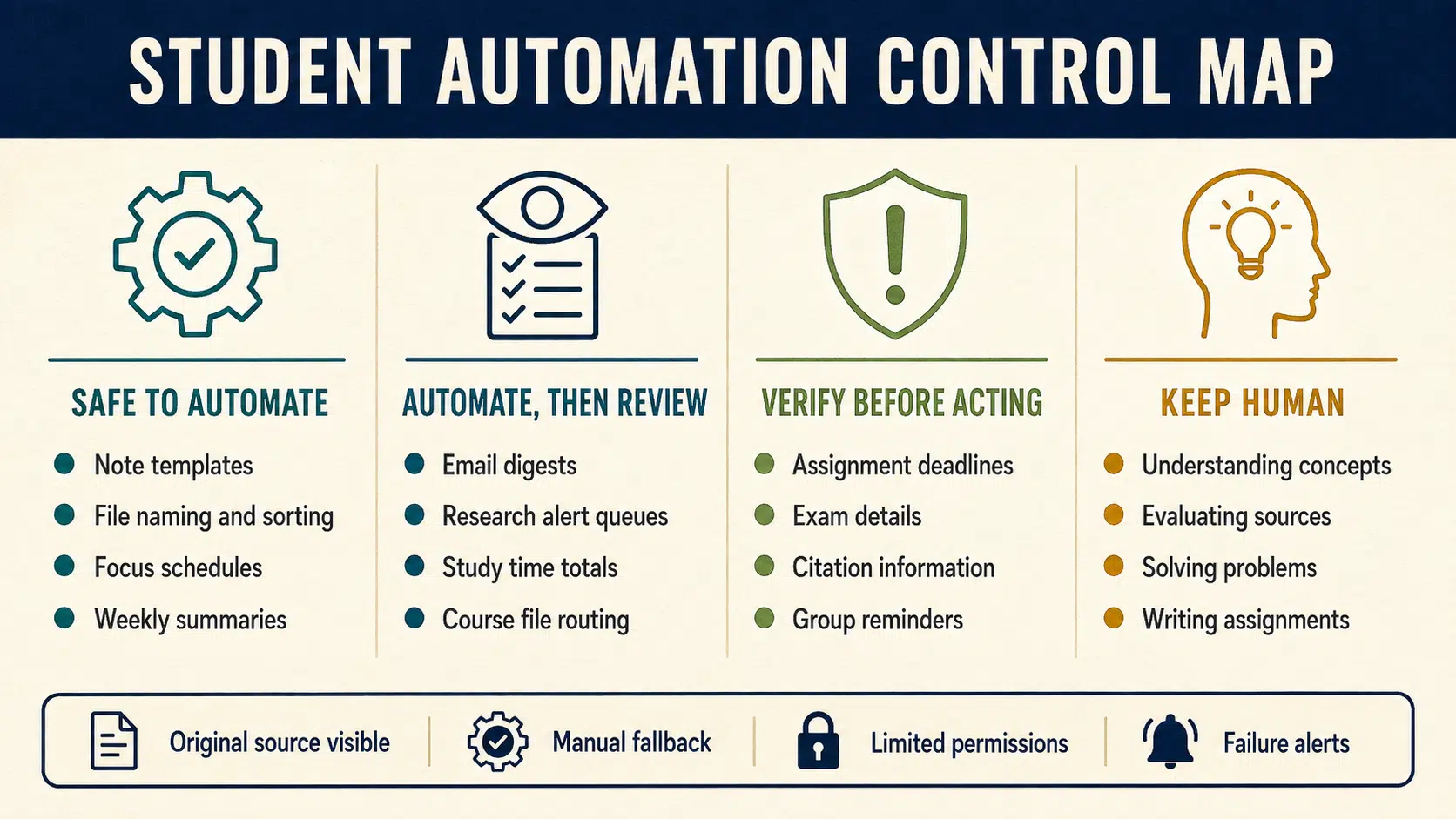
That distinction is important. Students should automate repetitive filing, reminders, and information capture. They should not automate understanding, source evaluation, problem-solving, or the production of academic work.
9 Practical Automations Students Can Build With Free Tools
Student life comes with dozens of repetitive tasks that quietly consume time and attention. These nine practical automations use accessible free tools to simplify deadline tracking, file organisation, research, communication, and study planning without taking control of the learning process away from the student.
1. Turn Assignment Entries Into Calendar Deadlines
This is the first automation I would recommend to most students because the problem is simple, frequent, and consequential.
Create a short Google Form with fields for the course, assignment, due date, submission time, instructions link, and estimated workload. Each response goes to Google Sheets, while an Apps Script or no-code workflow creates the matching Google Calendar event and adds reminders.
The manual entry at the beginning is not a weakness. It gives the student a chance to confirm the date and understand the assignment before the automation takes over. I would not trust a free syllabus parser to create an entire semester of deadlines without checking every result.
A reliable version should also write the Calendar event ID back to the Sheet. If a professor extends the deadline, the system can update the existing event instead of creating another one.
Use Google Calendar’s native notifications for precise deadline reminders. Scheduled Apps Script triggers may not run at an exact minute, making them better suited to summaries and routine maintenance than urgent alerts.
Build it with: Google Forms, Google Sheets, Google Calendar, and Google Apps Script. Make or Zapier can provide a simpler no-code route.
2. Replace Constant Academic Email Alerts With a Digest
Academic email creates an awkward problem. Students cannot ignore it, but checking the inbox every time a message arrives can break concentration.
Gmail filters can separate messages from lecturers, learning platforms, libraries, departments, and student services. A scheduled Apps Script can then produce a digest containing unread academic messages, their senders, subject lines, and original locations.
The safer setup uses two lanes. Routine announcements go into the digest, while messages containing terms related to exams, cancellations, room changes, or revised deadlines receive an urgent label.
Do not automatically delete or permanently archive a message after including it in the digest. Add a processed label instead. If the filtering rule makes a mistake, the original email should still be easy to find.
During exam periods, students should continue checking their official course platform and inbox directly. Automation can reduce routine checking, but it should never become the only route to time-sensitive academic information.
Build it with: Gmail filters, Gmail labels, and Google Apps Script.
3. Send Course Files to the Right Folders Automatically
A file sorter is not the most ambitious project on this list, but it may be one of the most satisfying. Its value becomes obvious when revision week arrives and the course folder is not filled with files called document, download, and final final.
Start with a Google Form that accepts a file upload and asks the student to select a course and document type. Apps Script can route the uploaded file to the correct Drive folder and rename it using a standard format.
A practical name might include the course code, topic, document type, and date. The folder structure can remain equally simple:
- Academic year
- Semester
- Course
- Lectures, readings, assignments, and exam preparation
The workflow needs a record of processed files so the same upload is not copied repeatedly. Original assignment submissions should also remain separate from downloaded readings and reference materials.
Storage is another practical limit. Personal Google accounts provide up to 15 GB shared across Drive, Gmail, and Photos. Lecture recordings and high-resolution scans can consume that allowance quickly, so the automation should organise files without encouraging students to keep everything forever.
Build it with: Google Forms, Google Drive, and Google Apps Script.
4. Prepare a Note Document Before Every Class
Opening a blank document at the start of class is a minor task, but it is repeated often enough to automate.
Add a marker such as #notes to recurring class events in Google Calendar. Before each class, a script copies a Google Docs template, gives it the course name and date, moves it to the correct folder, and adds the document link to the Calendar event.
The template could contain:
- Questions to resolve in class
- Key concepts
- Examples
- Points that remain unclear
- Follow-up reading
- Possible exam questions
This is a useful boundary for educational automation: prepare the page, but do not fill it. Automatically generating a summary before the student has attended the class would remove the very observation and decision-making the notes are supposed to capture.
The script should check whether a document already exists before creating another. Cancelled classes, holidays, and timetable changes will otherwise leave behind duplicate or unnecessary notes.
Build it with: Google Calendar, Google Docs, Google Drive, and Google Apps Script.
5. Turn Research Alerts Into a Manageable Reading Queue
Google Scholar alerts can help students discover new material, but the emails are easy to postpone until they disappear into the inbox.
Create focused alerts for an exact research phrase, significant author, theory, method, or narrow question. Gmail can label the messages, while Apps Script or Make records the alert in a Google Sheets reading queue.
The Sheet becomes useful when it captures more than a title. Include the source link, year, possible relevance, reading status, citation status, and a short note explaining why the result may matter.
Keep the automation deliberately modest. Capturing the alert email is more reliable than trying to scrape and separate every paper automatically. Email formats change, and a complicated parser can quietly stop working.
The queue is also not evidence that a source is suitable. Students still need to determine whether an item is a preprint, conference paper, thesis, book chapter, or final journal article. Authors, publication dates, DOIs, and citation details must be verified before use.
Build it with: Google Scholar Alerts, Gmail, Google Sheets, and Apps Script or Make.
6. Turn Mistakes Into a Personal Review Queue
Of all the ideas here, this one has the strongest connection to learning rather than organisation.
After a quiz, practice problem, or study session, the student records the concept, original answer, corrected explanation, reason for the error, confidence level, and verification source in a Google Form. The linked Sheet calculates a future review date, and a scheduled script sends a short selection of questions that are due.
This works because the system begins with a demonstrated gap. It does not generate hundreds of flashcards simply because a document contains hundreds of sentences.
A starter schedule might revisit an item after 1, 3, 7, and 14 days. That sequence should be treated as an adjustable framework, not a scientifically perfect formula for every learner or subject. Difficult concepts can return sooner, while correctly recalled material can wait longer.
The corrected explanation matters as much as the question. Practice without reliable feedback can reinforce a misunderstanding instead of fixing it.
Build it with: Google Forms, Google Sheets, and Google Apps Script.
7. Send Group Project Reminders That Contain Useful Information
Group-project reminders often fail because they are vague, frequent, or socially awkward. Automating bad reminders only produces bad reminders more efficiently.
A shared Google Sheet can record the task, owner, deadline, current status, blocker, and last update. Team members submit progress through a short Form, while an automation checks for approaching deadlines or missing updates.
A useful reminder should say what needs attention, who owns it, when it is due, what the latest recorded status is, and where to update it. One consolidated message is usually better than a separate notification for every task.
The group should agree to the reminder schedule before activating it. Members also need to know that messages sent by an Apps Script trigger come from the account of the person who created that trigger.
Keep personal circumstances, private feedback, student numbers, and grades outside the shared workflow. The purpose is to coordinate work, not monitor classmates.
Build it with: Google Forms, Google Sheets, Gmail, and Google Apps Script.
8. Switch On Study Focus Automatically
This is the simplest automation on the list and the easiest to overlook.
Both iPhone and Android include built-in tools for reducing interruptions. Students can create a Study Focus that activates during recurring study periods and silences selected apps while allowing alarms, emergency contacts, authentication tools, and essential course notifications.
The settings should be selective. Blocking every app and contact may cause the student to disable the entire system after one inconvenient session. It is usually more sustainable to identify the two or three apps responsible for most interruptions.
Test the mode before using it during an online class, presentation, or examination. Students should confirm that required apps, calls, verification codes, and accessibility tools still work.
No external automation service is required, which means there is no additional account connection, monthly task allowance, or workflow to maintain.
Build it with: iPhone Focus or Android Digital Wellbeing.
9. Compare Planned Study Time With What Actually Happened
A weekly study audit can help students see whether their timetable reflects reality.
Create a dedicated study Calendar or give study events a consistent prefix such as STUDY:. At the end of the week, Apps Script can copy those events into Google Sheets and total the scheduled time by course.
The useful question is not simply, “How many hours did I plan?” It is whether those sessions happened, which subjects received the time they needed, and where the original estimates were unrealistic.
A Calendar event only proves that a study session was scheduled. It does not prove that focused work took place. Students should confirm the actual time completed or mark sessions as missed, shortened, or rescheduled.
I would avoid connecting this workflow to invasive activity-tracking software. A short honest check-in offers better context than a detailed log that mistakes screen activity for learning.
Build it with: Google Calendar, Google Sheets, and Google Apps Script.
How to Choose an Automation Worth Keeping
Students should begin with a recurring failure point rather than a favourite automation platform. A technically impressive workflow is not useful if the original task was already quick and reliable.
Look for repetition with consequences
Good candidates include copying deadlines, filing similar documents, preparing recurring templates, sending predictable reminders, and resurfacing material that needs review.
A task that occurs once per semester may be easier to complete manually. A two-minute task repeated several times each week is a stronger candidate.
Match the control to the risk
Not every workflow deserves the same level of trust.
Generating an empty note document is low risk. Creating an exam deadline, sending a group email, or recording a citation carries more serious consequences. Higher-risk automations need clearer verification and a visible original source.
Use native tools before adding another service
Students already using Google Workspace may not need an external platform. Apps Script can connect Forms, Sheets, Gmail, Drive, Docs, and Calendar without introducing another workflow dashboard.
Visual builders are useful when coding becomes the main obstacle. At the time of writing, Make offers up to 1,000 monthly credits on its free plan, while Zapier offers 100 monthly tasks and two-step workflows. IFTTT permits two simple Applets with unlimited runs. These allowances can change, so students should check the current plan before building around one.
Examine the permissions
A workflow may request access to Gmail, Drive, Calendar, or account information. Students should understand why each permission is needed and remove access when they stop using the automation.
School-managed accounts may block external services or scripts. The appropriate response is to use an approved tool or ask the institution for guidance, not to move protected information into an unauthorised personal account.
Make failure visible
Important information should never exist only inside an automation. Keep the underlying Sheet, Calendar, email label, or Drive folder accessible.
The workflow should also record its last successful run or report errors. An automation that fails visibly is inconvenient. One that fails silently can be dangerous.
Final Thoughts
The best student automation is not the one with the most steps. It is the one that quietly removes a repeated problem while leaving the student in control of the information and the decision.
Start with one frustration. Make the workflow easy to inspect, give it a manual fallback, and use it long enough to learn whether it genuinely saves time. The most useful automations students can build with free tools support attention and organisation without pretending that learning itself can be outsourced.
Frequently Asked Questions on the Best Automations Students Can Build with Free Tools
1. Can students create useful automations without coding?
Yes. Gmail filters, Google Forms, Make, Zapier, IFTTT, and built-in phone settings can handle many basic workflows. Apps Script becomes useful when students need several connected actions or more control over the result.
2. What is the easiest student automation to build?
A scheduled Study Focus is the easiest because it uses settings already available on many phones. It requires no coding, external account, or monthly automation allowance.
3. Which automation helps most with actual learning?
The mistake log and review queue has the strongest learning purpose. It turns incorrect answers and weak concepts into scheduled retrieval practice instead of simply organising tasks.
4. Is Google Apps Script free for students?
Apps Script does not require a separate paid subscription for ordinary Google-account use, but service quotas apply. Schools can also restrict its availability or the permissions a script can request.
5. Should students include AI in these workflows?
AI is not necessary for any automation in this article. It may help explain a formula or draft code, but automatically generated notes, answers, flashcards, and citations still require careful verification and may create academic-integrity or cost concerns.