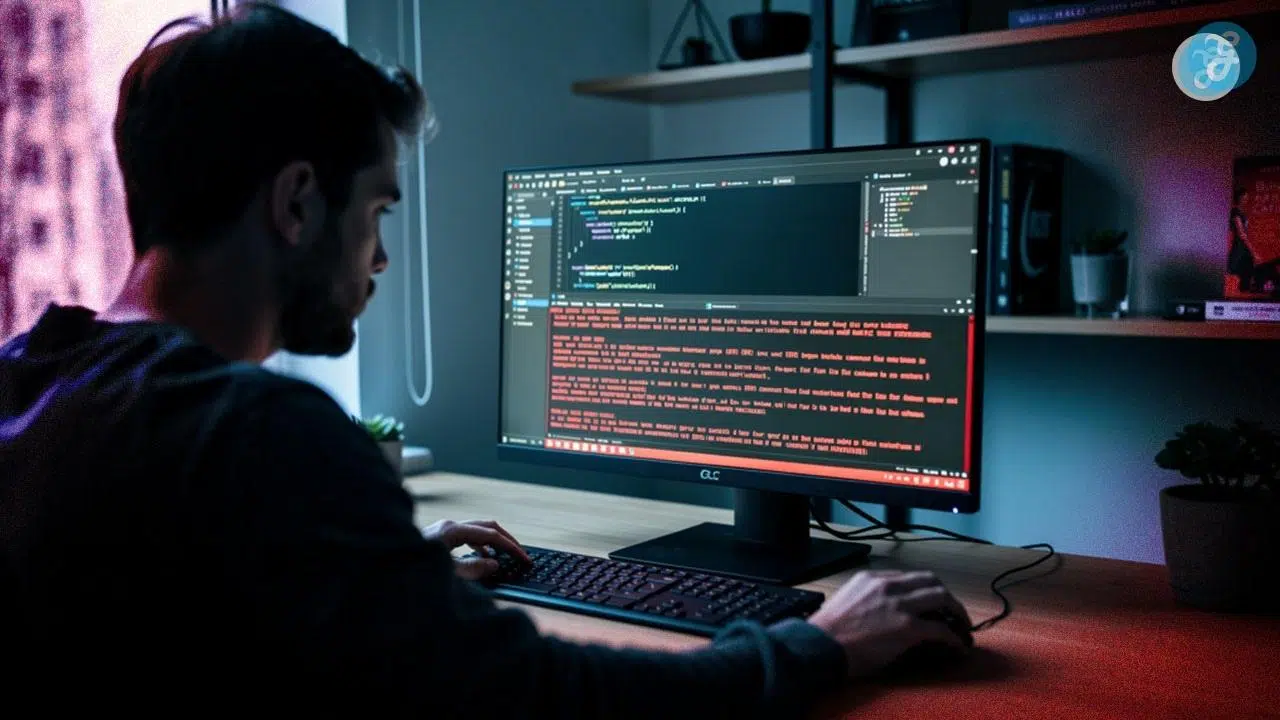
Ever been in the zone, coding away, when suddenly your terminal throws a wrench into your plans? The “npm ERR! Cannot Find Module” error pops up, and your code stops dead in its tracks. This frustrating message means npm cannot locate a package your project needs to run. You are not the only one facing this problem. The good news is that you can fix it quickly.
Here is a fact that might surprise you. Over 60% of JavaScript developers encounter module errors at least once a month. These errors happen for simple reasons like missing packages, incorrect file paths, or corrupted folders. The problem feels massive, but the solutions are straightforward.
In this guide, you will learn exactly what causes the “How To Fix ‘npm ERR! Cannot Find Module’ Error” message to appear. I am going to walk you through the exact steps I use to solve this.
So, grab a cup of coffee, and let us go through it together. I will show you everything you need to know.
Understanding Common Causes of the ‘npm ERR! Cannot Find Module’ Error
This error pops up when npm cannot track down a module your code needs. Several things can go wrong. We will break down each one so you can pinpoint the exact culprit in your project.
Module Absence or Not Installed
A missing module is like looking for your keys in a dark room. You need to know where to look first.
Your project breaks when npm cannot find a module you tried to use. This happens because you never installed the package, or it got deleted from your system.
Node.js searches for modules in specific folders. If the package is missing, your code stops working entirely. Security researchers noted a huge spike in supply chain attacks in 2025. Malicious actors create “typosquatted” packages with names very similar to popular libraries.
For example, you might accidentally type “pupeter” instead of “puppeteer”. This means checking your spelling is a massive security priority, not just a debugging step.
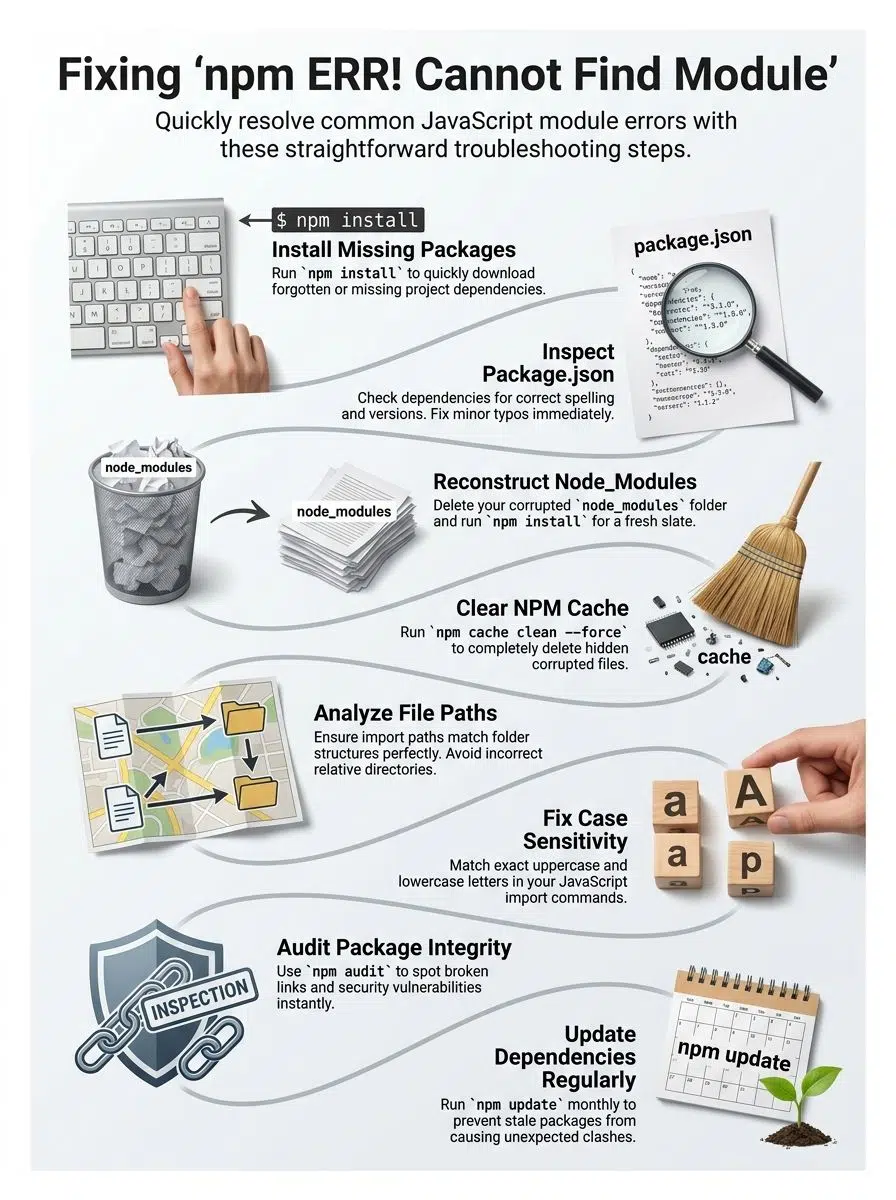
Installing the missing package solves most of these problems fast. Run the install command followed by the precise package name, and npm grabs it from the internet.
Your project’s package.json file lists all the dependencies your code needs. Check that file first to see what is missing.
Path Errors for Modules
Your project’s file structure matters more than you might assume. Path errors happen when your code tries to find a module in the wrong location. Node.js searches for modules in specific directories, starting with node_modules in your current folder.
- Relative Path Mistakes: This often occurs when you use incorrect relative paths, like ./././module instead of the correct route.
- Absolute Path Preferences: Many US developers prefer using path aliases in their configuration files to avoid confusing relative paths entirely.
The installation directory plays a huge role in solving path errors. Make sure your dependencies live in the correct location within your project structure.
Running the command npm list shows you where npm installed each dependency on your machine. Test your import statements carefully, and read those command-line messages closely.
Missing File Extensions in Module Calls
JavaScript modules often fail to load because developers forget to add file extensions when importing code. You might write require(‘./helper’) or import ‘./config’ without the .js extension. Node.js gets confused about what file to grab.
This is especially true with modern Node.js versions and the shift toward ECMAScript Modules (ESM). Unlike older CommonJS code, ESM strictly requires explicit file extensions in import statements.
Adding the proper extension, like .js or .json, tells Node.js exactly which file you need. Case sensitivity matters too. A file named Helper.js is completely different from helper.js on Linux systems.
Test your import statements by checking the actual file names in your directory. Fixing these small details prevents the npm error from appearing.
Corruption in the node_modules Folder
Your node_modules folder can get corrupted in several ways. Files inside this folder might get deleted by accident, overwritten by conflicting packages, or damaged during installation.
A corrupted folder is like a library with missing books. Your code simply cannot find what it needs to run. The average size of a Node module directory easily exceeds 400 megabytes, packed with tens of thousands of tiny files. With that much data, silent corruption happens frequently.
Fixing corruption requires you to delete the entire folder and reinstall everything from scratch.
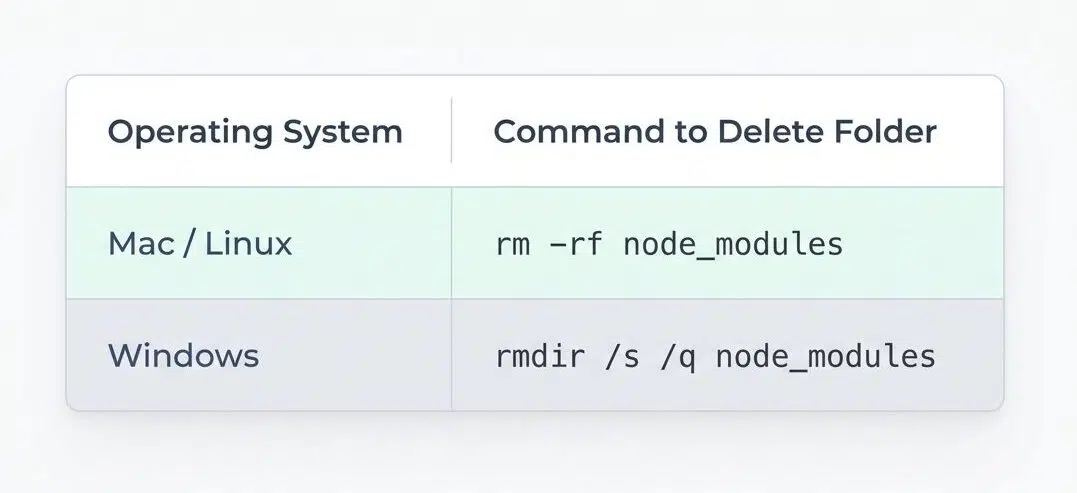
| Operating System | Command to Delete Folder |
|---|---|
| Mac / Linux | rm -rf node_modules |
| Windows | rmdir /s /q node_modules |
After deletion, run the install command to rebuild the folder with clean, uncorrupted files.
Step-by-Step Solutions to Resolve the ‘npm ERR! Cannot Find Module’ Error
You can fix this error through several straightforward methods. These techniques work fast and get your project running again without major headaches.
Install Required Packages
Missing packages cause most npm errors you encounter. Installing the right dependencies fixes the problem fast. A major pro-tip is knowing the difference between a standard install and a clean install.
- Open your command line tool and navigate to your project directory.
- Type npm install to download all packages listed in your configuration automatically.
- If you are in a CI/CD environment, try using npm ci instead. It stands for Clean Install.
- The npm ci command reads directly from your package-lock.json file, skipping the cache check entirely.
- Industry benchmarks from 2026 show it can be twice as fast as a standard install.
- Run npm install package-name if you need to add a specific module.
- Add the –save flag to update your package.json file with the new dependency.
- Use npm install –save-dev package-name for packages that only support your development work.
- Wait for npm to finish the installation process completely before writing new code.
- Look at the node_modules folder to verify that your packages exist.
- Test your application by running it with npm start to see if the module error disappears.
- Install packages from a specific version if you need an older release by typing npm install package-name@1.2.3.
- Clear your npm cache with npm cache clean –force before installation if you face persistent problems.
Inspect Dependencies in package.json
Your package.json file holds the complete list of all dependencies your project needs. Checking this file helps you spot missing packages, outdated versions, or incorrect package names.
- Open your package.json file in your code editor.
- Scan the “devDependencies” section next. These packages support your development work but do not ship with your final code.
- Compare each listed package name against the actual error message you received.
- Check the version numbers next to each package name. Outdated versions sometimes contain bugs that trigger module errors.
- Verify that no packages have been accidentally removed from your directory while keeping their entries in the config file.
- Search for typos in package names within your file. Even one wrong letter prevents npm from finding the correct module.
- Examine the “peerDependencies” section if your project uses packages that require other specific packages to function.
- Cross-reference your import statements in your JavaScript files with the exact package names.
- Run the command npm ls in your terminal to generate a complete tree view of all installed packages.
- Consider using tools like npm-check-updates to safely identify which dependencies have newer, stable versions available.
Reconstruct the node_modules Folder
Clearing out your directory and rebuilding it from scratch often solves the module error problem. This approach wipes away corrupted files and reinstalls everything fresh, giving your project a clean slate.
- Open your command line tool and go to your project directory. Delete the entire folder using the specific
- command for your operating system.
- Delete the package-lock.json file if you suspect version mismatches.
- Clear your cache by running npm cache clean –force to remove any stored package data.
- Install all dependencies fresh by executing the standard install command.
- Watch the installation process carefully to spot any error messages.
- After installation completes, test your application to confirm the module error has disappeared.
- If problems persist, check that your config contains the correct module names.
- Verify the installation by running npm list to see all installed packages.
- Look for any packages marked as missing or broken in the output.
- Run npm audit to identify security issues or corrupted packages.
- Update any outdated packages by typing npm update.
- Test your project again after updating to make sure everything works correctly.
- Keep your local module folder in your .gitignore file so it does not get pushed to your repository.
Execute npm Cache Clearance
Your npm cache can accumulate corrupted files over time, which triggers the module error. Clearing this cache often solves the problem fast.
- Open your command line tool and navigate to your project directory.
- Type the command npm cache clean –force to remove all cached data.
- This command forces the system to delete every file stored in the cache folder. It prevents old files from interfering with your installation.
- The operation takes a few seconds to finish, depending on how much data your cache holds.
- After the cache clears, you will see a confirmation message in your terminal window.
- Run the install command again to download fresh copies of all your dependencies from the registry.
- The package manager will rebuild your folder with clean files this time around.
- Verify that your project runs without throwing the “Cannot Find Module” error.
Debugging Techniques for Module Errors
When your module errors will not quit, you need to dig into what is actually happening under the hood. Smart debugging turns a frustrating problem into a solvable puzzle. I will show you exactly how to crack it.
Analyze Module Resolution Paths
Node.js follows a specific path to locate modules on your system. Understanding this search pattern helps you fix the issue quickly. A great secret weapon here is the debug environment variable.
- Start by opening your command line and typing node -e console.log(module.paths) to see exactly where Node.js searches.
- If you want deeper insights, run your application with NODE_DEBUG=module node main.js. This prints out every single path Node.js attempts to check in real-time.
- Check if your module sits in the correct folder at the root level of your project.
- Verify that the package name in your require statement matches the actual folder name exactly.
- Look at the configuration file to confirm the module appears in your dependencies section.
- Navigate to your project’s root directory and run npm list module-name.
- Examine whether you are using relative paths correctly when requiring local files.
- Test the module resolution by creating a simple test file that requires the module.
- Clear your cache if the paths appear correct, but the error persists.
- Trace the exact error message in your terminal output. It reveals the path Node.js checked.
Check Integrity of Packages
After you map out your paths, the next logical step involves verifying that your packages themselves are sound. Corrupted or incomplete packages can masquerade as missing modules.
- Run the npm audit command to scan your dependencies for known security issues.
- Execute npm ls to display your entire dependency tree.
- Check the lockfile to see if version mismatches exist between what your project expects and what got installed.
- Cross-reference each listed dependency with what appears in your local folder.
- Delete the entire module directory and your lockfile, then reinstall from scratch.
- Inspect individual folders within the directory to look for missing files.
- Test your application after each verification step.
- Visit the official registry online to confirm that the package version actually exists.
- Install packages one at a time if you suspect corruption.
Troubleshoot Module Loading Issues
Module loading issues can stop your project immediately. You need to fix them fast to get your code running again.
- Check your require statements first. Typos in module names cause most loading failures.
- Look at your file paths carefully. Incorrect directory references prevent Node.js from finding modules.
- Verify that your module actually exists in the directory by opening your file explorer.
- Test your module import by creating a simple test file that requires only that single module.
- Clear your cache, then reinstall your dependencies to remove corrupted package data.
- Examine your configuration file to confirm the module appears in your dependencies section.
- Run a list command to see your entire dependency tree.
- Delete your folder completely, then run an install to rebuild everything from scratch.
- Check for case sensitivity issues on your system. File names must match exactly what your code references.
- Inspect your command line output for warning messages that appear during installation.
- Restart your development server after making changes to your dependencies.
Additional Strategies to Fix Module Errors
When standard solutions fail, you will want to explore some fresh approaches. These techniques tackle stubborn module problems from different angles.
Address Case Sensitivity Complications
Operating systems handle file names differently, and this difference causes real problems in JavaScript projects. Your code might work perfectly on your local machine, but crash the moment you deploy it to a server.
- The Mac Illusion: Apple’s macOS uses the APFS file system, which is case-insensitive by default. It treats UserController.js and usercontroller.js as the exact same file.
- The Linux Reality: Most production servers use Linux. Linux is strictly case-sensitive. It will throw a module error if the capitalization does not match perfectly.
To fix this, check your import statements against actual file names letter by letter. If you need to rename a file to fix the casing, use the command git mv -f oldName.js newName.js. This forces Git to recognize the case change.
Reinstall Node.js and npm
Sometimes a fresh start solves everything. Reinstalling Node.js and npm can clear out persistent errors that continue to appear.
- Uninstall Node.js from your computer completely.
- Delete the cache directory manually by going to your user folder.
- Remove any leftover configuration files by searching for .npmrc files on your computer.
- Instead of downloading the direct installer, professional developers prefer using a tool like Node Version Manager (NVM).
- NVM allows you to switch between Node versions seamlessly and prevents global permission errors that cause module issues.
- Open your command line tool and verify the installation by typing node -v.
- Check your npm version by typing npm -v.
- Go to your project directory and run the install command.
- Test your application to see if the module error has disappeared.
- Install any global packages you previously used.
Utilize npm link for Managing Global Modules
This command helps you manage global modules without pulling your hair out. It creates a symbolic link from your project to a global package, making local development way easier.
- Install your package globally using the link command. It creates a shorthand reference pointing to your local project directory.
- Navigate to your project folder and establish the connection.
- Link the global module to another project by running the link command with your actual module name.
- Test your changes immediately across multiple projects without reinstalling the dependency each time.
- Update your module code and see the changes reflected in all linked projects automatically.
- Remove the link when you finish development by running the unlink command in your project directory.
- Unlink the module from specific projects, disconnecting that project from your global module reference.
- Verify your links are working correctly by checking the directory for a shortcut icon.
- Handle path errors more effectively because the command resolves directory issues automatically.
- Manage multiple versions of the same module across different projects.
- Avoid corruption in your local folders by using links during development.
- Combine links with regular commands to maintain a smooth workflow.
Preventative Measures to Avoid Future ‘npm ERR! Cannot Find Module’ Errors
You stop problems before they start by keeping your dependencies fresh and your file names consistent. Small habits today save you from big headaches tomorrow.
Update Dependencies Regularly
Keeping your dependencies fresh stops errors before they start. Old packages can clash with your project, creating an error out of nowhere. Run npm update to bump your packages to their latest versions within your specified ranges.
This command refreshes everything in your configuration file, patching security holes and fixing bugs. Stale dependencies sit like forgotten code in your directory, waiting to cause trouble down the line.
Your project stays healthier when you check for outdated packages monthly. Many teams use automated tools like Dependabot to scan for updates and create pull requests automatically.
Developers release updates constantly, and missing them leaves your installation vulnerable. Catching these issues early saves you from debugging nightmare sessions later on.
Adhere to Consistent File Naming Standards
Inconsistent naming creates confusion. Pick a convention, write it down, and follow it everywhere.
File naming standards matter more than you might assume. JavaScript files, package files, and directory names need to follow the exact same pattern across your project.
Your code might reference a file as “MyModule” while the actual file sits on disk as “mymodule.js”. As we covered earlier, case sensitivity varies between operating systems, so what works on Mac might break on Windows or Linux. Use code formatting tools like Prettier or ESLint to enforce these naming rules automatically across your entire team.

Confirm Valid Package Installations
You should verify that your packages are installed correctly before moving forward. Run the list command to display all installed modules in your project directory. This shows you the complete dependency tree, so you can spot broken links right away. Look for any red text or error messages in the output, as these signal problems that need fixing immediately.
Your lockfile (package-lock.json) is your best friend here. It guarantees that anyone who clones your project gets the exact same versions you did, preventing sudden “Cannot Find Module” surprises.
The Bottom Line
Fixing the ‘npm ERR! Cannot Find Module’ error comes down to taking action on the root causes. Most of the time, you will solve this problem by installing missing packages, clearing your cache, or rebuilding your local folder.
These three steps handle the vast majority of module errors that developers face. The command line tools at your disposal make these fixes quick and straightforward.
Do not let this error stop your project in its tracks. Tackle it head-on with the solutions we have covered. Your path forward involves staying proactive about dependency management and file naming standards. Keep your configuration file accurate, and maintain consistent naming conventions.
These simple habits prevent most errors before they even happen. Take control of your project, apply these strategies, and watch your development workflow become much more reliable.
Frequently Asked Questions (FAQs) on Npm ERR! Cannot Find Module
1. Why do I see the ‘npm ERR! Cannot Find Module’ error?
This error pops up when Node.js cannot locate a required module, often after you clone a Git repository and forget to run npm install first. It can also happen when your node_modules folder gets corrupted or accidentally deleted.
2. How can I fix the ‘npm ERR! Cannot Find Module’ problem fast?
Delete your node_modules folder and package-lock.json file, then run npm install to reinstall everything fresh. This approach clears up the problem about 80% of the time.
3. What if reinstalling does not solve my issue?
Double-check your import statements for typos in the module name or file path, and verify the module is listed in your package.json dependencies section.
4. Can outdated Node.js versions trigger this error?
Yes, running Node.js version 12 or older can cause compatibility issues with modern packages. Updating to the latest LTS version, like Node.js 20, usually resolves these version conflicts.