
Ever feel overwhelmed managing multiple tasks from a home office, with emails piling up and deadlines closing in? Remote work may offer flexibility, but it often brings distractions, communication gaps, and a sense of disorganization.
For many professionals, staying on track can feel like trying to herd cats in a thunderstorm.
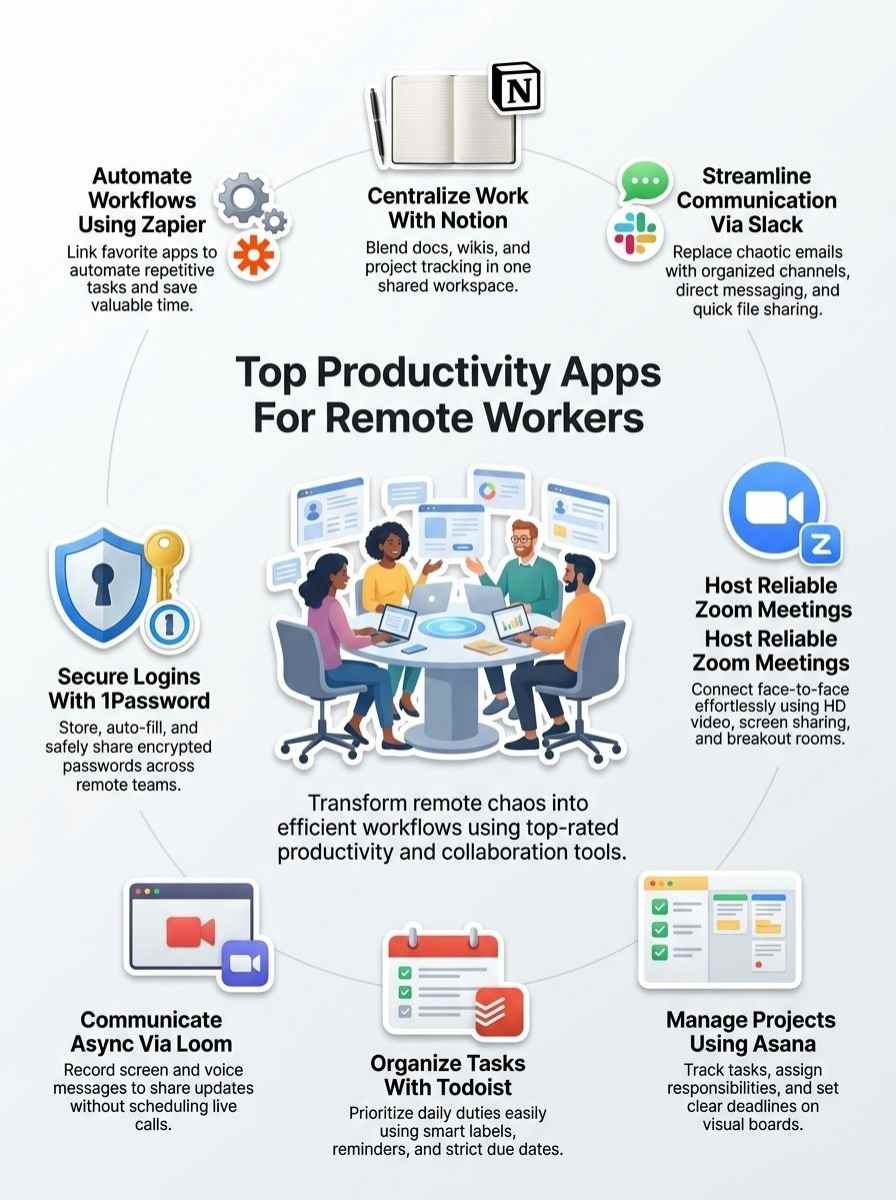
Tools like Google Workspace help virtual teams improve efficiency through seamless file sharing and real-time collaboration. This guide explores the top 10 Productivity Apps for Remote Workers, including Notion for all-in-one workspaces and Asana for streamlined project management, to enhance workflows and support better work-life balance.
Discover how the right tools can transform any remote setup into a more organized and productive system.
Why Productivity Apps Are Essential for Remote Workers
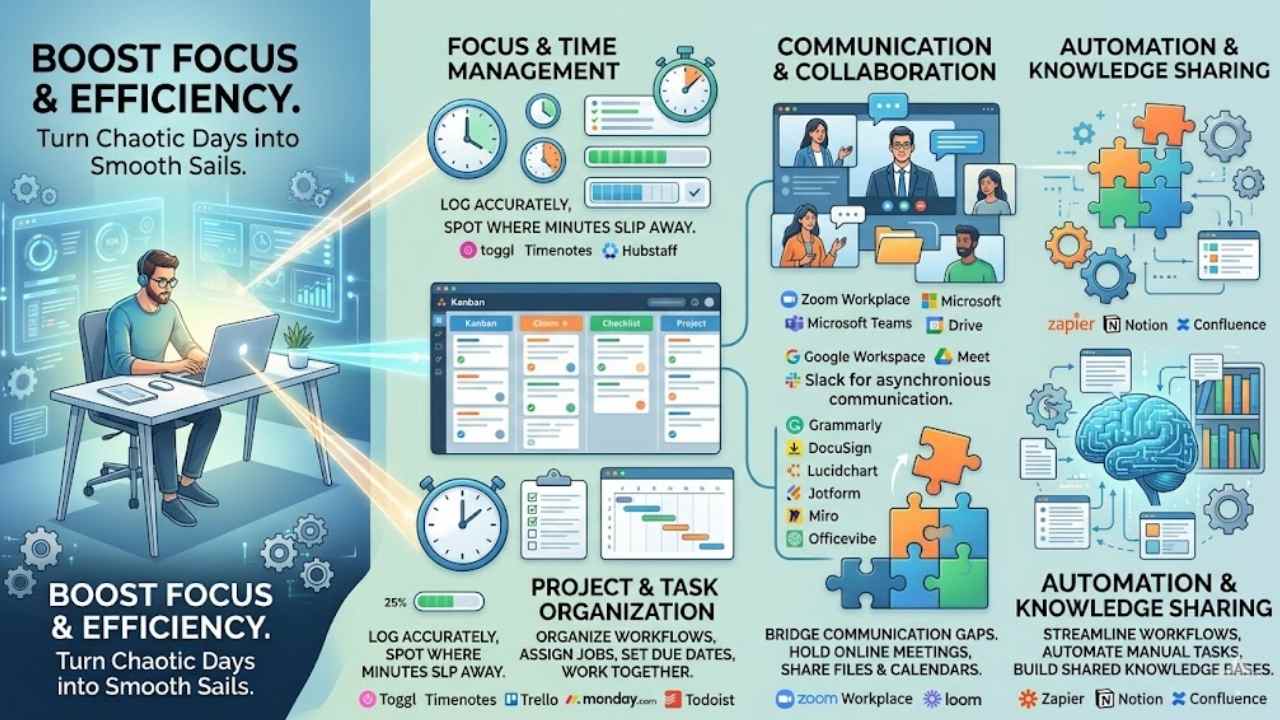
Imagine you’re at home, facing a flood of emails and deadlines that feel like a wild storm. Tools for task tracking and team chats step in, they cut through the mess, boost focus, and help remote teams nail goals without missing a beat, making every day flow like a well-oiled machine.
Benefits of productivity apps
Productivity apps keep remote workers focused and efficient. They turn chaotic days into smooth sails, boosting your output without the burnout.
- These apps cut down on wasted time, like Toggl does for time tracking, so you log hours accurately and spot where minutes slip away in your remote setup.
- Task management becomes a breeze with tools such as Asana, which lets remote teams assign jobs, set due dates, and work together on projects, keeping everyone in sync.
- Collaboration tools foster better team bonds; for example, Google Workspace, once called G Suite, ranks high for virtual teams by sharing files and calendars through Google Drive and Google Calendar.
- Video conferencing options, including Zoom Workplace, make online meetings reliable, helping remote workers connect face-to-face and share ideas without travel hassles.
- Automation features save effort, as Zapier handles integrations for remote teams, linking apps like IFTTT to streamline workflows and cut manual tasks.
- Note-taking and organization apps, think Notion, blend docs, wikis, and project tracking into one spot, so remote teams build shared knowledge bases effortlessly.
- Simplified task organization shines in Todoist, a go-to for prioritizing duties, which helps remote workers juggle lists and hit goals without overwhelm.
- Visual workflow tools, such as Trello, organize remote work with boards and cards, turning complex projects into clear, drag-and-drop plans.
- Time management apps like Timenotes work across devices, aiding teams in tracking hours lightly and improving how they spend their workdays.
- Project management solutions, including Monday.com, manage team tasks and flows, making hybrid teams more agile and productive in cloud-based environments.
How they improve collaboration and efficiency
Remote workers often struggle with staying connected, like ships passing in the night. Apps step in to bridge that gap. Take Zoom Workplace, it lets teams hold online meetings with ease.
This keeps everyone on the same page, no matter the distance. Todoist simplifies task management for remote teams, making lists and priorities a breeze. Trello offers visual workflow management, so you see projects like a colorful board game.
Toggl tracks time, helping folks spot where hours slip away. Asana shines in project management; teams track tasks, assign jobs, set deadlines, and team up on projects. Google Workspace, once called G Suite, boosts virtual teams with its cloud-based tools.
Monday manages workflows and tasks, turning chaos into smooth sailing. These tools cut down on confusion, speed up decisions, and foster real teamwork. Imagine chatting over coffee, but through a screen; that’s the magic.
Zapier automates and integrates for remote teams, linking apps like puzzle pieces. Notion combines documentation, wikis, and project tracking in one spot, perfect for remote crews.
Timenotes helps manage time across platforms, light and handy. Slack handles instant messaging and integrations, while Microsoft Teams competes with similar features. Lucidchart aids in diagramming, and Skype offers video calls.
Jotform streamlines forms, and Abbyy FineReader uses optical character recognition for docs. Workflow optimization happens through these productivity tools. Remote work software like Wrike, Smartsheet, and ProofHub enhances task tracking.
Asynchronous communication thrives with Loom for async video and Briefmatic for quick updates. Airtable organizes data, Brain.fm boosts focus for deep work. Fellow aids meetings, Fantastical manages calendars, Joplin notes ideas.
Ganttpro plans with charts, Hubstaff monitors time. Confluence shares knowledge, Workfront handles projects. Guru stores info, Hirebasis aids hiring. Remote access tools, screen recording, password management like 1Password, meeting automation, calendar apps, Jira for issues, Gmail for email, automations, Officevibe for employee engagement, Microsoft 365 for suites, Miro for online whiteboards, Grammarly for writing, DocuSign for electronic signatures, Google Meet for calls, AI chatbots like ChatGPT, PCMag reviews, and Google Workspace Marketplace expand options.
Team monitoring and management improve with these, sparking efficiency like a well-oiled machine.
Notion: All-in-One Workspace
Imagine juggling notes, tasks, and databases all in one spot, like a digital command center for your remote setup. Remote teams love how it syncs everyone up, turning chaos into smooth sailing with custom pages and real-time edits.
Key features for remote teams
Notion stands out as a versatile tool for remote workers juggling multiple tasks. It combines various functions into one spot, making life easier for teams spread across locations.
- Notion serves as an all-in-one workspace that blends documentation, wikis, and project tracking, perfect for remote teams who need seamless organization while working from home.
- Teams use Notion to create shared databases, which help with task assignments and real-time updates, boosting collaboration without endless email chains.
- The tool includes customizable templates for everything from meeting notes to roadmaps, so remote workers can tailor setups to fit their unique needs.
- Notion integrates with other apps like Slack and Google Workspace, allowing smooth data flow and reducing the hassle of switching between platforms.
- Remote groups rely on Notion’s commenting features for quick feedback, turning static pages into lively discussion hubs that keep everyone in the loop.
- It offers version history to track changes, which acts like a safety net for teams managing complex projects from afar.
- Notion supports embedding files and links, making it simple to centralize resources and avoid scattered information in a working from home setup.
- Users appreciate the search function that digs through notes fast, saving time for busy remote workers who can’t afford delays.
- The app enables public sharing of pages, ideal for collaborating with clients or external partners without complex permissions.
- Notion doubles as an online whiteboard tool for brainstorming, where teams sketch ideas visually and build on them together.
Pros & Cons of using Notion
Remote workers often turn to Notion for its blend of tools that keep teams connected.
| Pros | Cons |
|---|---|
| Notion acts as a single platform, mixing documentation, wikis, and project tracking, which saves time for remote teams juggling tasks. | Some users find the learning curve steep at first, especially if they come from simpler apps like Todoist for task organization. |
| Teams customize pages easily, turning them into shared hubs that boost collaboration, much like how Asana tracks tasks and assigns duties. | Free versions limit storage, pushing groups toward paid plans when they outgrow basic needs, similar to constraints in tools like Toggl for time tracking. |
| Integration with apps such as Slack or Zoom enhances workflows, letting you link chats and meetings right into your workspace. | Over-customization can lead to clutter, making it hard to maintain clean setups compared to visual tools like Trello for workflow management. |
| Real-time edits foster quick updates, ideal for remote setups where folks use Google Workspace for virtual team coordination. | Performance slows with large databases, an issue not as common in lightweight options like Timenotes for time management across platforms. |
| Versatile templates speed up setup, helping squads manage projects in ways that echo Monday’s approach to team workflows. | Limited offline access frustrates users in spotty internet areas, unlike seamless automation in Zapier for remote integrations. |
Slack: Streamlined Team Communication
Slack turns chaotic chats into smooth teamwork, like a virtual water cooler that never runs dry. Explore its channels for quick updates, and watch how file sharing sparks ideas across time zones.
Features for instant messaging and integrations
Slack offers powerful tools for quick chats and smooth connections with other apps. These features help remote workers stay in touch and boost their workflow, like a well-oiled machine keeping the team humming along.
- Instant messaging shines in Slack with channels for group talks, direct messages for one-on-one chats, and threads to keep discussions organized without cluttering the main feed; imagine firing off a quick note to a colleague across the globe, and getting a reply in seconds, all while integrating time-tracking software like Toggl to log hours right from the conversation.
- File sharing lets you upload documents, images, or links directly into chats, making collaboration a breeze for remote teams; pair this with integrations to Google Workspace, formerly G Suite, and you can edit docs together without leaving Slack, turning scattered ideas into polished projects fast.
- Emoji reactions and mentions add a fun, human touch to responses, helping you acknowledge messages quickly or tag teammates for urgent input; think of it as a virtual high-five or nudge, especially useful when connecting to project management tools like Asana for task updates that pop up in real time.
- Search functionality digs through past conversations with ease, pulling up old files or chats using keywords; this saves time for busy remote workers, and when linked to Zapier for automation, it streamlines workflows by triggering actions like notifying team monitoring & management systems about key updates.
- App integrations connect Slack to hundreds of tools, from Notion for workspace docs to Monday for managing team tasks; you set up bots that pull in data automatically, like workflow alerts from Trello, creating a central hub that feels like having all your remote work software in one spot.
- Voice and video huddles kick off quick calls right in the channel, no scheduling needed; integrate this with Zoom Workplace for seamless jumps to full meetings, or use it alongside Todoist to discuss task prioritization while sharing screens, keeping everyone on the same page without the hassle.
- Custom bots automate repetitive tasks, such as reminders or polls; hook them up to Timenotes, a lightweight time management app, and watch how they help teams track time across platforms, turning chaos into order with just a few commands.
- Notifications customize alerts for mentions, keywords, or channels, ensuring you never miss a beat; combine this with password management tools like 1Password for secure sharing during chats, or link to online whiteboard tools for visual brainstorming sessions that integrate directly into your Slack workspace.
Pros & Cons of Slack
Let’s explore the pros and cons of Slack, that go-to tool for quick team chats in remote setups.
| Pros | Cons |
|---|---|
|
|
Zoom: Reliable Video Conferencing
Imagine jumping into a team huddle from your couch, no travel needed, and Zoom makes that happen with crystal-clear video calls and easy screen sharing. Teams love how it cuts through the chaos of remote work, letting you host webinars or quick check-ins that feel like face-to-face chats, keeping everyone on the same page.
Features for virtual meetings
Zoom Workplace stands out as a top pick for remote workers who need solid online meetings. It keeps teams connected, no matter the distance, with tools that make chats feel like face-to-face talks.
- High-definition video lets you see colleagues clearly, like they’re right in the room, cutting down on those awkward “Can you hear me?” moments and boosting real teamwork.
- Crystal-clear audio ensures everyone hears every word, so you avoid mix-ups, and it even handles noisy backgrounds with smart noise suppression.
- Screen sharing turns meetings into show-and-tell sessions, where you display slides or demos effortlessly, helping ideas flow without a hitch.
- Built-in chat allows quick side notes or questions during calls, keeping things lively and inclusive, almost like passing notes in class but way more professional.
- Meeting recording captures every detail for later review, perfect if someone misses out, and you can share it easily to keep the whole team in the loop.
- Virtual backgrounds add a fun twist, hiding your messy desk with a beach scene, which lightens the mood and makes long calls more bearable.
- Breakout rooms split big groups into smaller huddles for focused discussions, like mini brainstorming parties that amp up creativity among remote folks.
- Integration with calendars syncs invites smoothly, so you jump into meetings without fumbling for links, saving precious time in your busy day.
Pros & Cons of Zoom
People love Zoom for keeping remote teams connected, and it’s especially great as Zoom Workplace for online meetings.
| Pros | Cons |
|---|---|
| – Offers reliable video calls that make you feel like everyone’s in the same room, perfect for brainstorming sessions.
– Integrates well with calendars and other apps, saving you time on setup. – Hosts large groups without much hassle, like a big family reunion online. – Provides screen sharing that feels smooth, helping you show off that killer presentation. – Keeps costs low for basic use, so your wallet stays happy. |
– Faces security worries sometimes, like uninvited guests crashing your chat.
– Eats up bandwidth, which can slow down your internet on busy days. – Limits free meetings to 40 minutes, cutting short those long talks. – Struggles with poor connections, turning voices into robot sounds. – Overloads your screen with too many faces, making it hard to focus. |
Asana: Effective Project Management
Tired of projects feeling like a wild goose chase? Asana steps in as your trusty sidekick, turning messy workflows into smooth sails with boards that track every task and deadline.
Tools for task tracking and collaboration
Asana shines when remote teams need to handle projects without chaos. You get tools that make task tracking and collaboration feel like a breeze, keeping everyone in sync.
- Track tasks: You track tasks in Asana with simple boards and lists, so nothing slips through the cracks. Picture your team spotting progress like hawks, no more guessing games. Todoist simplifies task management for remote teams, almost like a trusty sidekick that organizes your day in bites. Trello adds a visual twist, think of it as sticky notes on a digital wall for workflow magic in remote setups.
- Assign responsibilities: Teams assign responsibilities in Asana by tagging folks right on the task, clear as day. Hey, no more “who’s on first” confusion, right? Monday steps in similarly, managing team workflows and tasks with drag-and-drop ease that feels like chatting over coffee.
- Set deadlines: You set deadlines in Asana to push projects forward, like setting a timer on your favorite recipe. It nudges everyone to hustle without the stress. Toggl tracks time for remote workers, showing exactly where hours go, kind of like a detective on your payroll. Timenotes keeps it light, working across devices to manage time and help teams avoid those last-minute scrambles.
- Collaborate on projects: Asana lets teams collaborate on projects by sharing comments and files in real time, turning solo work into a group jam session. Notion blends documentation, wikis, and project tracking into one spot, imagine a Swiss Army knife for remote brains. Google Workspace, once called G Suite, powers virtual teams with shared docs and chats, making distance disappear. Zapier automates integrations between apps, so your tools talk to each other without you lifting a finger. Zoom Workplace fits right in for online meetings, like gathering around a virtual water cooler to hash out ideas.
Pros & Cons of Asana
Remote teams pick Asana as their go-to project management tool, and for good reason. It packs features that let you track tasks, assign responsibilities, set deadlines, and collaborate on projects, all in one spot. Imagine you’re juggling a dozen deadlines, but Asana steps in like a trusty sidekick, keeping everything organized and everyone on the same page. Folks rave about its popularity because it boosts efficiency without the chaos of scattered emails or notes. You get real-time updates, custom workflows, and easy sharing, making remote work feel less like herding cats.
Drawbacks do pop up, though, especially for beginners. Some users grumble about the steep learning curve, where all those options can feel like too much at once. Costs climb for premium features, which might pinch smaller teams’ budgets. Integrations with other apps, like Google Workspace or Slack, sometimes glitch, leading to frustrating hiccups in your flow. Still, many stick with it after the initial bumps, finding the pros outweigh those minor headaches.
Todoist: Simplify Task Organization
Imagine your to-do list as a wild garden, overgrown and chaotic—Todoist acts like a skilled gardener, pruning tasks with smart labels, due dates, and priority levels to keep everything neat and focused.
Remote workers love how it syncs across devices for quick updates on the go, though some folks grumble about the premium features locked behind a paywall—want the full scoop on what makes it tick?
Features for task prioritization
Todoist stands out as a simplified task management application for remote teams. You can prioritize tasks with ease, turning chaos into clear action.
- Set priority levels from 1 to 4, so you flag urgent items in red and keep less critical ones in blue, helping you tackle the big fish first without drowning in details.
- Add due dates and reminders that pop up on your phone or computer, making sure deadlines don’t sneak up like a forgotten birthday.
- Use labels to categorize tasks, like tagging them as “client” or “personal,” which lets you filter and focus on what needs your attention right now, just like sorting laundry piles.
- Create projects and sub-tasks for breaking down big goals, where you drag and drop items to reorder them based on importance, keeping your workflow as smooth as a well-oiled machine.
- Enable the karma system that tracks your productivity streaks, motivating you to prioritize and complete tasks daily, almost like earning points in a game you actually win.
- Integrate with calendars like Google Calendar, pulling in events to help you spot conflicts and reprioritize on the fly, saving you from those “oh no” moments.
Pros & Cons of Todoist
People love Todoist for its clean design that cuts through the chaos of daily tasks, like a trusty sidekick keeping your to-do list in check. Remote teams find it shines as a simplified task management application, letting you prioritize jobs with labels, deadlines, and quick sharing features. Set up projects fast, and watch collaboration flow without the hassle. Pros include easy integration with calendars and apps, plus offline access that saves the day during spotty internet. You get reminders that nudge you gently, almost like a friend whispering, “Hey, don’t forget that report.” Costs stay low with a free version, and premium upgrades add power without breaking the bank.
Drawbacks hit when teams grow large; the app can feel basic for complex workflows, pushing some to seek more robust tools. Search functions sometimes lag, making it tough to dig up old tasks in a pinch. Mobile versions work well, but desktop users might crave more customization options. Battery drain on phones adds a minor annoyance, and without strong reporting, tracking team progress takes extra effort.
Loom: Asynchronous Video Communication
Loom changes the game for remote workers who hate typing long emails. You record short videos, add screen shares, and send them out, like chatting face-to-face without the schedule hassle.
Features for creating and sharing video messages
Remote workers often need fast ways to share ideas without live calls. Loom steps in as a handy tool for making and sending video messages that keep teams connected.
- Record your screen, webcam, or both at once to explain tasks clearly, like walking through a project update in just a few minutes, which beats typing long emails.
- Add drawings or annotations during recording to highlight key points, turning your video into an interactive guide that feels like chatting face-to-face.
- Share videos instantly via unique links or embeds, so your team can watch on their own time, cutting down on scheduling headaches.
- Customize videos with calls-to-action, such as buttons for replies or next steps, making follow-ups as simple as clicking a mouse.
- Integrate with tools like Slack or Asana to drop videos right into chats or tasks, boosting collaboration without switching apps constantly.
- Edit clips after recording to trim mistakes or add text overlays, polishing your message like a pro editor would.
- Track viewer engagement through notifications and analytics, showing who watched and for how long, which helps you gauge if your point landed.
- Use AI-powered transcripts and summaries to make videos searchable, so busy colleagues can skim the gist without watching the whole thing.
Pros & Cons of Loom
Loom shines for remote workers who need quick video shares. You record your screen and voice in seconds, then send links to your team. This tool cuts down on endless email chains, like swapping a marathon for a sprint. Pros include its fast setup, no need for live calls, and easy edits before sharing. Teams love how it boosts clarity on tasks, especially when words alone fall short. It integrates with apps like Slack, making workflows smoother.
On the flip side, Loom has drawbacks that might irk some users. The free plan limits video length and storage, pushing you to upgrade for more features. Quality can dip with spotty internet, leaving messages fuzzy or slow to load. Privacy settings demand attention, as shared videos could leak if not handled right. Plus, not everyone enjoys watching videos, so it might add extra steps for text lovers.
1Password: Secure Password Management
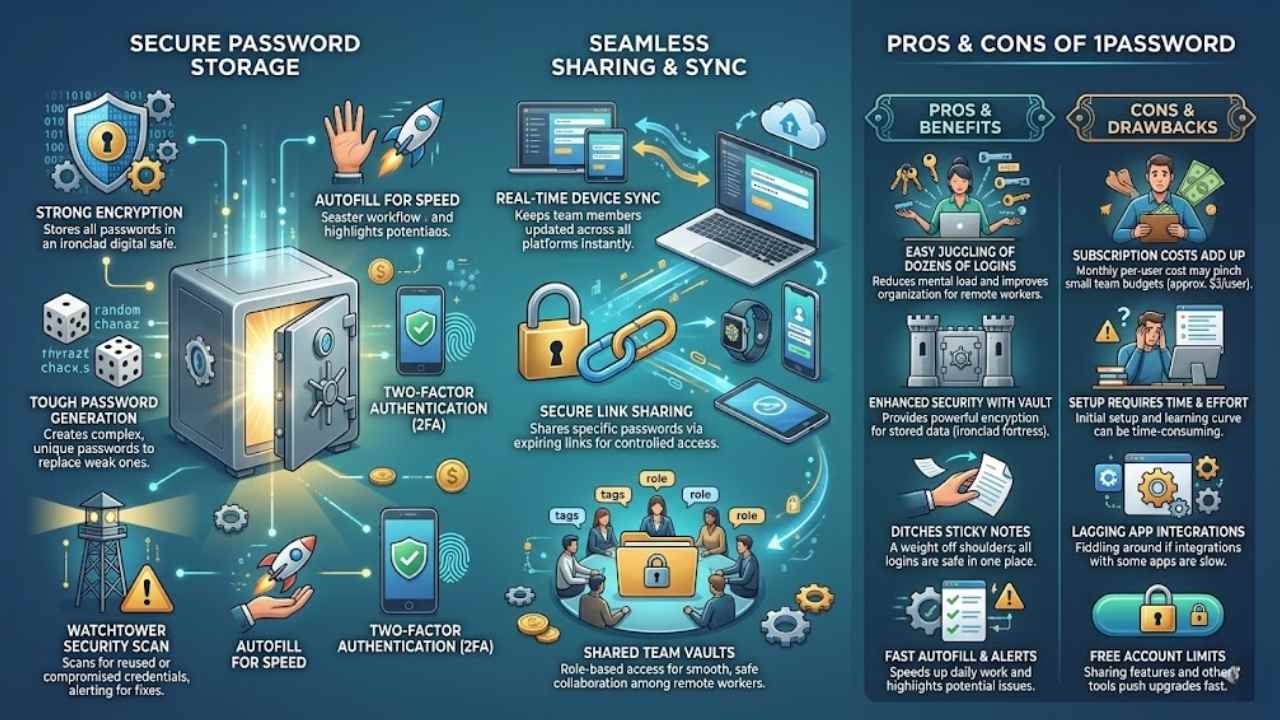
Imagine juggling dozens of logins without dropping the ball, that’s where this tool shines for remote workers. It stores your codes in a locked vault, shares them with ease across devices, and even spots weak spots in your setup—want the full scoop on its perks and pitfalls?
Features for storing and sharing passwords safely
1Password keeps your passwords safe and sound, like a trusty vault in your pocket. You can share them with team members without the worry of leaks or hacks.
- It uses strong encryption to store all your passwords, so only you and approved folks can access them; think of it as a digital safe that even a master thief couldn’t crack.
- The app generates tough, random passwords for you, cutting down on weak ones that hackers love to guess.
- You share passwords via secure links that expire after use, keeping things tight and controlled, almost like passing a secret note that self-destructs.
- It syncs across devices in real time, so your remote team always has the latest info without manual updates.
- Built-in autofill speeds up logins on websites and apps, saving you time while staying secure.
- The Watchtower feature scans for weak or reused passwords, alerting you to fix them before trouble hits, kind of like a watchful guard dog.
- You can set up shared vaults for teams, where everyone gets access based on roles, making collaboration smooth and safe.
- It supports two-factor authentication, adding an extra layer to protect your stored data from unauthorized eyes.
Pros & Cons of 1Password
Remote workers juggle tons of logins, like a circus act with too many plates spinning. This tool stores passwords in a vault, safe from prying eyes, and lets teams share them without the usual headaches. You get autofill magic that speeds up your day, plus alerts for weak passwords that could spell trouble. Imagine ditching sticky notes for good; it feels like a weight off your shoulders. Security pros love the encryption, which acts like an ironclad fortress.
Costs add up with the subscription model, about $3 per user monthly, and that pinches small teams. Setup takes time if you’re new to it, leading to a few frustrated sighs at first. Integration with some apps lags, so you might fiddle around more than expected. Sharing features shine, but limits on free accounts push you to upgrade fast.
Final Thoughts
You’ve just explored top apps like Notion for workspaces, Slack for chats, and Zoom for meetings that boost remote work. These tools make tasks simple and teams connected, no hassle involved.
They cut chaos, spark efficiency, and help you crush deadlines from home. Check out extras like Toggl for tracking time or Zapier for automations to level up your setup. I once juggled projects solo until Asana turned my mess into smooth sailing, proving these picks work wonders.
Start using them today, watch your productivity soar, and own that remote life like a boss.
Frequently Asked Questions (FAQs) About Productivity Apps for Remote Workers
1. What makes these productivity apps great for remote workers?
Think juggling tasks from your couch like a circus pro; these apps, like task trackers and time managers, keep you on point without the office chaos. They boost focus and cut distractions, turning your home setup into a powerhouse. Plus, they’re a lifesaver when deadlines sneak up like uninvited guests.
2. How do I pick the right app from the top 10 list?
Start by matching your needs, say collaboration tools for team chats or note apps for quick ideas. Think about free trials to test the waters before diving in.
3. Can these apps really improve my work-life balance?
Absolutely, they automate reminders and organize schedules so you don’t burn the midnight oil. Remote workers swear by them for wrapping up early and enjoying that extra coffee break.
4. Are there apps in the top 10 that help with team projects?
Yes, tools like project boards and file sharers make group work a breeze, even miles apart. They sync updates in real time, dodging those endless email chains that feel like a bad dream.