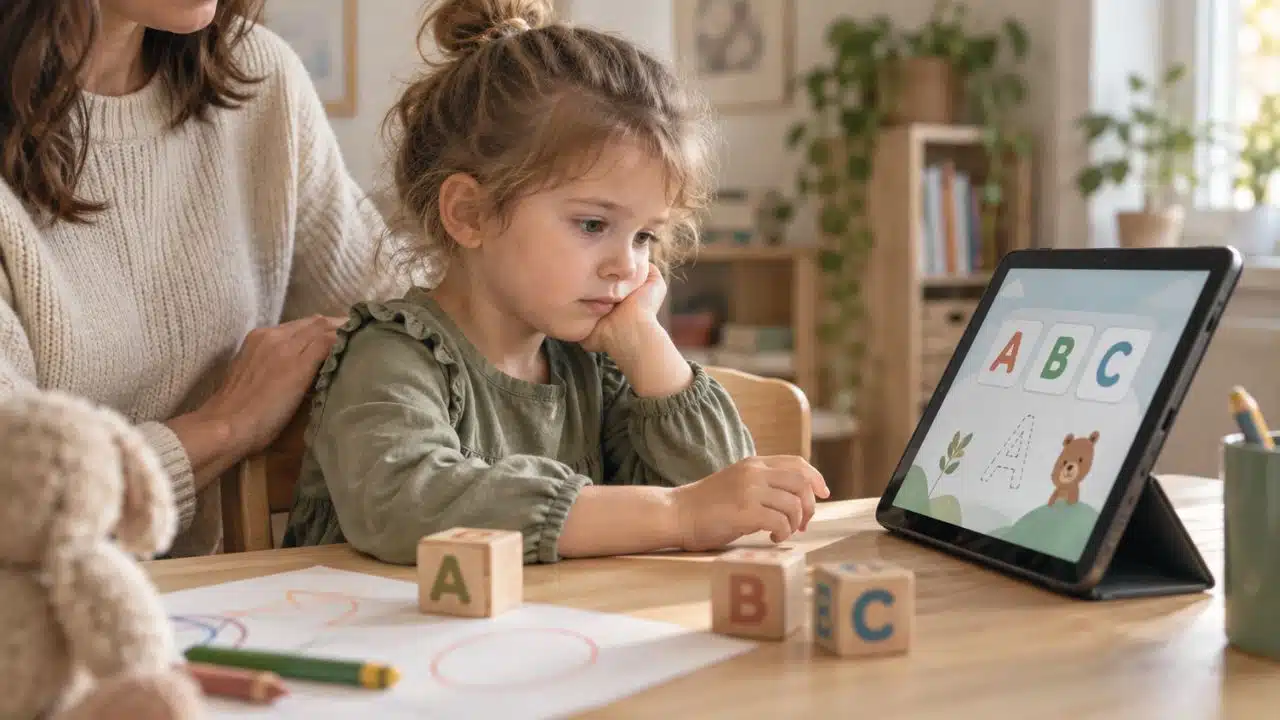
You downloaded an alphabet app because your four-year-old liked the colors. Two weeks in, she opens it, taps twice, and hands the tablet back. Nothing is broken and she is not behind. The app is simply ahead of where she is right now.
This happens constantly, and most parents read it as a motivation problem. It usually isn’t. Alphabet apps are built for a wide age band; a single app might be marketed to a two-year-old and a six-year-old at the same time. So a child can land in a mode that assumes skills she hasn’t built yet. The signs an alphabet app is too advanced for your child show up quickly once you know what you’re looking at. Some of them are in the app’s design. Some are in your child’s hands.
1. It Opens With Lowercase Letters
Uppercase letters are visually distinct. A, E, and T don’t look like anything else. Lowercase letters are a harder problem: b, d, p, and q are the same shape rotated, and a young child who is still sorting out left from right has almost no chance with them.
The research on this is consistent. By age four, around 60% of children know more than half the uppercase letters but only five to ten lowercase ones. That gap is normal, not a delay. An app that opens in lowercase or shows both cases side by side from the first screen is asking a preschooler to run a comparison she isn’t ready to run.
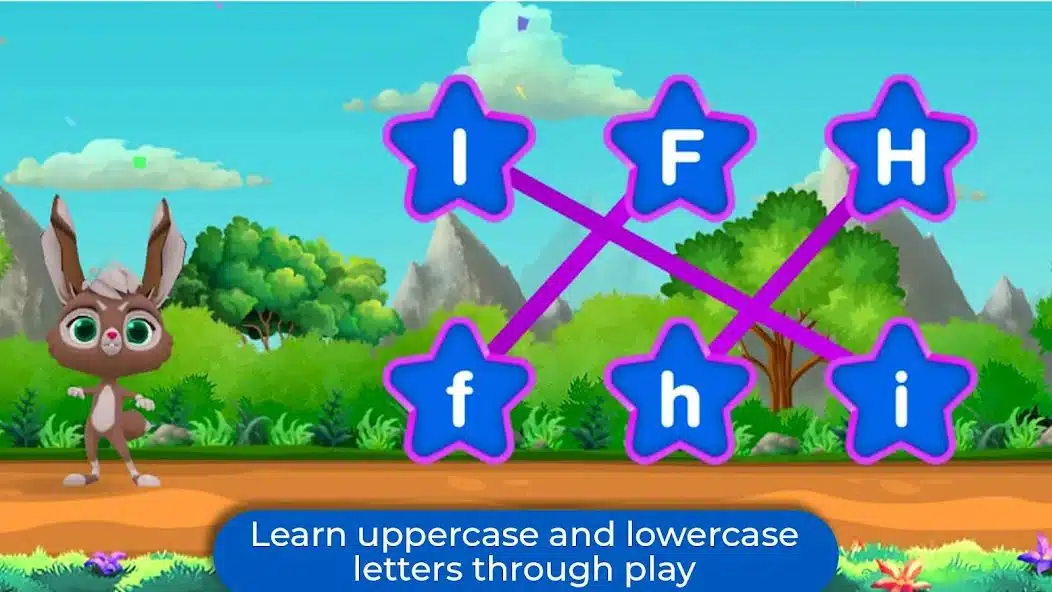
Check the first screen before your child sees it. If it’s lowercase, look for an uppercase mode in the settings. If there isn’t one, the app is aimed at older people. Our guide on why alphabet recognition matters covers why the order of introduction changes results this much.
2. It Asks for Tracing Before the Hand Can Make the Strokes
This is the clearest sign on the list and the easiest to test in about ninety seconds.
Letters are built from a small set of pencil movements, and those movements arrive in a fixed developmental order. Children typically master a vertical line around age two, a horizontal line by roughly two and a half, a circle between two and a half and three, a cross between three and three and a half, and a square around four. This is why structured handwriting programs teach vertical and horizontal letters first, then circular ones, and save diagonals for last.
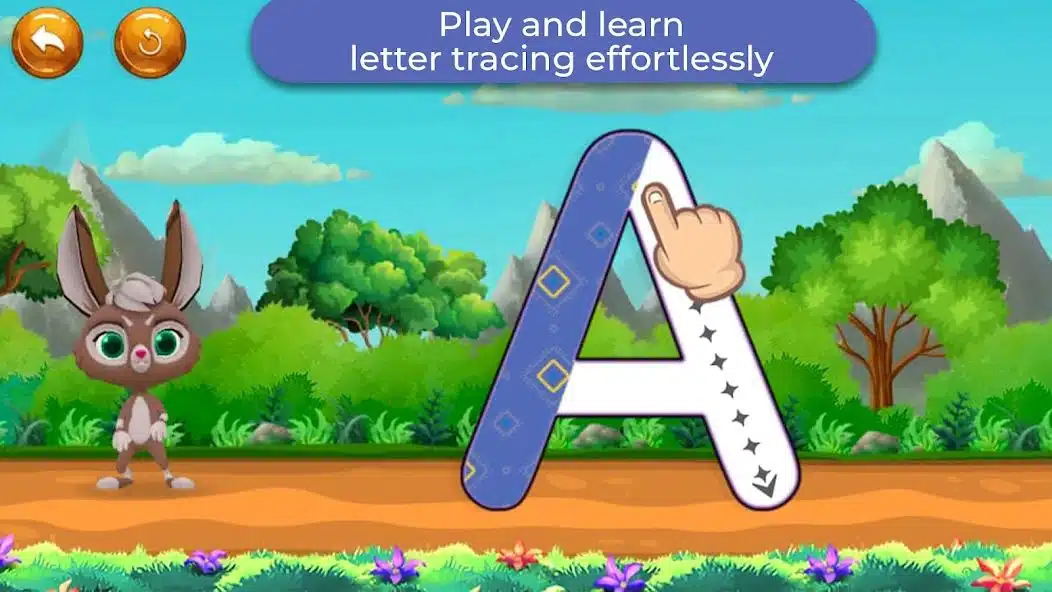
Hand your child a crayon and paper and ask her to copy a plus sign. If she can’t yet, letter tracing on glass is too early, no matter how forgiving the app’s guide rails are. A finger on a screen doesn’t build the strokes; it just measures whether they already exist.
| What your child can copy | What tracing will feel like |
|---|---|
| Vertical and horizontal lines only | L, T, and I are fine. Everything else is guessing. |
| Circle and cross | O, C, and most uppercase letters are reachable. |
| Squares and diagonals | Ready for full alphabet tracing, including A, V, K, and X. |
If she lands in the top row, stay off tracing modes for now and use matching and letter-sound games instead.
3. It Moves From Letters Straight Into Spelling Words
Plenty of alphabet apps bundle a spelling or word-building mode alongside tracing. Alphabet Magic ships eight mini-games, and a spelling activity sits in the same menu as the uppercase tracing screen, which is fine as a design decision, but those two modes are not for the same child on the same week.
Spelling requires blending: knowing that the letters make sounds and that the sounds run together into a word. Most children don’t start making reliable sound-letter connections until around age five. A four-year-old dropped into a spelling game will move letters around until something lights up. That’s pattern-matching against the interface, not reading.
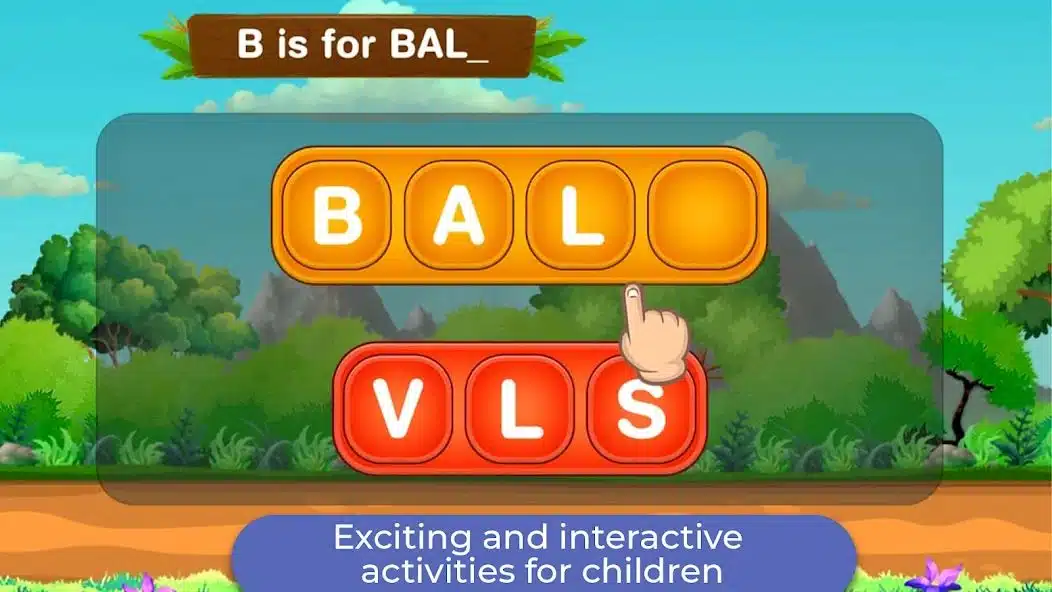
If your child spends her session in the word modes and can’t name ten letters cold, she’s playing the wrong half of the app.
4. It Scores the Trace Instead of Guiding It
Watch what happens when your child goes outside the line. Some apps pause, hold the stroke, and let her keep going. Others flash a mark, reset the letter, and make her start over.
The second pattern turns a motor-skill activity into a test, and a preschooler who fails the same letter four times will simply stop opening the app. Repeated correction at this age costs you more than the practice earns. Well-built alphabet games keep the child moving and correct the shape quietly, inside the animation, rather than announcing the error.
5. It Marches Straight Through A to Z
Alphabetical order is a filing system, not a teaching sequence. It puts B, D, and G — three of the harder letters to write and three that are easy to confuse — inside the first seven screens, and it buries L, T, I, and O, which are the easiest entry points for a small hand.
The stronger sequence starts with straight-line letters, adds the circle letters, and holds diagonals for last. It also front-loads the letters in the child’s own name, which is where most kids show real interest first. An app locked to A–Z with no way to reorder or skip is built for classroom coverage, not for one child at your kitchen table. The same logic applies offline, which is why some alphabet charts work and most don’t.
6. Reading the Signs an Alphabet App Is Too Advanced for Your Child in Her Own Behavior
The first five signs are in the app. This one is in the room.
Two behaviors matter. The first is random tapping; she’s hitting targets to trigger the sound and animation, with no attempt to find the right letter. The second is hint-waiting: she does nothing until the correct answer starts glowing, then taps it. Both mean the same thing. The task is above her, and she has found a way to keep the rewards coming without doing it.
Neither is bad behavior. It’s a sensible response to a game she can’t win.
7. The Instructions Are Longer Than the Task
Listen to the audio prompt with your eyes closed. If it runs past about eight or ten words, or if the screen expects her to read a menu label to get anywhere, the app assumes a child who already reads a little.
Pre-readers navigate by picture, color, and position. Text-labeled menus, multi-step settings screens, and long spoken sentences all push the app’s real floor upward, whatever the store listing claims about age. A 4+ age rating on the App Store is a content-safety rating, not a readiness rating, and the two get confused constantly.
What to Do When the App Is Ahead of Her
Don’t delete it. Most of these apps hold three or four years of material, and the modes your child can’t use yet will be the right ones in eight months.
Drop back a level inside the same app first. Uppercase before lowercase, recognition before tracing, and tracing before spelling. Start with the letters in her name. Keep sessions to the length she stays interested in rather than a number you picked, usually a few minutes at this age.
If she’s already lost confidence with letters, work on that before adding screen time back; our walkthrough on rebuilding alphabet skills handles that in order. And if you’re trying to judge whether her pace is normal, how long it actually takes a child to learn the alphabet is worth reading before you compare her to anyone else’s kid. For a lower-pressure starting point, these alphabet games work well below tracing level.
Final Thoughts
Almost every one of the signs an alphabet app is advanced for child readiness comes down to one mismatch: the app is teaching writing while your child is still learning to see. Recognition comes first, sounds come next, and the pencil work comes after both and no interface design can reorder that.
Spend ten minutes this week watching a session instead of listening to it from the next room. Where she hesitates tells you more than any progress screen will, and the fix is almost always to go back one step rather than find a better app.