Hey there, gamers! Are you tired of pressing a button, only to see your character move a split second too late? That frustrating delay, called input lag, can mess up your shots or jumps in fast-paced video games.
It’s like trying to dance with two left feet, and nobody wants that!
Did you know a tiny delay of just a few milliseconds can make you miss key moments in a match? That’s right, even a small hiccup can throw off your game. But don’t worry, I’ve got your back with some easy tricks.
This post will show you simple ways to cut down on input lag, tweak your refresh rate, and optimize your setup using tools like the Nvidia Control Panel. Stick around, let’s fix this!
Key Takeaways
- Boost your monitor’s refresh rate to 144Hz or higher to cut input lag.
- Turn off V-Sync and motion blur in settings like NVIDIA Control Panel for faster response.
- Lower game resolution and disable extras like shadows to reduce lag.
- Use wired controllers or mice instead of wireless to avoid delays.
- Update GPU drivers with tools like GeForce Experience for better performance.
Adjust Display Settings
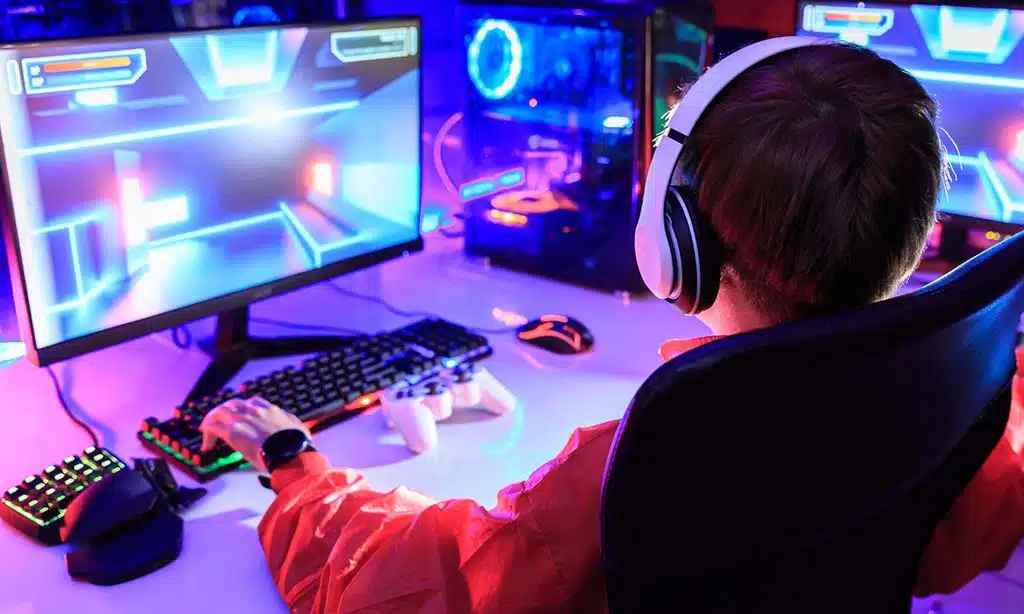
Hey, wanna make your gaming butter-smooth? Tweak those monitor settings, like boosting the refresh rate, and watch the magic happen!
Enable your maximum refresh rate
Got a monitor that supports a high refresh rate? Crank it up to the max, like 144Hz or even higher, to cut down on input lag. A faster refresh rate means your screen updates more often, so your actions in-game feel snappy, almost like you’re right in the action.
Think of it as tuning a car for speed, folks. By enabling that top refresh rate through your Nvidia Control Panel or Radeon Settings, you’re squeezing out every bit of performance.
Higher rates, especially on modern monitors with just 10 to 15 milliseconds of latency, make a big difference in how smooth your gaming feels.
Disable V-Sync and motion blur
Hey there, gamers, let’s chat about a quick fix to cut down on input lag. Turning off V-Sync and motion blur can really help. V-Sync, meant to sync your game’s framerate with your monitor’s refresh rate, often adds delays.
That tiny wait can mess up your reaction time in fast-paced matches. So, ditch it in your graphics settings, and feel the difference instantly.
Now, motion blur might look cool, but it’s not your friend in competitive play. It clouds your view, slowing down how fast you spot enemies. Head to your game’s options, or even the NVIDIA Control Panel if you’ve got a GeForce RTX card, and switch it off.
For NVIDIA users, also enable Ultra Low Latency mode while you’re at it. Trust me, your gameplay will snap into sharper focus, giving you that edge.
Optimize In-Game Graphics
Hey, wanna make your game run like a dream? Tweak those graphics settings, and watch the magic happen!
Lower resolution and reduce high-demand features
Cutting down on resolution can be a game-changer for your gaming rig. It lightens the load on your graphics card, slashing input lag like a hot knife through butter. If your screen looks a bit fuzzy, don’t sweat it, the smoother gameplay is worth the trade-off.
Dropping to a lower setting means your GPU isn’t huffing and puffing to keep up.
On top of that, turn off those fancy extras that hog power. Say goodbye to shadows, reflections, and anti-aliasing, those high-demand features that slow things down. Your frames per second will thank you, and you’ll notice less input delay during clutch moments.
Keep it lean, and watch your game run like a well-oiled machine.
Set render scale to 100% or lower
Hey there, gamers, let’s adjust your setup for a quicker feel. Setting the render scale to 100% or lower on your rig, especially if you’re using a GPU like those in the GeForce RTX 20 series, can significantly reduce input lag.
Think of it as easing the burden, kinda like carrying a lighter backpack on a hike. Less weight means you move quicker, right?
Now, explore your game settings, and lower that render scale a bit. Reducing it eases the pressure on your GPU, allowing your PC or console to produce frames smoothly. This small change can refine your gameplay, making every click and move feel immediate.
Stick with this adjustment, and see how it enhances your response on-screen.
Test and Upgrade Input Devices
Hey, got a second to chat about your gaming gear? Let’s zero in on those pesky delays with your mouse or controller, and get you back to snappy moves in no time!
Check for wireless controller or mouse latency
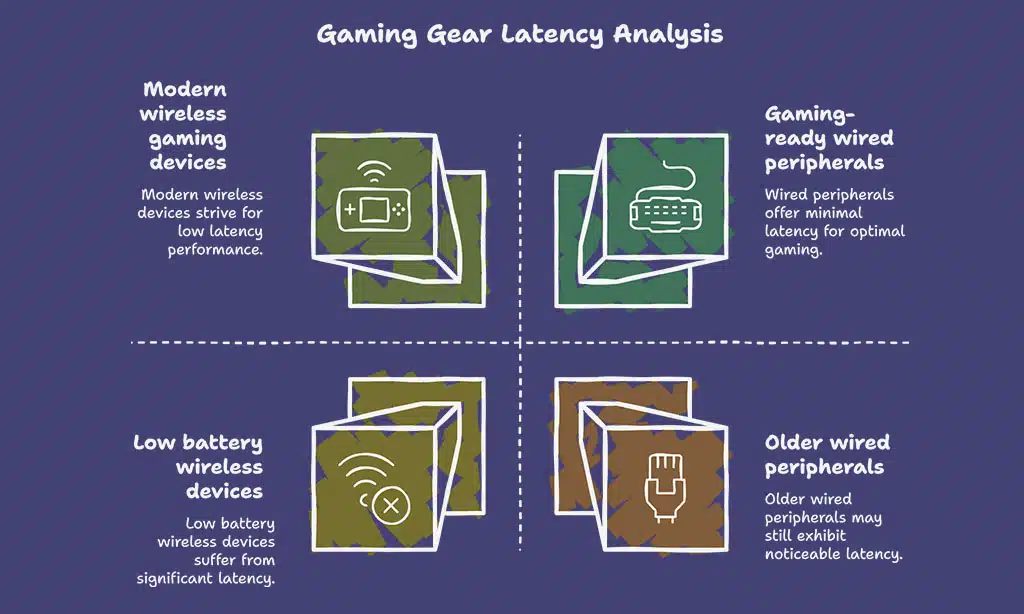
Let’s chat about something that can sneak up on your gaming, and that’s latency from wireless controllers or mice. Wireless devices, sadly, often have more lag than wired ones, and trust me, that tiny delay can mess up your aim or reaction time.
Low battery levels or shaky wireless connections can make this worse, so keep an eye on those power bars and signal strength.
Now, poke around and test your gear for delays, especially if you’re using wireless mice or controllers on your PCs. Modern wireless hardware tries hard to cut down on input lag, but it’s not always perfect.
If you spot issues, think about switching to wired options for a snappier response. A solid USB host connection with a wired setup can feel like night and day during intense gaming moments.
Choose peripherals designed for low latency
Picking the right gear can slash your input lag big time, folks. I’m talking about gaming-ready keyboards, controllers, and monitors built for speed. See, peripheral devices play a huge role in how fast your actions hit the game, and not all are made equal.
Go for those crafted with low latency in mind to feel the difference.
Many new gaming displays boast an input lag of just 10 to 15 milliseconds. That’s lightning quick! Though manufacturers often keep latency stats under wraps, hunting for hardware tagged as “gaming-ready” usually points you to solid picks.
Pair that with a wired setup over wireless to dodge extra delays, and you’re on track for smoother play.
Update Hardware and Drivers
Hey, wanna keep your gaming slick and snappy? Make sure your GPU drivers, like those for NVIDIA cards, and monitor software are fresh and up to speed!
Ensure GPU and monitor drivers are up to date
Keeping your GPU and monitor drivers fresh is a big deal for gaming. Outdated drivers can slow things down, adding pesky input lag. So, hop onto your computer, check those drivers, and grab the latest versions.
For NVIDIA users, tools like NVIDIA Control Panel or GeForce Experience make this a snap. Trust me, updating takes just a few clicks but can boost your hardware performance like magic.
Think of drivers as the bridge between your gear and games. If that bridge is old, your system stumbles. Pop into your operating system, whether it’s Win11 or older, and make sure everything matches the latest Intel Core processor power.
Updated drivers cut down lag, letting you react faster in-game. It’s like sharpening a dull blade, simple but oh so effective!
Consider upgrading to a higher refresh rate monitor
Hey there, gamers, let’s chat about boosting your setup with a higher refresh rate monitor. If you’re stuck at 60Hz, jumping to 144Hz or more can slash that pesky input lag big time.
It’s like swapping a sluggish horse for a speedy racecar, trust me, the difference hits hard.
Now, peep this, those shiny new gaming displays often rock an input latency of just 10 to 15 milliseconds. Grabbing a monitor with a zippy refresh rate isn’t just a flex, it’s a game-changer for smoother play.
So, if lag’s got you down, think about leveling up your screen to match those killer GPUs and keep your moves razor-sharp.
Takeaways
Wow, you’ve made it this far, champ! Let’s wrap this up with a quick nod to smoother gaming. Tweak those settings, update your gear, and watch input lag vanish like a ghost. Stick with a solid refresh rate on your screen, and you’re golden.
Got any lag-busting tips? Drop ’em below, I’m all ears!
FAQs
1. What exactly is input lag, and why does it mess up my gaming groove?
Man, input lag is that annoying delay between pressing a button and seeing the action on screen. It’s like telling your dog to fetch, but he just stares at you for a second before moving. It can ruin your game, especially with network latency or a slow refresh rate throwing punches at your reaction time.
2. How can tweaking the Nvidia Control Panel help me dodge input lag?
Dive into the Nvidia Control Panel and turn on Ultra Low Latency Mode. It’s like giving your graphics card a caffeine boost to cut down delays.
3. Does my internet connection play a role in lag during online battles?
Heck yeah, a shaky internet connection can spike network latency and cause packet loss, making your game stutter like a bad slideshow. Switch to a wired Ethernet setup if you can. It’s like swapping a rickety bike for a smooth-riding car on the digital highway.
4. Can messing with the Windows Registry zap some of that pesky lag?
You bet, but tread lightly when editing the Windows Registry through paths like HKEY_CURRENT_USER or HKEY_LOCAL_MACHINE. Open Notepad to jot down backups before tweaking process scheduling settings. It’s like tinkering under the hood of a car, one wrong move and you’re stuck on the side of the road.
5. Is Nvidia G-Sync worth it for slashing input lag in my setup?
Absolutely, Nvidia G-Sync syncs your monitor’s refresh rate with your GPU, smoothing out gameplay like butter on toast. If your rig supports it, flip that switch on. It’s a game-changer for dodging those frustrating delays.