Most lists of the best productivity apps for Windows have the same problem: they recommend too many apps. You get three task managers, four note-taking platforms, two calendar tools, an AI assistant, a habit tracker, a timer, a project-management suite, and several utilities that quietly perform the same job.
Install everything, and your supposedly productive Windows PC ends up with more startup processes, more notifications, more accounts, and more places to check. That is not a productivity system. It is software accumulation.
I approached this list differently. I looked for Windows apps that remove a clear source of friction. Some help you find files faster. Others organize windows, capture screenshots, automate repetitive work, block distractions, or show where your time is disappearing.
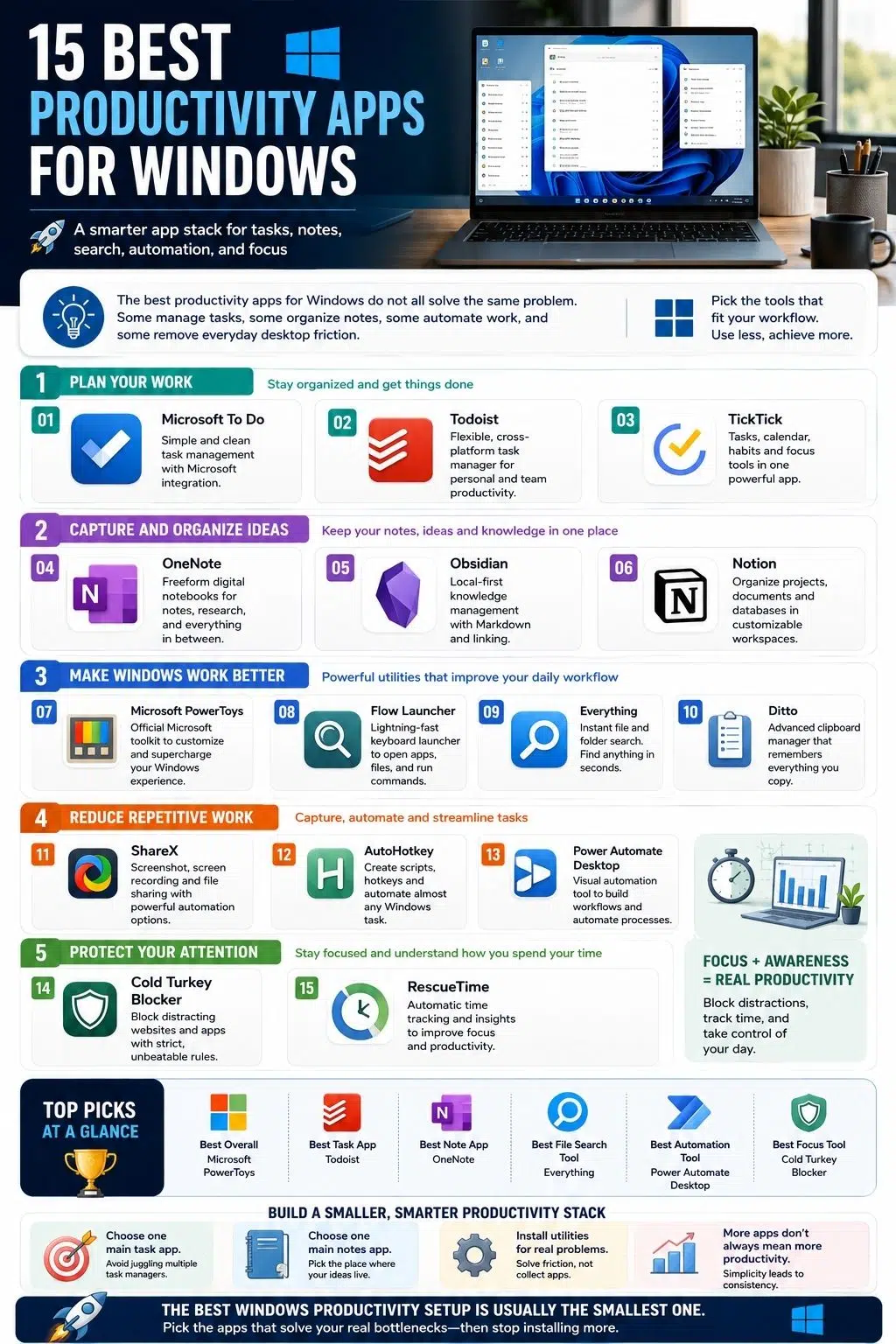
You should not install all 15. In several categories, the apps are direct alternatives. Microsoft To Do, Todoist, and TickTick all manage tasks. OneNote, Obsidian, and Notion overlap as places to store knowledge. Flow Launcher and PowerToys both provide faster ways to open apps and commands.
The goal is to choose the smallest set of tools that fixes the way you actually work.
Do You Really Need More Productivity Apps?
Before installing anything, identify the problem. Are you constantly losing files? Forgetting tasks? Repeating the same keyboard actions? Rearranging windows? Copying the same information several times? Getting pulled into distracting websites? Spending hours on activities you barely remember?
Each of those problems needs a different solution. A task manager will not fix slow file search. A note-taking platform will not stop distracting websites. An AI assistant will not necessarily reduce the time spent renaming 200 files.
Windows already includes useful productivity features such as Snap layouts, Snap groups, clipboard history, virtual desktops, Focus sessions, Do Not Disturb, and the Snipping Tool. Snap, for example, can arrange several applications into predefined layouts and restore grouped windows later. Try the built-in option before adding another permanent background application.
This guide is written primarily for Windows 11. Microsoft ended free Windows 10 security updates and technical support on October 14, 2025, although several apps in this list still run on Windows 10.
The Best Productivity Apps for Windows
The best productivity apps for Windows do more than add another dashboard to your desktop. They solve specific problems such as managing tasks, finding files, organizing notes, automating repetitive work, capturing screenshots, and protecting focus. The right choice depends on the friction in your own workflow, so each app below is assessed by what it genuinely improves, where it overlaps with other tools, and when it may not be worth installing.
1. Microsoft PowerToys
It’s the best overall Windows productivity toolkit. Microsoft PowerToys is the first app I would install on a new Windows work computer because it improves the operating system instead of trying to replace your entire workflow.
PowerToys is a free, open-source collection of Windows utilities. Its current toolset includes FancyZones for advanced window layouts, PowerRename for bulk file renaming, Peek for quick file previews, Keyboard Manager for remapping keys, Advanced Paste, Always On Top, Image Resizer, Text Extractor, PowerToys Run, Workspaces, and several other utilities.
The value is not that everyone needs every feature. Most people do not.
A writer might use Always On Top, Text Extractor, and PowerRename. A designer may care more about Color Picker, Image Resizer, and Screen Ruler. Someone working across several apps may benefit from FancyZones and Workspaces.
PowerToys becomes less useful when every module is enabled without a reason. That creates a settings panel full of tools you do not understand and shortcuts you may trigger accidentally.
Start with one frustration. If your windows never stay organized, try FancyZones. If you rename files manually, use PowerRename. If you keep opening files just to inspect them, enable Peek.
PowerToys earns the top position because it can remove several small Windows irritations without forcing your work into a new cloud platform.
2. Microsoft To Do
Best free task manager for Microsoft users. Microsoft To Do is the sensible starting point for anyone who wants a straightforward task list and already uses Outlook or a Microsoft account.
It supports due dates, reminders, starred tasks, notes, lists, subtasks through Steps, and a daily My Day view. Tasks are stored through Microsoft’s online services and can appear in Outlook Tasks. Microsoft provides versions for Windows, macOS, iOS, and Android.
What I like about To Do is what it does not try to become. It is not a knowledge base, company wiki, habit coach, database builder, or complicated project-management platform. You add a task, give it a date when necessary, break it into steps, and decide what belongs in My Day.
That simplicity is useful for students, office workers, and personal users who mainly need a dependable place to remember work.
Its limits appear when projects require advanced filters, complex dependencies, detailed team collaboration, or highly customized views. Todoist and TickTick offer more flexibility for people who have outgrown a basic list.
Do not move to a more complicated app simply because it looks more professional. When Microsoft To Do already captures your tasks and helps you choose the day’s work, adding more structure may only create maintenance.
3. Todoist
Best cross-platform task manager. Todoist is a stronger fit than Microsoft To Do when you need more flexible organization but still want a task manager rather than a complete workspace.
It has a dedicated Windows app and is also available across macOS, Linux, mobile devices, wearables, browsers, and email integrations. That wide availability makes it practical for people who capture work from several devices.
Todoist works well for mixing personal responsibilities, recurring work, project lists, deadlines, and smaller collaborative tasks. It provides enough structure to support a serious system without requiring users to build databases from scratch.
Choose it when tasks are the center of your system and you want to reach those tasks from almost anywhere. Skip it when your real problem is note storage, file retrieval, distraction, or automation. A task manager should not be expected to repair every weak part of a Windows workflow.
4. TickTick
Best all-in-one personal productivity app. TickTick is the most suitable task app here for someone who wants several personal productivity functions inside one interface.
Alongside to-do lists, it provides multiple calendar views, Kanban and timeline options, an Eisenhower Matrix, Pomodoro timing, habit tracking, countdowns, and other planning tools. The official product is available for Windows and several other platforms. That combination can reduce app switching.
A student might keep assignments, exam dates, focus sessions, and habits in TickTick rather than using four separate tools. A freelancer could place tasks on the calendar, run focus sessions, and track recurring routines from the same account. The same breadth can become a weakness.
Not every user needs a habit tracker beside a project view, a focus timer, a calendar, and an Eisenhower Matrix. More features mean more ways to configure the system, and more opportunities to spend time managing it.
TickTick makes the most sense when you genuinely want an integrated personal planner. It is unnecessary when all you need is a reliable task list.
I would not install TickTick alongside Todoist and Microsoft To Do. Pick one. A task that exists in three systems is not three times more likely to be completed.
5. Microsoft OneNote
Best freeform notebook for Windows. OneNote remains one of the most practical Windows note-taking apps because it handles information that does not fit neatly into a linear document.
The current OneNote on Windows is Microsoft’s supported desktop version and is free to use. It offers notebooks, sections, pages, handwriting and ink tools, search, dictation, transcription, and integration with Microsoft’s wider ecosystem. Microsoft ended support for the separate OneNote for Windows 10 app in October 2025, so users should move to the current OneNote on Windows application.
OneNote works especially well for meeting notes, lectures, research collections, screenshots, handwritten annotations, project notebooks, and mixed media.
The page behaves more like a flexible canvas than a strict text document. That freedom is useful when notes include diagrams, clipped content, images, tables, and writing placed in different parts of the page. Its weakness is accumulation.
OneNote makes capturing information easy, but retrieval becomes difficult when notebooks grow without naming rules or review. A hundred pages called “Notes” are not a knowledge system.
Use OneNote when you want flexible capture and Microsoft integration. Choose Obsidian when local files, linking, and long-term portability matter more. Choose Notion when notes need to sit beside shared databases and project workflows.
6. Obsidian
Best local-first knowledge-management app. Obsidian is the strongest choice on this list for users who want their notes stored as ordinary local files.
The app keeps notes as Markdown-formatted plain-text files inside a local folder called a vault. Those files can be opened and managed with other text editors and file managers. Users can synchronize them through Obsidian Sync or third-party services such as OneDrive, Dropbox, Git, and others.
That structure gives Obsidian a major advantage: the notes do not depend entirely on one company’s database format.
Writers, researchers, developers, academics, and knowledge workers can link related notes, create topic networks, search across a vault, and extend the app with community plugins.
The danger is obvious to anyone who has seen an elaborate Obsidian setup online. Plugins, themes, templates, metadata systems, graph views, and automation can become a hobby. Users may spend days designing the perfect vault before writing anything worth storing.
Obsidian is most useful when the system begins simply: folders where needed, links when they add context, and a small number of trusted plugins.
Choose it for ownership, offline access, Markdown, and connected knowledge. Skip it when you want effortless real-time collaboration or when local file management feels like another responsibility.
7. Notion
Best customizable workspace for projects and collaboration. Notion is the most flexible workspace in this list, which is both its selling point and its largest risk.
It combines documents, knowledge bases, project management, databases, shared pages, connected apps, search, and an expanding collection of AI and automation features. Notion offers a Windows desktop app, including standard and MSIX installation options, and its desktop version supports command search from the Windows taskbar.
Notion makes sense when information needs relationships. It is less convincing when someone merely needs to write notes or remember tasks.
The blank-page flexibility encourages people to design dashboards, duplicate templates, experiment with databases, and keep refining an operating system for their life. That can feel productive without improving the underlying work.
Notion belongs in a productivity stack when it replaces scattered team documents or genuinely connects projects and knowledge. It does not belong there simply because a polished template looked impressive.
For private local notes, Obsidian is the better fit. For handwritten or loose-form information, OneNote is easier. Notion wins when structure and collaboration matter more than simplicity.
8. Flow Launcher
Best keyboard launcher for Windows power users. Flow Launcher turns a keyboard shortcut into a fast command center for Windows.
The default shortcut opens a search bar that can launch apps, find files, run web searches, locate bookmarks, access Windows settings, execute system and shell commands, calculate results, and use community plugins. It can also connect to Everything for faster file search. The current official release supports Windows 10 and later.
This is the kind of app that saves seconds rather than hours in a single action. Those seconds add up when the launcher is used dozens of times each day.
Instead of opening the Start menu, browsing folders, clicking through settings, or switching to a browser, you type what you want and move on.
Flow Launcher overlaps with PowerToys Run and the newer PowerToys Command Palette. Most users should not run several launchers at once.
Use Flow Launcher when plugins, customization, and keyboard-driven access are central to your workflow. Use the PowerToys option when you already rely on the wider PowerToys suite and want fewer installed tools.
9. Everything
Best instant file-search utility. Everything solves one problem exceptionally well: finding files and folders by name.
The Windows utility is designed around rapid indexing, quick searches, fast startup, minimal resource use, a small database, and real-time updates.
That may sound less exciting than an all-in-one workspace, but file retrieval is a real productivity bottleneck.
People lose time browsing nested folders, checking Downloads, searching several drives, and trying to remember whether a file was called “final report,” “report final,” or “report final new.”
Everything can surface filename matches almost immediately. It is particularly valuable for users with large local drives, archives, media collections, project folders, and inconsistent naming habits.
The limitation is important: Everything is primarily a filename search engine. It should not be confused with a knowledge-management platform that deeply understands document contents and relationships.
Best screenshot and capture-workflow app. ShareX is far more than a replacement for pressing Print Screen.
It is a free, open-source Windows application with screen capture, screen recording, scrolling capture, annotation, OCR, image editing, uploading, file sharing, and customizable after-capture workflows. It can automatically copy, save, edit, process, or upload a capture after it is taken.
This makes ShareX useful for documentation, tutorials, bug reports, editorial work, customer support, software development, research, and remote collaboration.
A repeated workflow might look like this:
- Capture a region.
- Add an arrow and blur private information.
- Save the image with a consistent name.
- Copy it to the clipboard.
- Open the correct folder.
ShareX can compress several of those steps into one shortcut. Its interface reflects years of accumulated functionality. New users may open the settings and wonder where to begin.
That is why I would configure only one or two capture workflows first. The built-in Snipping Tool is simpler for occasional screenshots. ShareX becomes worthwhile when capturing and processing images is a regular part of the job.
11. Ditto
Best advanced clipboard manager. Windows already provides clipboard history, so Ditto should not be an automatic installation.
Try Windows + V first.
When the built-in clipboard becomes too limited, Ditto offers a deeper local history. It stores copied text, images, HTML, and other clipboard formats so they can be retrieved later through a shortcut. The project states that it requires no login, uses no cloud service, and includes no telemetry.
This is especially useful when work involves copying several items in sequence:
- Customer replies
- Code snippets
- Research quotations
- Product details
- Spreadsheet values
- File paths
- Repeated form entries
Without a clipboard manager, each item may need to be found and copied again.
The privacy issue deserves attention. Clipboard histories can contain passwords, private messages, access tokens, personal data, and other sensitive material. Users should configure exclusions and retention carefully rather than treating the archive as harmless.
Ditto belongs on systems where clipboard history is a frequent limitation. For ordinary copying and pasting, the Windows feature may be sufficient, and one fewer utility is usually better.
12. AutoHotkey
Best customizable Windows automation tool. AutoHotkey is one of the most powerful productivity tools on Windows because it lets users change how the desktop responds to them.
It is a free, open-source automation utility driven by its own scripting language. Users can create keyboard shortcuts, remap keys, expand text, launch programs, manipulate windows, and automate repetitive tasks. The actively maintained direction is AutoHotkey v2; the project notes that v1 is no longer maintained.
A simple script can turn a short abbreviation into a full paragraph, open a group of work apps, move windows into position, remap an inconvenient key, or automate a repeated sequence. That power comes with responsibility.
AutoHotkey is not a collection of harmless shortcuts. Scripts can interact with files, applications, input, and the operating system. Never run copied code merely because someone described it as a productivity hack.
Start with a tiny script you understand. Text expansion and simple hotkeys are safer learning projects than a large script downloaded from an unknown source.
AutoHotkey is best for people willing to learn basic logic in exchange for precise control. Power Automate Desktop is more approachable for users who prefer a visual interface.
13. Power Automate for Desktop
Best visual Windows automation tool. Power Automate for Desktop brings robotic process automation to ordinary Windows workflows.
Microsoft describes desktop flows as a way to automate repetitive, rule-based processes through prebuilt drag-and-drop actions or recorded interactions. Flows can work with files and folders, websites, Excel, email, modern desktop programs, and older applications. They can identify interface elements, images, or screen coordinates.
This opens useful possibilities:
- Move downloaded files into named folders
- Extract web information into Excel
- Rename or process documents
- Transfer data between applications
- Automate repetitive form entry
- Build workflows around older business software
Power Automate Desktop is easier to approach than a scripting language, but “no-code” does not mean “no complexity.”
A flow that depends on a button appearing in a precise location may break when the application changes. File permissions, window sizes, website updates, login prompts, and unexpected data can interrupt an automation.
The best first project is a repetitive process with stable rules and little risk. Do not begin by automating a critical workflow you barely understand. Automate after the manual process is reliable, not before.
14. Cold Turkey Blocker
Best strict distraction blocker. Cold Turkey Blocker is for people who have already discovered that gentle reminders are easy to ignore.
It can block domains, individual URLs, searches, websites, applications, Microsoft Store apps, folders, and even the wider internet. Blocks can follow schedules and can be locked through timers, delays, passwords, restart requirements, or other restrictions. The application also supports usage statistics and states that its settings and statistics are stored locally.
The ability to block Windows applications matters. Distraction does not exist only in the browser. Games, communication apps, launchers, and media software can interrupt work just as effectively.
Strict blocking can be useful during writing, exam preparation, development, or any work that needs uninterrupted concentration. It can also backfire.
Block the wrong website, and you may lose access to a source required for the task. Create an overly strict schedule, and the blocker becomes another obstacle rather than protection.
Plan the allowed resources first. Then block what remains. Cold Turkey works best when the problem is known. It is not a substitute for deciding what the work session is supposed to accomplish.
15. RescueTime
Best automatic time-tracking and focus-analysis app. RescueTime is most useful before you redesign your productivity system.
The Windows application runs in the background and automatically tracks time spent in apps and websites. Its current suite includes goals, alerts, productivity reports, focus sessions, website and application blocking, offline activity entry, project tracking, and timesheet tools. RescueTime says it sends activity data to its servers to generate reports but does not collect keystrokes, form input, screenshots, or webpage content.
The main value is diagnosis. Someone may believe email is consuming the day and discover that browser research is the larger problem. Another user may find that productive work happens consistently in the morning and meetings are breaking that period apart.
That information can support better decisions about schedules, focus blocks, and workload estimates. Tracking does not create improvement by itself.
A detailed report can become another dashboard that gets checked and ignored. RescueTime earns its place only when the data leads to a change: moving meetings, blocking an app, protecting a time window, reducing a habit, or estimating projects more accurately.
Users should also be comfortable with the privacy trade-off involved in activity tracking before installing it.
The Best Windows Setup Is Usually the Smallest One
Windows productivity does not improve in direct proportion to the number of apps installed.
A useful tool shortens a repeated action, makes important work easier to find, or protects attention. An unnecessary tool adds another interface, notification stream, account, startup process, and collection of settings.
Do not install all of them and assume the overlap will sort itself out. The best productivity apps for Windows are not necessarily the most ambitious products. They are the few tools that remove enough friction to justify their place on your computer.
Frequently Asked Questions on The Best Productivity Apps for Windows
1. What Is the Best Overall Productivity App for Windows?
Microsoft PowerToys is the strongest overall recommendation because it adds useful system-level tools for window management, file handling, shortcuts, previews, launching, text extraction, and other recurring Windows tasks.
2. Do I Need a Third-Party Clipboard Manager?
Try Windows clipboard history first by pressing Windows + V. Ditto becomes useful when you need a larger, searchable, local history with more control over previously copied content.
3. Which Windows App Is Best for Automation?
AutoHotkey is best for users comfortable with scripting and custom shortcuts. Power Automate Desktop is better for visual workflows involving files, Excel, websites, data entry, and desktop applications.
4. Can Productivity Apps Slow Down a Windows PC?
Any application that launches at startup, runs background services, synchronizes data, indexes files, or tracks activity can use system resources. The effect varies by app and configuration, which is another reason to keep the productivity stack small.