
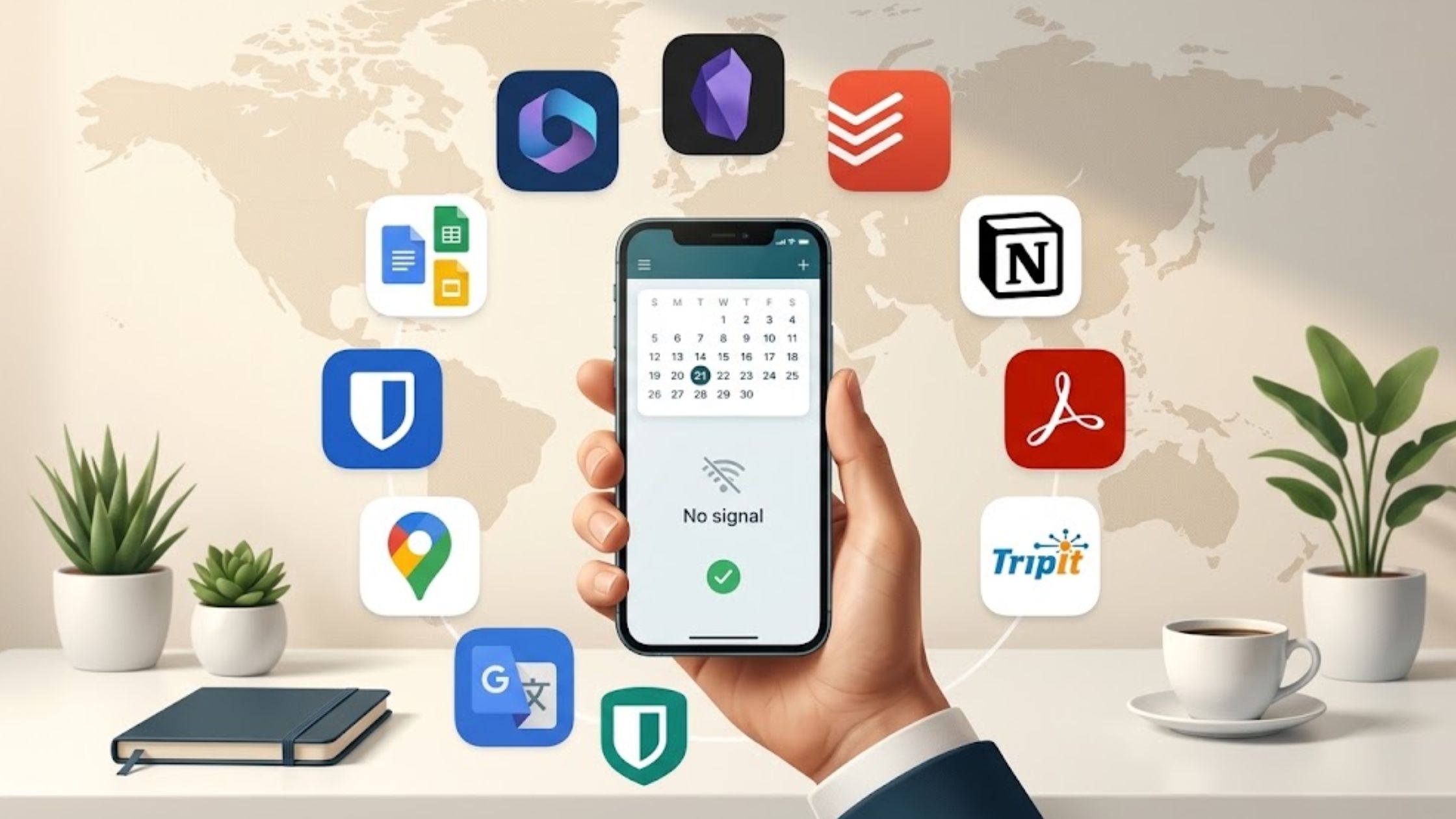
A document can appear in a cloud folder yet be unavailable when airplane mode is on. The best offline productivity apps avoid that problem by keeping essential material on the device.
This selection of the best offline productivity apps covers work and travel needs. The order moves from broad work tools to travel utilities; it is not a universal ranking. Offline reliability, setup effort, platform reach, and practical value shaped the list.
Best Offline Productivity Apps: Quick Comparison
| App | Useful For | Before the Trip |
| Microsoft 365 | Office documents | Install the apps and download files |
| Google Docs, Sheets, and Slides | Google Workspace files | Enable offline access |
| Obsidian | Writing and research | Keep the vault on the device |
| Todoist | Tasks and checklists | Sign in and complete a sync |
| OneNote | Notes and reference material | Sync the required notebooks |
| Notion | Project pages | Download pages and subpages |
| Adobe Acrobat Reader | PDFs and forms | Save PDFs locally |
| Instapaper | Long-form reading | Finish downloading articles |
| TripIt | Travel itineraries | Sync the trip and stay signed in |
| Google Maps | Driving maps | Download the destination area |
| Google Translate | Basic translation | Download language packs |
| Bitwarden | Saved credentials | Sync the vault and use Lock |
Among the best offline productivity apps, “offline” has several meanings. Obsidian keeps files locally. OneNote and Todoist use cached data. Notion, Google Maps, and Google Translate require advance downloads. That difference matters more than a long feature list.
Test Before You Travel
Even the best offline productivity apps fail when a file remains cloud-only or an account is logged out. Open essential files, sync, switch on airplane mode, and try the planned action. Do this at home, not at the gate.
Check storage space as well. A phone may display a cloud file without retaining its contents, while a large notebook or map can stop downloading when local storage is tight.
1. Microsoft 365: Best for Office Files
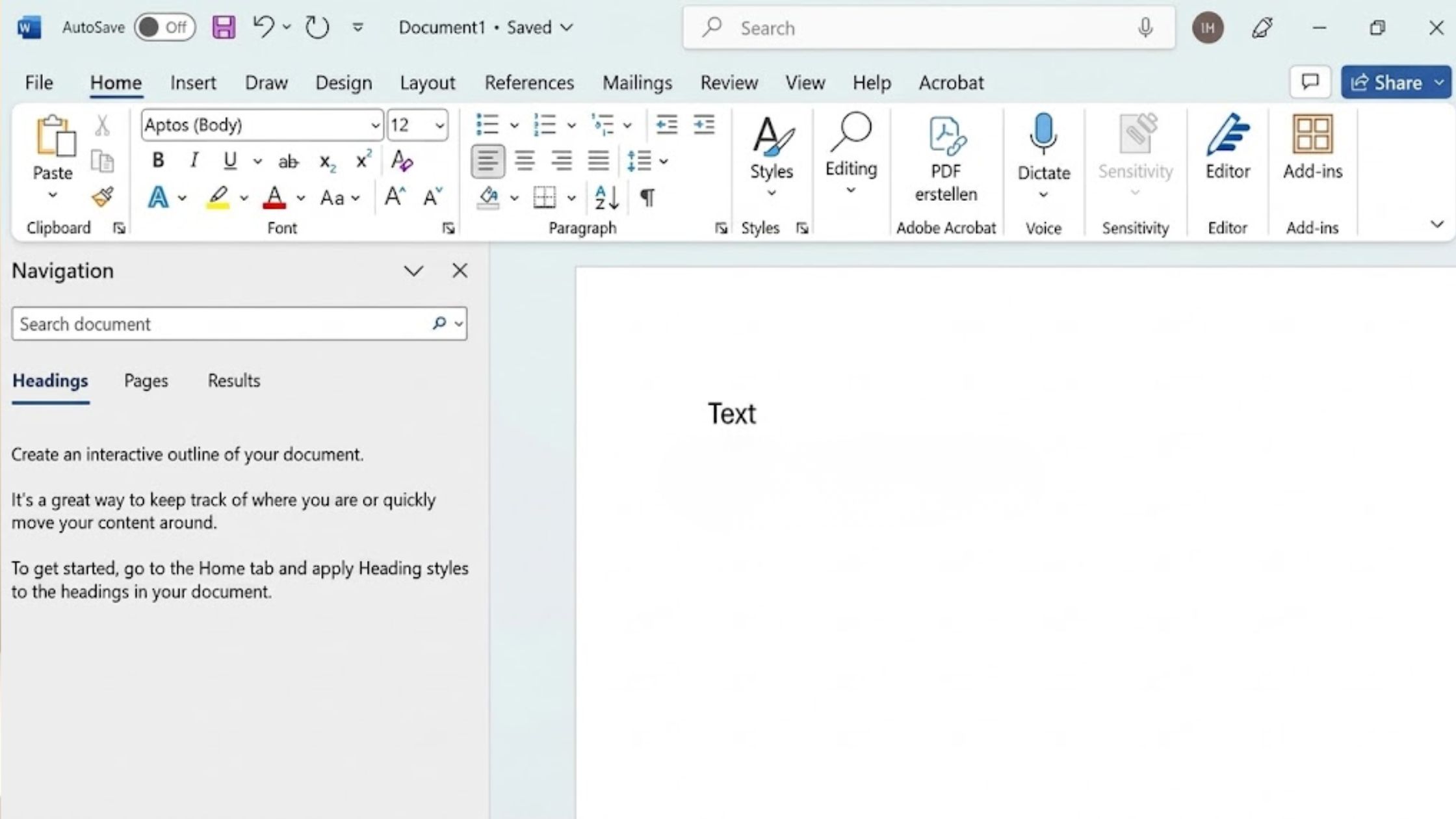
For business travelers, installed versions of Word, Excel, and PowerPoint are the safest choice when colleagues expect Office files. Local documents remain editable without internet access. Phone and tablet users should download and open files first.
Cloud collaboration will be limited, and Microsoft 365 subscriptions need periodic internet access for activation. It remains one of the best offline productivity apps for complex Word formatting or important Excel workbooks. For plain notes, it is excessive.
2. Google Docs: Best for Google Workspace
Google Docs, Sheets, and Slides can create, view, and edit files offline. Desktop setup requires Chrome or Microsoft Edge, the Google Docs Offline extension, enough storage, and a regular window rather than private browsing.
On Android and iOS, mark individual or recent files for offline access. Seeing a document in Drive does not prove it downloaded. Desktop users should also confirm they enabled offline access in the correct Google account and browser profile. Test critical files; changes save after reconnection.
3. Obsidian: Best for Offline Writing
Obsidian stores Markdown notes in a local vault, making it strong for drafts, research, and outlines. The core app is free for personal and work use on Windows, macOS, Linux, Android, and iOS; Sync is optional and paid. It offers file control, not live co-authoring or advanced Word formatting.
4. Todoist: Best for Task Lists
Todoist lets signed-in users change tasks offline and synchronizes them after reconnection. A small travel project can hold arrival tasks, booking checks, and work to resume after landing without becoming another system to maintain.
Closing the app, logging out, clearing local data, or shutting down before synchronization finishes can discard pending work. Wait until the warning disappears.
5. OneNote: Best for Mixed Notes
OneNote suits notebooks mixing text, images, checklists, and references. Installed apps cache notebooks for offline viewing and editing. Researcher and optical character recognition need internet access, as may creating or deleting notebooks.
Manually sync shared notebooks before departure, especially after a colleague has changed a page.
6. Notion: Best for Prepared Project Pages
Notion lets members on every plan download pages in its desktop and mobile apps. The browser lacks this mode, and downloads are device-specific. Paid plans can automatically download recent and favorited pages.
Subpages require separate downloads, and a database initially includes only the first 50 rows of its first view. Embeds, AI blocks, forms, buttons, sharing, and permissions need a connection.
Notion belongs among the best offline productivity apps when a small project hub is prepared early—not when a large workspace is needed immediately.
7. Adobe Acrobat Reader: Best for PDFs
The free Acrobat mobile app for Android and iOS can read and search PDFs, add annotations, fill forms, and add signatures. Advanced editing, conversion, and protection require paid plans.
Save tickets, contracts, and forms locally. A cloud filename does not mean the PDF has downloaded. Acrobat can complete and sign forms offline, saving the entered information locally until reconnection.
8. Instapaper: Best for Saved Reading
Instapaper’s Android and iOS apps download articles for offline reading. Its narrow purpose is useful: it creates a reading queue without adding another project system.
Let syncing finish. A link to subscription content can produce a partial article, so use a supported login or sharing method and open it before flying.
9. TripIt: Best for Itineraries
TripIt keeps itinerary details available in its Android and iOS apps while offline, provided the user stays signed in. The information is static until reconnection, so gate changes, delays, and cancellations will not appear.
It is a convenient itinerary copy, not a live operational feed. Keep the airline’s app and a downloaded boarding pass as separate safeguards.
10. Google Maps: Best for Driving Maps
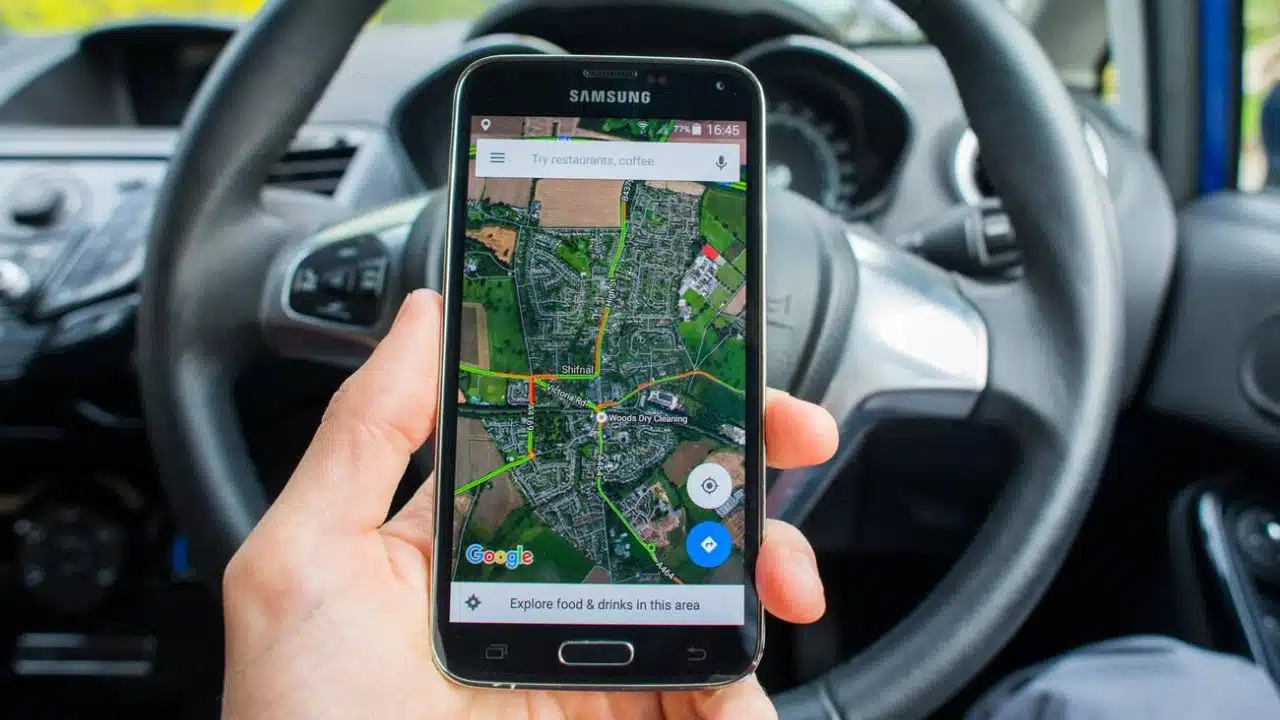
Google Maps downloads areas to Android devices, iPhones, and iPads. Offline driving works when the whole route is saved.
Public-transport, cycling, and walking directions are unavailable; drivers also lose traffic data and alternative routes. Regional restrictions apply, so include the airport and accommodation. Review older downloads because offline maps need periodic updates.
11. Google Translate: Best for Basic Translation
Google Translate offers downloadable language packs on Android and iOS, although not every language works offline. Compatible packs may support camera translation.
Download both languages and test them. For important medical, legal, or safety communication, seek qualified human help.
12. Bitwarden: Best for Saved Logins
Bitwarden is a supporting tool, but losing a saved login can stop other work. A synchronized vault works offline in read-only mode; items, attachments, and sends cannot be added or edited.
Locking keeps encrypted data locally and can allow offline access with a master password, PIN, or biometrics. Trusted-device unlocking may need internet. Logging out removes local data and requires an online login. Check the timeout action; do not use “never lock.”
Final Thoughts
The best offline productivity apps preserve the material required for the trip. Most travelers need one document tool, a task manager, a PDF reader, and relevant travel utilities.
Choose familiar apps and run an airplane-mode check before departure. Switching systems just before a flight creates unnecessary setup and sync risk. Put the device back online afterward and allow the final changes to synchronize. A small, tested kit is more dependable.
Frequently Asked Questions (FAQs)
What are the best offline productivity apps for a long flight?
For office work, combine Microsoft 365 or Google Docs with Todoist and Acrobat Reader. Obsidian is stronger for focused drafting. Choose the smallest set that covers the planned work.
Will changes sync automatically after landing?
Many do, including Google’s editors, OneNote, Todoist, and downloaded Notion pages. Let synchronization finish. Check shared files for conflicts before continuing.
Is it safe to keep work files offline on a travel device?
The device could be lost or stolen. Use a strong passcode, enable encryption, install updates, and carry only necessary sensitive files. Workplace security policies take priority for confidential work.