


LMS migration tools can help a training team move courses and completion records, but a successful import does not necessarily preserve every score, attempt, certificate or unfinished lesson. Start by deciding which records must remain usable, then test those records in the destination before retiring the old system.
This comparison reviews vendor migration documentation, not hands-on tests. We selected platforms with documented ways to bring historical course completions into a destination LMS. Availability, implementation services and file requirements should be confirmed for your account. Five options met that evidence threshold for this review; an eight-tool count would overstate what we verified.
LMS migration tools: five options at a glance
| Platform | Documented approach | Material constraint |
|---|---|---|
| TalentLMS | Historical completion import | Matching usernames matter; a not-attempted status can reset progress |
| LearnUpon | Enrollment history migration | Older completions go into a separate archive; module and learning-path statuses are excluded |
| Docebo | Course and learning-history migration | Up to two historical records per learner and course |
| Adobe Learning Manager | Migration process for content and learner records | Separate user import and integration-administrator work |
| Absorb LMS | Historical data imported by technical services | Paid service; ordinary enrollment CSV does not import completions |
1. TalentLMS
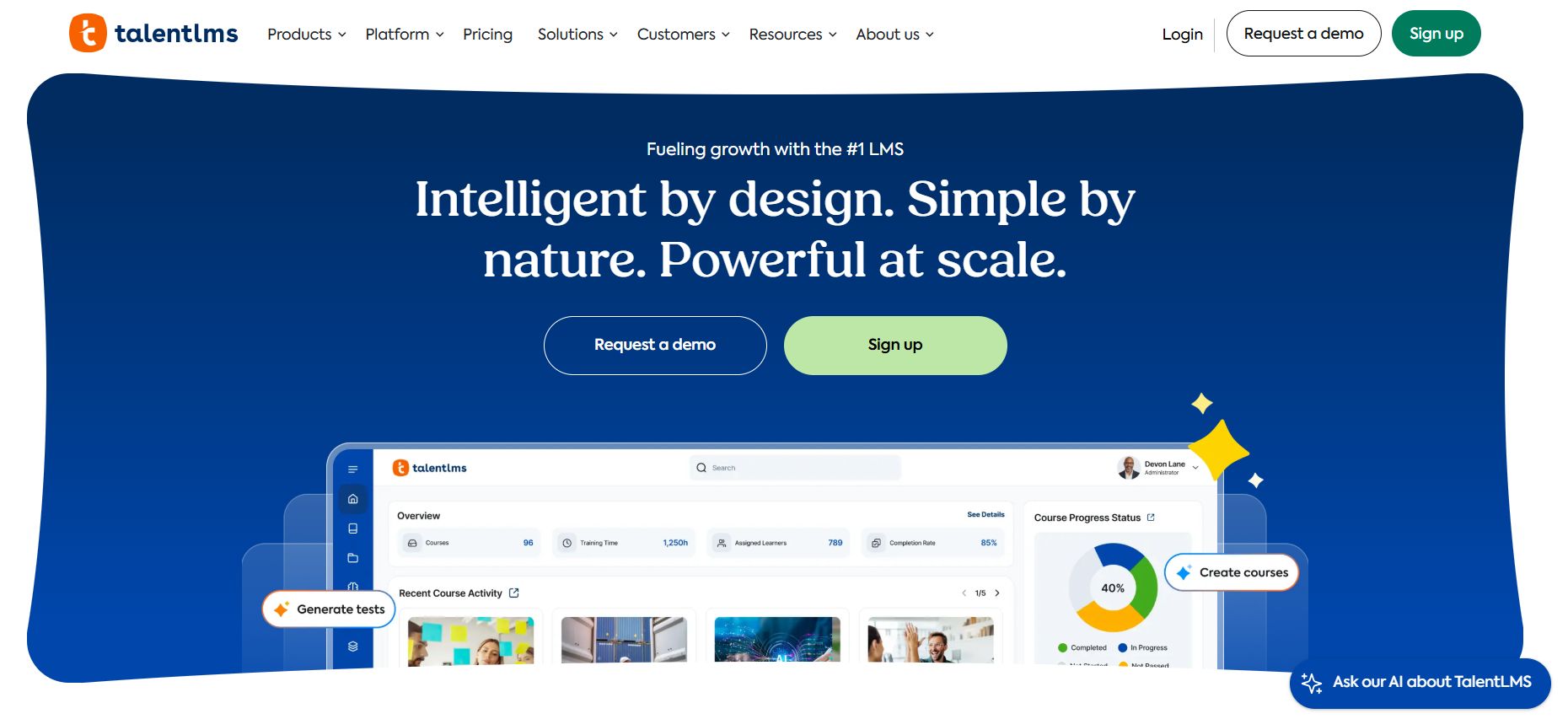
TalentLMS offers an administrator-facing import for past course and learning-path completions. Its supported spreadsheet formats include XLS, XLSX, and CSV. The documented course fields include a username, course title, enrollment date, completion date, status, and score. This makes it a practical option when the source data can be matched to users and courses already set up in the new portal.
The import has an important edge case: the platform uses usernames as identifiers, so inconsistent or changed usernames can cause records to attach incorrectly or update an existing user. Course names also need to match the destination records. Date formatting must follow the portal’s locale settings.
Before importing, check each row against a user and course in the destination system. Pay particular attention to rows marked “not attempted”: TalentLMS warns that this status can reset a learner’s existing course progress. The documented upload limit is 1 MB, so very large migrations may need to be split into batches.
2. LearnUpon
LearnUpon provides a training-history migration tool that works with a vendor-provided template. The migration can validate the prepared data, add enrollment histories, and surface upload errors. The platform distinguishes live records from archived history: older completions can remain available for reporting without behaving like current course activity.
That distinction matters for learners and administrators. LearnUpon’s documentation says archived records are accessible through training-history reporting and learner history downloads, but they do not add to the learner’s “Courses Completed” dashboard total or generate new badges. Archived history also does not flow into learning-path enrollments, and recertification rules do not apply to it in the same way as live records.
Status and score combinations need attention, too. The migration template supports statuses such as Not Started, In Progress, Completed, Passed, and Failed. Records with scores must use Passed or Failed, according to the file specification; an incompatible combination can be rejected. The vendor also documents a limited rollback window after migration, so teams should confirm the current process and timing with their implementation contact.
3. Docebo
Docebo’s migration guidance covers historical enrollment information such as course status, enrollment date, completion date, score, and evaluation data. The process may involve an assigned implementation or customer-success contact, particularly for fields beyond a standard enrollment import. Its documentation also describes prerequisites for importing records, including existing course shells and active users in some migration scenarios.
This pathway may suit organizations whose records contain more than a simple completion flag. However, a CSV import is not automatically a full learning-history transfer. Session attendance, evaluation details, certificates, and multiple historical attempts may each have separate rules. For example, Docebo documents limits around importing multiple historical records for the same learner and course through a particular enrollment route.
Map source fields to Docebo fields before conversion. Decide how to represent missing timestamps, confirm whether records belong at the course or session level, and ask how the chosen import affects reports and certification workflows.
4. Adobe Learning Manager
Absorb separates ordinary enrollment imports from historical completion-data migration. Its standard CSV enrollment function creates enrollments but does not import completion records, scores, or historical training history. Absorb directs customers to its Data Imports service for completion data from a previous LMS.
That distinction can prevent a common migration mistake: assuming that a successful enrollment upload means learner history came across too. Absorb describes its Historical Data Import as a one-time transfer of users’ learning records from a previous system. The scope and file requirements should be confirmed with the technical-services team before planning the cutover.
Prepare a sample export that covers completed, in-progress, failed, and repeated enrollments if those exist in the source. Then verify the destination records in both learner views and administrative reports.
5. Absorb LMS
Absorb distinguishes enrollment import from historical completion import. Its current guide says the standard enrollment CSV does not import completion records, scores or historical training history; historical data is handled by its paid Technical Services data-import service. This can fit a team that prefers an assisted migration, provided the service scope and cost are agreed before committing. Ask for a sample mapping and check which dates, scores and certificates are preserved.
A migration test that protects learner records
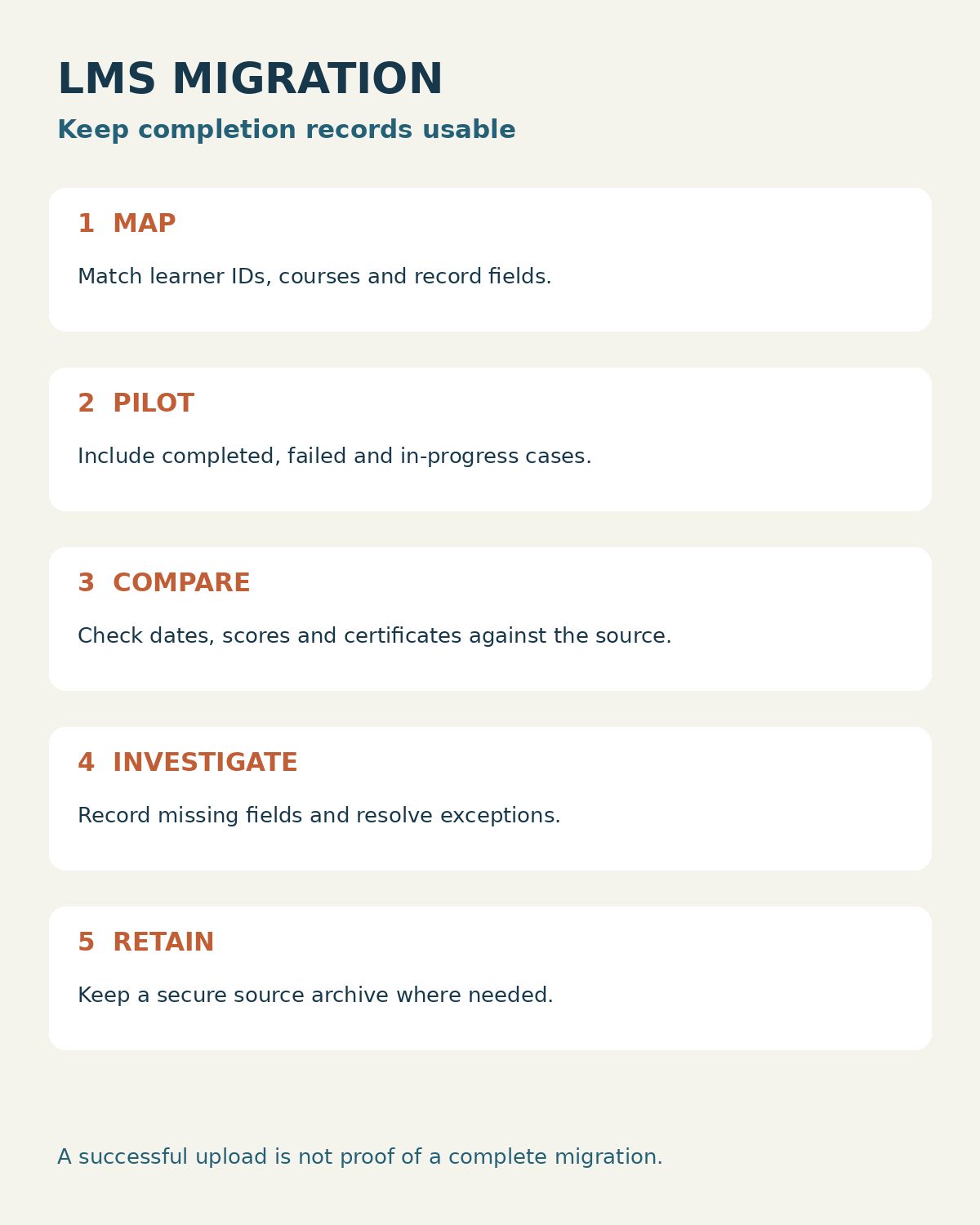
Imagine a company moving 1,000 learners and 40 courses. Before the main move, select a small pilot containing a completed course, a failed attempt, an in-progress learner, a repeat completion and a certificate due to expire. Export the source records securely, map learner and course identifiers, and document which fields the new platform accepts.
- Confirm who owns the source export and whether the team is permitted to transfer each data field.
- Import the pilot into a test environment, with notification settings checked to avoid misleading learners.
- Compare completion dates, status, scores, certificates and counts against the original. Record fields that cannot be migrated.
- Have an administrator and an appropriate reviewer inspect exceptions; do not treat a successful upload message as proof of accuracy.
- Retain a secure, accessible source archive for records the destination cannot represent, subject to the organization’s retention rules.
The U.S. Department of Education discusses the protection of student records in its FERPA overview; whether it applies depends on the organization and records. Consult Editorialge’s guide to expiring course access when contracts also control how long learners can enter the new system.
Which LMS migration tool should you choose?
TalentLMS offers a direct spreadsheet route for defined historical fields. LearnUpon separates live training history from older archived records. Docebo and Absorb document migration paths that can involve implementation or technical-services support. Adobe Learning Manager provides a structured CSV migration approach with a historical retrofit option.
The choice depends on what “preserving” means to your organization. If old completions only need to appear in reports, an archive may be enough. If they must count toward active dashboards, learning paths, badges, or recertification, confirm that behavior before signing or importing. The best LMS Migration Tools for Preserving Course Completion Records are the ones that retain the fields your organization needs and make their limits clear before the full migration.