
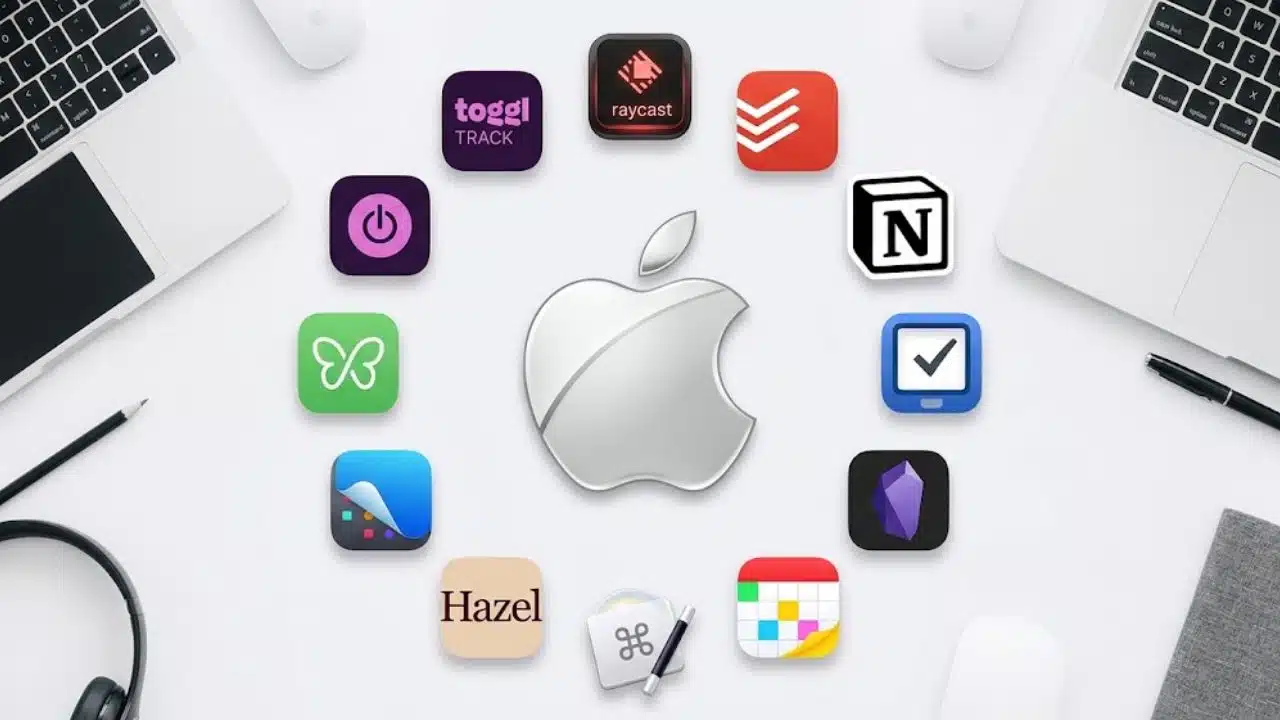
Keeping tasks in one app, client notes in another, and useful links somewhere in a browser can turn a working day into a search exercise. The best productivity apps for Mac should reduce that friction.
The choices below cover everyday coordination and specific frustrations, such as filing downloads or giving feedback across time zones. Treat them as options for a smaller, clearer setup.
Best Productivity Apps for Mac, Chosen by Workflow
Raycast leads for consolidating small utilities; Todoist and Notion follow for coordinating work. Later picks solve narrower problems. The selection weighs useful features, platform fit, and cost. Choose between overlapping task and note apps instead of installing the whole list.
Prices below are in US dollars. Check local pricing, taxes, and renewal terms before purchasing.
1. Raycast
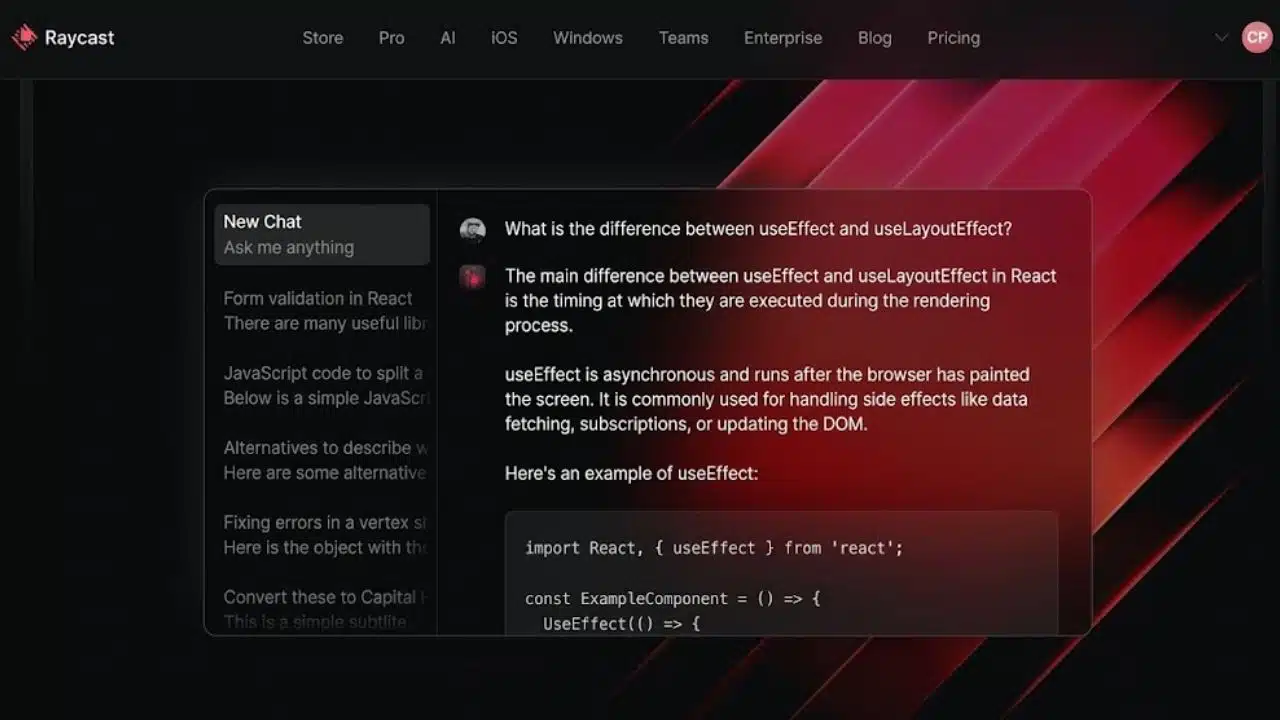
Raycast brings app launching, file search, saved text snippets, window management, and clipboard history into one keyboard-driven interface. Those core tools are free, with clipboard retention of up to three months. Longer retention, AI, and Cloud Sync require Pro.
Use it to retrieve a copied link or insert a client-update template without searching through old messages. Its strength is combining those small actions. If window arrangement is your only problem, check your macOS version’s built-in tiling options before learning another set of shortcuts.
2. Todoist
A follow-up agreed during a call needs an owner and a date before it disappears into chat. Todoist supports recurring dates, shared projects, comments, and list or board views, with apps for Mac, Windows, iOS, and Android.
Beginner is a sensible starting point for small collaborations: it includes five active personal projects, shared projects, and automatic reminders for tasks with a date and time. Pro costs $7 monthly or $60 annually, adding a calendar layout for personal projects and task durations. Business adds team administration and centralized billing. Basic task sharing alone is no reason to buy the Business plan.
3. Notion
Notion is useful when project context is scattered: the brief is a document, the process lives in chat, and the status sits in a spreadsheet. Its pages and databases can bring those pieces together. An agency could keep deliverables, meeting notes, and a linked project database on one client page.
Someone must keep templates, permissions, and status fields current. Settle who will maintain them before importing years of material.
Travelers should prepare for offline work. Notion’s desktop and mobile apps support downloaded pages on all plans, but subpages need separate downloads. Downloading a database initially saves the first 50 rows of its first view; additional rows can be downloaded individually. A downloaded homepage does not guarantee access to the entire project.
4. Things 3
Things 3 suits personal planning on Apple devices, particularly if Todoist’s team features would go unused. Today and Upcoming organize immediate and scheduled work; headings and checklists break larger projects into manageable pieces.
The Mac, iPhone, and iPad apps are separate one-time purchases, with sync included. There is no Windows, Android, or browser version, and no real-time shared task lists. Keep it for personal priorities; shared delivery deadlines belong in a tool the team can update.
5. Obsidian
Obsidian’s strongest asset is its use of ordinary files. Notes are stored locally in Markdown, can be linked together, and remain accessible offline. That suits writers and researchers building a reference collection they want to reuse over time.
The core app is free, including commercial use; Sync and Publish are optional paid services. Keep a backup routine for those portable files. Elaborate plugin setups can wait until there is a specific research or writing problem to solve.
6. Fantastical
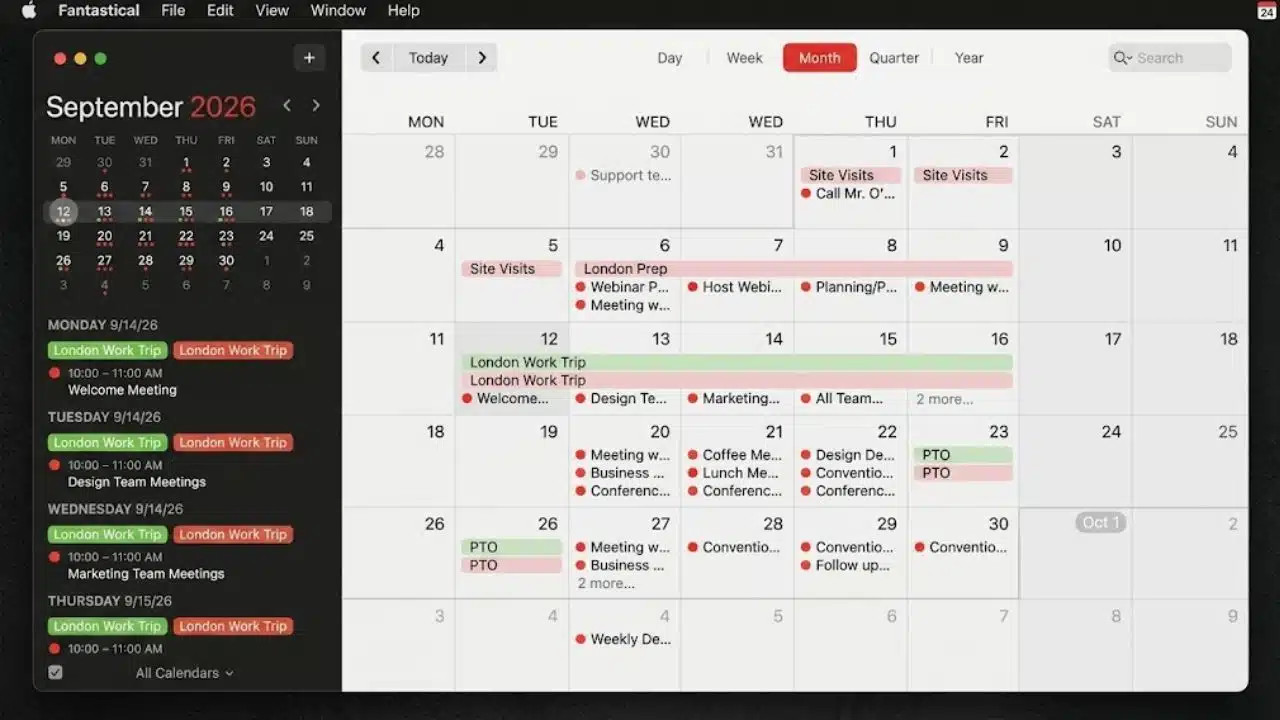
Check the free-plan limits before using Fantastical for client meetings: the free edition allows one invitee per event. Premium allows unlimited invitees and adds unlimited calendar sets, favorite time zones, and Openings for booking available slots.
Fantastical connects calendar services including Google, iCloud, and Exchange. That makes it worth considering for consultants juggling accounts and international meetings.
Openings checks availability against the calendar set you select. Include every calendar that could make you unavailable, or the booking page may offer time you cannot actually spare.
7. Keyboard Maestro
Keyboard Maestro is for repeated sequences: open a project’s documents, arrange the relevant windows, and insert a standard block of text. Its macros combine actions and can use conditions and loops.
Check Apple’s built-in Shortcuts app first for simpler automation. Keyboard Maestro version 11 costs $36 before applicable tax as a one-time purchase; later major upgrades can cost extra. Budget some attention for maintenance, particularly when a macro relies on an app’s interface staying predictable.
8. Hazel
A Downloads folder full of invoices and client assets is Hazel’s territory. It watches selected folders and applies rules to move, rename, tag, or archive files. Hazel 6 costs $42 for a single-user license, with no subscription, and requires macOS 13 or later. Test rules on copies before processing an archive. Regular filing is a good reason to pay; occasional clutter rarely justifies maintaining an automation system.
9. CleanShot X
A marked-up screenshot can settle a design question while colleagues are asleep in another time zone. CleanShot X combines scrolling screenshots, annotations, text recognition, and screen recording, making it useful for feedback, bug reports, and short tutorials.
CleanShot Basic currently costs $35 and includes one year of updates. You can keep using the purchased version afterward; update renewal is optional at $19 per year. Cloud use is optional, so captures can be saved locally.
The current app requires macOS 13 or newer. If you rarely need more than a simple screenshot, this is an upgrade to defer.
10. Freedom
Freedom blocks selected apps and websites across supported devices. Its free tier supports immediate sessions of up to two hours. Premium adds recurring schedules, longer sessions, and Locked Mode, which restricts changes during an active session.
Test a short session before relying on Locked Mode. A writer researching social platforms may need access that a generic distraction list would remove. Build the blocklist around what interrupts your work, leaving the resources needed for the assignment available.
11. Toggl Track
Toggl Track helps expose the work that estimates miss: revisions, internal calls, and client administration. The Mac app supports offline tracking and idle detection; entries sync after you reconnect. Basic tracking is free. Billable rates and more advanced business features require paid plans.
For a fixed-fee project, log the supporting work as well as production, then compare the total with the estimate. Review idle alerts before deleting time: reading or thinking can be legitimate project work. More recorded hours do not automatically mean better output.
What Most App Lists Miss
Apple Reminders and Notes may already cover your basic task and note-taking needs. The best productivity apps for Mac can still create a fragmented workflow when two tools claim the same job.
Decide where tasks live, where documents belong, and which calendar controls availability. A small agency might use Notion for briefs, Todoist for assignments, and CleanShot for feedback. Keep each task’s status in one place.
Before migrating, check the current macOS requirements, offline behavior, and total cost across your devices and teammates. A low individual price says little about the cost of moving the whole operation.
Final Thoughts
Choose one recurring frustration and try one app on real work. Decide what improvement would look like: fewer missed follow-ups, less manual filing, or clearer feedback. Judge the result after completing that work, including any setup and maintenance the app required.
The best productivity apps for Mac make a specific part of your day easier to manage. Keep the smallest setup that does that reliably.
Frequently Asked Questions (FAQs)
How can you compare two task or note apps without disrupting work?
Copy a small, completed project into each. Compare how easily you can add information, find it again, and review progress. A familiar project makes awkward steps easier to spot than an empty workspace does.
How can you tell whether an app is slowing down your Mac?
Inspect CPU activity and the Memory Pressure graph in Activity Monitor during normal work. Compare the same routine with the suspected app open and closed; the number of installed apps alone is not a useful diagnosis.
What should you check before canceling an app subscription?
Export material you need to keep, then open a sample in another app. Check what downgrading would change about editing, storage, and shared-project access before canceling.