
Your phone is gone, and a website asks for the six-digit code that used to appear in your authenticator app. Can you install the app on a new phone and get that code back?
Sometimes. If your codes were synced or backed up before the phone went missing, you may be able to restore them. If they were stored only on that phone, reinstalling the app or replacing your SIM will not bring them back. You will need another sign-in method or the recovery process for each affected account.
That is why authenticator app recovery depends less on the app’s name than on how you set it up. Some apps sync codes through an account. Others rely on a phone backup or a file you export yourself. Work and school accounts may follow different rules from personal accounts, even inside the same app.
Here is what happens with nine popular options, what each can restore, and where you could still get stuck.
How Authenticator App Recovery Works
An authenticator app generates changing sign-in codes using information saved when you first connect it to a website. To produce the same codes on a new phone, the app needs a copy of that saved information.
That copy might come from cloud sync, a device backup, an exported file, or another phone where the app is already working. If none exists, you must recover access through the website you are trying to sign in to.
A website’s recovery codes are separate from an authenticator app’s backup. For example, a recovery code issued by Google helps with your Google Account. It will not unlock your Facebook or banking account just because their codes appeared in Google Authenticator.
9 Authenticator App Recovery at a Glance
This is a comparison of recovery paths, not a security ranking. In every case, the outcome depends on what was enabled before the phone was lost.
| App | Can codes return without the old phone? | What must already be in place? |
|---|---|---|
| Google Authenticator | Yes, for synced codes | Access to the Google Account used for sync |
| Microsoft Authenticator | Yes, for eligible backed-up codes | Backup and a replacement phone on the same platform |
| Authy | Yes, for backed-up tokens | Authy account recovery and the backup password |
| Duo Mobile | Sometimes | The appropriate device backup and organization settings; separate setup for third-party codes |
| 2FAS Auth | Yes | iCloud or Google Drive sync, or a saved export |
| Aegis Authenticator | Yes | An off-phone vault backup or export and its password |
| Ente Auth | Yes | Ente account sync or a usable encrypted backup |
| Proton Authenticator | Yes | Account sync, a supported device backup, or an accessible export |
| Bitwarden Authenticator | Yes | A suitable device backup, saved export, or optional vault sync |
1. Google Authenticator
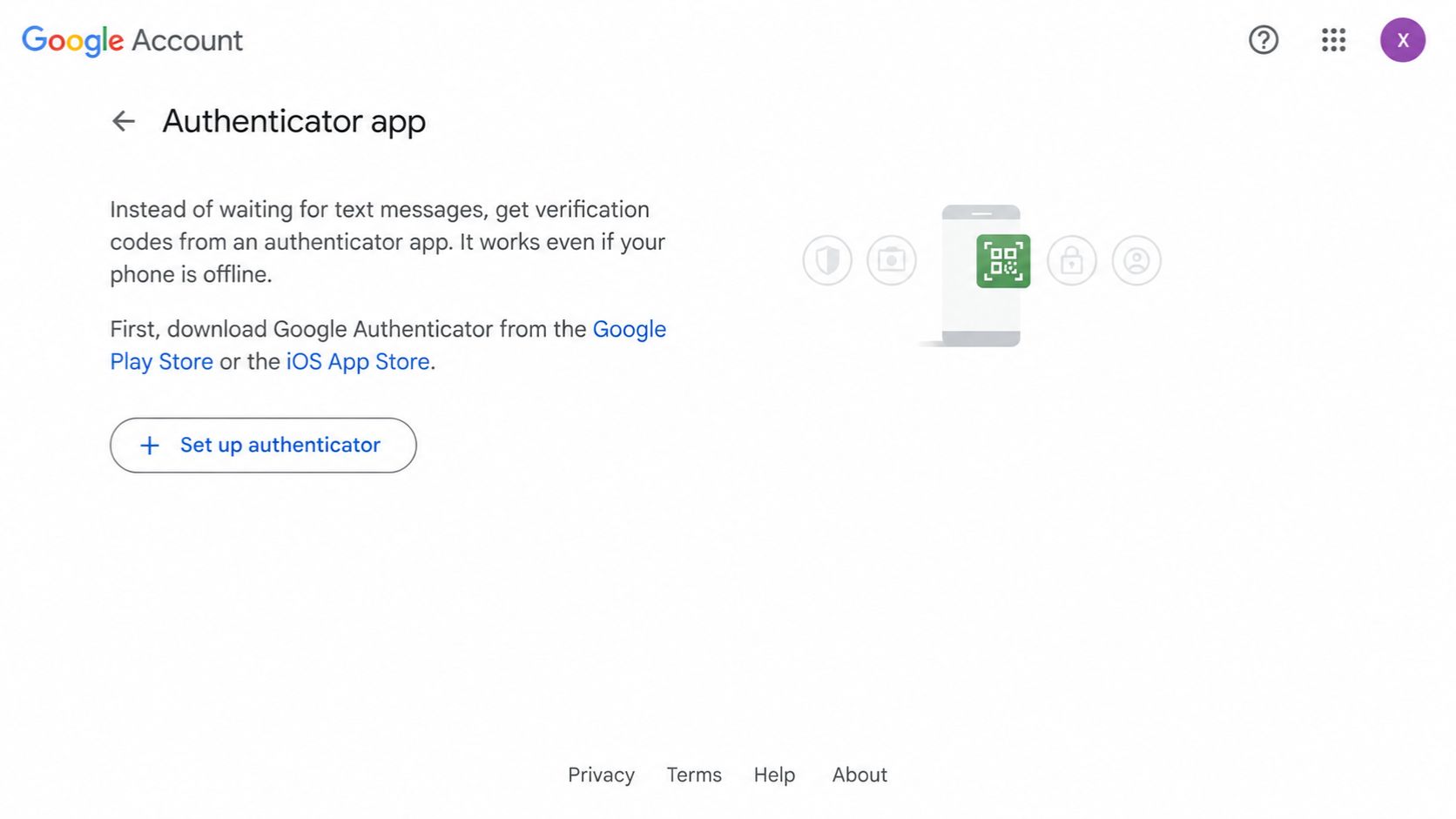
Google Authenticator offers two very different experiences. If you signed in to a Google Account within the app and synced your codes, they can appear when you install the app and sign in on a new phone.
If you selected “Use without an account,” the codes remain on the device. Google provides a QR-code transfer method, but you need the old phone to use it. When that phone is lost, and there is no synced copy, you must recover the affected accounts through their own backup codes or other sign-in options.
There is a second hurdle: you need to be able to sign in to the Google Account holding your synced codes. If that account also depends on the missing phone, a previously saved Google backup code, another trusted device, a passkey, or a security key may be what gets you started.
The key distinction: Google Authenticator sync is useful only for codes that were actually saved to the Google Account.
2. Microsoft Authenticator
Microsoft Authenticator can back up eligible one-time codes, but its restore rules are more limited than many readers expect. Android backup uses a personal Microsoft account. On iPhone, backup depends on the required iCloud settings. An iPhone backup cannot be restored to Android, or vice versa.
One-time codes for many third-party accounts can return after a successful restore. Work and school accounts are different. Their names may reappear, but you generally need to sign in and register the new phone again. Passwordless sign-in credentials also need separate attention.
If an employer or school manages your account, ask its IT desk how to reconnect your replacement phone. Do not assume an account is ready just because you can see its name in the app.
The key distinction: Restoring an account entry is not always the same as restoring a working sign-in method.
3. Authy
Authy can store encrypted backups of your authenticator tokens. To use those tokens on a new phone, you need the backup password you created. Authy cannot retrieve or reset a forgotten backup password.
If Authy is still working on another registered mobile device, that device may help you approve a replacement. Without another active device, you may need Authy’s account-recovery process. Twilio states that this includes a 24-hour security wait. Recovering the Authy account will not recreate tokens that were never backed up.
Authy’s desktop apps are no longer supported, so an old desktop installation should not be part of a current recovery plan. The app also does not offer a simple export for moving all your tokens to a different authenticator.
The key distinction: Access to your phone number or Authy account does not replace a missing backup password.
Learn digital wallet security tips here.
4. Duo Mobile
Duo Mobile is often used for work or school, where an organization controls part of the recovery process. If its administrator has enabled Instant Restore and the required device backup was made, a replacement phone may reconnect to Duo-protected accounts. The exact path depends on the organization’s settings and the backup setup; some older Android flows require the original phone.
If you lose a phone used for work or school sign-ins, contact the organization’s IT desk. It may be able to reactivate your account or provide an approved alternative method.
Duo Mobile can also generate codes for unrelated websites. Those third-party accounts need their own backup and restore setup, including a recovery password. Restoring your workplace Duo access does not automatically restore every personal code you kept in the app. Duo backups also do not transfer directly between iPhone and Android.
The key distinction: A Duo-protected work account and a third-party code in Duo Mobile have different recovery paths.
5. 2FAS Auth
2FAS offers backup synchronization through iCloud on iPhone and Google Drive on Android. If the relevant backup was working before you lost your phone, you can restore the codes using the same Apple or Google account on a replacement phone.
Cloud synchronization is tied to the phone platform. If you plan to move between iPhone and Android, 2FAS supports exporting a backup file and importing it on the other device. Protect that file with a password and keep it somewhere other than the original phone.
Without sync or a usable export, 2FAS cannot send you a replacement copy of your codes. Its browser extension can make sign-ins easier while the phone is available, but it is not a separate recovery copy.
The key distinction: Set up cloud backup for a same-platform replacement; keep an export if a platform switch is possible.
6. Aegis Authenticator
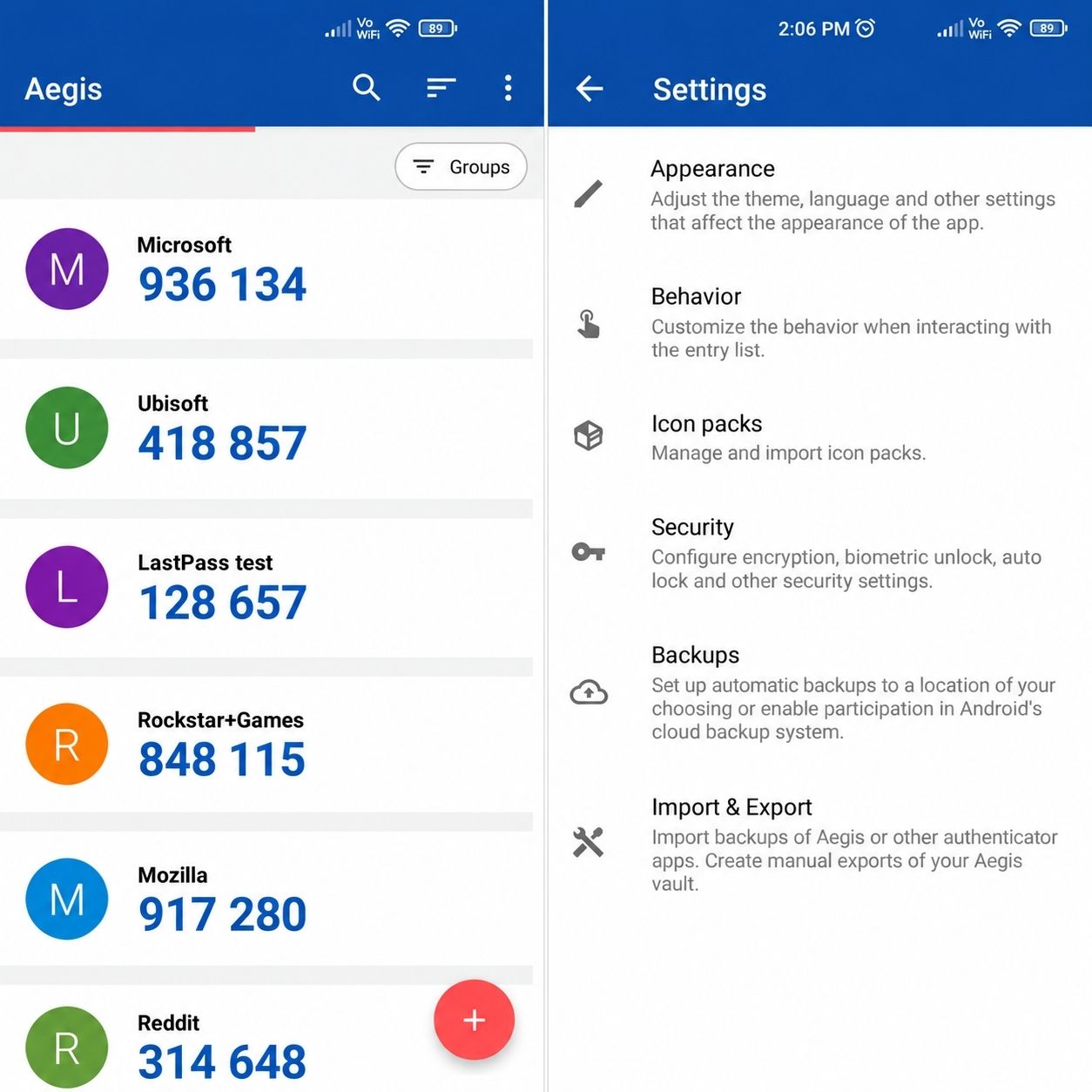
Aegis is an Android-only authenticator with an encrypted vault. It supports manual exports and automatic backups to a location you choose.
That choice of location determines whether the backup helps after a loss. If every copy remains on the missing phone, the backup is missing too. Aegis does not supply its own cloud-sync account, so keeping an off-phone copy requires a storage arrangement you set up.
You also need the password used to protect an encrypted vault export. Save a new copy after adding important accounts; an old export will not contain codes added later.
The key distinction: Aegis gives you control of the backup, but you must make sure it exists beyond the phone.
7. Ente Auth
When you use Ente Auth with an Ente account, codes sync across supported devices with end-to-end encryption. You can sign in on a replacement device to retrieve the codes that were synced. Ente also supports encrypted exports.
Its “Use without backups” option works differently. Codes in that offline mode are not sent to Ente. An ordinary device transfer or operating-system backup should not be treated as a dependable way to recover them. You need an encrypted export or local backup stored somewhere accessible after the phone is gone.
Ente’s account recovery key is for your Ente account. It is not a substitute for recovery codes issued by every website whose sign-in codes you store in Ente Auth. Keep a separate way to access Ente and your email, especially if their own 2FA codes are in the app.
The key distinction: Ente account sync offers a recovery route; offline mode requires you to arrange your own usable copy.
Read more about how biometric authentication protects mobile banking accounts.
8. Proton Authenticator
Proton Authenticator works without a Proton Account. If you do sign in and enable sync, codes can move across devices with end-to-end encryption. The app also provides iCloud backup options on Apple devices and a chosen backup location on Android.
These are alternatives, not settings that turn on simply because you installed the app. Check which one you use and whether its backup is accessible from a replacement device. If you rely on Proton Account sync, you also need a way to sign in to that account without the missing phone.
Proton provides recovery options for its own account, including 2FA recovery codes. Keep those separate if the code protecting your Proton Account is stored in Proton Authenticator.
The key distinction: Decide whether you are relying on Proton sync, a device backup, or an exported copy, and check that path before you need it.
9. Bitwarden Authenticator
The standalone Bitwarden Authenticator app is separate from the authenticator built into Bitwarden Password Manager. Codes saved locally in the standalone app may be restored through a suitable iCloud or Google device backup. You can also export local codes and keep that file as a separate backup.
Bitwarden offers an optional connection to codes in its Password Manager. Those synced codes follow a different recovery path: you need access to the vault. An export from the standalone authenticator includes its local codes, not codes synced from the vault.
Be particularly careful with the code that protects your Bitwarden vault. If its only usable copy depends on opening that same vault, you could lock yourself into a loop. Keep that code independent or arrange another approved way to sign in.
The key distinction: Know which codes are local and which depend on the Password Manager; one export does not necessarily cover both.
Set Up a Way Back In Before You Need One
Authenticator app recovery is much easier to plan while your phone still works. A few checks now can prevent a long account-by-account recovery later:
- Confirm where your codes are backed up: Check the app’s settings and the account, folder, or device-backup service it uses. A general phone backup does not guarantee that every authenticator will restore.
- Save recovery codes from important websites: Keep them somewhere secure that you can reach without the phone or the account they protect.
- Add another sign-in method where available: A security key, another trusted device, or a passkey on a separate device can provide an independent route.
- Keep exported backups off the phone: Protect files containing authenticator information with a password, and update them when you add new accounts.
- Test a replacement before wiping the original: Check important codes, work accounts, and passwordless sign-ins while the old phone is still available.
Authenticator codes add useful protection, but they can still be entered into a convincing fake sign-in page. For accounts that support them, passkeys and security keys offer stronger resistance to that kind of phishing.
Commonly Asked Questions about Authenticator App Recovery
Can I recover authenticator codes without my old phone?
Yes, if they were synced, backed up, or available on another registered device. Without any of those, use each website’s recovery options and set up its 2FA again.
Will reinstalling the authenticator app bring back my codes?
Reinstalling is not enough by itself. You need a usable app sync, device backup, or exported copy for the codes to return.
Does a new SIM card restore authenticator codes?
No. A new SIM may restore your phone number, but it does not recreate codes stored only in an app on the missing phone.
Does a phone backup include my authenticator app?
It depends on the app, operating system, and backup settings. Check the app’s own instructions rather than assuming a phone backup contains usable 2FA codes.
Can I move my codes from iPhone to Android?
Some apps support cross-platform sync or an export you can import. Others, including Microsoft Authenticator and Duo Mobile, do not restore their device backups directly across those platforms.
Does restoring codes disable them on my stolen phone?
Do not assume so. Secure or erase the missing device where possible. If its codes may have been exposed, sign in to the affected websites and replace their 2FA setup.
Make Sure You Have a Way Back In
The most useful authenticator app is one whose recovery method you understand before your phone disappears. Check whether your codes are synced, find out where the backup lives, and keep a separate way into your most important accounts.
If the phone is already gone, start with the access you still have. Restore what was backed up, recover the remaining accounts through their providers, and secure the missing device. Authenticator app recovery is possible in many cases, but it works best when the backup and the path to it were prepared in advance.