

A software training module can look current while teaching an old workflow. The lesson text may name the new button, but the video still shows the old menu; the exercise may require a permission the learner no longer has; the quiz may reward the former process. Updating the screen capture alone will not fix those mismatches.
Start with the change that prompted the revision. Write down what a learner must now do differently, which roles are affected, and when the change takes effect. Then check the eight places below against the current application and the approved software training module update process. The Australian Public Service Academy’s guidance on updating learning experiences likewise distinguishes small content fixes from changes that may affect outcomes, assessments, enrollments, and learner records.
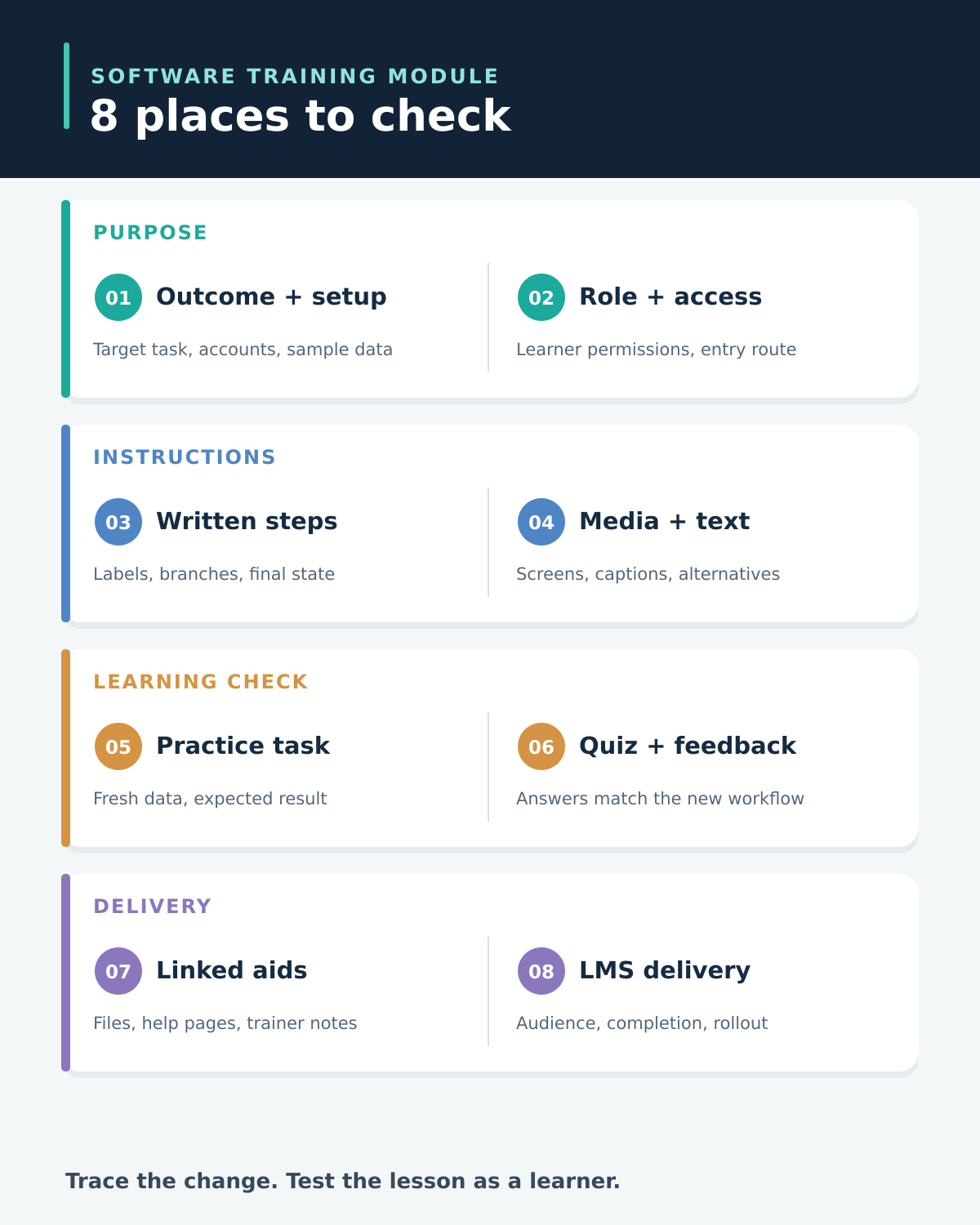
1. The Learning Outcome and Starting Conditions
Read the module’s opening promise as a testable task. “Understand the new CRM” gives an editor little to verify. “Create a customer case and route it for review using the current workflow” tells you which actions the lesson must teach and which result to check. If the software change affects only one step, keep the unaffected objective; if it changes the decision a learner must make, rewrite the objective and review the whole activity against it.
Check the prerequisites beside that promise. Does the learner need an account, a particular role, a practice workspace, sample data, or a prior lesson? A module can be technically accurate yet unusable when it opens with “select the case” before the learner has access to any cases. State the required setup and a route to get help when it is missing.
The CDC’s Quality Training Standards call for learning objectives, current subject-matter review, and activities that support the intended outcome. Use the objective as the anchor for the rest of the revision, not as a line that gets updated after the lesson is finished.
2. The Role and Access Instructions
Open the product as the type of learner the module addresses, or have an authorized reviewer do so. The author or administrator view can expose settings that a regular employee cannot see. Check the entry URL, sign-in method, workspace selection, navigation, permissions, and any feature that is enabled only for certain teams or plans. If a task now requires a manager’s approval, say where the employee’s part ends and the manager’s begins.
Keep a separate note for each meaningful role difference. A single screenshot may be enough if the route is shared, but it should not imply that everyone can perform an admin-only action. If a feature is rolling out gradually, specify the supported configuration and give a current alternative only if the process owner approves it. Do not teach learners to work around an access control.
Before changing screenshots, ask a representative learner to reach the lesson’s first actionable screen with their normal account. A failure at that point is a setup or assignment problem, not a reason to add more explanation to a later slide.
3. The Written Walkthrough and Exception Paths
Follow every instruction in order in the current software. Match menu names, field labels, required inputs, confirmation messages, and the final saved state. Replace location-based directions such as “click the blue button on the right” with the control’s actual name and context. A layout can move without changing the action; a changed rule can leave the layout looking identical.
Check what happens when the normal path branches. Can a learner edit a submitted record, recover from a validation error, or stop when an approval is required? Put the exception beside the step where it occurs. Otherwise, a learner may complete the ideal demonstration but still be unable to handle the first ordinary variation.
Keep the underlying procedure aligned with the lesson. Editorialge’s guide to documenting team processes recommends testing instructions with someone who did not write them and preserving essential steps in searchable text. The same test is valuable here: give the revised walkthrough to a learner without coaching, observe where they pause, and fix the instruction at that point.
4. The Screenshots, Video, and Accessible Explanations
Review media frame by frame for changed menus, labels, default values, alerts, and final results. Decide whether a single annotated image can be replaced or whether a video segment must be rerecorded. Do not leave a new voiceover describing a button that is visibly absent from the recording. If you edit the video, review the captions and transcript against the new audio and on-screen action too.
The lesson must still work when a screenshot is small, unavailable, or inaccessible to a learner. Keep the action in text, describe the important visual cue, use meaningful alternative text where the image conveys information, and avoid relying on color alone. The W3C’s guidance on accessible audio and video explains when captions, transcripts, and descriptions of visual information are needed. A narrated demonstration should say enough about the action that learners are not left to infer every step from silent cursor movement.
Use authentic captures of the current product when the lesson teaches a specific interface. A conceptual illustration may introduce the topic, but it cannot show learners where to click in a real application. Remove personal data and secrets from any training capture before distributing it.
5. The Practice Task and Its Starter Materials
Run the exercise from a fresh learner state. Check the practice account, sample records, downloaded template, test environment, and expected result. A revised walkthrough may say “assign the case to a queue” while the supplied sample case already belongs to that queue, making the task impossible to demonstrate. Other exercises fail because a template has an old field name or a practice environment lacks the new feature.
Show what a successful attempt produces: a saved record, a confirmation state, or a decision the learner can explain. Give a recovery route for a partially completed exercise so the next learner does not inherit altered sample data. Use fictional or approved training data; do not ask people to test a procedure with live customer information merely because the sandbox was not refreshed.
If the application change affects several roles, make sure each learner can complete the task with their own permissions. A facilitator demonstration performed with admin access is not a substitute for a learner exercise.
6. The Knowledge Checks, Answer Key, and Feedback
Read each question after following the updated workflow. The correct answer may have changed even when the question still sounds reasonable. Inspect the distractors, branching logic, passing rule, answer key, and feedback shown after both correct and incorrect attempts. A quiz that rewards an obsolete escalation route teaches the wrong behavior with more confidence than an outdated screenshot does.
Prefer a decision or task that reflects the learning outcome. If the module teaches when to request approval, ask learners to choose the next action in a realistic case. If it teaches a sequence, have them put the steps in order or complete the task in the practice environment. A question about where an icon sits on the screen may become obsolete after a harmless redesign.
Completion data helps you see whether people reached the end, but it does not establish that they can perform the task. Editorialge’s analysis of microlearning benefits and limits explains why an immediate quiz score should be considered alongside actual task performance. For a substantive workflow change, sample a few attempts and look for the same misunderstanding recurring in work.
7. The Job Aids, Downloads, and Facilitator Notes
A module rarely lives by itself. Open every linked help page, quick-reference sheet, template, slide deck, and video from the learner’s account. Check that the link resolves, the file opens on the devices learners use, and its advice matches the revised lesson. Search for the old feature name or rule inside downloads; a changed link title does not update the file behind it.
If an instructor delivers the training, update the facilitator script, demonstration account, exercise answer, and any note about common errors. Tell support staff which instruction changed so their response does not send learners back to the old route. Where a linked policy or product help page changes independently, record the version or date the lesson assumes and schedule a recheck.
Avoid scattering copied instructions across several PDFs when a single maintained job aid will do. If staff use a printable copy while working, mark its revision clearly and remove superseded copies from normal learner entry points.
8. The LMS Listing, Assignment, and Completion Experience
Preview the whole module through the learner-facing catalog or learning management system (LMS), not just in the authoring tool. Check the title, description, audience, estimated duration, prerequisites, launch link, sequence, and completion rule. A new lesson package may open correctly but fail to report a completed practice or quiz to the LMS. Test the final package in its actual delivery setting with a representative learner account before assigning it broadly.
Decide what happens to people who completed the old lesson and those already in progress. A small visual correction may need no new assignment; a changed approval rule may require a targeted update. Preserve the old release and its learner history according to the organization’s requirements rather than overwriting the only evidence of what people were taught. Editorialge’s versioned workplace training lesson sets out the related records for releases, assignments, and completions.
Finally, check the notification the learner will actually see. State what changed, who needs the new lesson, and which current job aid to use. If the update is not ready when a material instruction becomes wrong, the process owner should decide whether to add an interim notice, disable an inaccurate question, or temporarily withdraw the lesson.
Match the Software Change to the Places It Affects
The eight places are a full review map, but the depth of each check should follow the change. Use the trigger to find likely mismatches, then test the delivered lesson end to end. These examples are illustrative, not results from a product test.
| Change to the software | Check first | Easy-to-miss failure |
|---|---|---|
| A button moves or is renamed | Walkthrough, media, practice task, job aid | The text is corrected while the video and downloadable guide still show the old route. |
| A permission or role changes | Prerequisites, access instructions, exercise, LMS audience | The author can finish the activity, but the assigned learner cannot open the feature. |
| A decision rule or approval path changes | Outcome, walkthrough, exercise, assessment, rollout | The quiz accepts the former rule, or prior completers never receive the update. |
Finish the Software Training Module Update With a Learner Pass
Ask one person in the intended role to start from the catalog, complete the exercise, answer the check, and find the job aid without help. Record the exact release and the point where they stop or choose the wrong action. Fix those gaps, retest the affected paths, and have the process owner confirm the final behavior. That short pass is what turns a set of updated files into a software training module people can actually use.