Every time you unlock your phone, a subtle battle for your attention begins. Red notification badges sit over app icons, thousands of unread promotional emails pile into your inbox, and duplicate photos silently swallow up your cloud storage. Most people accept this digital chaos as an unavoidable tax of modern life. They assume that fixing it requires a dramatic weekend off the grid or a complex file system that takes hours to maintain.
That assumption is wrong. Staying organized on your personal devices has very little to do with willpower or strict digital minimalism. It comes down to creating low-friction boundaries so your devices serve you quietly instead of constantly demanding your attention.
Here is how to clean up your digital life, regain your mental focus, and keep your devices running smoothly without turning off the tech you rely on every day.
Why Digital Decluttering Matters for Everyday Focus
The Hidden Cost of Constant Screen Distractions
Your brain was not designed to process hundreds of random alerts throughout the day. Every sound, vibration, and visual pop-up interrupts your momentum. Even if you choose not to tap on a delivery update or a flash sale notification, your brain still spends micro-seconds evaluating the intrusion.
Over time, this constant background noise creates a state of perpetual cognitive load. You open your phone to check a quick message from a family member, only to get pulled into four other apps that caught your eye along the way. Clearing out digital visual noise creates immediate space to think clearly and complete tasks without getting sidetracked.
Moving from Annual Cleanups to Simple Daily Habits
Most people approach digital cleanup like spring cleaning. They let files, screenshots, and emails pile up until a storage warning pops up on their screen, forcing them into a stressful multi-hour deletion spree.
A far better approach relies on light, repeatable systems. When you set up automated rules and clean boundaries upfront, you prevent mess from accumulating in the first place. A few small adjustments made throughout the week will save you hours of sorting down the road.
Step 1: Mute Phone Notifications and Tidy App Screens
Silence Non-Essential Push Alerts and Store Spam
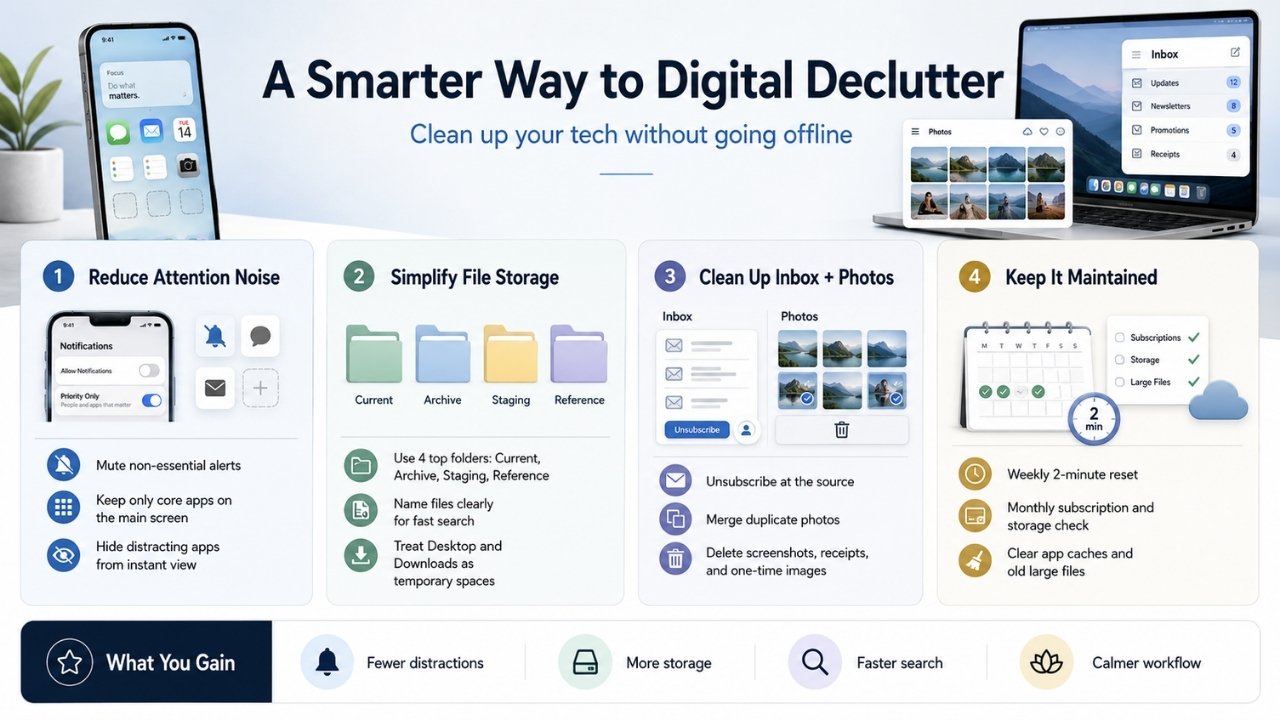
Start your cleanup where friction is highest: your phone screen. Open your device settings and navigate directly to the notification management section.
Be aggressive here. Ask yourself one simple question for every single app: Does this need to interrupt my real-world moment? For almost every retail store, social platform, game, or streaming service, the answer is no. Turn off push alerts for everything except direct human communication and critical time-sensitive alerts like bank transaction notifications or calendar reminders.
Hide Distracting Apps and Clear Home Screen Grid
Keep your primary home screen clean and uncluttered. Place only your top four or five daily operational utilities on the main page: phone calls, primary messaging, maps, and camera.
Move social feeds, news apps, and shopping portals off your main screen entirely. On modern mobile operating systems, you do not need to keep every installed icon visible on your grid. Keep them available in your searchable app library, but hide the visual shortcuts. Forcing yourself to search for an app by typing its name adds a small layer of intent that breaks mindless scrolling habits.
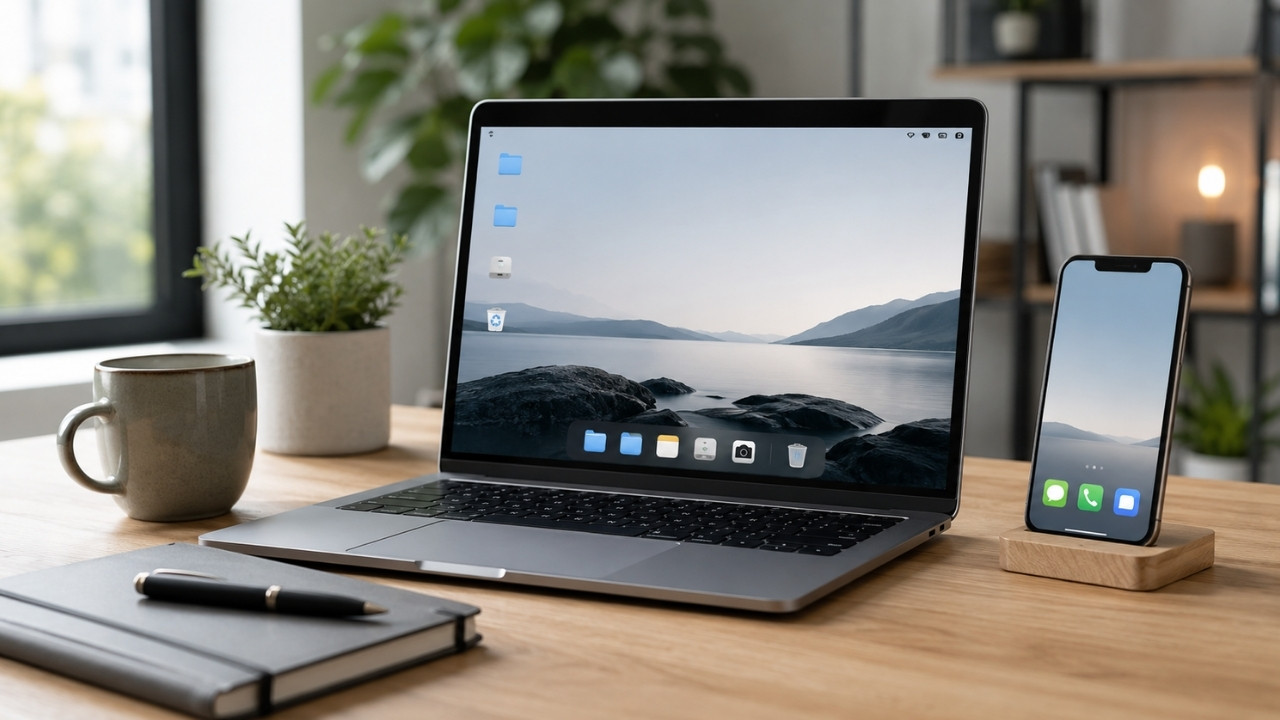
Step 2: Clear Laptop Storage and Desktop Chaos
Replace Deep Folder Structures with Quick Search
If your laptop desktop is covered in random PDF files, receipts, and screenshots, you are relying on visual memory to find your work. Deep nested folder trees like Documents > Personal > Financial > 2024 > Taxes feel organized in theory, but they slow you down in practice.
Modern operating systems feature lightning-fast search indexing. Instead of creating complex folder structures, simplify your file system into four broad categories:
-
Current Projects: Files you actively edit this month.
-
Archive: Finished records, tax paperwork, and major household files.
-
Staging: A single landing spot for incoming items that need quick review.
-
Reference: Manuals, guides, and static documents you read occasionally.
Name your files clearly using dates or simple descriptions. Searching for a specific keyword in your desktop search bar takes two seconds, compared to clicking through six layers of folders.
Clean Out Temporary Downloads and Desktop Files
The downloads folder is where system clutter goes to multiply. Installers, double-clicked zip files, and single-use PDFs gather dust and consume tens of gigabytes of local drive space.
Set a simple rule: your desktop and downloads folders are temporary waiting rooms, not permanent storage bins. At the end of the week, drag anything you need into your main archive folder, then delete the rest. Emptying your system trash bin once a week keeps your hard drive clear without requiring complex disk utility software.
Step 3: Fix Email Inboxes and Photo Libraries
Unsubscribe from Promotional Email Lists at the Source
An overflowing email inbox is rarely caused by important personal messages. It is usually flooded with marketing blasts, newsletters you signed up for years ago, and automated order confirmations.
Rather than deleting these messages one by one, eliminate them at the source. Use the search bar in your email client to query the word unsubscribe. Open the top marketing emails and click the small unsubscribe link at the bottom of each message. If you do this for five emails a day, your incoming daily email volume will drop dramatically within two weeks.
Merge Duplicate Photos and Clear Cloud Backup Space
Photo libraries are massive space hogs on cloud storage platforms. High-resolution phone cameras capture large file sizes, and quick burst shots create dozens of identical images in a matter of seconds.
Take advantage of built-in photo tools. Both iOS and Android now include native duplicate detection utilities inside their photo apps. Open your library utilities tab, run the duplicate scanner, and merge identical shots with a single tap.
Next, search your photo library specifically for keywords like screenshot or document. Delete temporary receipts, wifi passwords, and old parking space photos that no longer serve any purpose.
Step 4: Build a Simple Routine for Long-Term Maintenance
Two-Minute Weekly Reset to Keep Files Clean
Organization fails when maintenance takes too long. Build a lightweight Friday ritual that takes less than two minutes:
-
Clear all loose files off your desktop into your staging folder or trash.
-
Empty your computer download folder and clear the system trash bin.
-
Archive resolved email threads so your active inbox remains under twenty items.
-
Close browser tabs that have been open for more than forty-eight hours.
Monthly Checkup for Paid Subscriptions and Phone Storage
On the first day of every month, perform a quick system review:
-
Check your active app store subscriptions and cancel services you have not opened in thirty days.
-
Review local storage usage under device settings to catch unusually large app caches.
-
Offload or delete large video files you have already backed up to main cloud storage.
Reclaiming Your Attention for the Long Run
Digital organization is ultimately an ongoing partnership with your tools, not a strict set of restrictive rules. When you silence notification spam, simplify your local desktop, and run quick maintenance routines, technology goes back to doing what it was designed to do: serving your daily goals without hijacking your focus.
Start small. Pick just one area today, whether that means trimming down push alerts on your phone or deleting duplicate photos from your cloud storage. Once those low-friction boundaries are in place, keeping your digital life clean becomes second nature.
Maintaining a clean digital environment is not about rigid perfection or achieving zero unread emails every second of the day. It is about creating a quiet space where your technology supports your daily tasks without constant distraction. Start with a quick notification audit today, set up simple file landing spots, and enjoy a faster, calmer digital experience.
Frequently Asked Questions(FAQs) About Digital Declutter
How often should you perform a digital declutter?
You do not need to spend hours organizing your devices every week. A quick two-minute cleanup on Friday to empty your downloads folder, combined with a fifteen-minute monthly review of cloud storage and paid app subscriptions, keeps clutter completely under control without consuming your free time.
What is the fastest way to clear phone storage without deleting memories?
The quickest way to recover storage space is deleting temporary media caches and offloading unused apps. Messaging apps often save gigabytes of shared voice notes, videos, and memes in the background. Clear these media caches directly inside your messaging settings, run your photo app duplicate merge tool, and remove heavy mobile games you no longer play.
How do you organize personal documents without creating endless folders?
Avoid deep folder nesting. Keep a streamlined setup with four top-level folders: Active Projects, Archive, Staging, and Reference. Rely heavily on standardized file naming habits, such as including the year and vendor name in the file title, so you can find any document instantly using system search.
Is cloud storage better than external drive storage for files?
Both storage types serve distinct roles. Cloud storage is ideal for active daily documents and personal photos that require instant access across your phone and laptop. An external hard drive offers cost-effective local backup for large video archives, complete system images, and sensitive files you prefer not to keep online.