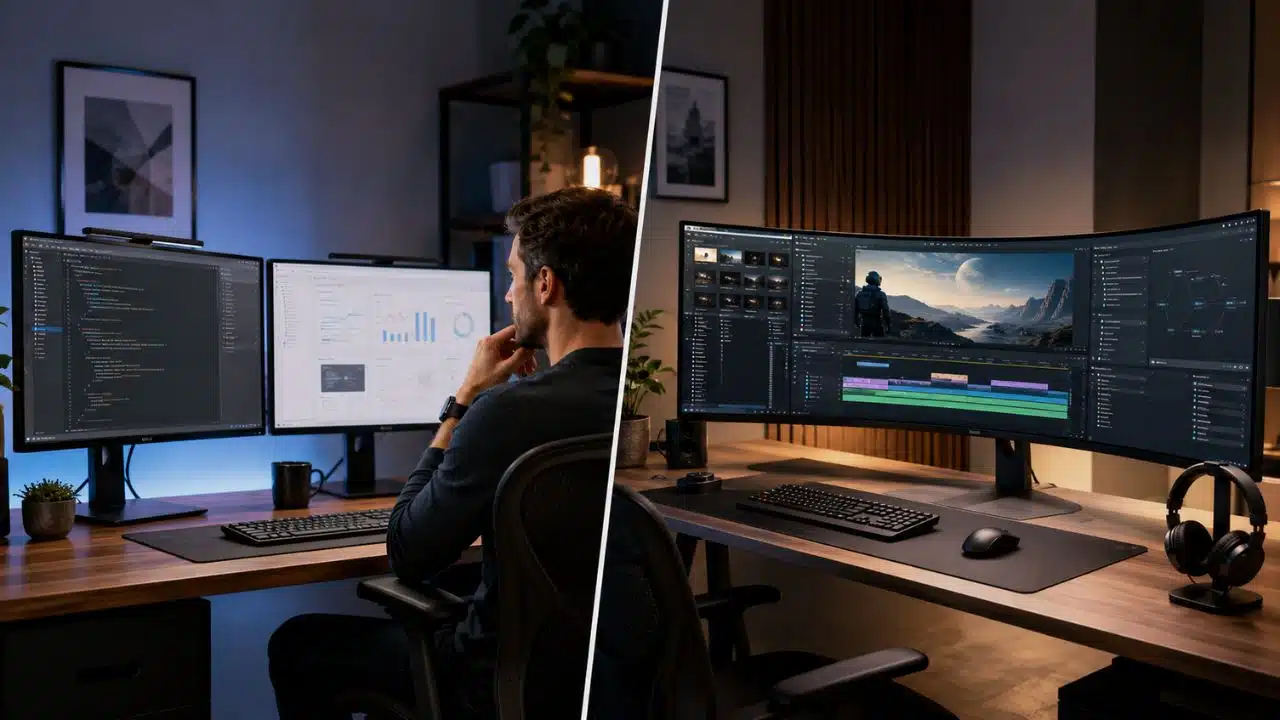
The first thing I missed was not the second screen. It was the boundary. On a dual-monitor desk, decisions are almost automatic. The main work goes on the center screen. The reference material, preview window, chat, logs, or timeline tools sit on the other. The split is physical, so the layout does not need much thought.
A 49-inch curved ultrawide feels different. It gives you one huge canvas, but it also removes the natural divider that made the old setup easy. During a 30-day switch from a traditional dual-monitor workstation to a single 49-inch curved ultrawide, the real test was not whether the screen looked impressive. It did. The test was whether daily work became smoother after the novelty wore off.
For this comparison of dual monitors vs. ultrawide curved setups, I paid attention to two practical things: window-snapping friction and neck strain. Those two details matter more than marketing terms. Developers, video editors, analysts, designers, and heavy screen users do not simply need “more screen.” They need a workspace that stays predictable after six or eight hours.
My final view is simple: dual monitors are better at creating separate work zones, while a 49-inch curved ultrawide is better at creating one flexible workspace. The better choice depends less on screen size and more on how you arrange your work.
The Real Difference Is Not Size. It Is Behavior.
A 49-inch curved ultrawide often sounds like a dual-monitor replacement because many models use a 32:9 layout with Dual QHD resolution, commonly 5120 × 1440. In practical terms, that can feel close to two 27-inch QHD monitors placed side by side, without the center bezel.
That comparison is useful, but incomplete.
Two monitors behave like two separate rooms. An ultrawide behaves like one large room that you must divide yourself.
On my old dual-monitor setup, I did not spend much time thinking about where things belonged. Code stayed on the main screen. Browser preview or documentation lived on the second. If I was editing video, the timeline or main editing window could take priority while the other display held files, notes, or references.
The ultrawide made the desk cleaner, but the first week required adjustment. A browser could be one-third of the screen, half the screen, or almost full width. The code editor could sit dead center, slightly left, or stretched wider than it needed to be. Slack, email, terminal panes, DevTools, project boards, and documentation all competed for space.
That freedom was useful only after I stopped treating the ultrawide as one giant monitor.
The better approach was to treat it as three zones:
- A center zone for the main task.
- A left zone for reference material, documentation, or project notes.
- A right zone for preview, DevTools, logs, chat, or secondary tools.
Once the layout became repeatable, the ultrawide started to make sense. Before that, it felt powerful but slightly messy.
This is where many buyers make a mistake. They buy a large ultrawide for productivity, then keep dragging windows manually all day. That is not productivity. That is a larger version of desktop clutter.
Window Management: Dual Monitors Are Easier, Ultrawide Rewards Setup
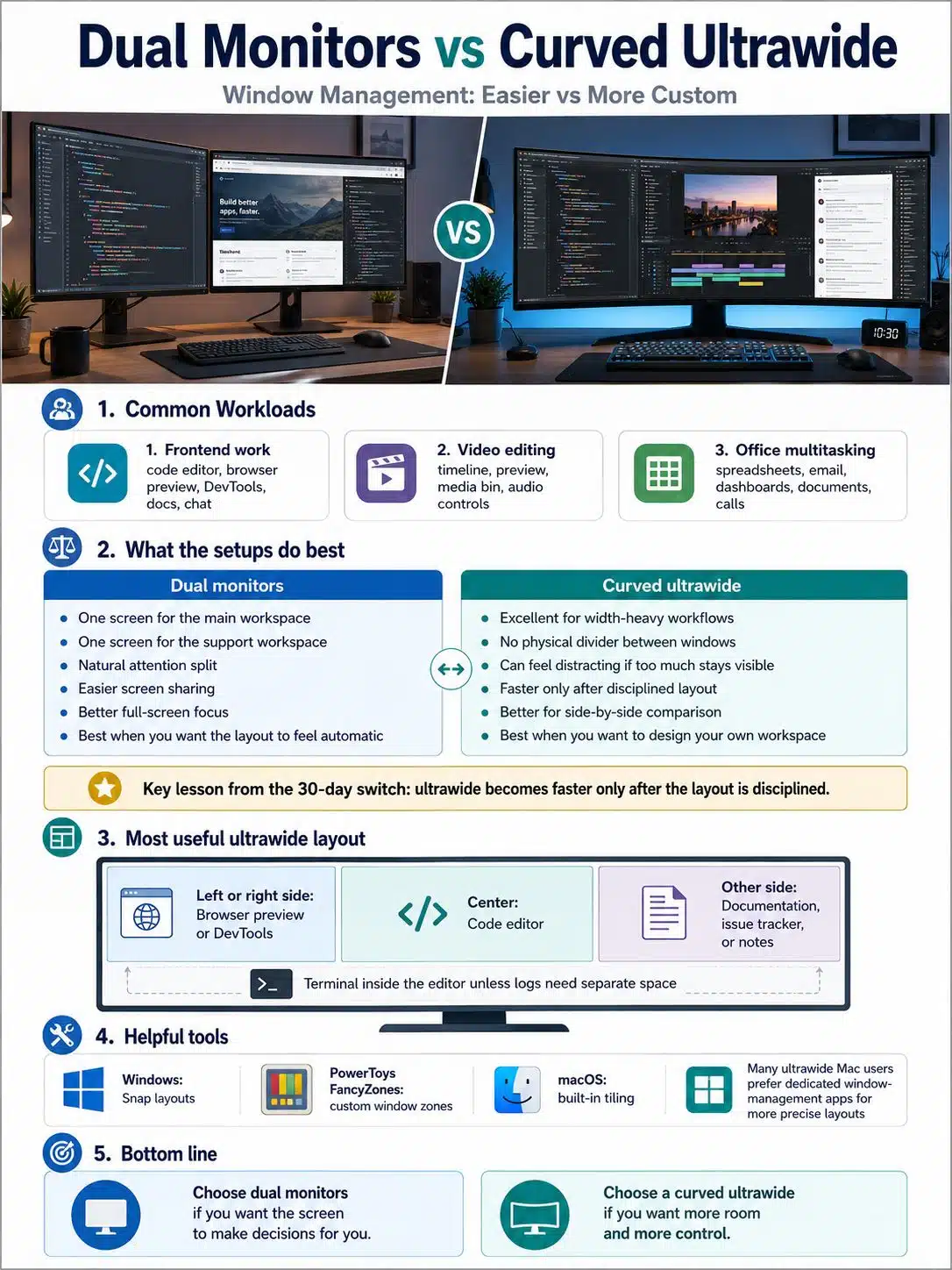
For software work, window management is not a small preference. It shapes the day.
A frontend developer may need a code editor, browser preview, terminal, API docs, DevTools, a design reference, and a chat window. A video editor may need a long timeline, preview panel, media bin, audio controls, notes, exports, and reference footage. A heavy office user may juggle spreadsheets, email, dashboards, documents, and calls.
Dual monitors handle this with blunt efficiency. One screen becomes the main workspace. The other becomes the support workspace. The bezel may look ugly, but it also performs a useful job: it separates attention.
The ultrawide removes that divider. That is excellent when the work benefits from width, but it can become distracting when too much stays visible.
On Windows, Snap layouts are useful for quick arrangements, and PowerToys FancyZones becomes especially helpful for custom ultrawide layouts. On macOS, built-in tiling can handle basic window placement, though many ultrawide users still prefer dedicated window-management apps when they want more precise layouts.
The lesson from the 30-day switch was not “ultrawide is faster.” It was more specific: ultrawide becomes faster only after the layout is disciplined.
For my work pattern, the most useful ultrawide arrangement was:
- Code editor in the center.
- Browser preview or DevTools on one side.
- Documentation, issue tracker, or notes on the other.
- Terminal inside the editor unless logs needed their own visible space.
That reduced switching between tabs and desktops. It also made side-by-side comparison easier.
Dual monitors still felt better in a few situations. Screen sharing was one of them. Sharing a single monitor during a meeting is usually cleaner than sharing a huge ultrawide canvas where text may look tiny to someone watching from a laptop. Full-screen focus also felt more natural on dual displays because the operating system understood the physical split.
So the decision is not about which setup has more pixels. It is about how much control you want over your layout.
If you want the screen to make decisions for you, dual monitors are easier. If you want to design your own workspace, ultrawide gives you more room to work with.
Neck Strain: The Center of Attention Matters Most
I expected the curve to be the main ergonomic story. It was not.
The bigger issue was where the main work lived.
With dual monitors, many people place one display directly in front and the second display off to one side. That can work well if the side monitor is truly secondary. It becomes less comfortable when the “secondary” screen starts carrying primary work for long sessions.
That was the problem I noticed most clearly during the switch. On a dual-monitor layout, it is easy to spend longer than planned looking at a browser preview, debugging panel, documentation page, or video reference on the side display. A small head turn does not feel like much in the moment. Over a long workday, it can add up.
The curved ultrawide changed the movement pattern. The main work stayed in the center more consistently, while supporting windows sat left and right. Instead of turning toward a separate screen, I was usually scanning across one continuous display.
That helped, but it did not make the ultrawide automatically comfortable.
A 49-inch monitor can create its own problems if it sits too close, too high, too low, or too far back. If the far edges require too much eye movement, the screen starts to feel wider than it is useful. If text is too small, the extra space becomes a strain instead of a benefit.
The most comfortable ultrawide layout kept the main task centered and treated the edges as secondary areas. Code, writing, timeline work, or any high-focus task belonged in the middle. Chat, logs, references, file panels, and project boards could sit at the sides.
That one habit matters more than the curve itself.
For dual monitors, the same principle applies in a different way. If one monitor is your main display, place it directly in front of you. Do not make your neck choose between two equal primary screens all day. If both displays are equally important, consider a centered arrangement or be honest about whether the setup is forcing too much rotation.
Eye Fatigue: More Visible Windows Can Become Visual Noise
Eye fatigue is where people often blame the wrong thing.
They blame the curve. Or the lack of curve. Or the refresh rate. Or the brand. Those details can matter, but the everyday causes are often simpler: brightness, glare, tiny text, poor scaling, bad distance, and too many windows asking for attention.
The ultrawide made this more obvious because it encouraged me to keep everything visible. At first, that felt efficient. The browser was open. The editor was open. Chat was open. Notes were open. Logs were open. Documentation was open.
Then the screen began to feel busy.
A dual-monitor setup gives you a little more psychological separation. You can ignore the side display until you need it. With a large ultrawide, peripheral information can sit inside the same visual field all day. That can be useful for monitoring, but it can also keep your attention slightly scattered.
The fix was not to use every inch.
The better setup used fewer visible windows, larger text, and a clear center of focus. I also found it more comfortable to keep high-attention content away from the far edges. The sides worked best for glanceable information, not constant reading.
This is an underrated point for heavy screen users. A bigger monitor does not automatically reduce eye fatigue. Sometimes it simply gives you more space to create clutter.
Basic ergonomics still matter. Keep the screen at a comfortable distance. Avoid glare. Use font sizes that do not make you lean forward. Take breaks. The 20-20-20 rule remains a practical reminder: every 20 minutes, look at something about 20 feet away for 20 seconds.
A good monitor layout helps. It does not replace good habits.
What Most People Get Wrong About Dual Monitors vs Ultrawide Curved
The most common mistake is treating this as a simple replacement question.
“Can a 49-inch ultrawide replace two monitors?”
Sometimes, yes. But that is not the best question.
The better question is: do you work better with separation or continuity?
Dual monitors are not outdated just because ultrawides look cleaner. The physical split can be useful. It creates a natural place for secondary tasks. It makes screen sharing easier. It allows mixed setups, such as one landscape display and one portrait display. It also lets you upgrade one monitor at a time.
An ultrawide is not automatically superior just because it removes the bezel. The missing bezel is great for timelines, wide spreadsheets, dashboards, and multi-pane work. It is less helpful if you constantly want two separate full-screen spaces.
The advice “just get an ultrawide” is too simplistic.
So is “dual monitors are always better for productivity.”
For developers, an ultrawide is excellent when the workflow uses a central editor with supporting panes. For video editors, it can be especially useful for timeline space. For writers, researchers, analysts, and office workers, it depends on whether side-by-side documents help or simply add noise.
The most useful test is not technical. It is behavioral.
Write down the five windows you use most during a normal workday. Then ask where each one belongs. If you can imagine them living in one wide, stable layout, an ultrawide may fit you well. If you naturally separate them into “main screen” and “support screen,” dual monitors may still be the cleaner answer.
Who Should Choose Dual Monitors?
Dual monitors remain the safer choice for many people.
They are easier to understand, easier to arrange, and often cheaper if you already own one decent display. They also offer flexibility that ultrawides do not always match.
Choose dual monitors if you:
- Share your screen often during calls.
- Want one display in portrait mode for reading, coding, or documents.
- Prefer one main screen and one secondary screen.
- Use different display types for different work, such as one color-accurate monitor and one general-purpose monitor.
- Want a gradual upgrade path.
- Do not want to depend on custom window zones.
Dual monitors are also better when your desk cannot handle the depth or width of a large curved display. A 49-inch ultrawide needs physical space. It can look impressive in a setup photo and still feel too close on a shallow desk.
There is also a practical repair and replacement angle. If one monitor fails in a dual setup, the whole workstation does not fail. With a single ultrawide, one display is the entire setup.
That does not make dual monitors better for everyone. It simply makes them more forgiving.
Who Should Choose a 49-Inch Curved Ultrawide?
A 49-inch curved ultrawide makes the most sense for people who benefit from width and can keep their layout under control.
Choose the ultrawide if you:
- Work with timelines, wide dashboards, large spreadsheets, or multi-pane apps.
- Want a cleaner desk with one display instead of two.
- Prefer a centered main task with supporting windows on both sides.
- Use custom snapping tools or are willing to set them up.
- Dislike the bezel gap between two monitors.
- Have enough desk depth to position the display comfortably.
For video editors, the uninterrupted timeline is a real advantage. For developers, the ultrawide shines when the editor, preview, documentation, and tools can stay visible without feeling crowded. For analysts, the width can help when spreadsheets or dashboards need room.
The ultrawide is less convincing if you mostly use one app full screen. In that case, much of the display becomes unused or distracting. It is also less ideal if you spend much of the day in meetings and screen shares, unless you are comfortable sharing specific windows instead of the whole screen.
The best ultrawide users are not the people who want the biggest display. They are the people who know how they want to divide the space.
What to Check Before Buying
Before spending money, check the boring details. They decide whether the setup feels good after the first week.
Start with desk depth. A 49-inch curved display needs room. If the monitor sits too close, the edges may feel excessive. If it sits too far away, text size and scaling become more important.
Check the stand or monitor arm. Large ultrawides can be heavy, and not every arm is suitable. A weak arm or a shallow desk can turn an expensive display into a daily annoyance.
Check ports. Laptop users should look closely at USB-C support, power delivery, and whether the monitor can act as a hub. People who switch between a work laptop and a personal desktop may care about KVM features.
For creative work, do not buy only by size. Check panel type, color coverage, brightness, uniformity, HDR behavior, and calibration options. A big screen is not automatically a good editing screen.
For gaming or motion-heavy work, refresh rate and GPU capability matter. Driving 5120 × 1440 is not the same as driving a normal 1080p display.
For productivity, check window-management support before the monitor arrives. Windows users should learn Snap layouts and consider FancyZones. Mac users should test built-in tiling and decide whether a third-party window manager is needed.
A simple pre-buy checklist:
- Is my desk deep enough?
- Can I keep the main task centered?
- Do I need portrait mode?
- Do I share my screen often?
- Do I need color accuracy?
- Do I use one computer or multiple computers?
- Will I actually set up snapping zones?
- Can I return the monitor if the size feels wrong?
That last question matters. Comfort is personal. Specs cannot fully predict how your neck, eyes, desk, chair, and habits will respond.
The Practical Takeaway
After 30 days, the 49-inch curved ultrawide felt better for a centered, multi-pane workflow. It reduced some of the side-monitor neck rotation that can happen when a second display becomes too important. It also made coding with preview, documentation, and supporting tools feel more fluid once the window zones were under control.
But I would not call it an automatic win.
Dual monitors are still excellent for users who want separation, easy screen sharing, portrait orientation, or a cheaper upgrade path. They are also easier to live with if you do not want to tune your workspace.
The dual monitors vs ultrawide curved decision should start with your work pattern, not the monitor size. If your day depends on one main task with supporting windows around it, a curved ultrawide can be a strong upgrade. If your day depends on two distinct workspaces, dual monitors may remain the better tool.
Before buying either setup, do one practical test: sketch your normal workday layout on paper. Put your main task in the center first. Then place every supporting window around it.
If that sketch looks like one wide workspace, consider the ultrawide. If it looks like two separate desks, stay with dual monitors.