Smartphones have become an essential part of our daily lives. We use them to make calls, send messages, browse the internet, and take photos. But did you know that your smartphone is capable of much more? In this article, we’ll explore 15 surprising and useful features that you may not know your smartphone can do. From hidden tricks to lesser-known apps, these tips will help you get the most out of your device.
So, grab your phone and let’s get started on this exciting adventure into the world of hidden smartphone features!
1. Transform Your Phone into a Digital Ruler
Have you ever needed to measure something quickly but couldn’t find a ruler? Your smartphone has got you covered! Many modern phones come with built-in measuring apps that use augmented reality (AR) technology to measure objects in the real world.
For iPhone users:
- Open the “Measure” app (it comes pre-installed on iOS 12 and later)
- Point your camera at the object you want to measure
- Follow the on-screen instructions to set start and end points
- The app will display the measurement
For Android users:
- Download “Google Measure” from the Play Store (if it’s not already installed)
- Open the app and calibrate it by moving your phone around
- Point your camera at the object and tap to place points for measurement
These measuring tools are accurate within a few millimeters, making them perfect for quick estimates when you’re shopping for furniture or planning home improvements.
2. Create Your Own Portable Wi-Fi Hotspot
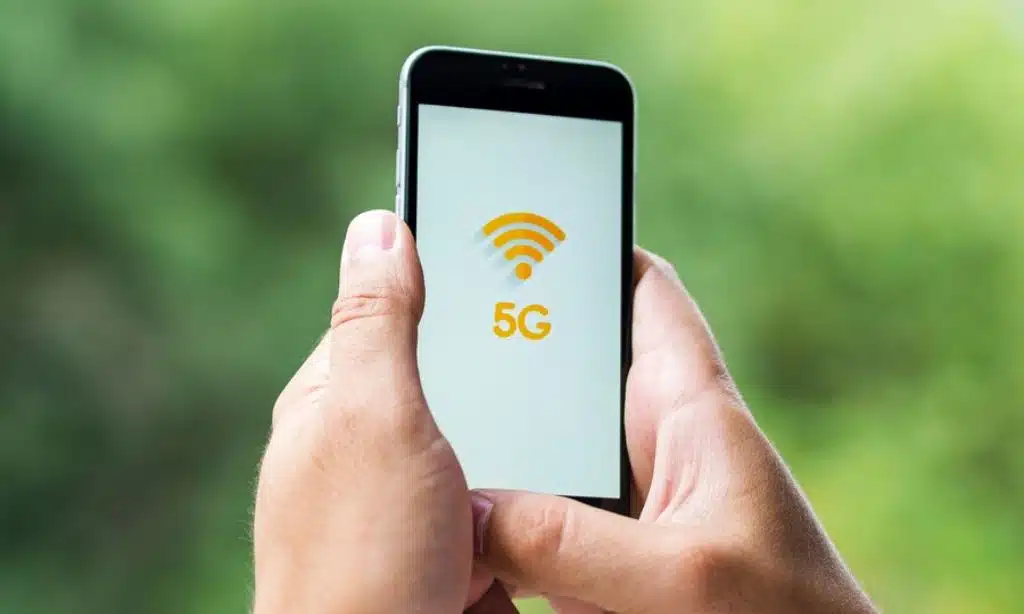
Did you know your phone can share its internet connection with other devices? This feature, known as tethering or mobile hotspot, can be a lifesaver when you need internet on your laptop but don’t have access to Wi-Fi.
To set up a hotspot on iPhone:
- Go to Settings > Personal Hotspot
- Toggle on “Allow Others to Join”
- Set a Wi-Fi password for security
For Android devices:
- Go to Settings > Network & Internet > Hotspot & Tethering
- Tap on “Wi-Fi hotspot” and toggle it on
- Set up a network name and password
Remember, using your phone as a hotspot may consume more battery and data, so keep an eye on your usage and consider carrying a portable charger.
3. Control Your TV with Your Smartphone
Misplaced your TV remote? No problem! Your smartphone can likely take its place. Many modern TVs can be controlled through Wi-Fi using your phone, and some phones even have infrared blasters for controlling older TVs.
For smart TVs:
- Download your TV manufacturer’s official app (e.g., Samsung SmartThings, LG ThinQ)
- Ensure your phone and TV are on the same Wi-Fi network
- Follow the app’s instructions to connect to your TV
For phones with IR blasters (mostly found on some Android devices):
- Download a universal remote app like “Sure Universal Remote”
- Select your TV brand from the list in the app
- Point your phone at the TV and test the controls
This feature is not only convenient but can also be a great accessibility tool for those who have difficulty using traditional remotes.
4. Scan Documents Like a Pro
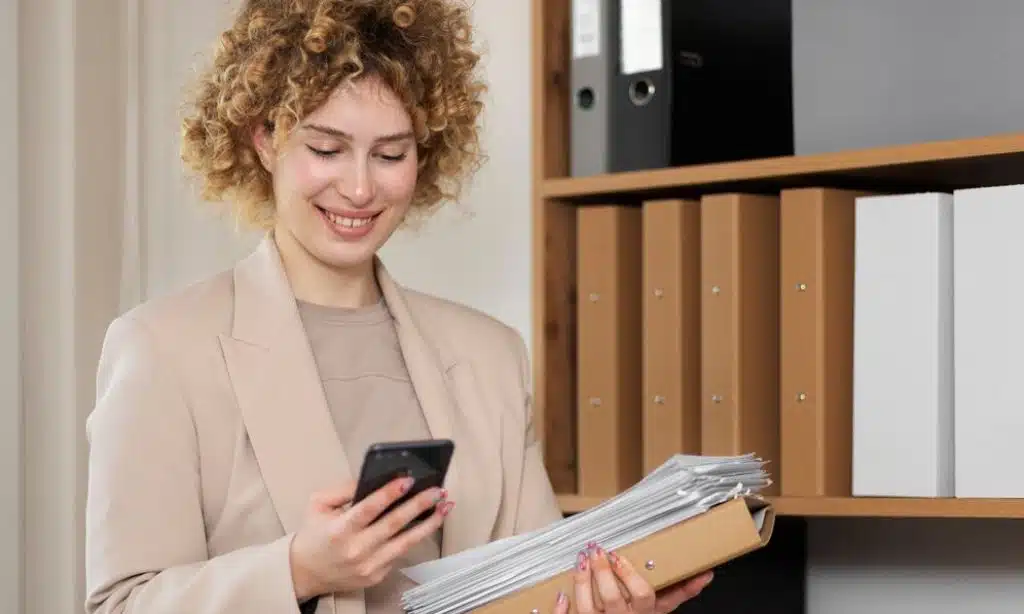
Gone are the days when you needed a bulky scanner to digitize documents. Your smartphone’s camera can now double as a high-quality document scanner.
For iPhone users:
- Open the Notes app and create a new note
- Tap the camera icon and select “Scan Documents”
- Position your document in the camera frame and tap the shutter button
- Adjust the corners if needed, then tap “Keep Scan”
For Android users:
- Open the Google Drive app
- Tap the “+” button and select “Scan”
- Take a photo of your document
- Crop and adjust as needed, then tap the checkmark to save
These scanned documents are saved as PDFs, making them easy to share, edit, or print. It’s perfect for digitizing receipts, important papers, or even creating digital copies of old family photos.
5. Use Your Phone as a Carpenter’s Level
Hanging pictures or installing shelves? Your smartphone can help you get everything perfectly level. Most modern phones have built-in sensors that can act as a spirit level.
On iPhone:
- Open the Measure app
- Tap on “Level” at the bottom of the screen
- Place your phone on the surface you want to level
On Android:
- Open the Google app and search for “bubble level”
- Tap on “Launch” to open the level tool
- Place your phone on the surface to check if it’s level
This feature is incredibly useful for DIY projects and can save you from the frustration of crooked picture frames or uneven furniture.
6. Set Up Lifesaving Emergency Features
Your smartphone can be a crucial tool in emergencies. Both iPhone and Android devices have built-in features to help first responders access important information even when your phone is locked.
On iPhone:
- Open the Health app and tap on your profile picture
- Tap on “Medical ID”
- Fill in your medical information and emergency contacts
- Make sure “Show When Locked” is enabled
On Android:
- Go to Settings > About Phone > Emergency Information
- Add your medical information and emergency contacts
Additionally, many smartphones have an Emergency SOS feature that can quickly call emergency services and alert your emergency contacts with your location. It’s a feature we hope you’ll never need, but it’s reassuring to have it set up.
7. Turn Your Phone into a Magnifying Glass
As we age, reading small print can become challenging. Luckily, your smartphone can act as a powerful magnifying glass.
For iPhone users:
- Go to Settings > Accessibility > Magnifier and turn it on
- Triple-click the side button to activate the magnifier
- Use the slider to zoom in and out
For Android users:
- Download the “Magnifier” app from the Google Play Store
- Open the app and use your camera to zoom in on small text or objects
This feature is not just for reading small print – it’s also great for examining tiny details in objects or nature.
8. Create Custom Vibration Patterns
Ever wished you could know who’s calling without looking at your phone? With custom vibration patterns, you can!
On iPhone:
- Go to Contacts and select a contact
- Tap “Edit” then “Ringtone”
- Scroll down and tap “Vibration”
- Select “Create New Vibration” to make your own pattern
On Android:
- Download a third-party app like “Good Vibrations”
- Create custom patterns for different contacts
This feature is not only fun but also practical, especially in situations where you can’t look at your phone but need to know if an important call is coming in.
9. Turn Your Old Phone into a Security Camera
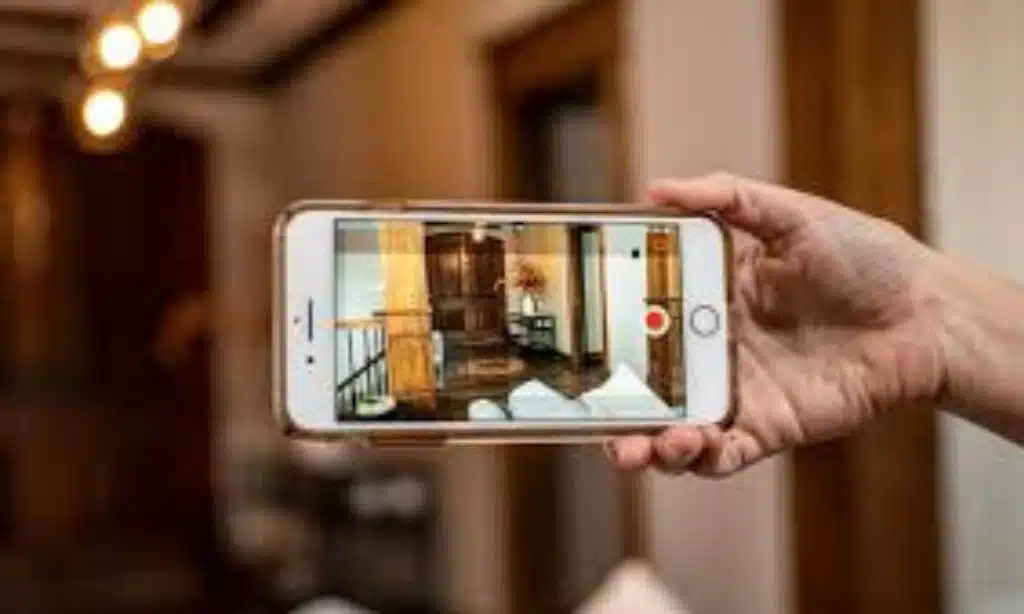
Don’t toss that old smartphone just yet! With the right app, it can become a powerful security camera for your home.
Steps to set up:
- Download a security camera app like “Alfred” on both your old and current phone
- Set up the old phone in the area you want to monitor
- Use your current phone to view the live feed
This DIY security system can help you keep an eye on your pets, monitor your front door, or even use it as a baby monitor. It’s a great way to repurpose an old device and add an extra layer of security to your home.
10. Record Your Screen
Whether you’re creating a tutorial or troubleshooting a problem, screen recording can be incredibly useful.
On iPhone:
- Go to Settings > Control Center and add “Screen Recording”
- Swipe down from the top-right corner and tap the record button
- To stop, tap the red bar at the top of the screen
On Android:
- Swipe down twice from the top of the screen
- Tap “Screen record” (if you don’t see it, you may need to edit your quick settings or download a third-party app)
This feature is great for creating how-to videos, recording gameplay, or capturing any on-screen activity you want to save or share.
11. Use Your Phone as a Digital Car Key
Some newer car models allow you to use your smartphone as a digital key. This means you can lock, unlock, and even start your car using just your phone.
How it works:
- Check if your car supports digital keys (common in newer BMW, Hyundai, and Tesla models)
- Download your car manufacturer’s app
- Follow the instructions to set up your digital key
This feature not only adds convenience but also enhances security, as digital keys can be easily revoked if your phone is lost or stolen.
12. Make Contactless Payments
Your smartphone can replace your wallet for many purchases. Services like Apple Pay, Google Pay, and Samsung Pay allow you to make secure, contactless payments using your phone.
To set up:
- For iPhone: Go to Wallet app and tap “+” to add a card
- For Android: Open Google Pay app and follow prompts to add a card
Once set up, you can pay by simply holding your phone near a contactless payment terminal. It’s faster, more convenient, and often more secure than using a physical card.
13. Control Your Computer Remotely
With the right app, your smartphone can act as a wireless mouse and keyboard for your computer. This is particularly useful for giving presentations or controlling media playback from across the room.
Popular apps for this include:
- “Remote Mouse” (available for both iOS and Android)
- “Unified Remote” (for Android)
To use:
- Download the app on your phone and the companion software on your computer
- Ensure both devices are on the same Wi-Fi network
- Follow the app’s instructions to connect
This feature can be a real lifesaver when your regular mouse or keyboard isn’t working, or when you want to control your computer from the comfort of your couch.
14. Identify Songs Playing Around You
Ever heard a great song playing but didn’t know its name? Your smartphone can help!
On iPhone:
- Ask Siri “What song is this?”
- Or use the built-in Shazam feature in Control Center
On Android:
- Ask Google Assistant “What’s this song?”
- Or use the Google app and tap the microphone icon, then “Search a song”
These features can identify most songs in a matter of seconds, helping you discover new music or remember the name of that catchy tune.
15. Use Your Phone as a Universal Translator
Language barriers can be frustrating, but your smartphone can help bridge the gap. With apps like Google Translate, you can translate text, speech, and even images in real-time.
How to use Google Translate:
- Download the Google Translate app
- Select the languages you want to translate between
- You can type text, speak into the microphone, or use your camera to translate signs and menus
This feature is incredibly useful for travelers, allowing you to communicate in foreign countries even if you don’t speak the local language.
Takeaway
As we’ve explored these 15 surprising features, it’s clear that our smartphones are far more capable than most of us realize. From acting as a digital ruler to becoming a universal translator, these pocket-sized devices continue to amaze us with their versatility and power.
By unlocking these hidden features, you can transform your smartphone from a simple communication device into a multi-functional tool that enhances various aspects of your daily life. Whether you’re tackling home improvement projects, traveling to foreign lands, or simply trying to make your day-to-day tasks easier, your smartphone is ready to help in ways you might never have imagined.
Remember, technology is constantly evolving, and new features are being added all the time. Don’t be afraid to explore your phone’s settings and try out new apps – you never know what hidden gems you might discover. Your smartphone is a powerful tool, limited only by your imagination and willingness to learn.
So, the next time someone asks you what your phone can do, you can smile and say, “What can’t it do?” Because with these tips and tricks up your sleeve, you’re now equipped to unlock the full potential of the amazing device in your pocket. Happy exploring!