

A bright icon, an “educational” label, or a high store rating does not make a children’s app safe. An app can look harmless while collecting device identifiers, pushing purchases, opening outside links, or allowing contact with strangers.
The strongest kids app safety features are built into the experience from the beginning. Privacy starts high. Sensitive permissions stay off until needed. Purchases and outside links sit behind an adult check. If communication is available, parents can control it, and children can report problems easily.
Safety is also separate from learning quality. An app may teach phonics well but rely on distracting ads. Another may protect privacy but offer little educational value. Parents deciding how to choose learning apps for kids need to examine both sides.
No app-store badge replaces an adult review. However, the following 10 features give families a practical standard for deciding whether an app deserves a place on a child’s device.
Kids App Safety Features at a Glance
Children’s app safety covers content, privacy, spending, contact with others, account security, and attention. A useful feature should be easy to find and protective by default, not hidden inside an advanced settings menu.
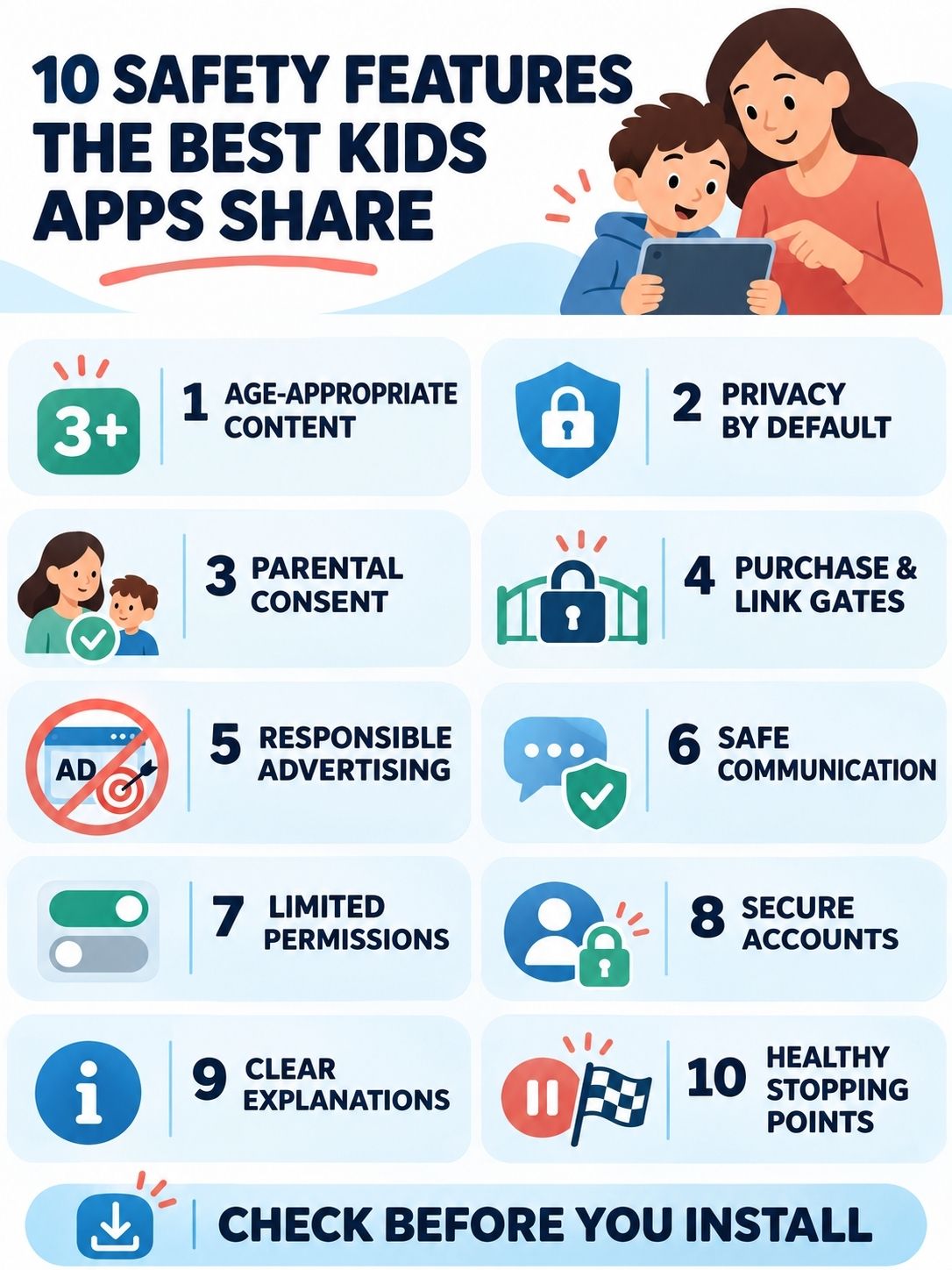
| Safety feature | Quick parent check |
|---|---|
| Age-appropriate design | Does the content match the child’s age and maturity? |
| Privacy by default | Can the app work without unnecessary personal information? |
| Parental consent and control | Can a parent review, change, and delete stored information? |
| Parental gates | Are purchases and outside links protected by an adult step? |
| Responsible advertising | Are ads limited, recognizable, and free from behavioral targeting? |
| Safe communication | Can adults control contact, and can children report or block users? |
| Limited permissions | Are the camera, microphone, contacts, and location requested only when needed? |
| Account and data security | Is the app maintained, supported, and clear about deletion? |
| Plain-language explanations | Does the app explain its choices to both adults and children? |
| Healthy engagement | Can the child reach a clear stopping point without pressure to continue? |
1. Honest Age Ratings and Age-Appropriate Content
A safe app clearly identifies the age group it was designed for. Its instructions, reading level, themes, rewards, and social features should make sense for that group.
Store ratings are a starting point, not a complete judgment. A fixed puzzle game is easier to inspect than an app containing live chat, changing videos, AI-generated responses, or public uploads. Parents should check what can appear after the opening activity, not only what is shown in promotional screenshots.
The individual child matters too. Two children of the same age may respond differently to competition, frightening scenes, public feedback, or messaging. Broader age-appropriate technology rules for children can help families decide which features are suitable now and which can wait.
Before installing, check the stated age range and whether the listing identifies advertising, purchases, messaging, or user-generated content. Then use the app briefly without the child and see whether the actual experience matches that description.
2. High-Privacy Defaults and Minimal Data Collection
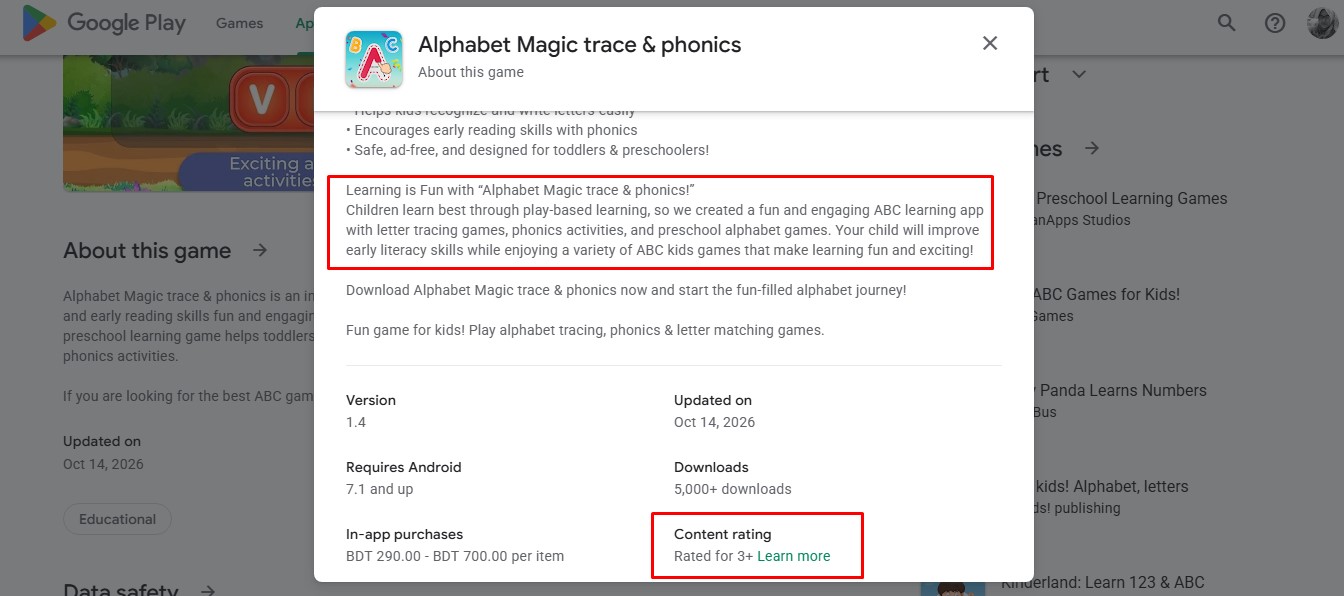
The safest default collects only what the app needs for the activity the child selected. A basic drawing, alphabet, or puzzle app rarely needs a child’s full name, exact birthday, photo, contact list, or precise location.
Some information may serve a real purpose. A reading app may save progress. A pronunciation activity may need temporary microphone access. The important questions are whether the data is necessary, whether it leaves the device, who receives it, and how long it remains stored.
The UK Children’s Code calls for high-privacy defaults, minimum necessary data collection, and geolocation to remain off by default unless there is a compelling reason to enable it.
Parents should compare the App Store privacy label or Google Play Data safety section with the developer’s policy. These disclosures are useful screening tools, but they are not independent audits. If the two descriptions conflict, ask the developer or choose another app.
3. Meaningful Parental Consent and Ongoing Controls
Consent should not be a pre-checked box or a button a young child can tap. When an app needs personal information, the parent should receive a clear explanation of what will be collected, why it is needed, and whether another company will receive it.
In the United States, the FTC’s current COPPA compliance guidance explains the responsibilities of covered child-directed services. These include parental notice and consent, access to a child’s information, withdrawal of consent, and deletion rights. Other countries apply different age thresholds and legal requirements.
The practical feature parents need is ongoing control. A useful parent area should make it possible to:
- Review child profiles and age settings
- Change privacy and sharing choices
- Approve or disable social features
- Manage purchases and subscriptions
- See what information is stored
- Withdraw consent and request deletion
Device-level controls add another layer. Families can compare parental control apps for managing screen time, but those tools cannot repair unsafe design inside an individual app.
4. Parental Gates for Purchases and Outside Links
A parental gate places an adult-level action between a child and a sensitive feature. It may protect purchases, subscription changes, external websites, social networks, account settings, or data-sharing choices.
The gate should be difficult for a child to pass accidentally. A simple “tap the red circle” puzzle soon becomes part of the game. An adult PIN, device authentication, or another separate approval step offers a clearer boundary.
Free trials need the same care. Before an adult confirms anything, the app should show the price, trial length, renewal terms, and cancellation route. A large “Start” button beside a faint close icon is commercial pressure, not child-friendly design.
Test one locked activity before handing over the device. Follow a “more games” link, open the subscription page, and try to change an account setting. A well-designed app should stop and involve an adult at the right moment.
5. No Targeted Advertising or Deceptive Sales Pressure
Ad-free is usually the cleanest option for younger children. When an app does show ads, they should be age-appropriate, clearly separated from play, and impossible to mistake for a game control.
Google Play’s Families policies restrict interest-based advertising and remarketing when ads are served to children or users of unknown age. Apple also places additional advertising and data rules on apps in its Kids category. These platform requirements help, but parents still need to inspect the actual placement and frequency of promotions.
Watch for pressure that sits outside a normal advertising box:
- Rewards that require repeated ad viewing
- Characters urging the child to request a purchase
- False countdowns or “last chance” offers
- Locked activities that look available until tapped
- Paid buttons placed beside normal game controls
- “Free” offers that become recurring subscriptions
The safest apps make the business model clear to adults and keep the sales pitch away from the child’s activity.
6. Closed, Controlled, and Reportable Communication
Many children’s apps do not need chat. When communication supports a classroom, family, or creative activity, the app should limit who can make contact and what can be shared.
Strong communication controls include private profiles by default, parent-approved contacts, closed classroom groups, and adult control over whether chat is enabled. A child’s full name, school, age, photo, or location should not appear publicly by default.
Reporting tools matter just as much as contact settings. Children should be able to block or report a user without navigating a confusing help center. Parents also need a working route to the app’s safety or support team.
Automated filters can miss coded language, bullying, grooming, and harmful images. If an app uses the phrase “safe chat,” check what that means. Does it restrict free text? Are reports reviewed by people? Can an adult disable the feature completely? A label without an explanation is not enough.
7. Permissions That Stay Off Until Needed
Camera, microphone, contacts, Bluetooth, and location access should be requested when a feature genuinely needs them, not immediately after installation. The request should explain the purpose in words a parent and child can understand.
A child should be able to draw without sharing contacts, solve a math problem without turning on the microphone, and read a story without enabling precise location. If an optional permission is refused, the rest of the app should continue working whenever technically possible.
Location deserves extra caution. When a feature needs it, the app should show that tracking is active and let the user turn it off easily. A game or learning activity should not expose a child’s location to other users by default.
During the first session, deny optional permissions. Enable one only when the child reaches a feature that clearly requires it. If the app becomes unusable for no sensible reason, reconsider whether it belongs on the device.
8. Secure Accounts, Regular Maintenance, and Real Deletion Tools
Parents cannot audit an app’s code from its store page. They can still look for signs that the developer treats security as an ongoing job.
Useful signals include recent maintenance, secure adult authentication for sensitive changes, a working support address, and a clear account-deletion route. The privacy policy should explain retention and identify the main types of outside service providers handling children’s information.
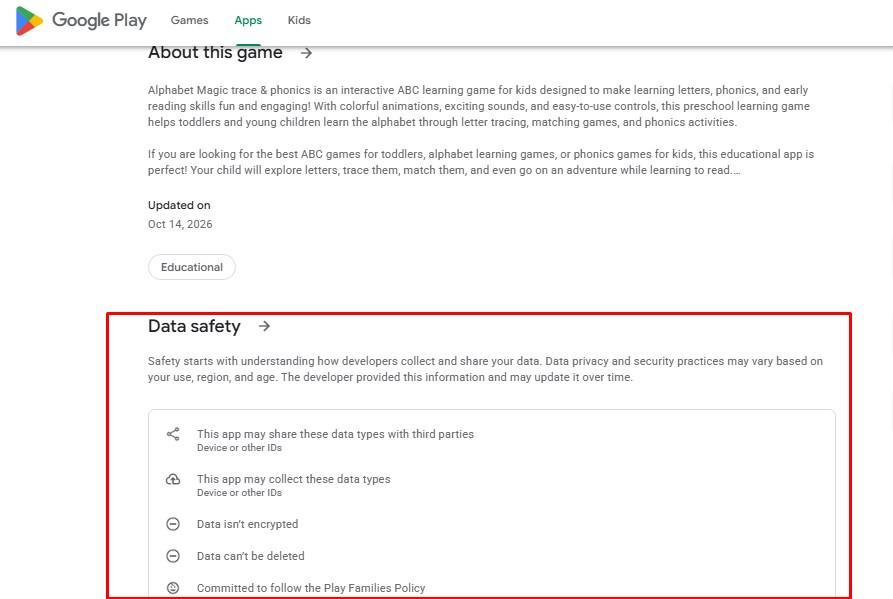
An update date alone does not prove that an app is secure. It simply shows whether the product is still being maintained. An app abandoned for several years may rely on outdated software components or policies, especially if its support site has also disappeared.
Deleting the icon is not the same as deleting an account. Before allowing a child to create a profile, find out how the parent can remove stored information. If the route is unclear, contact the developer before entering personal details.
9. Clear Explanations for Children and Adults
A long legal policy may be necessary, but it cannot do all the work. The app should provide a detailed version for adults and short explanations when a child reaches a privacy or safety choice.
For example, “The microphone listens while you read this sentence. Tap Stop when you finish” is more useful than asking for microphone access without context. A sharing screen should say who can see the child’s drawing or recording before it is posted.
Clear design explains:
- Why a permission is needed
- Who can see a profile, post, image, or recording
- When a parent can view activity
- How to report something upsetting
- Which features are optional
- What happens when an account is deleted
Simple wording should still be specific. “We use data to improve your experience” does not tell a parent which data is involved, who receives it, or how long it will be kept.
10. Healthy Engagement and Natural Stopping Points
An app can protect personal data and still make stopping unnecessarily difficult. Endless feeds, autoplay, urgent streak warnings, noisy notifications, and reward loops can turn a short activity into a long argument.
Healthy design gives the child a place to finish. A lesson ends. A story closes. A game shows progress without immediately opening the next round. Notifications can be limited, and taking a break does not erase meaningful work.
Parents should judge what the child is doing, not only whether the app carries an educational label. The distinction between educational and entertainment screen time depends on purpose, participation, context, and what the activity replaces.
The child’s behavior after use also matters. The signs of healthy technology use in children include being able to stop with reasonable support, protect sleep, complete responsibilities, and continue enjoying books, movement, conversation, and offline play.
A Five-Minute Safety Check Before the First Session
Parents do not need to be software engineers or privacy lawyers. A short adult trial can uncover many common problems.
- Read the complete store listing: Check the age rating, ads, purchases, messaging, user-generated content, and data disclosures.
- Open the privacy policy: Look for what is collected, why it is needed, who receives it, how long it is kept, and how deletion works.
- Install the app on an adult-controlled profile first: Move past the opening screen and test several activities.
- Refuse optional permissions: Confirm that the main features still work.
- Test every exit. Tap store buttons, outside links, sharing tools, and account settings to see whether an adult gate appears.
- Inspect communication controls: If the app includes chat or public content, find the contact settings, report button, and block option.
- Finish one full activity: See whether the app provides a natural ending or immediately pushes the child into another round.
- Find the deletion route: Know how to remove the account and stored information before a problem occurs.
Repeat the check after a major update. New advertising, chat, AI features, permissions, or account systems can change the app’s risk profile.
If several checks fail, compare what you found with these warning signs that a kids’ app may not be safe. That separate checklist focuses on red flags, while the 10 features above show what stronger design should provide.
Frequently Asked Questions about Kids App Safety Features
Is a school-recommended app automatically safe for home use?
No. A school may approve an app for a specific lesson, managed device, or restricted account. Home settings can be different. Parents should still review permissions, communication features, purchases, advertising, and the developer’s privacy policy.
Does deleting an app also delete a child’s account and data?
Usually not. Removing the app stops local use, but information already sent to the developer may remain. Use the account-deletion tool or submit a deletion request through the developer’s stated process.
Is an offline kids app always safer?
Offline use can reduce exposure to ads, outside links, remote tracking, and changing content. It does not guarantee safety. The app may still store information, request unnecessary permissions, or upload data when the device reconnects.
What should parents do when an update adds chat, ads, or AI features?
Pause unsupervised use and review the listing, permissions, privacy policy, and new settings. Disable the feature if possible. If the app no longer matches the family’s expectations, delete the account and choose an alternative.
Safety Should Be the Default
Reliable kids app safety features do not depend on a parent discovering every hidden switch. The app begins with protective settings, asks only for information it needs, places adults in control of sensitive actions, limits risky contact, and lets a child stop.
No feature removes the need for supervision. Good design simply makes that supervision realistic. The safest app is one a parent can understand, manage, and explain to the child without having to fight the interface.