
A page can work perfectly in a browser and still fail in Google Search. It may carry an accidental noindex directive, point to the wrong canonical, return an unreliable server response to Googlebot, or depend on JavaScript that Google cannot render as expected.
The URL Inspection Tool in Google Search Console helps diagnose these page-level problems. It shows what Google knows about a particular URL, lets you test the current live page, and provides details about discovery, crawling, indexing, canonical selection, rendered content, and certain search enhancements.
Its usefulness is also easy to overstate. URL inspection does not guarantee indexing, explain rankings, or replace a technical site audit. It works best when you have one URL and a clear question about what Google did—or could do—with that page.
What Is the URL Inspection Tool Best Used For?
Use the tool when you need to answer a focused question such as:
- Is this exact URL indexed?
- When did Google last crawl it?
- Could Googlebot fetch the page?
- Was crawling blocked?
- Did Google detect a
noindexdirective? - Which URL did Google choose as canonical?
- Is important JavaScript-generated content present in the rendered HTML?
- Has a recent technical repair worked?
- Can a new or substantially updated page be submitted for recrawling?
It is particularly helpful after publishing an important page, removing an indexing block, changing canonical tags, resolving a server error, migrating a URL, or repairing JavaScript rendering.
For widespread problems, it should be a sampling tool rather than the whole investigation. If an entire product category or article directory has disappeared from Search, inspect a few representative pages, confirm the shared symptoms, and then move to the Page Indexing report, server logs, XML sitemaps, or a full site crawler.
Start by Separating Indexed Data From the Live Test
The initial inspection result and the live test answer different questions.
The default result shows information from Google’s indexed version of the URL. It reflects what Google knows from previous processing, not necessarily what is on the server at this moment.
The live test fetches the current page using the inspection crawler. It helps determine whether Google can access and process the version available now.
This difference matters after a repair. Suppose a developer removed a noindex tag an hour ago. The indexed result may still report the old directive because Google has not returned to the page. A live test may show that the current version is now accessible and potentially indexable.
You can therefore see:
- Google Index: URL is not on Google.
- Live Test: URL is available to Google.
Those results are not contradictory. The indexed information may be stale, or the URL may face a condition that the live test cannot assess, such as Google selecting another page as canonical.
A successful live test does not update the index. It only reports the state found during that test.
What the Main Verdict Really Means
The status displayed at the top of the report is a useful summary, but it rarely tells the whole story.
“URL is on Google”
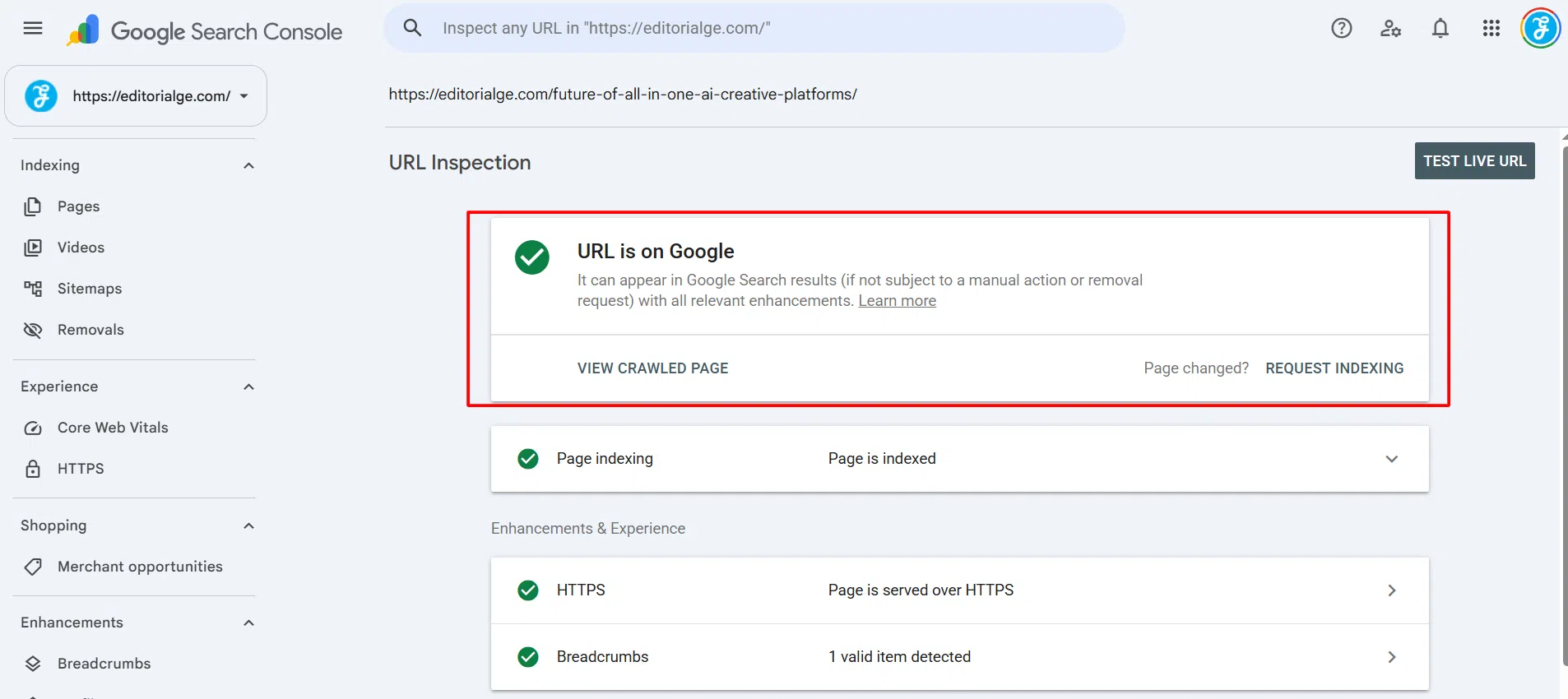
This means the URL is indexed and eligible to appear in Google Search based on the conditions covered by the report. It does not promise rankings, impressions, or visibility for a particular query.
The report also does not account for every condition that can affect search appearances. Manual actions, security issues, temporary removal requests, legal removals, and some quality-related conditions are outside the main verdict.
If the page is indexed but receives no search traffic, URL inspection is unlikely to explain the entire problem. Search intent, content relevance, competition, internal links, and other ranking factors require a different analysis.
“URL is not on Google”
Do not treat this as a diagnosis by itself. Expand the Page indexing section and read the stated reason.
Possible explanations include:
- A
robots.txtblock - A
noindexdirective - A 404, soft 404, or server error
- A redirect
- Discovery without a later crawl
- Crawling without subsequent indexing
- Duplication with another Google-selected canonical
Some exclusions are intentional. A redirected URL should normally be excluded. The same may be true of parameter variations, filtered category pages, print versions, or duplicate product URLs.
The useful question is not simply, “Why is this page excluded?” It is, “Does this exclusion match the site’s intended indexing plan?”
“URL is on Google, but has issues”
This usually means the page is indexed but has a problem with an associated search enhancement, such as supported structured data or AMP.
An enhancement issue should not automatically be described as an indexing failure. The page may remain searchable while losing eligibility for a particular search treatment.
A Diagnostic Workflow That Avoids Guesswork
1. Inspect the Exact URL
Enter the fully qualified URL and confirm that the correct Search Console property is open.
These addresses may be treated as separate URLs:
http://example.com/pagehttps://example.com/pagehttps://www.example.com/pagehttps://example.com/page/
Parameters, capitalization, hostname variations, and trailing slashes can also matter. Inspect the URL exhibiting the problem, not the cleaner version you expect Google to use.
This sounds basic, but it prevents a common waste of time: diagnosing one URL while users and Google are reaching another.
2. Read the Indexed Result Before Testing the Live Page
Before clicking Test live URL, note:
- Indexing verdict and reason
- Last crawl
- Crawler type
- Crawl allowed status
- Page fetch result
- Indexing allowed status
- User-declared canonical
- Google-selected canonical
The indexed result is evidence of what happened previously. The live result describes the page now. You need both sides of that comparison when checking whether a repair has worked.
3. Check How Google Found the Page
Search Console may list a referring page or sitemap associated with discovery. If the referring-page field is empty, that does not prove that no link exists. The information may simply be unavailable in the report.
A URL with no crawl history deserves a wider discovery check:
- Is it listed in an XML sitemap?
- Do crawlable internal links point to it?
- Is it linked from a page that Google can index?
- Does it appear only after someone submits a form or uses an internal search box?
- Is it buried in an orphaned section of the site?
Requesting indexing can introduce one URL to Google. It does not repair poor internal linking, inaccessible navigation, or a template that keeps generating orphan pages.
Crawl Controls and Indexing Controls Are Different
A robots.txt rule controls crawler access. A robots meta tag or X-Robots-Tag response header can tell Google not to index fetched content.
For a page intended for indexing, you generally want to see:
- Crawl allowed: Yes
- Page fetch: Successful
- Indexing allowed: Yes
The awkward case is a URL blocked in robots.txt that also contains noindex. Because Googlebot cannot crawl the page, it may never see the noindex directive. Google can still discover the blocked URL through links and may display the address in Search without having crawled its contents.
This is why robots.txt is a poor removal method for an ordinary webpage. If the page must stay out of Google, use a crawlable noindex directive, remove the resource, or protect genuinely private material with authentication. A search directive is not a security control.
Also check both possible locations for noindex. HTML pages may use a robots meta tag, while an X-Robots-Tag can be sent in the HTTP response. The latter is particularly relevant for PDFs and other non-HTML resources.
Canonical Disagreements Need More Than Another Indexing Request
The indexed report may show two canonical values:
- User-declared canonical: The URL preferred by the site.
- Google-selected canonical: The URL Google chose to represent a group of similar pages.
A declared canonical is a signal, not a command. If Google selects a different URL, submitting the preferred version again rarely changes anything.
Instead, inspect the signals around the page:
- Is the content identical or nearly identical to another URL?
- Do internal links mostly point to a different version?
- Does the page redirect away from its declared canonical?
- Are HTTP, HTTPS,
www, and non-wwwversions handled consistently? - Does the XML sitemap include noncanonical URLs?
- Is JavaScript changing or inserting the canonical tag?
- Do canonical and
hreflangreferences conflict? - Are filtered, sorted, or tracking-parameter versions competing with the clean URL?
A self-referencing canonical tag cannot compensate for every other signal pointing elsewhere. Internal links, redirects, sitemap entries, content similarity, and canonical markup should tell the same story.
The live test cannot predict Google’s eventual canonical choice. Use the indexed result when checking the Google-selected canonical.
Use the Live Test to Confirm a Repair
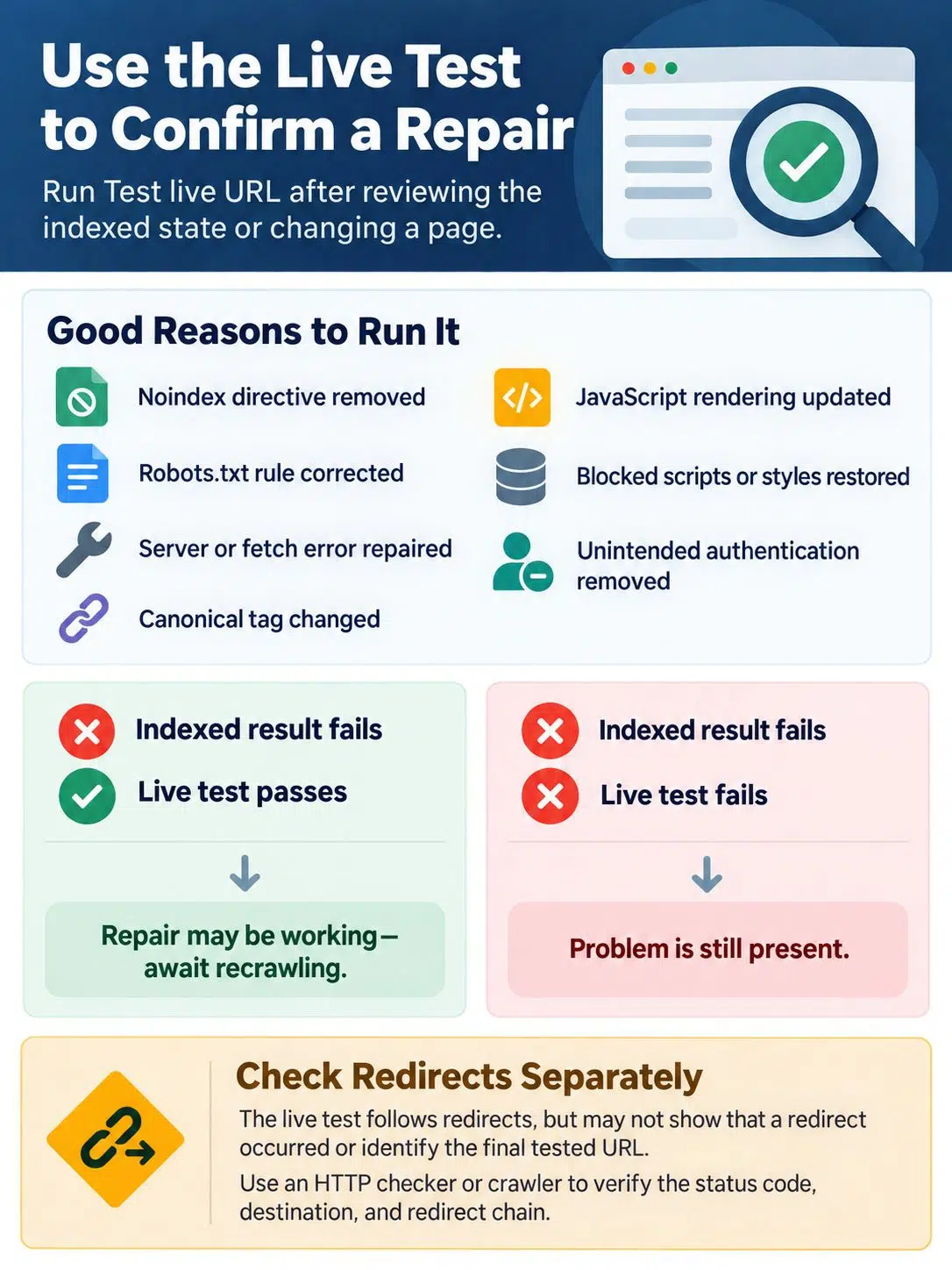
Run Test live URL after you understand the indexed state or after a page has changed.
Good reasons to use it include:
- A
noindexdirective was removed - A
robots.txtrule was corrected - A server or fetch error was repaired
- A canonical tag was changed
- JavaScript rendering was updated
- Blocked scripts or styles were restored
- An unintended authentication requirement was removed
If the indexed result reports a failure and the live test passes, the repair may be working and awaiting recrawling. If both results fail for the same reason, the problem is still present.
Redirects need separate attention. The live test follows redirects before testing, but it may not reveal that a redirect occurred or show the final URL it tested. Use an HTTP checker or crawler to verify the status code, destination, and any redirect chain.
Check Rendered HTML, Not Just the Screenshot
A JavaScript page can look complete in a browser while giving Google incomplete content. A script may be blocked, an API request may fail, or critical text may load only after an interaction.
After a successful live test, open View tested page. Depending on the available report details, you can review:
- Rendered HTML
- Screenshot
- HTTP response information
- Loaded resources
- JavaScript output
Search the rendered HTML for elements that Google needs to process:
- Main heading
- Primary copy
- Product or service description
- Internal links
- Canonical tag
- Robots directives
- Structured data
- Video container or embed
The screenshot is useful for spotting a blank page, missing layout, cookie wall, or obvious loading failure. It should not be the sole test. A page may look acceptable while its internal links or metadata are absent. Long pages may also be only partially represented in the screenshot even when the rendered HTML contains the expected content.
Be suspicious of essential content that appears only after someone clicks a tab, opens an accordion controlled entirely by JavaScript, swipes a carousel, types into a search field, or accepts a prompt. Important indexable information should be available without depending on those actions.
A Green Live Result Has Firm Limits
“URL is available to Google” means the inspection crawler did not find a critical access or indexability problem within the test’s scope. It does not mean the URL will be indexed.
The live test cannot establish:
- Which page Google will choose as canonical
- Whether the content is sufficiently distinct from another URL
- Whether Google discovered the URL through a sitemap or referring page
- Whether a manual action or removal affects visibility
- Whether a detected video is indexed
- Whether the page will rank
- Whether Google has updated the indexed version
This is one of the tool’s most misunderstood boundaries. Technical accessibility is necessary, but Google can successfully fetch a page and still decide not to retain it as a separate indexed URL.
Request Indexing Only When the Page Is Ready
Request indexing is useful for a small number of important URLs:
- A newly published priority page
- A page with substantial content changes
- A corrected accidental
noindex - A repaired server or rendering problem
- A page whose canonical signals have been aligned
The request asks Google to crawl the URL. It does not guarantee when that will happen, whether the URL will be indexed, or where it will rank. Search Console also applies daily limits to inspection and indexing requests.
Repeated submission is usually a distraction. If the live test still reports a blocking problem, fix that first. If Google keeps selecting another canonical, address the conflicting signals.
For many new or updated URLs, maintain an XML sitemap instead. Include the canonical versions you want Google to discover. If you provide lastmod, keep it accurate: it should represent a significant change to the page, such as a meaningful update to its main content, structured data, or links. Automatically changing the date on every crawl does not provide a trustworthy signal.
Know When to Leave URL Inspection
The tool becomes less useful once the investigation grows beyond a few pages.
Use the Page Indexing report to find patterns across URL groups. Use the Rich Results Test when the main concern is eligibility for a Google-supported rich result. For general Schema.org validation beyond Google-specific features, use the Schema Markup Validator.
A site crawler is more efficient for finding redirect chains, conflicting canonicals, broken internal links, accidental noindex directives, and orphan pages across a large site. Server logs can show whether Googlebot is requesting the URLs that matter. Browser developer tools offer much deeper network and JavaScript debugging.
The URL Inspection API can return information about indexed versions programmatically, subject to authorization and usage quotas. It cannot run live tests and is not a bulk indexing endpoint.
Final Thoughts
The URL Inspection Tool is most valuable when it narrows an investigation rather than ends one. Use it to establish what Google previously processed, compare that evidence with the live page, and identify whether the real problem involves discovery, crawling, indexing directives, canonical selection, or rendering.
Start with the indexed result. Run the live test only after you understand that earlier state. Request indexing after the page is ready, not as a reflex whenever a URL is missing.
For a handful of important pages, that workflow is usually enough to expose the next action. When the same issue appears across a directory or template, stop inspecting URLs one by one and fix the shared cause.
Frequently Asked Questions
How long does Google take to respond to an indexing request?
There is no fixed processing time. Google may recrawl a page relatively quickly, but some requests take considerably longer, and submission does not guarantee indexing. Check the URL again later instead of sending the same request repeatedly.
Can I inspect a URL from a website I do not own?
Not through Search Console’s URL Inspection Tool. The URL must belong to the property currently open in your account. For a page outside your verified properties, the Rich Results Test can show rendered HTML and Google-specific structured data eligibility, but it will not reveal that site’s private Search Console indexing information.
Why does the screenshot look incomplete when the page works in my browser?
Google’s inspection crawler may encounter blocked resources, failed JavaScript requests, consent overlays, lazy-loaded elements, or content that requires user interaction. A screenshot may also capture only part of a long page. Check the rendered HTML, loaded resources, and JavaScript output before assuming that the visual preview tells the whole story.
Can the URL Inspection Tool test a password-protected staging page?
A normal live test requires the page to be publicly reachable without a login. Avoid weakening access controls simply to run the test. For private staging environments, use browser developer tools, a crawler with authorized access, and local rendering checks until the page is ready to be exposed to Google.