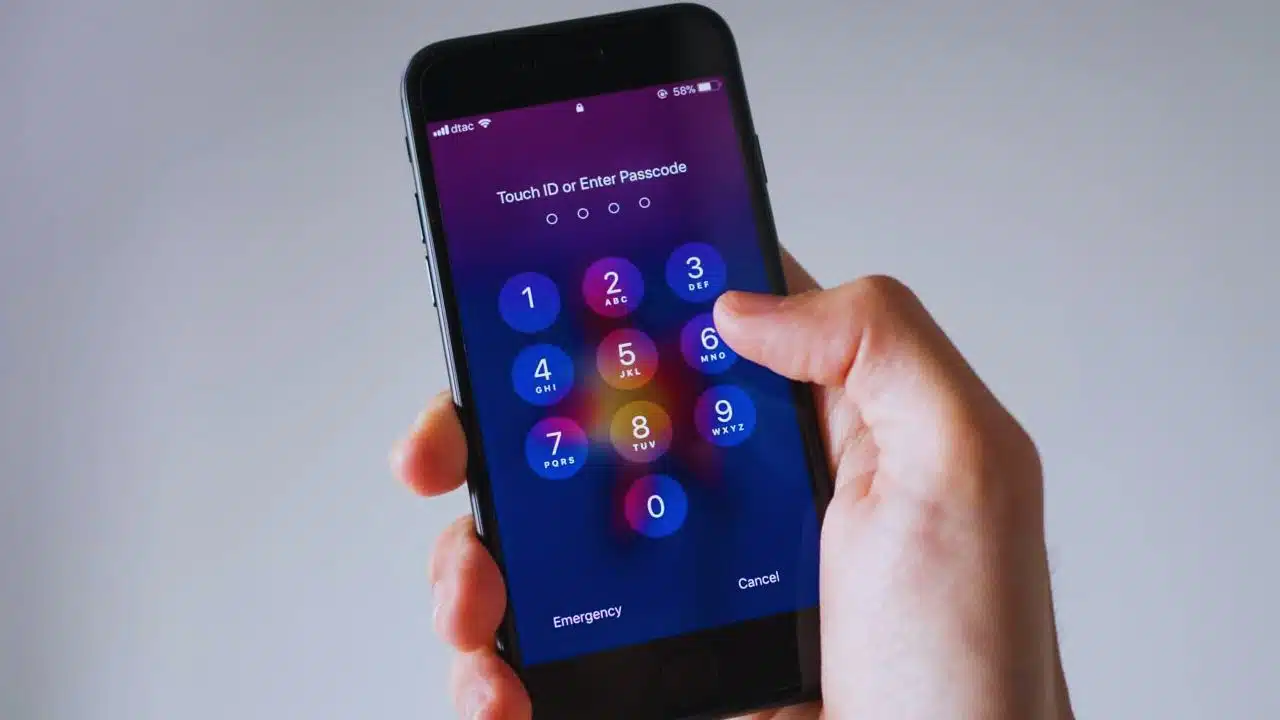
Forgot your iPhone passcode? It’s incredibly frustrating to be locked out of your own device, especially when you need it the most. You might feel stuck with no clear way forward.
I completely understand what you’re going through—I’ve encountered this issue myself and spent a lot of time researching reliable solutions. The good news is you’re not alone in this predicament! Whether it’s using Find My iPhone, entering Recovery Mode, or other methods, I’ve got you covered here.
This article aims to provide straightforward steps for unlocking an iPhone without a passcode. From utilizing iCloud to trying Siri tricks on older models… practical advice awaits you here.
Curious how? Let’s dive in!
Key iPhone Security Mechanisms
Key iPhone Security Mechanisms:
Your iPhone uses a passcode to keep your data safe from others. It also encrypts your data, making it hard for anyone to access it without the right key.
Role of Passcode
The passcode locks your iPhone. It stops others from accessing data without permission. After six failed attempts, your iPhone will be disabled.
Passcodes also trigger data encryption on the device. This keeps your photos, messages, and files safe. It’s crucial to use a strong passcode for better security.
Essentials of Data Encryption
A strong passcode protects your iPhone, but data encryption takes it further. Data on the iPhone gets encrypted automatically using advanced algorithms. Encryption changes readable data into coded text that’s unreadable without the correct passcode or biometric ID.
Encrypted data includes messages, emails, photos, and apps. This keeps your information private even if someone steals your phone. “Without a proper decryption key, unauthorized access is impossible.” Suppose you back up your iPhone to iCloud or through an encrypted backup via iTunes. In that case, this also locks that backup with encryption—adding another security layer for sensitive information like passwords and health data.
Essential Steps After Forgetting Your Passcode
First, try using the ‘Find My iPhone’ feature to unlock your device. If that doesn’t work, enter Recovery Mode to erase and reset it.
Utilize ‘Find My iPhone’
I always use Find My iPhone if I forget my passcode. This tool is super handy! First, open the app on another Apple device or go to iCloud.com. Select my iPhone from the list of devices, choose “Erase This Device”, and confirm with my Apple ID and password.
The phone gets wiped clean, removing the lock screen passcode. It’s like a reset button! Then I can set it up again using a backup from iCloud or iTunes.
Enter Recovery Mode
Hold down the side button and one of the volume buttons. Wait for the power-off slider to appear, then turn off your iPhone. Connect your device to a computer while holding the Side button (for models with Face ID) or Home button (for older models).
Keep holding until you see recovery mode on your phone’s screen.
Open Finder if you’re using macOS Catalina or later. For earlier versions of Windows, use iTunes. You will see a prompt asking you to restore or update your iPhone. Select “Restore”. Your iPhone will be wiped clean, but you can set it up as new or restore it from a backup.
Proven Methods to Unlock Your iPhone Without a Passcode
Unlocking your iPhone without a passcode can be done through various methods. Let’s look at some ways to access your phone again.
Unlock via iCloud
I can help you unlock your iPhone if you’ve forgotten the passcode using iCloud. First, go to https://www.icloud.com/find and log in with your Apple ID. Select “All Devices”, then choose your iPhone from the list.
Once selected, click “Erase iPhone.” This action will delete all data on the phone, including the passcode. Now, you can set up your iPhone again and restore it from a backup, if available.
Unlock using iTunes
First, connect your iPhone to a computer using a USB cable. Open iTunes on the computer. If it doesn’t open automatically, launch it yourself. Next, force restart your iPhone: for an iPhone 8 or newer, press and release the volume up button quickly; then do the same with the volume down button.
Hold down the side button until you see recovery mode
iTunes will prompt you to restore or update your device—choose “Restore”. This will erase all data but unlock your phone without needing a passcode. It may take some time for this process to complete as it downloads and installs software updates on your device…
Exploit Siri in Older iOS Versions (8.0 to 10.1)
Activate Siri by holding the home button. Ask, “What time is it?” Siri will show a clock. Tap on the Clock app. In the World Clock section, tap the plus (+) symbol to add another clock.
Choose “Select All” and hit “Share”. From here, choose Message to open a new message screen. Type something in the “To” field and press return. Then tap on the contact name you typed; click “Create New Contact”.
In this window, select “Add Photo”. Choose an option like “Choose Existing Photo”. This action opens your photo library without a passcode!
Explore Third-Party Tools for iPhone Access
Third-party tools can help you unlock your iPhone. Dr.Fone – Screen Unlock (iOS) is a popular choice. Here is a step-by-step image guide to unlock iOS by using Dr.Fone.
Step 1: Download and Install Dr.Fone
- Install Wondershare Dr.Fone on your computer.
- Open the program and go to Toolbox > Screen Unlock > iOS.
Step 2: Choose Unlock iOS Option
- Click on Unlock iOS Screen in the new window.
Step 3: Begin Unlocking Process
- Click Start to start unlocking your iOS device.
- Ensure your device has enough battery.
Step 4: Enter Recovery Mode
- Follow on-screen instructions to put your device in Recovery Mode.
- If Recovery Mode doesn’t work, click Try DFU Mode for instructions on DFU mode.
Step 5: Confirm Device Details
- The software will detect your device model.
- If needed, correct the model and choose the system version.
- Click Start to proceed.
Step 6: Download iOS Firmware
- The software will download the iOS firmware.
- You can stop the download by clicking Stop.
- If the download is slow, use the Copy button to download manually.
Step 7: Verify and Unlock
- Once downloaded, the firmware will be verified.
- Click Unlock Now to proceed.
Step 8: Confirm Unlock
- Enter the required code and click Unlock to confirm.
Step 9: Install Firmware
- Keep your device connected during the installation.
- The progress bar will show the installation status.
Step 10: Finish
- Once unlocked, click Done.
- If your device is still locked, click Try Again to restart.
Recommended Software
I’ve used many tools to unlock iPhones. One of the best is Dr.Fone – Screen Unlock (iOS). It makes unlocking your device easy. Just connect your iPhone, follow the instructions, and regain access in minutes.
Dr.Fone – Screen Unlock (iOS)
Dr.Fone – Screen Unlock (iOS) is a lifes aver if you forget your iPhone passcode. This third-party iPhone unlocker tool helps unlock an iPhone. It provides a secure and reliable method to regain access.
Using Dr.Fone, I no longer need recovery mode or iTunes for unlocking.
The process is simple and efficient. Some important things to remember while using Dr.Fone Screen Unlock:
- All data on the iOS or iPadOS devices will be erased.
- If Find My iPhone/iPad is turned on, you need to log into your iCloud account to set up the device after it’s unlocked.
- The unlocking process will automatically update your device to the latest iOS version that it supports.
Risks and Legal Considerations
Unlocking an iPhone without a passcode may void its warranty. Apple discourages using third-party tools due to security concerns. These tools often bypass encryption and can expose personal data.
Some methods, like jailbreaking, might break terms of service with Apple, leading to legal issues.
Accessing an iPhone this way can make it vulnerable to malware and hacking. Personal information such as pictures, contacts, and messages could be at risk. Official Apple methods are safer but more restrictive.
Selecting a widely-recognized third-party tool is critical for maintaining security integrity. Dr.Fone has undergone testing and received certification from industry-leading antivirus providers, confirming its freedom from malicious code such as viruses, malware, and spyware. The software architecture of Dr.Fone prioritizes data protection and user privacy. It employs a zero-collection policy for personal information from connected devices. Additionally, all data recovered or transferred via Dr.Fone utilizes robust encryption protocols, ensuring end-to-end security throughout the process.
Data Recovery Post-Access
Use Apple’s data recovery software to get back your files.
Restore from Backup
I always use backups to restore my iPhone’s data. Backups keep information safe and easy to access. First, make sure you have a recent backup in iCloud or iTunes.
To start, I log into iCloud on another device—like a laptop or tablet—and select “Restore from Backup.” If using iTunes, I connect the locked phone to my computer. Then, I open iTunes and choose the most recent backup available.
This method works for all iPhone models and helps recover important files quickly.
Use Apple’s Data Recovery Software
Apple’s Data Recovery Software helps get back lost data. This happens during the unlocking process via Find My iPhone or Recovery Mode. Using this software, I restored photos, contacts, and messages that were missing after reset.
It’s efficient and secure.
After unlocking my iPhone 6s using iCloud, some files seemed to be gone forever. I opened Apple’s Data Recovery tool on my computer and followed simple steps to recover what I needed. The program scanned my device quickly, retrieving important information without hassle.
Recover Data Without Any Backup
Recovering data from your iPhone can be a breeze with Dr.Fone. This intuitive data recovery tool makes the process simple and stress-free, allowing you to retrieve valuable data in just three easy steps.
Step 1: Launch Dr.Fone and Connect Your iPhone Start by opening Dr.Fone on your computer. Select the “Data Recovery” option and connect your iPhone or iPad to your computer.
Step 2: Select File Types and Scan Your iPhone Choose the types of files you need to recover. Once selected, initiate a scan of your device to locate the lost data.
Step 3: Preview and Recover Data After the scan is completed, preview the recoverable data. You can then export and restore this data back to your iPhone, iPad, or save it to your computer.
By following these straightforward steps, you can effortlessly recover your iPhone data using Dr.Fone.
Strategies to Prevent Future Passcode Issues
- Strategies to Prevent Future Passcode Issues: Change your passcode often and use Face ID or Touch ID for extra security. It is easier than you think!
Update Your Passcode Regularly
I update my iPhone passcode every week. This keeps my data safe from intruders. Using different passcodes stops anyone from guessing and accessing my phone.
Setting a new passcode only takes a few seconds. Write it down somewhere safe so you don’t forget. Don’t rely on just Touch ID or Face ID since they can sometimes fail—always have your passcode as backup security!
Implement Biometric Security Features
Biometric security features like Touch ID and Face ID can help avoid passcode problems. I use my fingerprint with Touch ID, which makes unlocking fast and easy. Face ID uses my face to unlock the phone, adding extra safety.
These features work well for all Apple devices with sensors. This includes iPhones and newer iPads. I feel more secure using them since they are hard to fake or steal. Regularly updating these settings keeps my data safe from unauthorized access.
Conclusion
Losing your iPhone passcode can be scary, but there are ways to fix it. There are methods like using Find My iPhone and Recovery Mode. You can also unlock it through iCloud or iTunes.
Siri might help if you use an older version of iOS (8.0 to 10.1). If these don’t work, try third-party tools such as Dr.Fone – Screen Unlock (iOS) (iOS 7.0 and up). Always backup important data to avoid losing it.