

Make separate copies of your files, protect one copy so attackers cannot change it, and test a full restore before you need it. You need access to your files and backup settings, separate storage, and a safe test location. The setup is easier to check in small steps. Copying a large set of files can take time. Do not treat a successful backup message as proof of recovery. Only a restore test shows what you can get back.
Most backup systems fail because no one has actually restored from them. You might have three copies. But if ransomware attacks can delete all three, you have zero. A data backup strategy is a plan for creating and storing copies of data so you can recover after loss, corruption, or attack. The sections below guide you through planning targets, making protected copies, and proving your setup works before you need it.
Before you start: Get access and storage ready
The account that can delete your backups is often the same one attackers will use. Get access sorted before changing settings.
Here is what you need:
- The account that controls backup settings and can create or delete copies
- Separate storage for at least two backup copies—local and cloud, or disk and tape
- A safe location to test restoring files without overwriting your working data
- Approval rights for any account permission changes
Many cybersecurity threats now target backup credentials first. Make sure you can run a practice restore before you commit to a backup plan, because a plan you cannot test is a plan you cannot trust.
Find your files and system settings
What should you prepare to save? Include essential files and the recovery settings needed to use them.
List these items:
- Files you update daily or weekly
- Application settings and configuration files
- Database files and transaction logs
- Credentials and access keys stored securely
- System images or installation files for software you depend on
Backup strategies work by duplicating the data on your computer, which may include files, photos, videos, and more. Recovery takes place once these files are restored and retrieved. Include the systems needed to open or use the restored files, not just the data itself.
Check who can change backup settings
Which account controls the backup? Identify accounts with delete or settings access, then find who can approve permission changes.
Check these access points:
- Accounts with delete rights on backup storage locations
- Accounts that can disable or change backup schedules
- Accounts with permission to modify retention or lock settings
- The approval process for adding or removing these rights
Limiting access reduces the chance that one compromised account can destroy your recovery options.
Step 1: Plan how to build a data backup strategy for ransomware
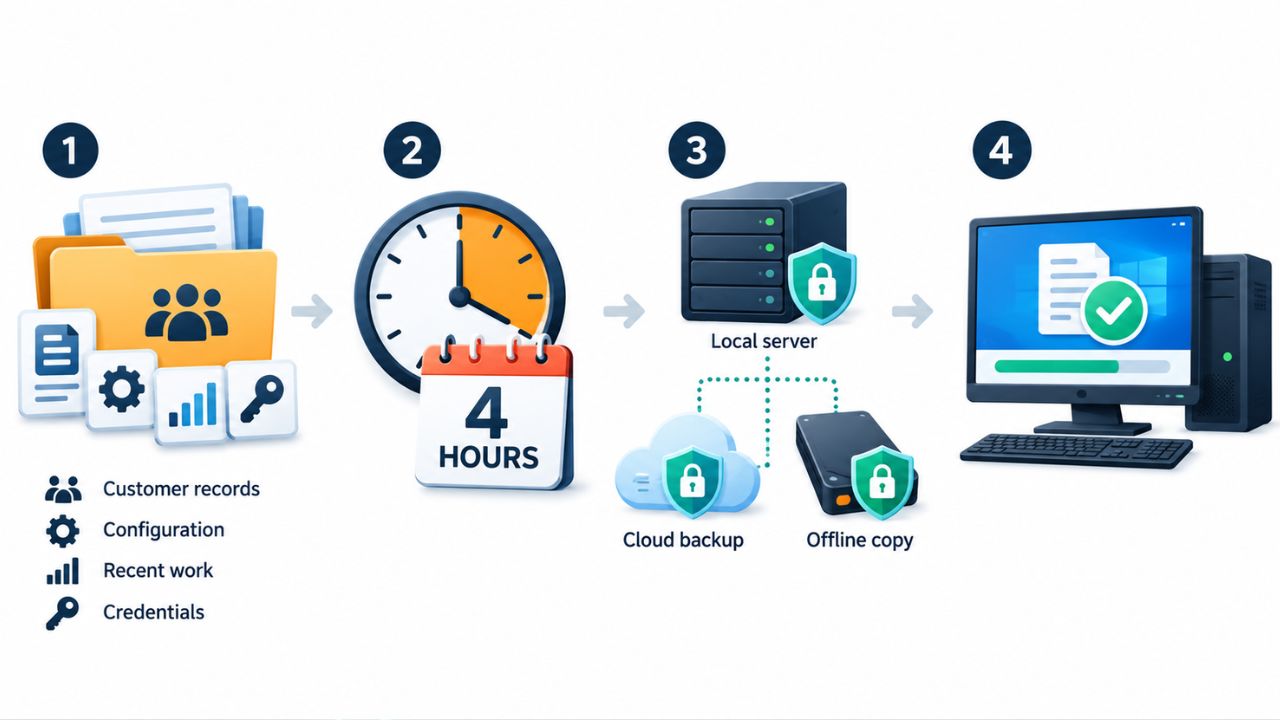
You need separate copies, limited access, and a tested restore. A copy is useful only if you can recover from it. Understanding how data breaches happen helps you see why isolation matters. Ransomware attacks often target backup systems first.
Plan these steps:
- Decide which files must return and how recent they must be
- Choose separate storage types and locations for copies
- Protect at least one copy from changes
- Test full restores
Expected result: written recovery targets you can check later.
Choose what must return first
Which files do you need back first? Put essential data ahead of replaceable files, and include settings needed to use that data.
Prioritize these:
- Customer records and transaction data
- Configuration files that define how your systems work
- Recent work that has not been published or shipped
- Access credentials stored in secure vaults
Replaceable files like software installers can wait. Focus on what you cannot recreate or download again.
Set a loss limit you can live with
How recent must your restored files be? Match backup frequency to your recovery needs, then write down the most recent acceptable backup.
Your loss limit is four hours. Schedule backups regularly. Write the target down so you can compare your restore test against it later.
Step 2: Make separate backup copies
Three copies across two storage types, with one offsite, reduce single-system failure risk. Separate copies survive one attack.
Follow these steps:
- Keep your working data plus two backup copies
- Store copies on two different media—disk and cloud, or disk and tape
- Place one copy away from the main system, such as offsite or in a separate cloud account
- Set the schedule from your chosen loss limit
- Check that saved versions remain available and are not overwritten too soon
Expected result: scheduled copies in separate locations.
What is the 3-2-1 backup rule?
The 3-2-1 backup rule means keeping three copies of data, using two different storage types, and placing one copy offsite. Your working data counts as one of the three copies.
Here is how it works:
- Three copies: one original and two backups protect against simultaneous failures
- Two media types: disk-based backups for fast recovery and tape or object storage for long-term retention
- One offsite: a copy stored away from the main location survives local disasters
Different media types protect against media-specific failures or vulnerabilities. An offsite copy survives fire, flood, or theft at your main location.
Save new versions often enough
How often should you save another version? Schedule copies around your chosen loss limit, and keep more than one saved version.
Take these steps:
- Set backups to run more often than your loss limit allows
- Keep at least seven daily versions and four weekly versions
- Check that old versions are not deleted before you have tested newer ones
Without multiple versions, a corrupted file can overwrite the good copy. Multiple versions let you go back to a clean copy.
Step 3: Keep attackers from changing copies
A backup account with delete rights is a mistake. Ransomware attacks will exploit it. More copies alone cannot fix weak access controls. Endpoint protection helps stop initial access. But isolated backups protect recovery.
Complete these steps:
- Choose at least one copy to lock against changes or take offline
- Set a lock window before enabling a lock
- Remove delete rights from accounts that do not need them
- Check access and lock settings after saving them
Expected result: one protected recovery copy.
Lock one copy or take it offline
You must choose a copy that attackers cannot change. Pick an offline or time-locked backup copy. The table below compares update access and restore steps.
| Copy type | Can attackers change it? | Restore speed | Best for |
|---|---|---|---|
| Offline (disconnected drive) | No, if physically separated | Slower—must reconnect | Small setups with manual backups |
| Immutable (time-locked) | No, even with admin credentials | Fast—always online | Cloud storage or large automated backups |
Immutability keeps at least one copy that cannot be altered for a set period of time. Even admins or anyone with internal credentials cannot change it. An offline copy must be physically disconnected from your network. Ransomware attacks cannot reach it.
Choose a lock window you can afford
Compare proposed lock windows with your backup schedule. Then check storage costs before choosing a duration.
Check these factors:
- How far back you may need to go if corruption hides for weeks
- Storage costs for keeping locked copies during the window
- Your backup schedule and how often new locked copies are created
Research shows attackers may wait weeks or months before revealing an attack. An extended lock window counters long wait times. But it increases storage costs. Balance recovery needs against what you can afford to store.
Limit who can delete your backups
Who should be able to remove a backup? Review delete rights on backup storage, then check which accounts can change lock settings.
Audit these permissions:
- Accounts with delete or overwrite access to backup locations
- Accounts that can disable immutability or shorten lock windows
- Service accounts and API keys with backup access
The fewer accounts with delete rights, the harder it is for attackers to destroy your recovery path.
Step 4: Test a full restore
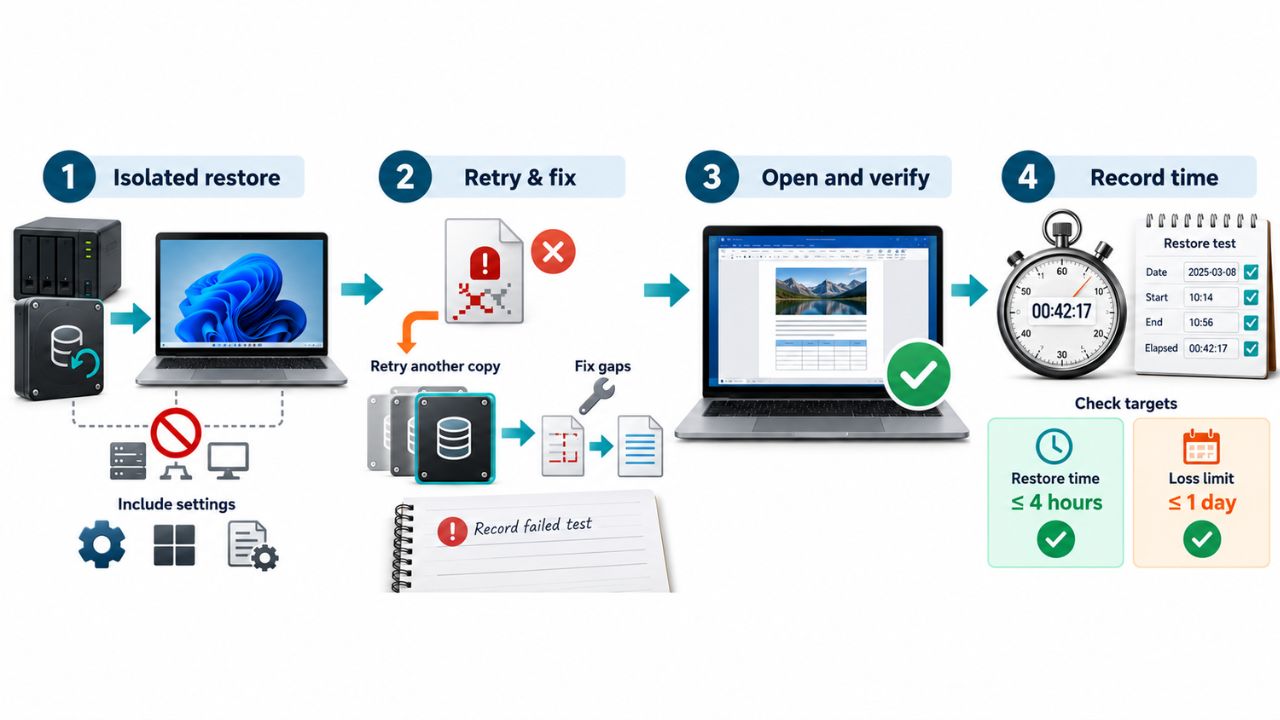
A saved copy that has never passed a restore test is an assumption, not a recovery plan. Treat restore evidence, not a success message, as proof.
Run these steps:
- Restore a copy away from your live files to avoid overwriting working data
- Include the settings needed to open and use the files
- Fix failures before you trust the backup
- Compare the result with your your recovery targets
Expected result: usable files and a recorded restore time.
Fix missing files or failed restores
What do you do when the restore fails? Record the failure and retry from another saved copy, then correct the cause before counting the test as passed.
Check these recovery steps:
- Note which files are missing or corrupted
- Try restoring from an earlier backup version
- Correct backup settings or add missing files to the next backup
- Run another restore test after fixing the problem
Do not skip documenting a failed test. The record shows what does not work and guides the fix.
Check the files and record the time
What proves the restore worked? Open restored files, note the elapsed time, then compare the result with both recovery targets.
Complete these checks:
- Open a restored file to confirm it is readable and complete
- Record how long the restore took from start to finish
- Compare the file date with your loss limit target
- Compare the restore time with your return target
- Write down errors rather than hiding failed checks
Your recorded restore time is a reliable indicator of how long recovery will take. Generic estimates do not account for your file sizes, network speed, or restore process.
Questions About Backup and Recovery
Your recorded restore time and test results answer what your setup can actually do. Use that evidence instead of guessing.
How long does ransomware recovery take?
Your timed restore gives the answer. There is no universal duration because recovery time depends on file size, network speed, and the steps your process requires. Run frequent restore tests to confirm data can be recovered cleanly and completely. That number is your recovery baseline. Plan to add extra time for verification and troubleshooting during a real incident.
Does every business need a data backup strategy?
Yes, if lost files would disrupt work. Any organization that depends on digital files needs separate backup copies. The size of your business does not change the principle: work you cannot recreate or afford to lose requires backups. Small setups can use simpler tools, but the need for separate, protected copies applies to all.
Can a synced folder replace a backup?
No, unless the sync service keeps separate, protected versions. A synced folder propagates changes, meaning deleted or encrypted files can sync to connected storage as well. Check whether your sync service offers version history and protects those versions from deletion. If it does not, add a true backup that stores copies attackers cannot reach.
Your next move: Book the next restore test
The date and result of your first restore test prove what your current setup can do. Schedule another restore test and keep its result. Backups should survive changes to your files, systems, and storage. Testing once is not enough. Set a recurring test—quarterly or after major changes—and record each result the same way you did the first. That record becomes the proof your recovery plan is ready when you need it.