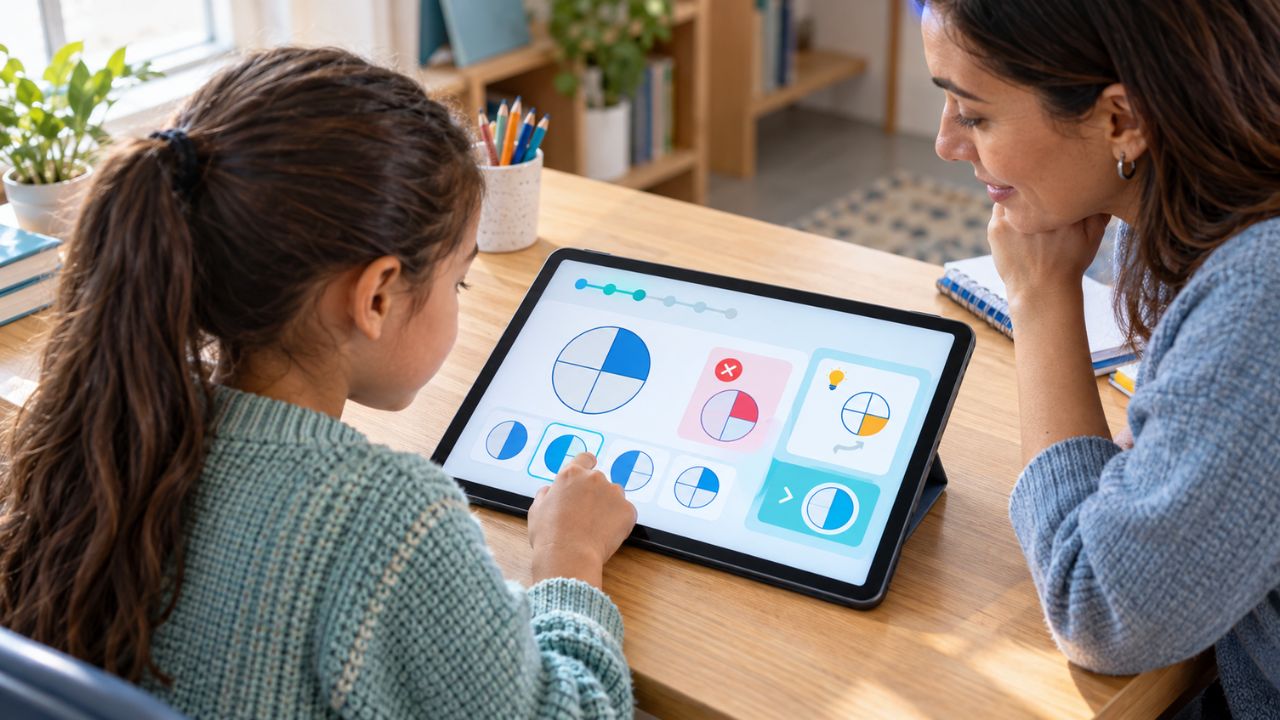

Homeschool technology usually becomes complicated by accident. A family buys a laptop for live classes, adds a planning app, opens several cloud accounts, subscribes to an online curriculum, and later discovers that the learner still cannot find Tuesday’s assignment.
That is not a hardware problem. It is a system problem. A useful homeschool tech stack is a small group of tools that work together: one dependable learning device, a clear place for assignments, organized storage, appropriate accessibility features, secure accounts, and a backup plan. It should help a learner start work with less adult intervention, not create more passwords, notifications, and dashboards for a parent to manage.
Most families need fewer products than technology guides suggest. The sensible approach is to build around the learner’s hardest regular task and add equipment only when a recurring problem justifies it. A broader homeschooling with technology plan should begin with the family’s routine. Software comes later.
List the Real Work Before Shopping
Start by writing down what the learner will actually do during an ordinary week. That may include joining video classes, reading PDFs, writing essays, submitting assignments, completing online quizzes, creating presentations, recording practical projects, coding, or using text-to-speech and dictation. Then identify the most demanding task.
A child who mainly uses browser-based lessons and writes short documents does not need the same computer as a teenager learning video editing, music production, computer-aided design, or software development. Buying for vague future possibilities usually wastes money. Buying the cheapest available device without checking course requirements creates a different kind of waste.
Before purchasing hardware, check:
- Required operating system
- Browser compatibility
- Software and app availability
- Camera and microphone requirements
- Storage needs
- External device support
- Online examination rules
- Any accessibility software the learner relies on
Course providers do not always make these requirements easy to find. Check them before enrollment rather than assuming that “works online” means “works on every device.”
The Minimum Useful Homeschool Tech Stack
Most households can begin with six pieces:
- A supported laptop or computer
- Reliable internet with an outage plan
- One main account ecosystem
- One assignment hub
- Organised file storage
- Security, accessibility, and backup settings
A printer, tablet, stylus, second monitor, specialist microphone, project-management platform, or paid learning-management system may become useful later. None should be considered essential by default. Duplication causes more trouble than limited choice. Four cloud-storage services do not create an organized system. They create four places to lose a document.
A Laptop Is the Best Default for Most Families

For most homeschool learners, a laptop is a better primary device than a tablet or phone. The physical keyboard, full browser, file system, and ability to keep several windows open matter once a learner begins writing longer assignments, researching, uploading files, coding, taking online tests, or joining a video class while reading supporting material.
A tablet remains useful for handwriting, drawing, textbooks, photography, and portable study. It is less dependable as the only device when a course expects desktop browser tools, large uploads, specialist software, or frequent movement between several windows. A phone is best treated as emergency equipment, not a classroom workstation.
Chromebook: Good for Browser-Based Learning
A Chromebook can handle online curricula, web research, documents, email, video meetings, and many learning platforms. It is often a practical option for younger learners whose work happens mainly in a browser. Its limits appear when a course needs specialist Windows or macOS software. Browser alternatives may exist, but they are not always equivalent.
Used Chromebook buyers also need to check the exact model’s auto-update expiration date. Google currently provides ChromeOS devices with 10 years of automatic updates from the hardware platform’s release, not from the day the family purchases the machine. An apparently recent second-hand Chromebook may therefore have fewer supported years remaining than expected. Some older eligible models require an opt-in to receive extended updates, and those updates may remove Android app and Google Play Store support.
A Chromebook is a sensible choice when the required tools are browser-based. It is not the universal budget answer it is sometimes presented as.
Windows: The Safer Compatibility Choice
Windows is usually the more flexible option when a learner needs desktop software, coding environments, advanced spreadsheets, examination applications, scientific tools, or peripherals that use Windows drivers. The problem is inconsistency. Two laptops sold at similar prices can differ sharply in processor speed, memory, storage, screen quality, keyboard comfort, and webcam performance.
Very low-cost models may technically open the required software but struggle when a video meeting, several browser tabs, and a document are running together.
Windows 10 reached the end of standard support on October 14, 2025. It still runs, and eligible devices may temporarily receive Extended Security Updates, but a Windows 10-only computer is a weak choice for a new long-term homeschool setup. A used Windows laptop should officially support Windows 11 and current security updates.
Mac: Strong but Often More Than the Work Requires
A Mac can make sense for an older student working with coding, design, audio, photography, or video, particularly when the household already uses Apple devices. Its main limitation is not performance but value. A powerful Mac is unnecessary when the learner mainly needs web research, word processing, and video lessons.
Compatibility should still be checked. Some examination platforms, technical applications, and peripherals may require Windows or offer a reduced feature set on macOS.
Tablets: Better as a Second Device
An iPad or Android tablet can be excellent for annotating documents, drawing, reading, photographing experiments, practicing handwriting, or watching lessons away from a desk.
It becomes frustrating when the learner must manage a meeting, a browser, a worksheet, chat, and file uploads at the same time. A keyboard case improves typing but does not remove mobile-app limitations. For a family purchasing one main device, a supported laptop remains the safer choice.
Small Accessories Solve Real Problems
Families often focus on the computer and overlook the items the learner touches throughout the day. A mouse can make a large difference for a child who struggles with a trackpad. Comfortable headphones can reduce distraction in a shared room. A laptop stand may improve camera angle and posture, although it usually requires a separate keyboard for long sessions.
Useful additions may include:
- Comfortable headphones with a usable microphone
- A mouse
- A spare or permanently placed charger
- A webcam when the built-in camera is poor
- A stable desk light
- A surge protector
- A simple device stand
A second monitor is useful for an older learner who regularly keeps instructions open while writing, coding, or analyzing data. It is unnecessary for most younger children. A printer can still earn its place. Handwriting practice, diagrams, schedules, music sheets, and some assessments work better on paper. Check cartridge or toner costs before buying; the cheapest printer on the shelf may have the highest long-term running cost.
Plan for Unreliable Internet
A fast, advertised connection can still produce a poor live class. Wi-Fi is affected by distance, thick walls, router placement, interference, and other people using the same connection. A learner may lose audio while another person uploads files or streams video, even when a speed test looks acceptable.
Place the router in an open, central location when possible. For a permanent desk, Ethernet is more reliable than Wi-Fi if the device and home setup support it. More important, decide what happens when the connection fails.
Keep class links and teacher contact details easy to find. Download worksheets before important lessons. Know whether a phone hotspot is available and whether using it could incur significant data charges. Keep some reading, writing, or project work accessible offline. A dependable homeschool tech stack should allow the learner to do something useful during a short outage. If every book, instruction sheet, assignment, and record disappears without internet access, the system is too fragile.
Choose One Main Account Ecosystem
Many daily technology problems begin with account confusion. The learner receives a course invitation through one email address, saves a document through another, and joins the class through a parent’s account. Later, nobody knows who owns the file or where the password-reset email went.
Choose one main ecosystem where practical:
- Google Account with Drive, Docs, and Calendar
- Microsoft Account with OneDrive, Word, Excel, and Family Safety
- Apple Account with iCloud, Family Sharing, and Screen Time
Some mixing is unavoidable. The family should still know which system is primary.
For every learner account, document:
- The email address
- Who controls recovery
- Where credentials are stored
- Which services use the account
- Whether multi-factor authentication is enabled
- Where course files will go after enrolment ends
A password manager is safer and easier to maintain than a document called “Passwords” sitting in the same cloud account it is meant to protect.
Child Accounts Can Change How Apps Work?
Never assume that a service behaves the same way for a supervised child account as it does for an adult.
Google Classroom illustrates the problem. Google’s current Family Link instructions direct children using supervised personal accounts to sign in to Classroom through a school-issued Google account. On a Chromebook, that school-managed account may be added alongside the supervised personal account. Independent homeschool families without an eligible managed account may therefore find Classroom less straightforward than a standard adult demonstration suggests.
Before building a workflow around any education platform, check:
- Minimum account age
- Parental-consent rules
- Whether a school-managed account is required
- Features restricted on personal accounts
- How data can be downloaded
- What happens when a subscription or course ends
- Whether the service is available in the learner’s country
This check is more valuable than comparing minor feature lists.
Keep One Obvious Assignment Hub
A learner should not need to open four dashboards to discover what must be completed today. Choose one place as the family’s source of truth. It may be a printed weekly sheet, shared calendar, spreadsheet, curriculum dashboard, Google Classroom, Microsoft Teams, Notion, Trello, or a plain document.
For a younger learner, a printed visual schedule beside the computer often works better than a sophisticated digital planner hidden behind several menus. Older students may benefit from due dates, calendar views, subject labels, and direct links to files. Even then, restraint helps. A task manager with eight status categories and several custom views can become a hobby for the person who built it and a burden for the person expected to use it.
External courses can stay on their own platforms, but their important deadlines should be copied into the main family system.
Give Every File a Permanent Home
The downloads folder is not a filing system.
Create one clear location for schoolwork, organized by learner, academic year, and subject:
Learner Name
- 2026–2027
- Mathematics
- Language Arts
- Science
- Social Studies
- Projects
- Assessments
- External Classes
- Certificates
Use file names that will still make sense after several months: 2026-09-08-science-plant-cell-diagram is far more useful than science-final-new-2
Older learners should gradually save, name, and organize their own files. File management is part of a practical homeschooling with technology education, not administrative work that a parent should handle indefinitely.
Test Built-In Accessibility Tools Before Paying for More Software
Devices already include many features that may remove learning barriers. ChromeOS offers tools such as ChromeVox, Select-to-Speak, dictation, color correction, magnification, and keyboard adjustments. Windows 11 includes Narrator, Magnifier, voice typing, color and display settings, and Live Captions. Some functions vary by Windows version, language, and hardware.
Apple devices include tools such as VoiceOver, Voice Control, Guided Access, AssistiveTouch, and display or text adjustments. These tools need testing with actual schoolwork. Dictation may mishear scientific vocabulary or names. Automated captions may be inaccurate. Text-to-speech can improve access for one learner and create distraction for another.
Low-tech support may solve the problem more cleanly:
- A printed checklist
- A visual timer
- Written instructions
- Fewer icons on the desktop
- A separate browser profile
- Shorter work periods
- A quiet location for video classes
Do not buy specialist software until the family can describe the barrier it needs to remove.
Use Parental Controls Without Breaking the School Day
Apple Screen Time, Google Family Link, and Microsoft Family Safety can manage aspects of screen time, app access, purchases, and content. Their exact capabilities depend on device, account type, operating system, browser, and region. Google Family Link supports daily schedules, device locking, app management, and screen-time reporting on supported supervised devices.
Microsoft Family Safety can set device or app limits and produce activity reports. Its web and search filtering works through Microsoft Edge, which is an important limitation for families using other browsers. Controls need to match the learning routine. A blanket two-hour device limit may shut the computer down during a live class or long writing assignment. Blocking the browser can prevent distraction, but it can also block legitimate research.
Use controls to reduce predictable friction, not to automate every parenting decision. As the learner matures, the system should gradually shift from restrictions toward self-management.
Back Up Work Outside the Main Platform
Cloud synchronization is useful, but it is not a complete backup strategy. If a file is deleted or overwritten, that change may synchronize across connected devices. A course portal may also remove access after enrollment ends.
At least once per term:
- Export progress records.
- Download tutor comments and course reports.
- Copy important portfolio files to another location.
- Save certificates outside the original platform.
- Open several exported files to confirm they work.
Keep at least two copies of important records in separate locations, such as cloud storage and an external drive. Enable multi-factor authentication on parent accounts and other accounts holding sensitive records whenever it is available. CISA recommends MFA because it adds another identity check beyond the password, and its broader guidance also supports software updates and separate backups.
Build the Homeschool Tech Stack in the Right Order
Do not buy and configure everything in one weekend.
First, Set Up the Foundation
Choose the main device, create the necessary accounts, connect the family calendar, establish the assignment hub, and create the file folders.
Run operating-system updates before the first important class. Test the camera, microphone, headphones, browser, and file-upload process.
Then Use It for Real Lessons
Several apparent technology problems are routine problems. A child may keep losing files because the folder structure is unfamiliar, not because the family needs another app.
Use the system for two or three weeks before changing it.
Fix Repeated Friction
Add a mouse when the trackpad repeatedly causes difficulty. Buy headphones when shared sound disrupts other people. Introduce a project board when an older learner regularly misses multi-stage deadlines.
Improve Wi-Fi only after confirming that poor coverage is the problem. Add specialist software only after testing the built-in accessibility tools.
Remove What the Family Does Not Use
Review subscriptions and installed apps once each term. Cancel services that duplicate another tool or have not been used.
A stack becomes easier to maintain when subtraction is treated as part of setup.
Three Realistic Starting Setups
For a Younger Learner
A supported Chromebook or entry-level laptop, headphones, a mouse, a printed schedule, a family calendar, organized cloud folders, and a parent-managed progress spreadsheet may be enough.
A full learning-management system is often unnecessary at this stage.
For a Working Parent
The priority is reducing interruptions.
Use a reliable learner laptop, separate parent and child accounts, one assignment hub, shared calendar reminders, clear file names, a protected password system, and offline work for internet failures.
The learner should be able to find the day’s class link and assignment without repeatedly stopping the parent’s work.
For an Older or Advanced Student
Choose a Windows laptop or Mac based on required software rather than status or brand loyalty. Add an external monitor only when the learner regularly works across instructions, research, and another application.
Older students should gradually manage deadlines, updates, files, passwords, submissions, and backups themselves.
Mistakes That Make the System Harder
1. Buying several tools before the routine exists
Start with the device, assignment hub, storage, and backup. Add other tools later.
2. Choosing hardware without checking course software
A cheap Chromebook is expensive when the main course requires a Windows application.
3. Using multiple tools for the same task
One calendar and one primary storage system are usually enough.
4. Ignoring support dates on used computers
Physical condition does not reveal how long the operating system will receive security updates.
5. Making the parent responsible for every login
This may be unavoidable for a young child. It should not remain the permanent arrangement for a teenager.
6. Paying for impressive features that nobody uses
Large content libraries, automated reports, artificial-intelligence tools, and complex dashboards often sound more valuable than they prove to be.
7. Depending entirely on internet access
Keep some work available offline and download important records before access expires.
Final Thoughts
A good homeschool tech stack should fade into the background. The learner knows which device to use, where assignments appear, where files belong, and what to do when the internet or an app fails.
Start with a supported laptop unless the family has a clear reason to choose something else. Use one main account ecosystem, one assignment hub, and one primary storage location. Test built-in accessibility tools before buying specialist software, and create the backup process before important records begin to accumulate.
The strongest setup is not the one with the most products. It is the one that still makes sense on a busy morning when a class is starting, a password has been forgotten, and the parent has other work to do.
Frequently Asked Questions (FAQs) About Homeschool Tech Stack
What Is the Minimum Homeschool Tech Stack a Family Needs?
Most families can begin with one supported laptop, reliable internet, a shared calendar or assignment list, organized cloud storage, and a separate backup. Extra devices and paid apps should solve a specific problem.
Is a Chromebook Good Enough for Homeschooling?
A Chromebook works well for browser-based lessons, Google Docs, email, and video classes. It is less suitable when a course requires Windows or macOS software, so check compatibility and the model’s update-expiration date before buying.
Does Every Homeschool Student Need a Tablet?
No. A tablet is helpful for reading, handwriting, drawing, and photographing projects, but it is usually better as a second device. A laptop remains more practical for long assignments, research, coding, and file management.
How Often Should Families Review Their Homeschool Tech Stack?
Review the setup once each term. Remove unused apps, check subscriptions, install updates, test backups, and fix any problem that has repeatedly interrupted lessons.
How Can Families Reduce Distractions on Homeschool Devices?
Use separate learner accounts, limit unnecessary notifications, remove unused apps, and keep one clear assignment hub. Parental controls can help, but they should not block legitimate research, live classes, or longer school tasks.