
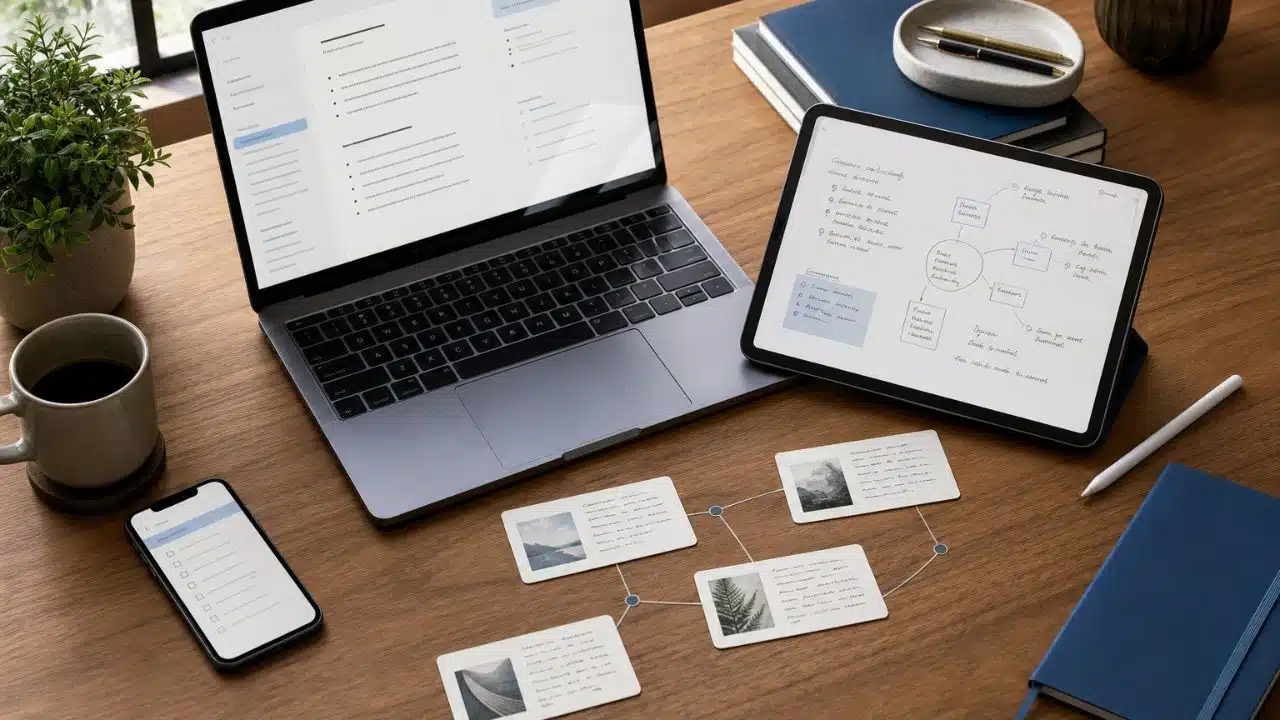
The best note-taking apps do more than hold text. They should make it easy to capture an idea, develop it, find it again, and move it elsewhere if the app eventually stops working for you.
That is where choosing becomes difficult. Most note apps look perfectly capable when the notebook is empty. Their differences become clearer after you have collected hundreds of pages, attached documents, created tags, linked research, or tried to use the same archive across several devices.
There is no single winner for every workflow. There is, however, usually a clear first app to try and I’m going to discuss that for the rest of article, so keep reading.
10 Best Note-Taking Apps for Different Ways of Working
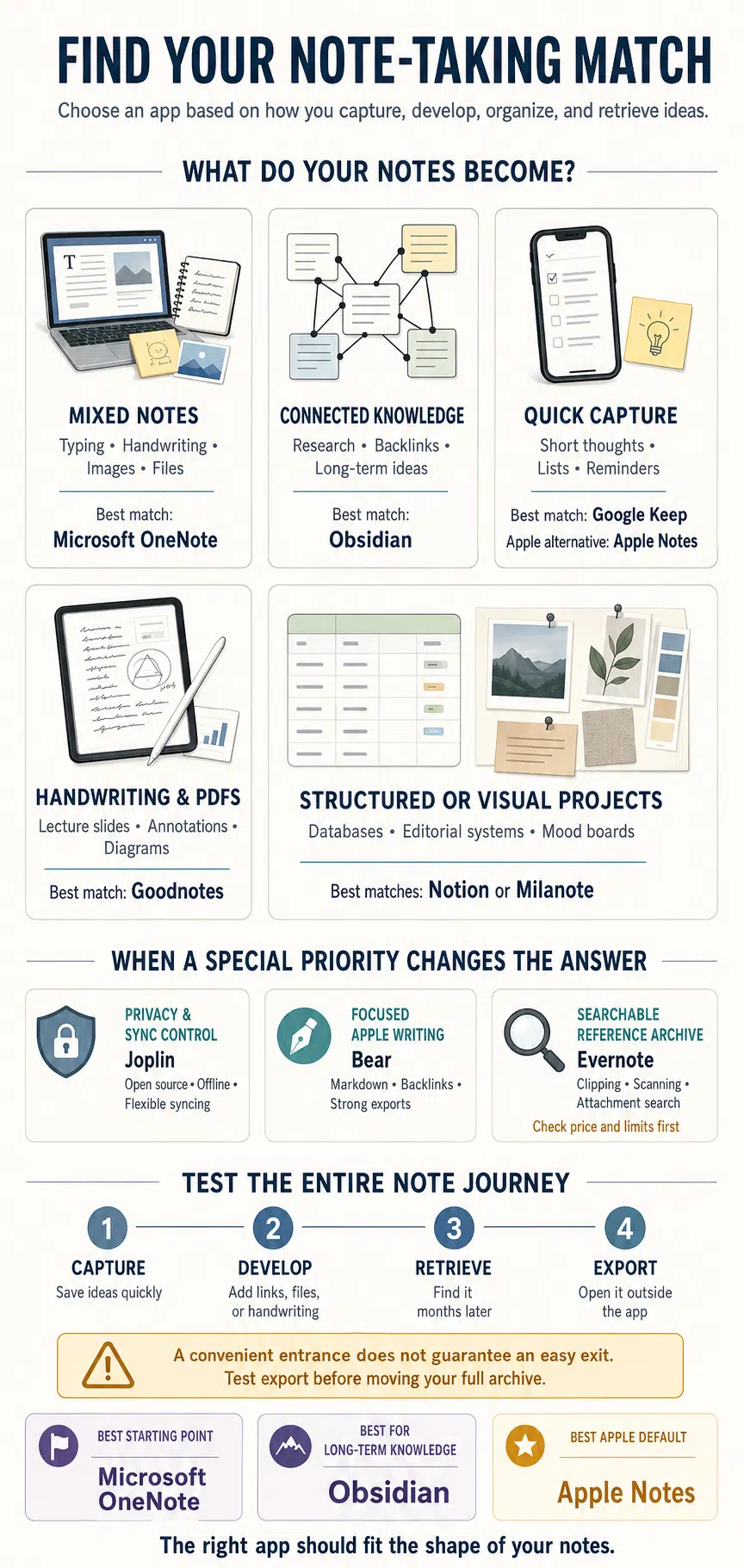
The best note-taking apps serve very different purposes. Some are designed for quick ideas, while others handle handwritten notes, connected research, structured databases, private storage, or visual planning.
1. Microsoft OneNote: Best Starting Point for Most People
OneNote takes first place because it does not require you to know what kind of note-taker you are before you begin.
A page can contain typed paragraphs, handwritten calculations, drawings, images, audio, tables, document attachments, or several of these at once. Unlike a conventional document, items can be placed freely across the page. That flexibility suits class notes, meeting records, research, household information, project planning, and general reference material.
Its notebook–section–page structure is also easy to understand. You can begin with a few broad sections and ignore the more advanced features until a genuine need appears. There is no requirement to install plugins, create databases, or design a personal knowledge system before writing anything useful.
The free plan is sustainable for ordinary note-taking. A Microsoft account includes 5GB of OneDrive storage and access to OneNote’s web and mobile versions. Microsoft 365 Basic raises the allowance to 100GB for $1.99 per month or $19.99 per year, according to Microsoft’s current storage plans.
OneNote’s weakness grows from the same freedom that makes it approachable. Pages can become visually inconsistent, while vaguely named sections turn into storage bins that nobody wants to organize. Search helps, but it cannot restore context that was never added.
Portability is less reassuring than it is with an app built on ordinary text files. Microsoft supports notebook export, but full-notebook export through OneNote for the web is limited to notebooks held in personal OneDrive accounts. Moving a large archive is possible, but it is not as simple as copying a folder of Markdown files.
For most users who are still deciding between typing, handwriting, and visual notes, I would start here. Skip OneNote only if local plain-text storage or a tightly controlled writing environment is already non-negotiable.
2. Obsidian: Best for Connected and Local Knowledge
Obsidian is the strongest long-term choice for people who build knowledge by connecting ideas.
Its notes are stored as Markdown-formatted text files inside local folders called vaults. Those files can be opened with other text editors, copied with ordinary file-management tools, or moved to another Markdown-compatible application. Obsidian therefore gives users more control over the underlying material than most cloud-first note platforms.
Links and backlinks are the real attraction. A book note can connect to an argument, a historical event, a client project, and an unfinished article without forcing all five into the same folder. Properties, graph views, Canvas, search, and community plugins extend that network when needed.
The main application is free without a required account. Official Obsidian Sync costs $4 per user per month with annual billing or $5 with monthly billing. It adds encrypted cross-device synchronization, shared vaults, version history, and priority support.
None of this means Obsidian automatically creates a useful knowledge system. It gives you the parts. You still decide how to name files, when to link notes, whether to use folders or tags, and which plugins deserve permanent access to the vault.
That freedom can become a distraction. It is easy to spend more time refining templates, graph colors, task queries, and plugin combinations than working with the information itself. Community plugins may also require maintenance and deserve the same security caution as third-party extensions in other software.
Obsidian is a better fit for researchers, writers, developers, and people maintaining knowledge over several years. It is less suitable for someone who wants a polished, cloud-synced notebook that makes most structural decisions on their behalf.
3. Apple Notes: Best for Apple Users
Apple Notes succeeds because it is already waiting wherever many Apple users need it.
A note can be created from Control Center, a widget, the share menu, an Apple Pencil gesture, or Quick Note on a Mac or iPad. The app supports tags, Smart Folders, note links, tables, document scanning, PDF annotation, handwriting, audio, collaboration, and searchable transcription on supported current devices.
That level of operating-system integration often matters more than a longer feature list. Capturing an idea requires very little preparation, and notes use the same iCloud account already connected to the user’s devices.
Export has also improved. On current Mac software, individual notes can be exported as PDF or Markdown using Apple’s built-in export controls. That is useful, but it is not the same as having an entire archive stored as normal Markdown files from the beginning.
The recommendation changes as soon as Windows or Android becomes important. Notes remain accessible through iCloud.com, but the browser experience is not a full replacement for Apple’s native applications. Some newer capabilities also depend on recent hardware or operating-system versions.
Most Apple-only users should try Apple Notes before buying another subscription. Its convenience is difficult for a third-party app to match. Mixed-device users should choose something with stronger native support across platforms.
4. Notion: Best for Structured Systems
Notion is useful when a note needs to behave like a record rather than a page.
A research entry can hold a title, source type, status, publication date, related project, assigned person, and several filtered views. The same collection can appear as a table, calendar, board, gallery, or list. Relationships between databases allow information to be connected instead of copied into several separate notebooks.
This structure works well for editorial calendars, research libraries, course materials, shared documentation, client records, and product planning. It is less useful when someone simply wants a quiet place to write.
The free individual plan includes unlimited pages and blocks, with uploads limited to 5MB per file and page history limited to seven days. Free users can also choose pages to download for offline use. The Plus plan is currently listed at $10 per member per month with annual billing. These limits and prices are detailed on Notion’s official pricing page.
Notion’s greatest risk is unnecessary expansion. A simple reading list can become a database with twelve properties, four views, a template system, a dashboard, and a maintenance routine. The structure may remove genuine friction, but it can just as easily become the friction.
Fast capture is not its strongest quality either. Notion can hold short notes, but Google Keep and Apple Notes feel more immediate. Its advantage appears later, when information needs to be filtered, related, shared, or presented in several ways.
Choose Notion because the database adds value, not because a polished template made ordinary note-taking look more sophisticated than it needs to be.
5. Google Keep: Best for Instant Capture
Google Keep is designed for the thought that might be gone in thirty seconds.
Text notes, checklists, drawings, images, voice notes, reminders, labels, colors, pins, search, widgets, and simple collaboration are available without much setup. Google’s quick-capture tools and widgets make it especially useful on a phone.
That speed suits shopping items, addresses, short article ideas, packing lists, quotations to verify later, or anything needed for the next few hours or days.
Keep becomes less convincing when temporary notes turn into a permanent archive. Cards accumulate, labels multiply, and long material becomes awkward to read. It has no meaningful folder hierarchy, linked-note network, or document-oriented workspace. Search is helpful, but search alone is a weak organizational plan for years of research.
I would use Google Keep as an inbox. Material worth preserving can move to OneNote, Obsidian, Notion, Joplin, or another long-term system during a regular review.
It is one of the best free tools here for immediate capture. It is not the app I would choose to develop a book, manage extensive research, or retain a professional knowledge archive.
6. Goodnotes: Best for Handwriting and Study Notes
Goodnotes is the clearest specialist in this list. It is built around digital paper rather than conventional text documents.
Students can import lecture slides, annotate readings, solve problems by hand, sketch diagrams, record audio, and search supported handwriting. The same tools suit marked-up contracts, planning pages, meeting diagrams, worksheets, and visual thinking that feels constrained inside a keyboard-first editor.
The free plan is useful for evaluation but restrictive for a serious library. Goodnotes currently lists three notebooks, 100MB of storage, limited sharing, and additional file or import restrictions. Essential costs $11.99 per year and adds unlimited notebooks, 5GB of storage, full sharing, and broader note-taking tools. Pro costs $35.99 per year and expands collaboration, integrations, syncing, and AI-related capabilities. The current breakdown is available on the Goodnotes pricing page.
Goodnotes is available on Apple devices, Android, Windows, and the web, but that does not mean every platform provides an identical experience. Some capabilities and synchronization paths still differ, particularly between Apple and non-Apple versions.
PDF export keeps handwritten material readable outside Goodnotes. It does not necessarily preserve every editable layer or behavior of the original notebook. The native Goodnotes format remains more useful when the goal is to continue editing.
For a stylus-first student or professional, those compromises may be worthwhile. People who mainly type will be paying for a handwriting environment they barely use.
7. Joplin: Best Open-Source and Privacy-Focused Option
Joplin is the better privacy-focused choice for someone who still wants familiar notebooks.
It supports notebooks and sub-notebooks, tags, attachments, to-do items, search, Markdown, rich-text editing, plugins, and a web clipper. The application is free, open source, and offline-first, so a complete copy of the notes can remain available on the user’s device.
Joplin offers more synchronization choices than most mainstream note apps. Users can connect Joplin Cloud, Dropbox, OneDrive, Nextcloud, WebDAV, S3, or supported self-hosted infrastructure.
Optional Joplin Cloud Basic costs €2.99 per month or €28.69 per year. It includes 2GB of storage, unlimited device syncing, browser access, publishing, and notebook collaboration. Pro costs €5.99 monthly or €57.48 yearly and raises the storage and attachment limits. The details are listed on Joplin Cloud’s current plans page.
End-to-end encryption is available, but it has to be enabled and synchronized carefully. The encryption password is important: losing it can make encrypted data unrecoverable. Joplin’s official encryption guide recommends setting up encryption on one device and allowing the initial synchronization to finish before adding the others.
The interface is functional rather than especially polished, and the abundance of sync choices creates decisions that Apple Notes or OneNote simply avoid.
Joplin makes up for that with credible export and backup options, including JEX archives, Markdown, HTML, and PDF. I would choose it over Obsidian when traditional notebook organization feels more natural than building a network of linked files.
8. Evernote: Best for Searchable Reference Archives
Evernote still understands the filing-cabinet side of note-taking.
Its web clipper, document scanning, attachments, email capture, transcription, calendar connections, and search tools suit people who collect webpages, receipts, manuals, PDFs, travel documents, meeting records, and other reference material. Not every item needs to become a carefully written or linked note. It simply needs to be captured and found later.
The problem is no longer whether Evernote can perform that job. It can. The question is whether the current plan needed for the job is worth its price.
The free plan is limited to 50 notes, one notebook, one device, and 1GB of storage. Starter raises the limits to 1,000 notes, 20 notebooks, three devices, and 5GB of storage. It costs $14.99 per month or $99 per year.
Advanced removes most of those content limits but costs $24.99 per month or $249.99 per year. Evernote documents the current limits in its plan comparison and the subscription prices in its 2026 pricing notice.
This makes the free version an evaluation tier rather than a sustainable personal archive. Starter may suit a carefully managed collection, but its 1,000-note ceiling needs to be considered before importing years of material. Advanced is difficult to justify for ordinary notes.
Evernote remains worth considering when its clipping, scanning, attachment search, and retrieval tools save substantial time. It no longer makes sense as a casual default when OneNote, Obsidian, Joplin, and Apple Notes meet many everyday needs at a much lower cost.
9. Bear: Best Focused Writing App for Apple Devices
Bear sits between Apple Notes and Obsidian.
It provides more Markdown support, linking, and export flexibility than Apple Notes while asking for far less configuration than Obsidian. Nested tags, backlinks, wiki-style links, attachments, tables, sketches, document scanning, and collapsible sections make it suitable for articles, journals, reading notes, and personal knowledge collections.
The free version stores notes locally. Bear Pro adds iCloud synchronization, individual-note encryption, OCR search inside PDFs and images, more themes, and advanced export formats. It costs $2.99 per month or $29.99 per year through Apple’s stores, according to Bear’s current pricing information.
Export is one of Bear’s stronger qualities. Depending on the plan, notes can be moved into formats including Markdown, plain text, TextBundle, RTF, HTML, DOCX, PDF, JPG, and ePub.
Its limits are mostly about platform access. Bear is a native Apple application. Bear Web is still in public beta and is described as a companion to the native apps rather than a full replacement. I would not make that beta browser version the foundation of a critical Windows or Android workflow.
Bear is worth paying for when writing comfort matters every day. Apple Notes remains the better-value choice for casual users, while Obsidian provides more control and customization.
10. Milanote: Best for Visual Creative Thinking
Milanote is not a normal digital notebook. Its boards allow text, images, files, links, videos, sketches, columns, and sub-boards to be arranged spatially.
That difference matters for creative work. A writer can place characters, settings, scenes, research, and unanswered questions on one board. A designer can keep a brief beside visual references and feedback. A marketing team can see campaign ideas, examples, and direction together instead of opening several separate documents.
Milanote becomes less appealing when the work is mostly linear writing. Long notes are easier to compose in Bear, Obsidian, or a document editor. Large archives that depend on intensive search and predictable hierarchy are not its strength either.
The free plan allows 100 notes, images, or links and ten file uploads. The unlimited individual plan costs $9.99 per month with annual billing or $12.50 when paid monthly, according to Milanote’s current plans.
Its export options are better than I would expect from a visual workspace. Boards can be downloaded as PDF, PNG, Word, Markdown, or plain text, while attached assets can be collected separately.
Milanote earns its place by doing something genuinely different. It is a valuable creative surface, but an unnecessarily expensive notebook for someone who mostly writes paragraphs.
Choose a Note-Taking Shape You Can Maintain
The right app should help you capture an idea with little friction, develop it without fighting the interface, find it months later, and retrieve the underlying information if you eventually leave. That complete journey matters more than the number of features displayed on a pricing page.
Frequently Asked Questions on the Best Note-Taking Apps
1. What is the best free note-taking app?
OneNote provides the broadest free general-purpose experience. Obsidian is a stronger free option for local Markdown notes and connected knowledge, while Google Keep is better for short ideas and lists. Joplin is worth considering when open-source software and flexible syncing are priorities.
2. Which note-taking app is best for students?
OneNote suits students who combine typed notes, images, files, and occasional handwriting. Goodnotes is better for stylus users who annotate lecture slides, solve problems by hand, or work extensively with PDFs. Obsidian fits research-heavy study where sources and concepts need to be connected over time.
3. What is the best private note-taking app?
Obsidian stores notes locally as Markdown files, while Joplin is open source and supports optional end-to-end encryption and several sync providers. Local storage alone does not guarantee privacy, however. Device security, backups, chosen sync services, plugins, account protection, and encryption settings still matter.
4. Do I need AI features in a note-taking app?
Not necessarily. Reliable capture, search, organization, offline access, export, and syncing usually matter more than AI-generated summaries or rewriting. AI features may help with large archives, but they can introduce extra costs, usage limits, and privacy considerations. They should improve an established workflow rather than decide which app holds all your notes.