

Does your inbox make you feel busy before you have even started your real work? The best AI email apps can help you turn long threads, repeat questions, and buried follow-ups into a shorter daily list.
You still make the decisions. The right AI writing assistant simply gives you a usable first draft, better inbox organization, and a faster way to find the message you need.
We will walk through what each app does best, where it falls short, and how to pick one that fits the way you already work.
Key Features of the Best AI Email Apps To Write Your Emails And Manage Your Inbox
Good AI email apps do more than write a polite reply. They help with email drafting, message prioritization, thread summaries, and task management, so your inbox stops acting like an unplanned to-do list.
Start with the problem you want to fix. If writing takes too long, focus on drafts and autocomplete. If you miss follow-ups, look for reminders and inbox filters. If long threads slow you down, prioritize summaries and search.
Automated Email Drafting
Automated email drafting turns a short prompt, a few bullets, or the context of an existing thread into a reply you can edit. This is most useful for repeat messages, such as scheduling, status updates, customer questions, and follow-ups.
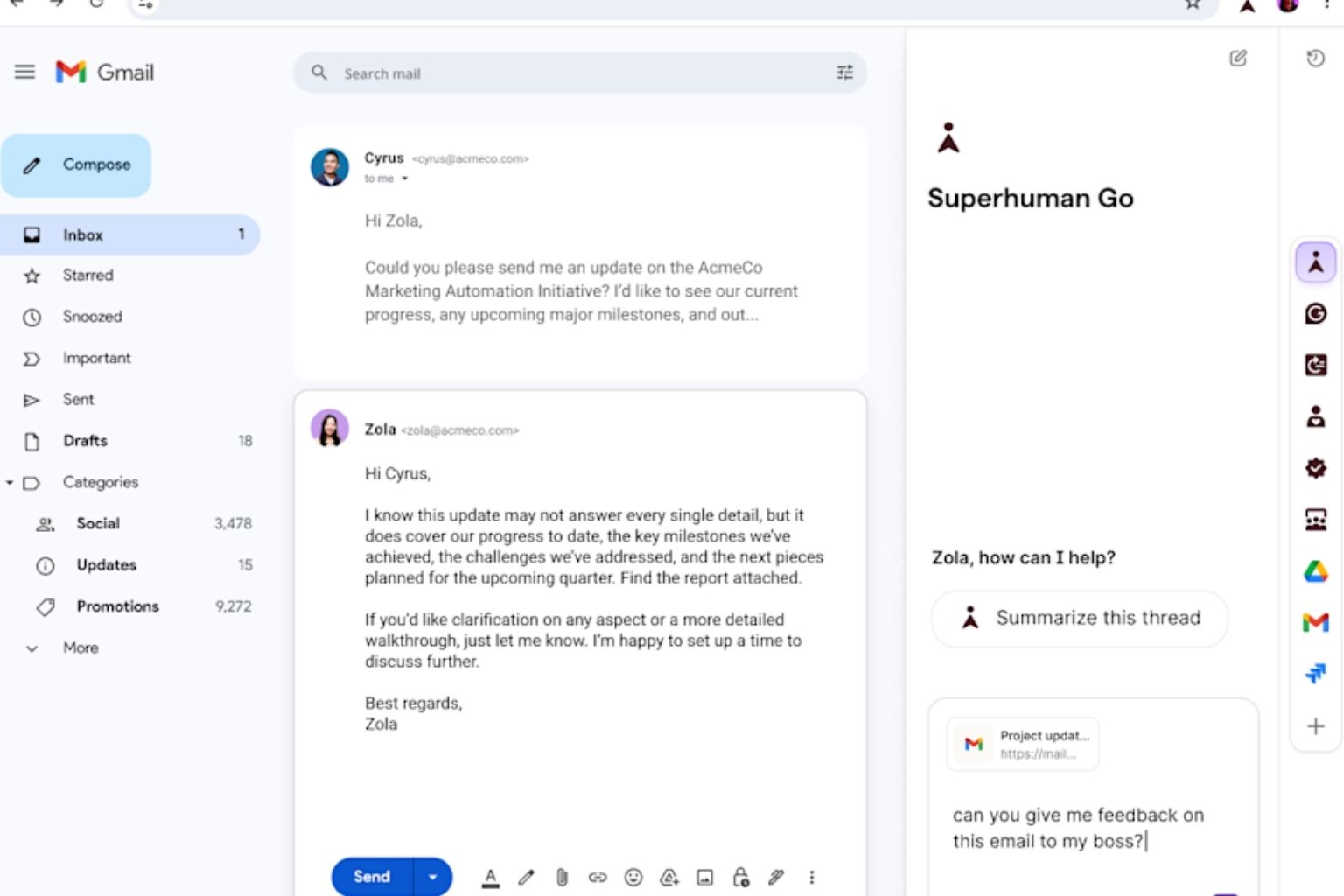
Superhuman Mail offers Auto Drafts that can prepare responses and follow-ups in your writing style. Its system also leaves placeholders when it cannot infer a date, name, or other detail, which gives you a useful last check before you send.
- Use AI for the first pass: Give it the goal, recipient, deadline, and desired tone.
- Keep factual details in your hands: Check names, dates, prices, promises, and attachments before sending.
- Build repeatable prompts: Save a prompt for common replies, then edit the result instead of writing from scratch.
Inbox Organization and Prioritization
Inbox organization works best when the app separates mail that needs attention now from mail you can review later. A good system should move lower-priority messages without hiding something you may need.
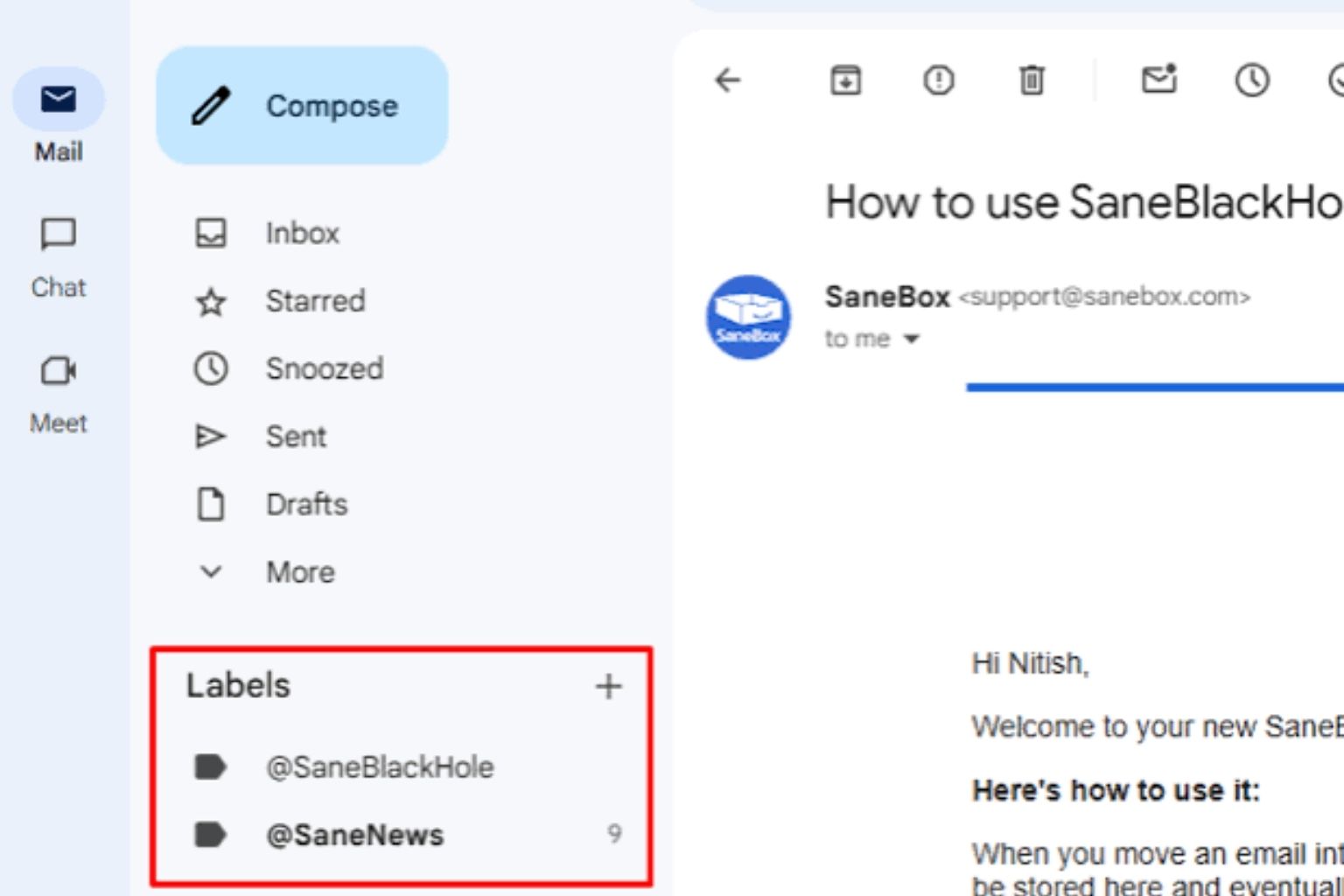
SaneBox uses folders such as @SaneLater for lower-priority mail and @SaneNews for newsletters. That setup works well if you like your existing email app but want fewer distractions in the main inbox.
Do not create ten new folders on day one. Start with one low-priority folder, review it daily for a week, and train the app when it sorts a message incorrectly.
Smart Replies and Personalization
Smart replies can help you answer faster, but a useful reply still needs to sound like you. Look for tools that use the thread context and let you set tone instructions, such as direct, warm, brief, or formal.
Compose AI lets you create text from a prompt and offers one-click email replies. Its free plan includes 10 AI email replies per month, which makes it a reasonable way to test whether AI writing tools save you time before paying for higher limits.
A practical rule helps here: use AI to write the structure, then add one sentence that shows you read the person’s actual message. That small edit keeps routine email responses from sounding generic.
Email Summarization
Email summarization turns a long thread into the main points, decisions, deadlines, and next steps. It is especially helpful after you return from vacation, join a project late, or need to prepare for a meeting quickly.
Shortwave can summarize threads and analyze attachments, while Microsoft Copilot can summarize supported Outlook email threads. Read the source thread before making a major commitment, because AI can miss context, mix up owners, or overlook an exception.
Best use: Ask for a summary with four fields: decision, owner, deadline, and open question. You will get a result that is easier to review than a general recap.
Integration with Other Tools
An email app should fit your calendar, contacts, files, and team tools instead of forcing you to copy information between tabs. Check the services you already use before you move your daily workflow into a new app.
Microsoft Copilot is the strongest fit for teams already working in Outlook, Teams, OneDrive, and Microsoft 365. Shortwave is built around Gmail and Google Workspace, so it makes more sense for readers who already live in that setup.
- Check whether your primary email account is supported.
- Test calendar scheduling with a real message thread.
- See whether shared inboxes and delegated mailboxes work for your team.
- Ask your IT team about data access before connecting sensitive work mail.
App 1: Superhuman
Superhuman is built for people who spend a large part of the day in email and want to move through it with fewer clicks. It combines keyboard-driven inbox management with AI writing, reminders, labels, and follow-up help.
It is a premium choice, so it makes the most sense if speed is a real work bottleneck rather than a nice extra.
Speed-Focused Email Management
Superhuman Mail centers its experience on keyboard shortcuts. For example, its command menu opens with Ctrl+K on Windows or Command+K on Mac, which helps frequent users move, search, label, and draft without reaching for the mouse.
Its Starter plan is listed at $30 per month or $300 per year, while the Business plan is listed at $40 per month or $396 per year. The Business tier adds Auto Drafts, Ask AI, custom auto labels, and HubSpot and Salesforce integrations, according to Superhuman’s current plan details.
| Best for | Feature to test | What to watch |
|---|---|---|
| High-volume individual users | Keyboard shortcuts and Split Inbox | Whether the subscription saves enough time to justify the cost |
| Sales and client teams | HubSpot and Salesforce integrations | Whether your plan includes the integrations you need |
| People who miss follow-ups | Auto Reminders and Auto Drafts | Review every follow-up before sending |
Context-Aware Auto-Drafts
Superhuman’s Auto Drafts can prepare both responses to incoming messages and follow-ups for messages that have not received a reply. It updates drafts when new context changes, such as a shifting date or a new message in the thread.
That is useful when you handle many similar conversations, but it is not a send-on-autopilot feature. Treat every draft as a prepared starting point, especially when a message includes commitments, sensitive details, or a customer request.
A good setup is to activate Auto Drafts for one type of email first, such as follow-ups. Once the tone feels right, expand it to routine replies.
App 2: Shortwave
Shortwave is an AI-first email app for Gmail and Google Workspace users. It is a strong match for readers who want deep search, summaries, and AI filters inside a Gmail-focused workspace.
It is less suitable if Outlook, Exchange, or several unrelated mail accounts sit at the center of your workday.
Advanced Email Search and Categorization
Shortwave uses natural-language AI search, which means you can ask for information in plain English instead of trying to guess the exact keywords in an old email. Its paid plans also include AI-powered filters that can sort messages based on instructions you create.
Its Business plan includes five years of AI search history, up to 50 threads per AI search, and three AI-powered filters. This gives you a clearer reason to test it if finding old decisions is a bigger problem than writing new messages.
- Ask a narrow search question, such as “What did the client approve last week?”
- Use filters for repeat categories, such as receipts, newsletters, and project updates.
- Search first, then open the original thread before you reply.
AI-Powered Thread Summaries
Shortwave can turn busy threads into shorter summaries, action items, and quick replies. Its attachment analysis can also help you get the main points from a file without reading every page before you decide what needs attention.
As of November 2026, Shortwave lists a 14-day free trial, with Business at $30 per seat per month, Premier at $45, and Max at $120. Start with the trial and test it against your three messiest threads, because summaries only help if they make your next action clearer.
For project work, use a simple prompt: “List the owner, due date, decision, and blocker.” That format reduces the chance that a useful point gets buried in a broad summary.
App 3: Microsoft Copilot
Microsoft Copilot is the practical choice for readers who already use Outlook and Microsoft 365 for mail, meetings, files, and team communication. You do not need to switch to a separate email client to get drafting and summary help.
Its strongest value comes from working inside the tools your team already opens each day.
Smart Drafts for Outlook Users
Copilot in Outlook can draft messages from a prompt, summarize threads, coach your tone, and help prioritize incoming mail. It can also help create and manage Outlook rules using natural-language instructions, which is useful if you know what should happen to a message but dislike building rules by hand.
Microsoft’s Outlook guidance also warns that AI-generated content needs review, editing, and verification. Use that warning as your working rule, especially for client communication, legal details, employee matters, or anything with a deadline.
- Ask Copilot for a short draft with a clear goal and audience.
- Use coaching for tone, clarity, and sentiment before sending.
- Create rules for predictable mail, such as receipts or system alerts.
- Check every generated date, number, and named person.
Automated Meeting Summaries
Copilot can help you prepare for meetings by pulling together related emails, files, and calendar context that you already have permission to access. In Outlook, it can also turn an email thread into a meeting invitation with suggested details.
For teams with sensitive information, Microsoft states that its enterprise data protection includes encryption in transit and at rest, plus isolation between tenants. Even so, your organization should review permissions, sensitivity labels, and data policies before enabling broad AI access to inbox and meeting content.
Use meeting summaries as a follow-up checklist. After a call, confirm the decision, owner, and due date, then draft the recap email while the conversation is still fresh.
App 4: SaneBox
SaneBox is different from the other apps here. It focuses on inbox management rather than writing your email, and it works in the background with the email app you already use.
That makes it a good fit if clutter is your main issue and you do not want to learn a whole new email interface.
Inbox Prioritization and Filtering
SaneBox learns from the messages you move and creates folders that separate lower-priority email from messages you want in your inbox. @SaneLater handles mail that can wait, while a daily Digest gives you a quick review list.
Its SaneBlackHole feature sends current and future messages from an unwanted sender to a dedicated folder that can later move to trash. Use it for senders you truly never want to see, not for a vendor or client you may need later.
- Move one low-priority email into @SaneLater to begin training.
- Use SaneNews for newsletters you want to read in batches.
- Use SaneBlackHole carefully for repeat spam and unwanted senders.
- Review your Digest before deleting anything important.
Customizable Folder Management
SaneBox also supports custom training folders, so you can create categories such as receipts, bills, or family mail. Move a few clear examples into the folder and let the system learn where similar messages belong.
Its Snack plan is listed at $4.54 per month when paid every two years and includes one account with two SaneBox features. Lunch is listed at $7.46 for two accounts and six features, while Dinner is listed at $22.04 for four accounts and all features.
Start with fewer folders than you think you need. A simple setup with @SaneLater, SaneNews, and one custom folder is easier to review than a complicated folder system you stop using after a week.
App 5: Compose AI
Compose AI is a writing helper rather than a full inbox management platform. It works best for readers who want faster email drafting, autocomplete, and rewrites without replacing their familiar email service.
If your pain point is a blank compose window, Compose AI gives you a low-cost way to test AI assistance.
Free AI-Powered Email Drafting
Compose AI’s free Basic plan includes 1,500 AI-generated words per month, 25 rewrites or rephrases, 10 one-click email replies, and 50 autocomplete uses. Those limits are enough to test it on your most common messages without paying first.
The tool lets you type a prompt using two forward slashes, then asks AI to generate the text. Use a specific prompt, such as “Write a friendly three-sentence follow-up asking for approval by Friday,” instead of a vague request for a follow-up email.
Quick tip: Use autocomplete for short routine lines, then use full drafting for messages that need structure. You will use less of your monthly limit and keep more control over the final message.
Simplified Workflow Automation
Compose AI helps you write and revise text quickly, but it should not be treated as a full task management or inbox filtering system. Pair it with the organization tools already built into Gmail or Outlook if you also need labels, folders, reminders, or follow-up tracking.
- Use autocomplete for predictable phrases and common openings.
- Use one-click replies for routine responses, then personalize them before sending.
- Use rewrite tools to shorten long drafts or adjust tone.
- Use your email provider’s rules and labels for inbox organization.
- Choose a separate task tool if your work requires shared assignments and due dates.
The Bottom Line
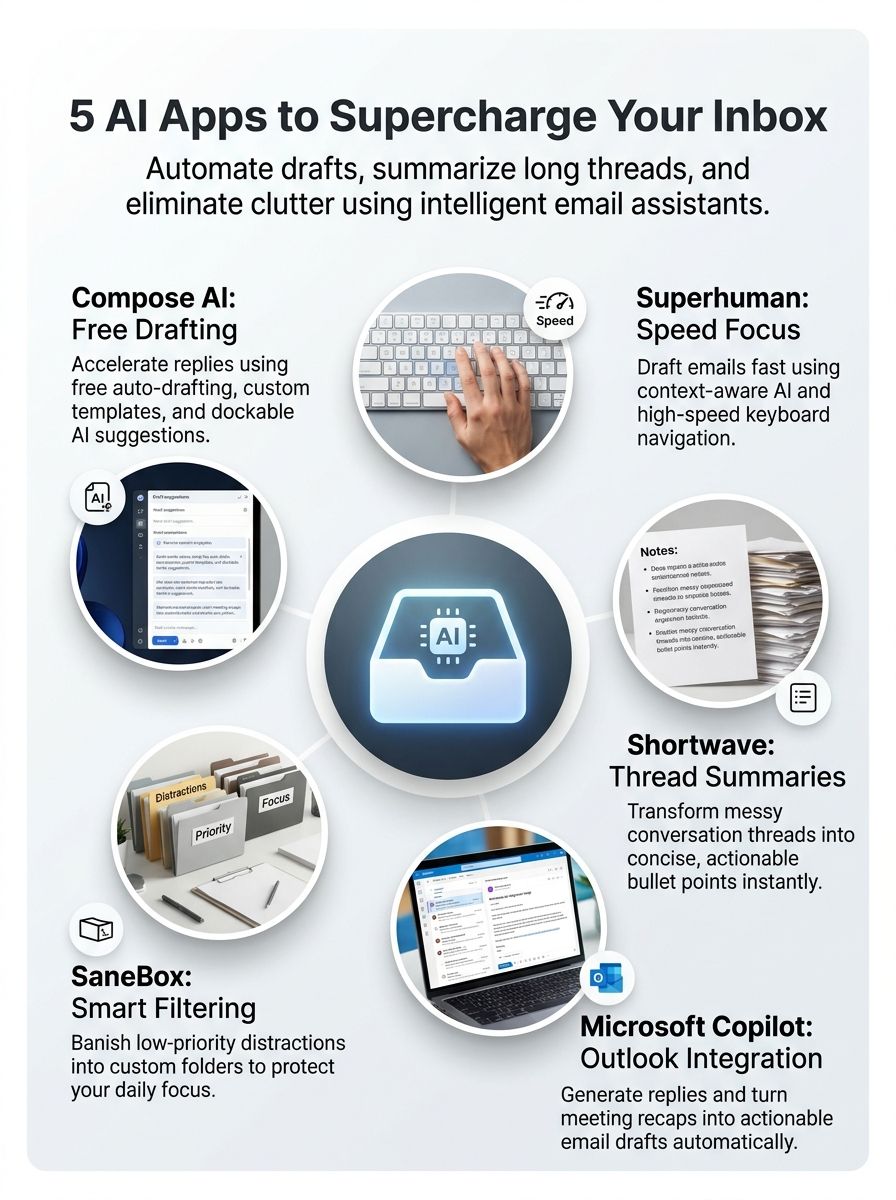
The best AI email apps solve different parts of the email problem. Superhuman is built for speed and AI follow-ups, Shortwave stands out for Gmail-based search and summaries, Microsoft Copilot fits Outlook and Microsoft 365 teams, SaneBox filters clutter, and Compose AI speeds up writing.
Pick one tool based on the task that slows you down most. Test it with real email for a week, review its privacy settings, and keep control of every message you send.
The best result is simple: fewer missed follow-ups, faster email responses, and more time for work that matters.